 ChatGPT,
  Claude,
  Gemini,
  Grok — all four for
 cPanel Email Signature Setup
cPanel lets you manage incoming emails for all accounts in one place. The platform also offers a full range of tools, from creating email accounts and managing databases to adjusting website settings. This guide explains how to access your cPanel email and set up a personalized email signature in webmail, so every message you send has a professional touch. It also includes steps for personalizing your emails by setting up an email signature in cPanel's webmail applications, allowing you to customize your email communications effectively.
cPanel Email now features an updated theme. The option to switch to the old theme has been removed, but all email features remain unchanged and no action is required.
Logging into cPanel Email
We recommend accessing your cPanel through your Bluehost Portal.
- Log in to your Bluehost Portal.
- In the left-hand menu, click Hosting, then select My Plans.
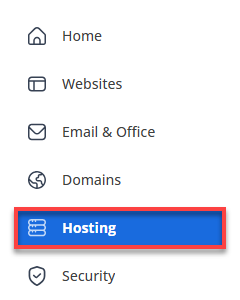
- On the right, click the cPanel Email button.

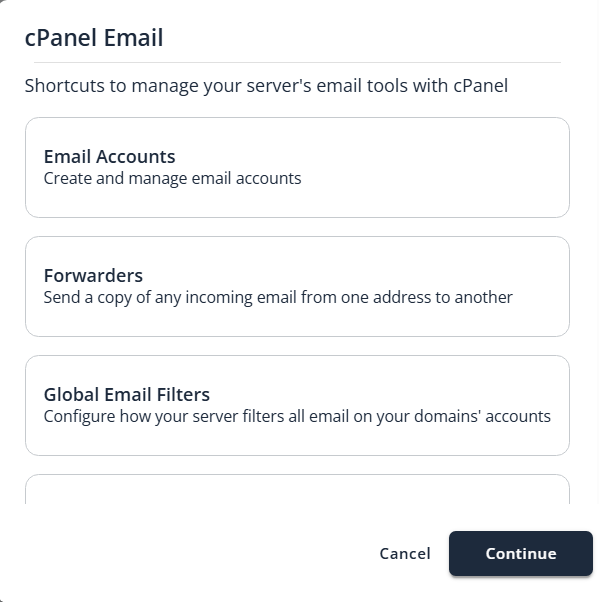
- In the cPanel Email pop-up, click the Email Accounts link and Continue.
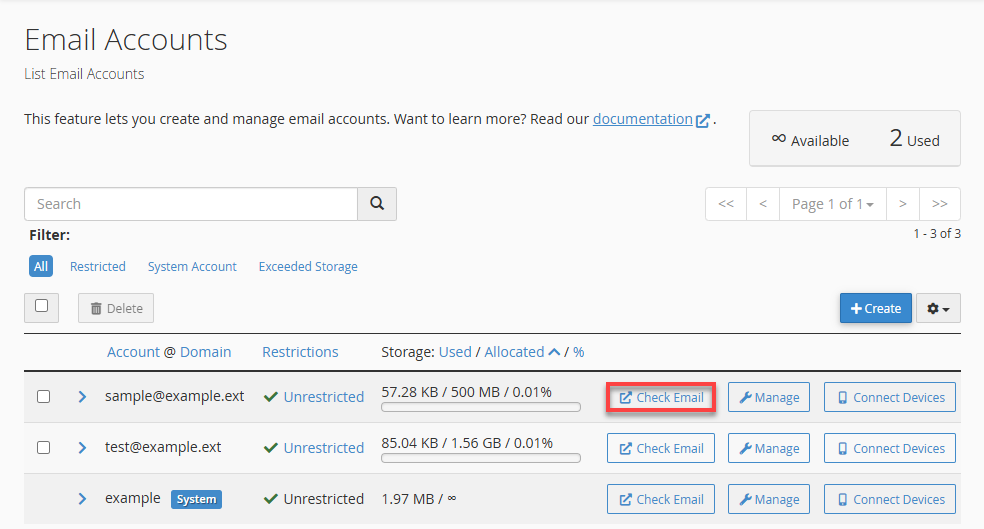
- In the Email Accounts section, click Check Email to access the email account.
Creating an Email Signature in Roundcube
Once logged in to Webmail:
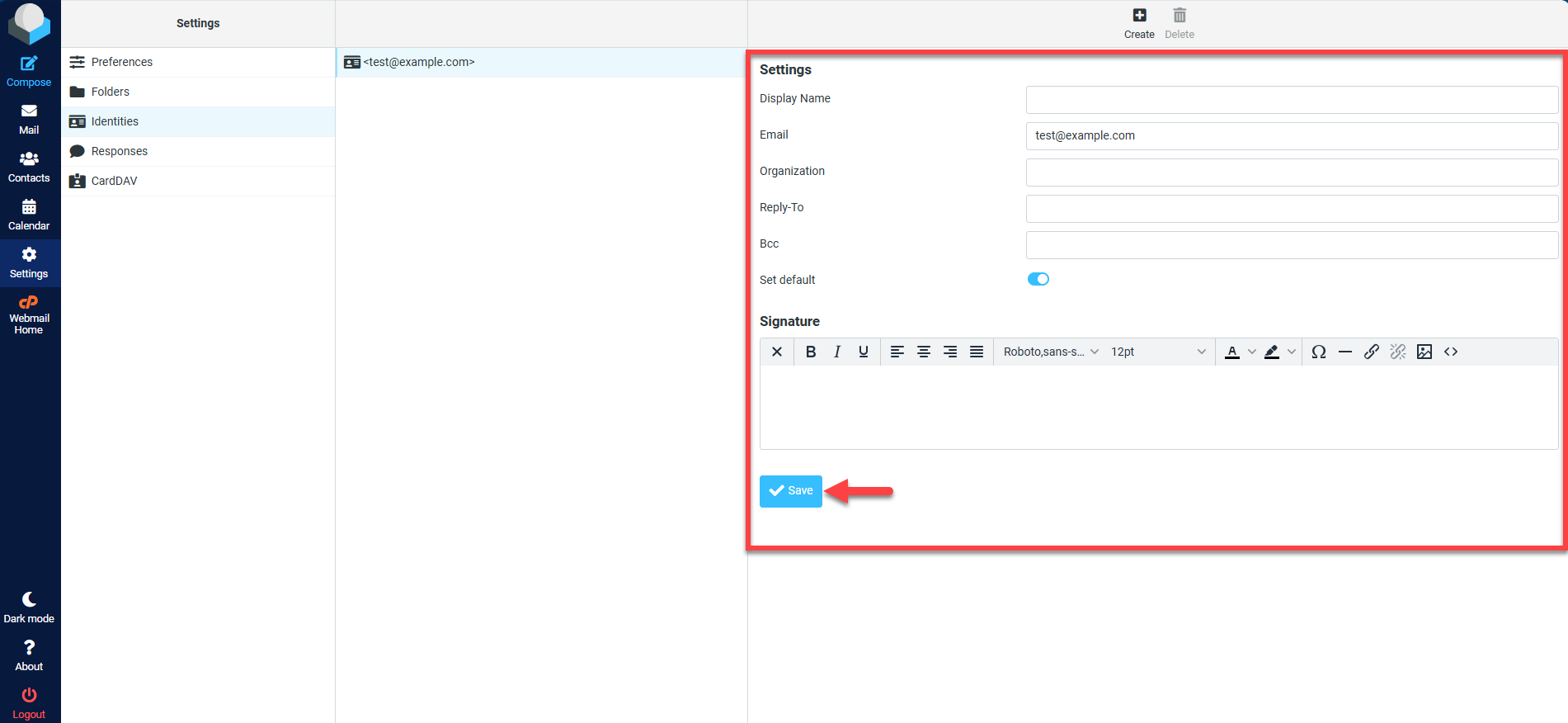
- Click on "Settings" at the top left side of the page.
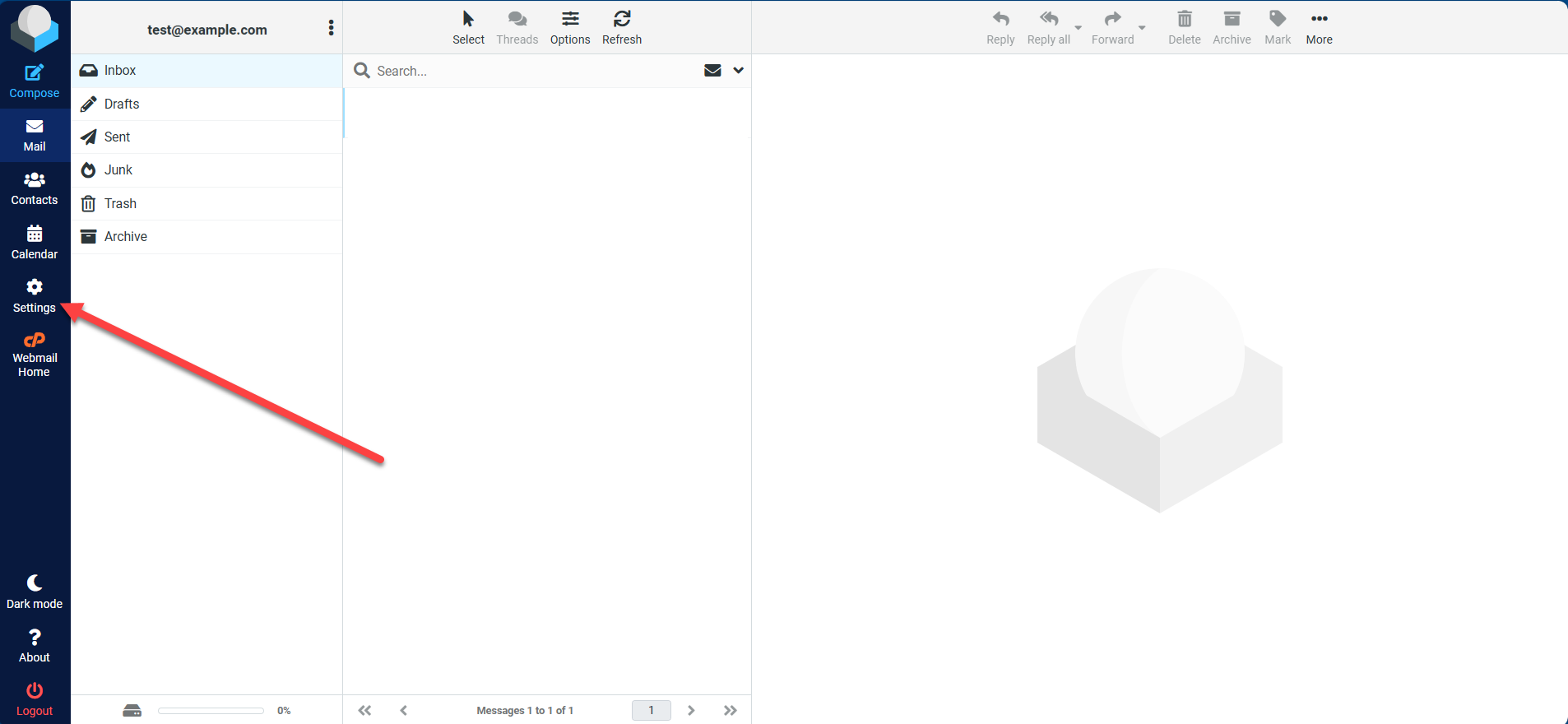
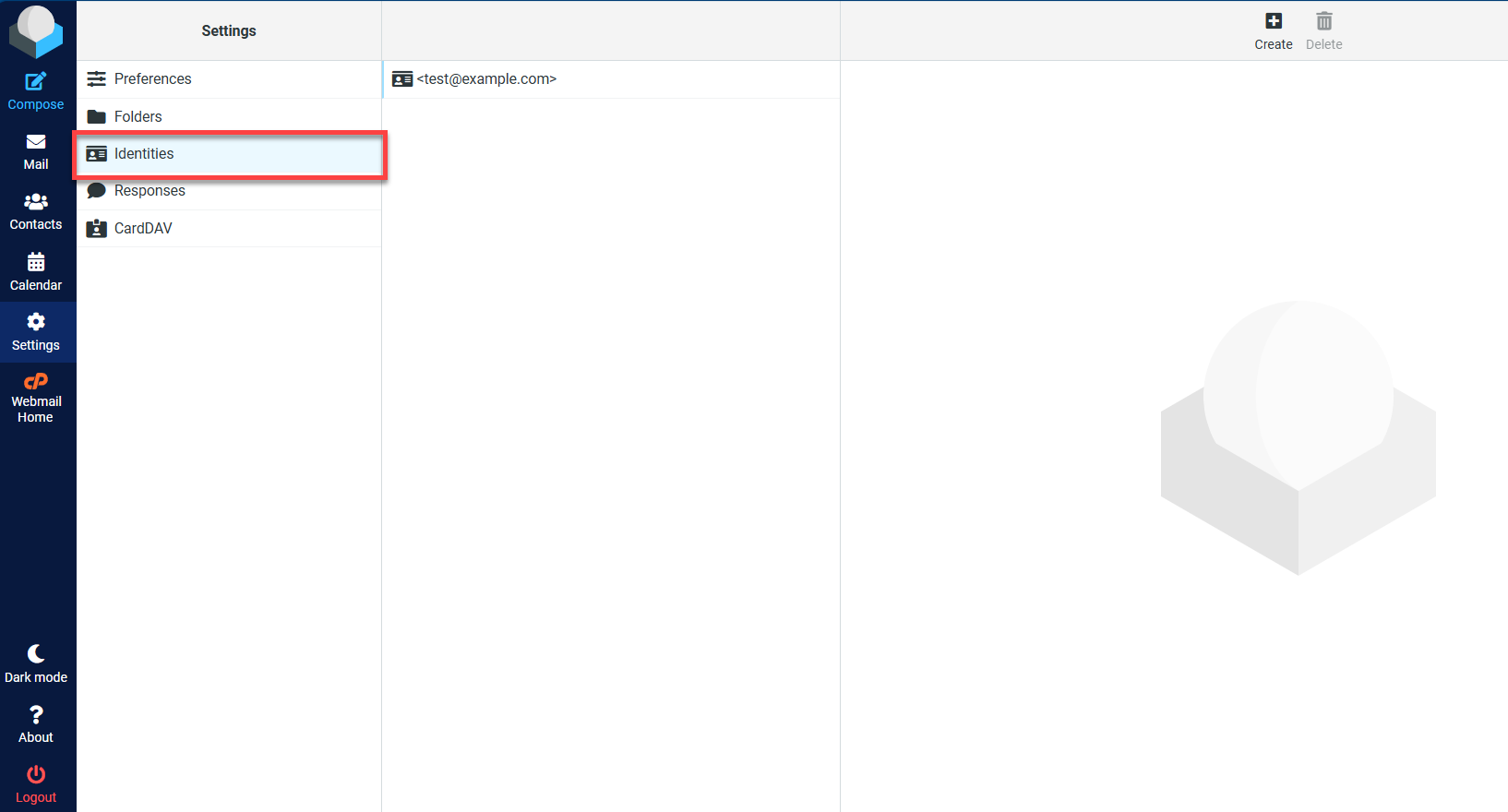
- On the Settings page, click on the "Identities" tab.
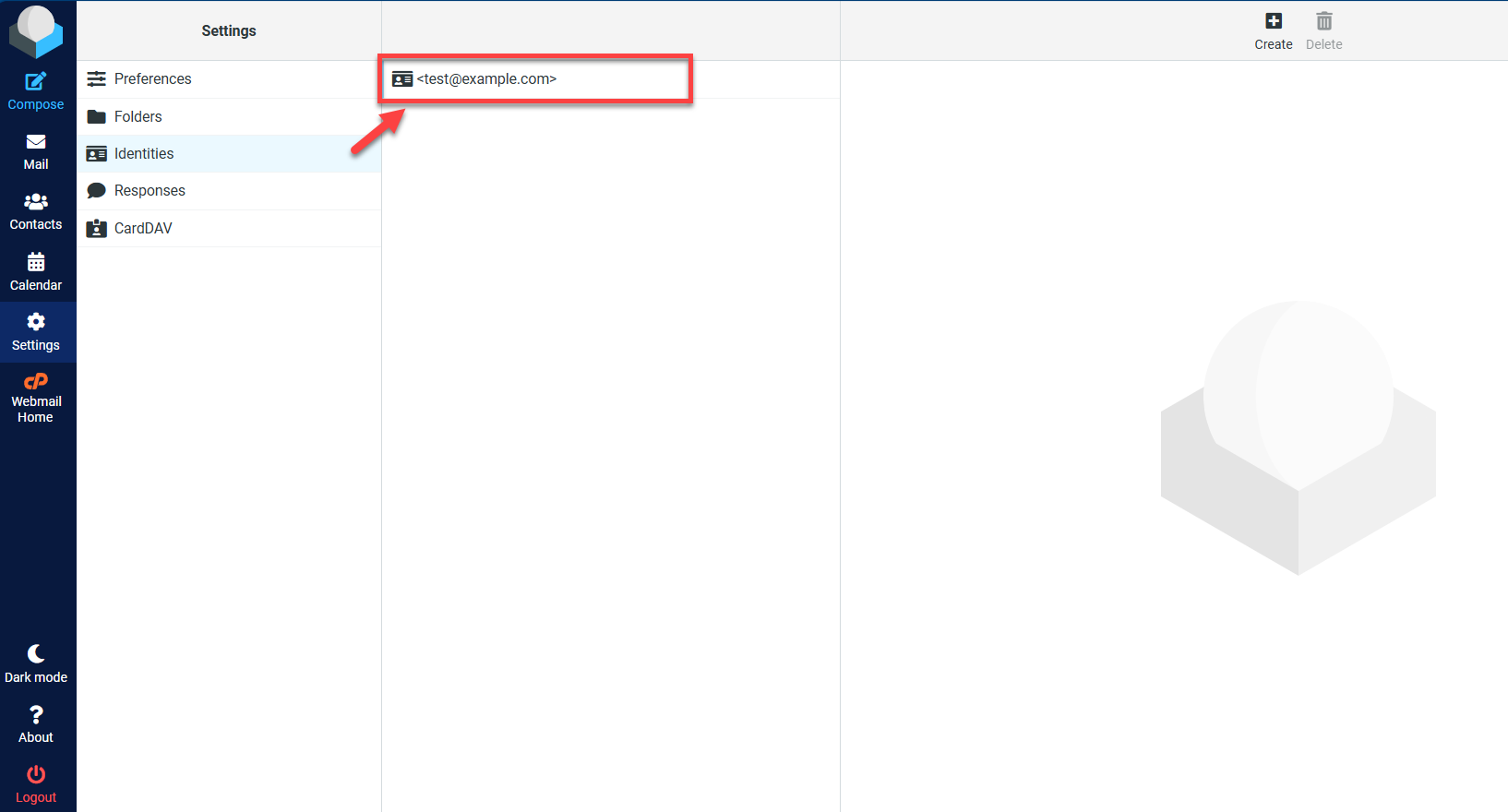
- Double-click on the email address for which you want to create a signature.
- Once you select the email address, you have two options for creating an email signature.
- Create a signature with an image.
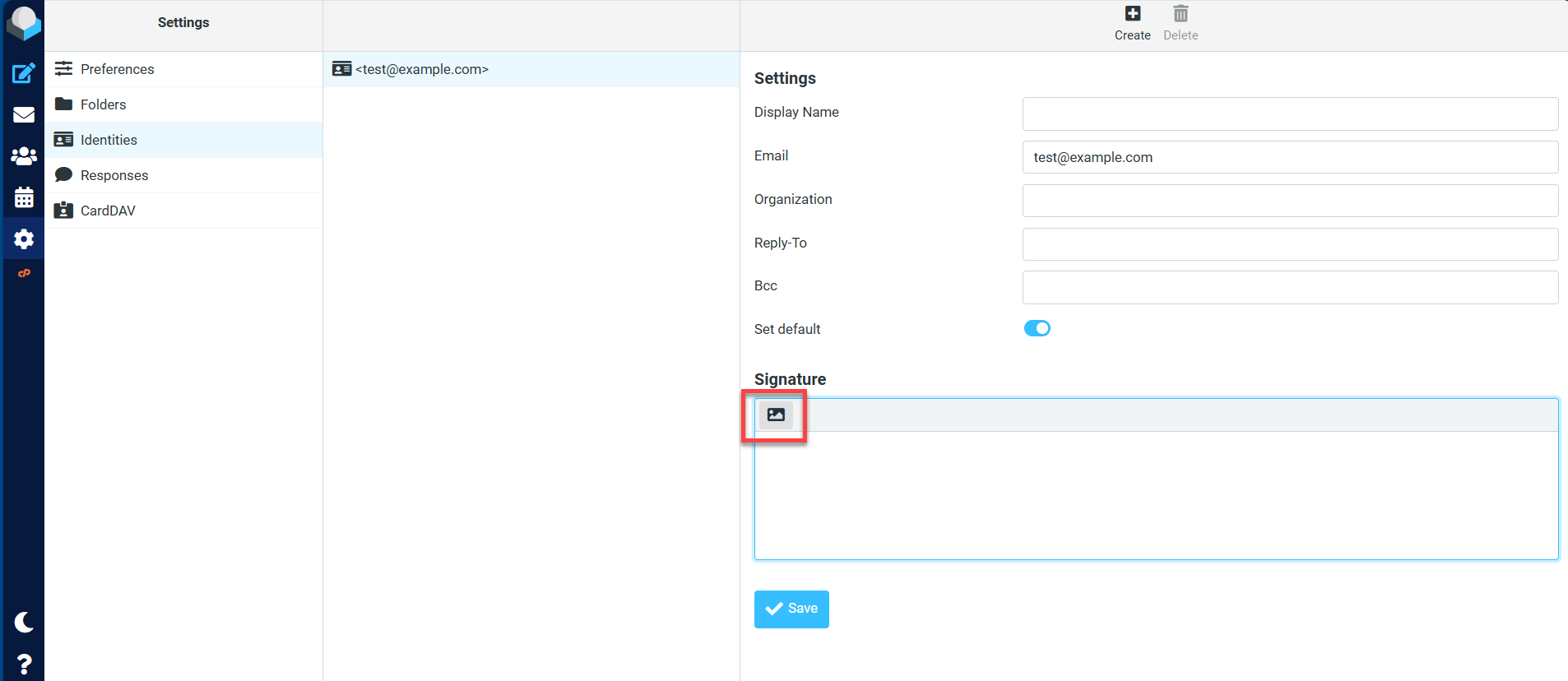
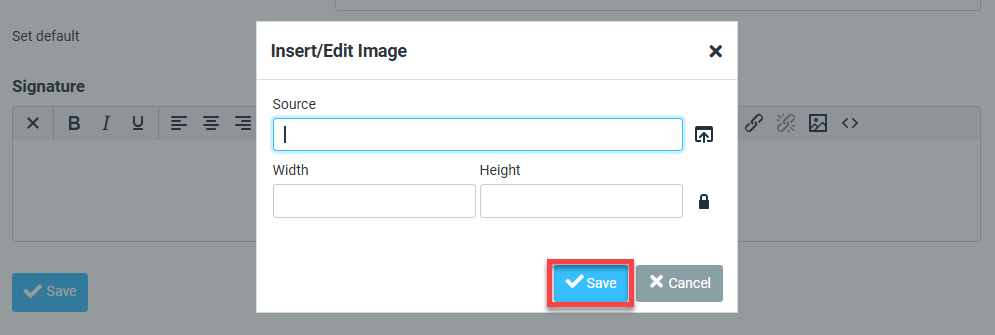
To create a visually appealing signature, follow the steps promptly.- To attach an image, click on the icon to access the formatting toolbar.
- Tap the image icon.
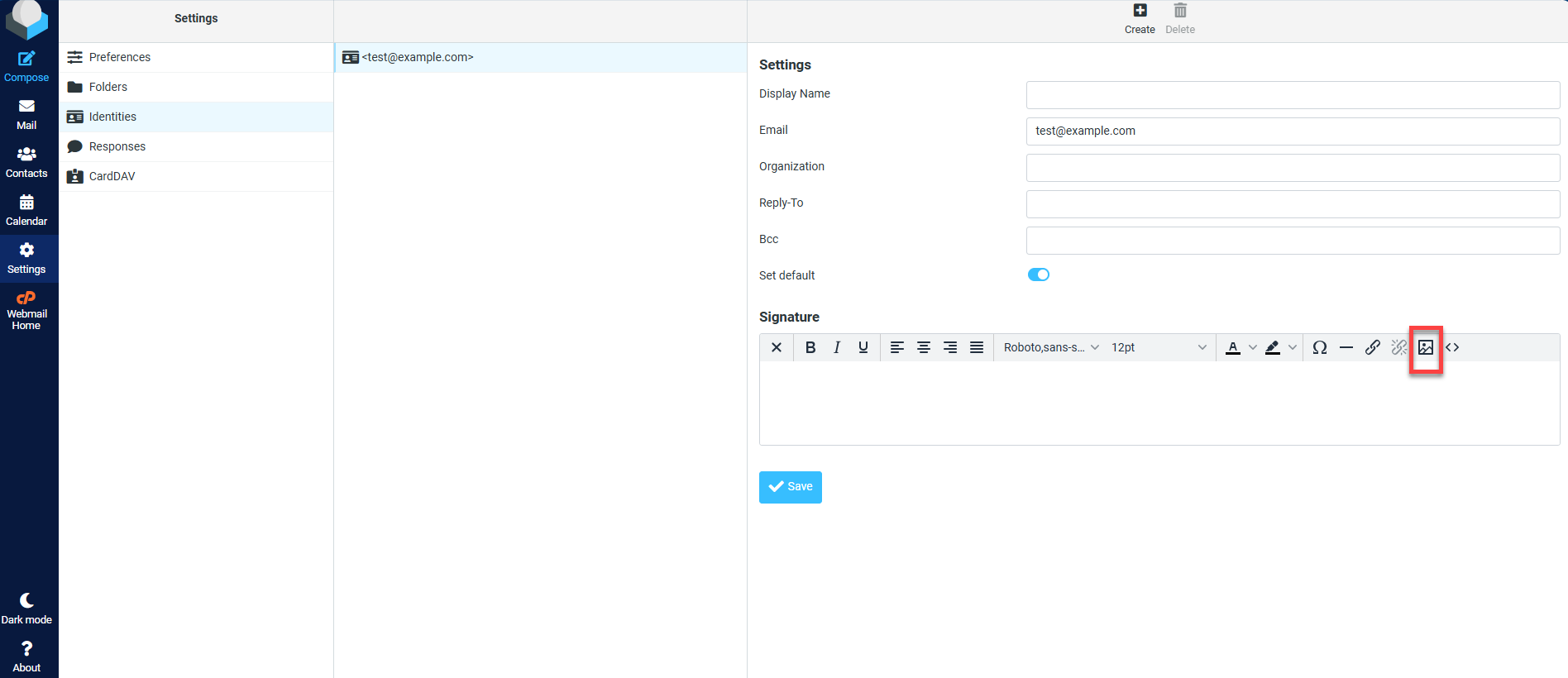
- Insert the image you want to appear. Click Save.
- After you click save. Go back to Mail and tap Compose in the top-left corner.
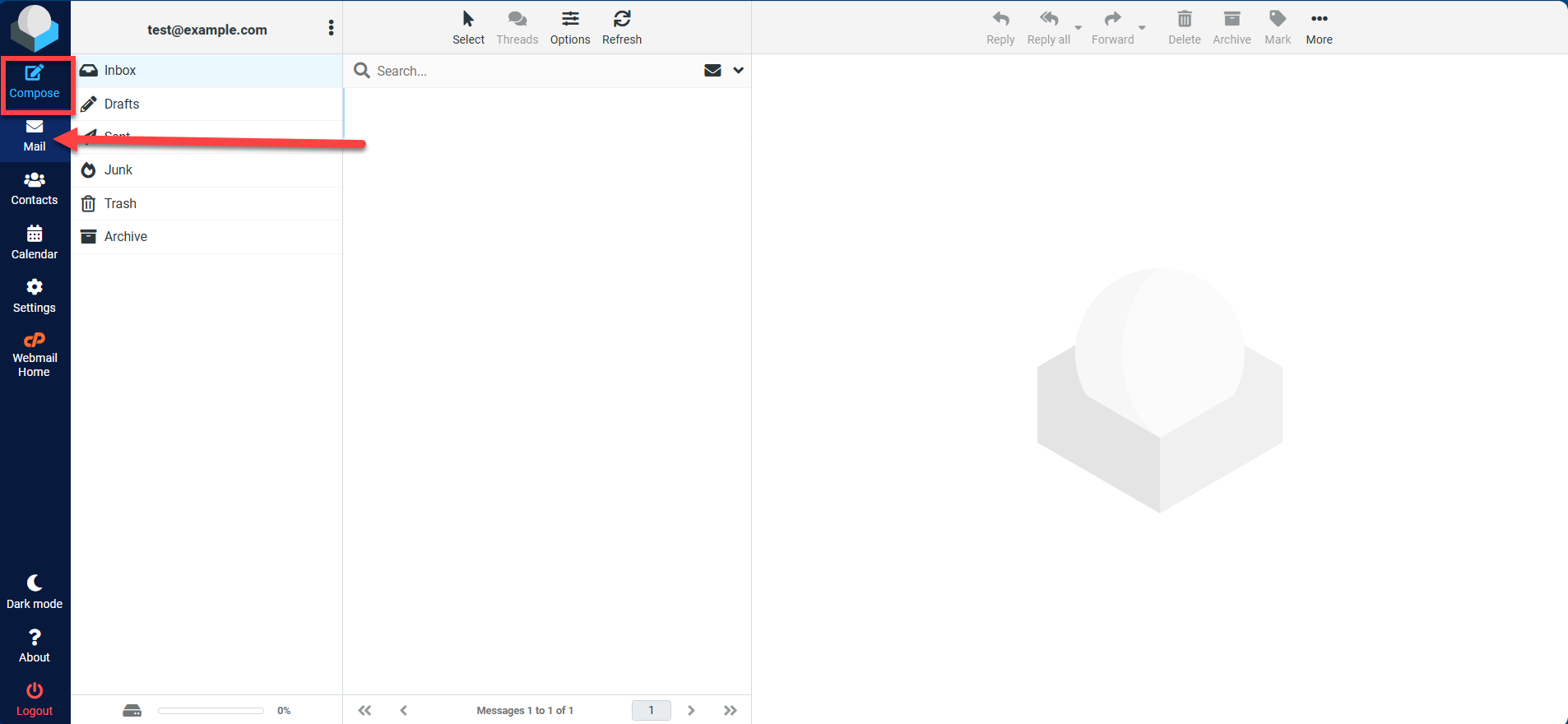
- Make sure the Editor Type section is set to HTML to successfully emulate the signature you set up.
- To attach an image, click on the icon to access the formatting toolbar.
- Create a signature without an image.
To create a simple signature, follow the steps below.- Complete the form, including the Signature Box.
- Click Save.
- Create a signature with an image.
Summary
Setting an email signature in your cPanel email is a small but powerful way to enhance your communications' professionalism and consistency. An email signature can act as a digital business card; it provides your recipients with your contact information, job title, and even your company logo at a glance. It ensures that every email you send contributes to building a strong, professional brand identity. Furthermore, it can include calls to action, such as encouraging recipients to visit your website or follow your social media profiles. For businesses looking to elevate their email correspondence, setting up a professional email signature through cPanel is an easy-to-follow process to enhance the brand's perception and communication efficiency.
If you need further assistance, Bluehost Chat Support is available 24 hours a day, 7days a week while Bluehost Phone Support is available 7 days a week from 7 am-12 midnight EST.
- Chat Support - While on our website, you should see a CHAT bubble in the bottom right-hand corner of the page. Click anywhere on the bubble to begin a chat session.
- Phone Support -
- US: 888-401-4678
- International: +1 801-765-9400
You may also refer to our Knowledge Base articles to help answer common questions and guide you through various setup, configuration, and troubleshooting steps.