 ChatGPT,
  Claude,
  Gemini,
  Grok — all four for
 How to Fix the Google Attack Page Warning
You might see a Google attack page warning if Google finds harmful or suspicious activity on your website. This usually happens when your site has malware, phishing content, hidden redirects, or files that were changed without your knowledge.
This warning can show up in browsers or search results and might block visitors from opening your site until you fix the problem. If your site is flagged, check your website, remove any unsafe content, secure your account, and then request a review in Google Search Console.
What Is the Google Attack Page Warning?
The Google attack page warning tells visitors that a website might not be safe to open. It can appear when Google finds malware, unwanted software, phishing content, or suspicious activity on a page.
You may see warnings such as:
- Reported Attack Site
- Deceptive site ahead
- The site ahead contains malware
- This site may harm your computer
- This website has been reported as unsafe
Getting this warning does not always mean the site owner put harmful content there on purpose. Many sites are flagged after being hacked because of outdated software, weak passwords, infected files, or vulnerable plugins.
Why Google May Flag Your Website
Google might flag your site if it finds anything that could put visitors at risk. Common reasons include:
- Malware or malicious scripts
- Phishing pages
- Hidden redirects
- Suspicious downloads
- Compromised WordPress plugins or themes
- Outdated website files
- Unauthorized changes to website code
- Spam pages added without permission
- Malicious code hidden in images or scripts
If you use WordPress, outdated plugins, themes, weak passwords, and old files are common ways hackers get in. Keeping your site updated is one of the easiest ways to avoid future security problems.
Before Requesting a Google Review
Wait to request a review until your site is fully cleaned and secured. If Google checks and still finds harmful content, the warning will stay up.
Before submitting a review request, make sure you have:
- Found and removed infected or suspicious files.
- Updated WordPress, plugins, themes, and old files.
- Changed passwords for all affected accounts.
- Reviewed admin users and removed unknown accounts.
- Checked for suspicious redirects.
- Scanned the site again after the cleanup.
- Confirmed the site loads normally.
If you are not comfortable cleaning the site yourself, use a website security tool or contact a qualified web developer.
Step 1: Check for Malware or Suspicious Files
Start by checking your website files. If you use Bluehost, it may create a malware report, like malware.txt or scanreport.txt, when it finds suspicious files.
To check your files:
- Log in to your Bluehost Portal.
- Click Hosting in the left-hand menu.
- In the hosting details page, click the File Manager button.
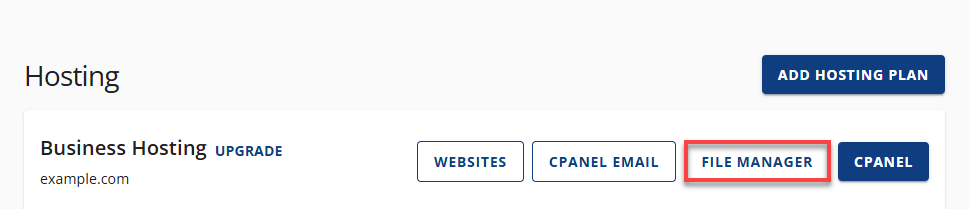
- Your File Manager will open in a new tab.
- Go to the website’s root directory.
- Look for files such as:
malware.textscanreport.text
- Open the report and review the listed file paths.
- Take note of infected files or suspicious locations.
If you cannot find the report, make sure hidden files are visible in File Manager.
Step 2: Clean the Website
After you review the report, carefully remove any unsafe content. The cleanup steps will depend on the type of infection and how your website is set up.
Common cleanup steps include:
- Removing malicious code from infected files.
- Replacing infected core files with clean copies.
- Restoring the site from a clean backup.
- Deleting unknown or unused files.
- Removing suspicious admin users.
- Reinstalling trusted plugins or themes.
- Scanning the site again after the cleanup.
If you use WordPress, do not delete files unless you are sure they are not needed. Deleting the wrong file can break your website. Always make a backup before making big changes.
Step 3: Update and Secure Your Website
After you remove the infection, secure your site to help prevent the problem from coming back.
Recommended steps include:
- Update WordPress core files.
- Update plugins and themes.
- Remove anything you no longer use.
- Change passwords for WordPress, Bluehost, FTP/SFTP, database users, and email accounts.
- Use strong, unique passwords.
- Review user roles and remove unknown users.
- Use trusted plugins, themes, and scripts only.
- Keep regular backups.
- Enable malware scanning or file monitoring.
If you use FTP, switch to SFTP if you can. SFTP gives you a more secure way to transfer files.
Step 4: Review Google Search Console
Google Search Console shows you which security issues it found. If your site is verified, check the details of the issues before you request a review.
- Sign in to Google Search Console.
- Select the affected website property.
- Open Security & Manual Actions.
- Click Security Issues.
- Review the listed issue types and sample URLs.
- Compare the listed issues with the files or pages you cleaned.
If your website is not verified yet, verify ownership first. This lets you see security alerts and request a review after you finish cleaning up.
Step 5: Request a Google Review
After the site has been cleaned and secured, request a review in Google Search Console.
- Log in to Google Search Console.
- Select the affected website property.
- Go to Security Issues.
- Confirm that the listed issues have been fixed.
- Click Request Review.
- Explain what was cleaned and what steps were taken to secure the site.
- Submit the request.
Make your explanation clear and specific. For example, say which malicious files you removed, what software you updated, which passwords you changed, and that you rescanned the site.
Google will review the site and remove the warning if it confirms the issue has been resolved.
Step 6: Monitor the Site After Cleanup
Keep checking your website after you request a review. Malware can come back if the original problem is not fixed.
Review these areas regularly:
- Website files
- WordPress users
- Plugin and theme updates
- Security scan results
- Search Console alerts
- Suspicious redirects
- Unexpected new pages
If the warning returns, scan the site again and review whether a vulnerable plugin, theme, password, or file path was missed during cleanup.
When to Use SiteLock or a Security Service
If the infection affects many files, keeps coming back, or has code you do not recognize, a security service like SiteLock can help scan, clean, and monitor your website. No service may help with:
- Finding infected files
- Removing malicious code
- Scanning for vulnerabilities
- Monitoring future threats
- Reducing the chance of blacklisting
Manual cleanup can be risky if you are not sure which files are safe to edit or delete. If you are unsure, get help from a professional malware cleanup service.
How to Prevent Future Google Attack Page Warnings
To reduce the risk of another Google attack page, warning:
- Keep WordPress, plugins, and themes updated.
- Remove unused software.
- Install plugins and themes only from trusted sources.
- Use strong passwords and two-factor authentication when available.
- Limit admin access to trusted users.
- Use SFTP instead of standard FTP when available.
- Keep regular website backups.
- Use malware scanning and file monitoring.
- Review Google Search Console alerts.
Keeping your website secure takes regular maintenance. A clean site, updated software, and strong passwords help protect your visitors and lower the risk of future warnings.
Summary
A Google attack page warning means Google has found harmful or suspicious activity on your website. This can be caused by malware, phishing content, hidden redirects, compromised files, or unauthorized changes.
To fix the problem, check your malware report, clean any infected files, update your website software, change any compromised passwords, and scan your site again. Once you know your site is safe, use Google Search Console to request a review. Keep monitoring your website after the cleanup to help stop the warning from coming back.
If you need further assistance, Bluehost Chat Support is available 24 hours a day, 7days a week while Bluehost Phone Support is available 7 days a week from 7 am-12 midnight EST.
- Chat Support - While on our website, you should see a CHAT bubble in the bottom right-hand corner of the page. Click anywhere on the bubble to begin a chat session.
- Phone Support -
- US: 888-401-4678
- International: +1 801-765-9400
You may also refer to our Knowledge Base articles to help answer common questions and guide you through various setup, configuration, and troubleshooting steps.