 ChatGPT,
  Claude,
  Gemini,
  Grok — all four for
 Adding Sites to Your WordPress Multisite Network
When your WordPress Multisite installation is set up on Bluehost Agency Hosting, your network is provisioned and ready to use. You can begin building out your main site immediately, or start adding new sites to your network.
The steps for adding a new site depend on your network type. Use the sections below that match your setup.
Adding a Path-Based Site (Subdirectory)
In a subdirectory network, each site lives under a subfolder of your primary domain, such as example.com/siteone. Adding a new site requires only steps inside WordPress — no DNS or domain changes are needed.
Prerequisites
- An active Bluehost Agency WordPress Multisite installation (subdirectory type)
- Super Admin access to your WordPress network
Steps:
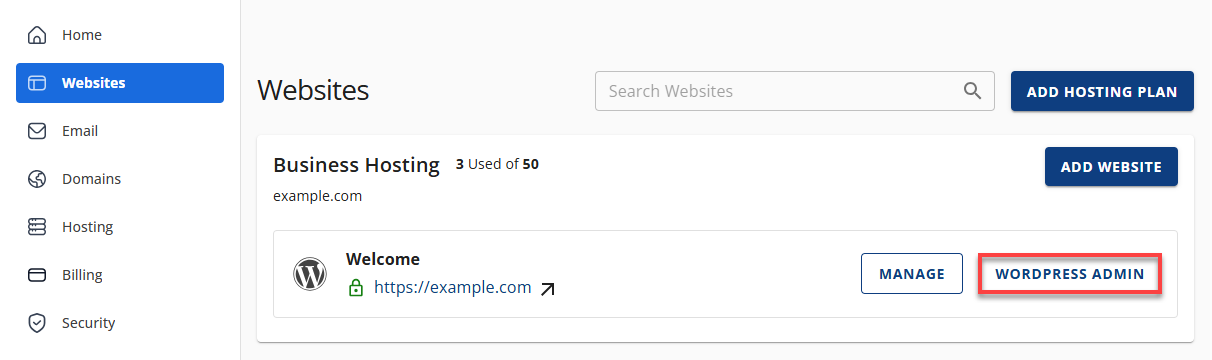
- Log in to your Bluehost Portal.
- In the left-hand menu, click Websites.
- Click the Edit Site button located next to the website you want to manage.
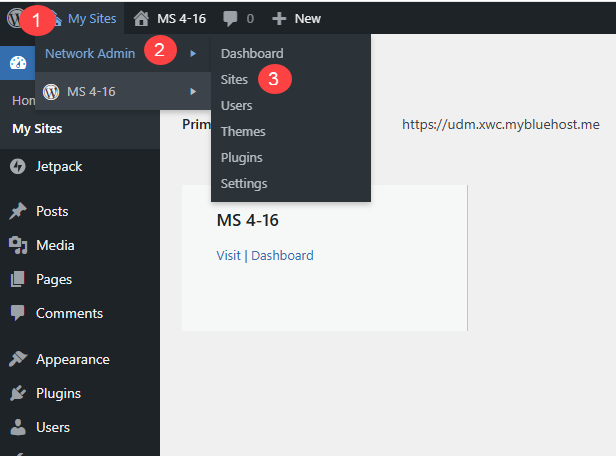
- From the top-left admin menu, hover over My Sites.
- Select Network Admin from the dropdown menu.
- Click Sites to view all sites in the WordPress Multisite network.
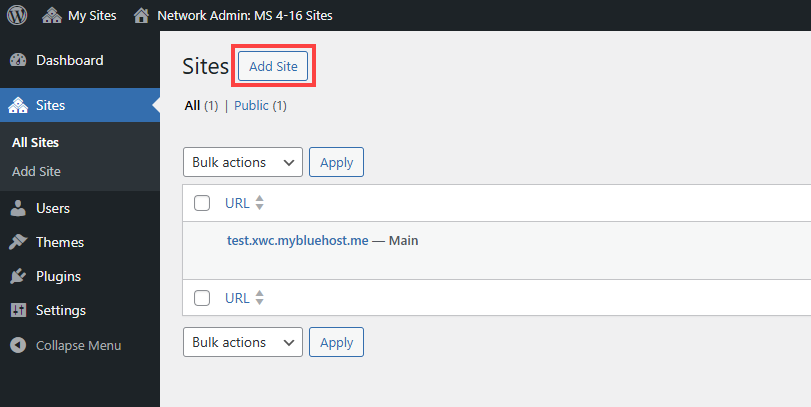
- Click Add Site.
- Fill in the following fields:
- Site Address (URL): Enter the site address or subsite name. For example, entering newsite will create a site such as example.com/newsite.
- Site Title: Enter the name that will be displayed for the site.
- Site Language: Select the preferred language for the site from the dropdown menu.
- Admin Email: Enter the email address of the site administrator.
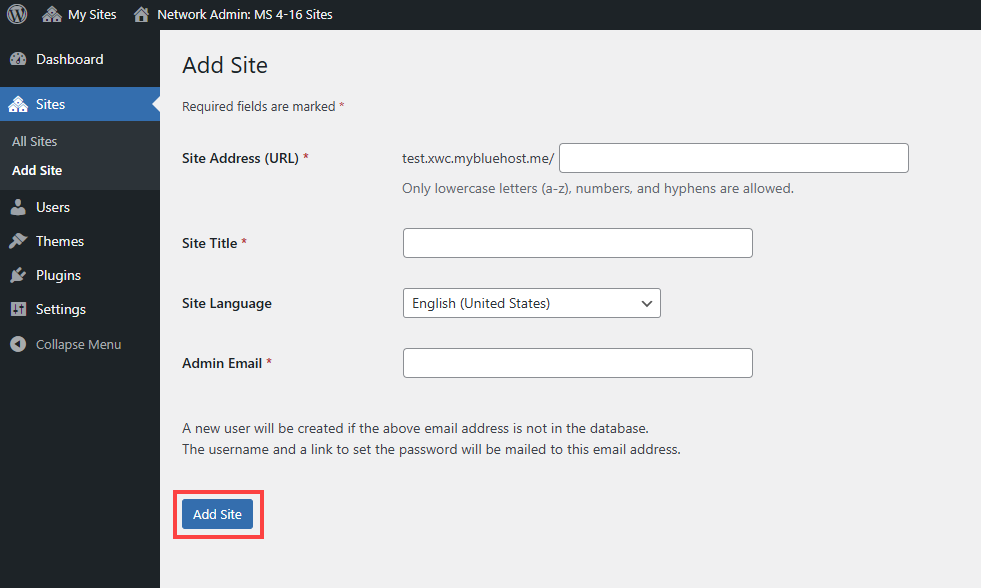
- Click Add Site.
The new site is immediately available at example.com/siteone. You can access its dashboard from My Sites in the WordPress toolbar.
Adding a Subdomain Site
In a subdomain network, each site runs on its own subdomain, such as siteone.example.com. Adding a new subdomain site requires steps in both the Bluehost Portal and WordPress.
Prerequisites
- An active Bluehost Agency WordPress Multisite installation (subdomain type).
- Super Admin access to your WordPress network.
- Access to your Bluehost Portal.
- Access to your domain's DNS settings at your registrar.
Step 1: Point the subdomain's DNS to Bluehost Agency
At your registrar (or Bluehost DNS if registered here), add A records for the specific subdomain you are adding. Wildcard DNS (*.example.com) is not supported — each subdomain must be configured individually.
| Record Type | Host | Value |
|---|---|---|
| A | siteone | 5.100.156.52 |
| A | siteone | 5.100.156.214 |
Replace siteone with your subdomain prefix. Both A records are required.
Step 2: Add the subdomain in the Bluehost Portal
- Log in to your Bluehost Portal.
- In the left-hand menu, click Websites.
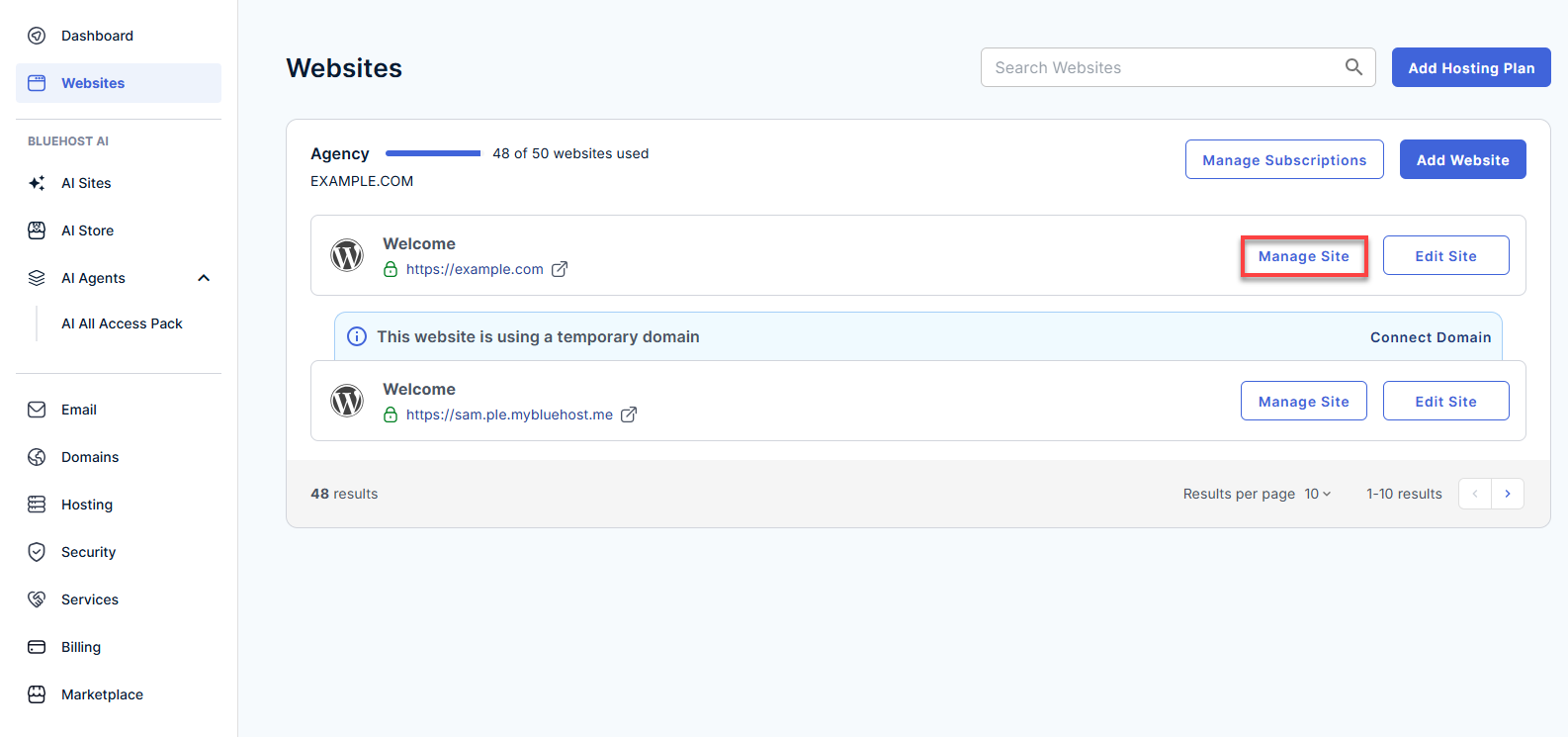
- Click the Manage Site button located next to the website you want to manage.
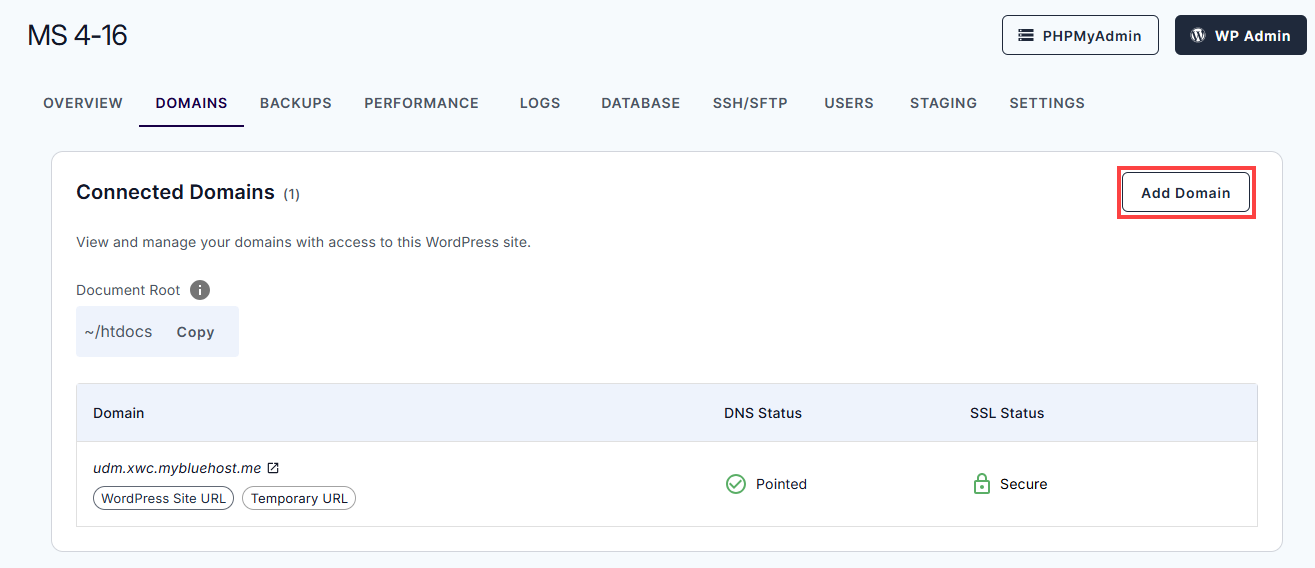
- In the Domains tab, click Add Domain.
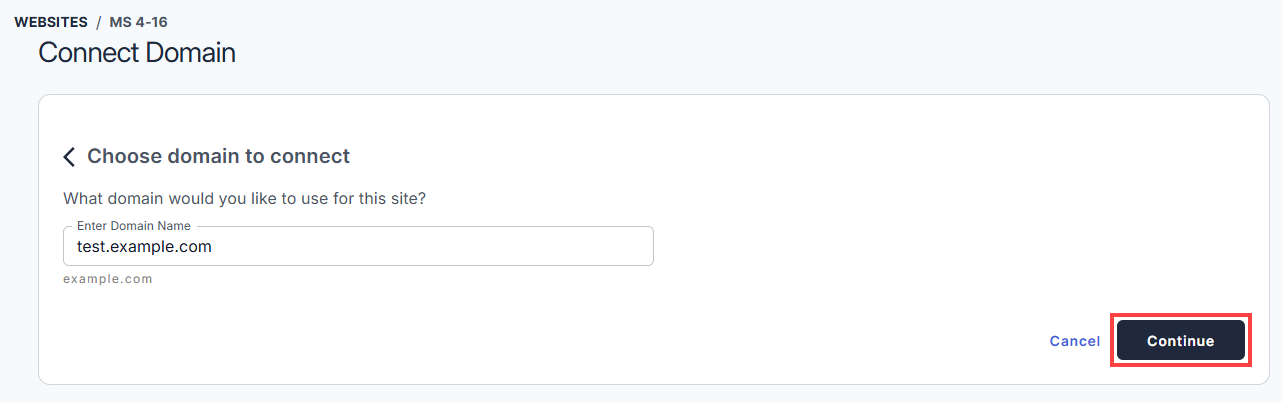
- Enter the domain you wish to connect to, and click Continue.
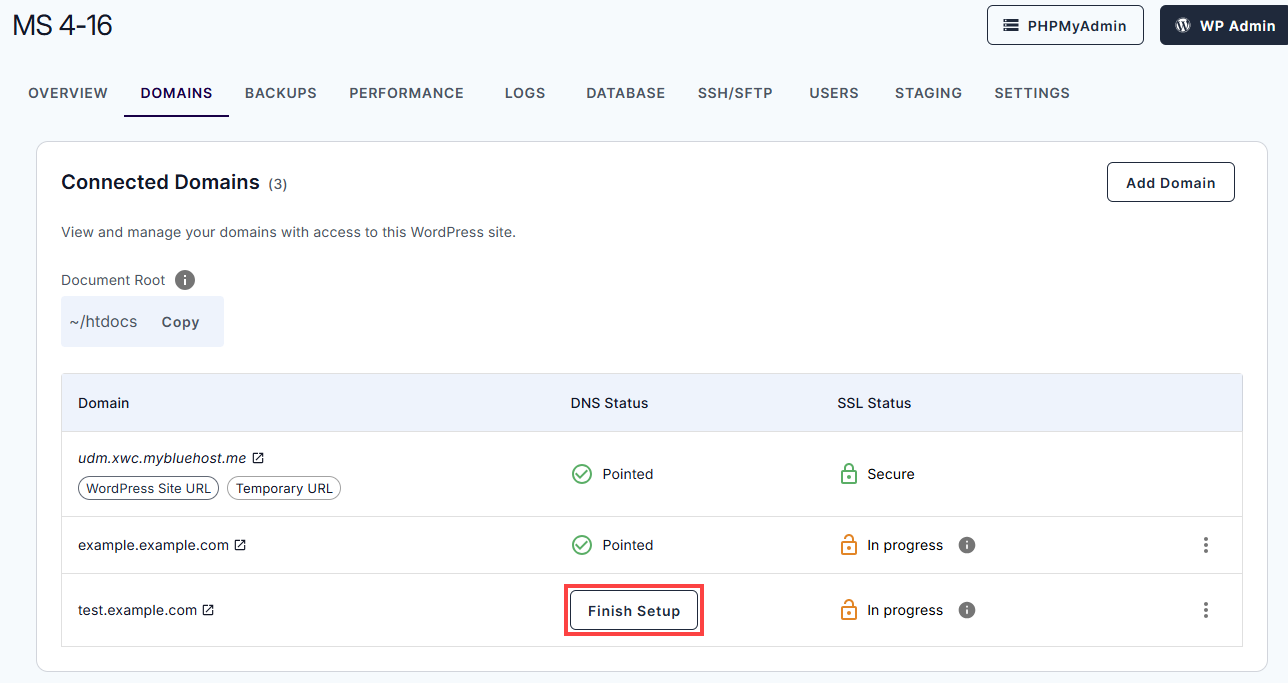
- Once the domain’s DNS is configured, the DNS Status section should display Pointed, indicating it has been successfully added. If it does not appear, click the Finish Setup button to configure the domain’s A record.
Step 3: Add the site in WordPress Network Admin
- Log in to your Bluehost Portal.
- In the left-hand menu, click Websites.
- Click the Edit Site button located next to the website you want to manage.
- From the top-left admin menu, hover over My Sites.
- Select Network Admin from the dropdown menu.
- Click Sites to view all sites in the WordPress Multisite network.
- Click Add Site.
- Fill in the following fields:
- Site Address (URL): Enter the site address or subsite name. For example, entering newsite will create a site such as example.com/newsite.
- Site Title: Enter the name that will be displayed for the site.
- Site Language: Select the preferred language for the site from the dropdown menu.
- Admin Email: Enter the email address of the site administrator.
- Click Add Site.
The new site will be accessible at siteone.example.com once DNS has propagated. You can manage it from My Sites in the WordPress toolbar.
Adding a Domain-Mapped Site
In a domain-mapped network, each site uses its own custom domain, such as example.com. This is the most complex site type to add — it requires steps in DNS, Bluehost Portal, WordPress Network Admin, and your site files.
Prerequisites
- An active Bluehost Agency WordPress Multisite installation.
- Super Admin access to your WordPress network.
- Access to your Bluehost Portal.
- Access to your domain's DNS settings at your registrar.
- SSH or SFTP access to your hosting account (see How to Create an SSH/SFTP User on Agency Hosting).
Step 1: Point the domain's DNS to Bluehost Agency
At your registrar (or Bluehost DNS if registered here), add the following A records for your domain. Both are required.
| Record Type | Host | Value |
|---|---|---|
| A | siteone | 5.100.156.52 |
| A | siteone | 5.100.156.214 |
Step 2: Add the domain in the Bluehost Portal
- Log in to your Bluehost Portal.
- In the left-hand menu, click Websites.
- Click the Manage Site button located next to the website you want to manage.
- In the Domains tab, click Add Domain.
- Enter the domain you wish to connect to, then click Continue.
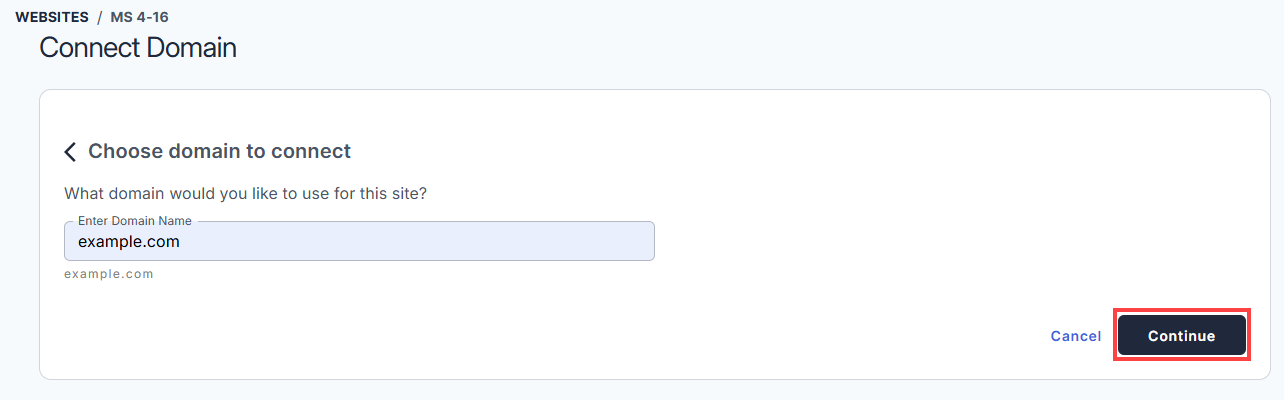
- Once the domain’s DNS is configured, the DNS Status section should display Pointed, indicating it has been successfully added. If it does not appear, click the Finish Setup button to configure the domain’s A record.
Step 3: Add the site in WordPress Network Admin
- Log in to your Bluehost Portal.
- In the left-hand menu, click Websites.
- Click the Edit Site button located next to the website you want to manage.
- From the top-left admin menu, hover over My Sites.
- Select Network Admin from the dropdown menu.
- Click Sites to view all sites in the WordPress Multisite network.
- Click Add Site.
- Fill in the following fields:
- Site Address (URL): Enter the site address or subsite name. For example, entering newsite will create a site such as example.com/newsite.
- Site Title: Enter the name that will be displayed for the site.
- Site Language: Select the preferred language for the site from the dropdown menu.
- Admin Email: Enter the email address of the site administrator.
- Click Add Site.
Step 4: Handle www and non-www via custom-redirects.php
When using a custom domain, you need to ensure visitors always land on the correct version of the URL — either www.example.com or example.com — regardless of which they type. This is handled using custom-redirects.php.
Connect to your site via SSH or SFTP and navigate to /htdocs. Create or edit the file custom-redirects.php.
Choose one of the following based on your preferred canonical URL:
Option A — Redirect www to non-www (visitors to www.example.com are sent to example.com)
<?php
if ( $_SERVER['HTTP_HOST'] == 'www.example.com' ) {
    header('HTTP/1.1 301 Moved Permanently');
    header('Location: https://example.com' . $_SERVER['REQUEST_URI']);
    exit;
}
?>
Option B — Redirect non-www to www (visitors to example.com are sent to www.example.com)
<?php
if ( $_SERVER['HTTP_HOST'] == 'example.com' ) {
    header('HTTP/1.1 301 Moved Permanently');
    header('Location: https://www.example.com' . $_SERVER['REQUEST_URI']);
    exit;
}
?>
Replace example.com with your actual domain. If your network includes multiple domain-mapped sites, add a block for each domain in the same file.
Related Articles
Summary
Bluehost Agency Hosting WordPress Multisite allows you to add new sites as subdirectories, subdomains, or domain-mapped domains. Subdirectory sites are the easiest to set up (WordPress only), while subdomain and domain-mapped sites require additional DNS and Bluehost configuration. Domain-mapped sites also need a redirect setup for www or non-www. Multisite supports only new or migrated installs, and staging is not available.
If you need further assistance, Bluehost Chat Support is available 24 hours a day, 7days a week while Bluehost Phone Support is available 7 days a week from 7 am-12 midnight EST.
- Chat Support - While on our website, you should see a CHAT bubble in the bottom right-hand corner of the page. Click anywhere on the bubble to begin a chat session.
- Phone Support -
- US: 888-401-4678
- International: +1 801-765-9400
You may also refer to our Knowledge Base articles to help answer common questions and guide you through various setup, configuration, and troubleshooting steps.