 ChatGPT,
  Claude,
  Gemini,
  Grok — all four for
 How to Fix the WHMCS License Is No Good Notice
The WHMCS License Is No Good notice appears when WHMCS cannot validate the license connected to your installation. This can happen if the license is inactive, the installation was moved, or the server IP address changed.
WHMCS requires an active license to run properly. Bluehost no longer provides complimentary WHMCS licenses, so licenses must be purchased and managed directly through WHMCS.
This guide explains what the notice means, what to check first, and when to contact WHMCS for help.
What Does the WHMCS License Is No Good Notice Mean?
The notice means your WHMCS installation could not verify the license currently assigned to it.
This does not always mean the license was canceled. In many cases, WHMCS may stop validating because something changed in the hosting environment or installation path.
Common causes include:
- The WHMCS license is inactive or expired.
- The WHMCS installation was moved to a different folder or domain.
- The hosting account or server IP address changed.
- WHMCS was restored from a backup.
- The domain or subdomain used for WHMCS changed.
- The license is assigned to a different installation.
- WHMCS cannot complete license validation.
Check Your WHMCS License First
Start by confirming that your WHMCS license is active.
- Log in to your WHMCS account.
- Open your license or services area.
- Confirm that the license is active.
- Check whether the license is assigned to the correct domain.
- Review any alerts or billing notices in your WHMCS account.
If the license is inactive, expired, or assigned to the wrong installation, update the license through WHMCS before troubleshooting your hosting account.
Check If the WHMCS Installation Was Moved
The notice may appear if WHMCS was moved from one location to another.
For example, the issue may occur if WHMCS was moved from:
example.com/whmcsto example.com/billingbilling.example.comtoexample.com/billing- One hosting account to another hosting account
- One server to another server
If you recently moved WHMCS, log in to your WHMCS account and confirm whether the license needs to be updated, reissued, or assigned to the new installation location.
Check If the Server IP Address Changed
WHMCS license validation can also be affected if your hosting account or server IP address changes.
This may happen after:
- Moving to a new server
- Migrating hosting accounts
- Updating VPS or Dedicated server settings
- Restoring WHMCS on a different server
- Changing the domain’s DNS or hosting location
If your server IP changed, the license may need to be refreshed or updated through WHMCS.
Check Your Domain and DNS Settings
If WHMCS is installed on a domain or subdomain, make sure it points to the correct Bluehost hosting account.
To review your domain settings:
- Log in to your Bluehost Portal.
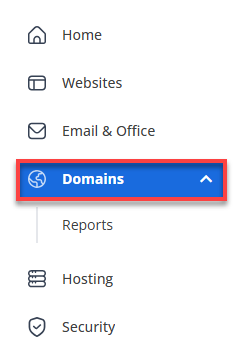
- In the left-hand menu, click Domains.
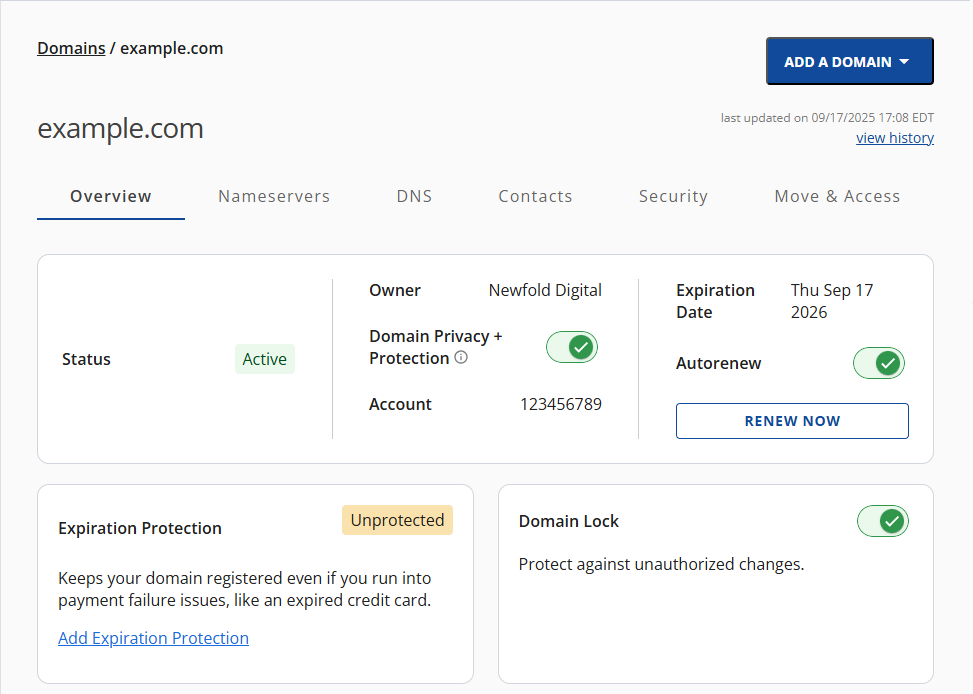
- If you have one domain in your account, you will be taken directly to the domain management panel.
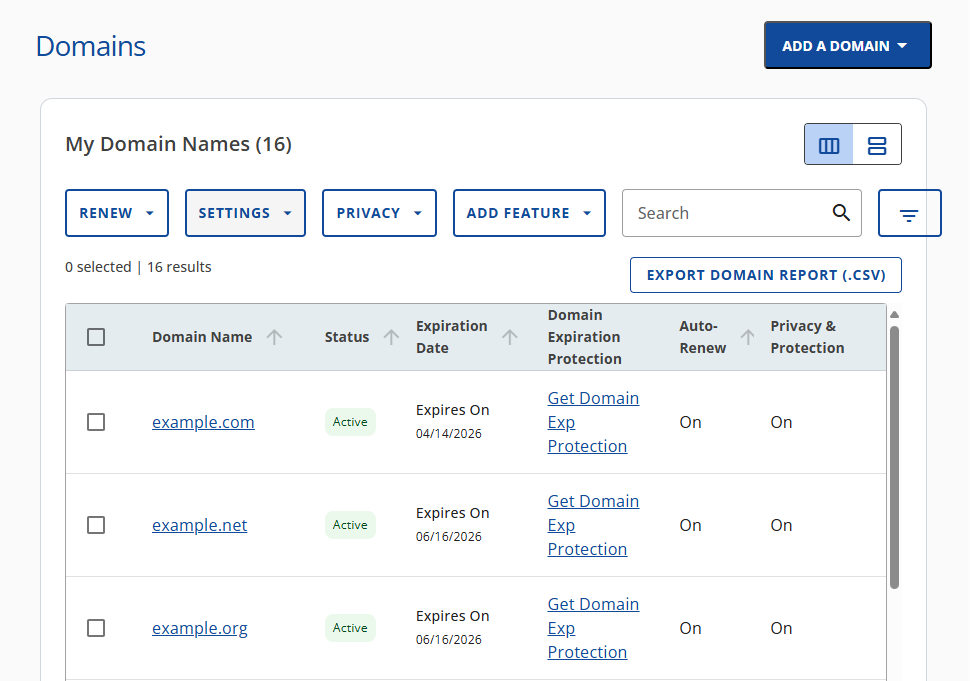
- If you have multiple domains in your account, click the domain you wish to manage to access the domain management panel.
- If you have one domain in your account, you will be taken directly to the domain management panel.
- Select the domain used for WHMCS.
- Review the DNS or nameserver settings.
- Confirm that the domain points to the hosting account where WHMCS is installed.
If the domain was recently updated, allow time for DNS propagation before checking the WHMCS license again.
Check the WHMCS Installation URL
Make sure you are accessing the correct WHMCS installation URL.
For example, confirm whether WHMCS is installed at:
-
example.com/whmcs -
example.com/billing -
clients.example.com -
billing.example.com
If you access an old URL or a copied installation, the license notice may appear because WHMCS is trying to validate from the wrong location.
What to Do If the Notice Still Appears
If your domain, installation path, and server details are correct, the issue may need to be resolved from the WHMCS licensing side.
Contact WHMCS directly if:
- Your license is active but still not validating.
- You recently moved WHMCS to a new domain or folder.
- Your server IP address changed.
- The license appears assigned to the wrong location.
- You need to reissue or update the license.
- WHMCS continues showing the notice after checking your hosting setup.
Bluehost can help review hosting-side items such as DNS, cPanel access, server IP address, file location, and hosting configuration. WHMCS license changes, license validation, reissues, and billing issues must be handled through WHMCS.
How to Avoid WHMCS License Issues
To reduce the chance of license validation issues, follow these best practices:
- Keep your WHMCS license active.
- Confirm your domain points to the correct hosting account before installing WHMCS.
- Avoid copying WHMCS to another domain without updating the license.
- Review your license before moving WHMCS to a new server.
- Keep a record of the WHMCS installation URL.
- Contact WHMCS if you need to reissue the license after a move.
- Test WHMCS after server migrations or DNS changes.
Summary
The WHMCS license is no good notice means WHMCS cannot validate the license connected to your installation. This can happen if the license is inactive, the installation was moved, or the server IP address changed.
Start by checking your WHMCS license status, installation URL, domain settings, and server IP address. If the hosting-side setup is correct but the notice continues, contact WHMCS directly to review or reissue the license.
If you need further assistance, Bluehost Chat Support is available 24 hours a day, 7days a week while Bluehost Phone Support is available 7 days a week from 7 am-12 midnight EST.
- Chat Support - While on our website, you should see a CHAT bubble in the bottom right-hand corner of the page. Click anywhere on the bubble to begin a chat session.
- Phone Support -
- US: 888-401-4678
- International: +1 801-765-9400
You may also refer to our Knowledge Base articles to help answer common questions and guide you through various setup, configuration, and troubleshooting steps.