 ChatGPT,
  Claude,
  Gemini,
  Grok — all four for
 How to Troubleshoot SQL Errors and MySQL Issues
SQL errors can appear when your website, application, or script cannot connect to a MySQL database or when there is an issue in the code that runs the database request. These errors can look technical, but many of them point to common issues such as an incorrect database username, wrong password, missing database prefix, or a PHP syntax mistake.
This guide explains common SQL and MySQL errors, what they mean, and what you can check in your Bluehost account to help resolve them.
Common Causes of SQL Errors
SQL and MySQL errors usually happen when a website or script cannot connect to the database correctly. They may also appear if the code that handles the database connection contains a mistake.
Common causes include:
- Incorrect database username
- Incorrect database password
- Incorrect database name
- Missing database or username prefix
- Database user not assigned to the database
- Missing database user privileges
- Incorrect hostname
- Remote database access not configured
- PHP syntax or coding errors
- Outdated or misconfigured website scripts
If your website recently moved, was restored from a backup, or had its database password changed, check the database connection settings first.
Check Your Database Connection Details
Before troubleshooting deeper, confirm that your database connection details are correct.
Most database-driven websites use a configuration file to connect to MySQL. This file stores values such as:
- Database name
- Database username
- Database password
- Database hostname
- Table prefix, if required by the application
For WordPress websites, this information is usually stored in the wp-config.php file. For other scripts or applications, the configuration file location may vary.
MySQL Access Denied Error
One of the most common MySQL errors is an Access denied message. This usually means the database username, password, or database name in your configuration file is incorrect.
You may see an error similar to this:
Warning: mysql_connect() [function.mysql-connect]: Access denied for user 'Username'@'localhost' (using password: YES) in /home1/examplec/public_html/config.php on line 3 Couldn't connect to server.
This type of message usually points to a database login issue. The script is trying to connect to MySQL, but the credentials do not match what is set up in cPanel.
How to Fix a MySQL Access Denied Error
Follow these steps to check your database credentials:
- Log in to your Bluehost Portal.
- In the left-hand menu, click Hosting, then select My Plans.
- On the hosting details page, click the cPanel button.

- Your cPanel will open in a new tab.

- Go to the Databases section.
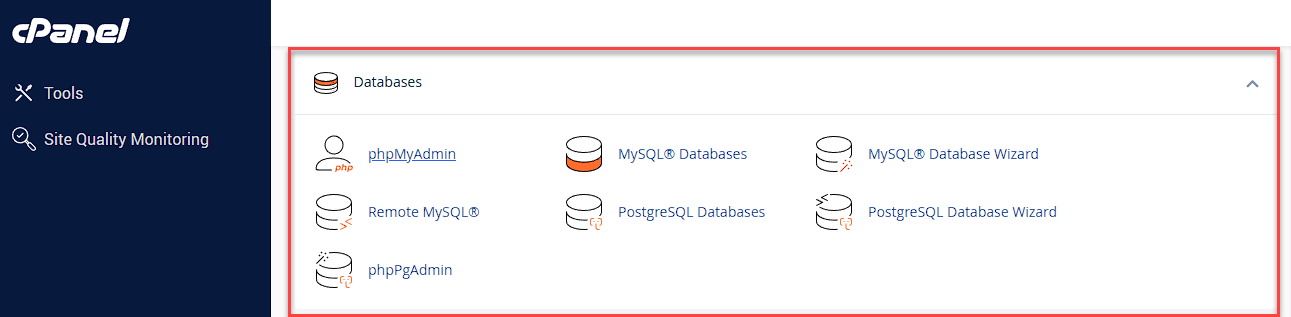
- Click MySQL Databases.
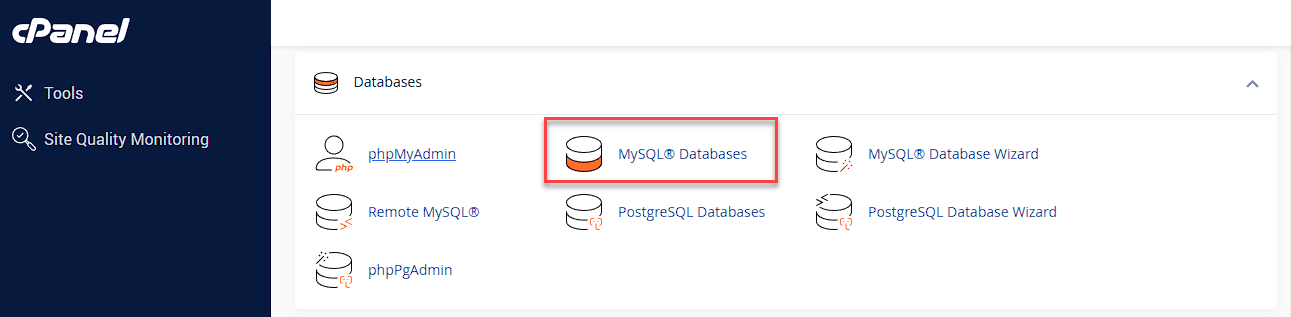
- Review the database name and database username.
- Open your website’s configuration file.
- Confirm that the database name and username match what appears in cPanel.
- Update the password in the configuration file if the database user password was recently changed.
When reviewing the database name and username, make sure the full name is used. In many cPanel environments, database names and usernames include a prefix based on the cPanel username.
For example:
cpaneluser_database
cpaneluser_dbuser
Do not remove the prefix or underscore. The full database name and username must match exactly.
Check the Database User Password
If the database username and database name are correct, the password may be the issue.
If you are unsure of the current password, you can create a new database user or reset the database user password in cPanel. After changing the password, update the password value in your website’s configuration file.
For example, in a WordPress wp-config.php file, you would update the database password value.
define('DB_PASSWORD', 'new-database-password');
Make sure the password in the configuration file matches the database user password in cPanel.
Check Database User Privileges
A database user must be assigned to the correct database with the proper privileges. If the user exists but does not have permission to access the database, the website may still show a database connection error.
To check database privileges:
- Log in to your Bluehost Portal.
- In the left-hand menu, click Hosting, then select My Plans.
- On the hosting details page, click the cPanel button.
- Your cPanel will open in a new tab.
- Go to the Databases section.
- Click MySQL Databases.
- Scroll to the section where users are assigned to databases.
- Confirm that the correct user is assigned to the correct database.
- Review the user privileges.
- Select ALL PRIVILEGES if the application requires full database access.
- Save the changes.
After updating privileges, reload the website to check if the error is resolved.
Remote MySQL Connection Errors
If your script or application is connecting to MySQL remotely, make sure remote database access is configured correctly.
Remote database connection issues may happen when:
- The connecting IP address is not allowed.
- The hostname is incorrect.
- The database username or password is wrong.
- The remote application is using the wrong port or connection settings.
- The database user does not have the correct privileges.
To allow remote access, add the connecting IP address as an access host in the database or remote MySQL settings available in your Bluehost account. If the connection is local, the database hostname is usually localhost.
PHP Parse Error or Syntax Error
Some errors that appear near database scripts are not database connection errors. They may be coding errors instead.
You may see a message similar to this:
Parse error: syntax error, unexpected T_STRING in /home1/examplec/public_html/index.php on line 31
This usually means there is a mistake in the PHP code. It may be caused by missing punctuation, a missing quote, an incorrect bracket, or another syntax issue.
How to Fix a PHP Syntax Error
To troubleshoot a PHP syntax error:
- Open the file listed in the error message.
- Go to the line number shown in the error.
- Review the code near that line.
- Check for missing quotes, semicolons, parentheses, or brackets.
- Undo recent changes if the error appeared after editing the file.
- Restore a backup if needed.
If the issue is related to custom code, a theme, plugin, or third-party script, you may need help from the script developer or a qualified web developer.
Troubleshooting Checklist
Use this checklist when reviewing SQL errors:
- Confirm the database name is correct.
- Confirm the database username is correct.
- Make sure the full cPanel prefix is included.
- Reset or update the database user password if needed.
- Update the website configuration file with the correct password.
- Confirm the database user is assigned to the database.
- Confirm the database user has the correct privileges.
- Check whether the hostname should be localhost or a remote host.
- Confirm remote MySQL access is configured if connecting from another server.
- Review any file and line number shown in the error message.
- Check recent changes to plugins, themes, scripts, or configuration files.
Summary
SQL errors often happen when a website or script cannot connect to a MySQL database. The most common causes include an incorrect database username, wrong password, missing cPanel prefix, incorrect database name, missing user privileges, or remote connection settings that have not been configured correctly.
Start by checking the database credentials in cPanel and comparing them with the values in your website’s configuration file. If the error points to a PHP file and line number, review the code for syntax issues such as missing punctuation, quotes, or brackets. If the issue involves custom code or a third-party application, contact the script developer or a qualified web developer for assistance.
If you need further assistance, Bluehost Chat Support is available 24 hours a day, 7days a week while Bluehost Phone Support is available 7 days a week from 7 am-12 midnight EST.
- Chat Support - While on our website, you should see a CHAT bubble in the bottom right-hand corner of the page. Click anywhere on the bubble to begin a chat session.
- Phone Support -
- US: 888-401-4678
- International: +1 801-765-9400
You may also refer to our Knowledge Base articles to help answer common questions and guide you through various setup, configuration, and troubleshooting steps.