 ChatGPT,
  Claude,
  Gemini,
  Grok — all four for
 How to Use the Bluehost Console and Terminal
The Bluehost Self-Managed VPS and Virtual Dedicated Server (VDS) include Browser Terminal and Recovery Console, two web-based tools that provide direct access to your server from your browser. Use Browser Terminal for everyday server management tasks such as running commands, checking server status, and troubleshooting common issues without installing additional software. If you cannot connect through SSH, use Recovery Console to access your server even when the network is unavailable or a configuration issue blocks normal access. These tools work like connecting a keyboard and monitor directly to a physical server, making them a reliable option for resolving boot issues, firewall lockouts, and other connectivity problems.
This guide walks you through the latest Browser Terminal features, shows you how to access Browser Terminal and Recovery Console, and highlights common commands you can use to troubleshoot your server.
What’s New in the Bluehost Portal?
We've added Browser Terminal enhancements to make managing your server easier, including copy-and-paste support, automatic resizing, clickable links, command history, and other usability improvements.
1. Copy and Paste Support
You can now copy commands from tutorials, documentation, or other trusted sources and paste them directly into Browser Terminal.
- Use keyboard shortcuts: Ctrl + C and Ctrl + V (or Cmd + C and Cmd + V on Mac).
- Right-click anywhere in the console window to paste.
- Paste single commands or multi-line code blocks without formatting issues.
- Works across all major web browsers, including Chrome, Firefox, Safari, and Edge.
2. Automatic Resizing
The console window automatically fills the width and height of your browser tab. If you resize your browser window, the console adjusts automatically, eliminating the need for horizontal scrolling.
3. Modern Dark Theme
The console uses a dark background with high-contrast light text by default. It supports monospaced fonts, colored output for application scripts, and a highly visible cursor, so you never lose track of where you are typing.
4. Clickable Web Links
When a command outputs a web link (like http:// or https://), hover over it to highlight the URL. Click the link to open it directly in a new browser tab.
5. Command Output History
Scroll up through your screen to review previous output. The console saves up to 1,000 lines of history, accessible using your mouse scroll wheel or pressing Shift + Page Up / Shift + Page Down.
6. Automatic Timeout for Security
If you leave the console open and idle for a set period, the system automatically logs you out to keep your server secure.
Who Benefits from These Features?
- Beginners and Non-Technical Users: Manage your server easily without installing extra software on your computer.
- Windows Users: Run server commands directly from your browser without configuring third-party tools.
- AI Tool Users: Instantly copy commands from AI tools and paste them directly into your server console.
- Anyone Using the Console: Save time by pasting multi-line scripts or longer commands.
When Should I Use the Console?
- You’ve broken your firewall/SSH and can’t log in remotely.
- The network is misconfigured, and the server can’t be reached via SSH.
- Your VPS or VDS is booting into emergency/rescue mode or single-user mode.
- You need to troubleshoot login or OS problems directly.
- OS upgrades, boot, or configuration failures have locked you out.
How to Access Browser Terminal and Recovery Console in Your Bluehost Portal
- Log in to your Bluehost Portal.
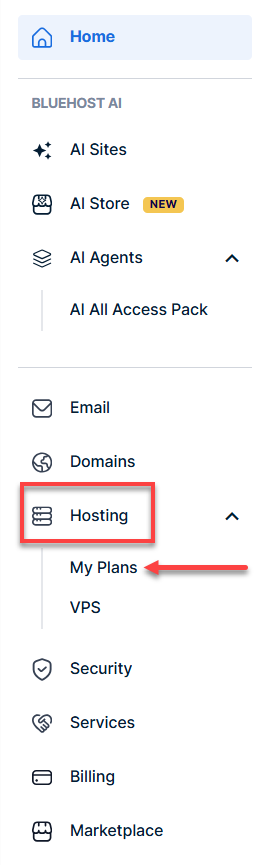
- In the left-hand menu, click Hosting, then select My Plans.
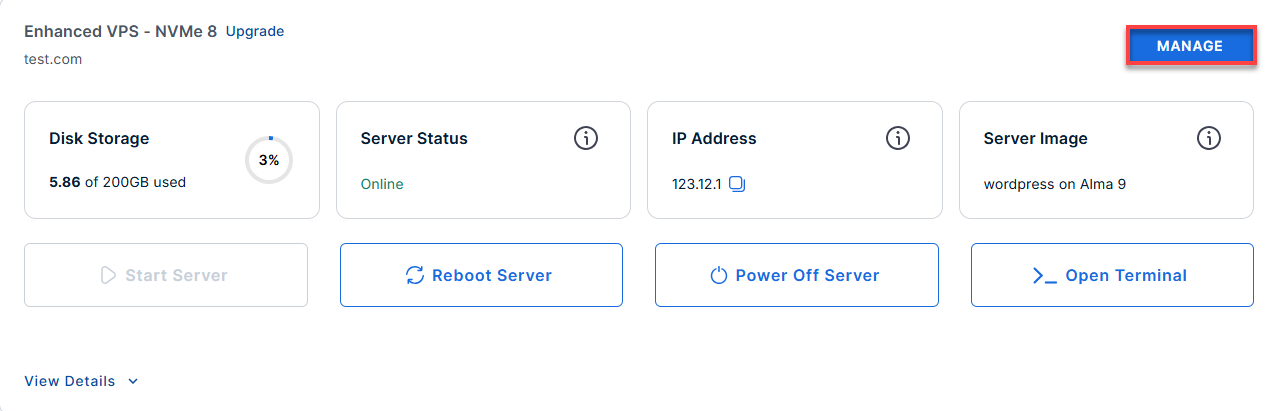
- Click the Manage button on the hosting package where you want to access your console.
- On the hosting details page, click the Access tab button.
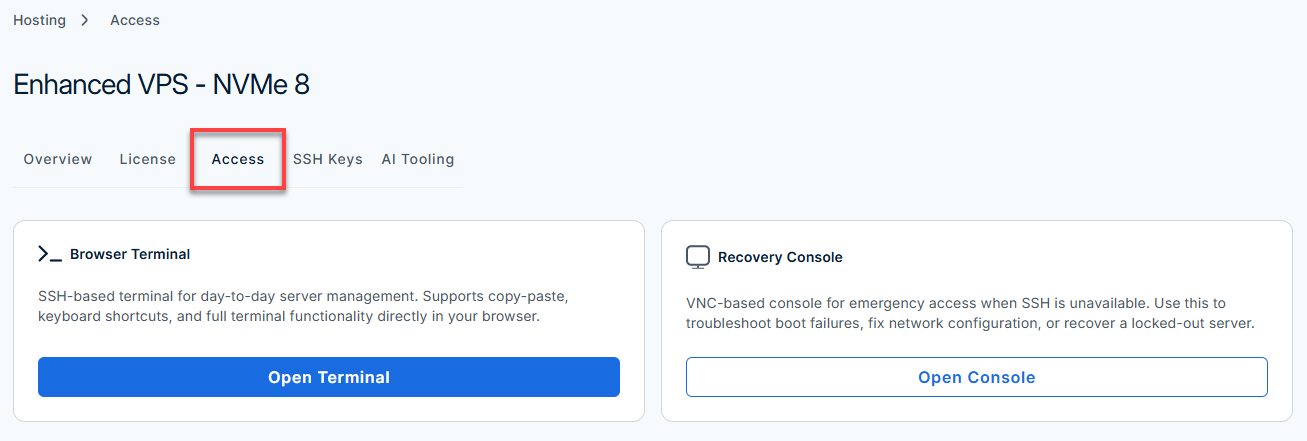
Within the Access tab, you have access to the following tools and options:
Tip!
Use Browser Terminal for your day-to-day work. Switch to Recovery Console when something has gone wrong and you cannot reach the server any other way.- Browser Terminal: Connects to your server's operating system over the network, right from your browser. No extra software needed. Use it for quick, everyday tasks like running commands or checking on your server.
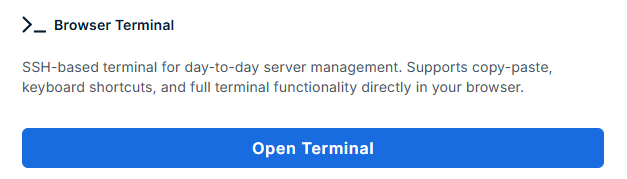
- Click Open Terminal.
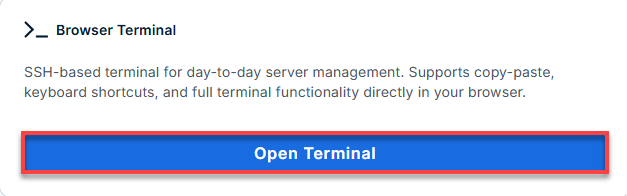
- It will open a new page.
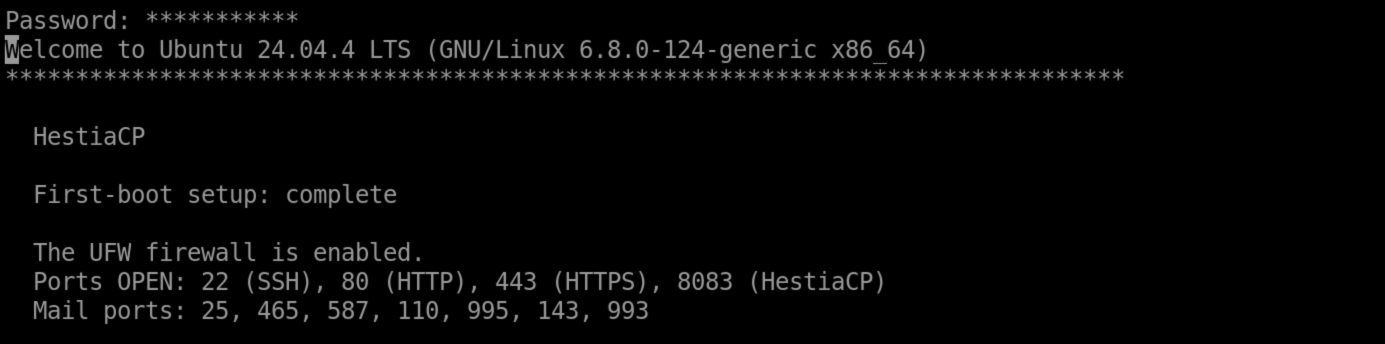
- When prompted, enter your password (you won't see characters as you type). Press Enter.

- Once logged in, you will see the Terminal prompt.
- Click Open Terminal.
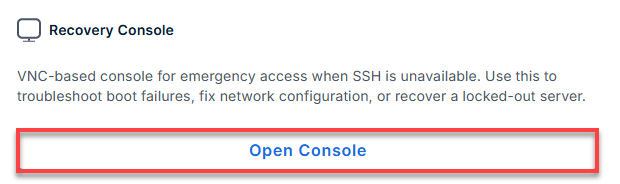
- Recovery Console: Connects directly to your server's virtual hardware through the hypervisor, so it does not require network connectivity. This allows it to display items that the Terminal cannot, such as the boot screen and GRUB menu. Use it when your server is unresponsive or experiencing issues that require direct intervention.
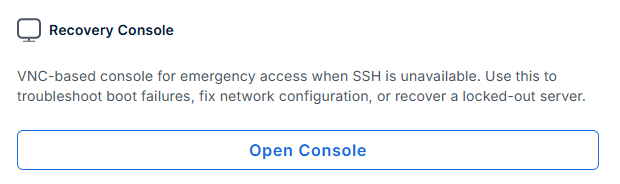
- Click Open Console.
- It will open a new page.
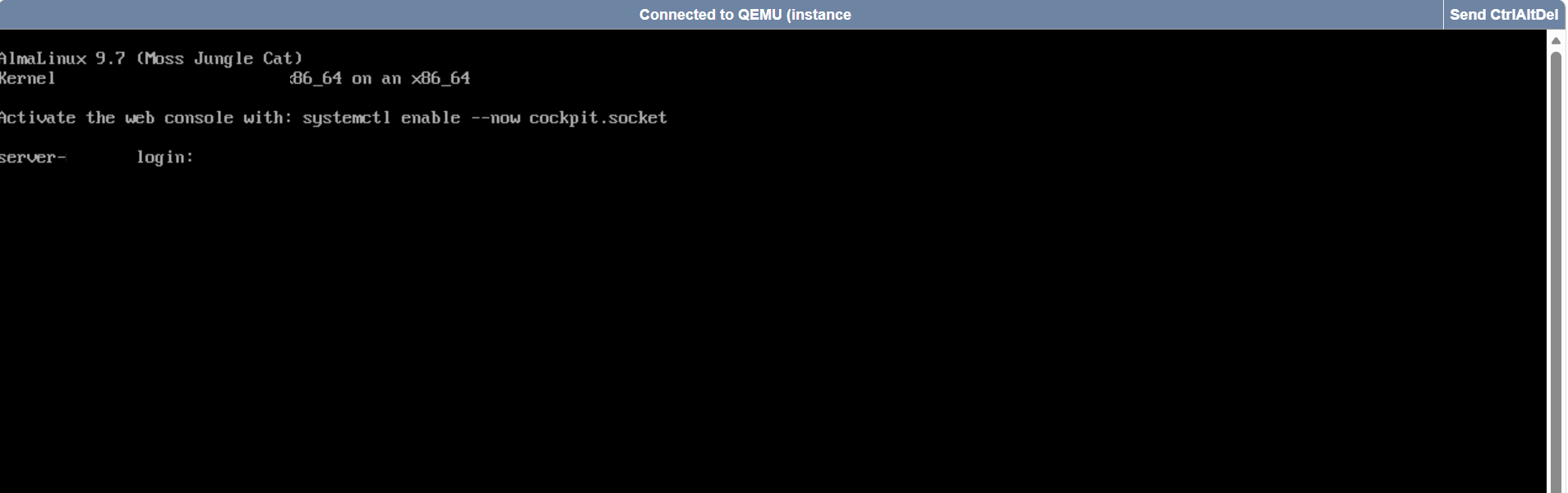
- Click Open Console.
- Browser Terminal: Connects to your server's operating system over the network, right from your browser. No extra software needed. Use it for quick, everyday tasks like running commands or checking on your server.
Essential Troubleshooting Commands
Use these core CLI commands to check server health, verify network interface settings, manage access, and run diagnostic fixes on your Bluehost VPS or VDS.
- Check Disk Usage
Displays total and available storage across your Bluehost server partitions to prevent disk space exhaust errors.
df -hExample output:
Filesystem Size Used Avail Use% Mounted on /dev/vda1 40G 15G 24G 39% / tmpfs 391M 0 391M 0% /dev/shm - View Running Processes
Monitors real-time resource utilization, running daemons, and system load directly on your virtual instance.
topExample output (top row):
top - 15:41:23 up 3 days, 2:10, 2 users, load average: 0.10, 0.03, 0.05 Tasks: 101 total, 1 running, 100 sleeping, {0 stopped}, 0 zombie %Cpu(s): 1.0 us, 0.8 sy, 0.0 ni, 98.0 id, 0.0 wa, 0.0 hi, 0.2 si, 0.0 st - Check SSH Service Status
Confirms that the SSH daemon is online and listening for connections on your assigned Bluehost port.
sudo systemctl status sshdExample output:
● sshd.service - OpenSSH server daemon Loaded: loaded (/usr/lib/systemd/system/sshd.service; enabled) Active: active (running) since Wed 2024-06-26 15:00:20 UTC; 1h 2min ago - Restart SSH Service
Restarts your remote access service to re-establish dropped sessions or reload active configuration files.
sudo systemctl restart sshd - Reset the Root/User Password
Changes your system account credentials directly from terminal mode to restore administrative access.
passwdExample output:
Changing password for user root. New password: Retype new password: passwd: all authentication tokens updated successfully. - Edit Config Files (nano/vi)
Modifies core service configurations, such as custom ports or security rules, using standard command-line editors.
nano /etc/ssh/sshd_config# Example shows nano editor with the file content loaded - View System Logs
Inspects centralized system logs to diagnose boot errors, service failures, or unexpected server crashes.
journalctl -xeExample output (portion):
Jun 26 15:41:35 vps-name systemd[1]: Starting OpenSSH server daemon... Jun 26 15:41:35 vps-name sshd[7451]: Server listening on 0.0.0.0 port 22. - Fix Broken Firewall Rules
Temporarily stops active firewalls (Firewalld/UFW) to bypass custom rules that may lock you out of your instance.
Firewalld (CentOS/AlmaLinux/Rocky):
sudo systemctl stop firewalldUFW (Ubuntu/Debian):
sudo ufw disable - Check Network Interfaces
Lists active network adapters and verifies the public IP address configured on your Bluehost server.
ip aExample output:
2: eth0: <broadcast,multicast,up,lower_up> mtu 1500 ... inet 198.51.100.23/24 brd 198.51.100.255 scope global eth0 - Ping an External Server
Verifies outbound internet connectivity and DNS routing from your instance to external network nodes.
ping 8.8.8.8Example output:
PING 8.8.8.8 (8.8.8.8) 56(84) bytes of data. 64 bytes from 8.8.8.8: icmp_seq=1 ttl=107 time=14.1 ms - Remount Disks (in Rescue Mode)
Remounts a read-only filesystem into read-write mode to allow critical fixes while in emergency rescue status.
mount -o remount,rw /
Best Practices and Warnings
- Go slow with anything destructive — both tools give you root-level access, so mistakes carry real weight.
- Double check your keyboard layout before typing a password; it sometimes defaults to US QWERTY even if that's not what you're used to.
- Reach for
sudoonly when a command actually needs it.
Summary
Browser Terminal and Recovery Console give you two convenient ways to access, manage, and troubleshoot your Bluehost VPS or VDS directly from your browser without installing additional software. Use Browser Terminal for routine server management tasks, such as running commands and checking system status. If SSH access is unavailable, use Recovery Console to connect directly to your server and continue troubleshooting. Because Recovery Console provides command-line access similar to SSH, you can use the same commands you would normally run through an SSH session. As with any server changes, test commands carefully and watch for errors to help avoid unexpected issues.
Related Articles
- Bluehost Self-Managed VPS: OS Comparison
- Using CentOS with Bluehost Self-Managed VPS
- Using ALMALinux with Bluehost Self-Managed VPS
- Using Rocky Linux with Bluehost Self-Managed VPS
- Using Ubuntu with Bluehost Self-Managed VPS
- Using Fedora with Bluehost Self-Managed VPS
- Using Debian with Bluehost Self-Managed VPS
- Guide to Purchasing Self-Managed VPS Hosting with Bluehost