 ChatGPT,
  Claude,
  Gemini,
  Grok — all four for
Fix the Critical Error on Your Bluehost WordPress Site
Experiencing a critical error on your WordPress website can be alarming, but it’s usually caused by simple issues such as outdated PHP versions, faulty plugins, or incorrect configurations. This guide walks you through practical troubleshooting steps—checking error logs, enabling WP_DEBUG, updating PHP, and disabling plugins—to help you quickly identify and fix the critical error and restore your WordPress site.
A critical error in WordPress often appears as:
There has been a critical error on your website. Please check your site admin email inbox for instructions.
This issue must be fixed immediately, as it usually indicates a PHP, plugin, or theme conflict.
Fix Critical Error
Follow these steps to troubleshoot and fix the WordPress critical error on your Bluehost hosting account:
- Ensure the admin email address is correct in your WordPress settings, and verify that Bluehost’s email service is working.
- Check your email's Spam or Junk folder for the critical error notification email from WordPress.
- Update your PHP version via Bluehost. Many errors are resolved by running the latest compatible PHP version.
- Log in to your Bluehost Portal.
- In the left-hand menu, click Websites.
- Click the Manage Site button located next to the website you want to manage.

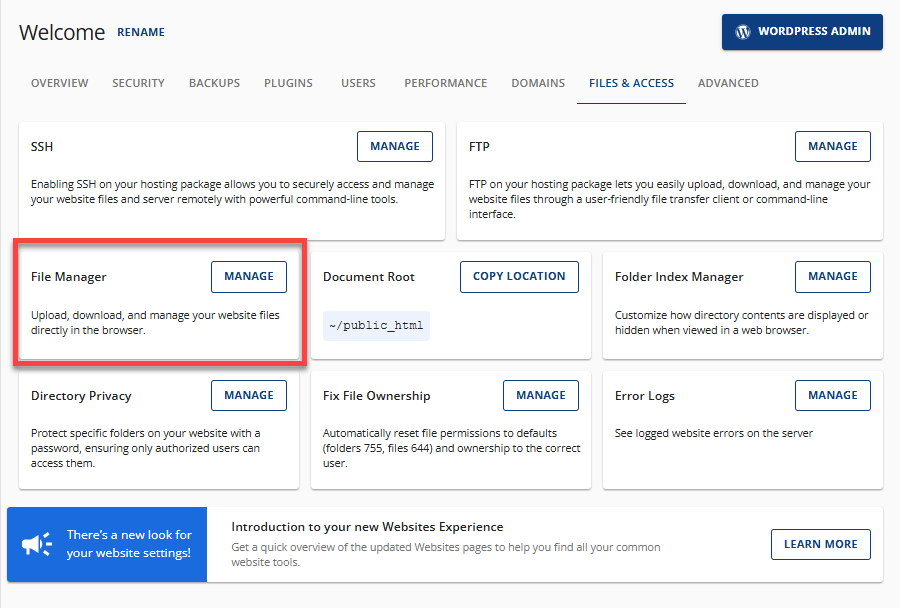
- Click the Files & Access tab.

- In the File Manager card, click the Manage button.
- The File Manager will open a new tab. Select the wp-config.php file, right-click on it, and then click Edit.

- In the pop-up window, click the Edit button again.
 Depending on your File Manager settings, the "Character Encoding Verification" pop-up window may not appear.
 - In your wp-config.php file, scroll down and look for a line with the 'WP_DEBUG' code snippet. It is usually found before the line:
/* That's all, stop editing! Happy publishing. */
- The default value of 'WP_DEBUG' is "false." Make sure to change it to "true."
define( 'WP_DEBUG', true ); - You may also want to hide the errors on your live site. To do this, add the following code snippet:
define('WP_DEBUG_DISPLAY', false); - To save errors from your website in a file that you can easily access, enable the WP_DEBUG_LOG feature by adding the following code snippet to your wp-config.php file.
define('WP_DEBUG_LOG', true);Make sure to place these code snippets before the line:
/* That's all, stop editing! Happy publishing. */ - Click the Save Changes button in the top-right corner.

- Attempt to disable all plugins and use one of the default themes through your WordPress Dashboard.
If you cannot access the WordPress Dashboard, use the Disable a Broken WordPress Theme or Plugin Using Database article to disable them through the phpMyAdmin database.
- Once the plugins are disabled, you should then be able to access the WordPress Dashboard.
- Refresh your website. If the problem goes away, enable the plugins one by one to identify the source of the issue.
Summary
This guide helps you troubleshoot and resolve the “critical error” on your WordPress website hosted on Bluehost. You’ll learn how to verify admin emails, update PHP versions, check error logs, enable debugging mode, and disable plugins and themes to restore your site quickly.
If you need further assistance, Bluehost Chat Support is available 24 hours a day, 7days a week while Bluehost Phone Support is available 7 days a week from 7 am-12 midnight EST.
- Chat Support - While on our website, you should see a CHAT bubble in the bottom right-hand corner of the page. Click anywhere on the bubble to begin a chat session.
- Phone Support -
- US: 888-401-4678
- International: +1 801-765-9400
You may also refer to our Knowledge Base articles to help answer common questions and guide you through various setup, configuration, and troubleshooting steps.