 ChatGPT,
  Claude,
  Gemini,
  Grok — all four for
How to Access Feature Manager in WHM
The Feature Manager lets you turn icons on or off within each client’s cPanel. After creating a feature list, you’ll need to update the client’s package and assign the new feature list to it.
How to set up a feature list
- Log in to your Bluehost Portal.
- In the left-hand menu, click Hosting, then select My Plans.
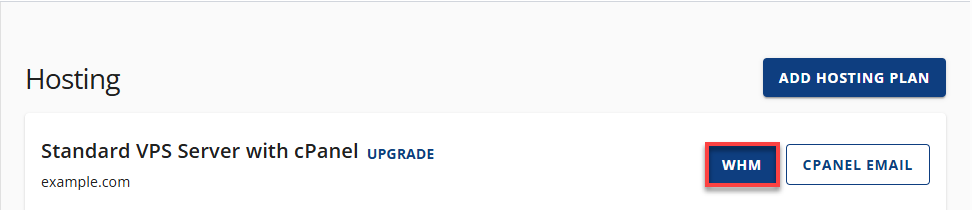
- On the hosting details page, click the WHM button.
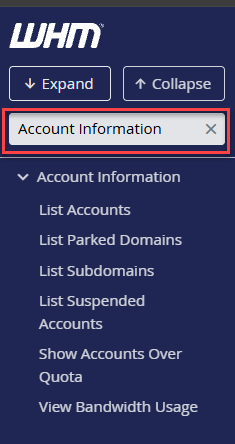
- Locate the Packages section. The fastest way is to type the keyword into the Search field on the left-side panel.
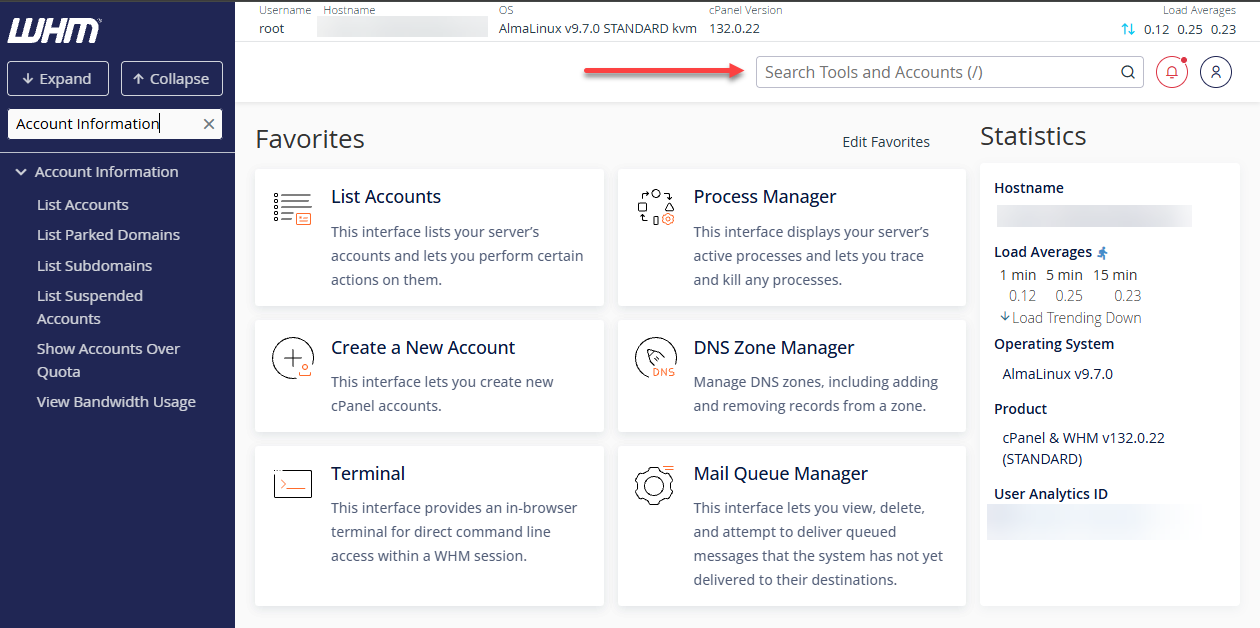
You may also use the Search field at the top.
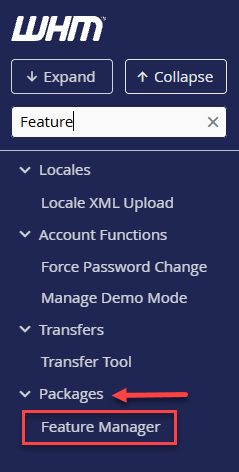
- Select Feature Manager.
You can also manually open the Package section on the left-side panel and choose Feature Manager from the options.
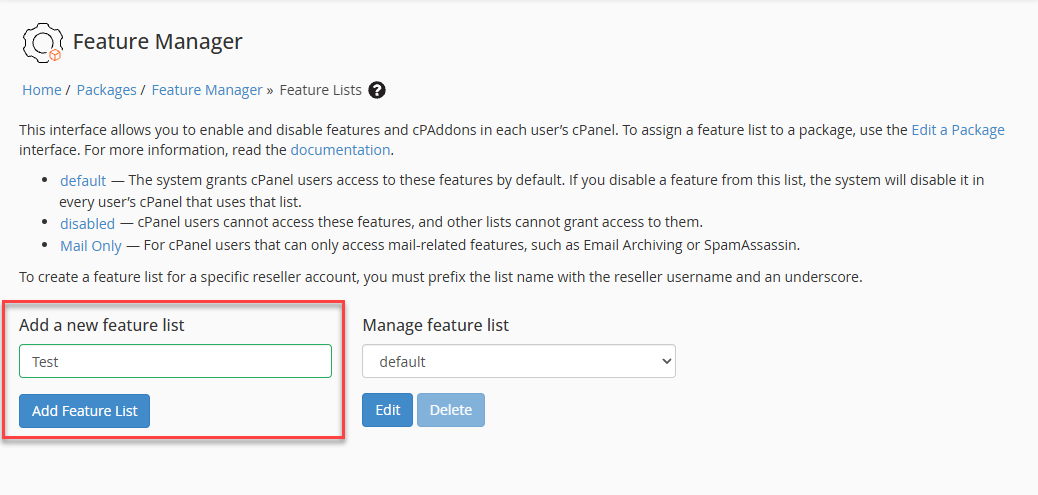
- Enter a name for the new feature list and click the Add Feature List button.
- Select the icons you want to enable and uncheck the ones you want to disable.
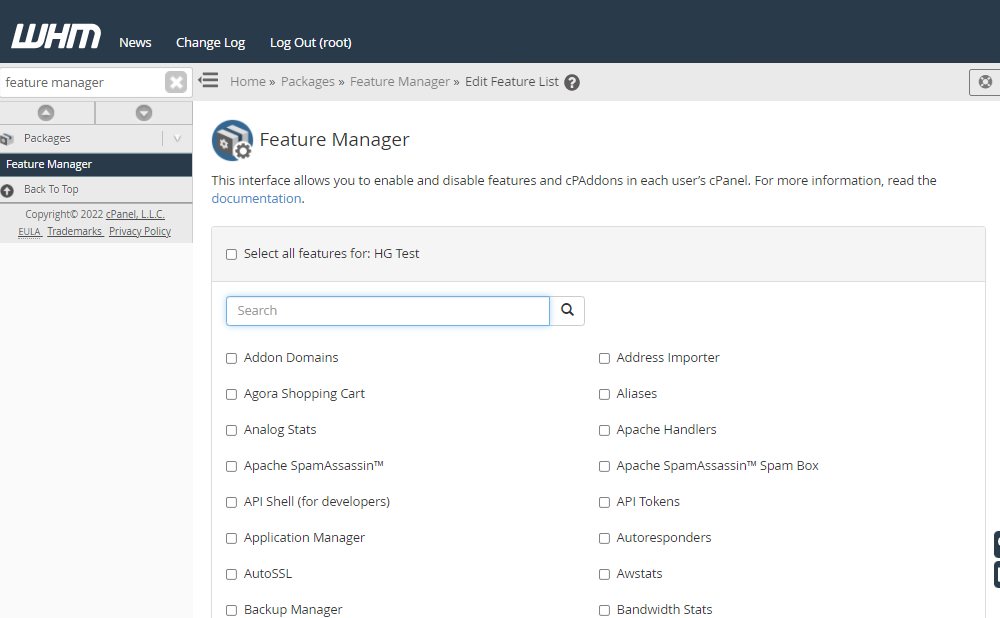
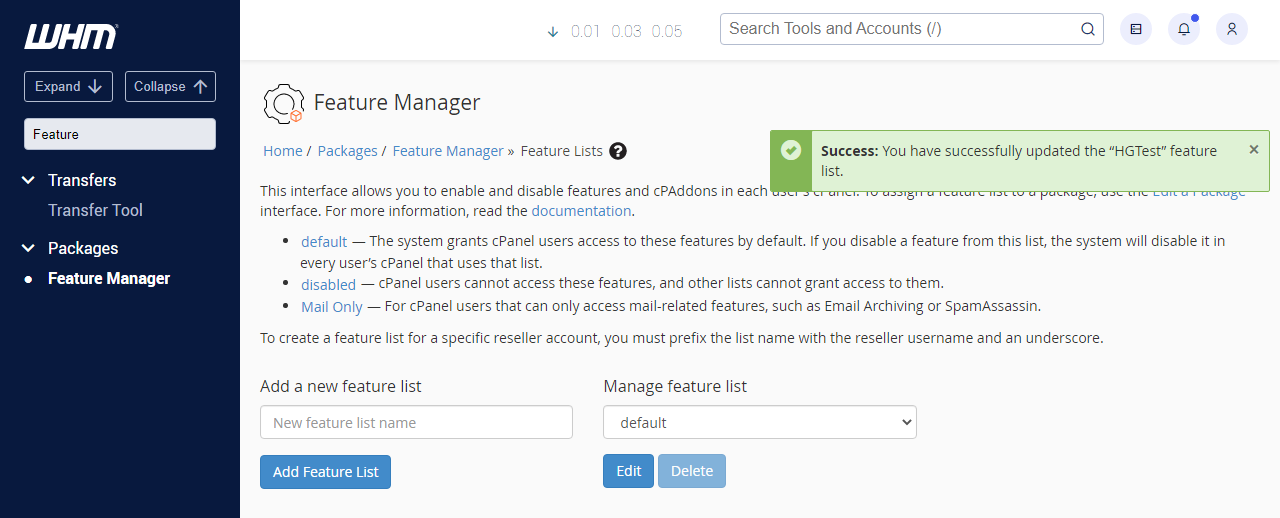
- Click the Save button.
- Great job! You have now created a feature list.
How to assign a feature list to a package
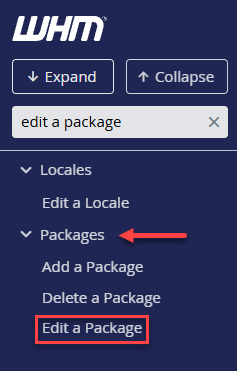
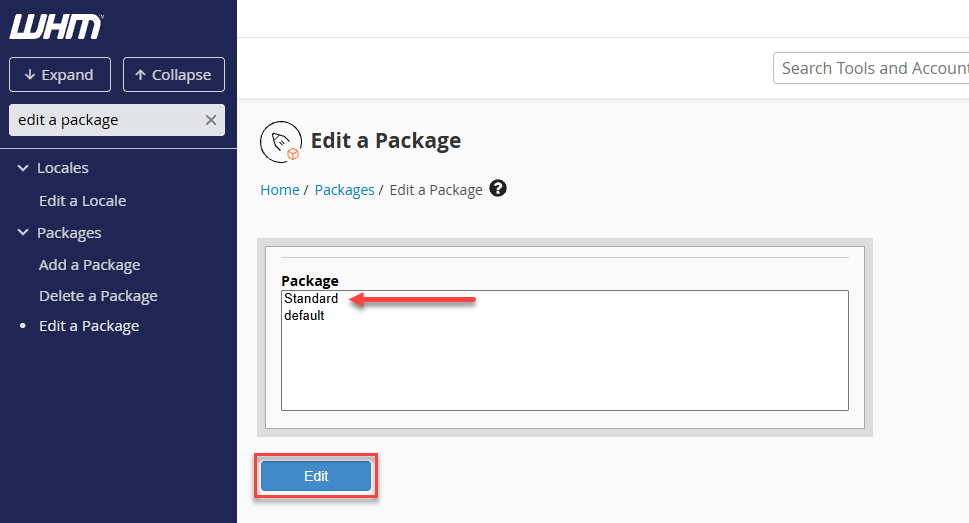
- To apply a feature list to a package, search for Edit a Package in the left panel.
- Choose the package used by your domain, then click the Edit button.
- Scroll down to the Settings section. Open the dropdown to display the available feature lists.
- Select the feature list you created and click the Save Changes button.
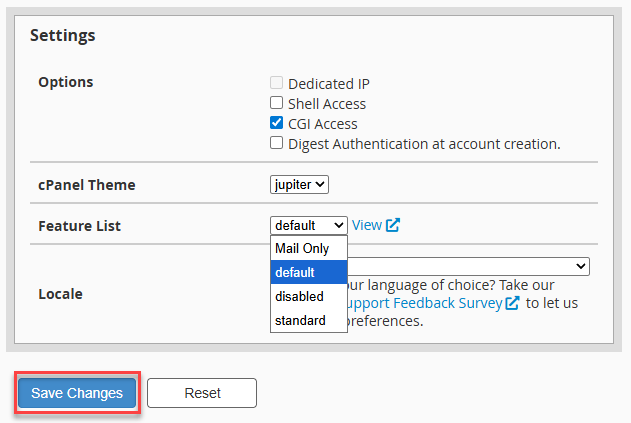
- All domains assigned to that package will now use the cPanel icons you configured.
Summary
The Feature Manager in WHM allows you to customize which cPanel icons and tools are available to each client. To use it, you’ll first create a feature list by naming it, selecting the features you want to enable or disable, and saving your changes. Afterward, you can assign this feature list to any hosting package by editing the package settings and selecting it from the feature list dropdown. All domains using that package will automatically adopt the new configuration.
If you need further assistance, Bluehost Chat Support is available 24 hours a day, 7days a week while Bluehost Phone Support is available 7 days a week from 7 am-12 midnight EST.
- Chat Support - While on our website, you should see a CHAT bubble in the bottom right-hand corner of the page. Click anywhere on the bubble to begin a chat session.
- Phone Support -
- US: 888-401-4678
- International: +1 801-765-9400
You may also refer to our Knowledge Base articles to help answer common questions and guide you through various setup, configuration, and troubleshooting steps.