 ChatGPT,
  Claude,
  Gemini,
  Grok — all four for
 How to Connect My Device in OX Mail
Connecting your device to OX Mail is quick and simple with the built-in setup wizard. Whether you’re using a desktop, tablet, or mobile app, this guide walks you through the steps to ensure seamless access to your email across all your devices.
The steps below will help you know how to set up local apps using the Wizard.
- Open your internet browser.
- In the address bar, enter https://webmail.oxcs.bluehost.com/.
- Log in to OX Mail.
- Enter your email address.
- Input your password associated with the email address you want to log in to.
- Click the Sign in button.
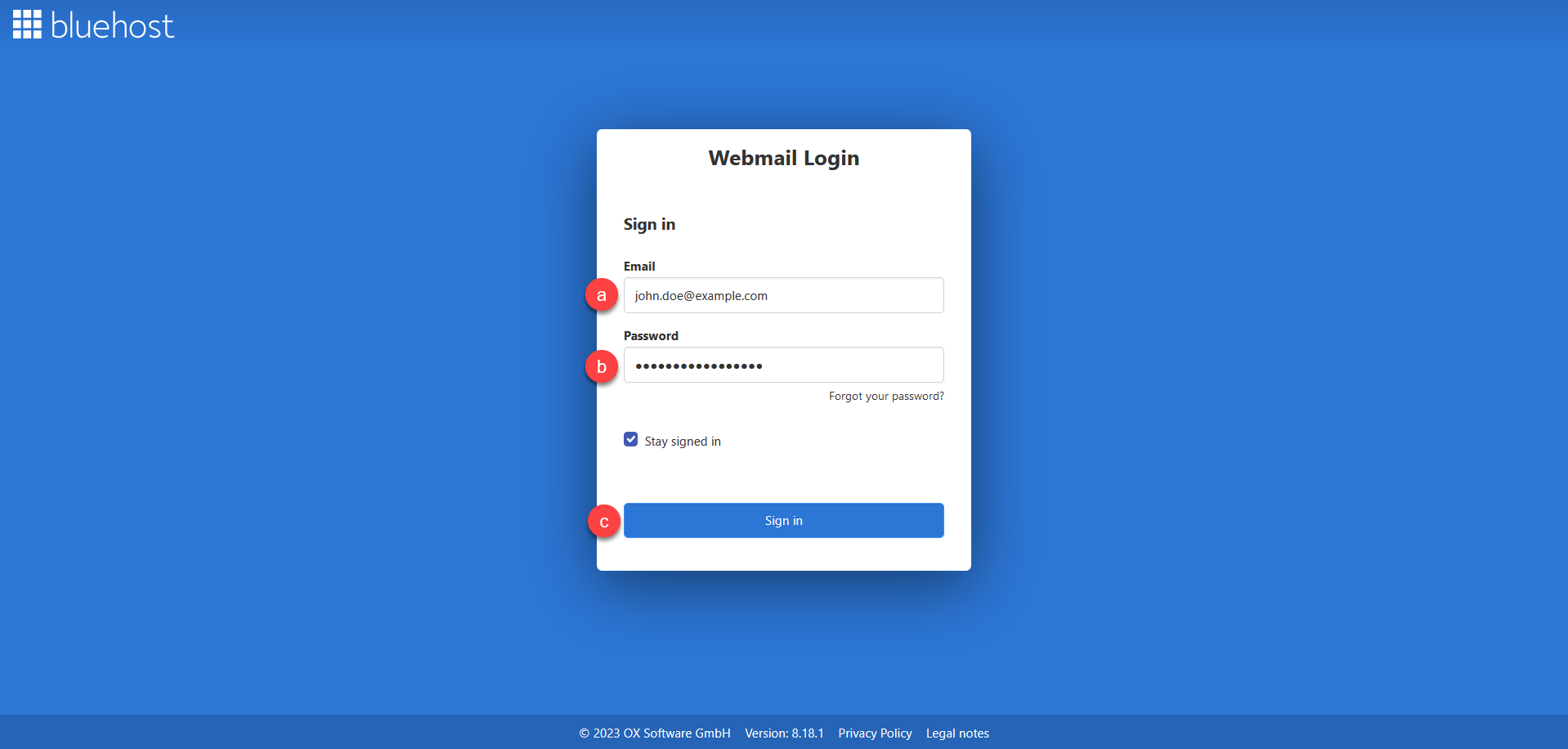
Enable the Stay signed in option by ticking the box to ensure your session remains active, preventing automatic logouts and the need to log in repeatedly.
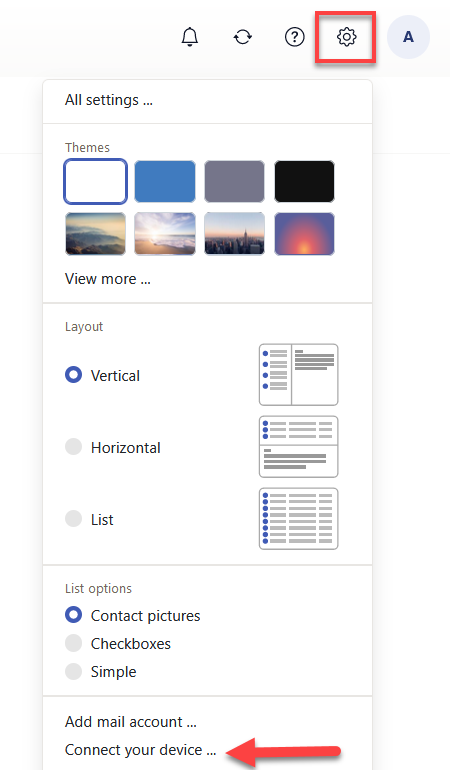
- Launch the Connect your device pop up.
- Click the Settings (gear) icon.
- Select Connect your device... from the options. Doing so will launch the wizard.
- Choose your system and the required devices. Follow the instructions on your screen to complete the setup.
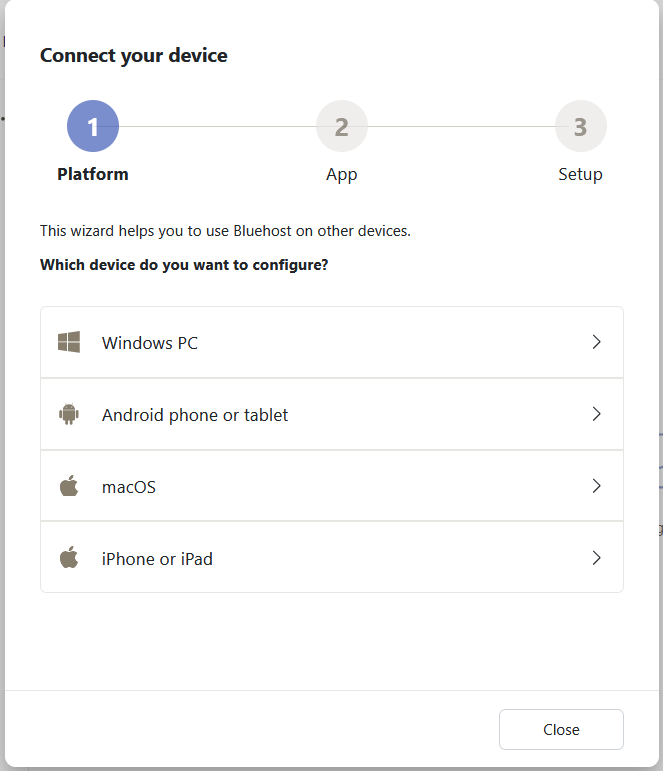
- Repeat the steps to set up additional devices.
Summary
By following these steps, you can easily link your preferred devices to OX Mail and keep your email accessible anytime, anywhere. The setup wizard makes the process straightforward, and once configured, you’ll enjoy a consistent and secure email experience across all platforms.
If you need further assistance, Bluehost Chat Support is available 24 hours a day, 7days a week while Bluehost Phone Support is available 7 days a week from 7 am-12 midnight EST.
- Chat Support - While on our website, you should see a CHAT bubble in the bottom right-hand corner of the page. Click anywhere on the bubble to begin a chat session.
- Phone Support -
- US: 888-401-4678
- International: +1 801-765-9400
You may also refer to our Knowledge Base articles to help answer common questions and guide you through various setup, configuration, and troubleshooting steps.