 ChatGPT,
  Claude,
  Gemini,
  Grok — all four for
 Purchase a Self-Managed VPS with CyberPanel Installation
CyberPanel is a free, high-performance web hosting control panel designed as a budget-friendly alternative to premium platforms like cPanel. It is best known for its exceptional speed, which comes from its native integration with the LiteSpeed web server and built-in LSCache optimization.
Why Use CyberPanel?
CyberPanel is a web hosting control panel highly favored for its exceptional speed and performance, driven by its native integration with the LiteSpeed web server and built-in LSCache optimization. Unlike costly traditional alternatives like cPanel, it offers a robust free tier that allows users to host unlimited websites on their own cloud infrastructure or VPS without licensing fees. It simplifies complex server management by automating critical developer tasks, such as one-click WordPress staging, Git deployment, and free, self-renewing Let's Encrypt SSL certificates.
Uses of CyberPanel
CyberPanel is an all-in-one control dashboard that helps you easily run and look after your websites; here is what you can use it for:
- High-Performance Web Hosting: CyberPanel uses advanced server technology to make sure your website and online store load instantly.
- Unlimited Site Management: You can host and manage as many websites as your server can handle without facing hidden upgrade costs.
- One-Click Tools: Easily install popular apps like WordPress or update your website files without needing advanced technical skills.
- Keep Sites Safe Automatically: The system automatically protects your server from threats and keeps your connection secure with free, self-renewing security certificates.
System Requirements
Here is what your system needs to run this software smoothly.
- Do not purchase a server that only meets the minimum requirements. The minimum specifications represent the software's bare survival threshold and do not account for operating system overhead or production workloads. Running with only 2 vCPUs, 4 GB RAM, and 20 GB of disk space can result in severe performance slowdowns, system freezes, or unexpected crashes during traffic spikes.
- For a stable deployment, we recommend using at least 4 vCPUs , 8 GB RAM, and 20 GB SSD. Consider allocating additional disk space if you plan to store recordings, logs, or other application data.
| Resource | Minimum | Recommended |
|---|---|---|
| vCPUs | 2vCPUs | 4 vCPUs |
| RAM | 4 GB | 8 GB |
| Disk | 20 GB | 20 GB SSD |
How to Purchase a Self-Managed VPS with CyberPanel Installation
To deploy and manage CyberPanel efficiently, start by purchasing a Self-Managed VPS Hosting from Bluehost. Follow these steps:

New to VPS or not sure where to start? No worries! At the top of the Self-Managed VPS purchase page, you’ll see the Pre-configured Setup section. This handy feature is perfect if you’re feeling a bit unsure—just pick the type of project you want, like WordPress Site, AI Agent/Claude Code, Dev/Staging, or eCommerce Store. We’ll take care of the rest by automatically filling in the best plan, operating system, and template for you.
- Super simple for beginners or anyone who just wants a quick setup
- Instantly get the recommended settings for your project
- Skip the guesswork and save time
- You can still customize things later if you want
- In your browser, go to https://www.bluehost.com/vps-hosting.
- Click the Choose Plan button under your preferred VPS hosting plan.
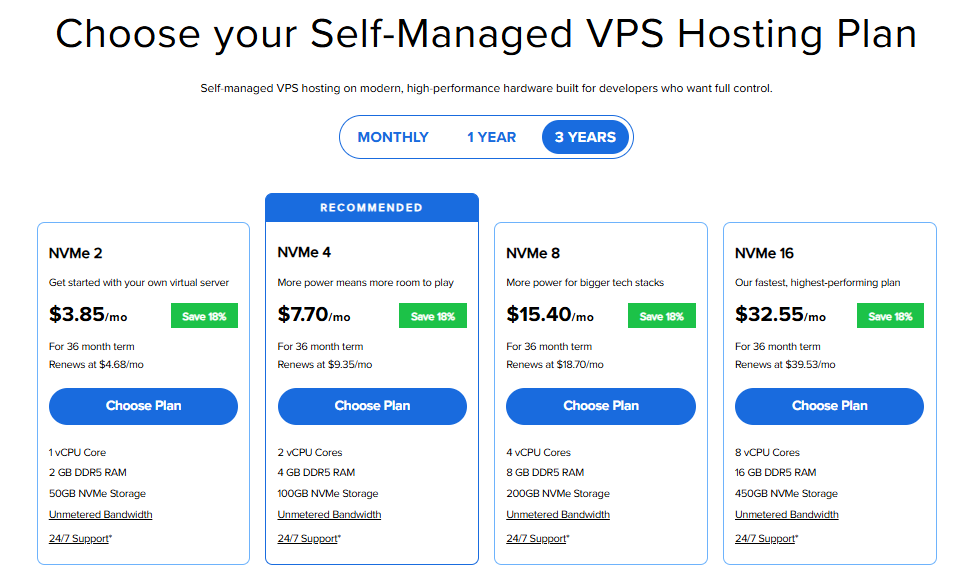
Important: Pricing is subject to change—please visit https://www.bluehost.com/vps-hosting for the current introductory/sign-up offer for Bluehost VPS Hosting. For the most up-to-date renewal pricing, visit your Bluehost Portal Renewal Center.
- Select your preferred Data Center location.

- On the Cart page, you can configure your server to fit your needs in the following section:
- Hardware:
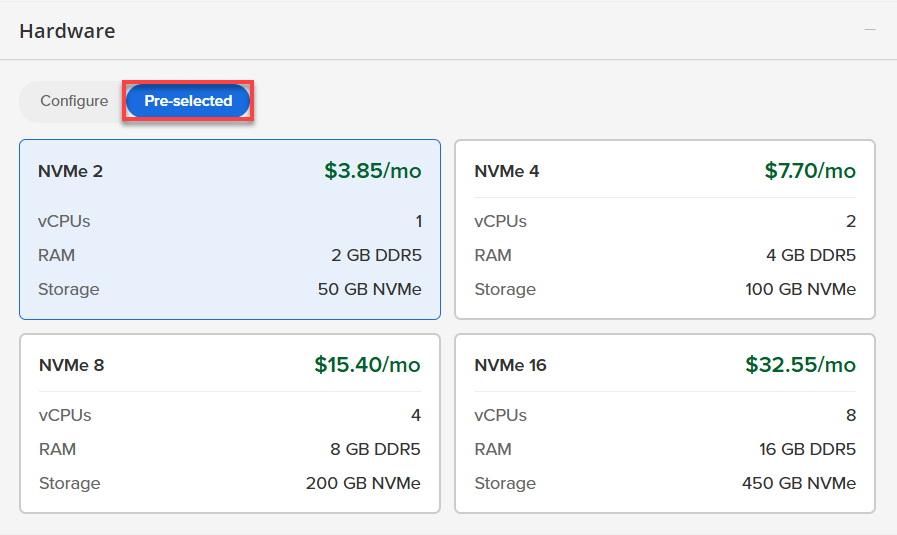
- Pre-selected:
You can select a different Self-Managed VPS plan in this section.
- Configure:
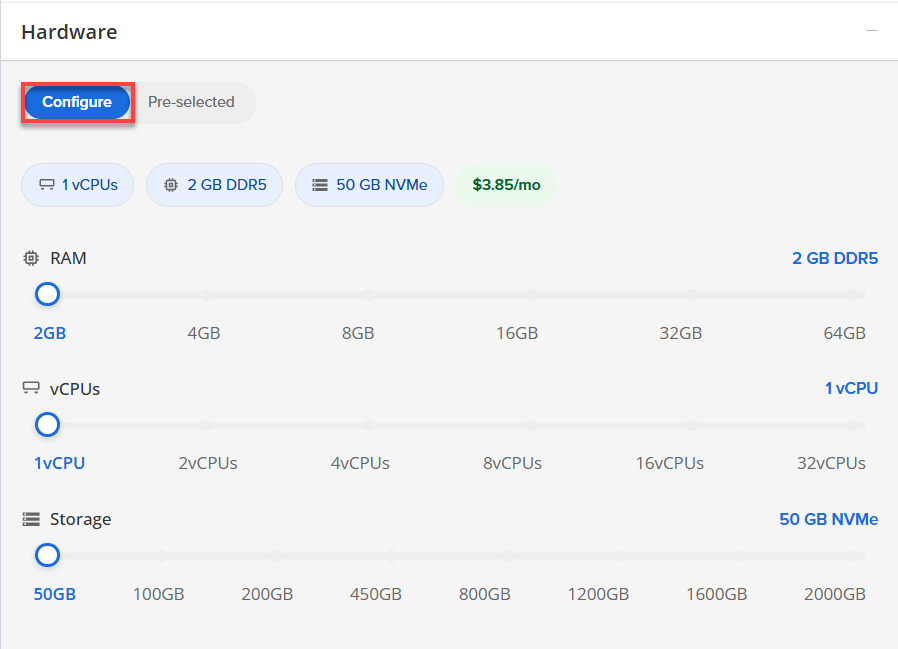
Click Configure to customize your package.
Note that your changes help customize your plan, and the overall cost will adjust accordingly to fit your needs.
- Pre-selected:
- Software:
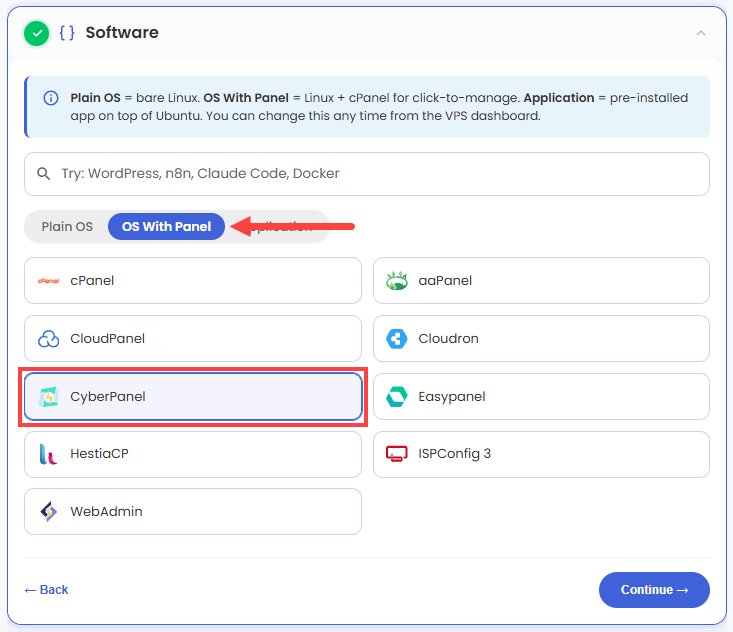
If the selected plan does not meet the app's minimum requirements, the app will be grayed out.
- Click on the OS With Panel tab.
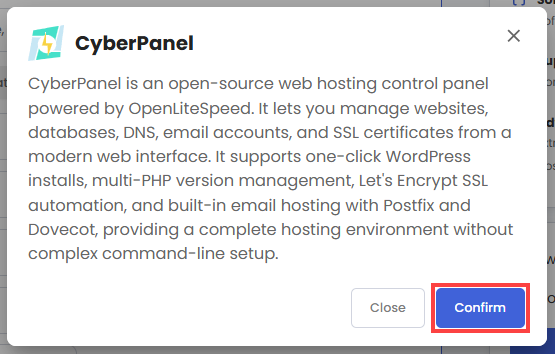
- Choose CyberPanel.
- Click Confirm to continue.
- Hardware:
- Add-Ons:
- Premium Support:
This service provides you with priority access to our expert team for faster responses and personalized assistance whenever you need it.

- Premium Support:
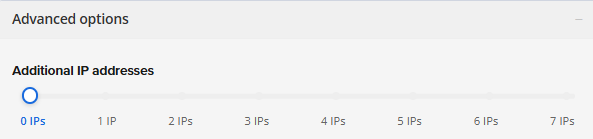
- In the Advanced options:
- Extra IP's: You can add extra IP addresses for an additional fee.
Pricing changes based on how many IPs you add. - Hostname: Assign a custom hostname to easily identify your server. This is optional.
- Extra IP's: You can add extra IP addresses for an additional fee.
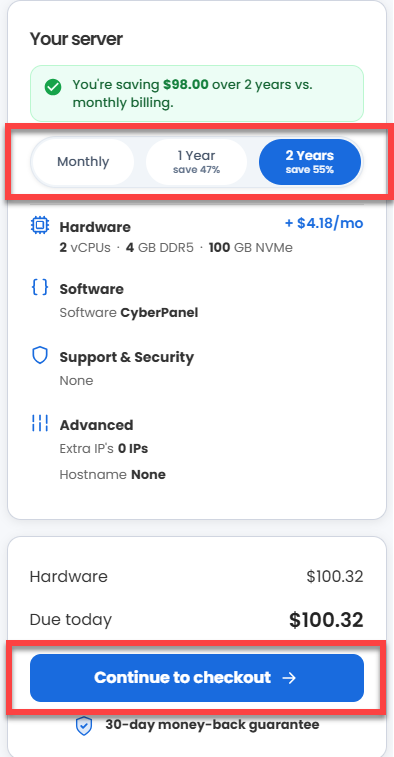
- Select your preferred billing term and view your Order Summary. Click the Continue to Checkout button to proceed.
- Do the following on the Checkout page:
If you're new with Bluehost:
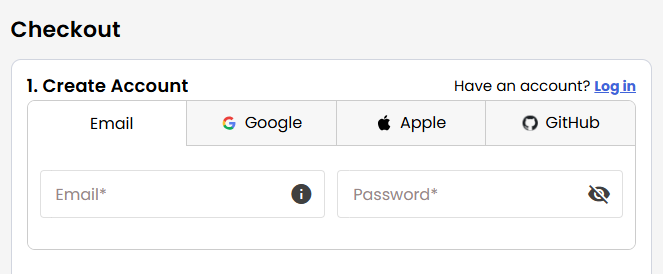
- Create your Bluehost account by using your email address or by connecting with your Google, Apple, or GitHub account — whichever you prefer!
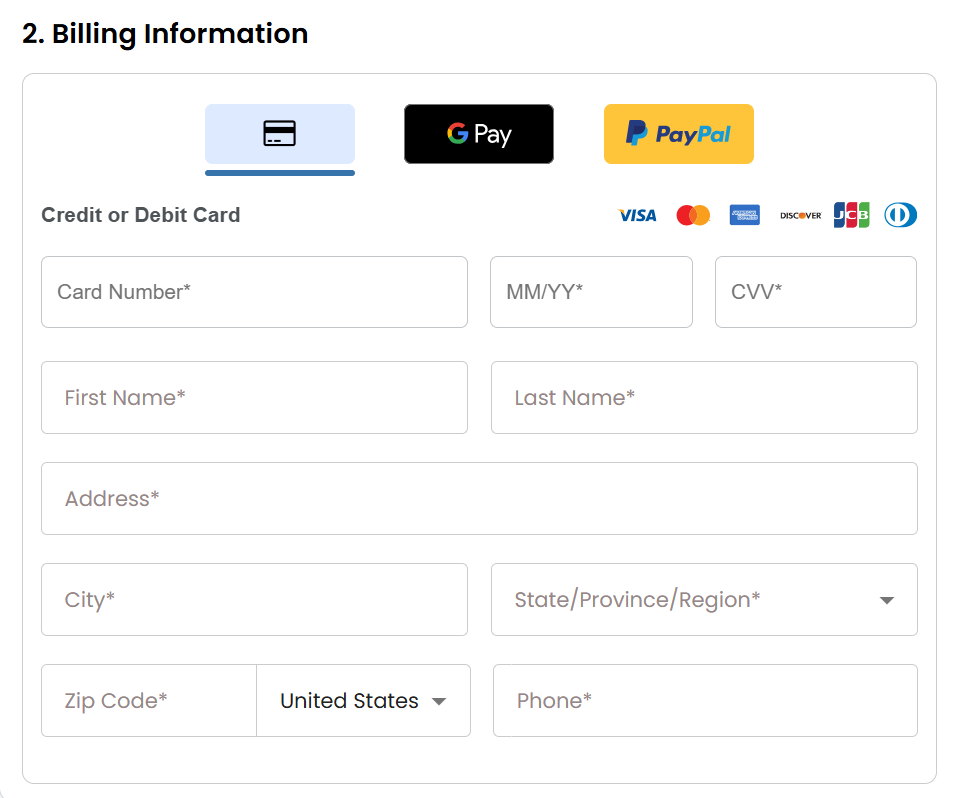
- Select your preferred payment method: credit card, Google Pay, or PayPal. Enter your billing information.
If you have an account with us, you will see your Bluehost login details when you are logged into your Bluehost Portal. If you are not logged in, please click the Log In link.
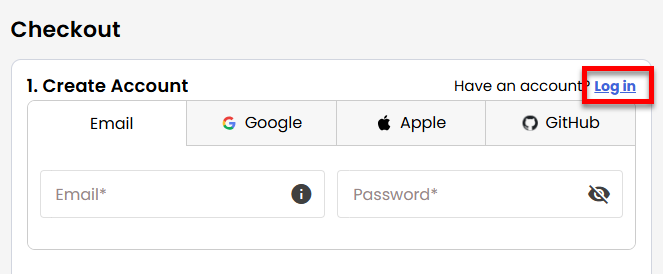
- Create your Bluehost account by using your email address or by connecting with your Google, Apple, or GitHub account — whichever you prefer!
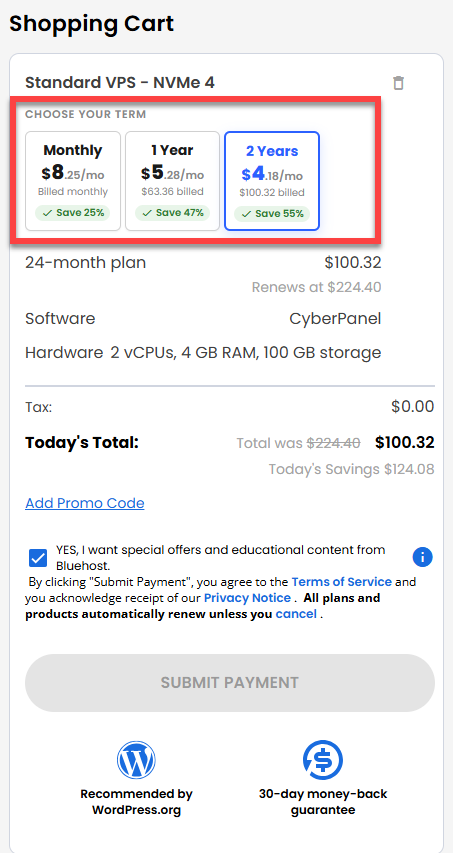
- In the Shopping Cart section, you can still adjust your billing term if needed.
- Review the items in your cart, add a Promo Code if you have one, and then click Submit Payment to complete the purchase.
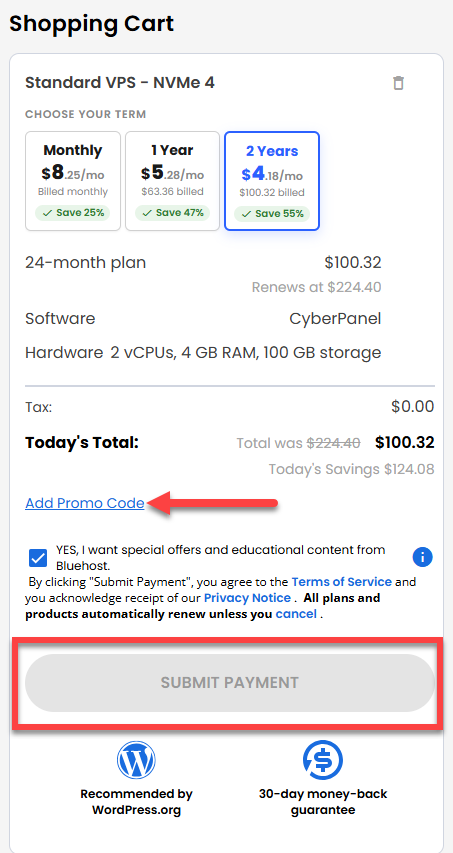
After completing the purchase, your VPS hosting will begin provisioning. You can access and manage your new VPS hosting in the Hosting tab of your Bluehost Portal.
How to Log In and Set Up Your First Website in CyberPanel
CyberPanel is an easy-to-use web hosting control panel. It lets you manage your websites, databases, emails, and security from a single dashboard—no complex coding required.
Follow this guide to log in and set up your first website.
Step 1: Access your CyberPanel Dashboard
After installation completes:
- Log in to your Bluehost Portal.
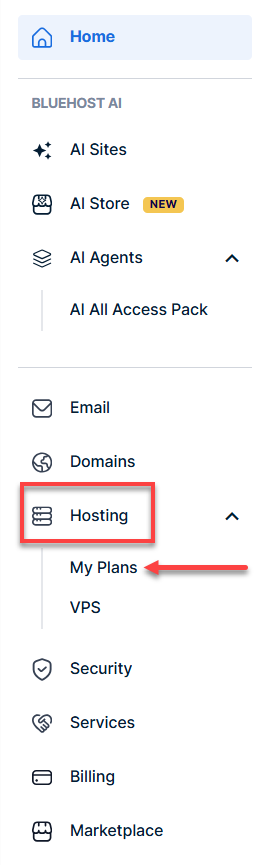
- In the left-hand menu, click Hosting, then select My Plans.
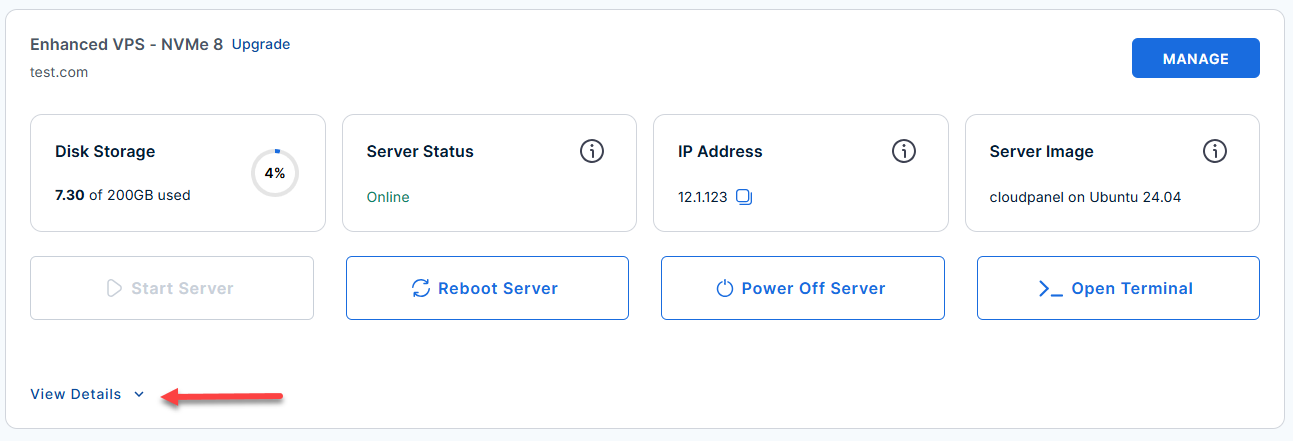
- Locate the server you want to manage, then click View Details in the bottom-left corner to expand the section and access additional server information.
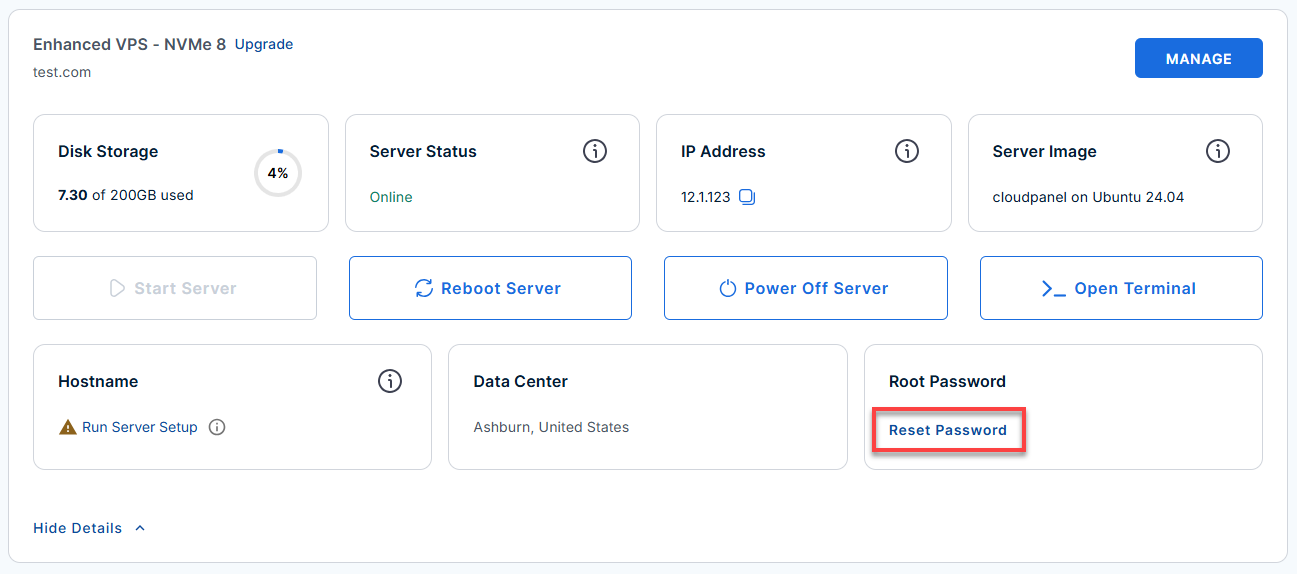
- Click the Reset Password.
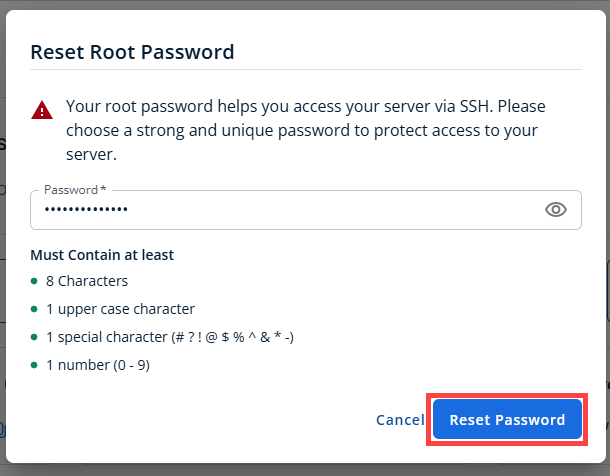
- In the pop-up window, type your new root password, then click Reset Password again to confirm and save the changes.
- Connect to your VPS via SSH.
Use your VPS IP and credentials with an SSH client, follow the prompts, and enter your root password when asked:Replaceyour_server_ipwith your actual server IP address.ssh root@your_server_ipExample Output:
Welcome to Ubuntu 24.04.4 LTS (GNU/Linux 6.8.0-124-generic x86_64) ******************************************************************************** CyberPanel + OpenLiteSpeed Stack Firewall: Ports 22, 80, 443, 8090, 7080 open Access URLs: CyberPanel Dashboard : https://12.1.1.123:8090 OLS Admin : https://12.1.1.123:7080 Hosted Websites : https://12.1.1.123 Login: CyberPanel Username : admin Password : see /root/.app_passwords (CYBERPANEL_PASS) OLS Admin Username : admin Password : see /root/.app_passwords (OLS_ADMIN_PASS) Key Paths: Credentials : /root/.app_passwords CyberPanel : /usr/local/CyberCP Logs : /var/log/{cyberpanel,lsws}/ MySQL pass : /etc/cyberpanel/mysqlPassword Quick Commands: systemctl {status|restart} lscpd systemctl {status|restart} lsws systemctl {status|restart} mariadb tail -100 /var/log/lsws/error.log For full details: /root/README.md ******************************************************************************** - If you ever need to quickly review the system's deployment notes directly inside your server terminal, you can print out the original README file by running:
cat /root/README.md
Step 2: Retrieve Initial Credentials
Before you can log into the web interface, you need to grab the unique passwords generated by the system during its initial boot.
Use admin as your username and enter the password you just retrieved.
- CyberPanel Dashboard: https://your-ip-address:8090
- OLS Admin Panel: https://your-ip-address:7080
- View your generated passwords:
sudo cat /root/.app_passwords
Example Output:
root@server-123456:~# sudo cat /root/.app_passwords sudo: unable to resolve host server-123456.anothertestfornvme2.com: Name or service not known CYBERPANEL_PASS=abc12345GJxJ3tuIJ8OA9hmx OLS_ADMIN_PASS=abc12345lpin0zOfKbaloRKd - Sign In:
Step 3: Log In to the CyberPanel Dashboard
- Open your web browser and navigate to:
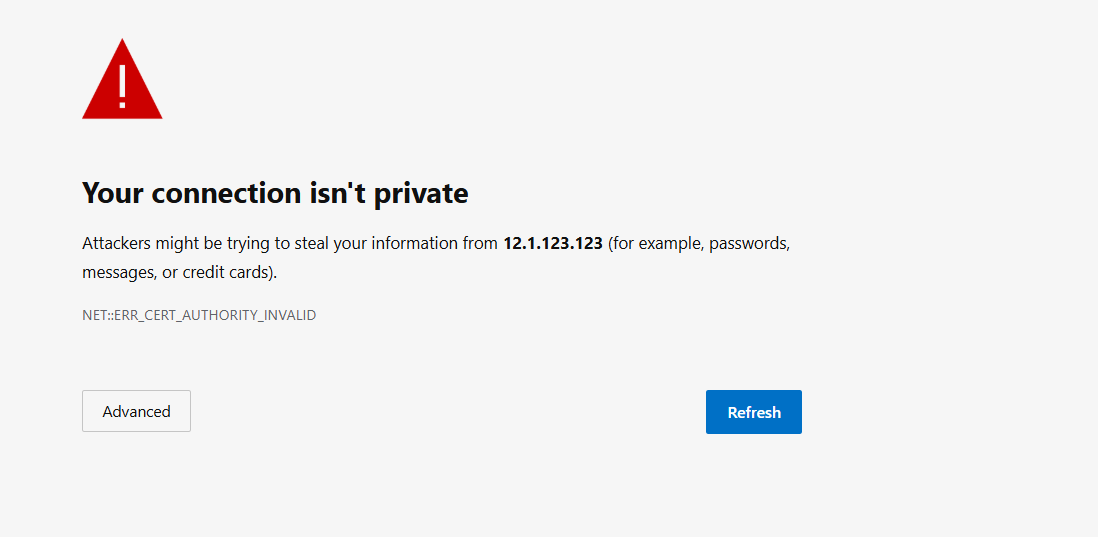
https://<your-server-ip>:8090Replaceyour_server_ipwith your actual server IP address. - Bypass the SSL warning: You will see a security warning ("Your connection is not private") because a trusted SSL certificate hasn't been issued for the IP address yet. Click Advanced and choose Proceed to continue.
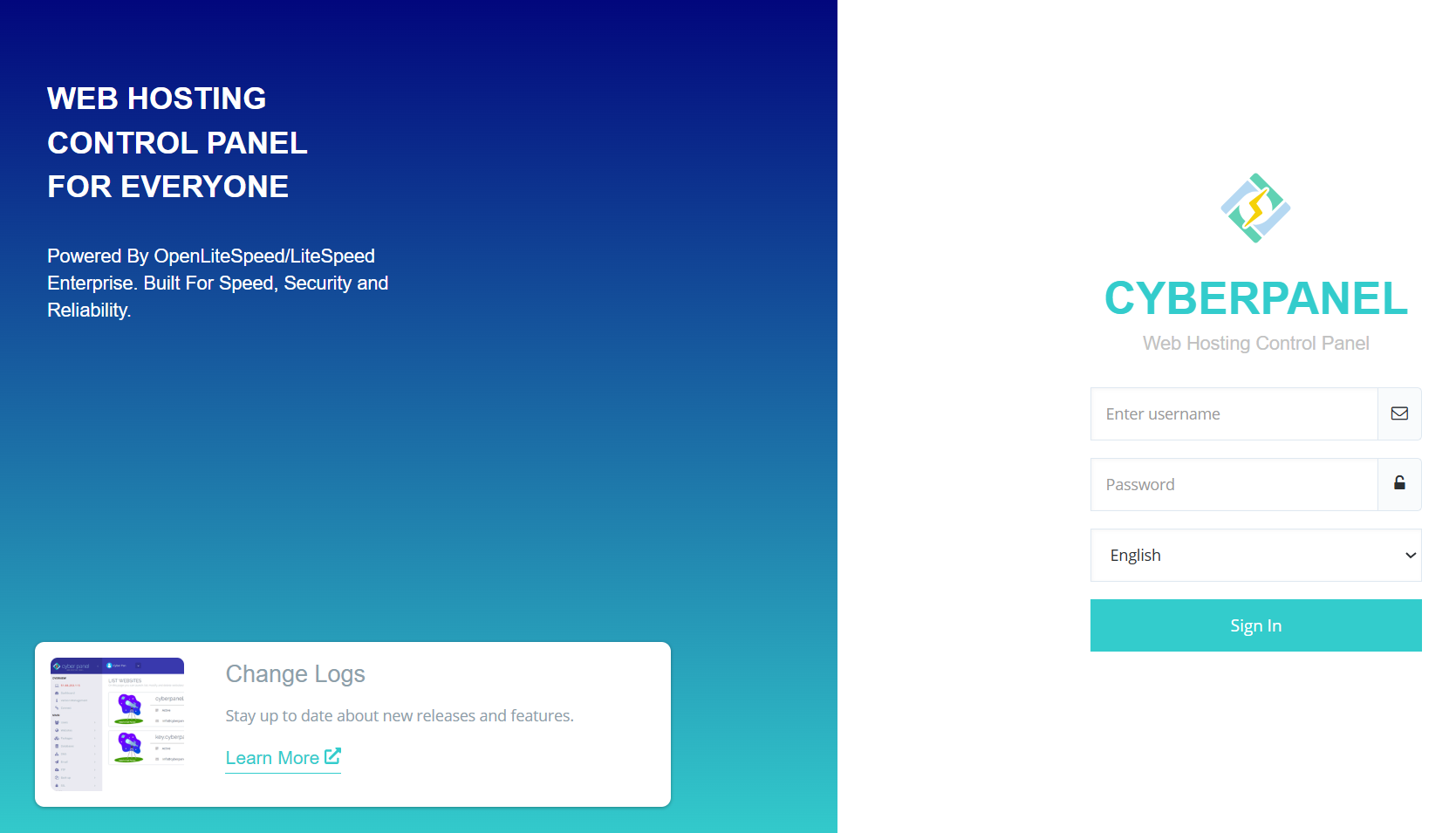
- Log in using the following details:
- Username:
admin - Password: (The password you copied from Step 2)
- Username:
Step 4: Point Your Domain to the Server
Before creating a website or issuing a secure SSL certificate, your domain name must point to your server's location.
- Log in to your domain registrar.
- Go to your domain's DNS Management / DNS Zone Editor.
- Add or edit an A Record:
- Host/Name:
@(or leave it blank / enter your domain name) - Value/Points to:
<your-server-ip> - TTL:
Automaticor3600
- Host/Name:
Step 5: Create Your First Website
Now that your domain points to the server, you can configure the website container inside CyberPanel.
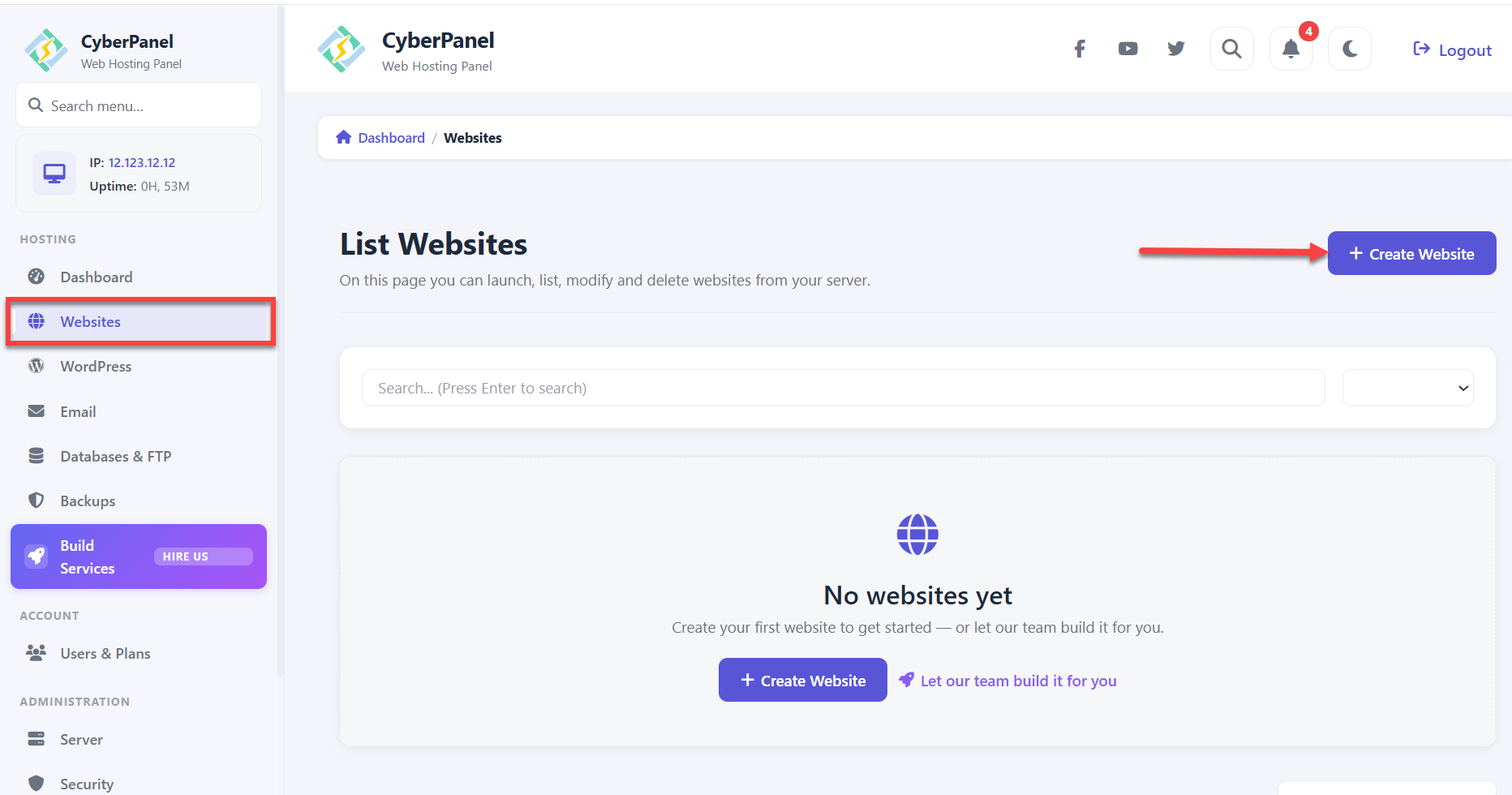
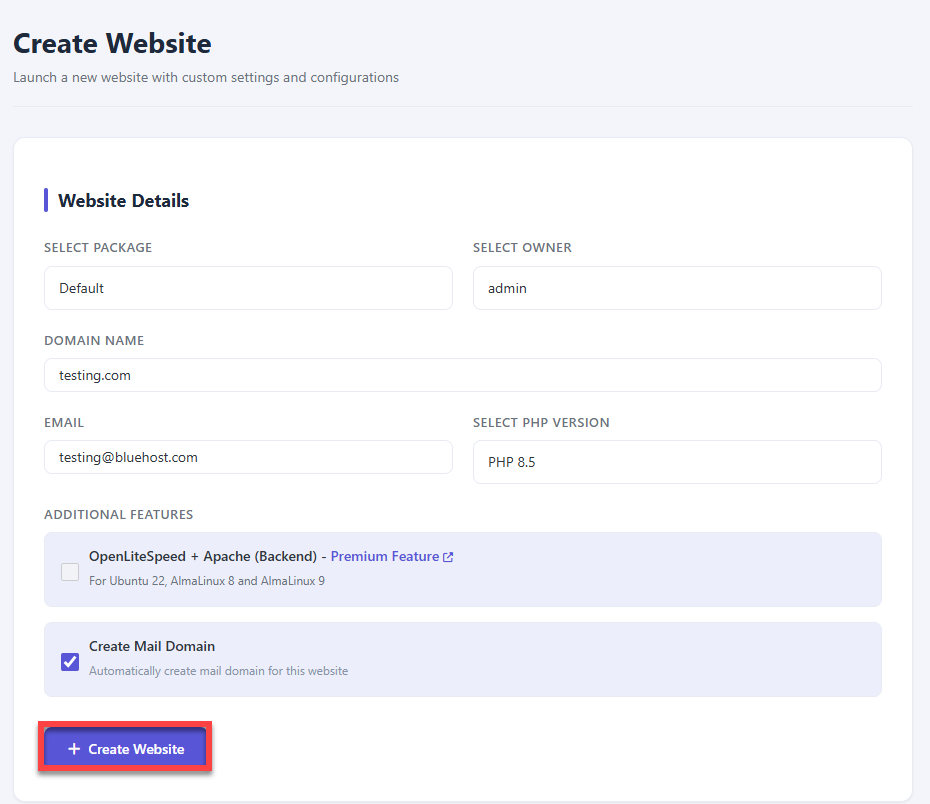
- On the CyberPanel dashboard, click Websites in the menu, then click Create Website.
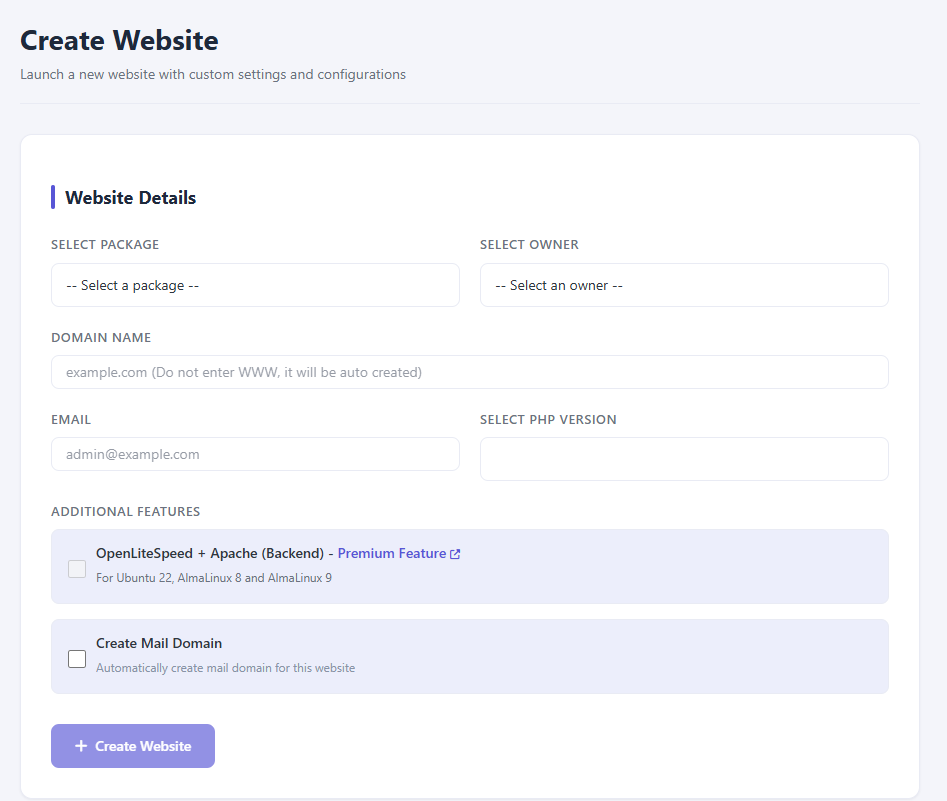
- Fill in the required details:
- Package: Select
Default. - Owner: Select
admin. - Domain Name: Enter your domain .
- Email: Enter your email (used for important SSL renewal notifications).
- PHP Version: Select the version required by your application.
- Package: Select
- Click Create Website. CyberPanel will automatically configure the virtual host, folder structures, and PHP routing.
Step 6: Secure Your Website with HTTPS (SSL)
CyberPanel gives you free, automatic SSL certificates through Let's Encrypt.
- Log into your domain registrar (where you bought your domain) and point your domain's DNS A record to your
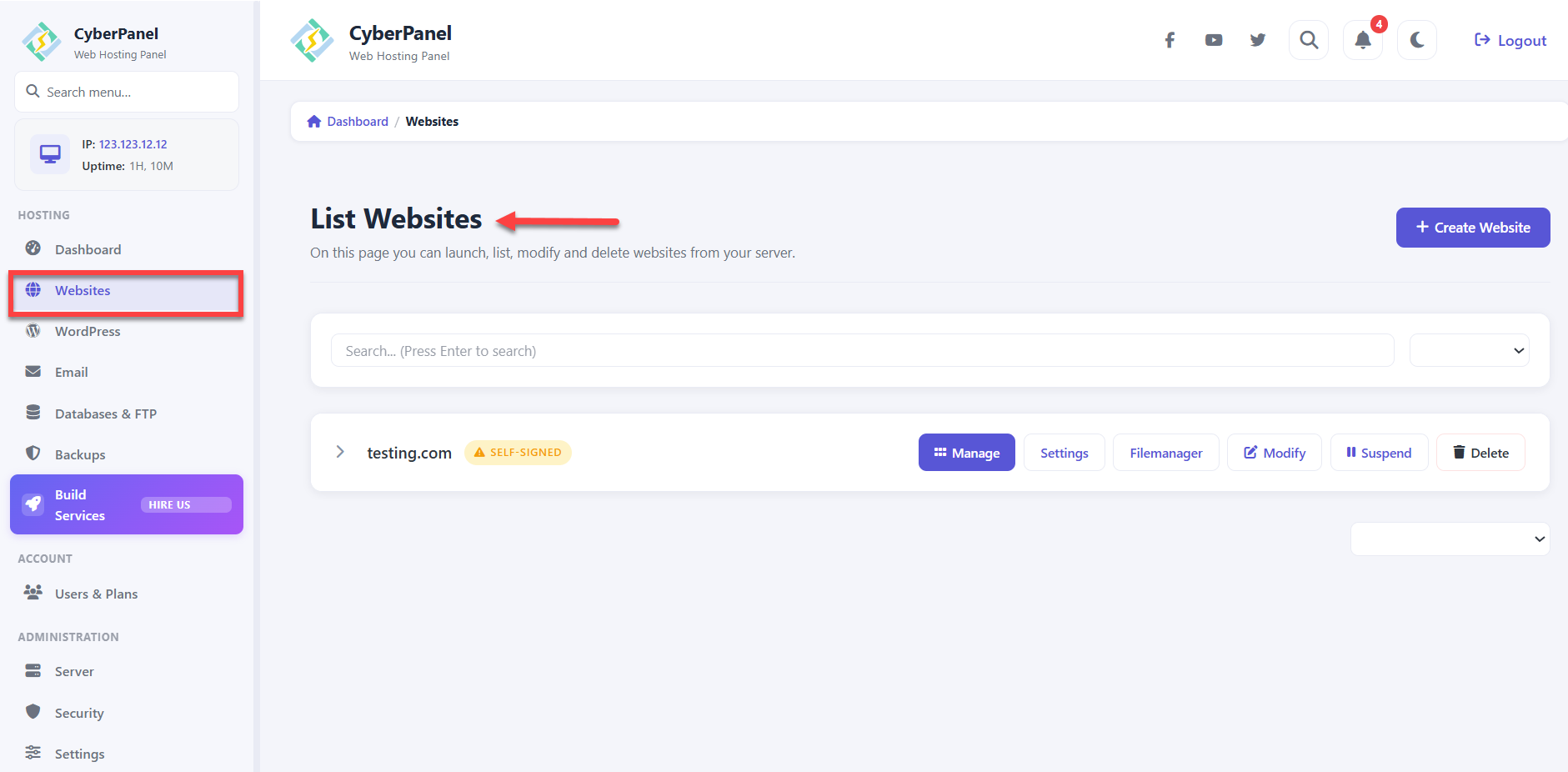
<your-server-ip>. - Return to CyberPanel and go to Websites and then click on List Websites.
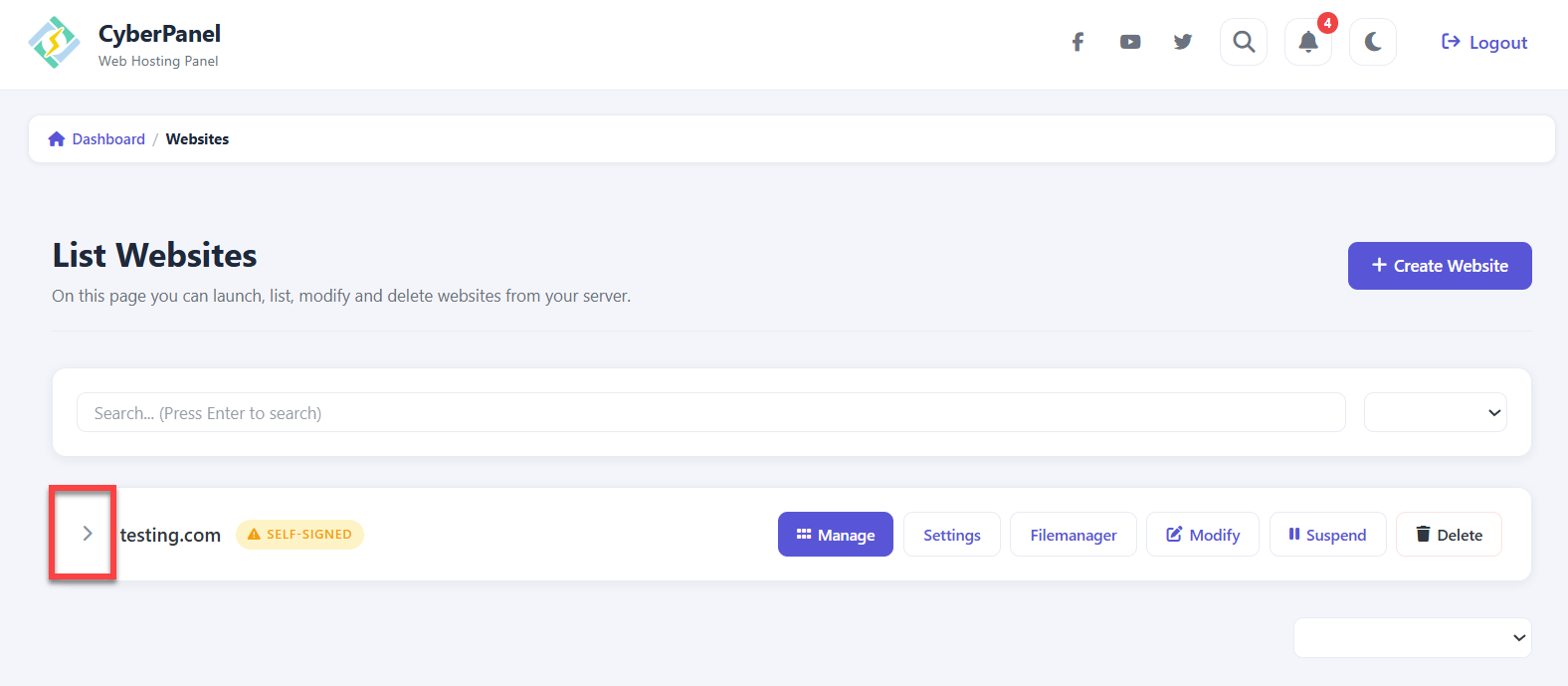
- Click the dropdown icon of the website you want to manage.
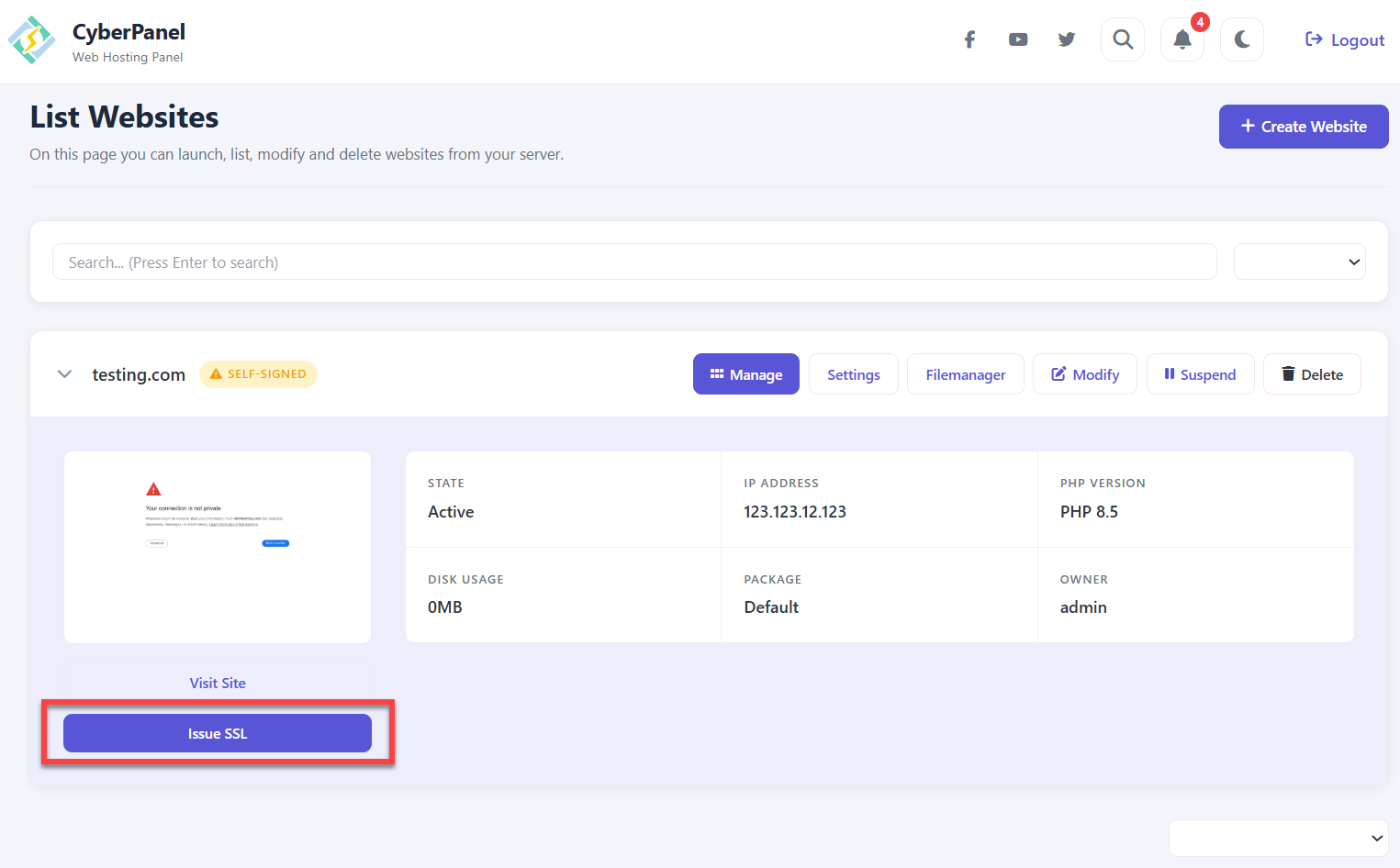
- Click Issue SSL. CyberPanel secures your site instantly.
Step 7: Create a Database (Optional)
If your website uses a database (like WordPress), you can set it up in seconds.
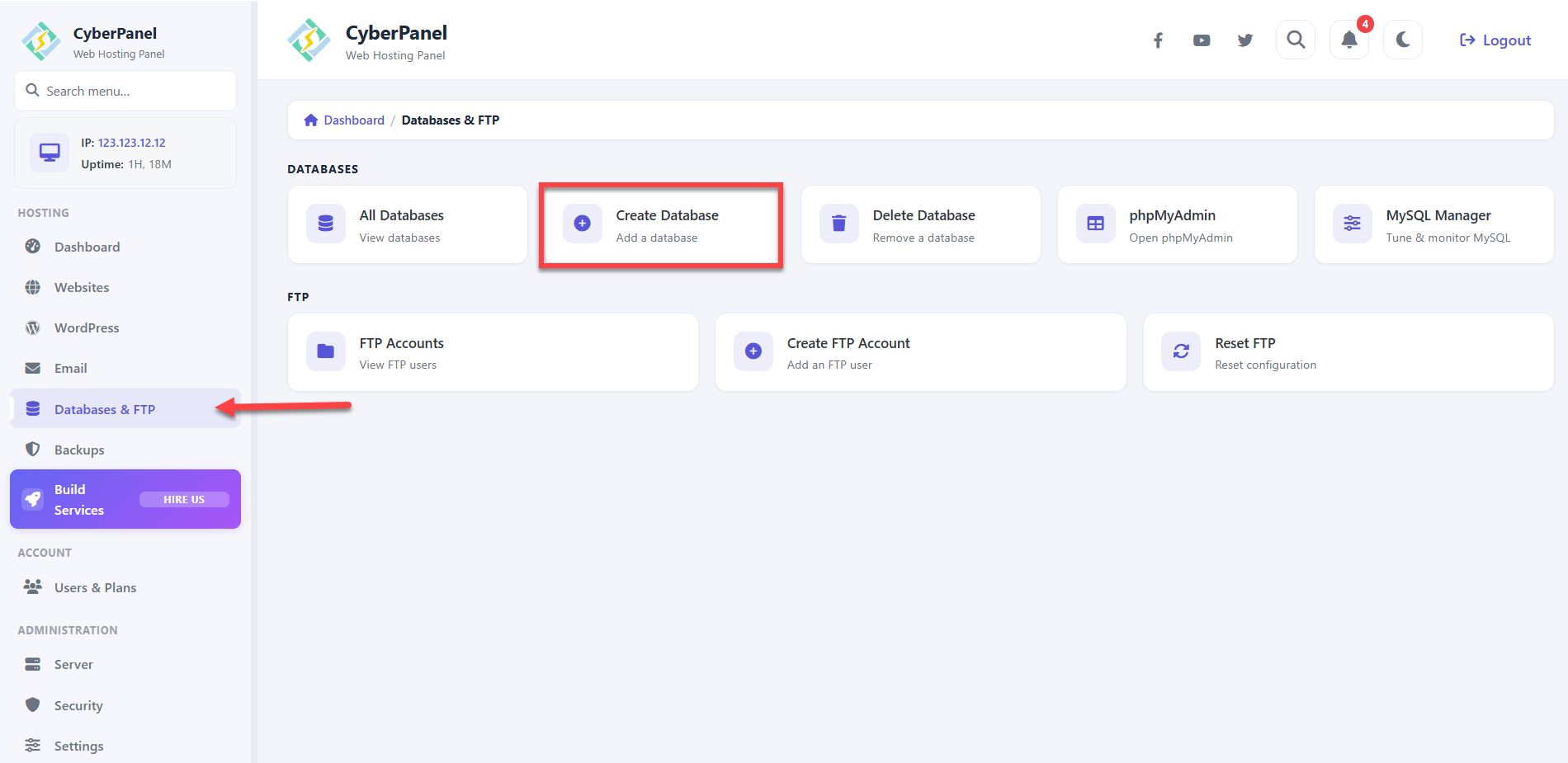
- Go to Databases & FTP and then click on Create Database.
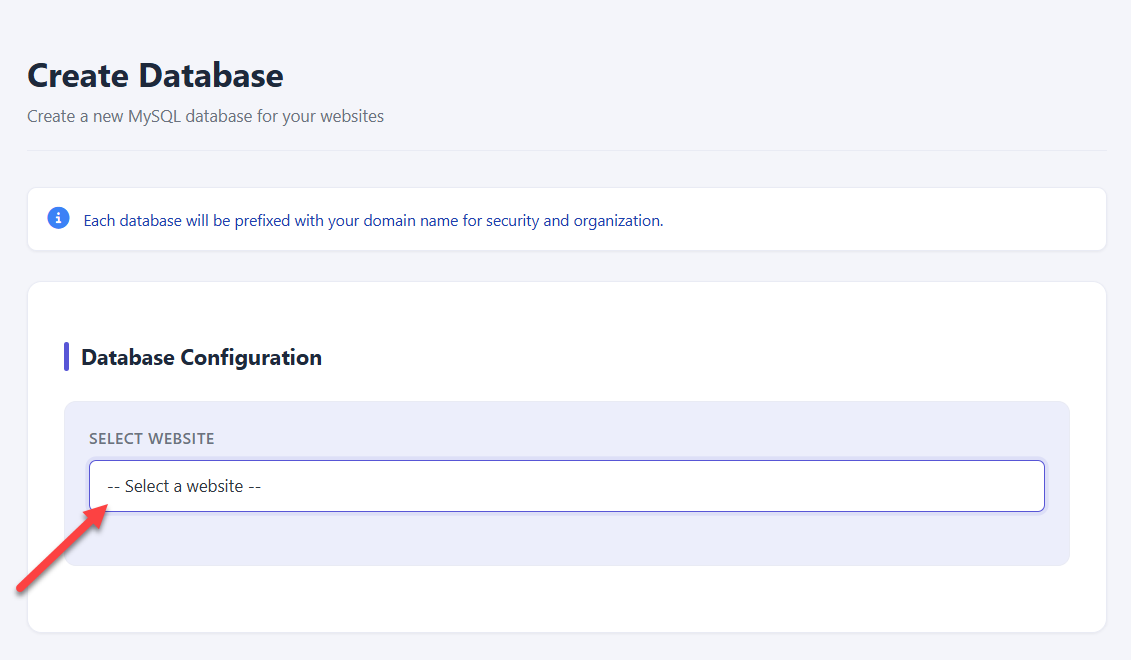
- Select your website from the dropdown.
- Enter a Database Name, Database User, and Password.
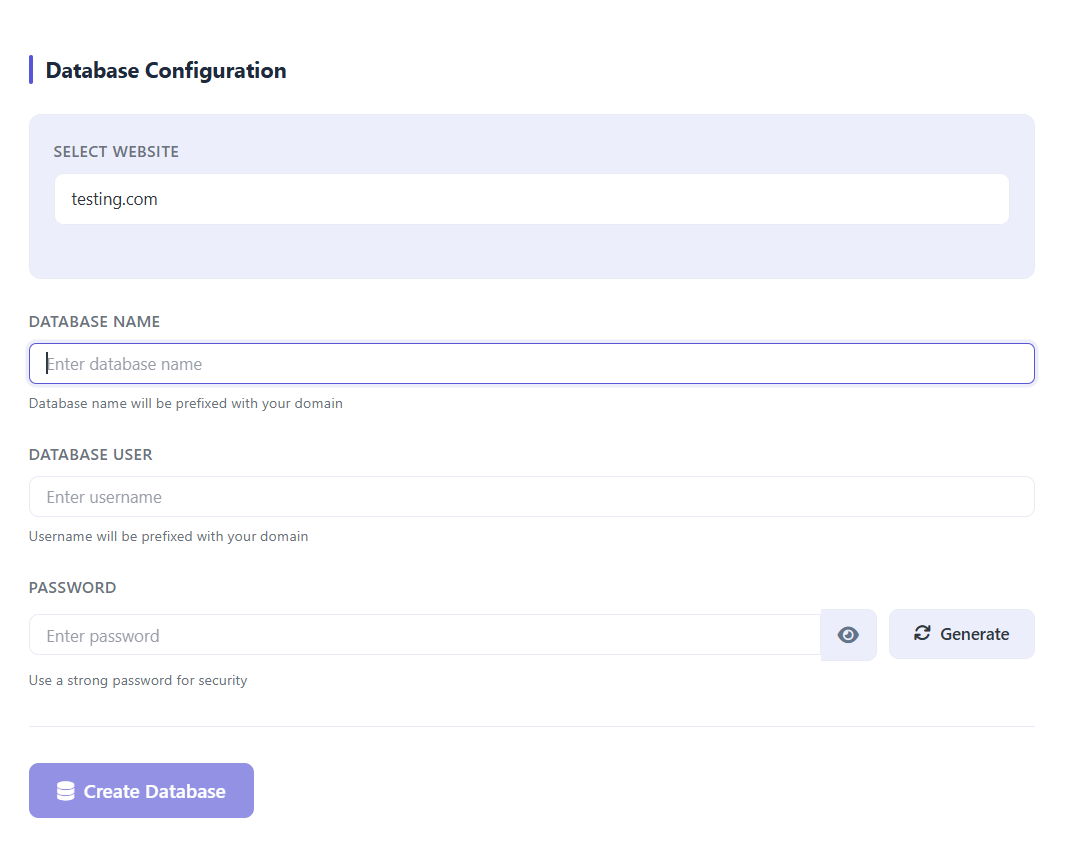
- Click Create Database.
- To manage your databases visually, go to Databases and then click on phpMyAdmin in your panel.
Useful Cheat Sheet for Maintenance
Once everything is running, you can monitor and manage your services directly from the command line using these commands:
Web Server and Panel Controls
- Restart OpenLiteSpeed (No Downtime):
/usr/local/lsws/bin/lswsctrl restart
- Restart CyberPanel Interface:
systemctl restart lscpd
Checking Logs (Troubleshooting)
- Live CyberPanel Dashboard logs:
journalctl -u lscpd -f
- Live Web Server error logs:
tail -f /usr/local/lsws/logs/error.log
Additional Information and Example Documentation Output
You can run cat /root/README.md to see more information and useful commands:
root@server-123456:~# cat /root/README.md
# CyberPanel

## Description

CyberPanel is an open-source web hosting control panel powered by OpenLiteSpeed. It lets you manage websites, databases, DNS, email accounts, and SSL certificates from a modern web interface. It supports one-click WordPress installs, multi-PHP version management, Let's Encrypt SSL automation, and built-in email hosting with Postfix and Dovecot, providing a complete hosting environment without complex command-line setup.

Traffic flow:

```text
Browser (HTTPS/HTTP)
        |
        v
  OpenLiteSpeed (ports 80, 443)    managed by CyberPanel
        |
   +------------------------------+
   |  Hosted websites / apps      |
   |  (PHP, static, reverse proxy)|
   +------------------------------+

Browser -> CyberPanel management UI:
  https://server-ip:8090  (direct access)
```

CyberPanel manages SSL certificates for all hosted websites via Let's Encrypt
automatically once a domain is pointed at the server.

---

## Services

| Service       | Port(s) | Purpose                             |
| ------------- | ------- | ----------------------------------- |
| CyberPanel UI | 8090    | Management dashboard                |
| OpenLiteSpeed | 80, 443 | Website hosting and automatic TLS   |
| OLS Admin     | 7080    | OpenLiteSpeed admin panel           |
| OpenSSH       | 22      | Remote access (rate-limited by UFW) |

Ports are protected using UFW. Database and cache services are intentionally
bound to localhost only and are not accessible from outside the server.

---

## How to use

### Initial access

Open https://server-ip:8090 in your browser.

Note: Your browser may show a certificate warning on first access. This is
expected -- click Advanced and Proceed to continue. CyberPanel will provision
a trusted Let's Encrypt certificate once a domain is configured.

On first visit:

1. Retrieve the generated admin credentials:

```bash
sudo cat /root/.app_passwords
```

2. Use these credentials to log in:

| Service             | URL                      | Username | Password          |
| ------------------- | ------------------------ | -------- | ----------------- |
| CyberPanel          | https://server-ip:8090 | admin    | `CYBERPANEL_PASS` |
| OpenLiteSpeed Admin | https://server-ip:7080 | admin    | `OLS_PASS`        |

Both services automatically share the same randomized admin password generated during first boot.

3. You will land on the CyberPanel dashboard.
4. Click Websites -> Create Website to add your first site.

---

### Creating your first website

1. Go to Websites -> Create Website
2. Fill in:
   - Domain name -- your domain (e.g. example.com)
   - Email -- used for SSL certificate notifications
   - PHP version -- select the version your app needs
   - Package -- select Default
3. Click Create Website

CyberPanel sets up the virtual host, web root, and PHP configuration automatically.

---

### Enabling HTTPS for hosted websites

CyberPanel manages OpenLiteSpeed and Let's Encrypt automatically. To enable
HTTPS for a website:

1. Point your domain's DNS A record at server-ip
2. In CyberPanel, go to Websites -> List Websites
3. Click Manage on your website
4. Click Issue SSL -- CyberPanel obtains a Let's Encrypt certificate automatically

No manual certbot or nginx configuration is required.

---

### Managing databases

1. Go to Databases -> Create Database
2. Fill in the database name, username, and password
3. Click Create Database

To manage databases visually, go to Databases -> phpMyAdmin.

---

## Manage

### CyberPanel Web Interface

| URL                      | Purpose                    |
| ------------------------ | -------------------------- |
| https://server-ip:8090 | CyberPanel admin dashboard |
| https://server-ip:7080 | OpenLiteSpeed admin panel  |
| https://server-ip      | Your hosted websites       |

Both dashboards automatically share the same randomized admin password generated during first boot.

### OpenLiteSpeed

```bash
# Check status
systemctl status lsws

# Restart OpenLiteSpeed
systemctl restart lsws

# Graceful reload (no downtime)
/usr/local/lsws/bin/lswsctrl restart
```

### CyberPanel service

```bash
# Check status
systemctl status lscpd

# Restart CyberPanel
systemctl restart lscpd
```

### MariaDB

```bash
# Check status
systemctl status mariadb

# Open MySQL shell
mysql -u root

# Show all databases
mysql -u root -e "SHOW DATABASES;"
```

### Logs

```bash
# CyberPanel logs
journalctl -u lscpd -f

# OpenLiteSpeed error log
tail -f /usr/local/lsws/logs/error.log

# First boot log
cat /var/log/onboot.log
```

---

## Security

| Hardening                | Detail                                           |
| ------------------------ | ------------------------------------------------ |
| UFW firewall             | Only ports 22, 80, 443, 7080 and 8090 are open   |
| SSH rate limiting        | Port 22 protected against brute-force attacks    |
| Local-only services      | Databases accessible only from the server itself |
| SSL support              | HTTPS via Let's Encrypt through CyberPanel       |
| No hardcoded credentials | Passwords are generated fresh at first boot      |

---

## Minimum resources

| Resource | Minimum |
| -------- | ------- |
| vCPUs    | 2       |
| RAM      | 4 GB    |
| Disk     | 20 GB   |

---

## Notes

- OpenLiteSpeed handles reverse proxying, SSL termination, and static content serving.
- CyberPanel automatically manages virtual hosts, PHP, and SSL certificates.
- Both CyberPanel and OpenLiteSpeed admin panels use synchronized passwords generated during first boot.
- Passwords are stored securely at `/root/.app_passwords`.
- MariaDB is intentionally bound locally for improved security.
- No nginx setup is required because OpenLiteSpeed handles web serving directly.

---

## Links

- CyberPanel Documentation: [https://cyberpanel.net/docs/](https://cyberpanel.net/docs/)
- OpenLiteSpeed Documentation: [https://docs.openlitespeed.org/](https://docs.openlitespeed.org/)
- Manage: [https://server-ip:8090](https://server-ip:8090)
Summary
Supercharge your websites with CyberPanel, a high-performance, cost-effective hosting control panel that uses the LiteSpeed web server to deliver blazing-fast page speeds. This comprehensive guide shows you how to host unlimited websites, automate your security with free SSL certificates, and use one-click tools to simplify your developer tasks without paying expensive licensing fees. You will also learn exactly how to purchase and deploy a Bluehost Self-Managed VPS pre-configured with CyberPanel, taking you seamlessly from plan selection and hardware customization to final checkout so you can launch your high-speed server environment immediately.