 ChatGPT,
  Claude,
  Gemini,
  Grok — all four for
 Purchase a Self-Managed VPS with HestiaCP Installation
Running your own server doesn't have to be complicated. With HestiaCP, a free and open-source control panel, you get a beautiful, intuitive interface to manage your websites, email, databases, and more—all without needing to be a command-line expert. Whether you're launching a personal project or managing business sites for clients, HestiaCP gives you the perfect balance of simplicity and total control over your VPS.
Why Use HestiaCP?
Managing a VPS usually means spending hours on manual configurations and wrestling with complex Linux commands. HestiaCP changes all of that. By bringing your websites, emails, databases, DNS, SSL certificates, backups, and user accounts into one easy-to-use dashboard, it takes the heavy lifting out of server administration. Paired with your Bluehost Self-Managed VPS, HestiaCP frees up your time—so you can stop worrying about server settings and get back to building amazing websites and applications.
Uses of HestiaCP
HestiaCP supports a wide range of hosting and server management tasks, including:
- Host Multiple Websites: Manage one or several websites from a centralized control panel.
- Built-In Email Hosting: Make and manage your own custom email addresses with ease. You can also automatically pass messages to another inbox, send emails to groups of people, and keep annoying junk mail out.
- Database Management: Easily create and manage MySQL and PostgreSQL databases for your applications.
- Domain and DNS Management: Configure domains, subdomains, and DNS records from a single interface.
- Free SSL Certificates: Secure your websites with Let's Encrypt SSL certificates and automatic renewals.
- Automated Backups: Schedule and restore server, website, database, and email backups with ease.
- User and Package Management: Create multiple user accounts with customizable hosting packages and resource limits.
- Server Monitoring: View resource usage and monitor server performance through an intuitive dashboard.
System Requirements
Before deploying, ensure your server meets the following minimum hardware requirements. For a stable production deployment, we recommend using higher specifications than the minimum requirements.
- Do not purchase a server that only meets the minimum requirements (3 GB RAM). The minimum specification of 3 GB RAM represents the software's bare minimum operating requirement and does not account for operating system overhead or additional services running on the server. Running with only the minimum memory may result in performance slowdowns or instability during periods of increased resource usage.
- For a more stable deployment, we recommend using the recommended specifications (8 GB RAM). Extra RAM provides better performance, improved responsiveness, and more headroom for future growth or additional applications.
| Resource | Minimum | Recommended |
|---|---|---|
| RAM | 3 GB | 8 GB |
How to Purchase a Self-Managed VPS with HestiaCP Installation
To set up and operate HestiaCP effectively, start by getting a Self-Managed VPS Hosting plan from Bluehost, then proceed with the following steps:

New to VPS or not sure where to start? No worries! At the top of the Self-Managed VPS purchase page, you’ll see the Pre-configured Setup section. This handy feature is perfect if you’re feeling a bit unsure—just pick the type of project you want, like WordPress Site, AI Agent/Claude Code, Dev/Staging, or eCommerce Store. We’ll take care of the rest by automatically filling in the best plan, operating system, and template for you.
- Super simple for beginners or anyone who just wants a quick setup
- Instantly get the recommended settings for your project
- Skip the guesswork and save time
- You can still customize things later if you want
- In your browser, go to https://www.bluehost.com/vps-hosting.
- Click the Choose Plan button under your preferred VPS hosting plan.
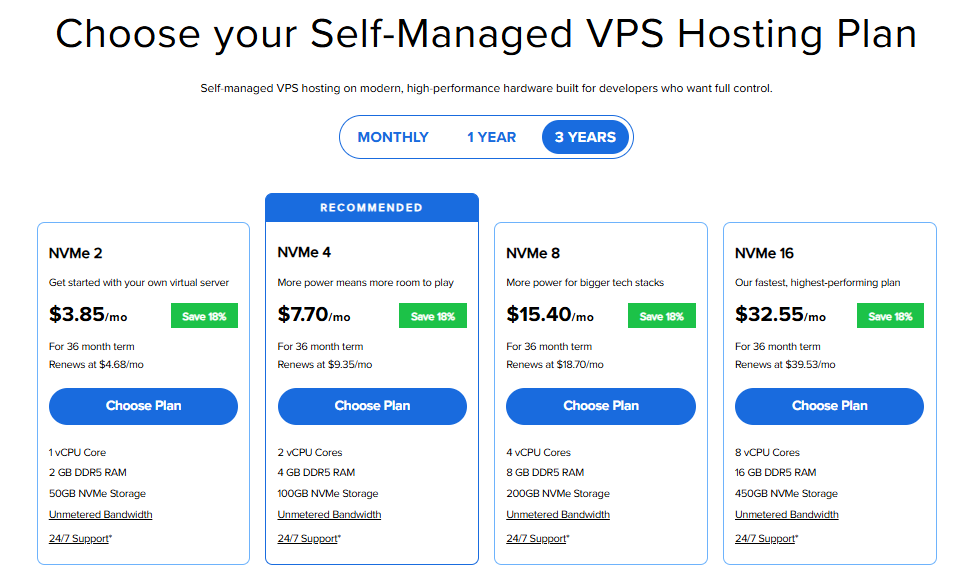
Important: Pricing is subject to change—please visit https://www.bluehost.com/vps-hosting for the current introductory/sign-up offer for Bluehost VPS Hosting. For the most up-to-date renewal pricing, visit your Bluehost Portal Renewal Center.
- Select your preferred Data Center location.

- On the Cart page, you can configure your server to fit your needs in the following section:
- Hardware:
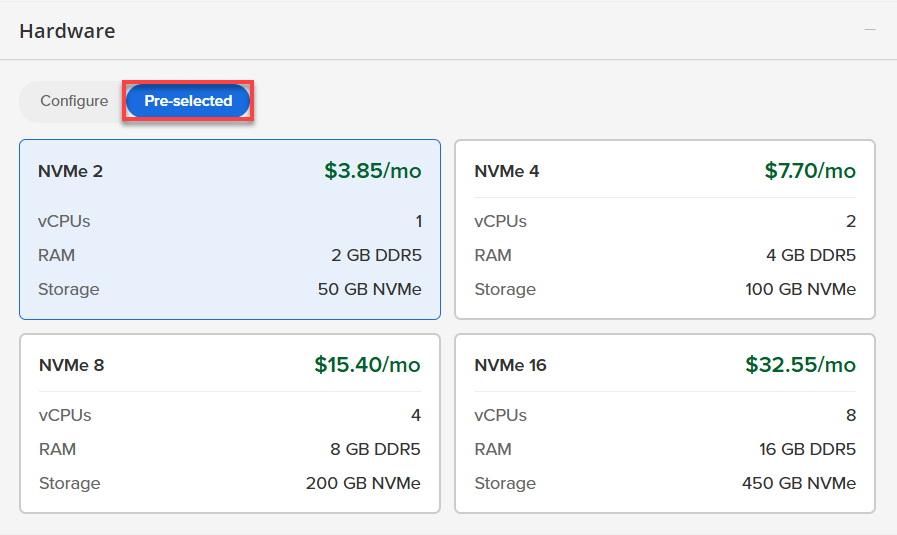
- Pre-selected:
You can select a different Self-Managed VPS plan in this section.
- Configure:
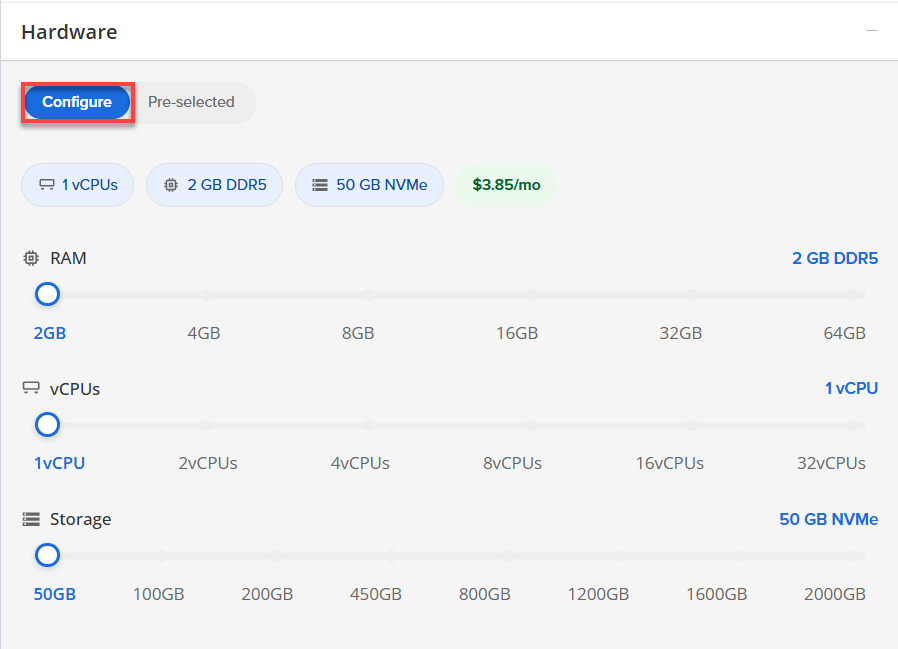
Click Configure to customize your package.
Note that your changes help customize your plan, and the overall cost will adjust accordingly to fit your needs.
- Pre-selected:
- Software:
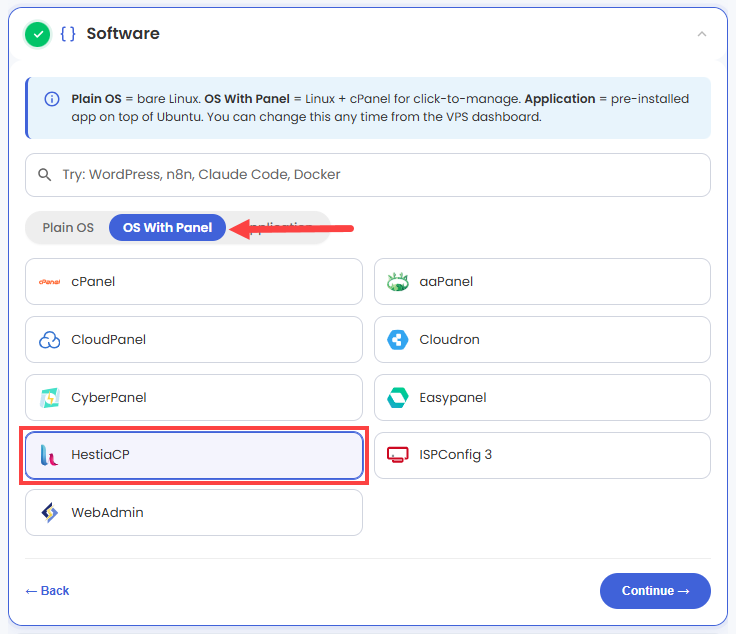
If the selected plan does not meet the app's minimum requirements, the app will be grayed out.
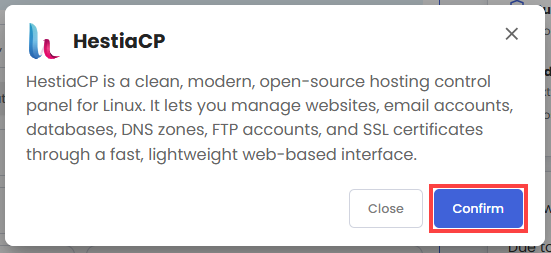
- Click the OS With Panel tab.
- Select HestiaCP.
- In the pop-up, click Confirm.
- Hardware:
- Add-Ons: You can add Premium Support here, which gives you priority access to expert assistance and faster response times.

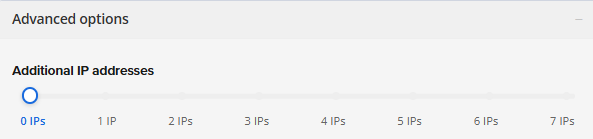
- In the Advanced options:
- Extra IP's: You can add extra IP addresses for an additional fee.
Pricing changes based on how many IPs you add. - Hostname: Assign a custom hostname to easily identify your server. This is optional.
- Extra IP's: You can add extra IP addresses for an additional fee.
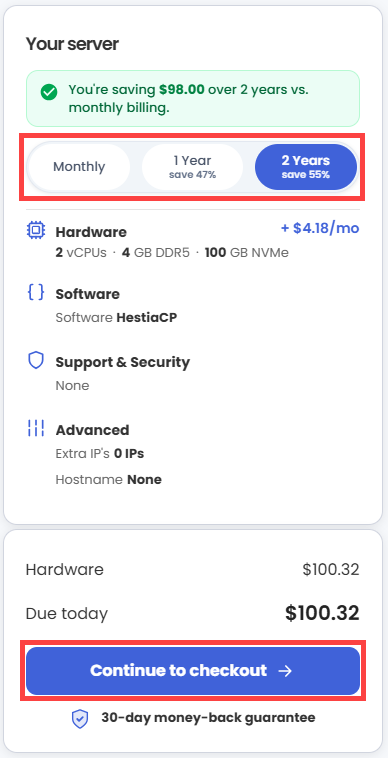
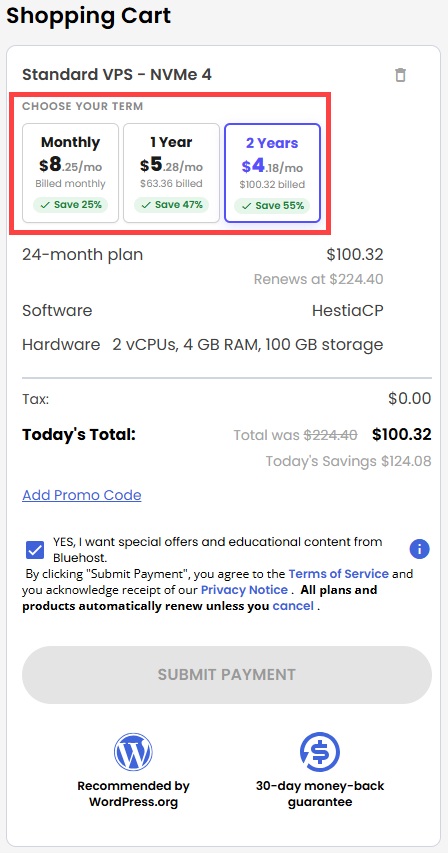
- Next, select your preferred billing term and review your Order Summary, then click Continue to Checkout.
- Do the following on the Checkout page:
If you're new with Bluehost:
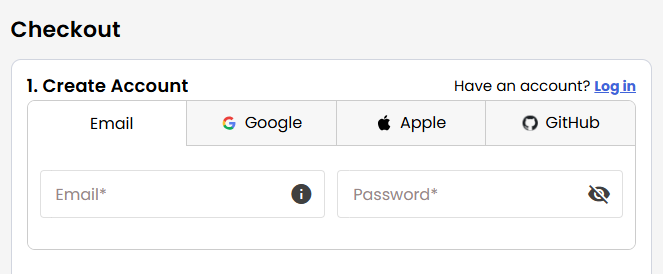
- Create your Bluehost account by using your email address or by connecting with your Google, Apple, or GitHub account — whichever you prefer!
- Select your preferred payment method: credit card, Google Pay, or PayPal. Enter your billing information.
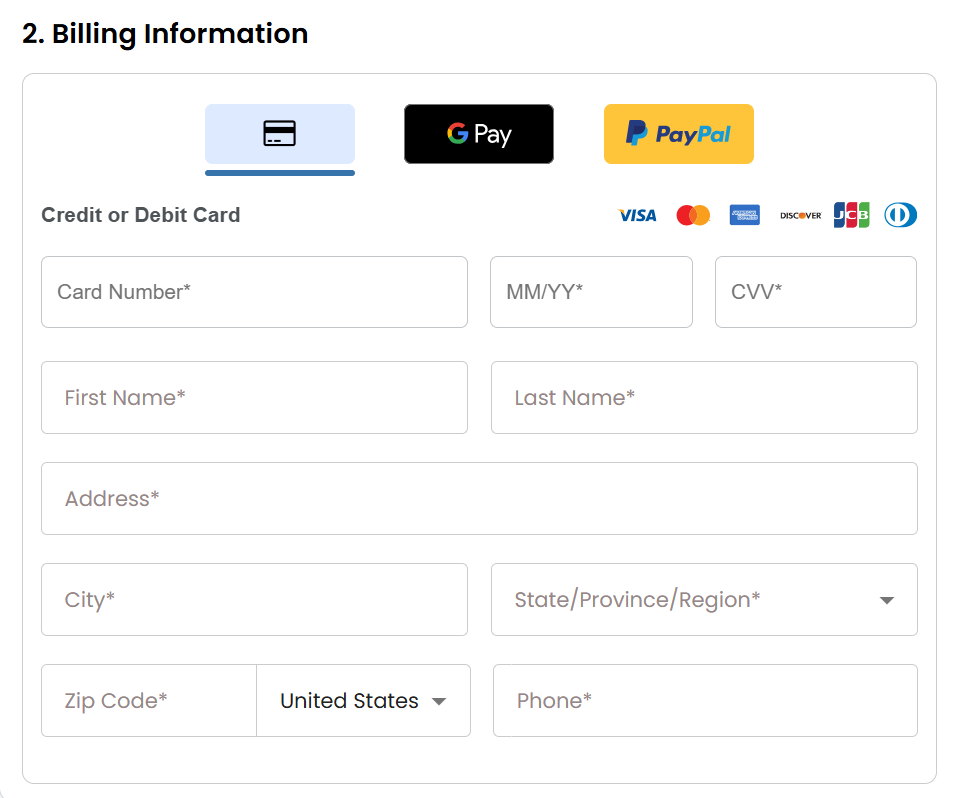
If you have an account with us, you will see your Bluehost login details when you are logged into your Bluehost Portal. If you are not logged in, please click the Log In link.
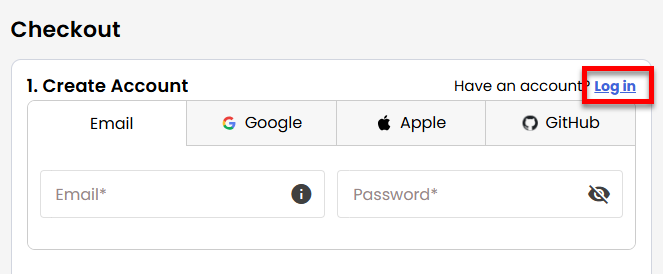
- Create your Bluehost account by using your email address or by connecting with your Google, Apple, or GitHub account — whichever you prefer!
- In the Shopping Cart section, you can still adjust your billing term if needed.
- Review the items in your cart, add a Promo Code if you have one, and then click Submit Payment to complete the purchase.
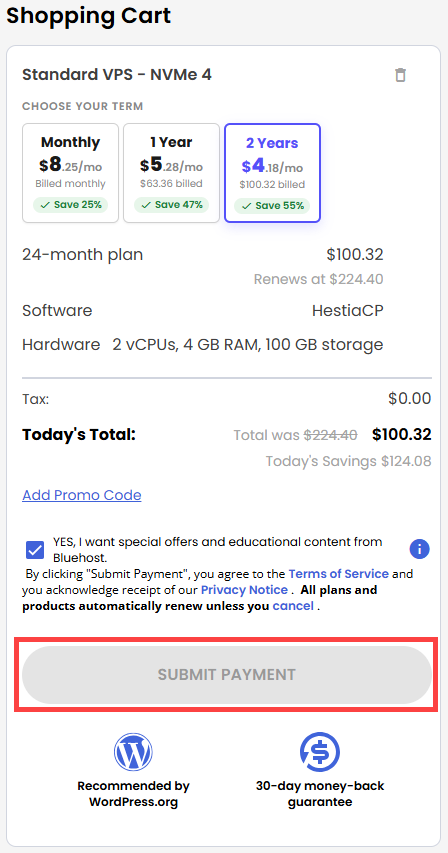
After completing the purchase, your VPS hosting will begin provisioning. You can access and manage your new VPS hosting in the Hosting tab of your Bluehost Portal.
How to Set Up and Secure Your HestiaCP Server
HestiaCP is a powerful, lightweight control panel, but it requires a few essential configuration steps before it is ready for production. This guide outlines the complete initial setup process. Follow the phases below to securely retrieve your credentials, access the web interface, apply a valid SSL certificate, and adopt security best practices for hosting web and email domains.
Phase 1: Reset Your Root Password
- Log in to your Bluehost Portal.
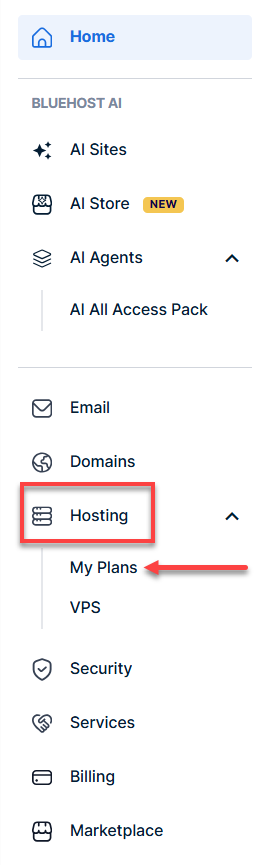
- In the left-hand menu, click Hosting, then select My Plans.
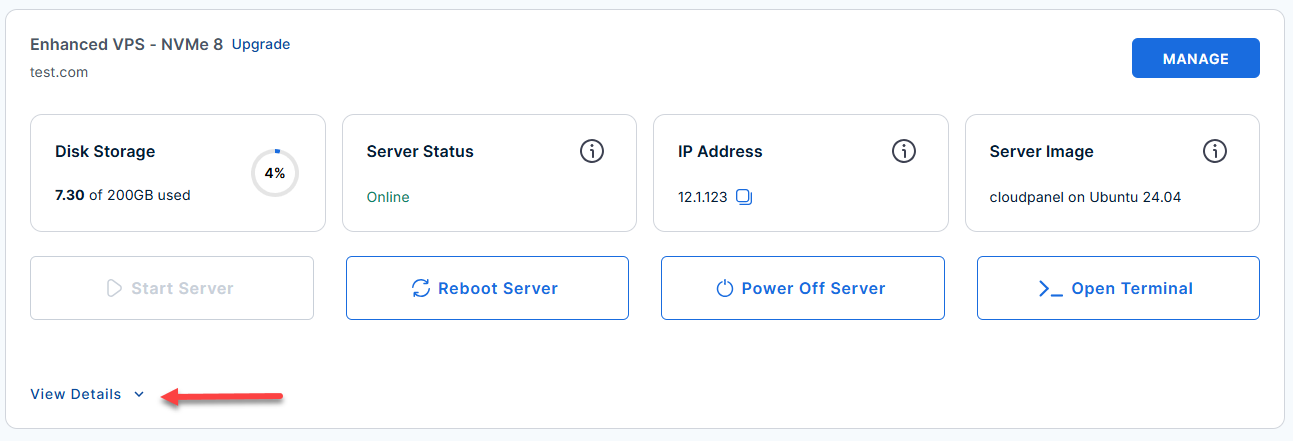
- Locate the server you want to manage, then click View Details in the bottom-left corner to expand the section and access additional server information.
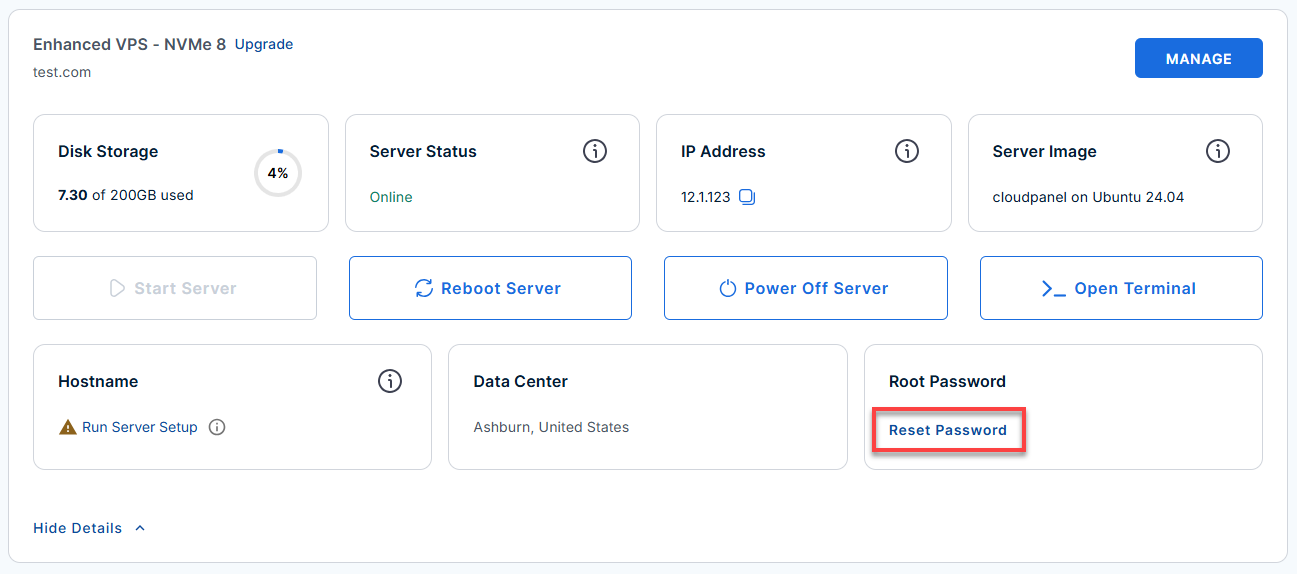
- Click the Reset Password.
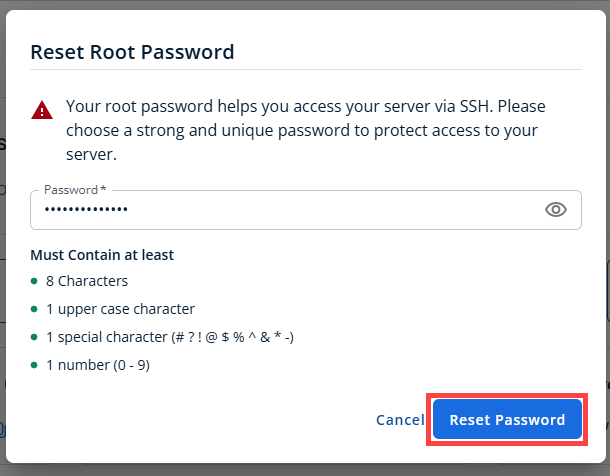
- In the pop-up window, type your new root password, then click Reset Password again to confirm and save the changes.
Phase 2: Connect To Your Server Through SSH
- Connect to your VPS via SSH.
Open your computer's terminal (or an SSH client like PuTTY) and run the following command to log into your server as the administrator, using your server's public IP address:Replaceyour_server_ipwith your actual server IP address.
Follow the prompts and enter the new root password you created in the step above.ssh root@your_server_ip - If you ever need to quickly review the system's deployment notes directly inside your server terminal, you can print out the original README file by running:
cat /root/README.md
Phase 3: Retrieve Your Login Credentials
Since you are already logged in via SSH, the automated background setup (which takes 2-3 minutes) should already be complete.
- Fetch your password: Run the following command in your terminal to view the auto-generated credentials:
cat /root/.app_passwords
- Save it: Look for the line that says HESTIA_ADMIN_PASSWORD=...and copy that password. You will need it in the next step.
Example Output:
root@hal-server-123456:~#  cat /root/.app_passwords
HESTIA_ADMIN_PASSWORD=example9e37c85c2799cc6b4876d94dc539cb6d37f9ea9t3st
Phase 4: Access the Web Panel
Now, you will leave the terminal for a moment and move to your web browser.
- Navigate to the panel: Go to
https://<your-server-ip>:8083/.ReplaceExample:your_server_ipwith your actual server IP address.https://12.3.456.789:8083/ - Bypass the security warning: Your browser will likely warn you that the connection is not private. This is perfectly normal and safe for this initial setup because HestiaCP uses a temporary, self-signed certificate out of the box. Click Advanced, then Proceed.
- Log in: Use the following credentials:
- Username: hestiaadmin
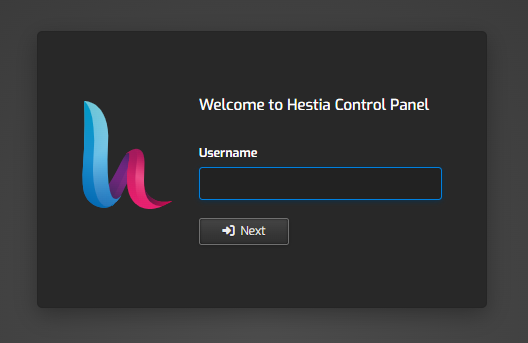
- Password: The password you copied in Phase 3.
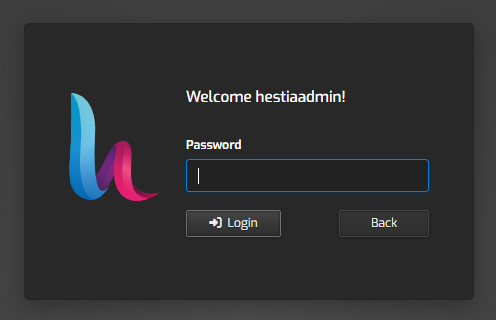
- Username: hestiaadmin
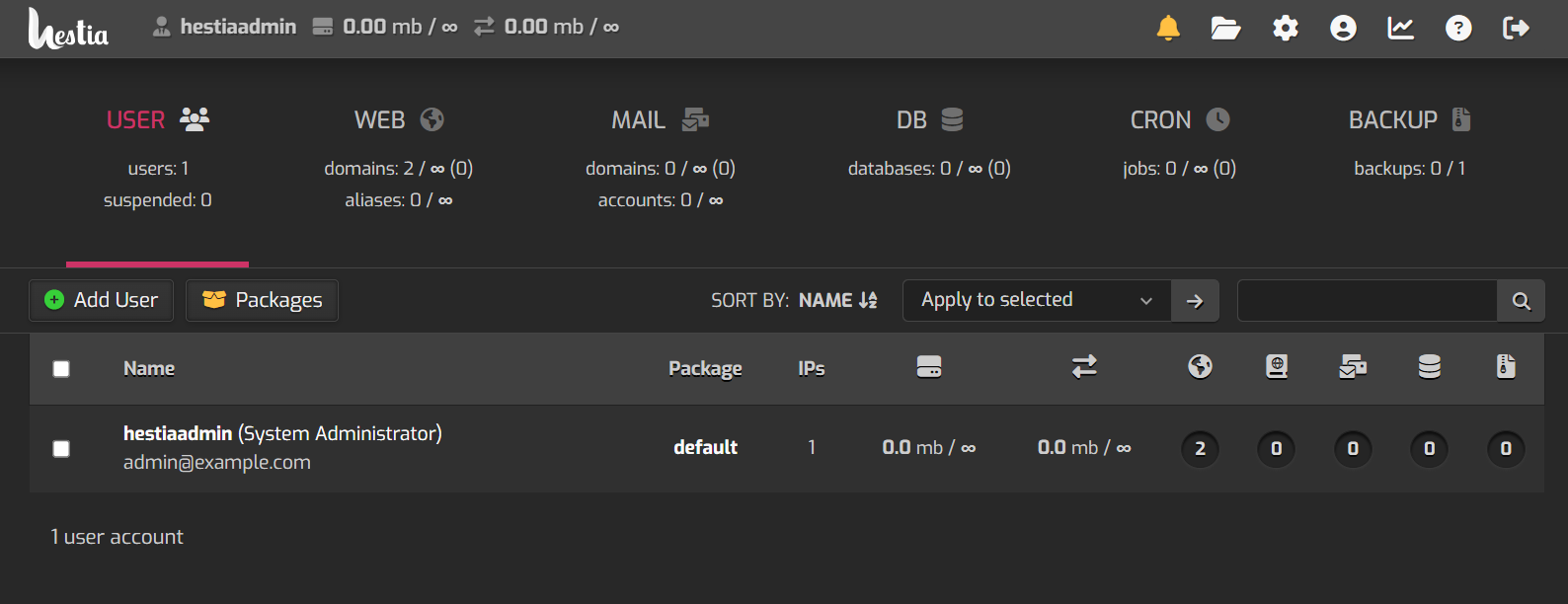
- You are now logged in to your Dashboard.
Phase 5: Configure and Secure the Server (Crucial Step)
Once you are logged into the web interface, your immediate priority is to set up your server's hostname and secure the panel with a real, trusted SSL certificate.
- Set the OS Hostname: Go back to your SSH terminal and set your fully qualified domain name (FQDN), such as panel.yourdomain.com:
sudo hostnamectl set-hostname panel.yourdomain.com
- Update your Hosts file: Open /etc/hosts in a text editor (like nano) and ensure the 127.0.1.1line reflects your new hostname:
127.0.1.1 panel.yourdomain.com panel
- Sync the Panel: In the HestiaCP web interface, navigate to Server -> Configure. Update the Hostname field to match (panel.yourdomain.com) and Save.
- Install a Trusted SSL: Ensure your domain (panel.yourdomain.com) points to your server's IP address in your DNS settings. Once that DNS record has propagated, run this script in your SSH terminal:
sudo /opt/hestiacp/setup-ssl.sh panel.yourdomain.com
This will automatically replace that temporary self-signed certificate with a trusted Let's Encrypt certificate, so you won't see browser warnings anymore.
Phase 6: Start Hosting
With the foundation set, you can now use the control panel for its main purpose:
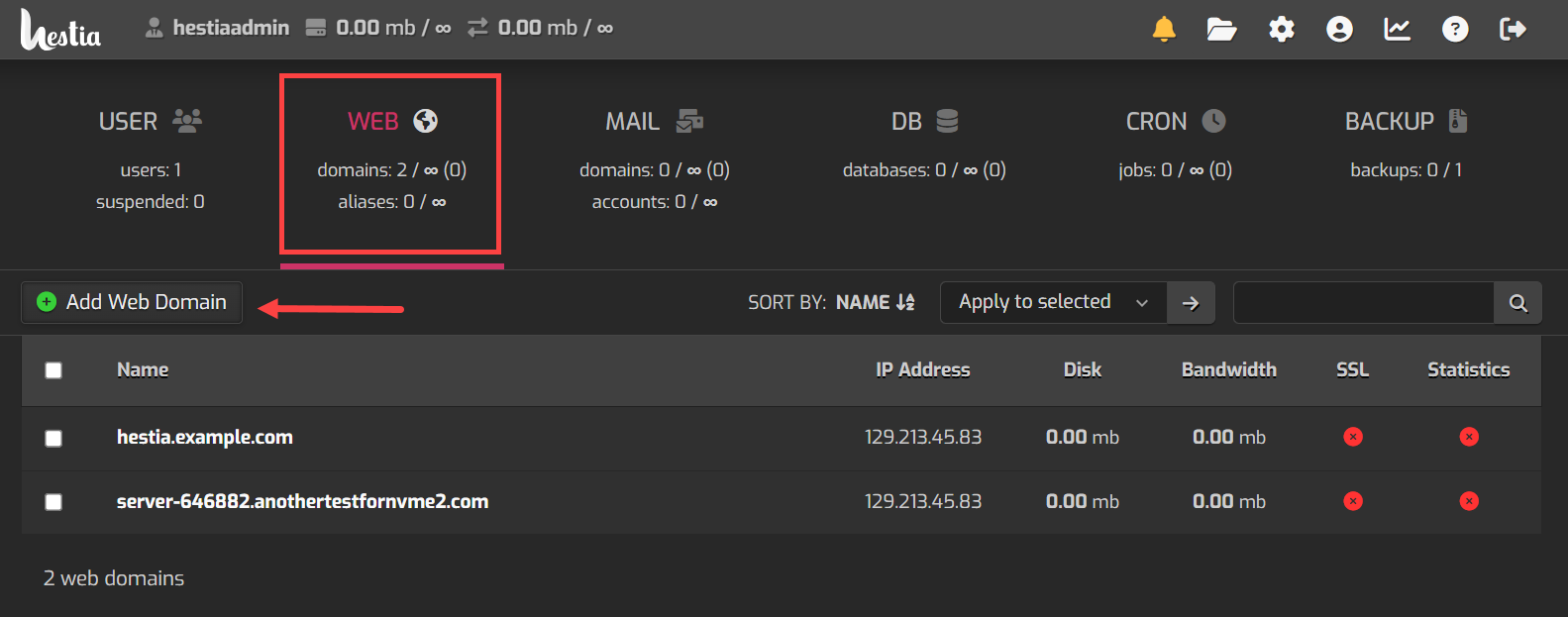
- To host a website: Go to Web -> Add Web Domain. Enter your domain name (example.com), check the boxes for SSL Support and Let's Encrypt, and hit Save. HestiaCP will handle the web directory, Nginx routing, and SSL generation automatically.
To keep your server as secure as possible, we highly recommend creating a standard user account in HestiaCP to host your websites. Setting them up outside the main admin account is a best practice, as it ensures your website files remain safely isolated from the core control panel.
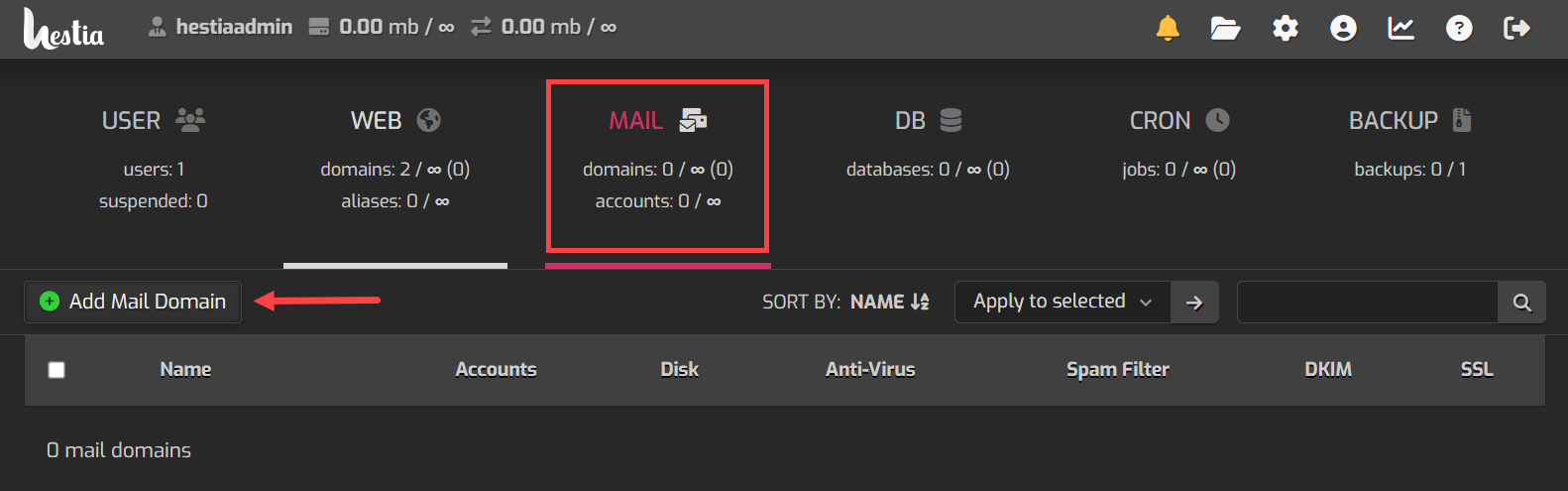
- To host email: Go to Mail -> Add Mail Domain. Once added, click the domain and select Add Mail Account to create your inboxes.
Just like with your websites, we highly recommend setting up your email domains under a standard user account rather than the main admin account. This keeps your inboxes and email settings safely isolated, giving your server an extra layer of security.
Additional Information and Example Documentation Output
You can run cat /root/README.md to see more information and useful commands:
Example Output:
root@hal-server-123456:~# cat /root/README.md
# HestiaCP

## Description

HestiaCP is a clean, modern, open-source hosting control panel for Linux. It lets you manage websites, email accounts, databases, DNS zones, FTP accounts, and SSL certificates through a fast, lightweight web-based interface.

Unlike heavier panels, HestiaCP is designed for speed and simplicity - built on Nginx, PHP-FPM, and MariaDB. It ships with a full mail stack (Exim4 + Dovecot), Fail2ban intrusion prevention, and built-in Let's Encrypt SSL automation.

This image comes with a complete HestiaCP stack pre-installed and configured on Ubuntu 24.04 LTS. On first boot, a secure, randomized administrator password is automatically generated for you.

---

## Minimum Requirements

| Resource | Minimum |
|----------|---------|
| RAM | 3 GB |

> The full mail stack (Exim4, Dovecot, SpamAssassin) requires at least 3 GB of RAM to run reliably alongside Nginx, MariaDB, and the HestiaCP panel.

---

## Quick Start

Follow these three steps to get up and running.

### Step 1 - Wait for first boot to complete

After launching your instance, wait 2-3 minutes for the first-boot setup to finish.

The setup runs automatically in the background. It generates your randomized admin password, updates the panel credentials, sets up system hostnames, and starts all panel services.

You do not need to do anything during this time.

### Step 2 - Get your login credentials

SSH into your server as the `root` user and run:

```bash
cat /root/.app_passwords
```

You will see output like this:

```
HESTIA_ADMIN_PASSWORD=your_secure_randomized_password
```

Save this password - you will need it to log in.

### Step 3 - Open the panel in your browser

Open your browser and navigate to:

```
https://<your-server-ip>:8083/
```

For example:

```
https://203.0.113.10:8083/
```

> **Browser warning:** HestiaCP uses a self-signed SSL certificate by default.
> When your browser shows a security warning, click **Advanced** then **Proceed** to continue.
> This is expected and safe for initial setup.

Log in with the following credentials:
- **Username:** `hestiaadmin`
- **Password:** The password retrieved in Step 2.

---

## Next Steps

Once you are logged into the HestiaCP Control Panel, here is what to do next.

### 1. Configure Server Hostname Properly

HestiaCP relies on the OS-level hostname for mail certificates and DNS matching. Follow this 3-step process to set it properly:

1. **Set the OS Hostname:** SSH into your server and run:
   ```bash
   sudo hostnamectl set-hostname panel.yourdomain.com
   ```
2. **Update the Hosts File:** Edit `/etc/hosts` and ensure the `127.0.1.1` line maps to your new hostname:
   ```
   127.0.1.1 panel.yourdomain.com panel
   ```
3. **Sync inside HestiaCP Panel:** Log into the control panel, navigate to **Server** -> **Configure**, and update the **Hostname** field to `panel.yourdomain.com`. Then run the SSL setup script to generate trusted certificates.

### 2. Add your first website

Go to **Web** -> **Add Web Domain**.

Enter your domain name (e.g., `example.com`), select the PHP version, configure SSL preferences, and click **Save**.

HestiaCP will automatically create the web root directory, configure Nginx virtual hosts, and optionally issue a Let's Encrypt certificate.

### 3. Create Mail Domains and Mailboxes

Go to **Mail** -> **Add Mail Domain** to register your mail domain.
Once registered:
- Go to **Mail** -> select your domain -> **Add Mail Account** to create individual email accounts.
- Use ports `25`, `465`, or `587` for sending mail (SMTP) and `110`, `995`, `143`, or `993` for receiving (IMAP/POP3).

### 4. Set up a real SSL certificate for websites

HestiaCP has built-in Let's Encrypt integration. To secure a website, edit the domain under **Web**, check **SSL Support** and **Let's Encrypt**, then click **Save**.

HestiaCP will automatically request, install, and renew the certificate.

### 5. Set up a real SSL certificate for the Control Panel itself

On first boot, the HestiaCP panel uses a temporary self-signed SSL certificate. Once you have pointed a domain (e.g., `panel.example.com`) to your server's public IP, run:

```bash
sudo /opt/hestiacp/setup-ssl.sh panel.example.com
```

This helper script automatically stops Nginx, requests the Let's Encrypt certificate, updates HestiaCP's panel SSL configuration, restarts services, and installs a secure auto-renewal deploy-hook.

---

## Access

| URL | Purpose |
|-----|---------|
| `https://<server-ip>:8083/` | HestiaCP Control Panel (HTTPS) |
| `http://<server-ip>/` | Default HTTP website landing page |
| `https://<server-ip>/` | Default HTTPS website landing page |
---

## Credentials

All credentials generated during deployment are stored in:

```bash
cat /root/.app_passwords
```

| Field | Description |
|-------|-------------|
| `HESTIA_ADMIN_PASSWORD` | Randomized admin password generated securely on first boot |

To view the first boot setup logs:

```bash
cat /var/log/cloud-init-output.log
```

---

## Managing the Server

### Services

```bash
# Check service statuses
systemctl status nginx
systemctl status mariadb
systemctl status exim4
systemctl status dovecot
systemctl status fail2ban
systemctl status hestia

# Restart a service (e.g. Nginx)
systemctl restart nginx
```

### Running Health Checks

To run the built-in system validation and health check suite, execute:

```bash
prove /root/app_test/main.t
```

### Firewall

```bash
# View open ports and firewall status
ufw status verbose
```

### Logs

```bash
# View HestiaCP panel logs
tail -f /var/log/hestia/nginx-access.log
tail -f /var/log/hestia/nginx-error.log

# View Nginx web server error logs
tail -f /var/log/nginx/error.log

# View mail server logs (Exim4 & Dovecot)
journalctl -u exim4 -u dovecot -f
```

---

## Troubleshooting

### Panel URL not opening in browser

1. Verify that Nginx is running: `systemctl status nginx`
2. Verify that HestiaCP is running: `systemctl status hestia`
3. Check that the HestiaCP port 8083 is listening: `ss -tlnp | grep 8083`
4. Verify that the UFW firewall allows traffic on port 8083: `ufw status | grep 8083`
5. Make sure you are explicitly typing `https://` in the browser (e.g., `https://<ip>:8083/`).
### First boot did not run

If `/root/.app_passwords` does not exist or the password is not set, you can trigger the initialization script manually:

```bash
sed -i 's/\r//' /var/lib/cloud/scripts/per-instance/001_onboot
bash /var/lib/cloud/scripts/per-instance/001_onboot
```

Then read your credentials again:

```bash
cat /root/.app_passwords
```

---

## Security

| Feature | Detail |
|---------|--------|
| Firewall | UFW enabled - only minimal essential ports open by default |
| SSH Security | Rate limited on port 22 to block brute force attempts |
| Dynamic Passwords | Never baked into the image - uniquely randomized at first boot |
| File Credentials | `/root/.app_passwords` is owned by `root:root` with secure permissions (`0600`) |
| Intrusion Prevention | Fail2ban monitors log files and automatically bans abusive IPs |
| HTTPS Panel | SSL encryption active by default on the control panel (port 8083) |

---

## Services

| Service | Port | Purpose |
|---------|------|---------|
| HestiaCP (Nginx) | 8083 | Web administration interface |
| OpenSSH | 22 | Secure remote server access |
| Nginx | 80 / 443 | Web server (HTTP / HTTPS) |
| Exim4 | 25 / 465 / 587 | Mail server (SMTP / SMTPS) |
| Dovecot | 110 / 995 / 143 / 993 | Mail server (POP3 / POP3S / IMAP / IMAPS) |
| MariaDB | 3306 | Local SQL Database (internal only) |

---

## Links

- Manage: [https://<server-ip>:8083/](https://<server-ip>:8083/)
- HestiaCP Official Website: [https://hestiacp.com/](https://hestiacp.com/)
- HestiaCP Documentation: [https://docs.hestiacp.com/](https://docs.hestiacp.com/)
- Ubuntu 24.04 LTS Release Notes: [https://wiki.ubuntu.com/NobleNumbat/ReleaseNotes](https://wiki.ubuntu.com/NobleNumbat/ReleaseNotes)
Summary
HestiaCP makes it easy to run your websites, emails, and web addresses from one simple screen. When you use it with a Bluehost server, you get full control without the tricky tech headaches. Whether you have one website or many, HestiaCP makes managing your server simple and helps you grow.