 ChatGPT,
  Claude,
  Gemini,
  Grok — all four for
 How to Set Up Yoast Local SEO Plugin in WordPress
Yoast Local SEO is a premium WordPress plugin designed to help your business rank higher in local search results and appear on Google Maps. It works by adding structured data (schema) to your site, including your business name, address, phone number, and opening hours. This makes it easier for search engines to understand and display your business information accurately.
Key Benefits:
- Improves visibility in local search results.
- Adds Google Maps integration for directions.
- Supports multiple locations for businesses with branches.
How to Set Up Yoast Local SEO Plugin
All Bluehost hosting plans come with the free Yoast SEO plugin pre-installed. The Local SEO add-on requires a separate installation.
- Log in to your Bluehost Portal.
- Click Marketplace on the left-side menu.
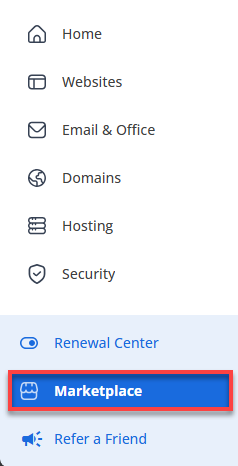
- Scroll to the Marketing section.
- Locate Yoast Local SEO and click Claim Offer.
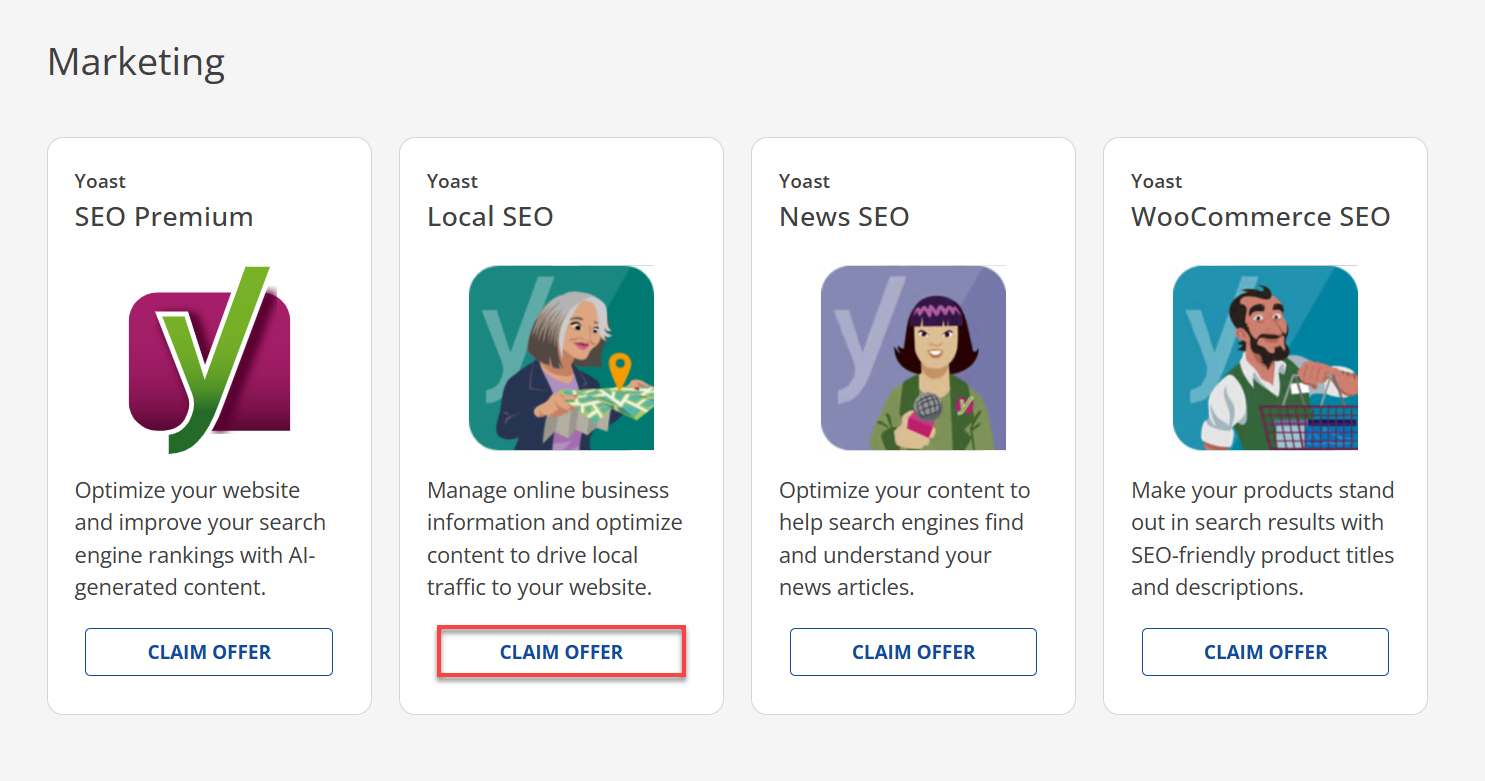
- In the pop-up window, select your website from the dropdown. This is the website where the Yoast Local SEO product will be applied.
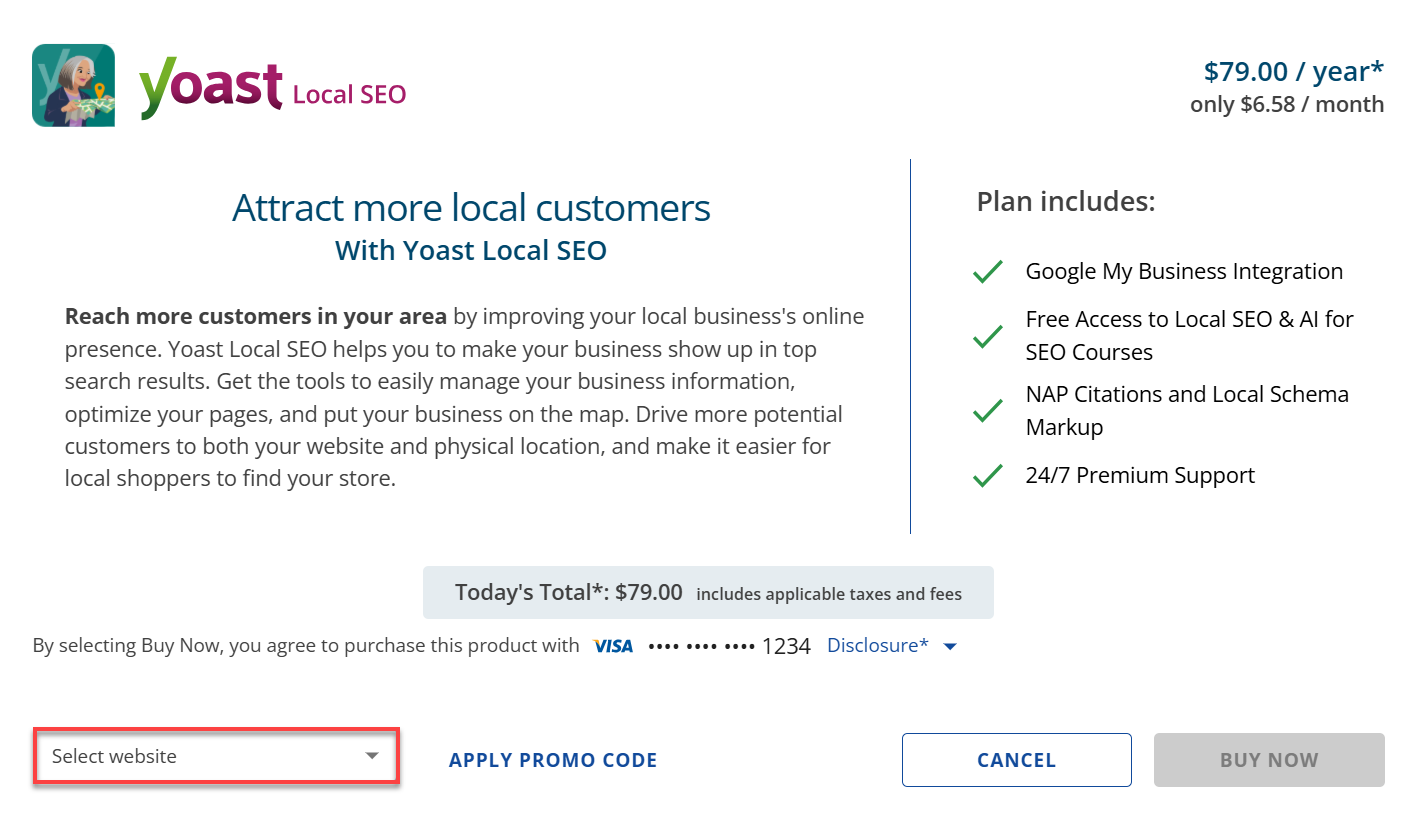
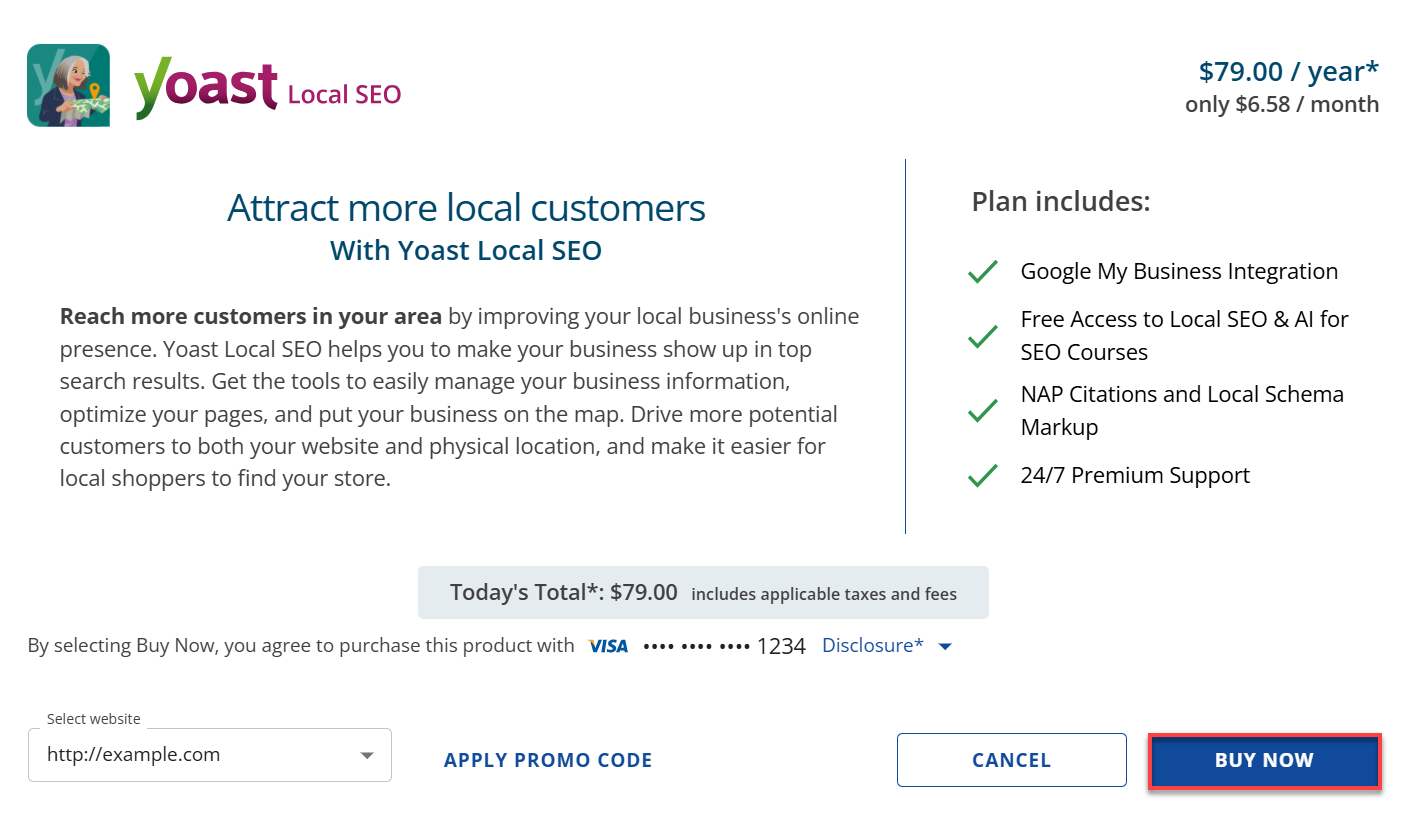
Pricing is subject to change. Please visit Bluehost Portal > Markeptlace for the current introductory offer and sign-up details. - Make sure you have a payment method saved on file. If available, you may also add a promo code.
- Click the Buy Now button to finalize your payment.
- After purchasing, configure your Yoast Local SEO.
How to Configure Yoast Local SEO Settings
Once activated, configure the plugin to match your business details:
- From the WordPress dashboard, go to SEO, click Local SEO.
- Enter your business name, address, phone number, and opening hours.
- Ensure consistency with your Google Business Profile.
- Connect your Google Maps API key under Maps Settings.
- Enable Multiple Locations if you have more than one branch.
- Add separate profiles for each location.
How to Use Yoast Local SEO for Optimization
Yoast Local SEO automatically adds schema markup to your site. Here are key features you can leverage:
- Business Schema Markup: Helps Google understand your business details.
- Google Maps & Directions Block: Add interactive maps to your contact page.
- Store Locator: Ideal for multi-location businesses.
- Opening Hours Block: Display accurate business hours in search results.
Troubleshooting Common Issues
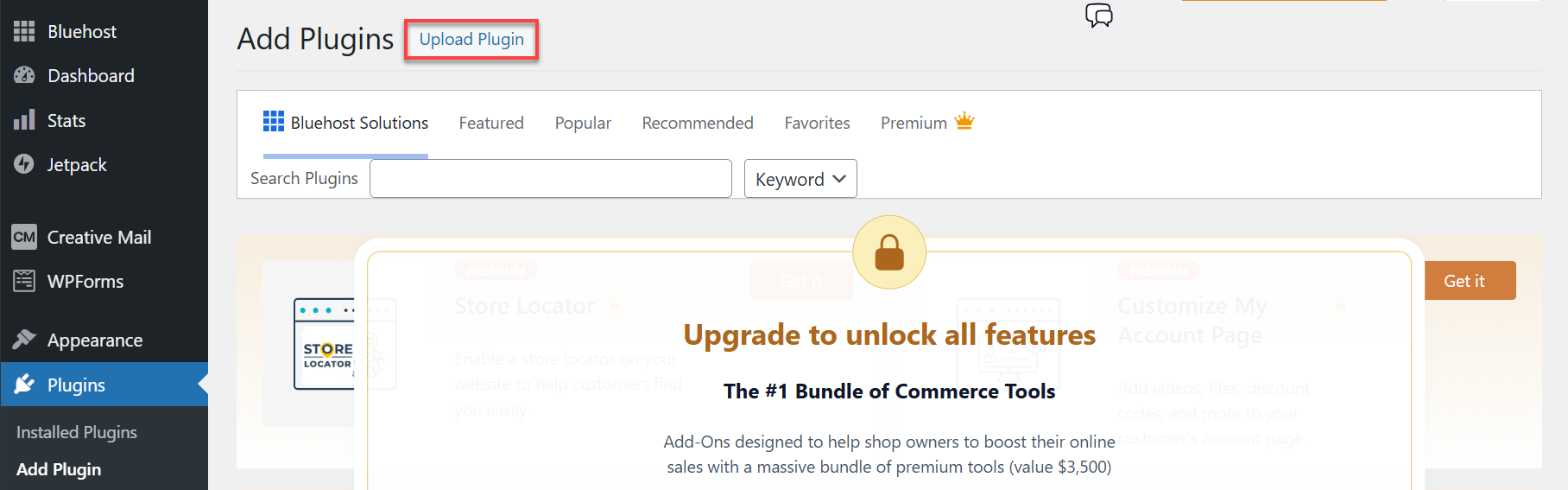
- Manual Upload: Download the plugin .zip file from Yoast.com and upload it via Plugins. Choose Add New, then click Upload Plugin.
- License Key Error: Check under SEO, then go to General, click License Keys, and verify your key using the Bluehost email.
- Google Maps Not Showing: Ensure your API key is active and billing is enabled in Google Cloud.
- Plugin Conflicts: Temporarily disable caching or security plugins and re-test.
FAQs
Q: Is Yoast Local SEO worth it for small businesses?
A: Yes. It helps improve local rankings and visibility on Google Maps, which is crucial for attracting nearby customers.
Q: Can I use Yoast Local SEO for multiple locations?
A: Absolutely. The plugin supports multiple location profiles for businesses with branches.
Q: Does Yoast Local SEO replace Google Business Profile?
A: No. It complements your Google Business Profile by adding structured data to your website.
Summary
Yoast Local SEO is a powerful tool for businesses looking to dominate local search results. By installing and configuring the plugin, you can:
- Add accurate business details and schema markup.
- Enable Google Maps integration.
- Optimize for single or multiple locations.
- Troubleshoot common setup issues.
With your plugin ready, you can focus on growing your business and attracting more local customers.
If you need further assistance, Bluehost Chat Support is available 24 hours a day, 7days a week while Bluehost Phone Support is available 7 days a week from 7 am-12 midnight EST.
- Chat Support - While on our website, you should see a CHAT bubble in the bottom right-hand corner of the page. Click anywhere on the bubble to begin a chat session.
- Phone Support -
- US: 888-401-4678
- International: +1 801-765-9400
You may also refer to our Knowledge Base articles to help answer common questions and guide you through various setup, configuration, and troubleshooting steps.