 ChatGPT,
  Claude,
  Gemini,
  Grok — all four for
 How to Log into the Bluehost Portal
After signing up with Bluehost, you will gain access to your Bluehost Portal. To log in, you will need the User ID and password that you created when you signed up. This information was sent to your email address, and your user ID may be your email address, account number, or domain name.
Once logged in, you can manage your website settings, hosting products, domains, users, roles, and billing preferences in your account.
Watch this quick video to learn how to log in to your Bluehost Portal.
Logging into the Bluehost Portal
- In your browser, go to the Bluehost website at https://www.bluehost.com/ and click the Login link in the top-right corner.
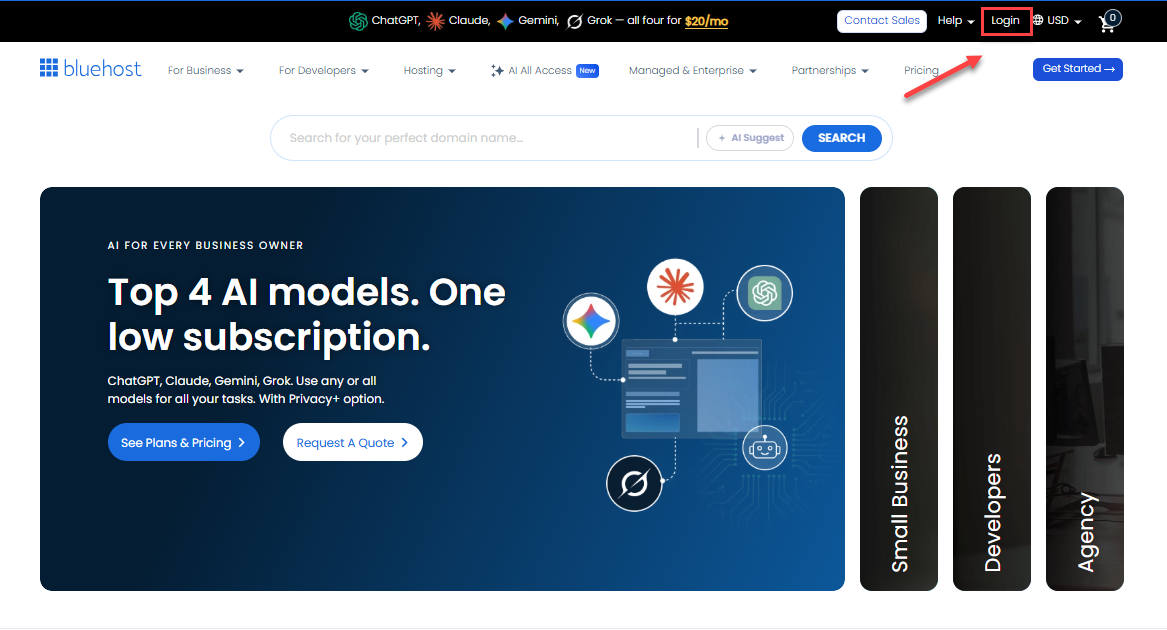
You can also go to https://www.bluehost.com/my-account/login directly. You will be redirected to the login page.
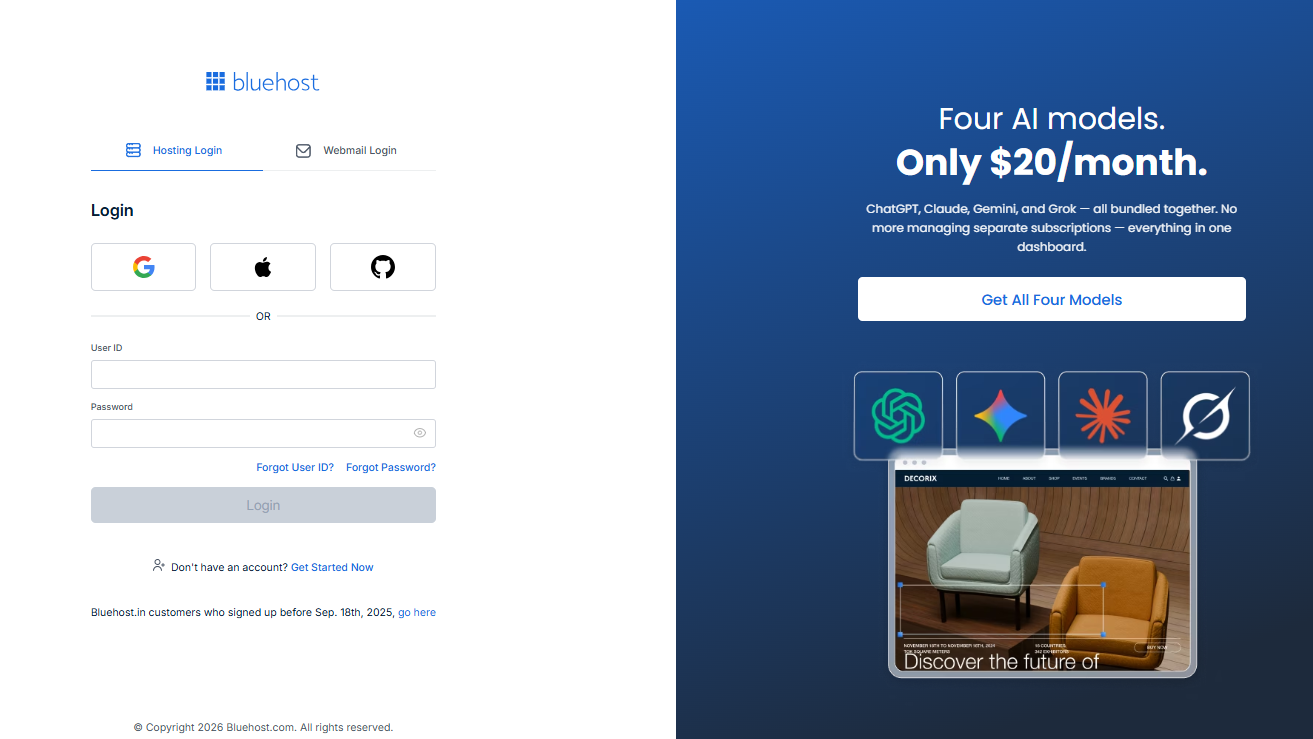
- Portal Login is for accessing your main Bluehost account to manage your website, domains, and hosting settings.
- Webmail Login is only for checking and sending emails from your domain-based email address.
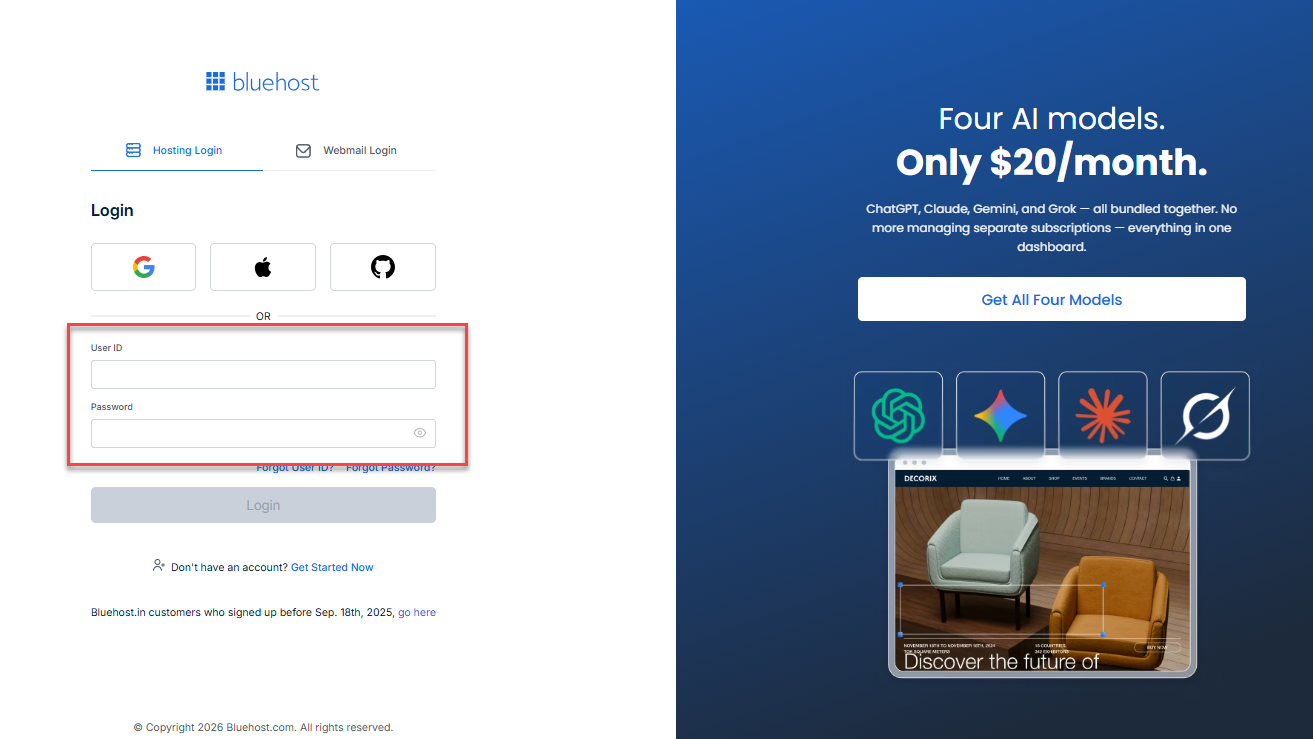
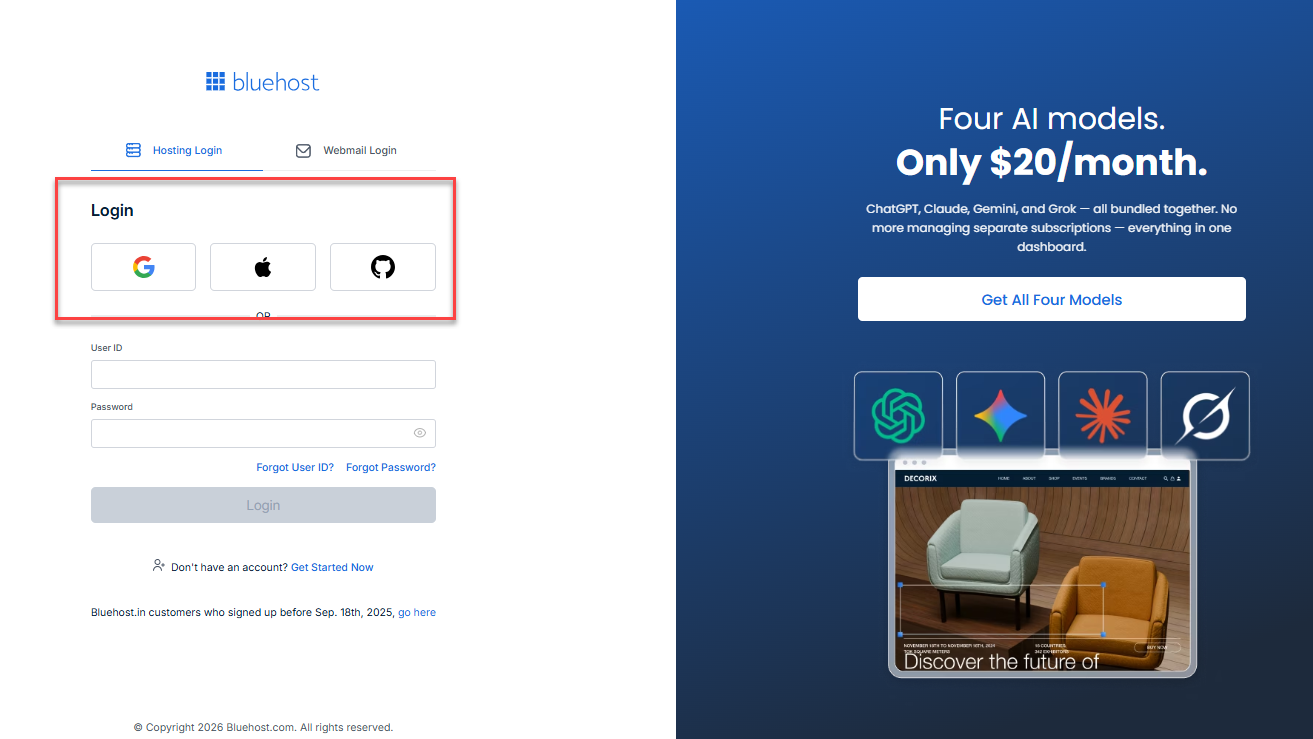
- You can either enter your Bluehost User ID and Password or use your Social Credentials if you've set them up. Then, click the Login button. If you've forgotten your password, please see the article, How to Reset Your Bluehost Portal Password.
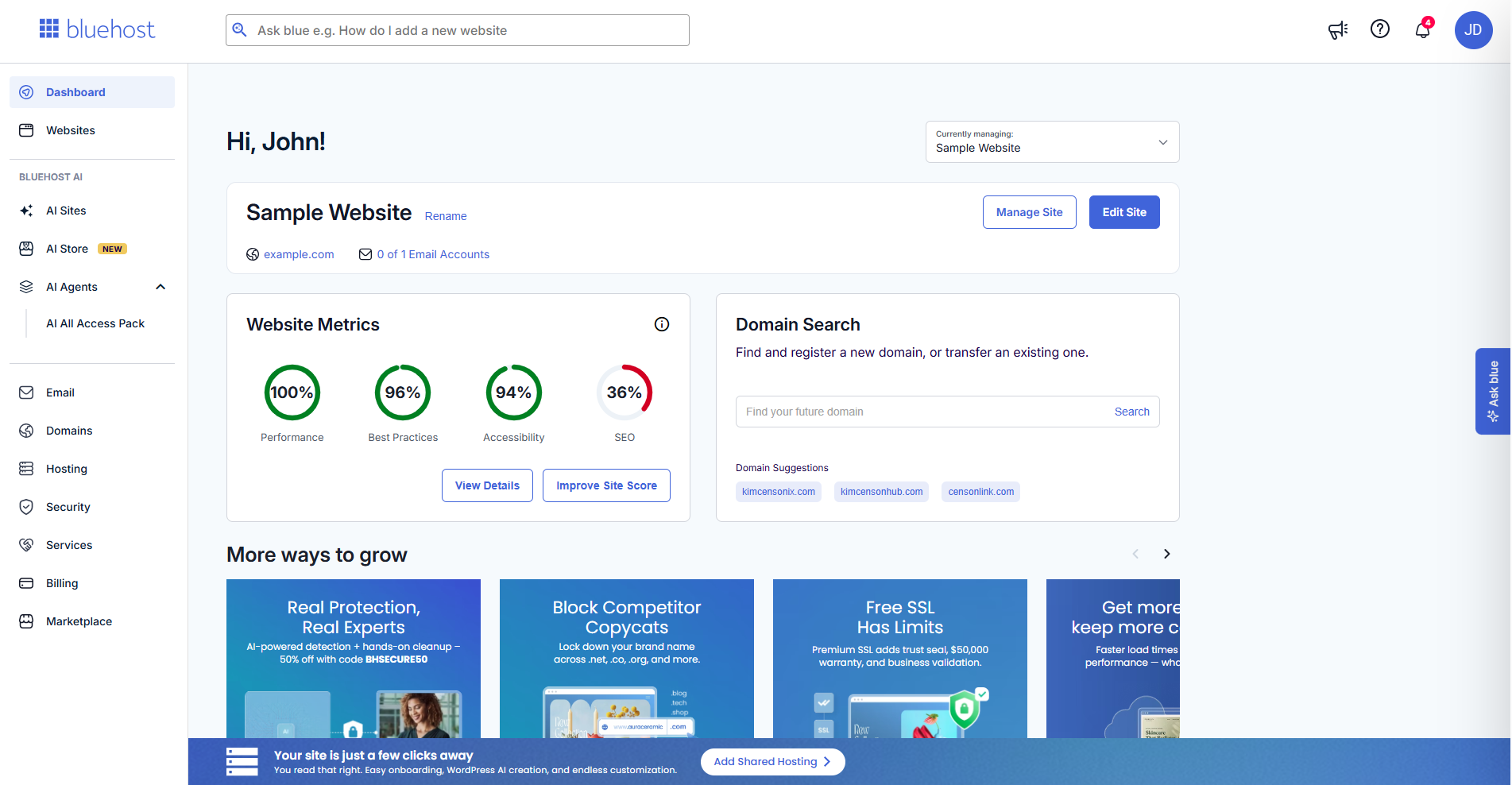
- You'll be redirected to your Bluehost account.
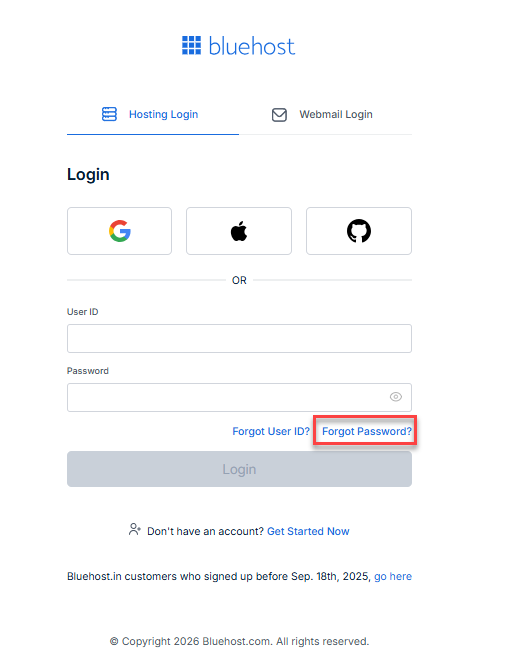
Forgot Your Password?
- Click the Forgot Password? link on the login page.
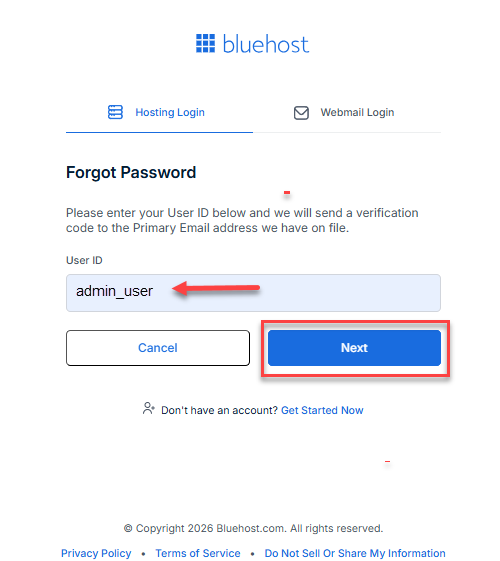
- Enter your User ID and click Next.
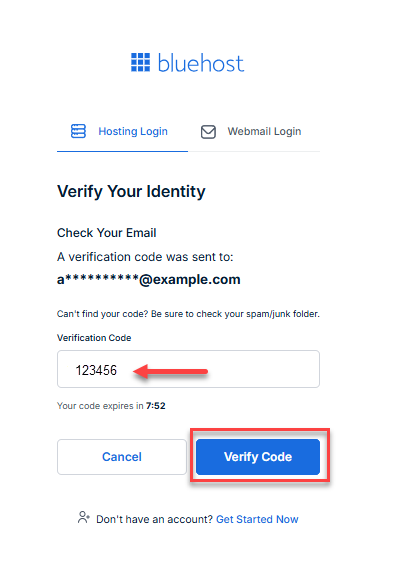
- A verification email will be sent to your registered email address.
- Enter the verification code, then click Next.
- Create and confirm your new password and click Change Password. A confirmation will show on your screen that the password change is successful.
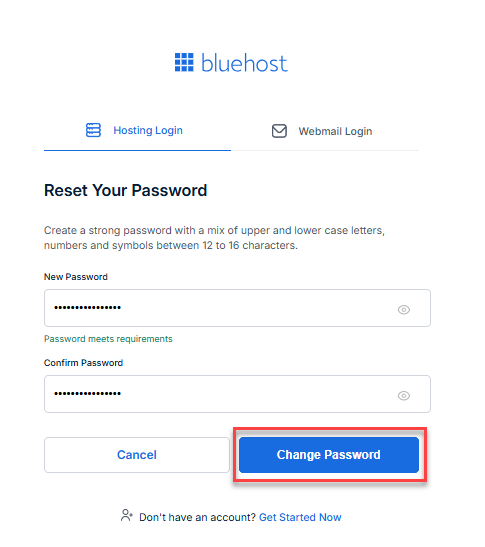
If you can’t receive the reset link, verification code, or answer your security questions, visit Bluehost Account Recovery for more options.
Forgot Your User ID?
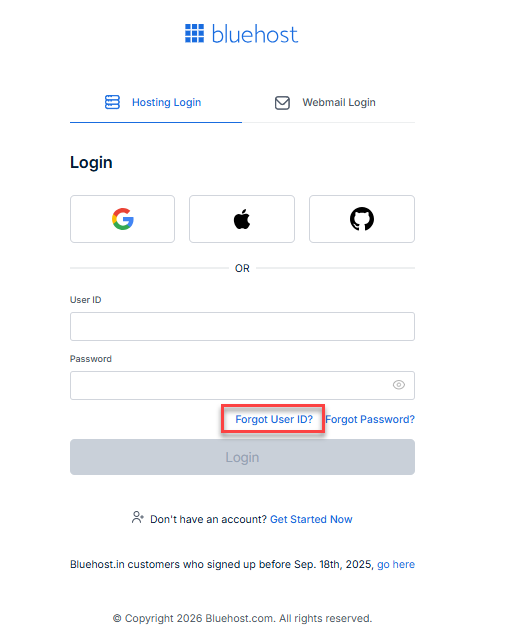
- Click the Forgot User ID? link on the login page.
- Enter your Email Address, then click Next.
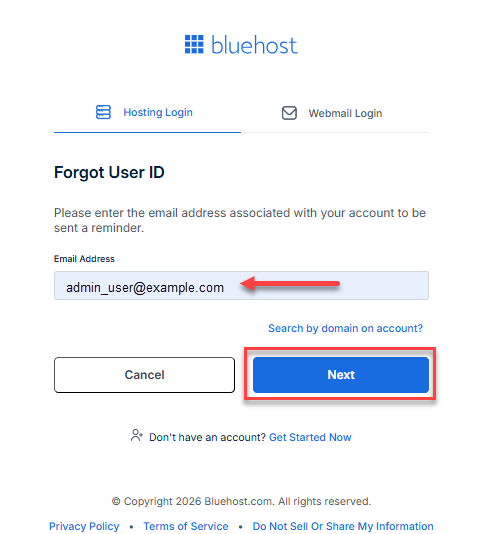
- A message will appear on the screen to check your inbox for the email that contains your username information.
Summary
Learn how to log in to your account at Bluehost to manage your website settings, domains, and billing. This article provides a simple guide for logging in with your user ID and password, which can be your email, account number, or domain name. It also explains the login process and the two-factor authentication for new users.
ContactSupport
If you need further assistance, Bluehost Chat Support is available 24 hours a day, 7days a week while Bluehost Phone Support is available 7 days a week from 7 am-12 midnight EST.
- Chat Support - While on our website, you should see a CHAT bubble in the bottom right-hand corner of the page. Click anywhere on the bubble to begin a chat session.
- Phone Support -
- US: 888-401-4678
- International: +1 801-765-9400
You may also refer to our Knowledge Base articles to help answer common questions and guide you through various setup, configuration, and troubleshooting steps.