 ChatGPT,
  Claude,
  Gemini,
  Grok — all four for
How to Set Up Outlook Express with Your Bluehost Email Account
Outlook Express was discontinued by Microsoft and was last included in Windows Vista. We strongly recommend using a professional email application like Google Workspace or Bluehost Professional Email for the best experience.
If you have an email account set up on your Bluehost server, you can easily configure Outlook or Outlook Express to send and receive emails. Follow these steps to connect Outlook to your Bluehost email account:
For Outlook Express 6, after clicking Add, you'll automatically go to step number 4.
- Open Outlook Express.
- Go to Tools and click on Accounts.

- When the Internet Accounts window pops up, select the Mail tab, then Add, and click on Mail. (This is for Outlook Express 5)

For Outlook Express 6, after clicking Add, you'll automatically go to step number 4.
- The Internet Connection Wizard will start. Enter your name in the Display name field, and click Next at the bottom right.

- Click Next.
- Enter your Bluehost email address in the input box. This can be any valid email address you created (for example, [email protected], [email protected], etc.). Click Next.

- Click Next.
- In the Incoming mail field, type mail.example.com.
In the Outgoing mail (SMTP) field, type mail.example.com.
If your domain name is elitepolls.com, enter mail.elitepolls.com in both fields. Click Next. - For the Account Name, enter your full email address (including the domain name). In the Password section, type the password for your email account.

- Click Next.
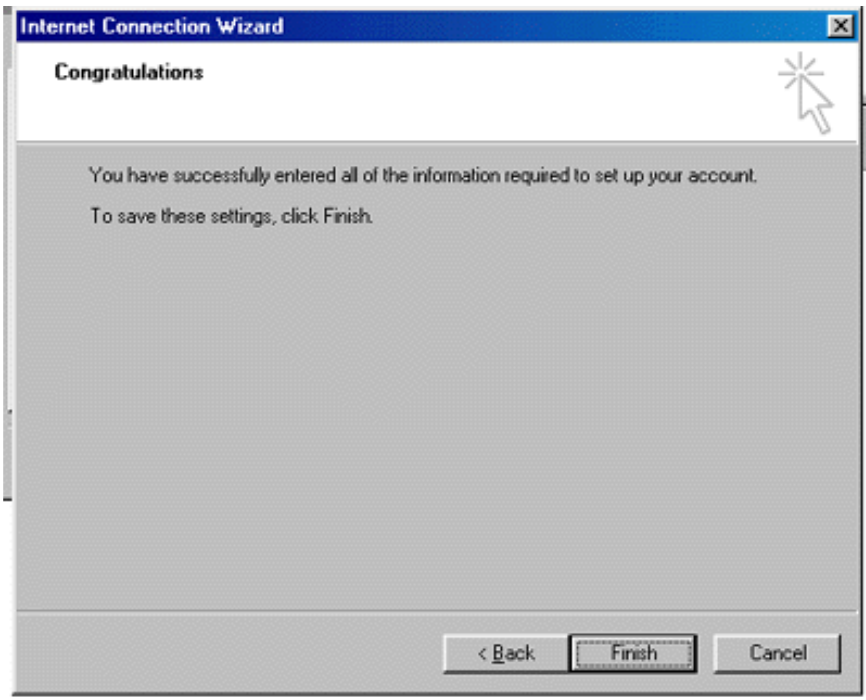
- Click Finish.
- You'll still see the Mail tab, so click the Properties button.
- Select the Servers tab.
- Check the box at the bottom that says, "My server requires authentication."
- Select the Advanced tab.
- At the top, you'll see Server Port Numbers and Outgoing mail (SMTP) with a value of 25. If you can't send emails using port 25, change this to port 26.
- Click Apply, OK, and Close.
- You're all set! Go ahead and test your email to make sure everything is working.
Summary
Setting up Outlook Express with your Bluehost email account is straightforward. Although Outlook Express is no longer supported, you can still use these steps to configure your email if needed. For the best experience and security, we recommend switching to a modern email solution like Google Workspace or Bluehost Professional Email. If you need help, our support team is always here for you!
Did you find this article helpful?