 ChatGPT,
  Claude,
  Gemini,
  Grok — all four for
Reimage Your Server for Hermes Agent + Open WebUI Installation
Learn how to reimage your Self-Managed VPS or Virtual Dedicated Server (VDS) and install Hermes Agent + Open WebUI using the one-click installer. This guide covers how to start the process, select the application, and confirm your server update.
How to Reimage Your Server for Hermes Agent + Open WebUI Installation
This applies to both VPS and VDS.
- You can install only one application using the one-click installer.
- To change or delete your application, follow the guide: How to Change an Application. Create a backup of your existing applications or templates.
- To keep your current template, install the new application manually using SSH. Follow the same steps for both Self-Managed VPS and Virtual Dedicated Server (VDS). The system automatically selects the recommended operating system for Hermes Agent + Open WebUI.
- Log in to your Bluehost Portal.
- In the left-hand menu, click Hosting, then select My Plans.
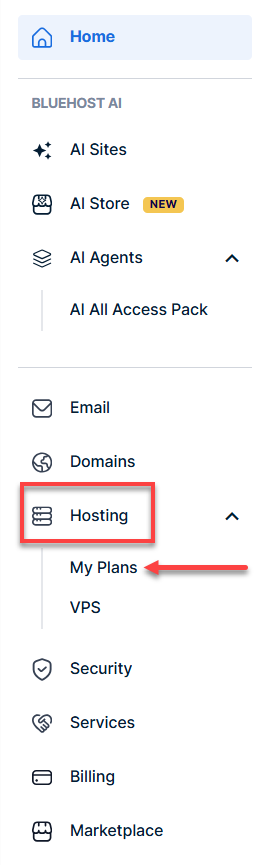
- Click the Manage the hosting package you want to reimage.

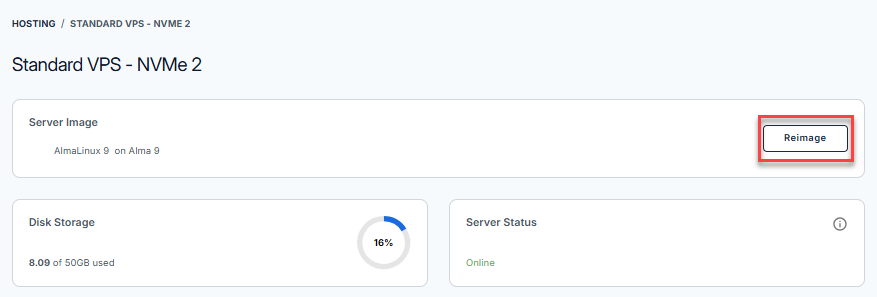
- Click the Reimage button.
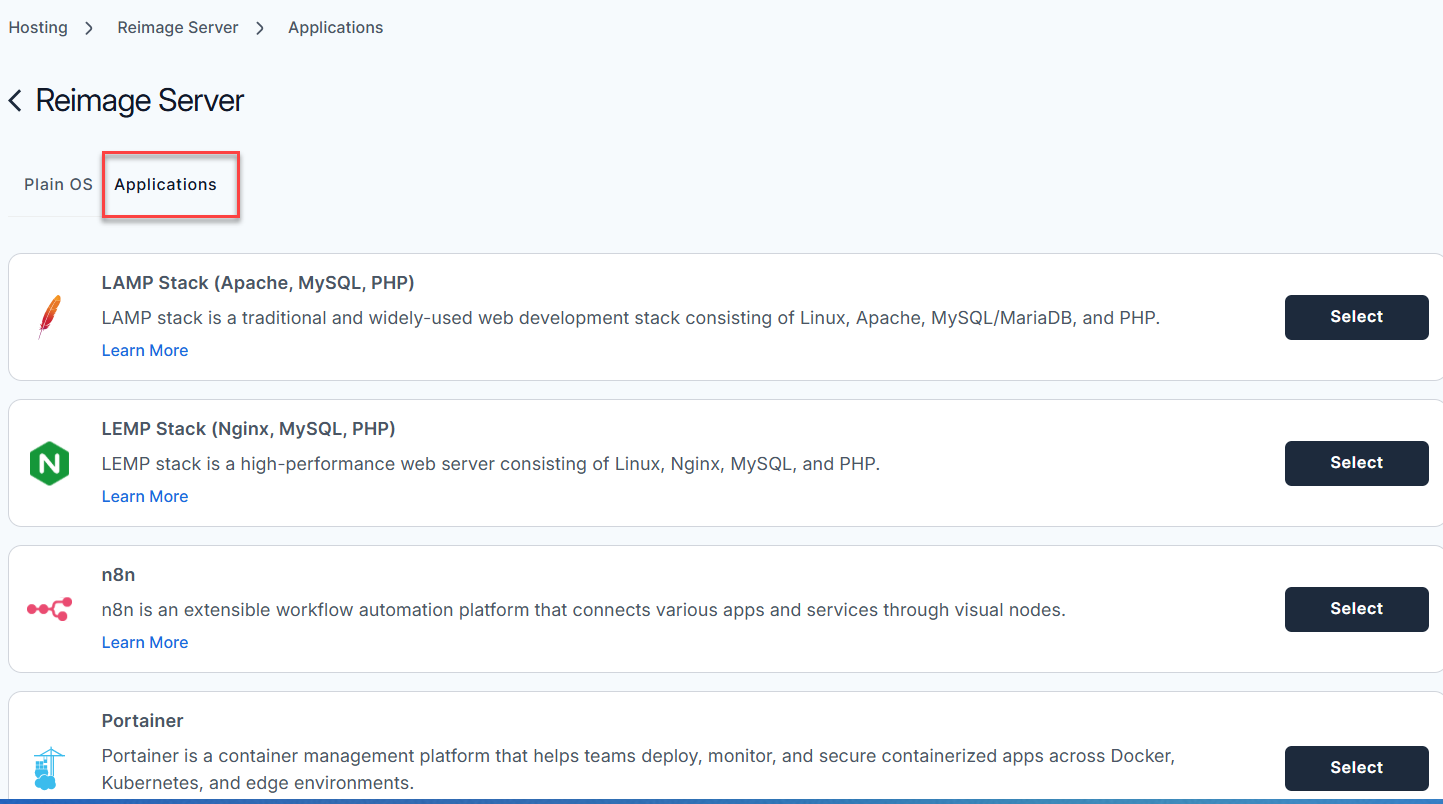
- Select the Applications tab.
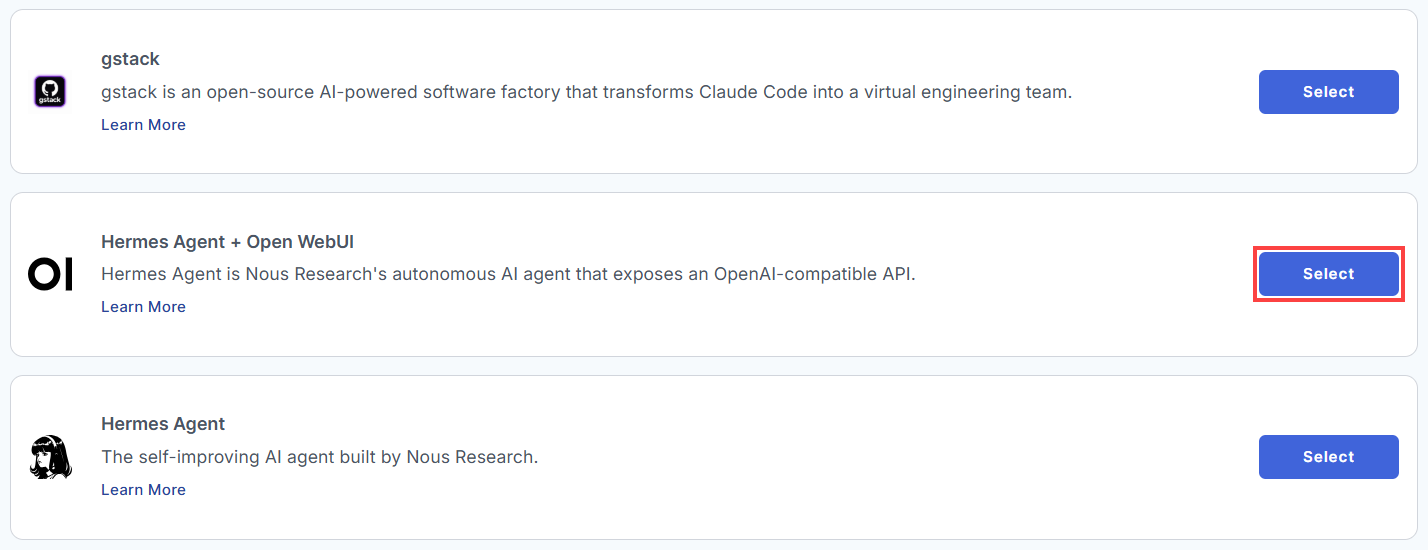
- From the list, locate Hermes Agent + Open WebUI and click Select.
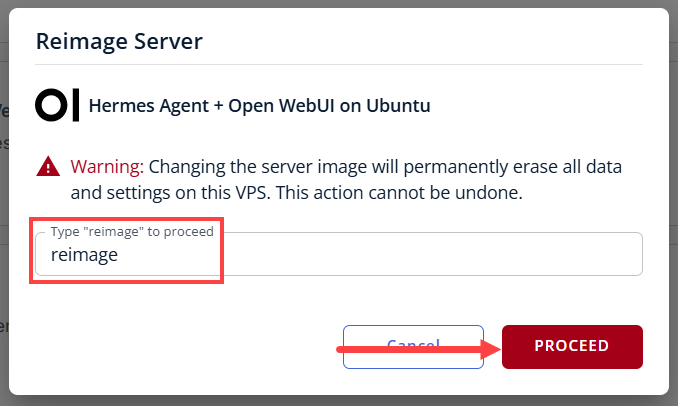
- To confirm, type "reimage" and then click Proceed to start the process.
- Wait a few minutes while the installation completes.

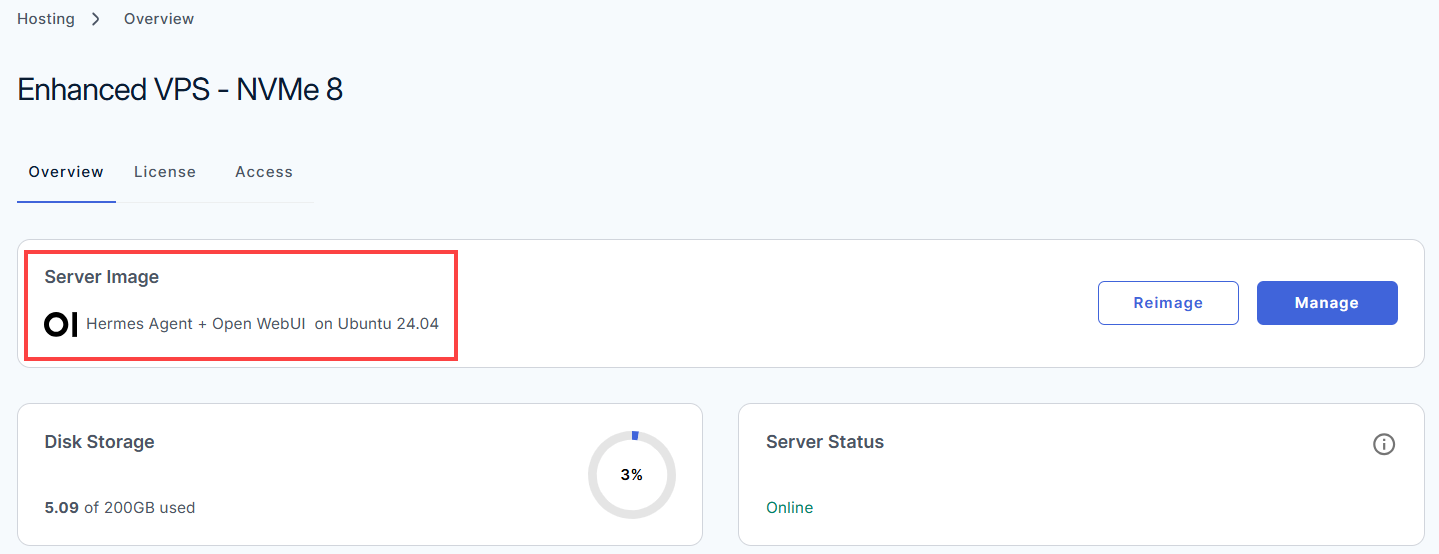
- Once completed, you will see Hermes Agent + Open WebUI listed in the Server Image section.
Deployment and Configuration Guide
Here is your step-by-step walkthrough to get everything configured and running.
After installation completes:
- Log in to your Bluehost Portal.
- In the left-hand menu, click Hosting, then select My Plans.
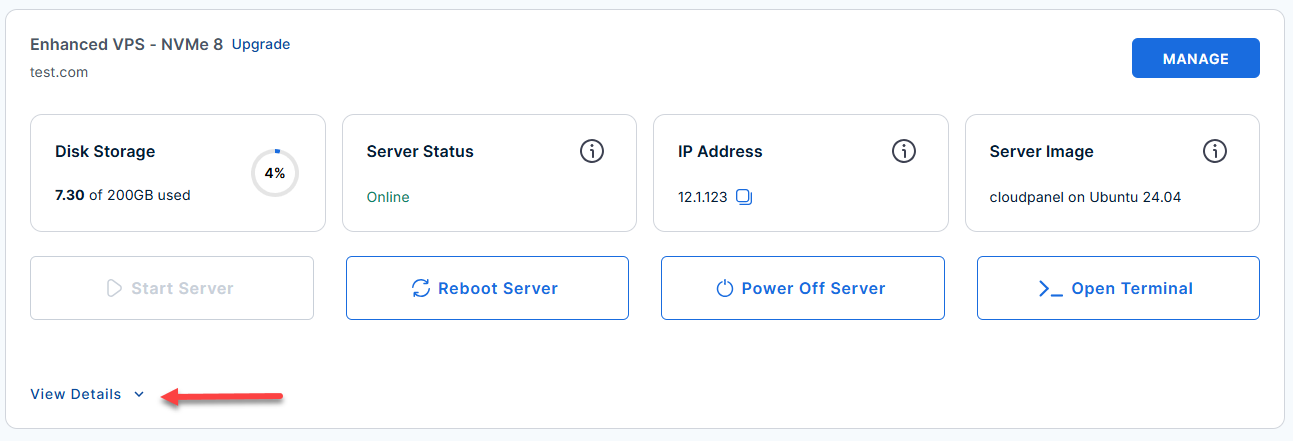
- Locate the server you want to manage, then click View Details in the bottom-left corner to expand the section and access additional server information.
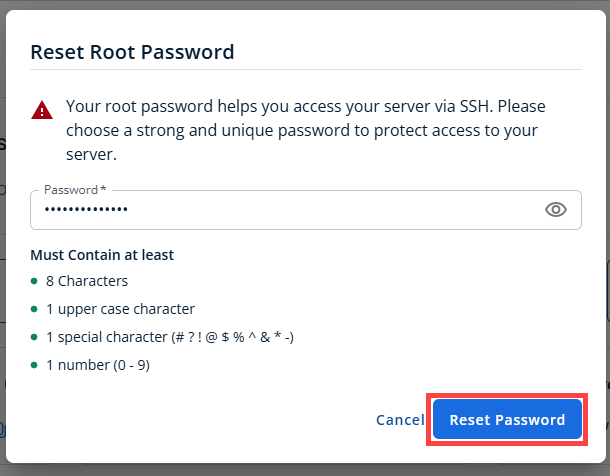
- Click the Reset Password.
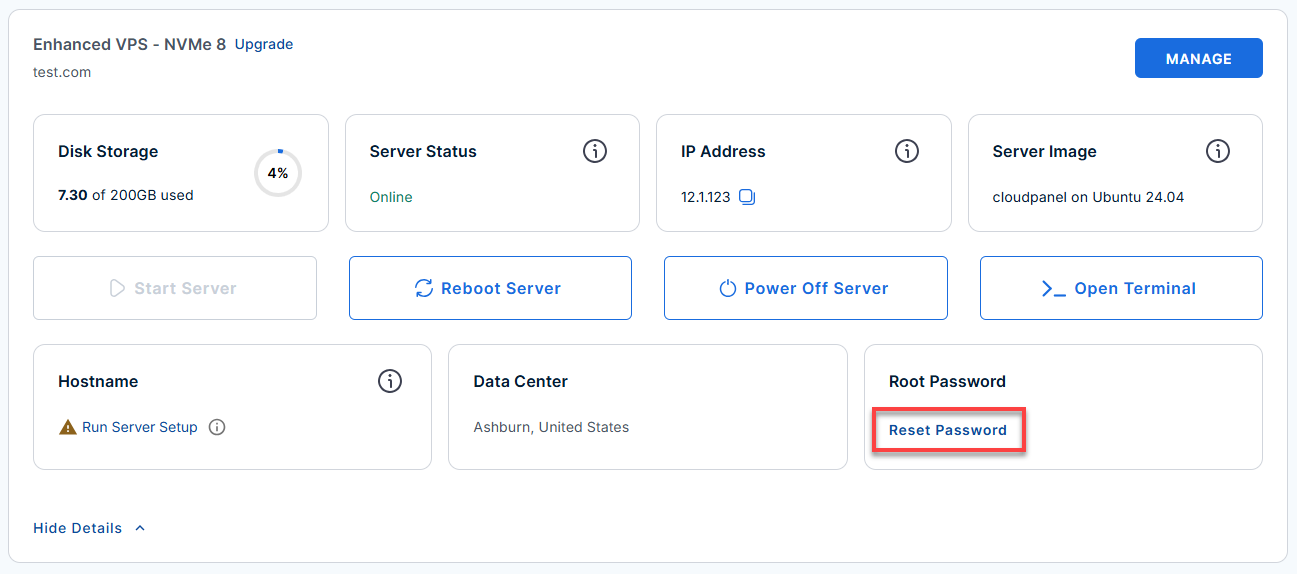
- In the pop-up window, type your new root password, then click Reset Password again to confirm and save the changes.
- Connect to your server via SSH.
Open your computer's terminal (or an SSH client like PuTTY) and run the following command to log into your server as the administrator, using your server's public IP address:Replaceyour_server_ipwith your actual server IP address.
Follow the prompts and enter the new root password you created in the step above.ssh root@your_server_ipExample Output:
  Welcome to Ubuntu 24.04.4 LTS (GNU/Linux 6.8.0-124-generic x86_64)
================================================================================

  Hermes Agent + Open WebUI

  The UFW firewall is enabled.
  Open ports: 22 (SSH), 80 (HTTP), 443 (HTTPS).

  The first thing to do is to configure an LLM model in Hermes:
    HOME=/var/lib/hermes-agent hermes model
    systemctl restart hermes-agent

  To manually configure a model using standard environment keys
  (GITHUB_TOKEN, OPENROUTER_API_KEY, ANTHROPIC_API_KEY, etc):
    nano /var/lib/hermes-agent/.hermes/.env
    systemctl restart hermes-agent

  After that is done, you can access (in a browser):
    Open WebUI:   https://12.2.2.123/

  Credentials:
    cat /root/.app_passwords

  Service logs:
    journalctl -u hermes-agent -f
    journalctl -u open-webui   -f

For more details, please see the README at /root/README.md
Step 1: Configure Your LLM Backend
Before you do anything in the browser, Hermes Agent needs an API key to talk to an actual LLM backend.
- Open the configuration file using the nano text editor:
nano /var/lib/hermes-agent/.hermes/.env
Example Output:
GNU nano 7.2 /var/lib/hermes-agent/.hermes/.env # Hermes Agent Configuration Environment Variables NODE_ENV=production PORT=8080 # API and Network Settings HERMES_API_URL=https://api.hermes-service.internal HERMES_AGENT_ID=agent_usr_11x24abc HERMES_AUTH_TOKEN=ghp_SecReTToKeN12343210abc # Logging and Performance LOG_LEVEL=info MAX_CONCURRENT_TASKS=5 TIMEOUT_MS=30000 # Database / Cache Connection (if local) REDIS_URL=redis://localhost:6379/0 ^G Help ^O Write Out ^W Where Is ^K Cut ^J Justify ^C Cur Pos ^X Exit ^R Read File ^\ Replace ^U Paste ^T To Spell ^_ Go To Line - Look for the API lines and add your provider keys.
- If using OpenRouter:
Example Output:
# OpenRouter OPENAI_API_KEY=sk-or-... OPENAI_API_BASE=https://openrouter.ai/api/v1 - If using Anthropic:
Example Output:
# Anthropic
ANTHROPIC_API_KEY=sk-ant-...
- If using OpenRouter:
- Restart the service to apply your changes:
systemctl restart hermes-agent
Step 2: Access the Web UI and Create an Account
To ensure a smooth login, please follow the steps below:
- Log In via Your Browser:
Open your preferred web browser and navigate to your server's IP .
Replaceyour_server_ipwith your actual server IP address.http://your-server-ip/
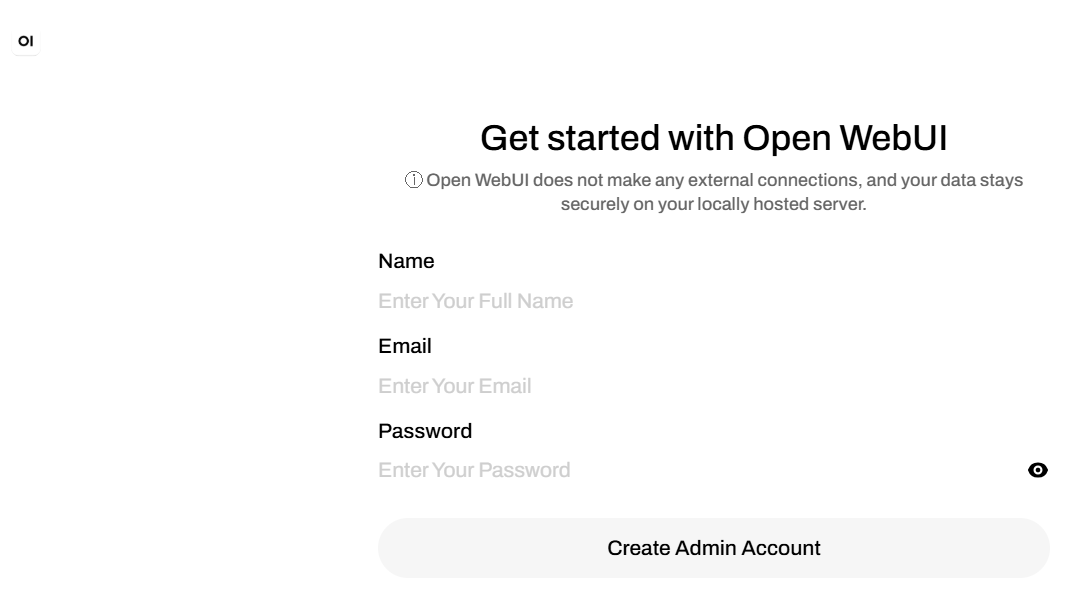
- Sign Up:
Create your account immediately. The first user to register automatically becomes the global Admin.
- Verify Settings:
Go to Admin -> Settings -> Connections in Open WebUI to ensure the pre-configured hermes-agent model is active and communicating.
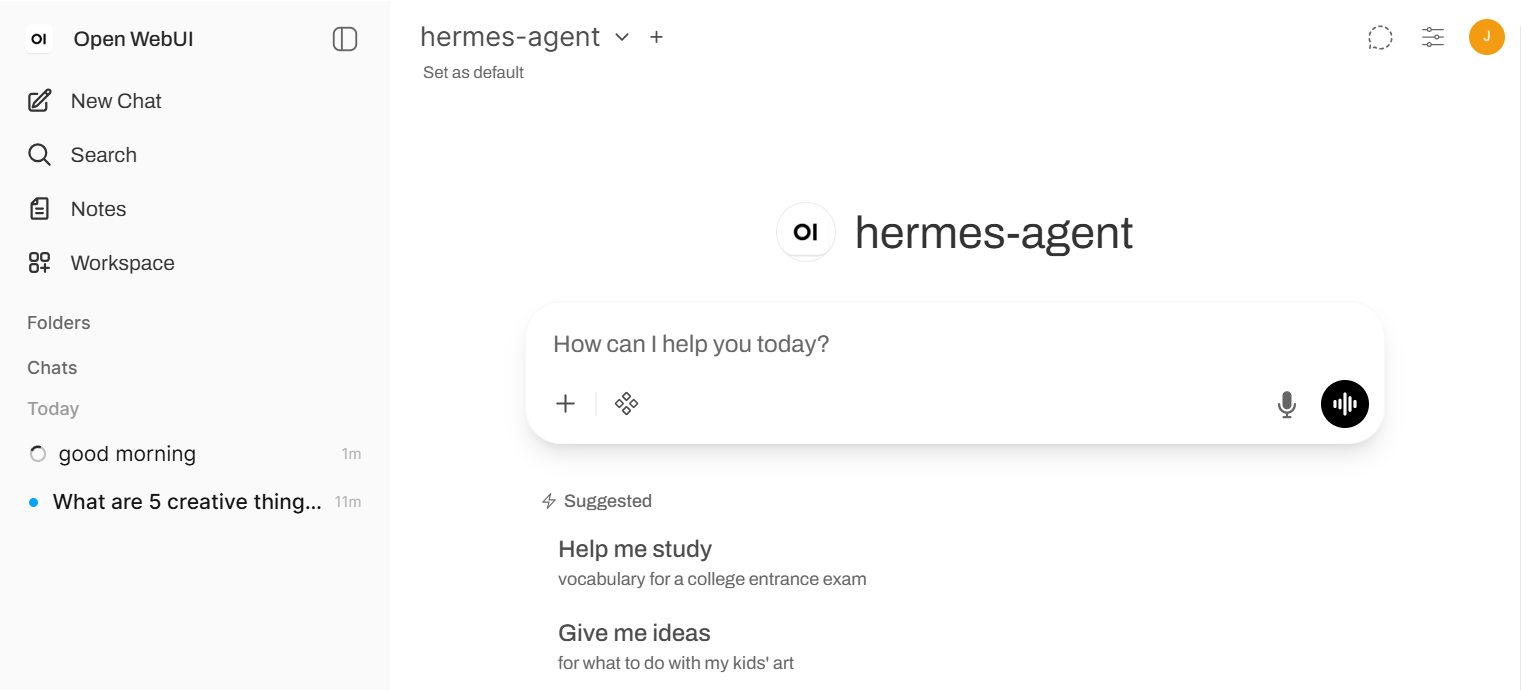
- Start Chatting:
Open a new chat, select hermes-agent from the top model dropdown menu, and test a prompt.
Step 3: Run Validation Tests
To make sure Open WebUI, Hermes Agent, and your backend connection are all talking to each other perfectly, run the built-in test suite:
Example Output:
root@server-123456:~# prove /root/app_test/main.t
/root/app_test/main.t .. ok
All tests successful.
Files=1, Tests=5,  2.34 wallclock secs ( 0.03 usr  0.01 sys +  0.42 cusr  0.12 csys = 0.58 CPU)
Result: PASS
Additional Information and Example Documentation Output
You can run cat /root/README.md to see more information and useful commands:
root@server-123456:~# cat /root/README.md
# Hermes Agent + Open WebUI

## Description

Hermes Agent is Nous Research's autonomous AI agent that exposes an
OpenAI-compatible API. It connects to any LLM backend you choose OpenRouter,
Together AI, Anthropic, a local Ollama instance, or any other provider and
handles tool use, reasoning, and multi-step tasks on your behalf.

Open WebUI is a polished, self-hosted chat interface that lets you interact
with AI models through a browser, with no data leaving your server.

This image combines both into a ready-to-use AI assistant stack: Open WebUI
provides the chat frontend, Hermes Agent powers the intelligence layer behind
it, and nginx handles HTTPS termination so you can reach everything securely
through a single URL. Connect your preferred LLM provider, create an account,
and start chatting no additional setup required.

Architecture:

  User Browser
      |
      v :80 / :443
    nginx  (reverse proxy + TLS termination)
      |
      v :8080 (internal)
    Open WebUI  (chat frontend)
      |
      v :8642 (internal, OpenAI-compatible API)
    Hermes Agent  (autonomous AI agent)
      |
      v
    LLM Backend  (configured by you: OpenRouter, Together AI, Ollama, etc.)


## Services

Service       | Ports           | Purpose
--------------|-----------------|--------
nginx         | 80, 443         | Reverse proxy with TLS termination (self-signed cert)
Open WebUI    | 8080 (internal) | Web chat frontend
Hermes Agent  | 8642 (internal) | Autonomous AI agent with OpenAI-compatible API
OpenSSH       | 22              | SSH

Ports are protected using ufw (22, 80, 443 open; 8080 and 8642 internal only).


## How-to-use

After first boot, open a browser and navigate to:

`http://your-server-ip/`

1. Create your **admin account** on the sign-up page (first user becomes admin)
2. The **hermes-agent** model is pre-configured under Admin -> Settings -> Connections
3. Select **hermes-agent** from the model dropdown in a new chat

Read generated credentials:

```
cat /root/.app_passwords      # HERMES_API_KEY and WEBUI_SECRET_KEY
cat /root/.app_info           # full connection info
```

Configure the LLM backend (edit then restart):

```
nano /var/lib/hermes-agent/.hermes/.env
systemctl restart hermes-agent
```

Example LLM provider entries:

```
# OpenRouter
OPENAI_API_KEY=sk-or-...
OPENAI_API_BASE=https://openrouter.ai/api/v1

# Anthropic
ANTHROPIC_API_KEY=sk-ant-...
```

Service management:

```
systemctl status hermes-agent
systemctl status open-webui
systemctl status nginx

journalctl -u hermes-agent -f
journalctl -u open-webui   -f
tail -f /var/log/hermes-agent/gateway.log
tail -f /var/log/open-webui/webui.log
```

Run validation tests:

```
prove /root/app_test/main.t
```

Replace the self-signed certificate:

```
cp your-cert.crt /etc/ssl/hermes-openwebui/server.crt
cp your-key.key  /etc/ssl/hermes-openwebui/server.key
chmod 0644 /etc/ssl/hermes-openwebui/server.crt
chmod 0640 /etc/ssl/hermes-openwebui/server.key
systemctl reload nginx
```


## Links

Documentation: [https://hermes-agent.nousresearch.com/docs/](https://hermes-agent.nousresearch.com/docs/)
Manage: [http://{serve
Summary
By following these steps, you can reimage your Self-Managed VPS or Virtual Dedicated Server (VDS) to install Hermes Agent + Open WebUI using the one-click installer. Remember, reimaging will erase all existing data, so ensure you have backups before proceeding. Once complete, Hermes Agent + Open WebUI will be available on your server for use.