 ChatGPT,
  Claude,
  Gemini,
  Grok — all four for
 Creating a Backup of Installation with Softaculous
Backups play a crucial role in keeping any website secure and recoverable. If you originally installed your application, such as WordPress, through Softaculous, you can also use the same tool to create backups of your site. This guide walks you through the steps for generating a backup in Softaculous and downloading a copy for safekeeping.
Keep in mind that any backups you create will take up storage space on your server. Because of this, it’s a good idea to regularly check your disk space usage so you can manage your resources effectively.
How to Create Backups
To create a backup via Softaculous:
- Log in to your Bluehost Portal.
- In the left-hand menu, click Hosting, then select My Plans.
- On the hosting details page, click the cPanel button.

- Your cPanel will open in a new tab.

-
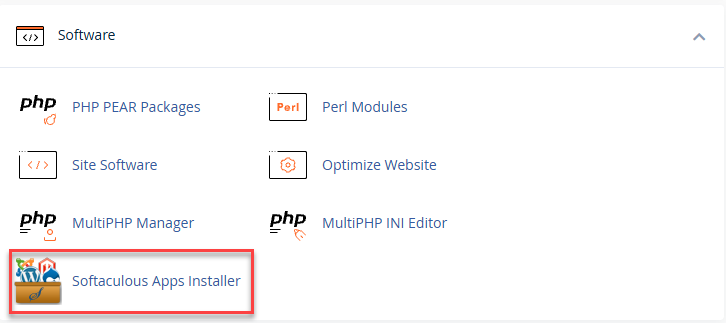
Find the Software section and click Softaculous Apps Installer.
- Select the Installation box. We will use WordPress as an example.
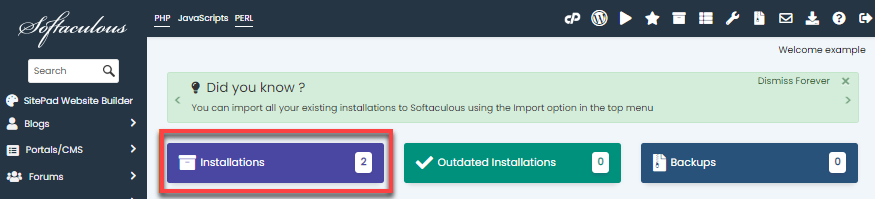
Alternatively, you can click All Installations at the top-right menu.

- On the following screen, you’ll see a list of all your current installations.

- Find the site you want to back up from the list.
-
Click Backup under the Options column.

- You’ll be taken to the Backup Information page, where you can see how many backups you currently have and the maximum number you’re allowed to create. The backup options (Backup Directory and Backup Database) will already be selected by default.
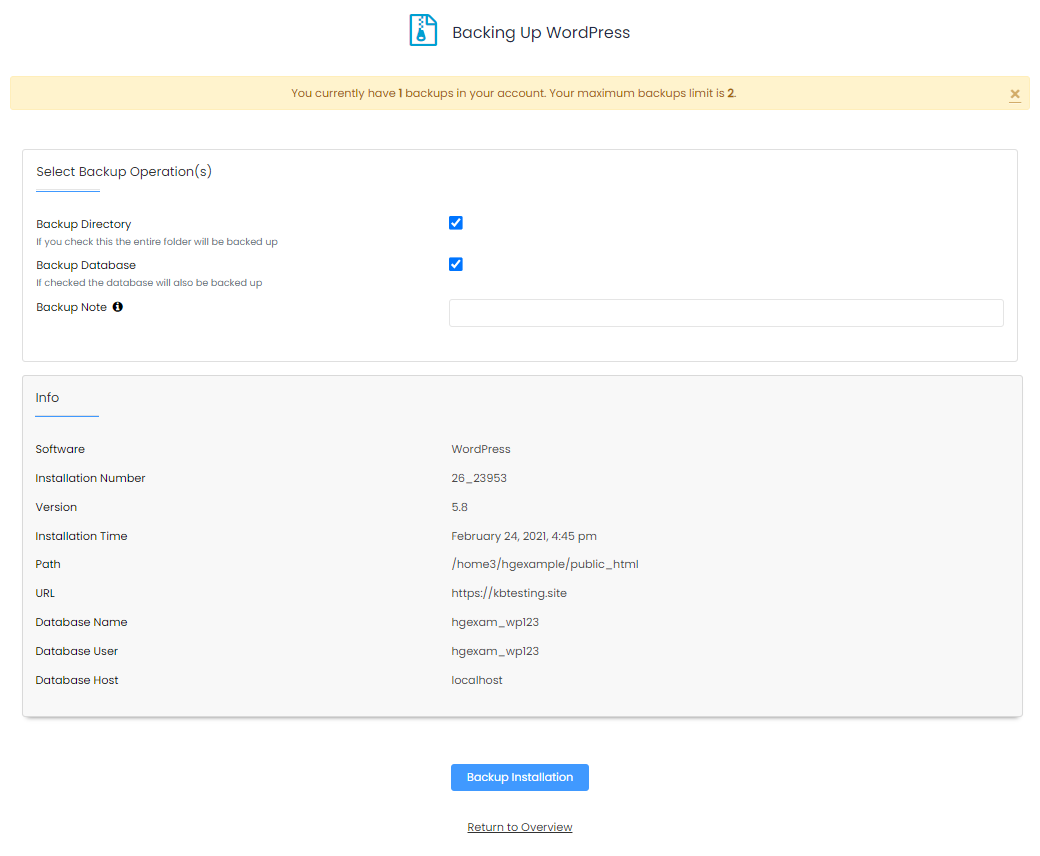
- Select Backup Installation.
-
A progress bar will appear.
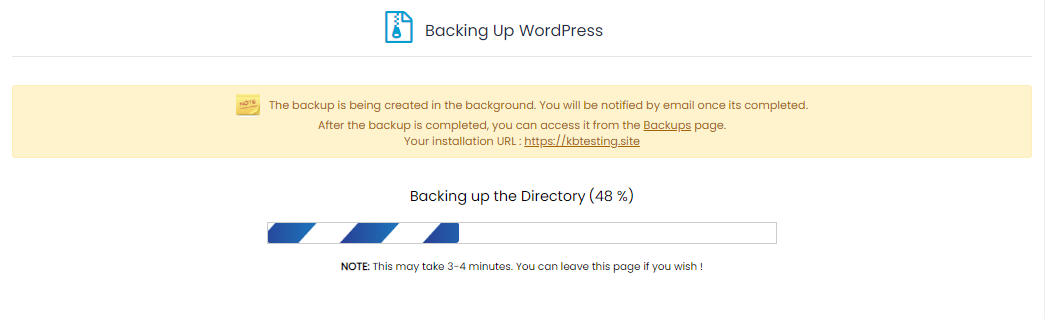
- Once done, click Return to Overview to go back to your current installations.

Your backup is generated in a .tar gz file and can be found in the Backups and Restore section within Softaculous and the softaculous_backups directory in the File Manager.
How to Download a Copy of the Backup
Softaculous provides two different options for downloading the backups you’ve created.
Download Backup via Backups and Restore
-
On the Softaculous homepage, click Backups and Restore at the top-right menu.

-
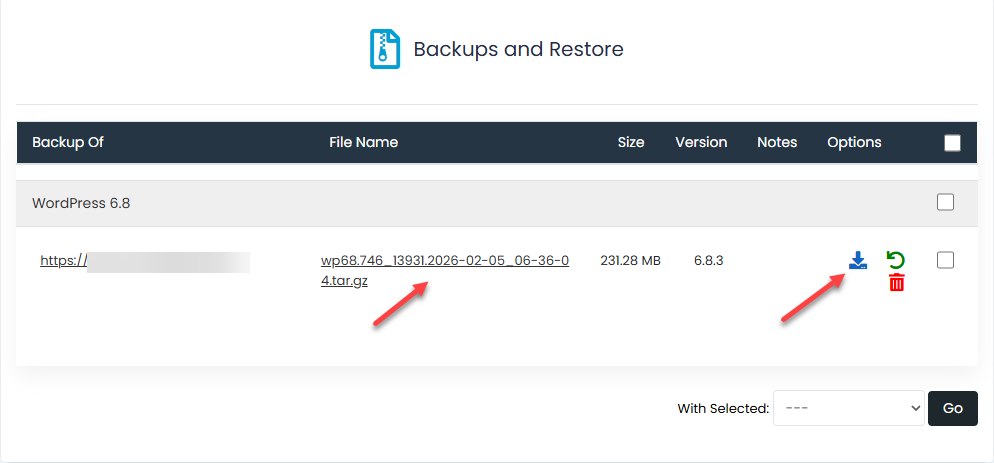
Find the website you want from the list. You’ll see the backup’s file name displayed under the File Name column.
-
Click the backup filename or the download icon to download the backup.
-
The backup will be downloaded to your local computer.
Download Backup via File Manager
To download a copy of the backup via File Manager:
- Log in to your Bluehost Portal.
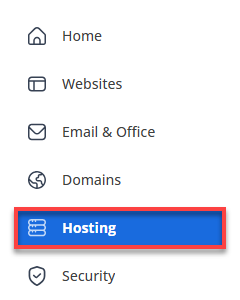
- In the left-hand menu, click Hosting, then select My Plans.
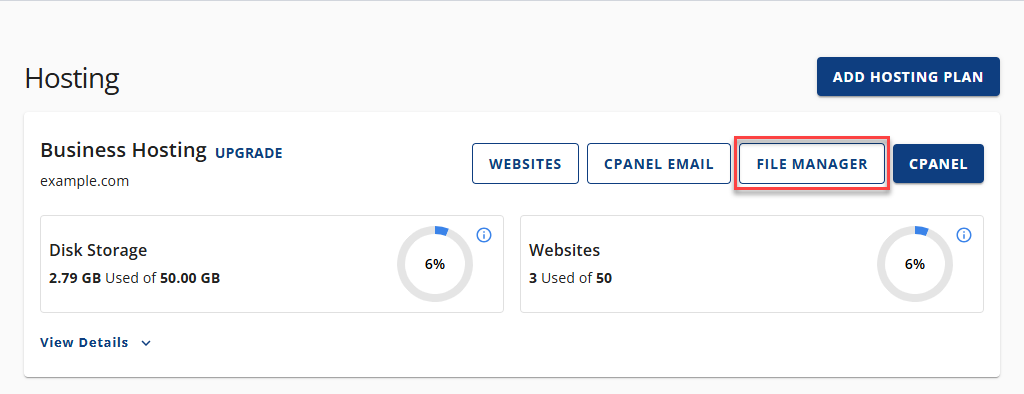
- Click File Manager.
-
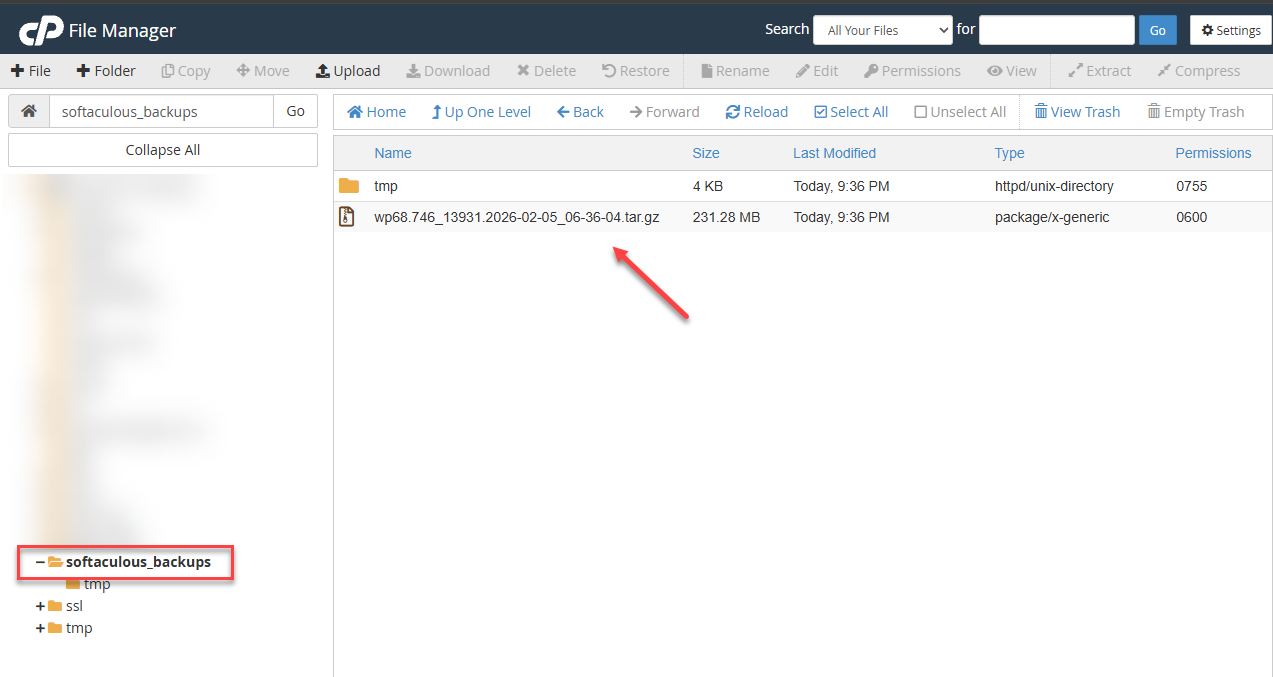
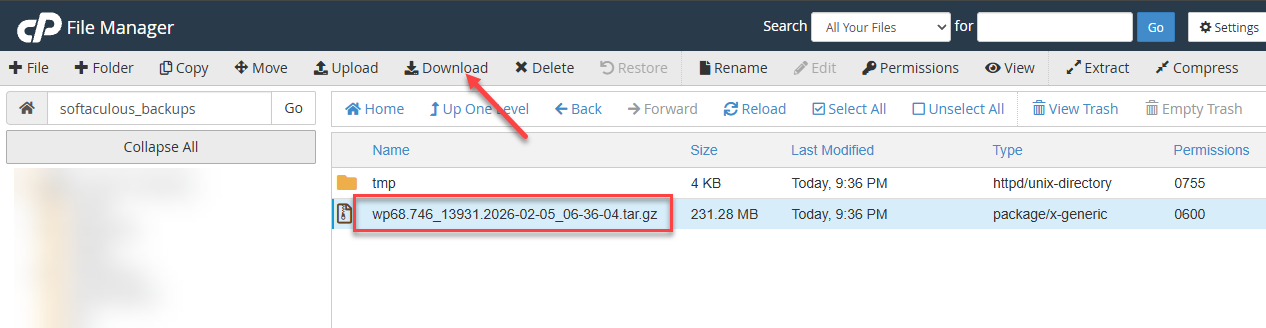
Inside the File Manager, locate the softaculous_backups directory in the list of files and folders.
-
You will find the backup in a .tar.gz file. The filename usually includes the date when the backup was generated.
-
Select the backup and click the Download icon located in the top menu.
-
The backup file will then be saved to your local computer.
Summary
Creating regular backups is an essential part of maintaining a secure and recoverable website. Softaculous makes this process straightforward by allowing you to generate backups directly from your cPanel and download them whenever needed. In this guide, you learned how to create a backup of your installation, where those files are stored, and the different methods you can use to download a copy—either through the Backups and Restore section, File Manager, or via FTP. Keeping these backups organized and monitoring your server’s disk space will help ensure your site stays protected and easy to restore at any time.
If you need further assistance, Bluehost Chat Support is available 24 hours a day, 7days a week while Bluehost Phone Support is available 7 days a week from 7 am-12 midnight EST.
- Chat Support - While on our website, you should see a CHAT bubble in the bottom right-hand corner of the page. Click anywhere on the bubble to begin a chat session.
- Phone Support -
- US: 888-401-4678
- International: +1 801-765-9400
You may also refer to our Knowledge Base articles to help answer common questions and guide you through various setup, configuration, and troubleshooting steps.