 ChatGPT,
  Claude,
  Gemini,
  Grok — all four for
 Purchase a Self-Managed VPS with Dify Installation
Dify serves as the core platform that powers our custom AI solutions, giving you the flexibility to deploy everything from simple customer service chatbots to advanced automation workflows. Our self-managed VPS hosting gives you complete control over this setup, allowing you to configure software and scale resources exactly how your business needs them.
Why Use Dify?
Our platform uses Dify to connect your favorite AI models directly to your company's secure data and everyday tools. This setup ensures you get incredibly fast, accurate answers tailored specifically to your business needs without any technical hassle. By handling the heavy lifting behind the scenes, we give you a smooth, reliable AI experience that helps you work smarter every day.
Uses of Dify
We build and manage our AI assistants using Dify, an open-source platform that keeps your data secure, connects our tools seamlessly, and allows us to use the world's best AI models to serve you faster.
- Chatbots: Simple, conversational assistants designed for direct, back-and-forth Q&A.
- AI Agents: Autonomous systems that use reasoning to figure out a problem and deploy external tools (like searching the web, browsing Wikipedia, or executing code) to get the job done.
- Workflows: Multi-step background automations that handle repeatable business processes (e.g., automatically taking incoming data, rewriting it, and passing it along).
- Chatflows: Advanced chatbots embedded with branching logic, distinct user paths, and custom variables.
- Text Generators: Instant content creators where a user fills out a few fields to instantly output formatted reports, summaries, or emails.
System Requirements
Before deploying, ensure your server meets the following minimum hardware requirements. For a stable production deployment, we recommend using higher specifications than the minimum requirements.
- Do not purchase a server that only meets the minimum requirements. The minimum specifications represent the software's bare survival threshold and do not account for operating system overhead or production workloads. Running with only 2 vCPUs, 4 GB RAM, and 20 GB disk space can result in severe performance slowdowns, system freezes, or unexpected crashes during traffic spikes.
- Bluehost Self-Managed VPS and VDS lack dedicated GPUs (VRAM) . Running local LLMs entirely on their CPUs will cause extremely slow response times. For optimal performance, host your application on Bluehost but connect it to an external AI cloud provider (like OpenAI or Anthropic) via API.
- For a stable deployment, we recommend using at least 4 vCPUs, 8 GB RAM , and 40 GB disk space. While lower specs might be sufficient for basic installation, consider allocating additional disk space if you plan to store recordings, logs, or other application data.
| Resource | Minimum | Recommended |
|---|---|---|
| CPU | 2 vCPUs | 4 vCPUs |
| RAM | 4 GB | 8 GB |
| Disk | 20 GB | 40 GB |
How to Purchase a Self-Managed VPS with Dify Installation
To deploy and manage Dify efficiently, start by purchasing a Self-Managed VPS Hosting from Bluehost. Follow these steps:

New to VPS or not sure where to start? No worries! At the top of the Self-Managed VPS purchase page, you’ll see the Pre-configured Setup section. This handy feature is perfect if you’re feeling a bit unsure—just pick the type of project you want, like WordPress Site, AI Agent/Claude Code, Dev/Staging, or eCommerce Store. We’ll take care of the rest by automatically filling in the best plan, operating system, and template for you.
- Super simple for beginners or anyone who just wants a quick setup
- Instantly get the recommended settings for your project
- Skip the guesswork and save time
- You can still customize things later if you want
- In your browser, go to https://www.bluehost.com/vps-hosting.
- Click the Choose Plan button under your preferred VPS hosting plan.
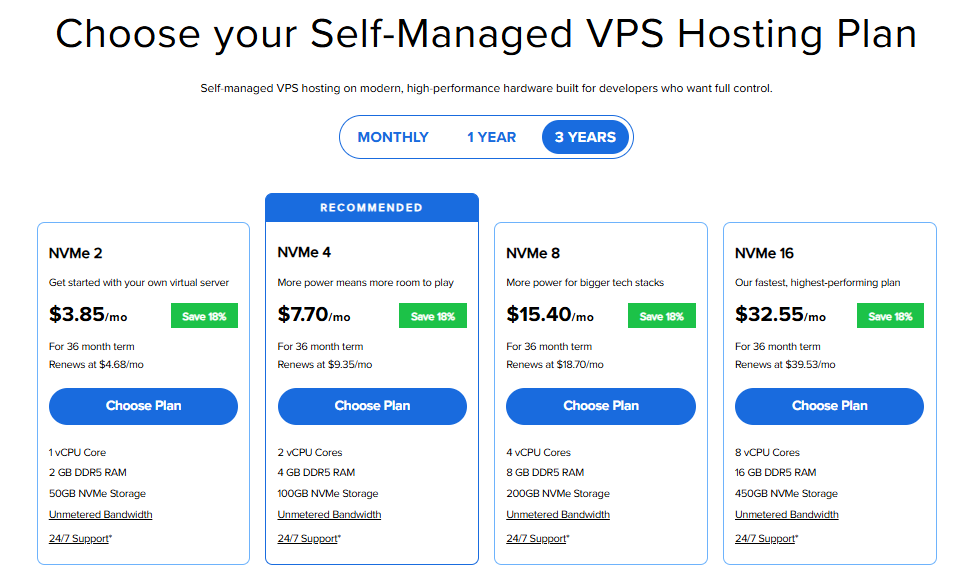
Important: Pricing is subject to change—please visit https://www.bluehost.com/vps-hosting for the current introductory/sign-up offer for Bluehost VPS Hosting. For the most up-to-date renewal pricing, visit your Bluehost Portal Renewal Center.
- Select your preferred Data Center location.

- On the Cart page, you can configure your server to fit your needs in the following section:
- Hardware:
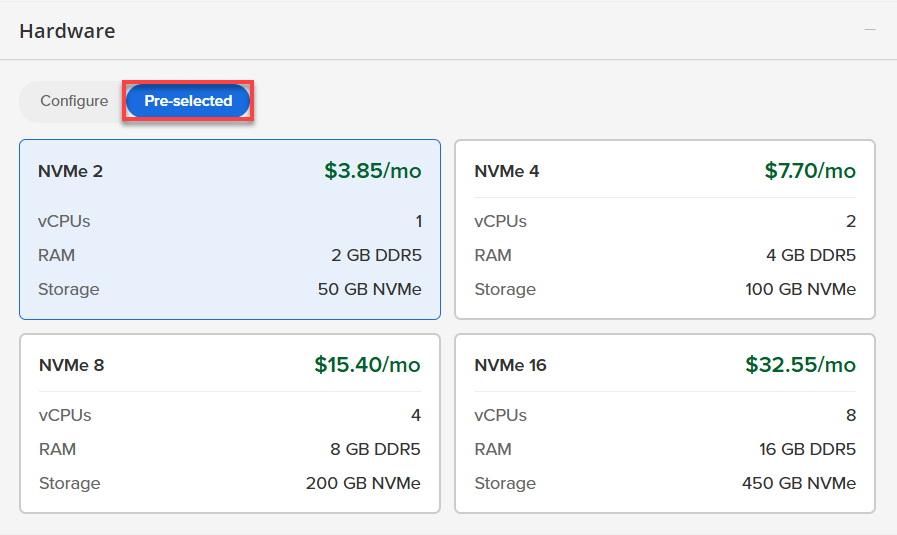
- Pre-selected:
You can select a different Self-Managed VPS plan in this section.
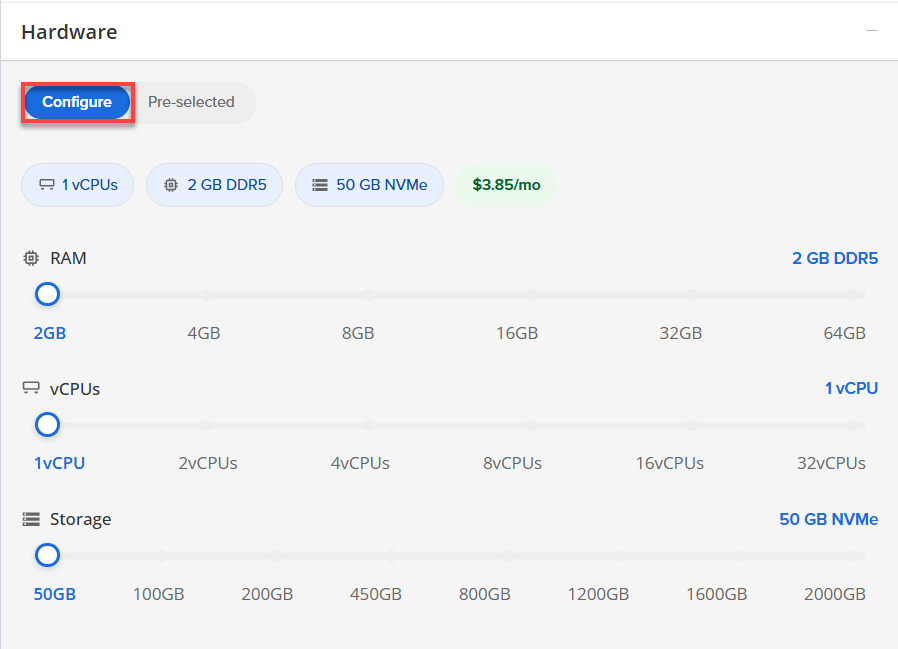
- Configure:
Click Configure to customize your package.
Note that your changes help customize your plan, and the overall cost will adjust accordingly to fit your needs.
- Pre-selected:
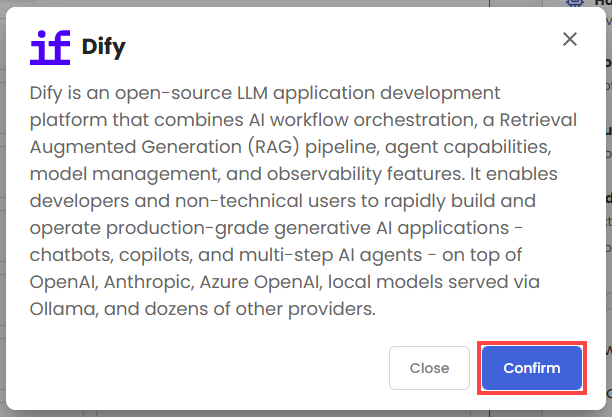
- Software:
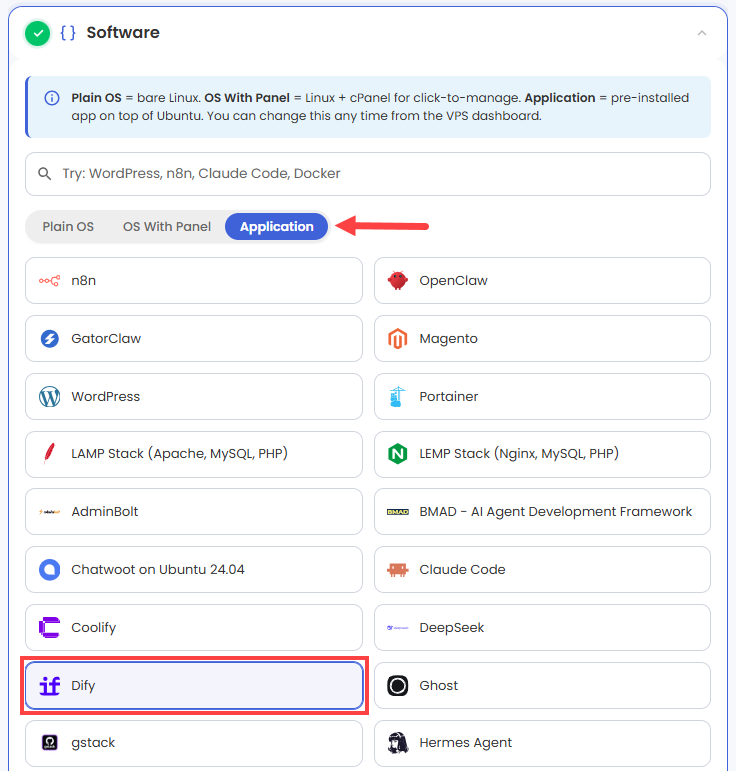
If the selected plan does not meet the app's minimum requirements, the app will be grayed out.
- Click on the Application tab.
- Choose Dify.
- Click Confirm to continue.
- Hardware:
- Add-Ons:
- Premium Support:
This service provides you with priority access to our expert team for faster responses and personalized assistance whenever you need it.

- Premium Support:
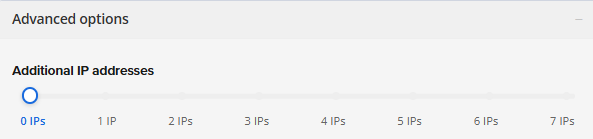
- In the Advanced options:
- Extra IP's: You can add extra IP addresses for an additional fee.
Pricing changes based on how many IPs you add. - Hostname: Assign a custom hostname to easily identify your server. This is optional.
- Extra IP's: You can add extra IP addresses for an additional fee.
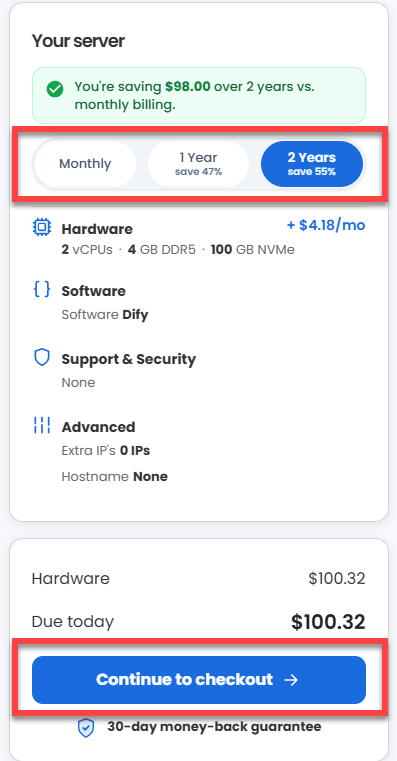
- Select your preferred billing term and view your Order Summary. Click the Continue to Checkout button to proceed.
- Do the following on the Checkout page:
If you're new with Bluehost:
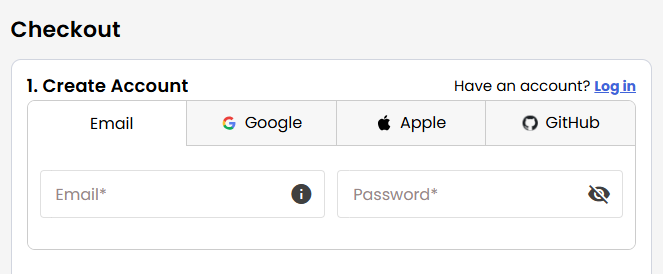
- Create your Bluehost account by using your email address or by connecting with your Google, Apple, or GitHub account — whichever you prefer!
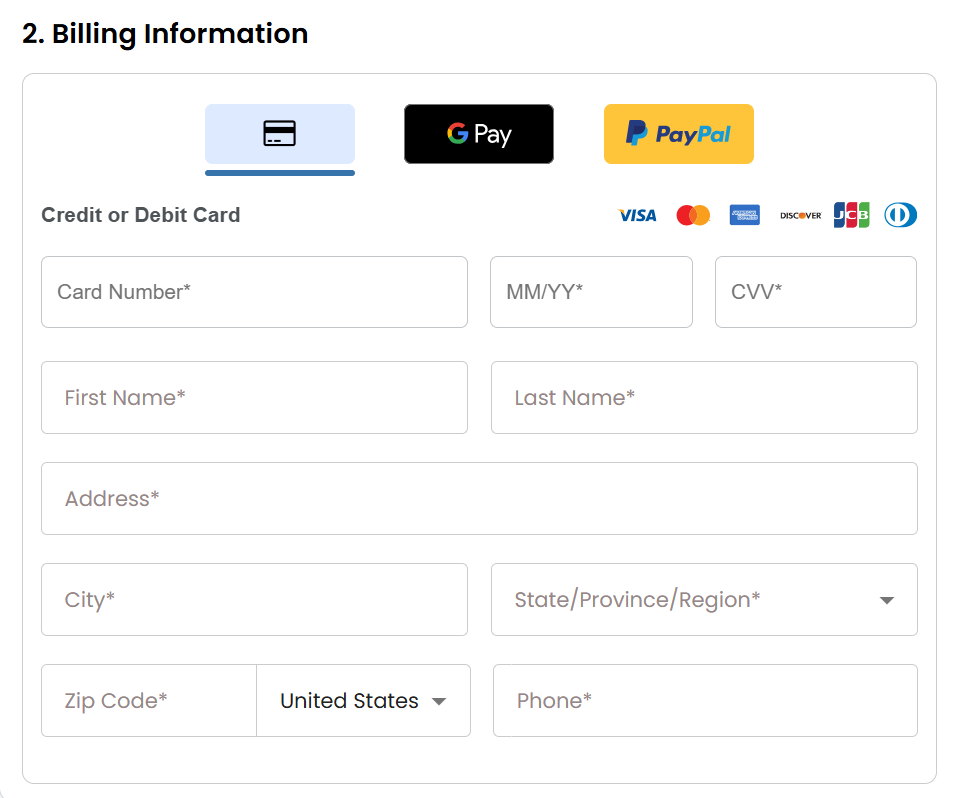
- Select your preferred payment method: credit card, Google Pay, or PayPal. Enter your billing information.
If you have an account with us, you will see your Bluehost login details when you are logged into your Bluehost Portal. If you are not logged in, please click the Log In link.
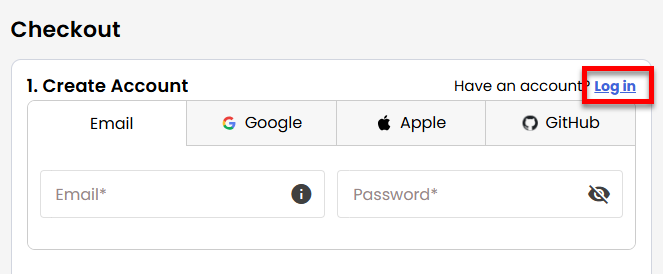
- Create your Bluehost account by using your email address or by connecting with your Google, Apple, or GitHub account — whichever you prefer!
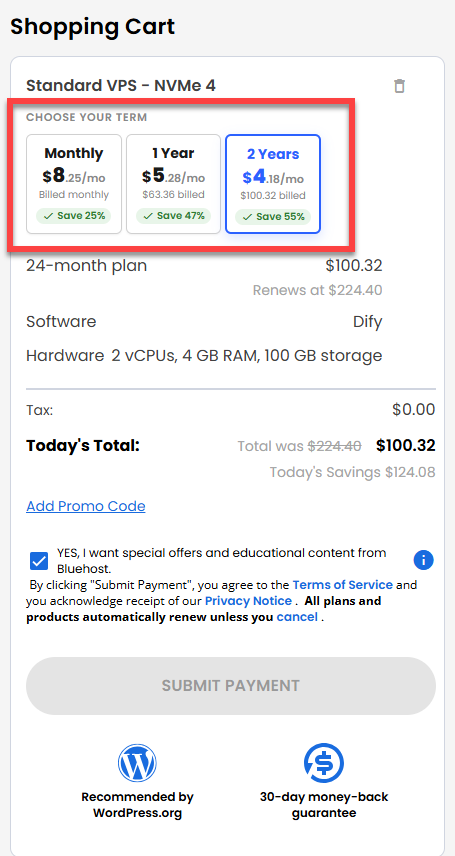
- In the Shopping Cart section, you can still adjust your billing term if needed.
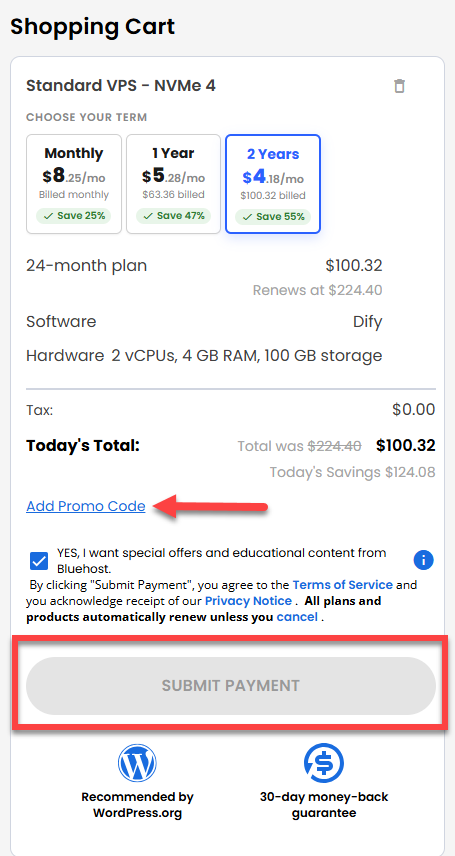
- Review the items in your cart, add a Promo Code if you have one, and then click Submit Payment to complete the purchase.
After completing the purchase, your VPS hosting will begin provisioning. You can access and manage your new VPS hosting in the Hosting tab of your Bluehost Portal.
Setting Up and Managing Dify on Ubuntu 24.04
Dify is an all-in-one platform that helps you build and run AI applications like chatbots, smart assistants, and automated workflows.
This guide walks you through setting up your new Dify server, logging in for the first time, and managing your application.
Step 1: Access your Dify Dashboard
After installation completes:
- Log in to your Bluehost Portal.
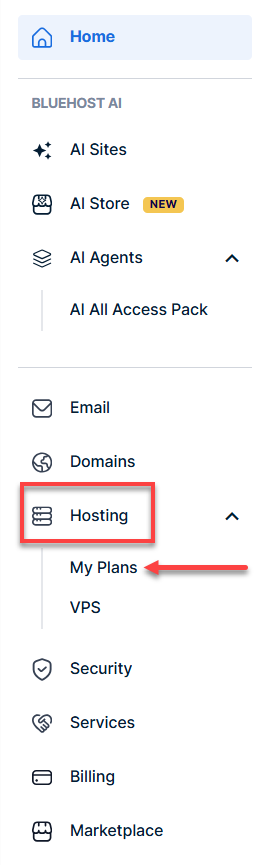
- In the left-hand menu, click Hosting, then select My Plans.
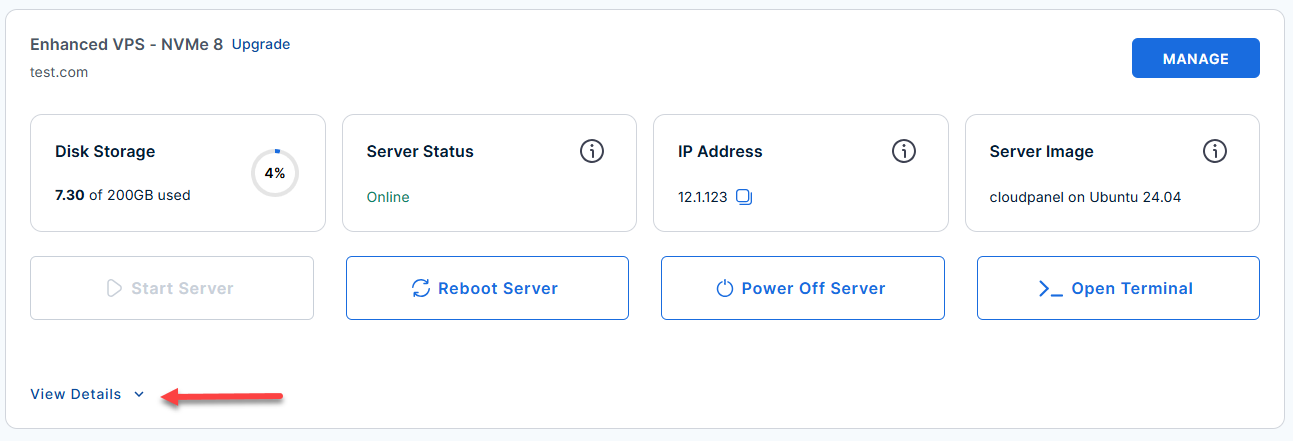
- Locate the server you want to manage, then click View Details in the bottom-left corner to expand the section and access additional server information.
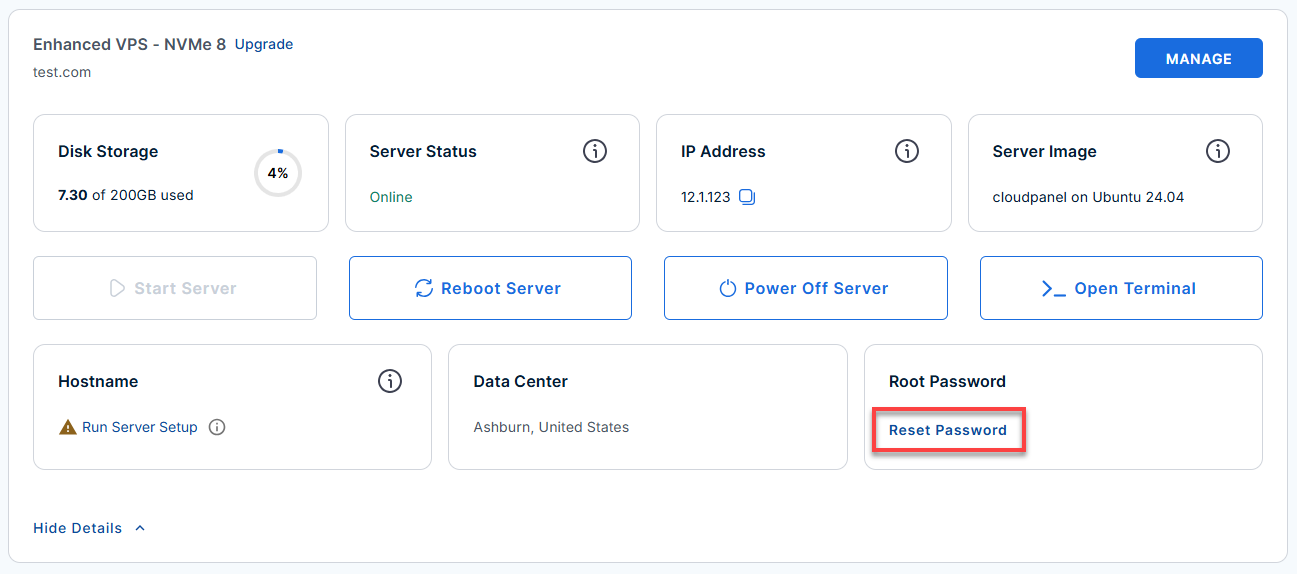
- Click the Reset Password.
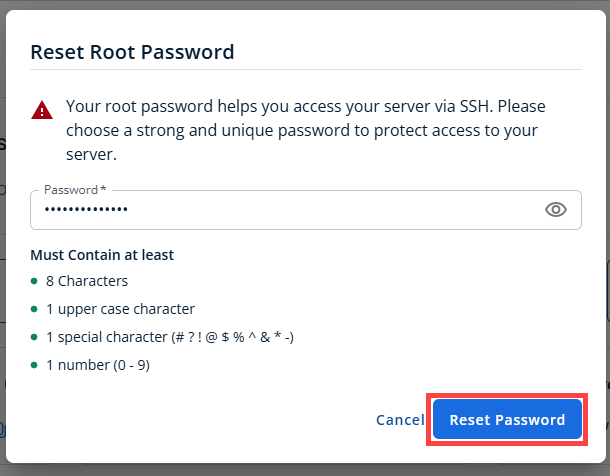
- In the pop-up window, type your new root password, then click Reset Password again to confirm and save the changes.
- Connect to your VPS via SSH.
Use your VPS IP and credentials with an SSH client, follow the prompts, and enter your root password when asked:Replaceyour_server_ipwith your actual server IP address.ssh root@your_server_ipExample Output:
Welcome to Ubuntu 24.04.4 LTS (GNU/Linux 6.8.0-124-generic x86_64) ============================================================ DIFY (LLM application development platform) ============================================================ Dashboard: https://your_server_ip/install (first visit) https://your_server_ip/signin (after setup) SSH: ssh root@your_server_ip Service Status: Dify stack: running (12 containers up, API healthy) First-time setup: 1. Open https://your_server_ip/install in your browser (accept the browser security warning if using a self-signed cert) 2. Enter the init password (see /root/.app_passwords), then create the admin account (email + password) The first account becomes the workspace owner 3. Log in at https://your_server_ip/signin 4. Settings -> Model Provider -> add an API key (OpenAI, Anthropic, Azure, Ollama, etc.) Credentials / secrets: /root/.app_passwords TLS certificate: /opt/dify/docker/nginx/ssl/ Environment file: /opt/dify/docker/.env Persistent data: /opt/dify/docker/volumes First-boot log: /var/log/dify/onboot.log Full README: /root/README.md Useful commands: Status: cd /opt/dify/docker && docker compose ps Logs: cd /opt/dify/docker && docker compose logs -f Restart: cd /opt/dify/docker && docker compose restart Update: cd /opt/dify && git pull && cd docker && docker compose pull && docker compose up -d Remove this MOTD: rm /etc/update-motd.d/99_dify ============================================================ - If you ever need to quickly review the system's deployment notes directly inside your server terminal, you can print out the original README file by running:
cat /root/README.md
Step 2: Server Initialization
When you first boot your Ubuntu 24.04 server, an automated background script runs to configure security, generate random passwords, and start the Docker containers. Because Dify runs 12 containers simultaneously, it takes 3 to 8 minutes to fully initialize.
- Run this command to watch the setup progress:
tail -f /var/log/dify/onboot.log
Example Output:
root@50-6-111-93:~# tail -f /var/log/dify/onboot.log docker-plugin_daemon-1 Up About a minute docker-ssrf_proxy-1 Up About a minute docker-weaviate-1 Up About a minute docker-web-1 Up About a minute docker-worker-1 Up About a minute docker-worker_beat-1 Up About a minute >>> Dify install page is reachable at https://12.1.123.12/install >>> First-boot configuration complete. >>> Access Dify at: https://12.1.123.12/install >>> Credentials : /root/.app_passwords - Once the log finishes, check that all background systems are running correctly by entering:
Look for the status column. Every item should say Up or Healthy.
cd /opt/dify/docker && docker compose psExample Output:
[email protected]:~# cd /opt/dify/docker && docker compose ps
NAME                     IMAGE                                       COMMAND                  SERVICE          CREATED          STATUS                       PORTS
docker-api-1             langgenius/dify-api:1.15.0                  "/bin/bash /entrypoi…"   api              About an hour ago   Up About an hour (healthy)   5001/tcp
docker-api_websocket-1   langgenius/dify-api:1.15.0                  "/bin/bash /entrypoi…"   api_websocket    About an hour ago   Up About an hour             5001/tcp
docker-db_postgres-1     postgres:15-alpine                          "docker-entrypoint.s…"   db_postgres      About an hour ago   Up About an hour (healthy)   5432/tcp
docker-nginx-1           nginx:latest                                "sh -c 'cp /docker-e…"   nginx            About an hour ago   Up About an hour             0.0.0.0:80->80/tcp, [::]:80->80/tcp, 0.0.0.0:443->443/tcp, [::]:443->443/tcp
docker-plugin_daemon-1   langgenius/dify-plugin-daemon:0.6.3-local   "/usr/bin/tini -g --…"   plugin_daemon    About an hour ago   Up About an hour             0.0.0.0:5003->5003/tcp, [::]:5003->5003/tcp
docker-redis-1           redis:6-alpine                              "docker-entrypoint.s…"   redis            About an hour ago   Up About an hour (healthy)   6379/tcp
docker-sandbox-1         langgenius/dify-sandbox:0.2.15              "/entrypoint.sh"         sandbox          About an hour ago   Up About an hour (healthy)
docker-ssrf_proxy-1      ubuntu/squid:latest                         "sh -c 'cp /docker-e…"   ssrf_proxy       About an hour ago   Up About an hour             3128/tcp
docker-weaviate-1        semitechnologies/weaviate:1.27.0            "/bin/weaviate --hos…"   weaviate         About an hour ago   Up About an hour
docker-web-1             langgenius/dify-web:1.15.0                  "/bin/sh ./entrypoin…"   web              About an hour ago   Up About an hour             3000/tcp
docker-worker-1          langgenius/dify-api:1.15.0                  "/bin/bash /entrypoi…"   worker           About an hour ago   Up About an hour             5001/tcp
docker-worker_beat-1     langgenius/dify-api:1.15.0                  "/bin/bash /entrypoi…"   worker_beat      About an hour ago   Up About an hour             5001/tcp
Step 3: Web Configuration and Admin Setup
Once the containers are healthy, you can move away from the terminal and into your web browser.
Example Output:
root@50-6-111-93:/opt/dify/docker# cat /root/.app_passwords
# Dify — Generated Mon Jul  6 20:26:01 UTC 2026
# ================================================================
#
# Web UI
#   Install page : https://12.1.123.12/install   (visit this first)
#   Init password: tzJjItqquoitumDkCJMcOuwJpTBr   (required on the /install page)
#   Sign in page : https://12.1.123.12/signin    (after admin is created)
#
#   On first visit, create the administrator account.
#   The first account becomes the workspace owner.
#
# TLS certificate
#   Type : Let's Encrypt
#   Cert : /opt/dify/docker/nginx/ssl/dify.crt
#   Key  : /opt/dify/docker/nginx/ssl/dify.key
#
#   To replace with a real cert (e.g. from your CA or Let's Encrypt):
#     cp /path/to/fullchain.pem /opt/dify/docker/nginx/ssl/dify.crt
#     cp /path/to/privkey.pem   /opt/dify/docker/nginx/ssl/dify.key
#     cd /opt/dify/docker && docker compose restart nginx
#
# Internal stack secrets (for backup / recovery only)
#   SECRET_KEY                : sk-a8X6WvmPndK1qfL9zRtY4xBCmWvOp0qStUvWxYzAbCdEfGhI
#   DB_PASSWORD               : e9b4f2c8d1a3765e0fbc492da81e53f094b82c167d3e51af
#   REDIS_PASSWORD            : 3fa2d7e1b5c8964f0ea8271dc94b53e075c12b948a3e61df
#   PLUGIN_DAEMON_KEY         : pA5k9LMrTnVBcDFgHJkWxXzYvQtWq2sRhYmN3pQzKjHwGsFdLx7u
#   PLUGIN_DIFY_INNER_API_KEY : mN3bV2cX1zAsDfGhJkLlPoIuYtReWqEsAdFgHjKkWqZsXyCvBnMq
#
# Files
#   Environment file : /opt/dify/docker/.env
#   Persistent data  : /opt/dify/docker/volumes
#   First-boot log   : /var/log/dify/onboot.log
#
# Model provider setup
#   After signing in, open Settings -> Model Provider and add at
#   least one API key (OpenAI, Anthropic, Azure, Ollama, etc.)
#   before creating applications.

 Web UI
#   Install page : https://12.1.123.12/install   (visit this first)
#   Init password: tzJjItqquoitumDkCJMcOuwJpTBr   (required on the /install page)
#   Sign in page : https://12.1.123.12/signin    (after admin is created)
#
#   On first visit, create the administrator account.
#   The first account becomes the workspace owner.
#
- Open your web browser and navigate to:
Replace
your_server_ipwith your actual server IP address.https://YOUR_SERVER_IP/install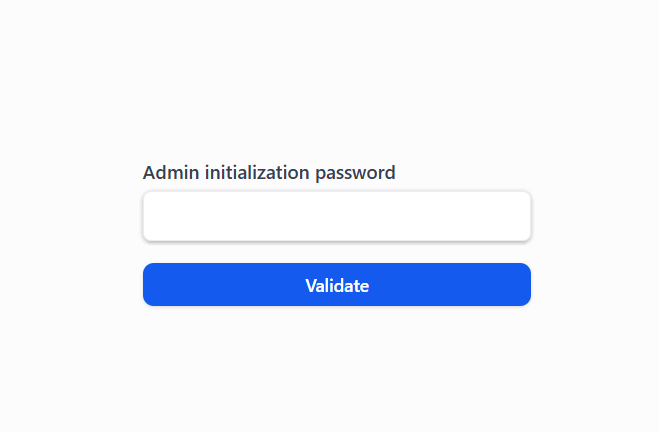
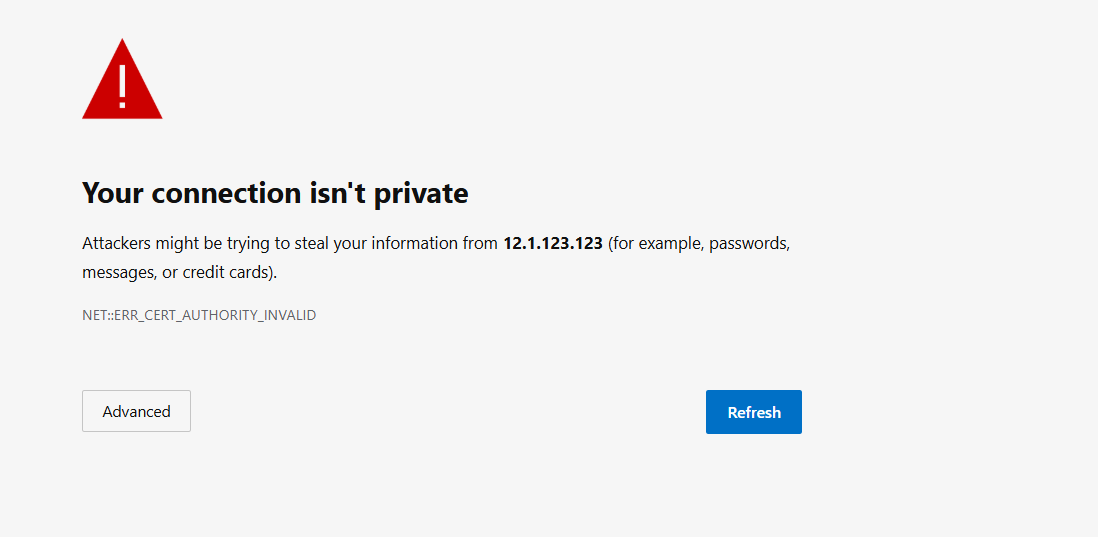
- Bypass the SSL warning: You will see a security warning ("Your connection is not private") because a trusted SSL certificate hasn't been issued for the IP address yet. Click Advanced and choose Proceed to continue.
- Retrieve the Initial Password
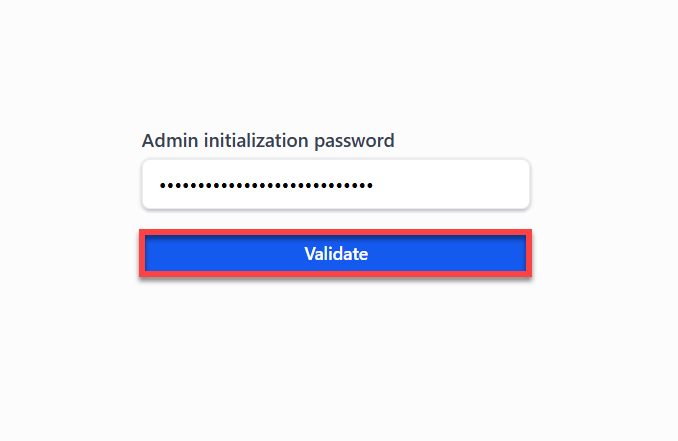
Before creating your admin account, the wizard will ask for an Init password. Go back to your terminal to copy it: - Look for the Init password line and copy that password.
- Paste it into the init password field on your browser screen, and then click Validate.
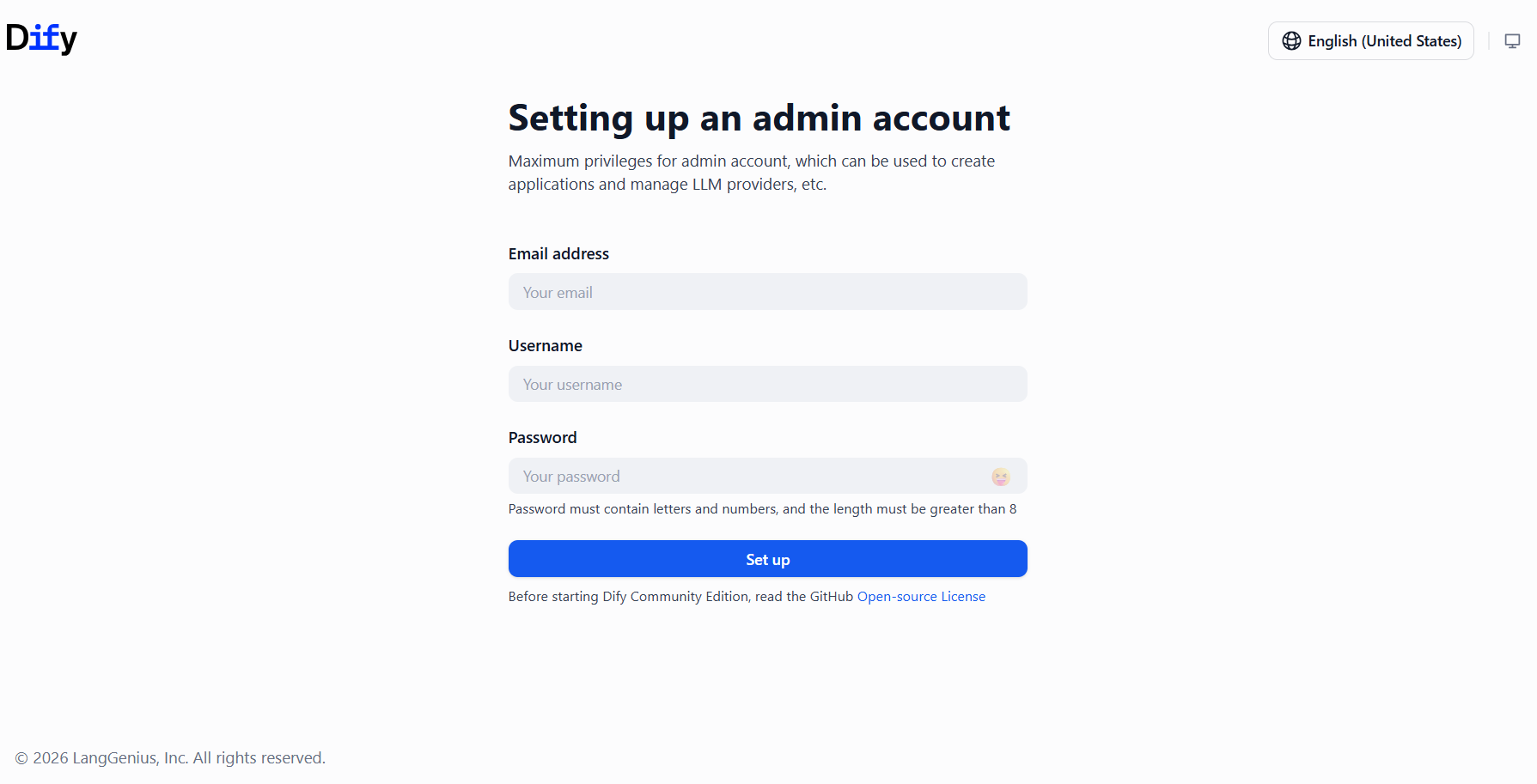
- Create Your Administrator Account:
Enter your Email address, Username, and Password. Submit the form. This account automatically becomes the workspace owner, and you will be redirected to the main login screen.
Step 4: Connect an AI Model Provider
Dify needs a connection to an AI provider (like OpenAI or Anthropic) before it can run any applications.
Dify cannot run applications without an LLM backend.
- Log In: Go to
https://12.1.123.12/signinand log in using the administrator email and password you just created.Replaceyour_server_ipwith your actual server IP address.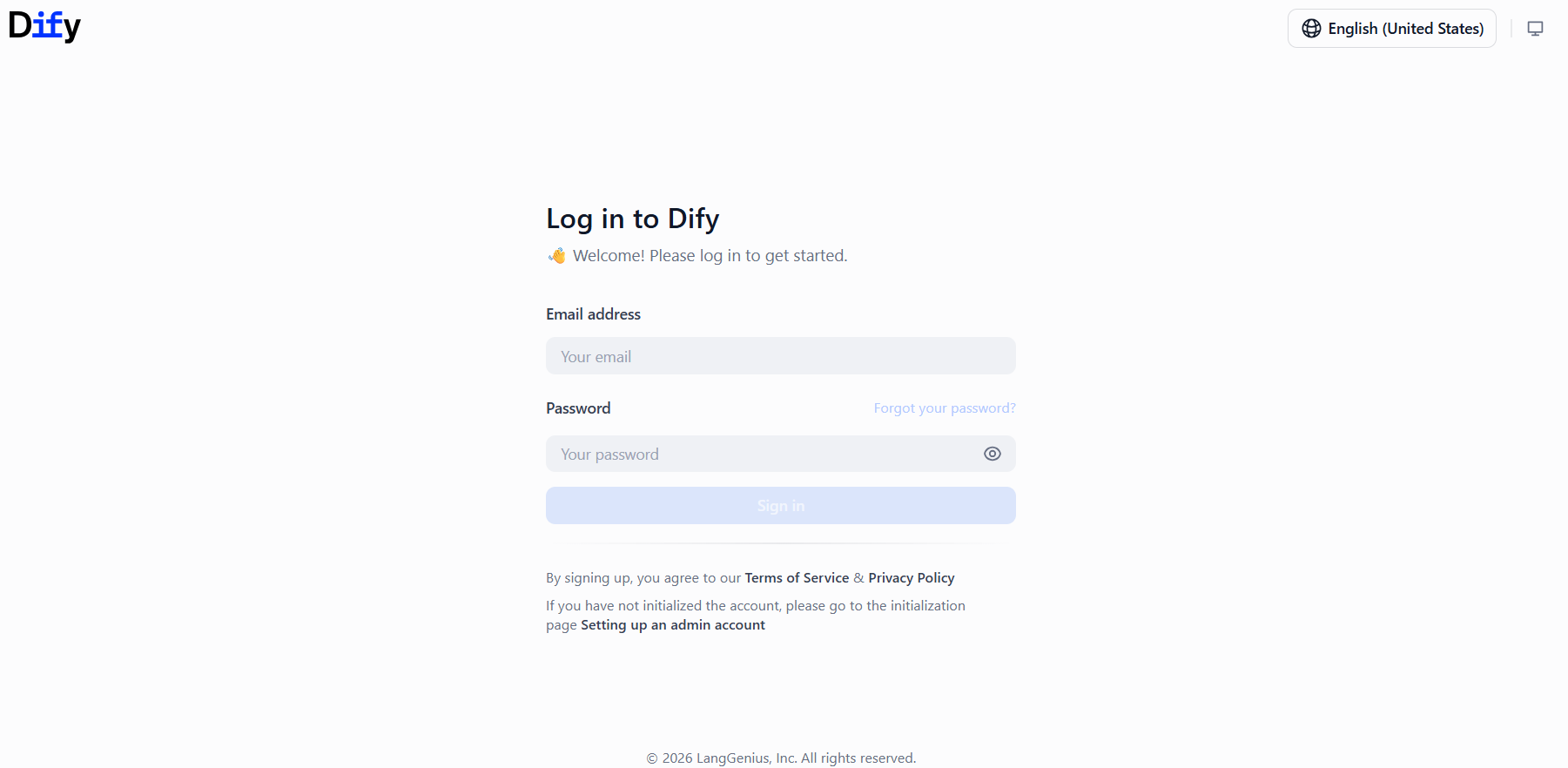
- Link Your Model Providers:
- Navigate to Integrations, and then click on Model Provider.
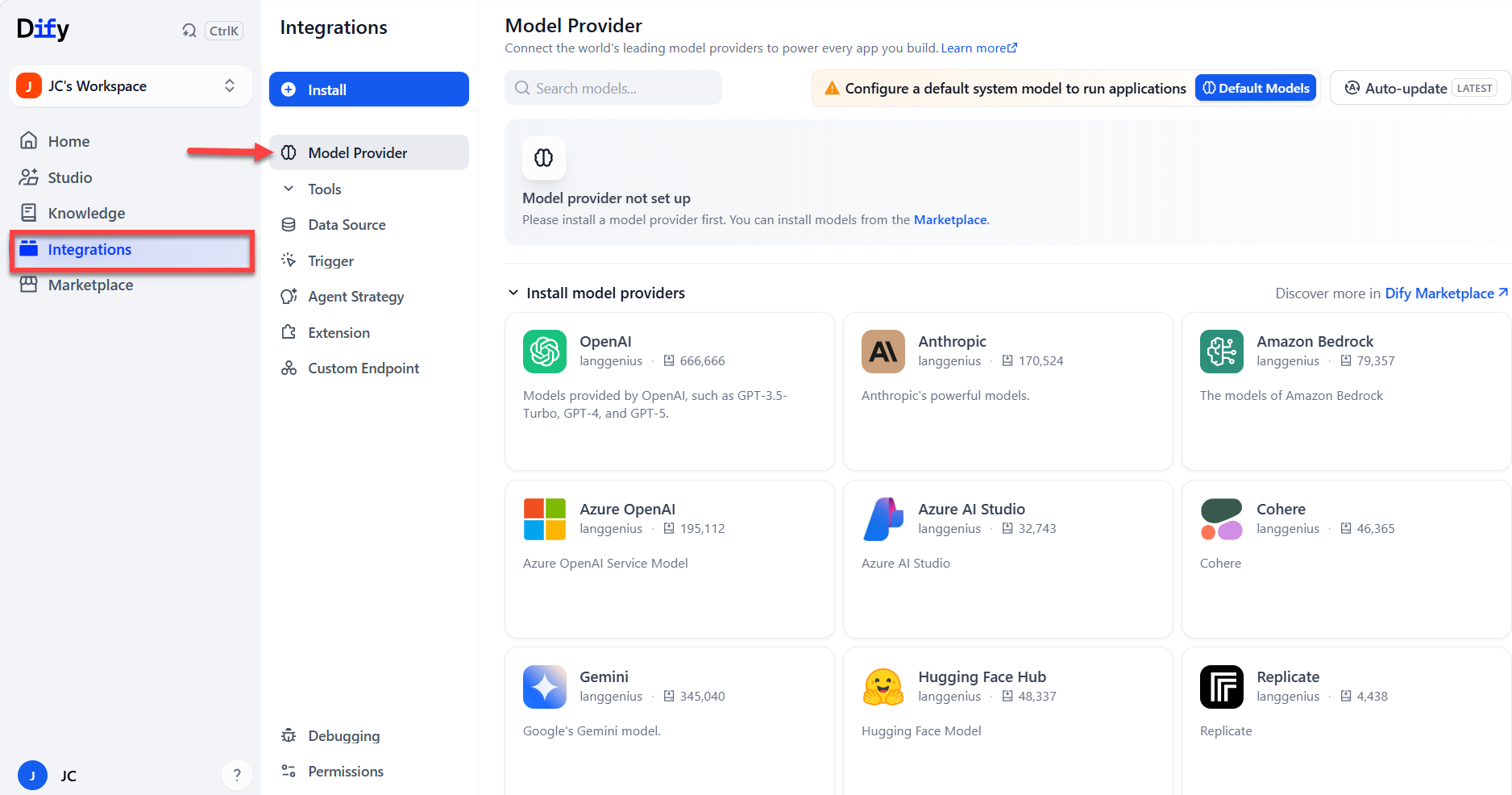
- Choose your preferred AI provider and enter your API key.
Tip: You can grab these keys directly from your provider's developer console (such as OpenAI Platform or Anthropic Console).
- Navigate to Integrations, and then click on Model Provider.
Step 5: Build Your First AI App
Now that your models are connected, you can start building.
- Click Create App on your dashboard.
- Select the type of application you want to build:
- Chatbot: A conversational assistant that can connect to your internal knowledge bases.
- Agent: An independent assistant that can use tools, run code, and search the web.
- Workflow: A multi-step visual pipeline to connect different AI tasks together.
- Text Generator: A tool built for bulk content creation.
- Drag and drop your components, link them together, and click Publish to make your app live.
How to Add Your Own Custom SSL Certificate
If you want to use your own domain and security certificate instead of the automatically generated ones, follow these steps:
- Copy your certificate file
fullchain.pemand private key fileprivkey.pemto the server. - Overwrite the default files using these commands:
cp /path/to/your/fullchain.pem /opt/dify/docker/nginx/ssl/dify.crtcp /path/to/your/privkey.pem /opt/dify/docker/nginx/ssl/dify.key
- Tell the web server to reload the new files (this will not take your app offline):
cd /opt/dify/docker && docker compose restart nginx
Common Maintenance Commands
Manage your Dify server from the /opt/dify/docker folder using these quick commands:
Check System Status
View Live Logs
# View logs for all systems
# View logs for just the main API service
Restart a Specific Service
If a specific feature is acting up, you can restart it individually (for example, the main API):
Stop and Start the Whole Server
# Turn off the server
# Turn on the server in the background
Updating Dify to the Latest Version
Always back up your data before updating. Run these commands in order:
# 1. Stop the server and create a backup file
# 2. Download the latest code updates
# 3. Pull the new version images and restart the server
Additional Information and Example Documentation Output
You can run cat/root/README.md to see more information and useful commands:
root@12-1-111-12:~# cat /root/README.md
# Dify

## Description

Dify is an open-source LLM application development platform that combines AI workflow orchestration, a Retrieval Augmented Generation (RAG) pipeline, agent capabilities, model management, and observability features. It enables developers and non-technical users to rapidly build and operate production-grade generative AI applications - chatbots, copilots, and multi-step AI agents - on top of OpenAI, Anthropic, Azure OpenAI, local models served via Ollama, and dozens of other providers.

This image deploys Dify on Ubuntu 24.04 using the official upstream Docker Compose stack. On first boot, per-deployment secrets are generated automatically, a TLS certificate is provisioned (Let's Encrypt for public IPs, self-signed as fallback), and the full stack is brought up with HTTPS enabled from the start.

## Services

| Service | Ports | Purpose |
|---------|-------|---------|
| Dify Nginx | 80, 443 | Bundled reverse proxy; terminates TLS and routes requests to the web UI and API |
| Dify API | 5001 (internal) | Backend REST API consumed by the web UI and external integrations |
| Dify Worker | internal | Celery background task and queue worker |
| Dify Worker Beat | internal | Celery scheduled-task scheduler |
| Dify API Websocket | internal | WebSocket handler for real-time streaming responses |
| Dify Plugin Daemon | 5003 (internal) | Manages lifecycle of installed Dify plugins |
| Dify Web | 3000 (internal) | Next.js frontend served through the nginx proxy |
| Dify Sandbox | internal | Isolated code execution environment for tool calls |
| PostgreSQL | internal | Primary application database |
| Redis | internal | Cache and Celery broker |
| Weaviate | internal | Default vector database for RAG pipelines |
| SSRF Proxy | 3128 (internal) | Outbound proxy that prevents SSRF attacks in tool calls |
| OpenSSH | 22 | Remote access (UFW rate-limited) |

## How to use

### 1. Wait for the stack to become ready

After the VM first boots, the first-boot script generates secrets, provisions a TLS certificate, and starts all containers. The Dify API runs database migrations on first start, which takes **3 to 8 minutes** depending on server speed. You can watch progress in the first-boot log:

```bash
tail -f /var/log/dify/onboot.log
```

To check that all containers are running:

```bash
cd /opt/dify/docker && docker compose ps
```

All containers should show `Up` or `(healthy)`. The API container is the last to become healthy.

### 2. Open the setup wizard

Navigate to the install page in your browser:

```
https://SERVER_IP/install
```

If the server is on a private or local network a self-signed certificate is used. Accept the browser security warning to proceed.

### 3. Create the administrator account

On the install page, you'll first be prompted for the **init password** - find this in `/root/.app_passwords` under `Init password`. After entering it, enter an email address, display name, and a strong password. The first account you create automatically becomes the workspace owner. After submitting, you are redirected to the sign-in page.

### 4. Sign in and configure a model provider

Log in at `https://SERVER_IP/signin` with the credentials you just created.

Once inside the Dify Studio dashboard, open **Settings -> Model Provider** and add at least one provider API key before creating applications:

```
OpenAI       -> https://platform.openai.com/api-keys
Anthropic    -> https://console.anthropic.com/settings/keys
Azure OpenAI -> Endpoint + API key from Azure portal
Ollama       -> http://127.0.0.1:11434  (if Ollama is running on the same server)
```

No application can run until a model provider is configured.

### 5. Build your first application

From the Dify Studio dashboard, click **Create App**. Choose from:

- **Chatbot** - a single-model conversational app with optional knowledge bases
- **Agent** - an autonomous agent that can call tools, run code, and search the web
- **Workflow** - a visual multi-step pipeline linking models, tools, and data sources
- **Text Generator** - a batch-mode content generation workflow

Drag components onto the canvas, connect their inputs and outputs, and click **Publish** when ready.

### 6. View generated credentials

Per-deployment secrets (INIT_PASSWORD, SECRET_KEY, DB_PASSWORD, REDIS_PASSWORD, plugin keys) and the TLS certificate details are written to:

```bash
cat /root/.app_passwords
```

### 7. Service management

```bash
# Check status of all containers
cd /opt/dify/docker && docker compose ps

# Follow all container logs
cd /opt/dify/docker && docker compose logs -f

# Follow logs for a specific service (api, worker, web, nginx, db, etc.)
cd /opt/dify/docker && docker compose logs -f api

# Restart a single service
cd /opt/dify/docker && docker compose restart api

# Stop the entire stack
cd /opt/dify/docker && docker compose down

# Start the stack
cd /opt/dify/docker && docker compose up -d
```

### 8. Updating Dify

To upgrade to the latest Dify release, always back up your data first, then pull and restart:

```bash
# Back up persistent data
cd /opt/dify/docker && docker compose down
tar czf dify-backup-$(date +%Y%m%d).tgz /opt/dify/docker/volumes /opt/dify/docker/.env

# Pull latest images and restart
cd /opt/dify && git pull origin main
cd docker && docker compose pull && docker compose up -d
```

### 9. Backup and restore

All persistent state lives under `/opt/dify/docker/volumes`:

| Volume subdirectory | Contents |
|---------------------|----------|
| `db/` | PostgreSQL data |
| `redis/` | Redis persistence |
| `weaviate/` | Vector store data |
| `app/storage/` | Uploaded files, model assets |
| `plugin_storage/` | Installed plugin data |

To restore, stop the stack, extract the archive over the same paths, and start again.

### 10. Troubleshooting

| Symptom | Likely cause | Resolution |
|---------|--------------|------------|
| Browser spinner on `/install` | API still running migrations | Wait up to 8 min; check `docker compose logs api` |
| `502 Bad Gateway` | API container crashed | `docker compose restart api`; check `docker compose logs api` |
| Login fails with database error | Migration failure | `docker compose logs db` then `docker compose logs api` |
| Plugin install hangs | Plugin daemon not running | `docker compose restart plugin_daemon` |
| TLS warning in browser | Self-signed certificate | Expected on private/local IPs; replace cert to remove the warning |

## SSL / HTTPS certificate behavior

On first boot, a TLS certificate is provisioned automatically **before** the Dify stack starts so nginx launches with HTTPS enabled from the beginning:

- **Public IP**: a Let's Encrypt certificate is requested via certbot standalone. If issuance succeeds, the browser will show a valid padlock with no warning.
- **Private/local IP** (or if Let's Encrypt fails): a self-signed certificate is generated. The browser will show a security warning; click through it to proceed.

Certificates are stored at `/opt/dify/docker/nginx/ssl/` and mounted into the nginx container. To replace the certificate with one from your own CA or after pointing a domain at the server:

```bash
# Copy your certificate and key into place
cp /path/to/fullchain.pem /opt/dify/docker/nginx/ssl/dify.crt
cp /path/to/privkey.pem   /opt/dify/docker/nginx/ssl/dify.key

# Reload nginx (no stack restart needed)
cd /opt/dify/docker && docker compose restart nginx
```

## Minimum Resources

| Resource | Minimum | Recommended |
|----------|---------|-------------|
| CPU | 2 vCPUs | 4 vCPUs |
| RAM | 4 GB | 8 GB |
| Disk | 20 GB | 40 GB |

> The Dify stack runs 12 containers simultaneously. On VMs with fewer than 4 vCPUs, database migrations on first boot may take up to 8 minutes as all services compete for CPU time.

## Image contents

This image installs and configures:

- Dify (latest) cloned to `/opt/dify` from the official GitHub repository
- Docker CE with the full Dify Docker Compose stack pre-pulled at build time
- certbot in a Python virtualenv at `/opt/certbot` for TLS provisioning
- UFW firewall with ports 22, 80, and 443 open; all other ports blocked
- Log rotation at `/etc/logrotate.d/dify`
- This README at `/root/README.md`

## Security hardening

| Hardening | Detail |
|-----------|--------|
| UFW firewall | Only ports 22 (SSH), 80 (HTTP redirect), and 443 (HTTPS) open by default |
| HTTPS by default | TLS enabled from first boot; HTTP redirects to HTTPS |
| SSH rate limiting | UFW limits repeated SSH connection attempts |
| Per-deployment secrets | SECRET_KEY, DB_PASSWORD, REDIS_PASSWORD, and plugin keys are randomly generated on first boot |
| Credentials file | `/root/.app_passwords` created with mode 0600 (root-only) |
| Internal services | All Dify services except nginx are bound to Docker's internal network and not reachable externally |

## Configuration files reference

| File / Directory | Purpose |
|------------------|---------|
| `/opt/dify/docker/.env` | Main Dify environment configuration (secrets, URLs, feature flags) |
| `/opt/dify/docker/docker-compose.yaml` | Docker Compose service definitions |
| `/opt/dify/docker/nginx/ssl/dify.crt` | TLS certificate served by the nginx container |
| `/opt/dify/docker/nginx/ssl/dify.key` | TLS private key |
| `/opt/dify/docker/volumes/` | All persistent data (database, storage, vector store) |
| `/root/.app_passwords` | Generated secrets and access URLs (mode 0600) |
| `/var/log/dify/onboot.log` | First-boot provisioning log |
| `/etc/logrotate.d/dify` | Log rotation configuration |

## Links

- Manage: [https://SERVER_IP/install](https://SERVER_IP/install)
- Documentation: [https://docs.dify.ai](https://docs.dify.ai)
- Install Guide: [https://docs.dify.ai/en/getting-started/install-self-hosted/docker-compose](https://docs.dify.ai/en/getting-started/install-self-hosted/docker-compose)
- Source: [https://github.com/langgenius/dify](https://github.com/langgenius/dify)
Summary
Purchasing a Self-Managed VPS gives you the underlying power and flexibility needed to run advanced platforms like Dify. By selecting your hardware, choosing your preferred application during the cart configuration, and completing the checkout process, Bluehost automatically provisions your server. Once the setup finishes, your new VPS instance will be fully accessible and ready to manage directly from the Hosting tab in your Bluehost Portal.