 ChatGPT,
  Claude,
  Gemini,
  Grok — all four for
Purchase a Self-Managed VPS with Easypanel Installation
Easypanel is a modern server management platform that allows you to easily deploy, manage and monitor applications on your VPS. Its intuitive web-based dashboard allows you to manage your websites, databases, domains, SSL certificates and applications without requiring extensive server administration experience. Whether you are launching a personal project, hosting client websites or managing business applications, EasyPanel makes server management simple and allows you the flexibility and control of a Self-Managed VPS.
Why Use Easypanel?
Handling applications and websites on a server can be challenging, especially if you’re not comfortable with command-line tools. EasyPanel simplifies this process by offering a user-friendly interface to deploy and manage your projects from a single dashboard. When installed on a Bluehost Self-Managed VPS, Easypanel gives you greater control over your hosting environment while making common management tasks easier. You can deploy applications faster, manage server resources more efficiently, and scale your projects as your needs grow.
Uses of Easypanel
Easypanel can support a variety of hosting and application management needs, including:
- Website Hosting: Host and manage one or multiple websites from a centralized dashboard.
- Application Deployment: Deploy web applications quickly with minimal server configuration.
- Database Management: Create and maintain your databases for your websites and applications.
- Development and Testing Environments: Set up environments for development, staging, and testing projects.
- Container Management: Manage containerized applications through an easy-to-use interface.
- Domain and SSL Management: Connect domains and secure your websites with SSL certificates.
- Server Monitoring: Monitor resource usage and server performance from a single location.
How to Purchase a Self-Managed VPS with Easypanel Installation
To set up and operate Easypanel effectively, start by getting a Self-Managed VPS Hosting plan from Bluehost, then proceed with the following steps:
 New to VPS or not sure where to start? No worries! At the top of the Self-Managed VPS purchase page, you’ll see the Pre-configured Setup section. This handy feature is perfect if you’re feeling a bit unsure—just pick the type of project you want, like WordPress Site, AI Agent/Claude Code, Dev/Staging, or eCommerce Store. We’ll take care of the rest by automatically filling in the best plan, operating system, and template for you.
- Super simple for beginners or anyone who just wants a quick setup
- Instantly get the recommended settings for your project
- Skip the guesswork and save time
- You can still customize things later if you want
- In your browser, go to https://www.bluehost.com/vps-hosting.
- Click the Choose Plan button under your preferred VPS hosting plan.
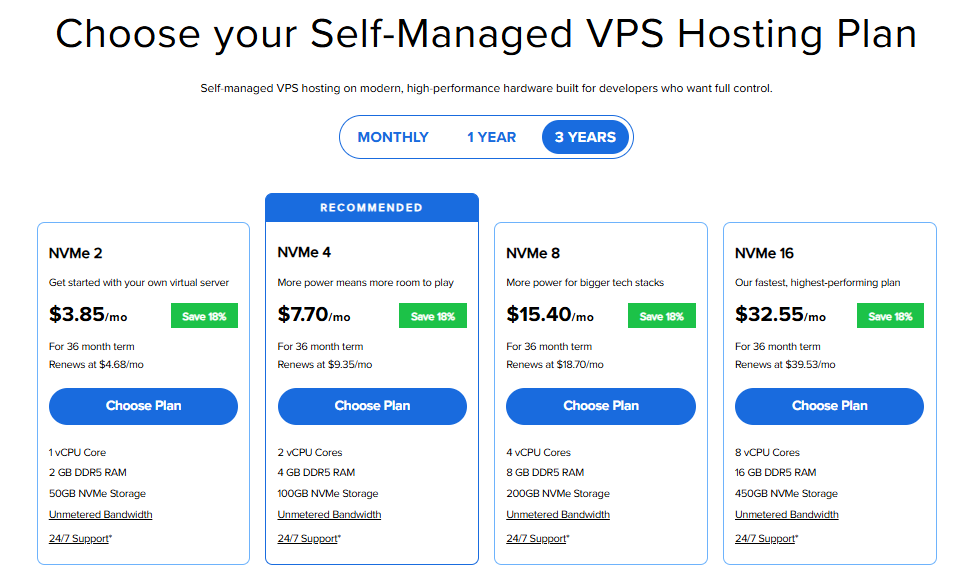
Important: Pricing is subject to change—please visit https://www.bluehost.com/vps-hosting for the current introductory/sign-up offer for Bluehost VPS Hosting. For the most up-to-date renewal pricing, visit your Bluehost Portal Renewal Center. - Select your preferred Data Center location.

- On the Cart page, you can configure your server to fit your needs in the following section:
- Hardware:
- Pre-selected:
You can select a different Self-Managed VPS plan in this section.
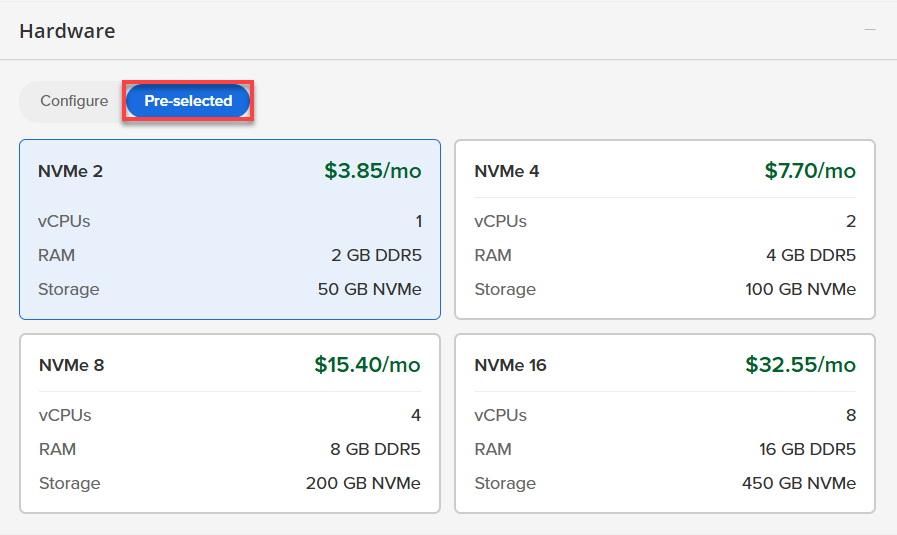
- Configure:
Click Configure to customize your package.
Note that your changes help customize your plan, and the overall cost will adjust accordingly to fit your needs.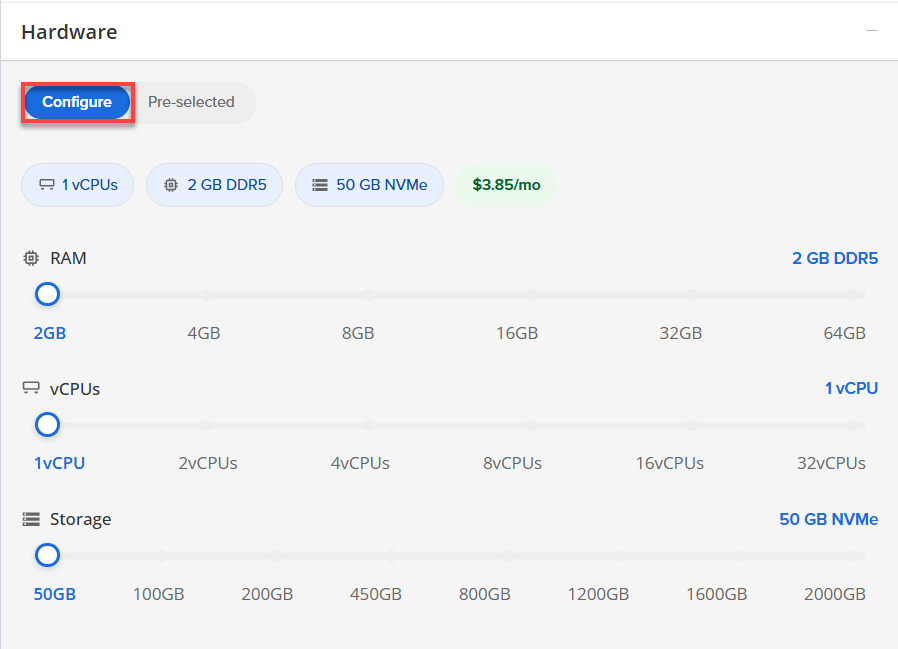
- Pre-selected:
- Software:
If the selected plan does not meet the app's minimum requirements, the app will be grayed out.
- Click the OS With Panel tab.
- Select Easypanel.
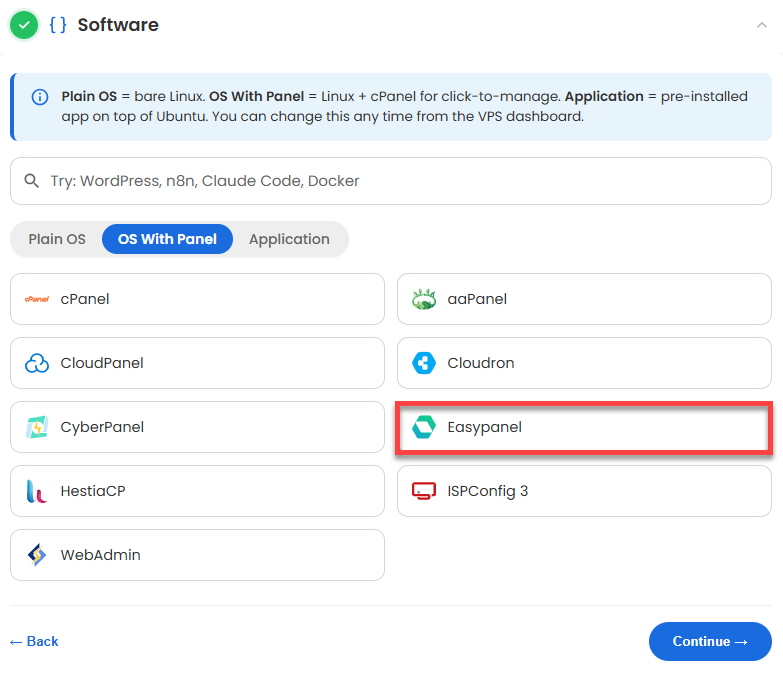 You can install only one application per purchase; the system will automatically select the best operating system for it.
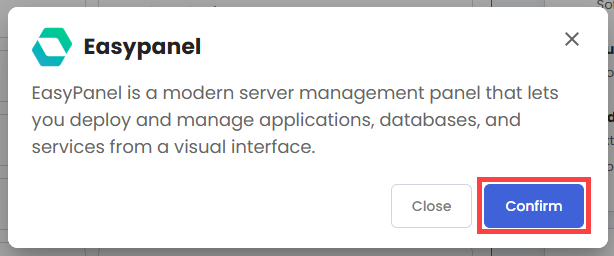
 - In the pop-up, click Confirm.
- Hardware:
- Support & Security:
- Premium Support:
This service provides you with priority access to our expert team for faster responses and personalized assistance whenever you need it.

- Premium Support:
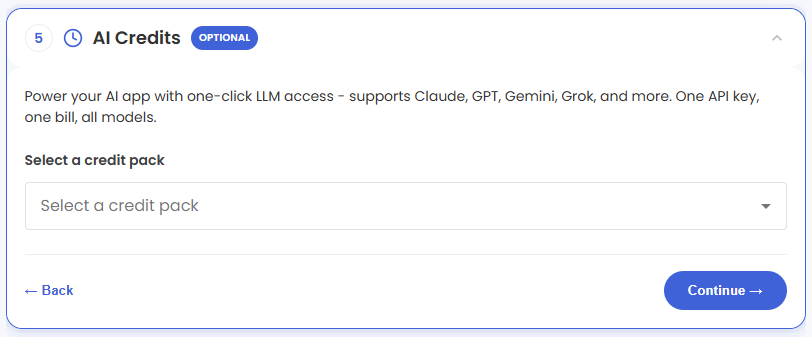
- AI Credits:
Select a credit pack to access multiple AI models with one API key and consolidated billing.
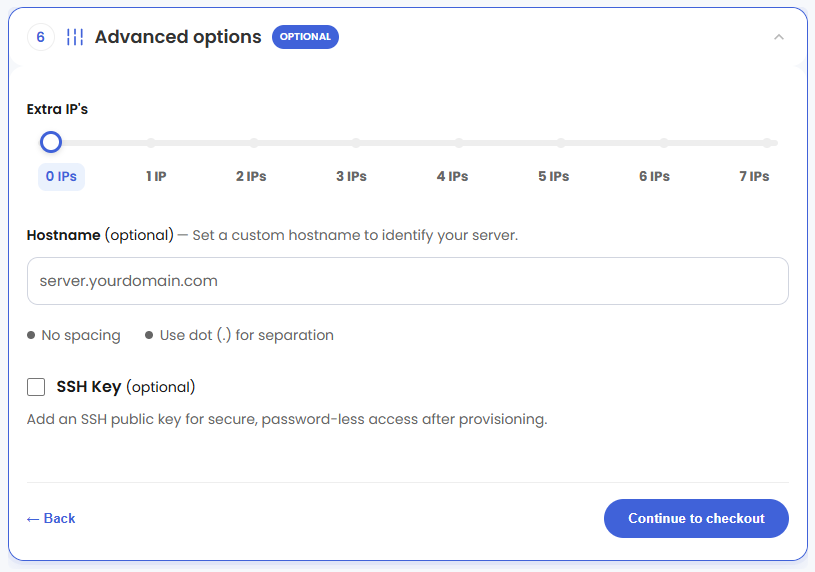
- In the Advanced options:
- Extra IPs: You can add extra IP addresses for an additional fee. Pricing changes based on how many IPs you add.
- Hostname: Assign a custom hostname to easily identify your server. This is optional.
- SSH Key (Optional): Add an SSH public key to enable secure, passwordless access after provisioning.
Pricing for optional add-ons is subject to change. Please visit https://www.bluehost.com/vps-hosting for current add-on pricing. - Next, select your preferred billing term, then click Continue to Checkout.
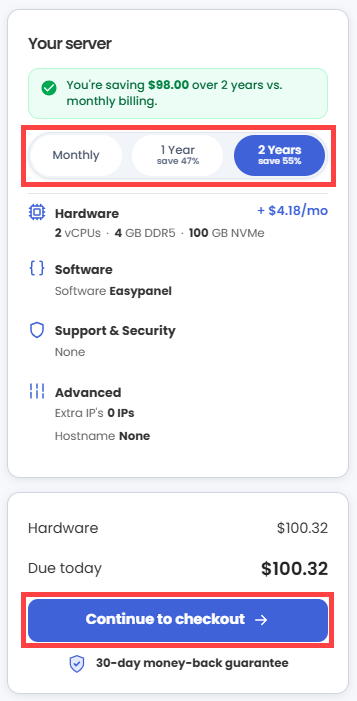
*Please review the current pricing plans available on Bluehost.com. - Do the following on the Checkout page:
If you're new with Bluehost:
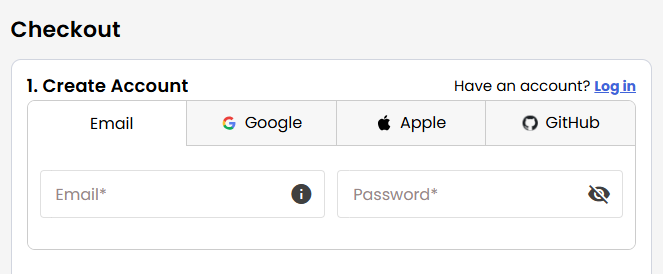
- Create your Bluehost account by using your email address or by connecting with your Google, Apple, or GitHub account — whichever you prefer!
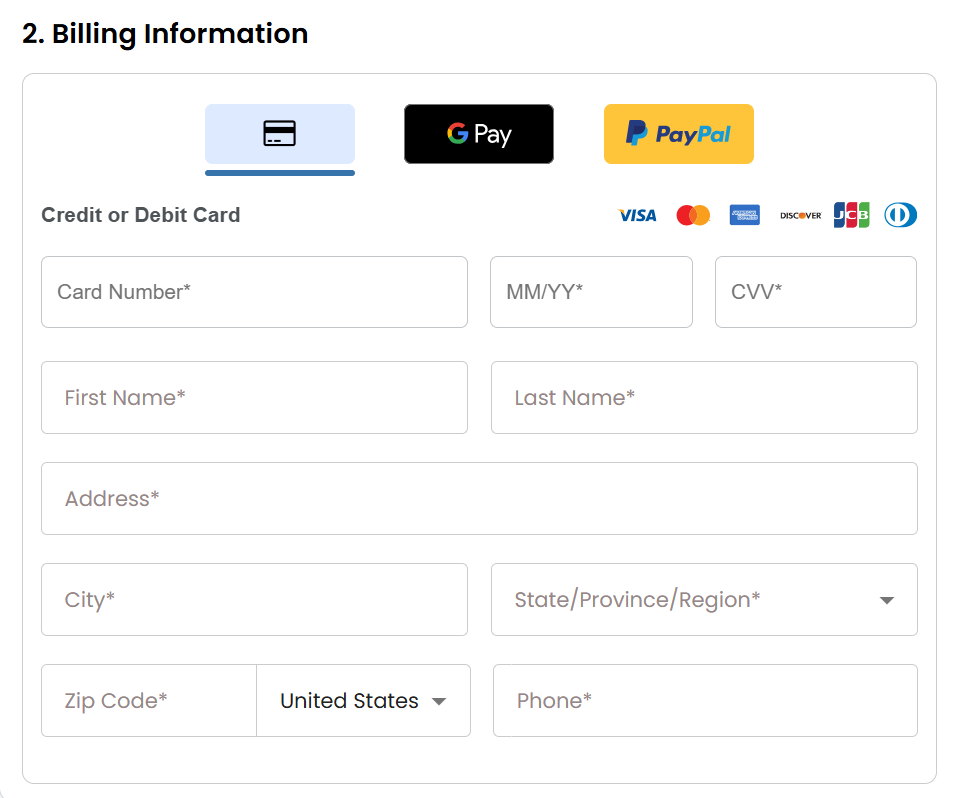
- Select your preferred payment method: credit card, Google Pay, or PayPal. Enter your billing information.
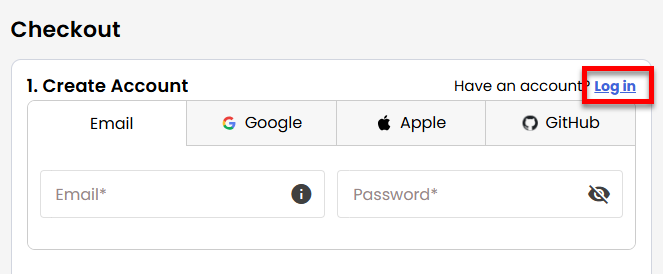
If you have an account with us, you will see your Bluehost login details when you are logged into your Bluehost Portal. If you are not logged in, please click the Log In link.
- Create your Bluehost account by using your email address or by connecting with your Google, Apple, or GitHub account — whichever you prefer!
- In the Shopping Cart section, you can still adjust your billing term if needed.
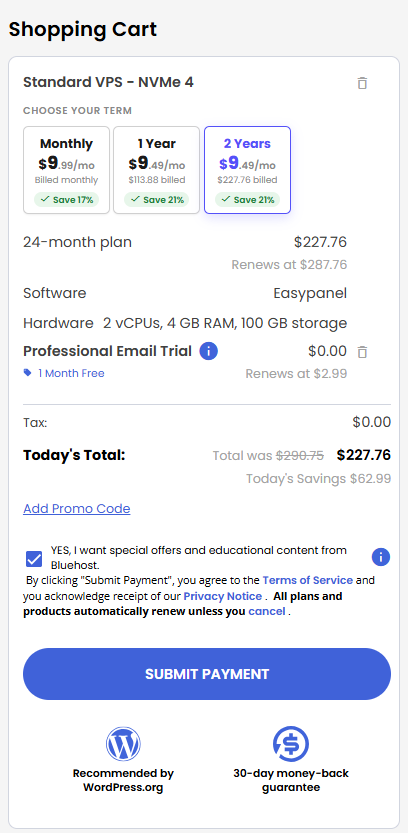
- Review the items in your cart, add a Promo Code if you have one, and then click Submit Payment to complete the purchase.
After completing the purchase, your VPS hosting will begin provisioning. You can access and manage your new VPS hosting in the Hosting tab of your Bluehost Portal.
First-Time Setup and Access to the Easypanel Dashboard
Follow these steps to access your Easypanel dashboard.
Step 1: Check the Docker Service Status
Run the following command:
root@1234:~# systemctl status docker
● docker.service - Docker Application Container Engine
     Loaded: loaded (/usr/lib/systemd/system/docker.service; enabled; preset: enab>
     Active: active (running) since Tue 2026-09-15 13:49:34 UTC; 30min ago
TriggeredBy: ● docker.socket
       Docs: https://docs.docker.com
   Main PID: 9358 (dockerd)
      Tasks: 11
     Memory: 30.9M (peak: 32.5M)
        CPU: 689ms
     CGroup: /system.slice/docker.service
             └─9358 /usr/bin/dockerd -H fd:// --containrd=/run/containerd/contain>

Sep 15 13:49:34 1234-example.com dockerd[PID]:time="2026-09-15T13:49:34.9>
Sep 15 13:49:34 1234-example.com dockerd[PID]: time="2026-09-15T13:49:34.9>
Sep 15 13:49:34 1234-example.com dockerd[PID]: time="2026-09-15T13:49:34.9>
Sep 15 13:49:34 1234-example.com dockerd[PID]: time="2026-09-15T13:49:34.9>
Sep 15 13:49:34 1234-example.com dockerd[PID]: Started docker.service - Docke>
Sep 15 14:16:45 1234-example.com dockerd[PID]: time="2026-09-15T14:16:45.8>
Sep 15 14:17:29 1234-example.com dockerd[PID]: time="2026-09-15T14:17:29.0>
Sep 15 14:17:48 1234-example.com dockerd[PID]: time="2026-09-15T14:17:48.5>
Sep 15 14:18:15 1234-example.com dockerd[PID]: time="2026-09-15T14:18:15.7>
Sep 15 14:18:26 1234-example.com dockerd[PID]: time="2026-09-15T14:18:26.1>
lines 1-22/22 (END)
Step 2: Log Into Your Easypanel Dashboard
After the configuration completes:
- Log In via Your Browser
https://dashboard.server-ip.sslip.io- Replace
server-ipwith your actual server IP address. - Make sure the URL starts with
https://and includes a trailing slash after your panel path once you have your full dashboard URL.
Fallback Option: If the secure link ever encounters a temporary DNS delay, you can access the dashboard directly via HTTP at:http://server-ip:3000- Replace
server-ipwith your actual server IP address.
If the SSL certificate fails to generate, or if the sslip.io service is temporarily down, this ensures you aren't locked out of your server.
- Replace
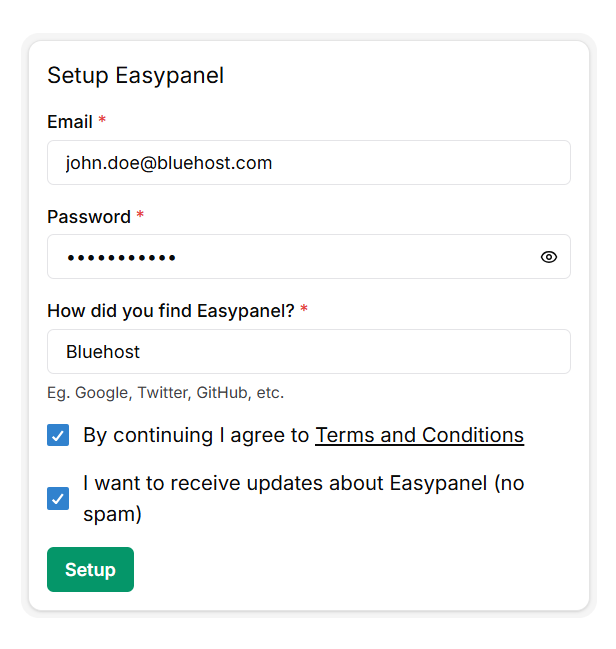
- Create Your Admin Account
Open the URL above in your browser to create your administrator account.
- On the first screen, enter your Email Address.
- Create a strong, secure Password.
- Fill out the "How did you find Easypanel?" section.
- Click Setup to finalize.
-
Once done, you will be routed to the Easypanel Dashboard:
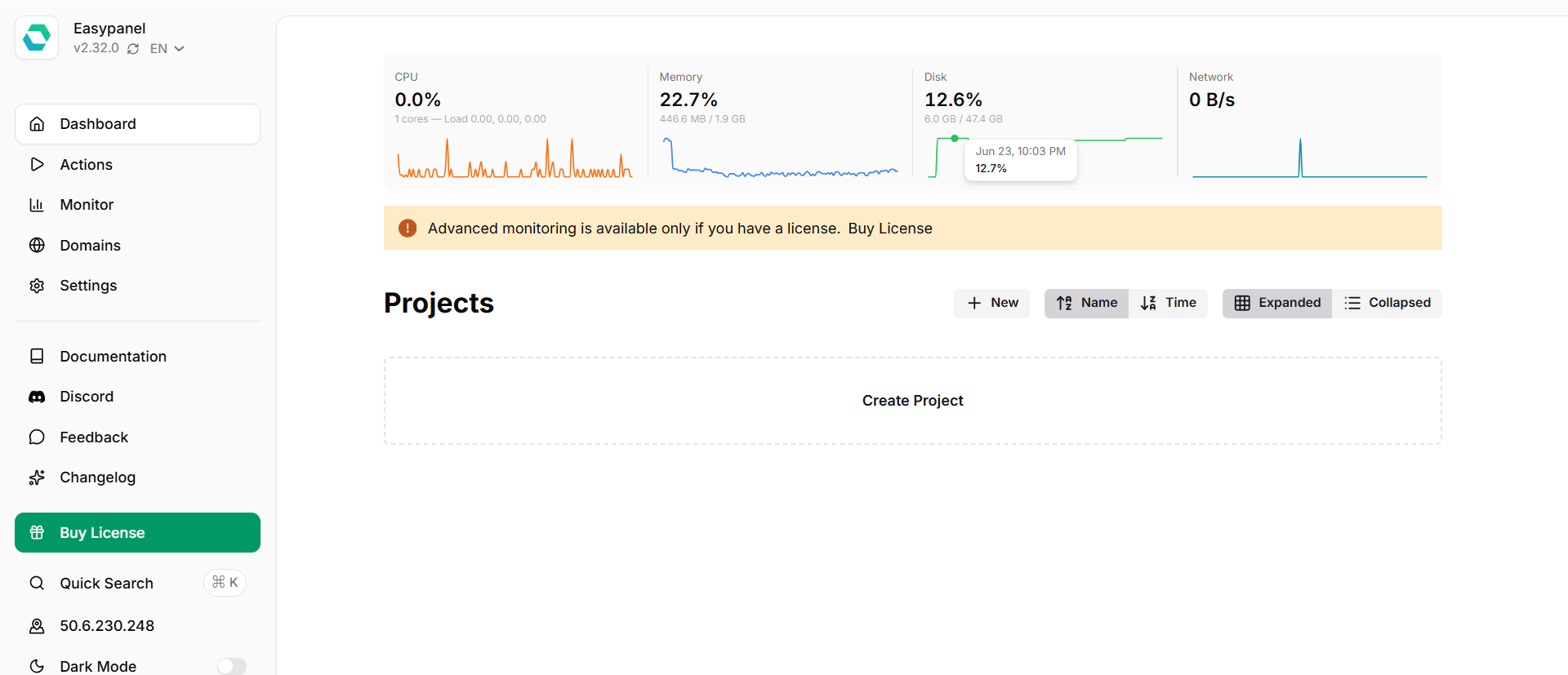
You can now manage databases, deploy applications, and configure domains directly through Easypanel's web interface, no command-line access required.
Additional Information and Example Documentation Output
You can run cat /root/README.md to see more information and useful commands:
Example Output:
root@server-123456:~# cat /root/README.md
# Easypanel

## Description

EasyPanel is a modern server management panel that lets you deploy and manage applications, databases, and services from a visual interface.

It supports Docker-based deployments, one-click app installs, custom domain management, and SSL automation, providing a streamlined way to run and monitor your server workloads without complex command-line setup.


## Services

| Service      | Description                                                        | Managed By |
| ------------ | ------------------------------------------------------------------ | ---------- |
| easypanel    | Web interface for managing applications (port 3000)                | docker     |
| traefik      | Reverse proxy and SSL termination for all traffic (ports 80, 443)  | docker     |
| docker       | Container runtime                                                  | systemd    |
| docker-swarm | Container orchestration                                            | docker     |
| ufw          | Firewall (allows 22, 80, 443, 3000)                                | systemd    |

## Stack

| Component         | Details                                    |
| ----------------- | ------------------------------------------ |
| Container runtime | Docker Engine                              |
| Orchestration     | Docker Swarm                               |
| Reverse proxy     | Traefik (ports 80, 443)                    |
| Firewall          | UFW (SSH 22, HTTP 80, HTTPS 443, direct 3000) |
| Panel             | EasyPanel (port 3000)                      |

## First Boot

On first boot the image automatically:

1. Ensures Docker service is running
2. Confirms Docker Swarm is initialized
3. Verifies Easypanel service is active
4. Waits until Easypanel becomes available on port 3000
5. Detects the public IP and writes a Traefik dynamic config to `/etc/easypanel/traefik/config/custom.yaml`, routing `dashboard..sslip.io` -> `localhost:3000`
6. Traefik picks up the route immediately and obtains a Let's Encrypt certificate automatically via HTTP-01 on port 80

No default admin credentials are created during this process.

## Accessing EasyPanel

After first boot, access the dashboard at:

```
https://dashboard..sslip.io
```

For example, if your server IP is `1.2.3.4`:

```
https://dashboard.1.2.3.4.sslip.io
```

The Let's Encrypt certificate is obtained automatically by Traefik - no manual SSL setup required.

For direct fallback access (no SSL):

```
http://:3000
```

On first access:

- Enter your email address
- Set a password
- Complete the setup

This creates your admin account.

## Manage

From the panel you can:

- Deploy applications and databases
- Configure custom domains
- Monitor running services
- Manage SSL certificates (auto-provisioned via Traefik)

## Notes

- Traefik owns ports 80 and 443 for both the EasyPanel dashboard and all user-deployed applications
- The dashboard is served at `https://dashboard..sslip.io` - [sslip.io](https://sslip.io) is a wildcard DNS service that resolves `anything..sslip.io` to ``, enabling Let's Encrypt certificates without a registered domain
- Port 3000 provides direct HTTP access to EasyPanel (no SSL) - useful for private networks or debugging
- On private/local IPs, the sslip.io route is skipped and only direct port 3000 access is available

## Useful Commands

```
docker service ls
docker service logs easypanel --tail 50
systemctl status docker
ss -tulnp | grep -E '80|443|3000'
journalctl -t easypanel-firstboot -n 100 --no-pager
cat /etc/easypanel/dashboard-url
cat /etc/easypanel/traefik/config/custom.yaml
```

## Ports

| Port | Service                              |
| ---- | ------------------------------------ |
| 22   | SSH                                  |
| 80   | HTTP (Traefik - ACME challenge + redirect) |
| 443  | HTTPS (Traefik - dashboard + user apps)    |
| 3000 | EasyPanel UI (direct, no SSL)        |

## Links

- Documentation: [https://easypanel.io/docs](https://easypanel.io/docs)
- Docker documentation: [https://docs.docker.com](https://docs.docker.com)
- Traefik documentation: [https://doc.traefik.io/traefik/](https://doc.traefik.io/traefik/)
- sslip.io: [https://sslip.io](https://sslip.io)
Summary
Easypanel is an easy and efficient way to manage your applications, websites, databases and server resources through an intuitive web based dashboard. With Easypanel and a Bluehost Self-Managed VPS, server management is easier, while you still have the flexibility and control to customize your environment. Easypanel makes it easy to get started and grow your operations as your needs change, whether you are hosting websites, deploying applications or managing development projects.