 ChatGPT,
  Claude,
  Gemini,
  Grok — all four for
Reimage Your Server for Easypanel Installation
Easypanel is a simple and easy to use server management platform which lets you deploy and manage applications on your Bluehost Self-Managed VPS and Virtual Dedicated Server (VDS) without the headache of complex server configurations. It provides an intuitive dashboard to manage websites, databases, domains, SSL certificates and Docker applications in one place. EasyPanel is a great choice for developers, business and owners of websites that want to have an easier way to manage their hosting environment.
How to Reimage Your Server for Easypanel Installation
This guide walks you through installing and setting up Easypanel using the Bluehost Portal.
This applies to both VPS and VDS.
- You can install only one application using the one-click installer.
- To change or delete your application, follow the guide: How to Change an Application. Create a backup of your existing applications or templates.
- To keep your current template, install the new application manually using SSH. Follow the same steps for both Self-Managed VPS and Virtual Dedicated Server (VDS). The system automatically selects the recommended operating system for Easypanel.
- Log in to your Bluehost Portal.
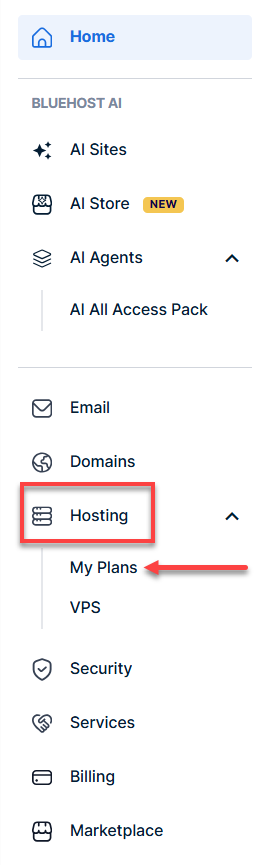
- In the left-hand menu, click the Hosting tab, then click My Plans.
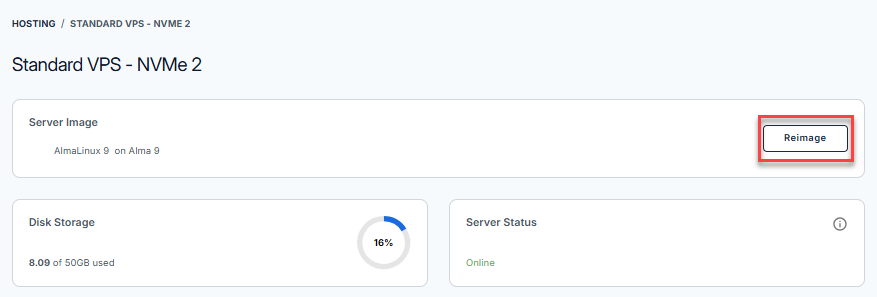
- Click the Manage button on the hosting package you want to reimage.

- Click the Reimage button.
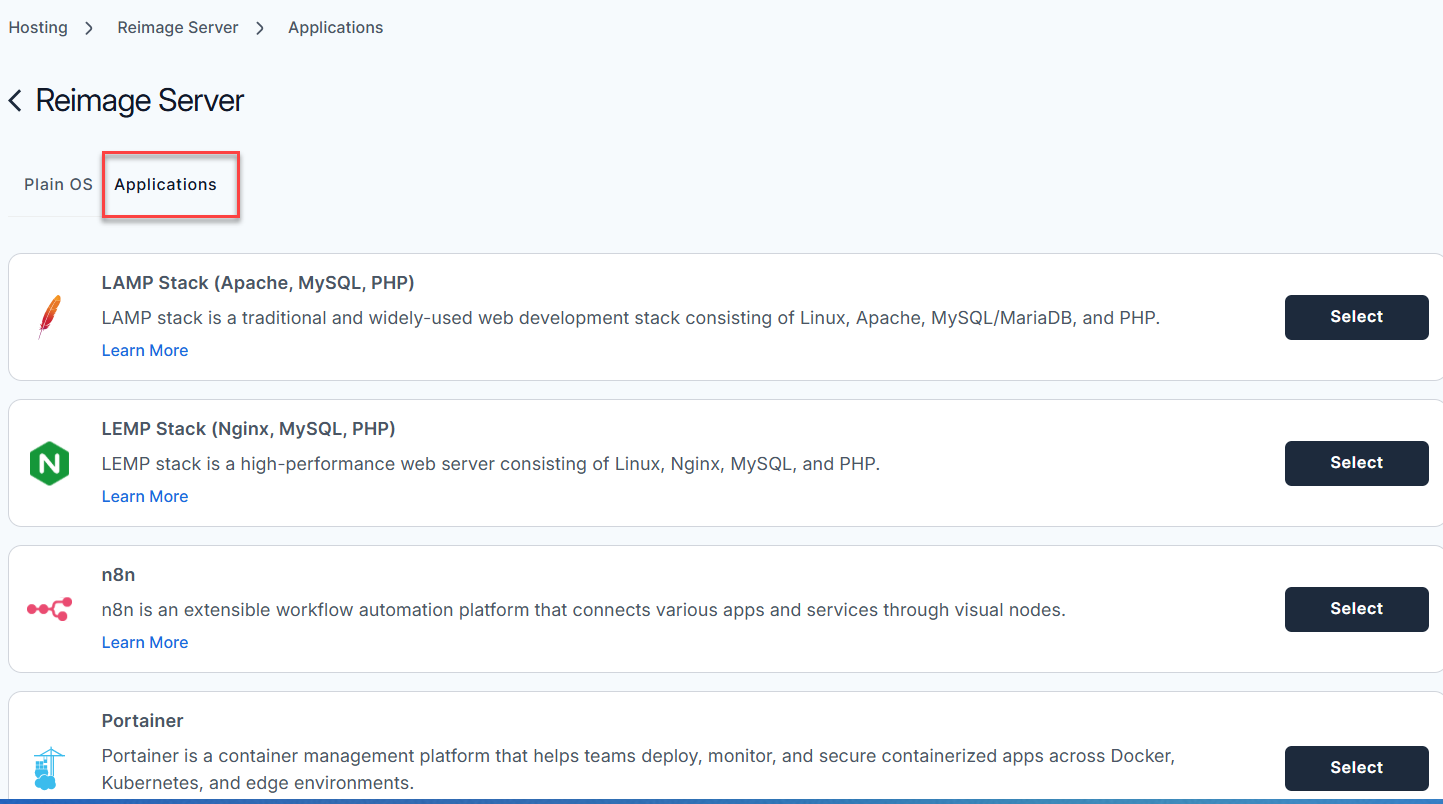
- Select the Applications tab.
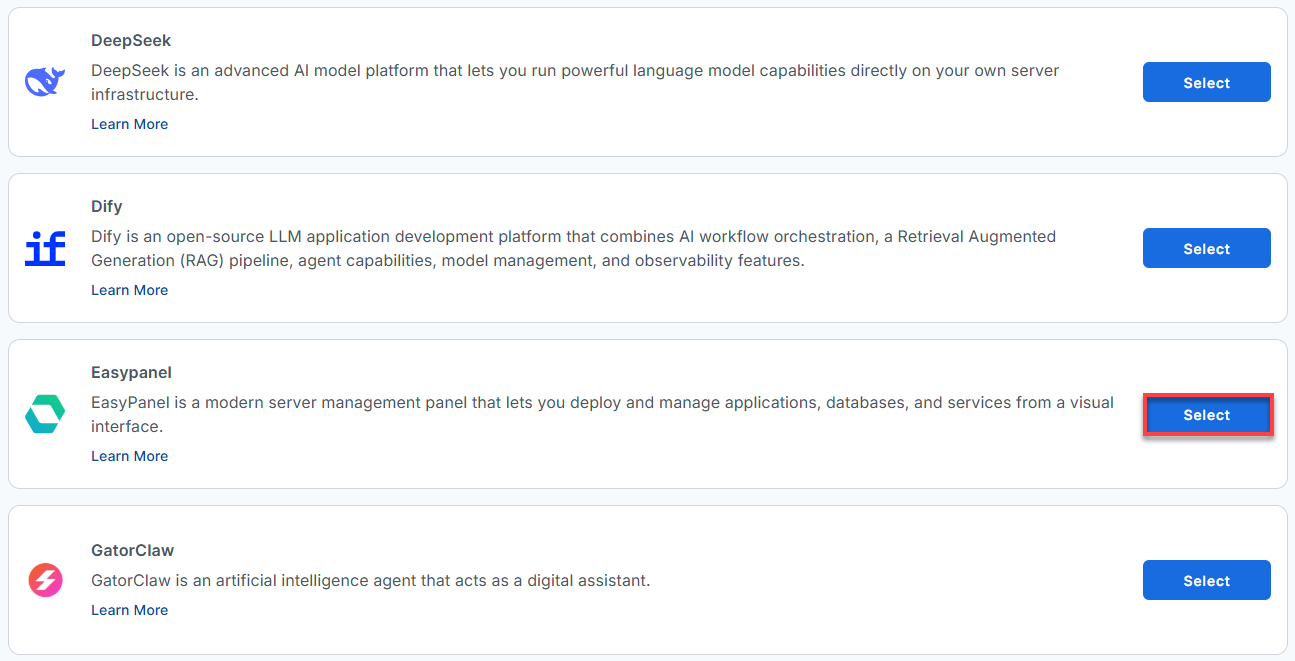
- From the list, locate Easypanel and click Select.
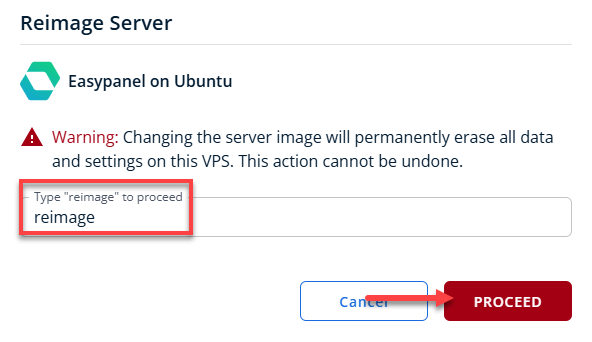
- To confirm, type "reimage" and then click Proceed to start the process.
- Wait a few minutes while the installation completes.

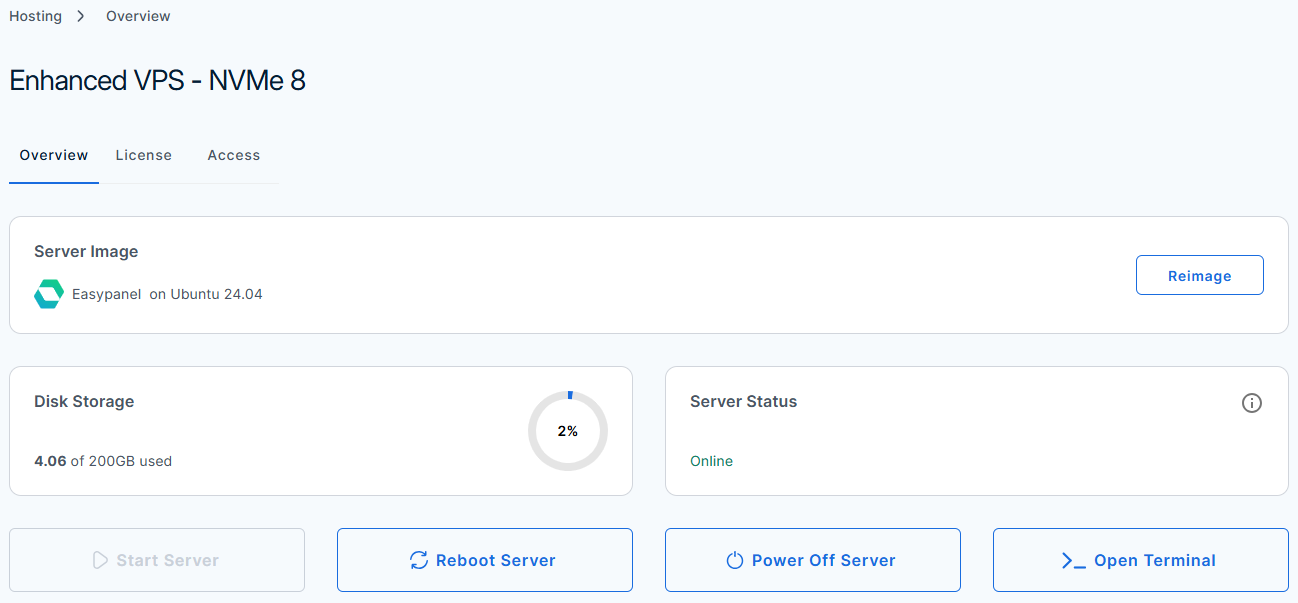
- Once completed, you will see Easypanel listed in the Server Image section.
The First-Boot Automation
If you spin up this server, an automated first-boot script executes the following:
- Starts Docker and Swarm: It boots up the systemd Docker service and initializes Docker Swarm (which EasyPanel uses to manage containers).
- Launches EasyPanel and Traefik: It fires up the EasyPanel management app container (listening on port 3000) and the Traefik reverse proxy (listening on ports 80 and 443).
- Generates your Domain: It grabs your server's public IP address (e.g., 1.2.3.4) and creates a special domain using sslip.io (example: dashboard.1.2.3.4.sslip.io).
- Secures it with SSL: Traefik uses that domain to instantly request a free, valid SSL certificate from Let's Encrypt over port 80.
Verify
After installation completes:
- Log in to your Bluehost Portal.
- In the left-hand menu, click the Hosting tab, then click My Plans.
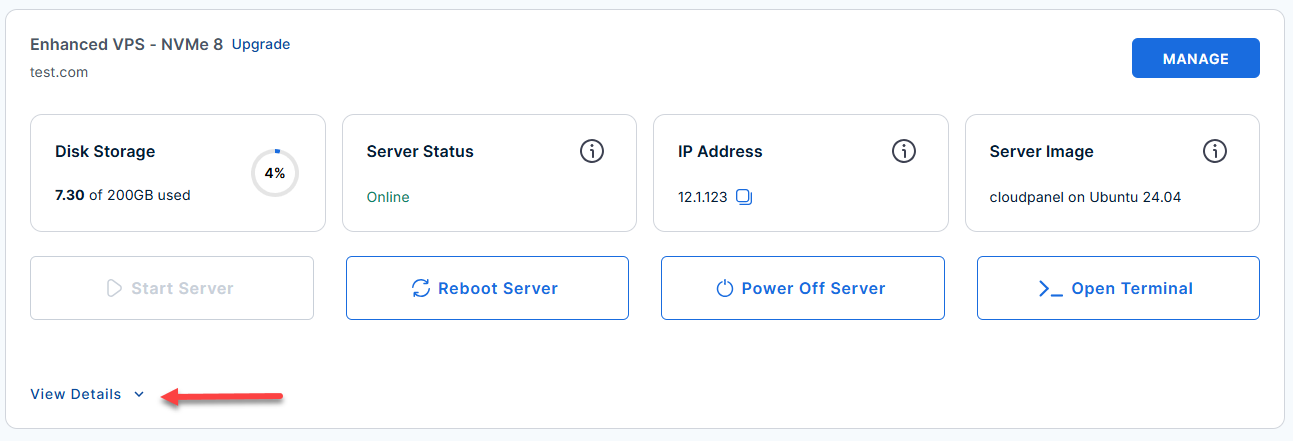
- Locate the server you want to manage, then click View Details in the bottom-left corner to expand the section and access additional server information.
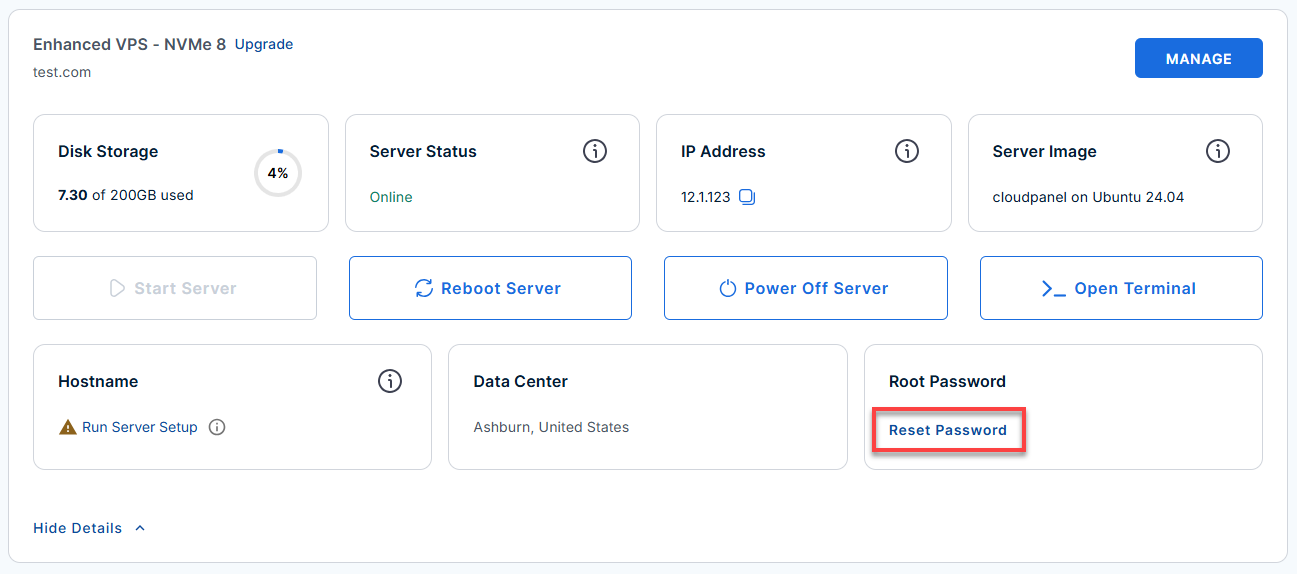
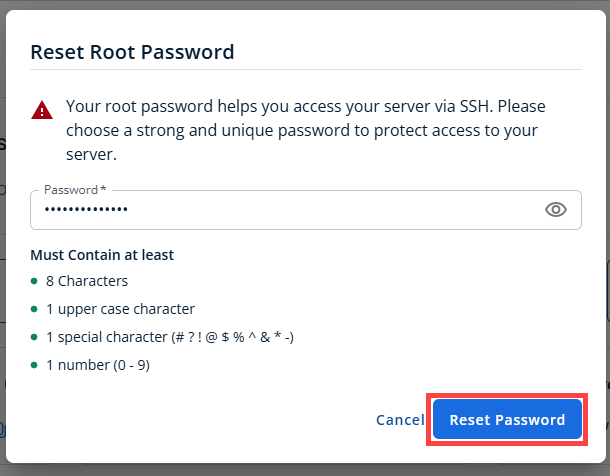
- Click the Reset Password.
- In the pop-up window, type your new root password, then click Reset Password again to confirm and save the changes.
- Connect to your VPS via SSH.
Use your VPS IP and credentials with an SSH client, follow the prompts, and enter your root password when asked:Replaceyour_server_ipwith your actual server IP address.ssh root@your_server_ip - Check running containers:
You should see easypanel and traefik listed with replicas showing 1/1.
Example Output:docker service lsLast login: Tue Jun 23 22:19:24 2026 from 123.456.7.89 root@server-123456:~# docker service ls ID NAME MODE REPLICAS IMAGE PORTS uhhadq8vxc3e easypanel replicated 1/1 easypanel/easypanel:latest wz76prp8as38 easypanel-traefik replicated 1/1 traefik:3.6.7 root@server-123456:~# - Check open ports:
You should see lines showing that something is actively listening on ports 80, 443, and 3000.
Example Output:ss -tulnp | grep -E '80|443|3000'root@server-123456:~# ss -tulnp | grep -E '80|443|3000' tcp LISTEN 0 4096 0.0.0.0:443 0.0.0.0:* users:(("docker-proxy",pid=1387,fd=8)) tcp LISTEN 0 4096 0.0.0.0:80 0.0.0.0:* users:(("docker-proxy",pid=1370,fd=8)) tcp LISTEN 0 4096 0.0.0.0:3000 0.0.0.0:* users:(("docker-proxy",pid=1627,fd=8)) tcp LISTEN 0 4096 [::]:443 [::]:* users:(("docker-proxy",pid=1392,fd=8)) tcp LISTEN 0 4096 [::]:80 [::]:* users:(("docker-proxy",pid=1374,fd=8)) tcp LISTEN 0 4096 [::]:3000 [::]:* users:(("docker-proxy",pid=1631,fd=8)) - Get your exact login URL: Run:
cat /etc/easypanel/dashboard-url
Access your EasyPanel Dashboard
After the configuration completes:
- Log In via Your Browser:
Replace
server-ipwith your actual server IP address.https://dashboard.server-ip.sslip.ioFallback Option: If the secure link ever encounters a temporary DNS delay, you can access the dashboard directly via HTTP at:
Replaceserver-ipwith your actual server IP address.http://server-ip:3000Important!- Make sure you use https:// and include the trailing slash after your panel path.
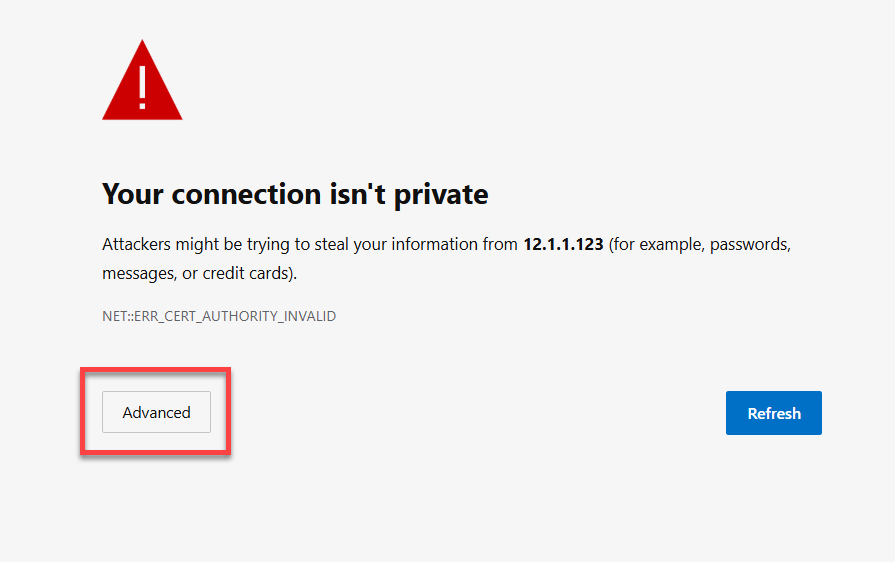
- Bypass the Browser Security Warning
EasyPanel uses a temporary self-signed SSL certificate, your browser will flag it. Click Advanced and then Proceed/Continue to bypass it safely.
- Create Your Admin Account
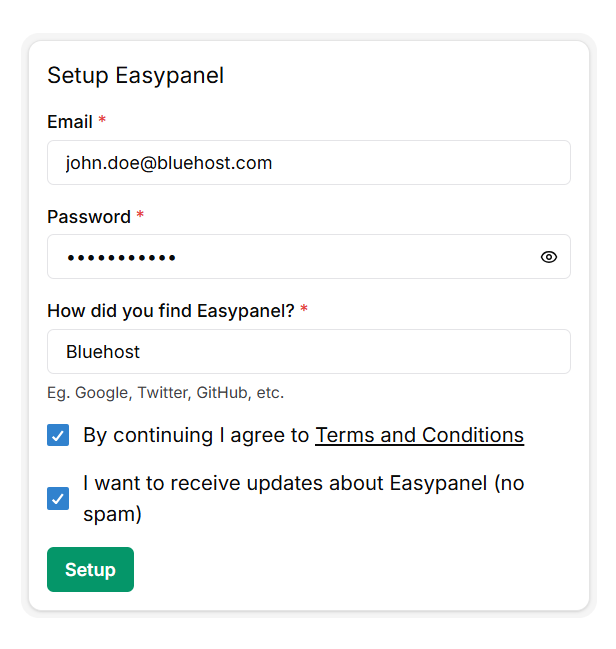
Because this image does not ship with standard, insecure default passwords, your first visit will require you to secure the panel.
- On the first screen, enter your Email Address.
- Create a strong, secure Password.
- Fill in the "How did you find EasyPanel?" section
- Click Setup to finalize.
Once done, you will be routed to the Easypanel Dashboard:
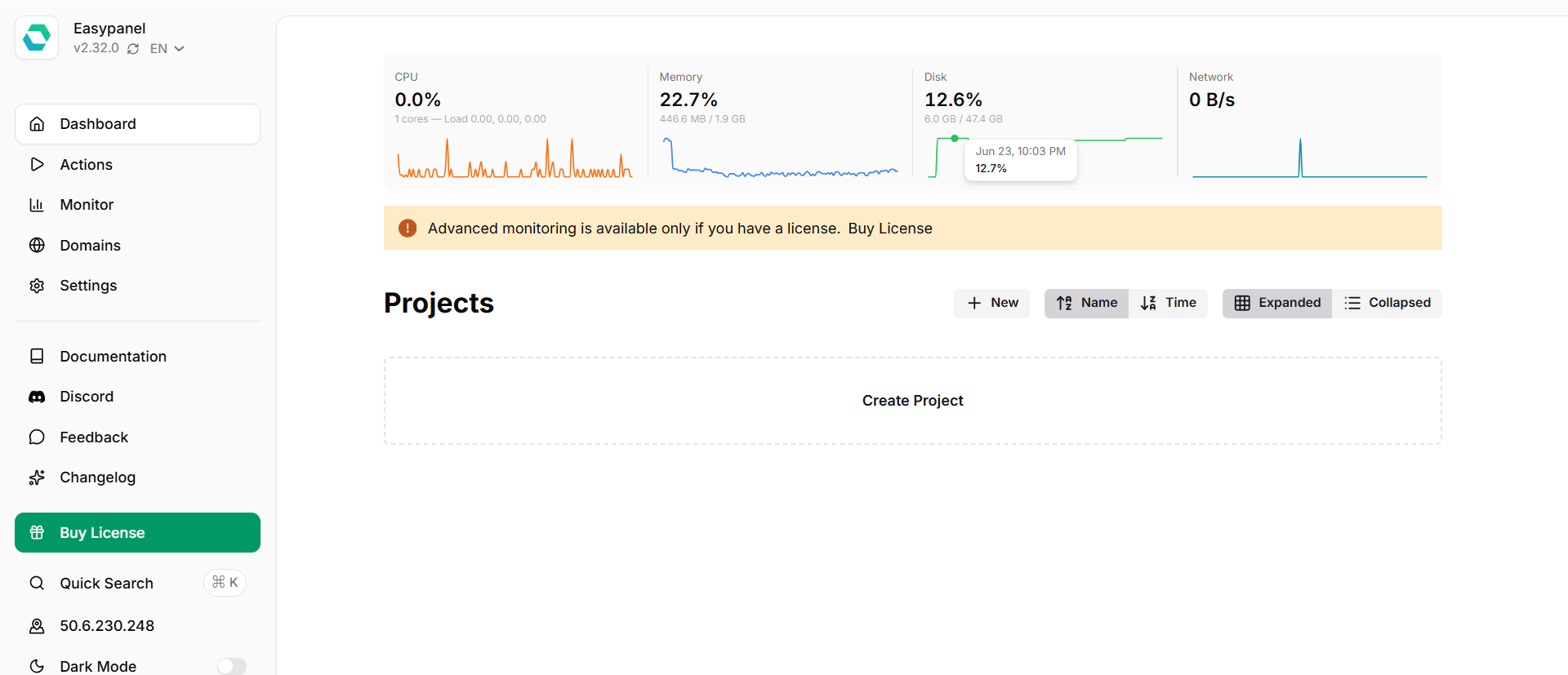
You are now the master administrator of the cluster. From here, you can completely abandon the command line and deploy databases, applications, and manage custom domains entirely using EasyPanel's visual UI.
Additional Information and Example Documentation Output
You can run cat /root/README.md to see more information and useful commands:
Example Output:
root@server-123456:~# cat /root/README.md
# Easypanel

## Description

EasyPanel is a modern server management panel that lets you deploy and manage applications, databases, and services from a visual interface.

It supports Docker-based deployments, one-click app installs, custom domain management, and SSL automation, providing a streamlined way to run and monitor your server workloads without complex command-line setup.


## Services

| Service      | Description                                                        | Managed By |
| ------------ | ------------------------------------------------------------------ | ---------- |
| easypanel    | Web interface for managing applications (port 3000)                | docker     |
| traefik      | Reverse proxy and SSL termination for all traffic (ports 80, 443)  | docker     |
| docker       | Container runtime                                                  | systemd    |
| docker-swarm | Container orchestration                                            | docker     |
| ufw          | Firewall (allows 22, 80, 443, 3000)                                | systemd    |

## Stack

| Component         | Details                                    |
| ----------------- | ------------------------------------------ |
| Container runtime | Docker Engine                              |
| Orchestration     | Docker Swarm                               |
| Reverse proxy     | Traefik (ports 80, 443)                    |
| Firewall          | UFW (SSH 22, HTTP 80, HTTPS 443, direct 3000) |
| Panel             | EasyPanel (port 3000)                      |

## First Boot

On first boot the image automatically:

1. Ensures Docker service is running
2. Confirms Docker Swarm is initialized
3. Verifies Easypanel service is active
4. Waits until Easypanel becomes available on port 3000
5. Detects the public IP and writes a Traefik dynamic config to `/etc/easypanel/traefik/config/custom.yaml`, routing `dashboard..sslip.io` -> `localhost:3000`
6. Traefik picks up the route immediately and obtains a Let's Encrypt certificate automatically via HTTP-01 on port 80

No default admin credentials are created during this process.

## Accessing EasyPanel

After first boot, access the dashboard at:

```
https://dashboard..sslip.io
```

For example, if your server IP is `1.2.3.4`:

```
https://dashboard.1.2.3.4.sslip.io
```

The Let's Encrypt certificate is obtained automatically by Traefik - no manual SSL setup required.

For direct fallback access (no SSL):

```
http://:3000
```

On first access:

- Enter your email address
- Set a password
- Complete the setup

This creates your admin account.

## Manage

From the panel you can:

- Deploy applications and databases
- Configure custom domains
- Monitor running services
- Manage SSL certificates (auto-provisioned via Traefik)

## Notes

- Traefik owns ports 80 and 443 for both the EasyPanel dashboard and all user-deployed applications
- The dashboard is served at `https://dashboard..sslip.io` - [sslip.io](https://sslip.io) is a wildcard DNS service that resolves `anything..sslip.io` to ``, enabling Let's Encrypt certificates without a registered domain
- Port 3000 provides direct HTTP access to EasyPanel (no SSL) - useful for private networks or debugging
- On private/local IPs, the sslip.io route is skipped and only direct port 3000 access is available

## Useful Commands

```
docker service ls
docker service logs easypanel --tail 50
systemctl status docker
ss -tulnp | grep -E '80|443|3000'
journalctl -t easypanel-firstboot -n 100 --no-pager
cat /etc/easypanel/dashboard-url
cat /etc/easypanel/traefik/config/custom.yaml
```

## Ports

| Port | Service                              |
| ---- | ------------------------------------ |
| 22   | SSH                                  |
| 80   | HTTP (Traefik - ACME challenge + redirect) |
| 443  | HTTPS (Traefik - dashboard + user apps)    |
| 3000 | EasyPanel UI (direct, no SSL)        |

## Links

- Documentation: [https://easypanel.io/docs](https://easypanel.io/docs)
- Docker documentation: [https://docs.docker.com](https://docs.docker.com)
- Traefik documentation: [https://doc.traefik.io/traefik/](https://doc.traefik.io/traefik/)
- sslip.io: [https://sslip.io](https://sslip.io)
Summary
Easypanel simplifies Self-Managed VPS and Virtual Dedicated Server (VDS) management by giving you an easy-to-use control panel for deploying and managing applications. Instead of spending time configuring servers manually, you can focus on building and running your projects through a streamlined interface. Whether you're launching a website, hosting business applications, or managing multiple services, Easypanel provides a convenient and efficient way to manage your VPS and VDS environment.