 ChatGPT,
  Claude,
  Gemini,
  Grok — all four for
 Wildcard DNS: How to Set Up Wildcard Subdomains in cPanel
Wildcard DNS allows all subdomains of a domain to resolve to the same directory and use the same set of files. This DNS configuration is especially useful for multisite web applications, SaaS platforms, or scenarios where all subdomains should display identical content as the main domain.
For example, if a visitor accesses a subdomain such as example.domain.com, it will function exactly the same as visiting the primary domain, https://domain.com, without needing to create each subdomain individually. This behavior is controlled through a wildcard DNS record, typically represented by an asterisk (*).
How Wildcard DNS Works
A wildcard DNS record acts as a catch-all for any undefined subdomain. Instead of returning an error, the request is routed to the same IP address and document root as the main domain. Bluehost supports wildcard DNS and wildcard subdomains directly through cPanel, making setup straightforward for most users.
Wildcard DNS for the Primary Domain
To configure Wildcard DNS for your primary domain using Bluehost and cPanel, follow these steps:
- Log in to your Bluehost Portal.
- In the left-hand menu, click Hosting, then select My Plans.
- On the hosting details page, click the cPanel button.

- Your cPanel will open in a new tab.

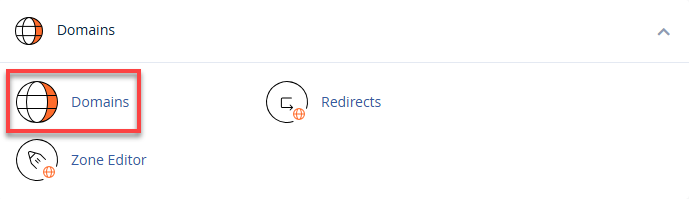
- Navigate to the Domains icon under the Domains section.
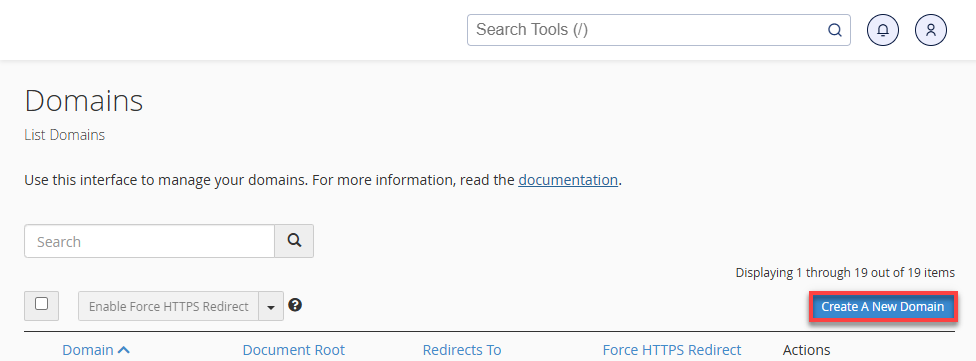
- Click Create A New Domain.
- In the Domain field, enter an asterisk (
*) followed by your domain (e.g.,*.yourdomain.com). - Set the Document Root to your
public_htmldirectory.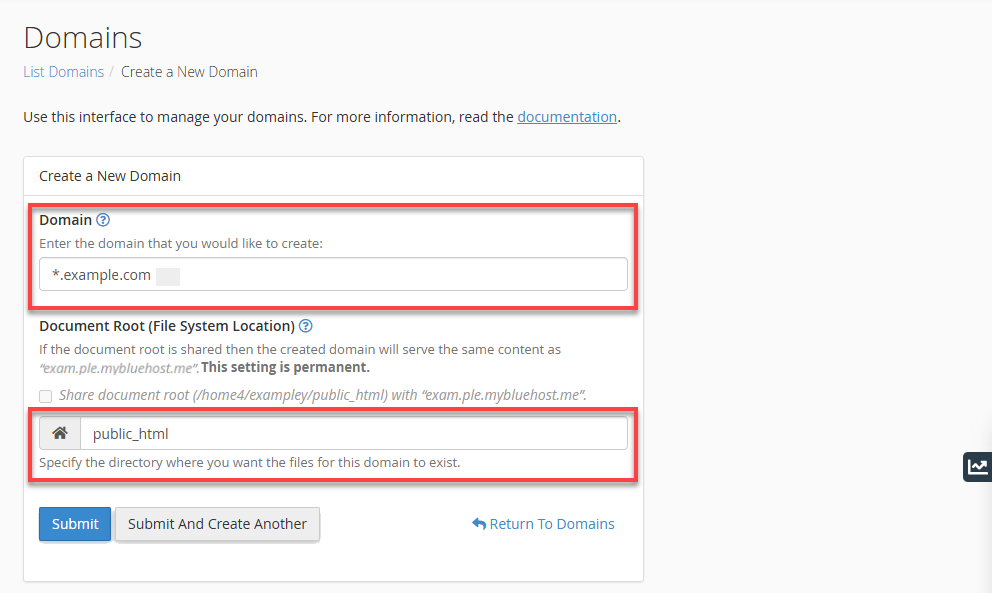
- Click Submit to create the wildcard subdomain.
Once completed, all subdomains will automatically resolve to your primary domain’s files. Bluehost confirms that wildcard DNS records are added automatically after creation.
Wildcard DNS for Addon Domains
Setting up Wildcard DNS for addon domains works similarly, but the document root must match the specific addon domain directory.
- Log in to your Bluehost Portal.
- In the left-hand menu, click Hosting, then select My Plans.
- On the hosting details page, click the cPanel button.
- Your cPanel will open in a new tab.
- Navigate to the Domains icon under the Domains section.
- Click Create A New Domain.
- Enter
*as the subdomain in the Domain field. - Set the Document Root to the addon domain’s document root folder.
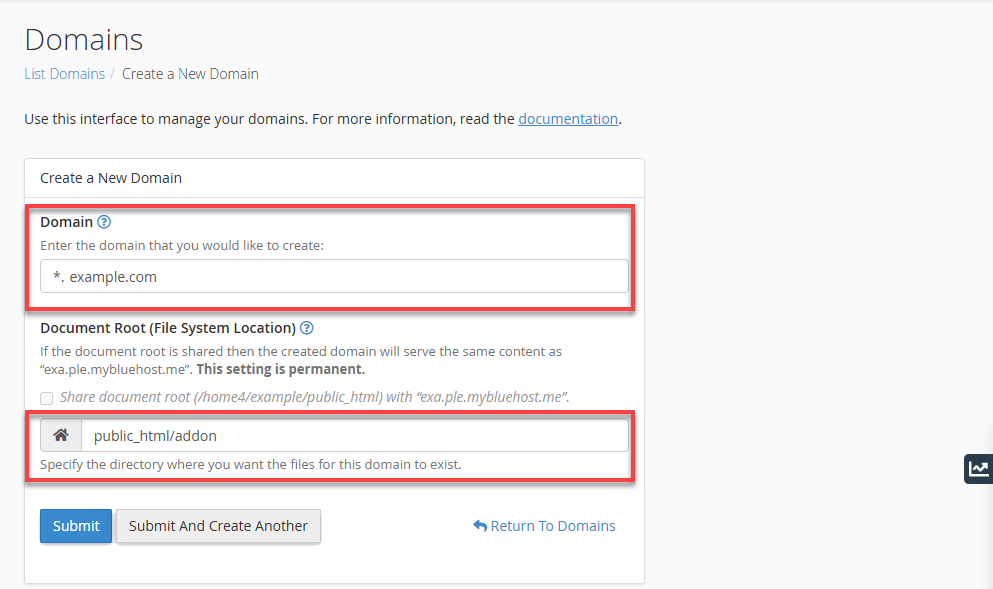
- You can find this path under Domains within cPanel.
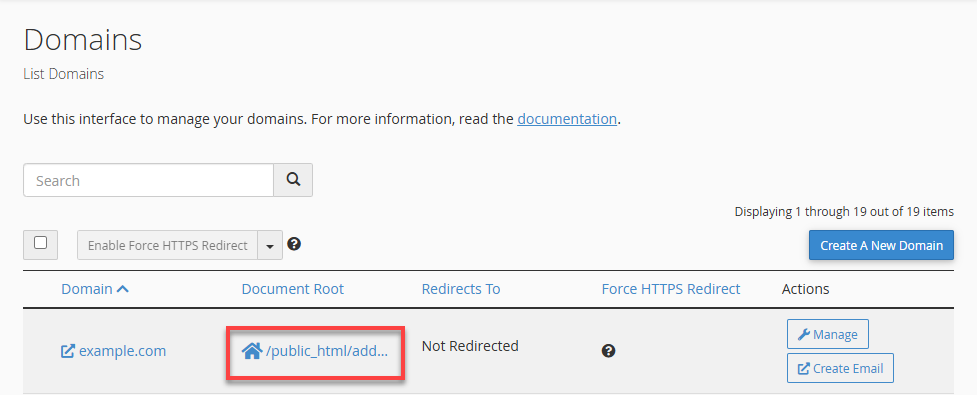
- You can find this path under Domains within cPanel.
- Click Submit.
Using an incorrect document root for an addon domain can cause DNS resolution issues and prevent subdomains from loading correctly.
This process aligns with cPanel’s official wildcard subdomain creation guidelines.
Best Use Cases for Wildcard DNS
- WordPress Multisite installations
- SaaS platforms with user-specific subdomains
- Development and staging environments
- Landing page campaigns with dynamic subdomains
Summary
Wildcard DNS is a powerful solution for managing unlimited subdomains without creating individual DNS records. Using Bluehost and cPanel, you can quickly set up wildcard subdomains for both primary and addon domains by assigning the correct document root. When configured properly, wildcard DNS improves scalability, simplifies domain management, and enhances user experience—especially for multisite and application-based websites.
If you need further assistance, Bluehost Chat Support is available 24 hours a day, 7days a week while Bluehost Phone Support is available 7 days a week from 7 am-12 midnight EST.
- Chat Support - While on our website, you should see a CHAT bubble in the bottom right-hand corner of the page. Click anywhere on the bubble to begin a chat session.
- Phone Support -
- US: 888-401-4678
- International: +1 801-765-9400
You may also refer to our Knowledge Base articles to help answer common questions and guide you through various setup, configuration, and troubleshooting steps.