How to Upgrade cPanel Software
Learning how to upgrade cPanel software in WHM (Web Host Manager) to the latest version is a crucial step in ensuring the security and efficiency of your hosting environment. The process involves several steps, starting with upgrading your CentOS 7 operating system. Once the operating system upgrade is complete, the next important step is to check and adjust your cPanel Update Preferences.
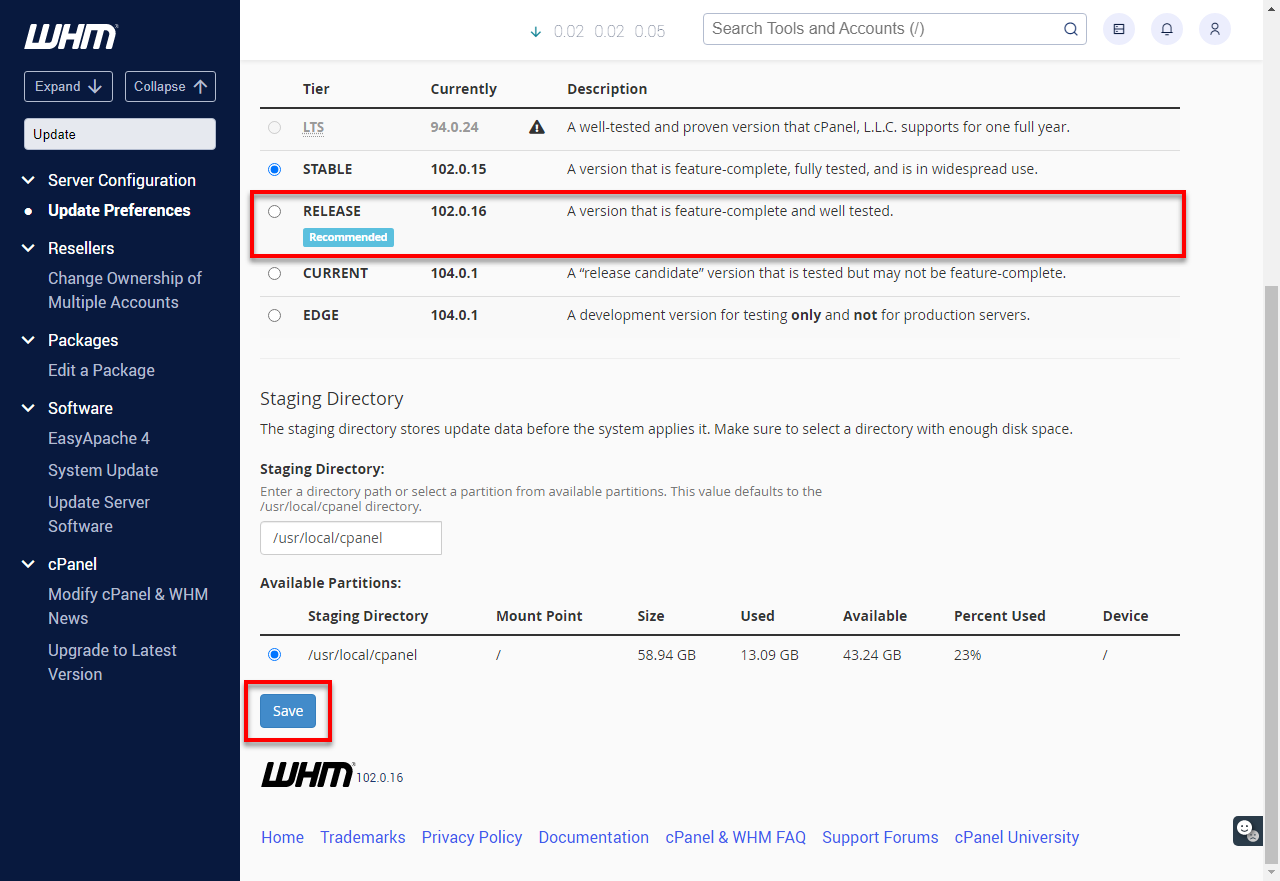
Setting your Update Preferences to the Release tier is recommended to ensure optimal performance and security. The Release tier gets updates a little later than the newest tier. It has been tested more and is usually seen as safe to use for live websites. This option helps you keep your software fairly current while making sure your hosting stays steady and dependable.
By following these steps and keeping your cPanel software in WHM up to date, you can help keep your server safe, use the newest features, and make sure your website works well for visitors.
What is WHM?
WHM (Web Host Manager) is an account dashboard with administrative access that allows users to customize and control their subaccounts, allowing them to manage multiple cPanel-based sites.
You may visit VPS & Dedicated Hosting: Root WHM (rWHM) to learn more about root user rights, or log in to WHM. The article provides more information on how to get into your account.
Upgrade cPanel Software in WHM
- Log in to your Bluehost Portal.
- Click Hosting in the left-hand menu.
- In the hosting details page, click the WHM button.

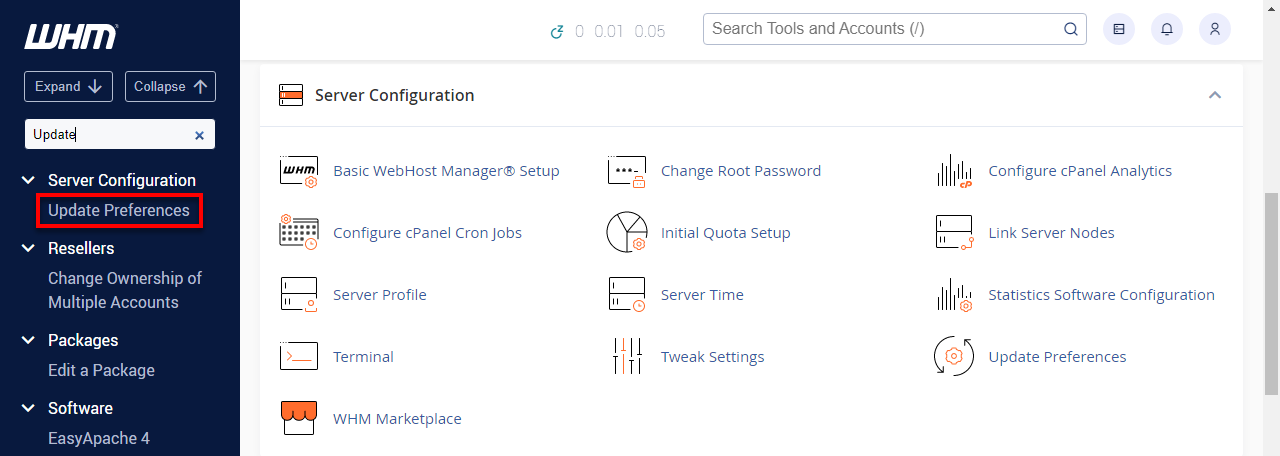
- In the upper left corner of WHM, look for the Server Configuration section and select Update Preferences.
- Select the Recommended Release and hit save.
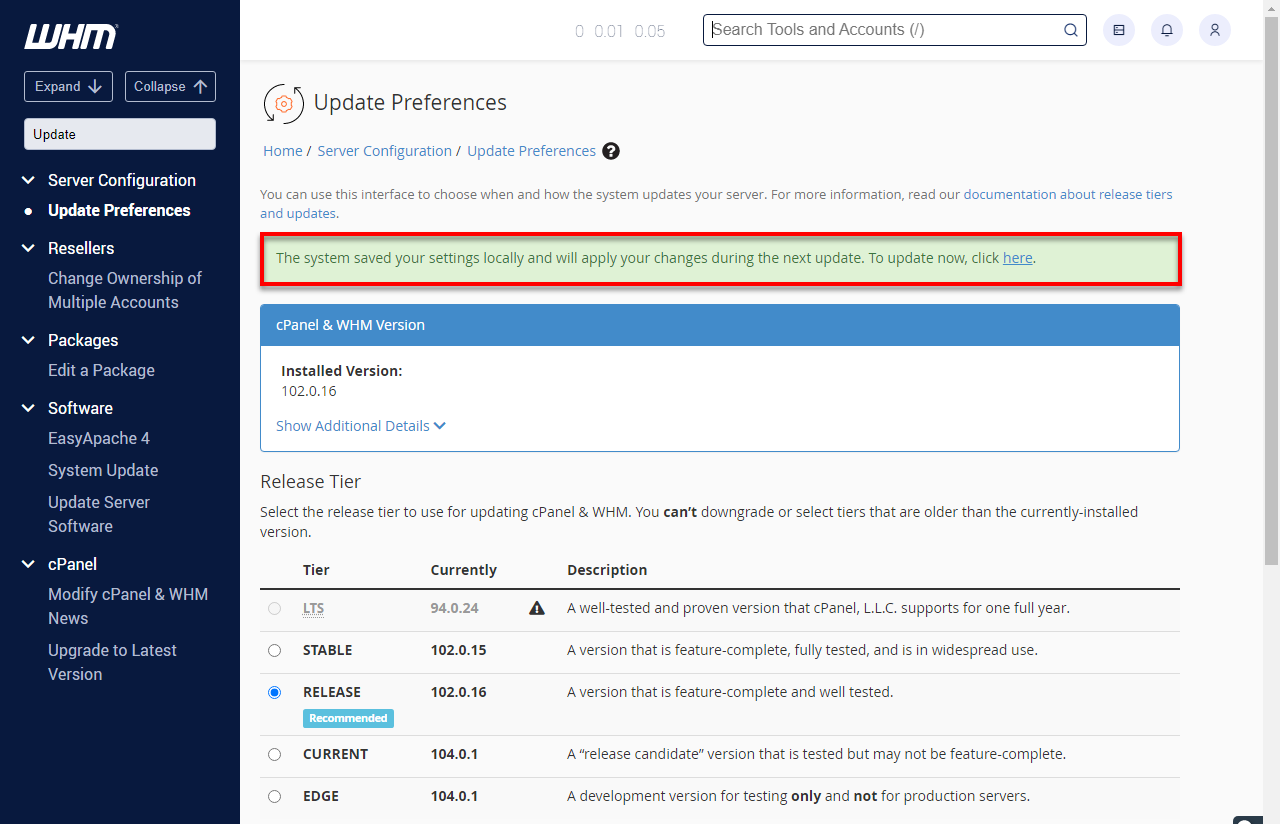
- Click on the here link to ensure that the changes will take effect immediately.
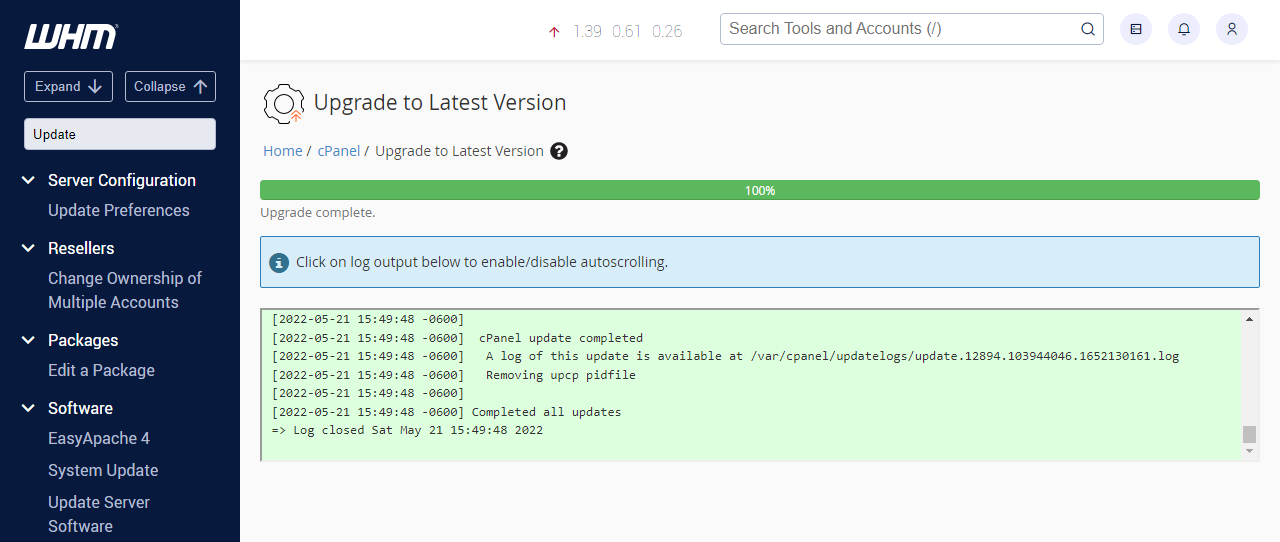
- Congratulations! You have successfully upgraded your cPanel software.
Summary
Learning how to update cPanel software in WHM to the newest version is important for keeping your hosting safe and running well. First, update the CentOS 7 operating system, then set the cPanel Update Preferences to the Recommended Release tier. This option gives you both new features and reliable performance for live websites.
WHM (Web Host Manager) is important for this process because it lets you manage several cPanel sites, especially if you use VPS, Dedicated Hosting, or reseller accounts. Upgrading cPanel in WHM includes:
- Logging in with root credentials.
- Adjusting update preferences.
- Initiating the upgrade may take up to an hour or slightly longer.
In short, keeping your cPanel and WHM software up to date is important for server safety, getting new features, and making sure everything works well for users. Upgrading to version 102 or higher means you have finished this key maintenance step. If you have any problems or need help, contact support.
If you need further assistance, Bluehost Chat Support is available 24 hours a day, 7days a week while Bluehost Phone Support is available 7 days a week from 7 am-12 midnight EST.
- Chat Support - While on our website, you should see a CHAT bubble in the bottom right-hand corner of the page. Click anywhere on the bubble to begin a chat session.
- Phone Support -
- US: 888-401-4678
- International: +1 801-765-9400
You may also refer to our Knowledge Base articles to help answer common questions and guide you through various setup, configuration, and troubleshooting steps.