 ChatGPT,
  Claude,
  Gemini,
  Grok — all four for
403 Forbidden or No Permission to Access
Encountering a 403 Forbidden error can be frustrating, especially when you're unsure what caused it. This guide explains what the error means, the most common reasons it happens, and practical steps you can take to resolve it on your hosting account or when visiting a website.
Understanding a 403 Forbidden Error
A 403 Forbidden error indicates that access to a webpage, file, or resource is denied. In simple terms, the server understands your request but refuses to authorize it due to permission restrictions.
You may encounter the error in different formats, including:
- 403 Forbidden
- 403. That's an error. You don’t have access to this page.
- Error 403
- Error 403 - Forbidden
- HTTP 403
- HTTP Error 403 - Forbidden
- Forbidden: You don’t have permission to access this directory
Sometimes this restriction is intentional (such as private content), but other times it results from misconfiguration.
Common Causes of 403 Errors
A 403 error can result from several factors. Below are the most frequent causes:
File Permissions
Each file and directory on your hosting account has permission settings that determine who can access it. Incorrect permissions can prevent the server from serving content, leading to a 403 error.
Recommended permission values:
- WordPress files: 644 or 640
- Directories/folders: 755
- cgi-bin scripts: 755
- Images, HTML, media: 644 or 755
Hidden Files (Dot Files)
If your error logs display "client denied by server configuration", it may indicate incorrect permissions or an attempt to access restricted files (like dotfiles).
Files beginning with a dot (.)—such as .htaccess—are hidden and cannot be accessed directly through a browser.
Example: https://example.com/.htaccess will always return a 403 error.
To fix permission-related issues:
- Log in to your Bluehost Portal.
- Click Hosting in the left-hand menu.
- In the hosting details page, click the File Manager button.
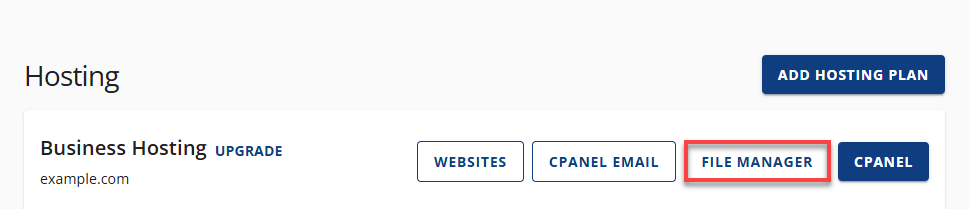
- Your File Manager will open in a new tab.
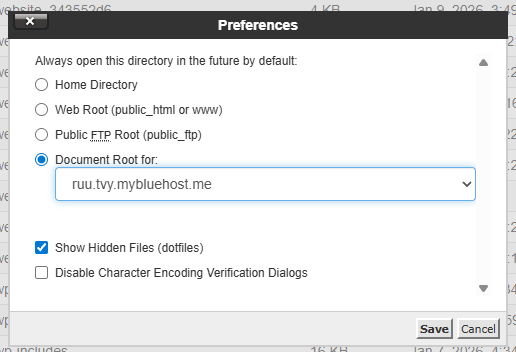
- Access your site’s document root (e.g., public_html).
- Click Settings at the top right corner.
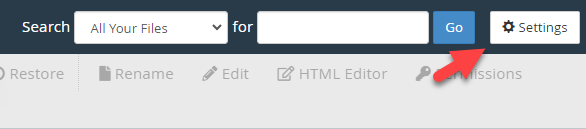
- Enable Show Hidden Files and save the changes.
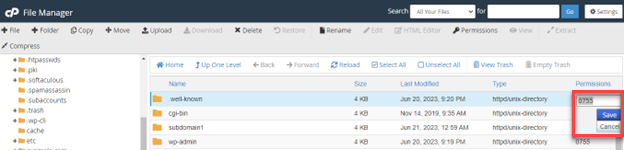
- Review the Permissions column.
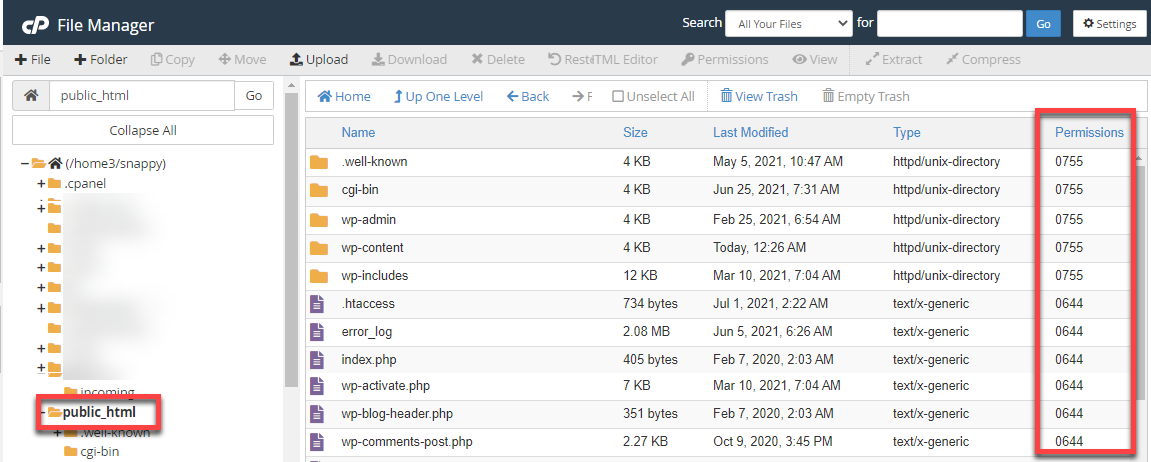
- Update any incorrect values and save changes.
Missing or Corrupted .htaccess File
The .htaccess file controls important server behaviors. If this file is missing or incorrectly configured, it may result in a 403 error.
To resolve this:
# BEGIN WordPress
RewriteEngine On
RewriteBase /
RewriteCond %{REQUEST_FILENAME} !-f
RewriteCond %{REQUEST_FILENAME} !-d
RewriteRule . /index.php [L]
# END WordPress
- Locate the default .htaccess configuration for your CMS.
- Copy the appropriate code (example below for WordPress):
- Paste it into your existing .htaccess file or create a new one.
If the file does not exist, create one named .htaccess and insert the correct configuration. Please check the .htaccess Tutorial for the steps in creating a .htaccess file.
Plugin Conflicts (WordPress)
Plugins add functionality to WordPress websites, but conflicts or misconfigurations can trigger 403 errors.
To identify the issue:
- Disable all plugins.
- Re-enable them one at a time.
- Check which plugin causes the error.
Once identified, update, replace, or remove the problematic plugin. You can refer to our guide How to Fix Issues with WordPress Themes and Plugins on how to troubleshoot issues with WordPress themes/plugins.
Additional Causes of 403 Errors
If the problem persists, consider the following possibilities:
- IP Blocking: Ensure your IP is not denied in cPanel.
- Index Settings: "No Indexing" without a valid index file can trigger a 403 error.
- Security Rules: Server firewall or mod_security settings may restrict access.
Accessing Other Websites? Try These Fixes:
- Clear your browser cache to remove outdated content.
- Verify the website is operational by checking its status or social channels.
- Ensure the URL is complete and valid.
- Confirm you are logged in with the correct account (if required).
Summary
A 403 Forbidden error typically occurs due to permission restrictions or configuration issues. The most common causes include incorrect file permissions, a faulty or missing .htaccess file, or plugin conflicts in WordPress.
By reviewing permissions, correcting configuration files, and isolating potential plugin problems, most 403 errors can be quickly resolved. If the issue still persists, checking server settings or contacting support is recommended.
If you need further assistance, Bluehost Chat Support is available 24 hours a day, 7days a week while Bluehost Phone Support is available 7 days a week from 7 am-12 midnight EST.
- Chat Support - While on our website, you should see a CHAT bubble in the bottom right-hand corner of the page. Click anywhere on the bubble to begin a chat session.
- Phone Support -
- US: 888-401-4678
- International: +1 801-765-9400
You may also refer to our Knowledge Base articles to help answer common questions and guide you through various setup, configuration, and troubleshooting steps.