 ChatGPT,
  Claude,
  Gemini,
  Grok — all four for
Document Root Changes
Changing a domain’s document root updates the directory where its website files are stored. By default, the primary domain points to the public_html folder. In most cases, there is little practical advantage to modifying the document root of an existing addon domain unless it is needed for organizational, visual, or development-related reasons. If a change is not absolutely necessary, keeping the current setup is recommended to avoid potential site errors or downtime.
This guide covers the topics below:
How to Modify the Document Root for an Addon Domain or Subdomain
Addon domain and subdomain directories are created within your account’s home directory in cPanel.
Follow the steps below to update the document root:
- Log in to your Bluehost Portal.
- In the left-hand menu, click Hosting, then select My Plans.
- On the hosting details page, click the cPanel button.

- Your cPanel will open in a new tab.

- Navigate to the Domains section and click Domains.
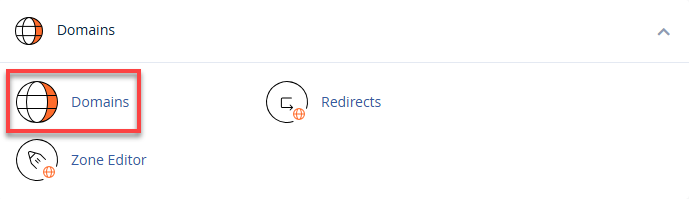
- Find the addon domain or subdomain you want to update, then select Manage.

- Enter the new folder path in the New Document Root field.

- Click Update to apply the change.
The new document root should take effect immediately. Be sure to move your website files into the updated folder so the server can correctly locate and load your site.
Summary
The document root defines where a domain’s website files are stored. The primary domain always uses public_html and cannot be changed, while addon domains and subdomains can be updated if necessary. Any changes should be done through cPanel, with a full backup created beforehand to avoid data loss or site issues.
If you need further assistance, Bluehost Chat Support is available 24 hours a day, 7days a week while Bluehost Phone Support is available 7 days a week from 7 am-12 midnight EST.
- Chat Support - While on our website, you should see a CHAT bubble in the bottom right-hand corner of the page. Click anywhere on the bubble to begin a chat session.
- Phone Support -
- US: 888-401-4678
- International: +1 801-765-9400
You may also refer to our Knowledge Base articles to help answer common questions and guide you through various setup, configuration, and troubleshooting steps.