 ChatGPT,
  Claude,
  Gemini,
  Grok — all four for
 Bluehost Malware Protection: Dashboard Overview
Website security is an essential consideration for every Bluehost customer. Cyberattacks and malware can disrupt your website and negatively impact your online reputation. Bluehost offers a Malware Protection plan to help you effectively address website vulnerabilities and malware.
This article discusses the following:
Why Use Bluehost Malware Protection?
- Quickly spot issues: Get a clear overview of your site's security status and details about any detected threats.
- Take action fast: Use step-by-step tools to fix infections or restore your site.
- Stay informed: Access clear details about threats and receive guidance on what to do next.
- Minimize downtime: Resolve issues efficiently and keep your website running smoothly.
Familiarizing yourself with the Malware Protection dashboard is vital for safeguarding your website’s reputation, data, and overall availability.
How to Access the Bluehost Malware Protection Dashboard
There are 2 ways to access the Bluehost Malware Security dashboard.
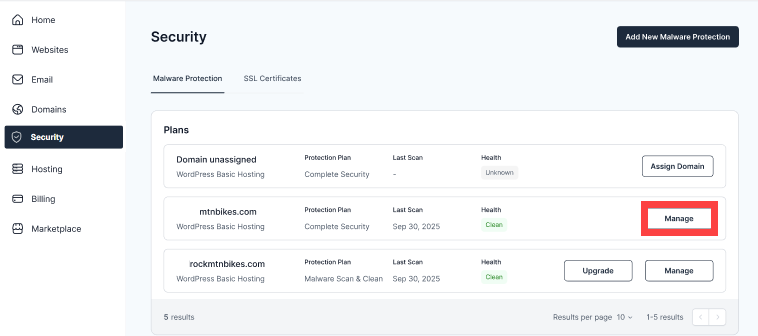
Security Tab
- Log in to your Bluehost Portal.
- Click Security on the left-side menu.
- Under the Malware Protection tab, locate the domain you want to manage, and then click the Manage button next to it.
Websites Tab
- Log in to your Bluehost Portal.
- In the left-hand menu, click Websites.
- Click the Manage Site button located next to the website you want to manage.

- Below are the possible scenarios after selecting the website you want to manage:
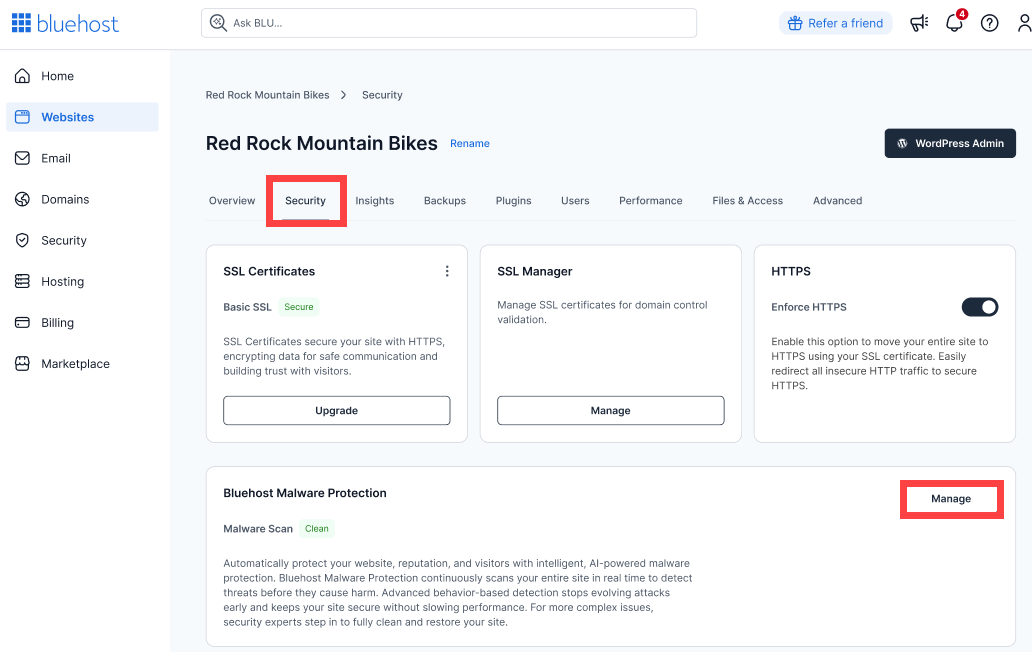
- No Malware Detected: Click the Security tab in the horizontal menu. Click Manage under Bluehost Malware Protection to view your dashboard.
-
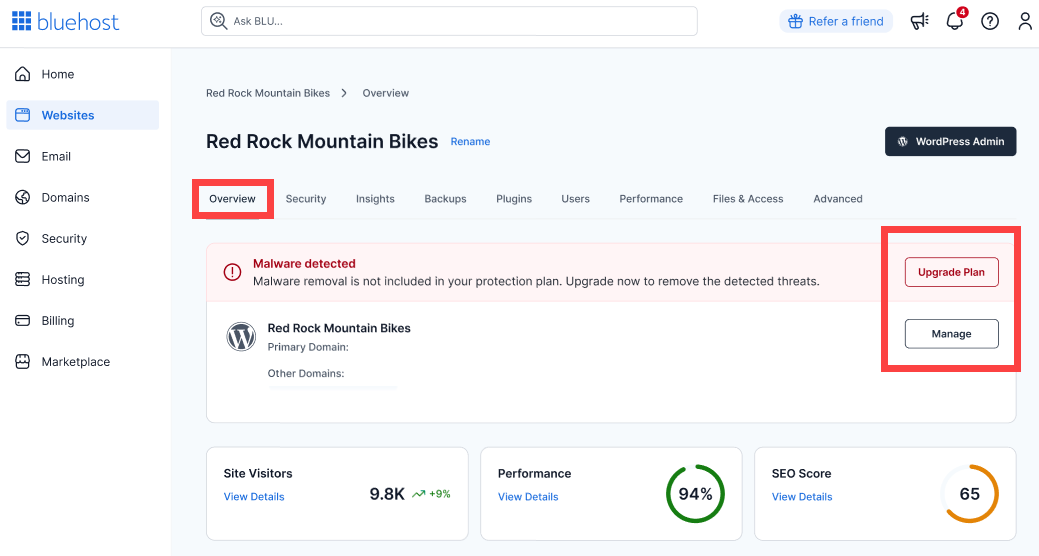
Malware removal is not included in your Malware Security plan: Under the Overview tab, you’ll have the options to:
-
Upgrade: Purchase higher-level protection or upgrade your hosting plan.
-
Manage: Go to the main malware security dashboard.
-
-
Malware is detected, and the website is compromised: Under the Overview tab, you’ll have the options to:
-
View Threats: See a detailed report of detected malware.
-
Chat Now: Connect with Bluehost security specialists via chat for assistance.
-
Manage: Access the malware security dashboard.

-
-
Malware can't be cleaned automatically: Under the Overview tab, you’ll have the options to:
-
Upgrade: Purchase higher-level protection or upgrade your hosting plan.
-
Manage: Go to the main malware security dashboard.

-
- No Malware Detected: Click the Security tab in the horizontal menu. Click Manage under Bluehost Malware Protection to view your dashboard.
Inside the Malware Protection Dashboard
- The non-WordPress sites dashboard will look like the following:
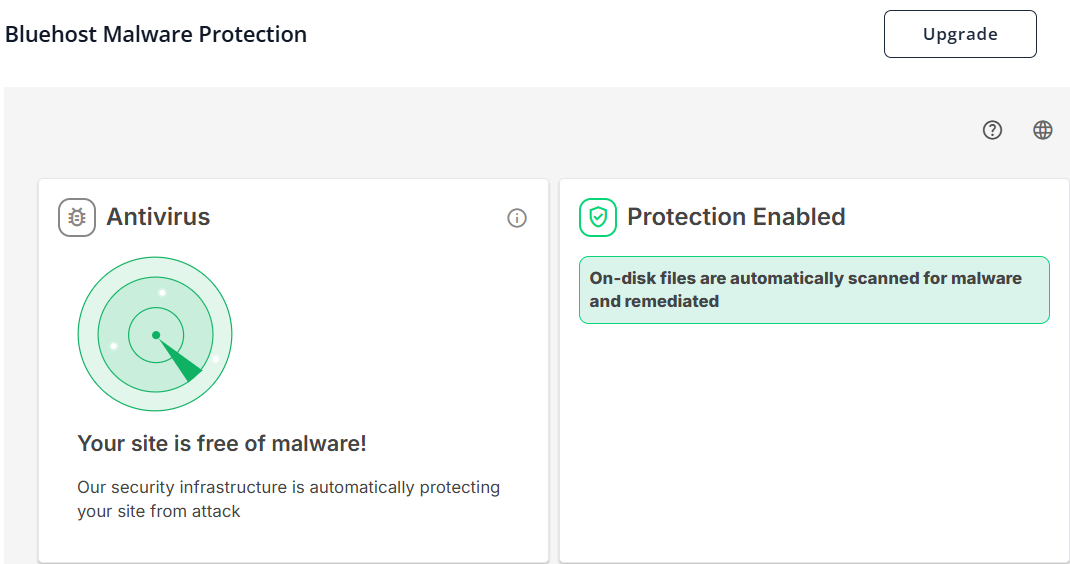
- The dashboard content will depend on your Malware Protection plan and scan results.
If you are using WordPress with your website, you will see the following:
Antivirus Section
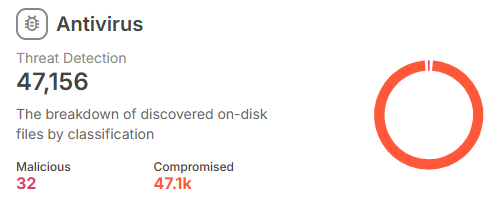
- Threat Detection: Overview and breakdown of discovered on-disk files by classification.
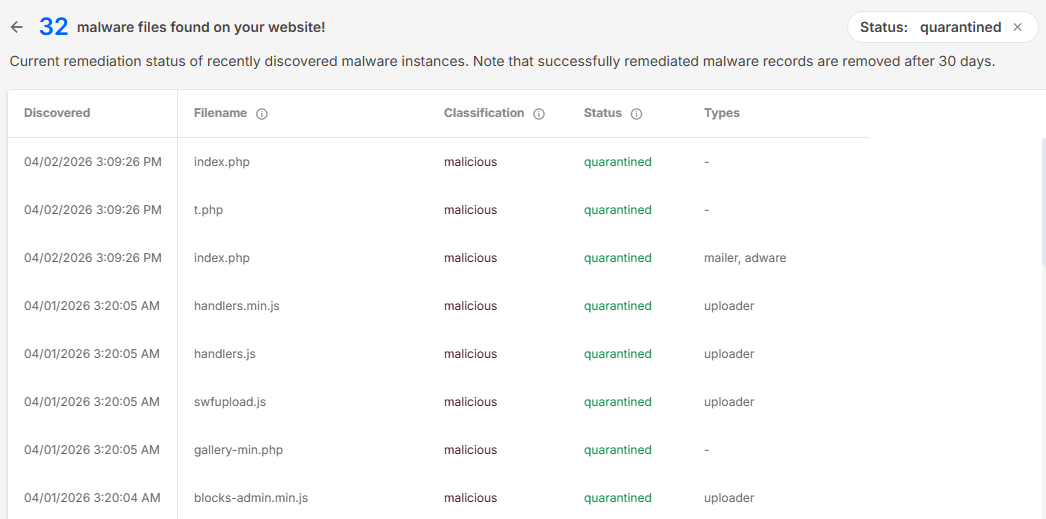
- Malicious: Displays the number of files found to be harmful.
Clicking opens a detailed list showing discovered time, filename, classification (malicious), remediation status (e.g., quarantined), and malware types associated.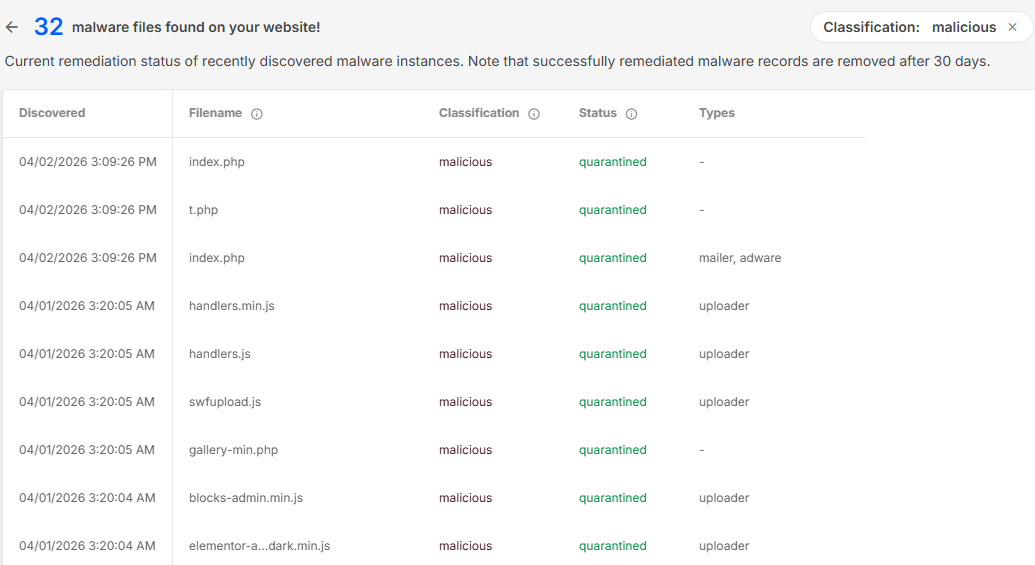
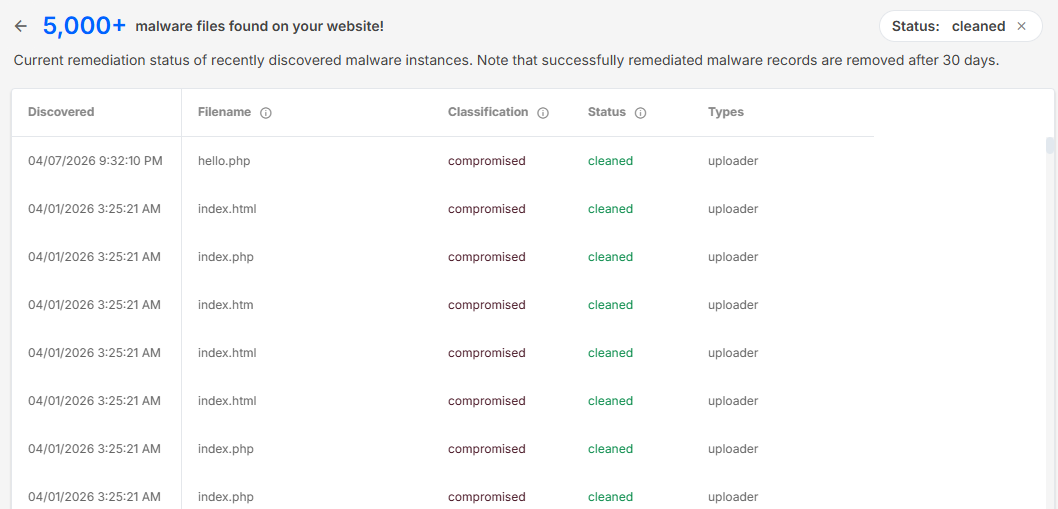
- Compromised: Shows files or database areas affected by malware.
Clicking opens a detailed list showing discovered time, filename, classification (compromised), remediation status (e.g., cleaned), and malware types involved.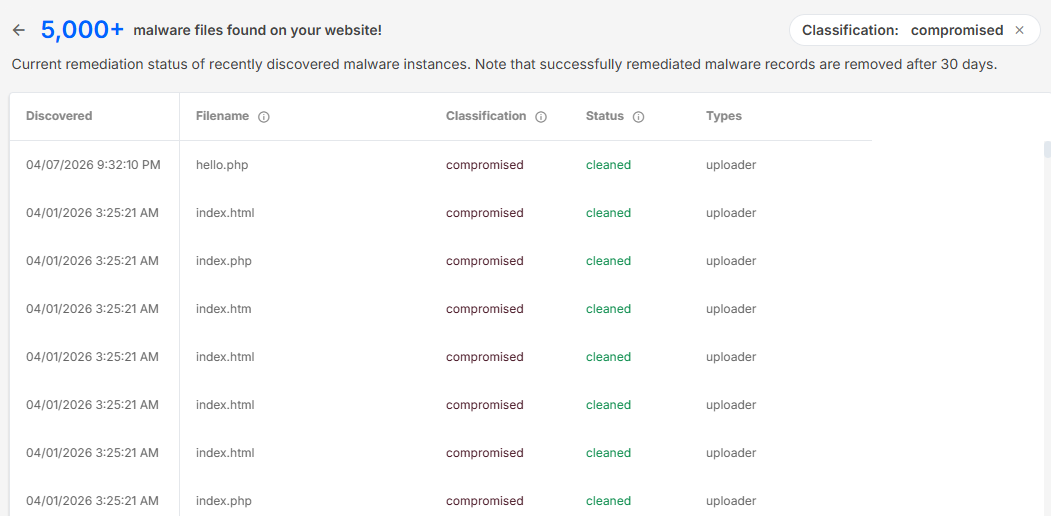
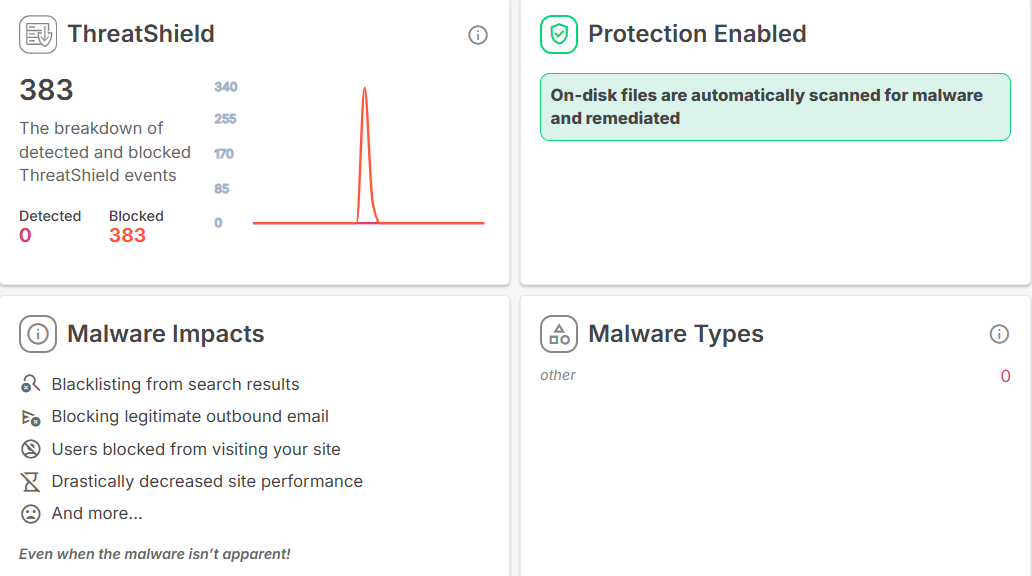
ThreatShield Section
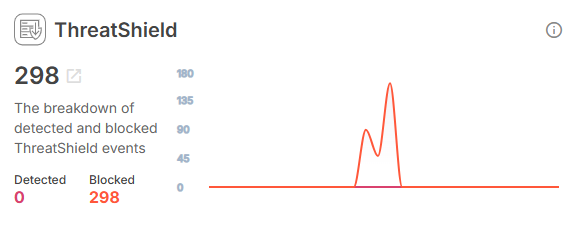
- Provides the breakdown of detected and blocked ThreatShield events, monitoring runtime activity.
- Displays counts for Detected threats and Blocked threats.
- Clicking on Detected or Blocked opens details of malicious events such as brute force attempts, exploitation tries, spam, and more, including timestamp, category, URL, status, count, and client IP.
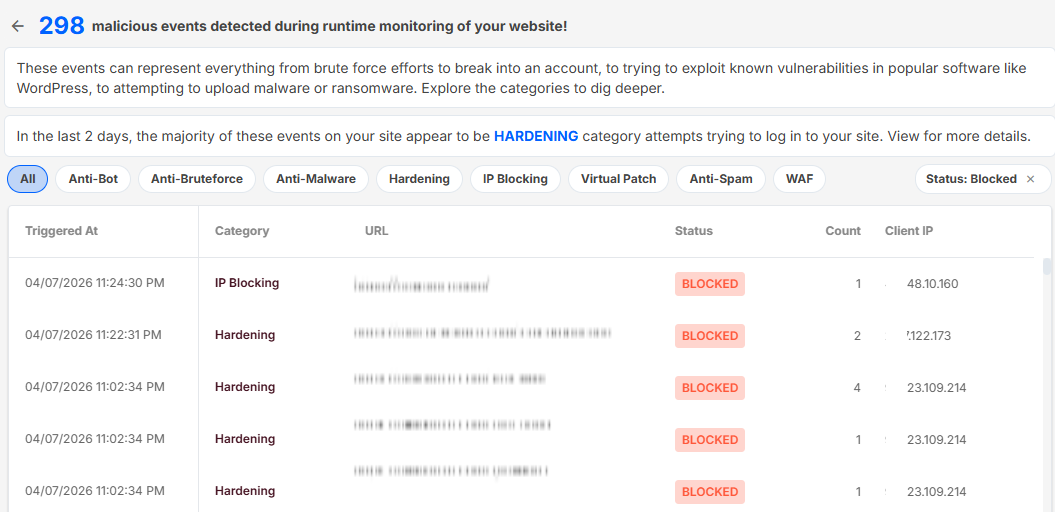
Categories:
- Anti-Bot: Bots are prevented from attacking a network, as their activity includes scraping and performing malicious activities.
- Anti-Bruteforce: A protection technique that prevents a user from making multiple attempts to log into an account.
- Anti-Malware: Malicious payloads or malicious software executions can be detected and blocked using this technology.
- Hardening: Protective actions taken by securing the system against any vulnerabilities.
- IP Blocking: Blocking any malicious activities of an IP address.
- Virtual Patch: Implements temporary security patches at the firewall level to protect from known vulnerabilities before official patches are applied.
- Anti-Spam: Stops unsolicited and potentially harmful spam messages sent through your site.
- WAF (Web Application Firewall): Provides deep inspection and filtering of incoming web traffic to block attacks like SQL injection, cross-site scripting, and more.
Protection Enabled Section
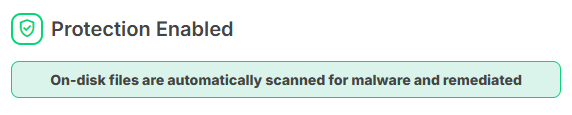
- Displays a confirmation message that “On-disk files are automatically scanned for malware and remediated.”
- Indicates that protection features are active and functioning.
Remediation Section
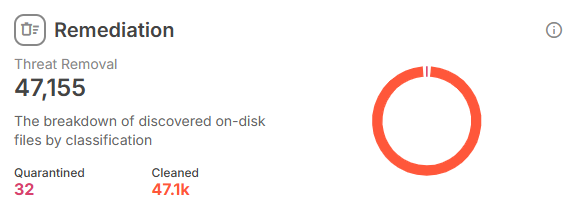
- Threat Removal: Shows progress and results of malware removal actions with a breakdown of discovered files by classification.
- Quarantined: Lists files placed in isolation for safe removal or further investigation.
- Cleaned: Displays items successfully restored to a safe, clean state.
- Clicking on Quarantined or Cleaned provides detailed lists of affected files, including status and classification.
Malware Impacts Section
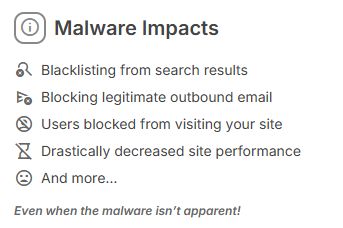
Highlights critical malware impacts such as:
- Blacklisting from search results: Search engines recognize that your site has been infected, banning you from their listings and thus limiting access to your website from users online.
- Blocking legitimate outbound email: Malware can cause your site’s email system to be flagged as spam, preventing important messages such as order confirmations or password resets from being delivered.
- Users blocked from visiting your site: Browsers or security tools may block access, displaying warnings that deter visitors and damage your site’s reputation.
- Drastically decreased site performance: Malware can consume server resources or cause errors that significantly slow down or destabilize your website.
- Additional impacts: There may be other consequences of malware infection that aren’t immediately visible, including data theft, corrupted content, and SEO penalties.
Malware Types Section
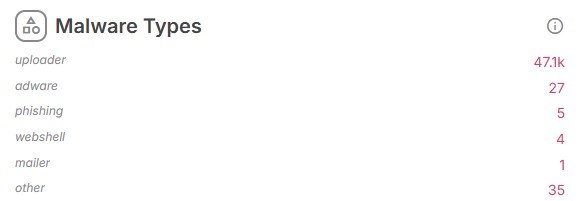
Breaks down the types of malware detected on your website, showing counts per category, like:
- Uploader: Scripts used by attackers to upload additional malware or malicious files to your website, facilitating further infection or control.
- Adware: Malware that injects or displays unwanted advertisements to your visitors, often degrading user experience and site credibility.
- Phishing: Malicious code that imitates login pages or forms to steal sensitive information such as usernames, passwords, or payment details from visitors.
- Webshell: Malicious scripts that grant attackers remote command and control over your server, allowing them to manipulate website files and settings.
- Mailer: Scripts that send spam or scam emails from your site’s mail server, which can lead to your domain being blacklisted.
- Other: Miscellaneous or uniquely identified malware types that don’t fall into the categories above but still pose threats.
Provides insight into which malware categories are most prevalent on your site, helping prioritize removal and protection strategies.
Summary
Website security must be taken seriously in this era. The Bluehost Malware Protection tool provides an effective, convenient way to remove malware from your site, ensuring its safety and functionality.
Through proper utilization of the dashboard, identifying the severity of the threat, and adhering to suggested actions, you can easily reclaim your website’s integrity.
Related Articles
If you need further assistance, Bluehost Chat Support is available 24 hours a day, 7days a week while Bluehost Phone Support is available 7 days a week from 7 am-12 midnight EST.
- Chat Support - While on our website, you should see a CHAT bubble in the bottom right-hand corner of the page. Click anywhere on the bubble to begin a chat session.
- Phone Support -
- US: 888-401-4678
- International: +1 801-765-9400
You may also refer to our Knowledge Base articles to help answer common questions and guide you through various setup, configuration, and troubleshooting steps.