 ChatGPT,
  Claude,
  Gemini,
  Grok — all four for
 Reimage Your Server for Ghost Installation
Ghost is an open source CMS for publishing content, managing memberships, and sending newsletters. This guide shows you how to reimage your Bluehost Self-Managed VPS and Virtual Dedicated Server (VDS) for Ghost installation using the BH Portal, so you can start publishing with Ghost quickly and efficiently.
How to Reimage Your Server for Ghost Installation
This guide walks you through installing and setting up Ghost using the Bluehost Portal.
This applies to both VPS and VDS.
- You can install only one application using the one-click installer.
- To change or delete your application, follow the guide: How to Change an Application. Create a backup of your existing applications or templates.
- To keep your current template, install the new application manually using SSH. Follow the same steps for both Self-Managed VPS and Virtual Dedicated Server (VDS). The system automatically selects the recommended operating system for Ghost.
- Log in to your Bluehost Portal.
- In the left-hand menu, click Hosting, then select My Plans.

- Click the Manage button on the hosting package you want to reimage.

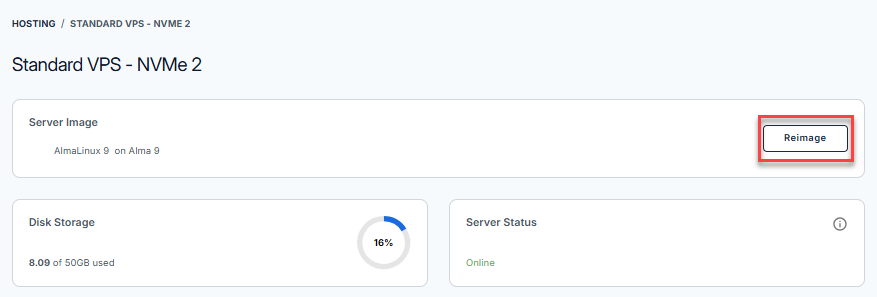
- Click the Reimage button.
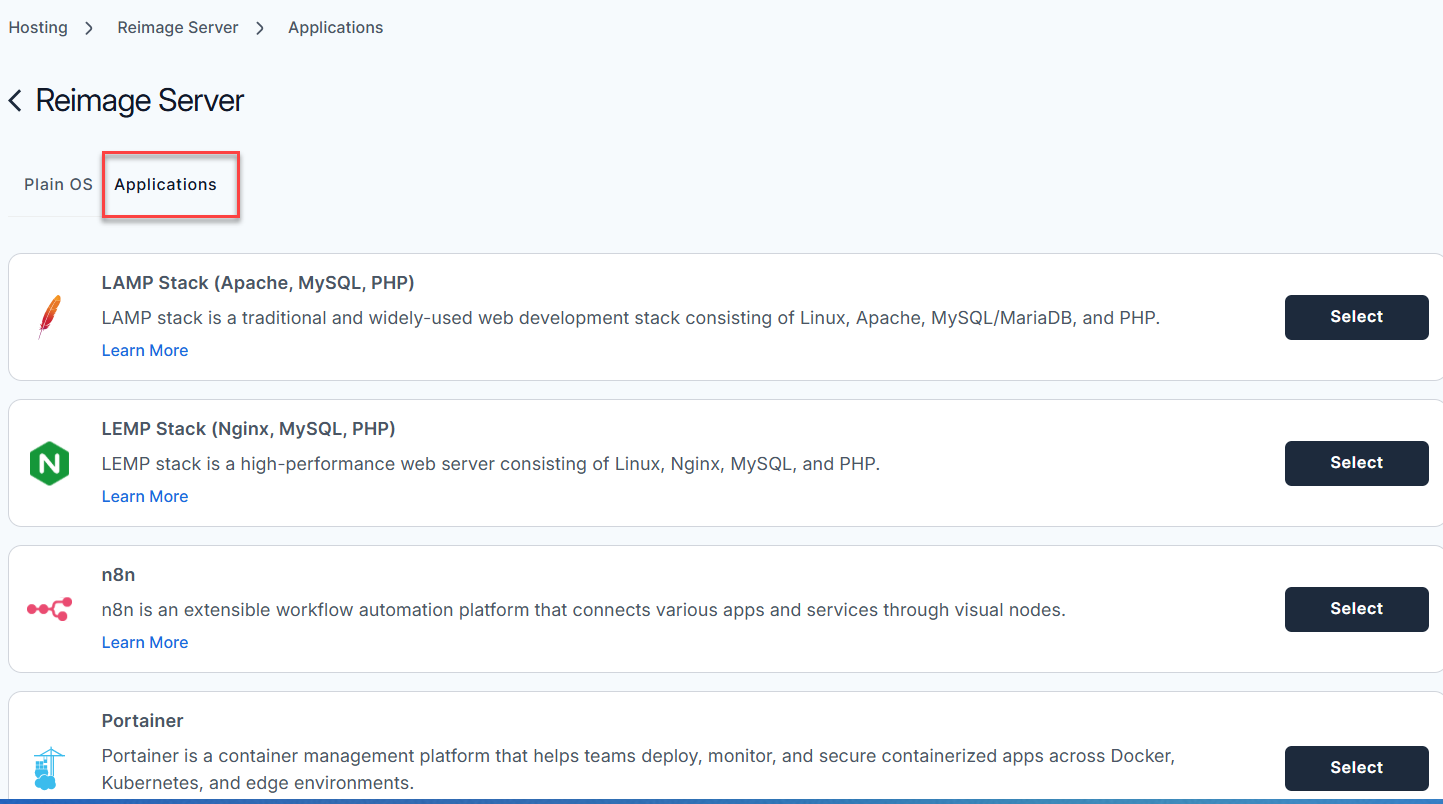
- Select the Applications tab.
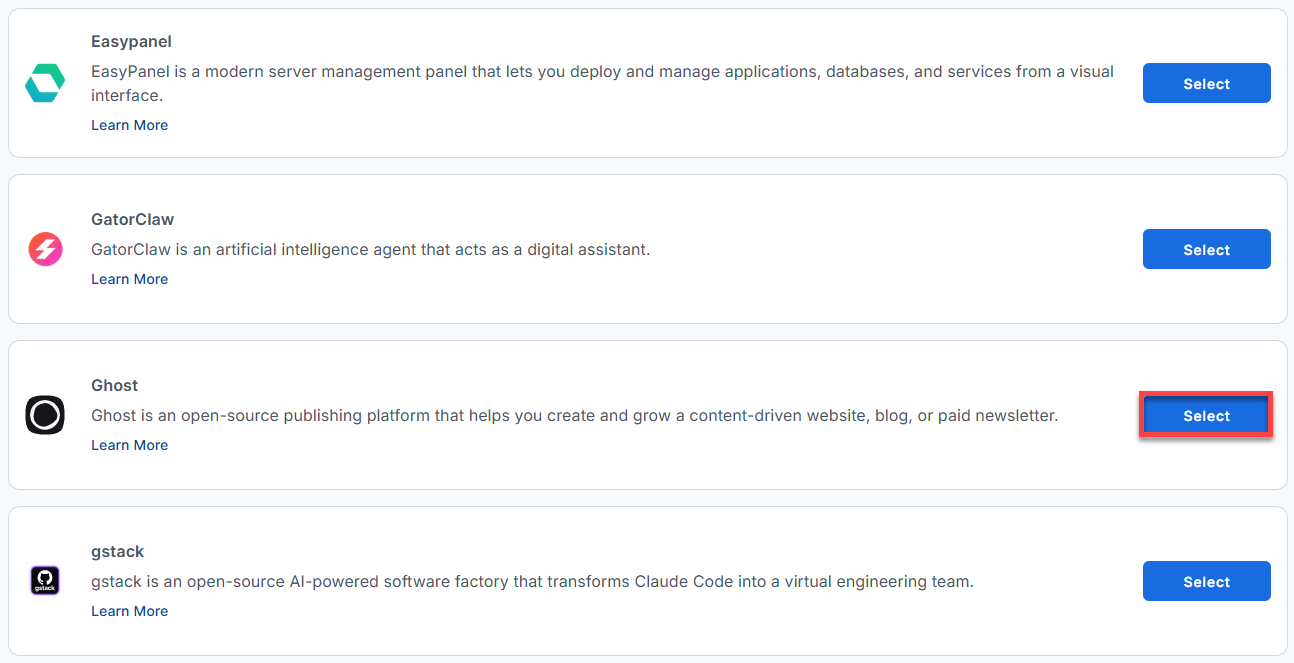
- From the list, locate Ghost and click Select.
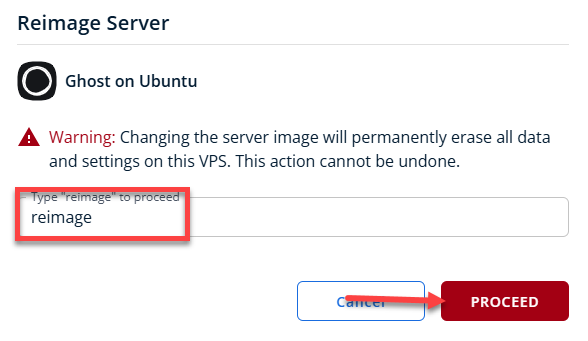
- To confirm, type "reimage" and then click Proceed to start the process.
- Wait a few minutes while the installation completes.

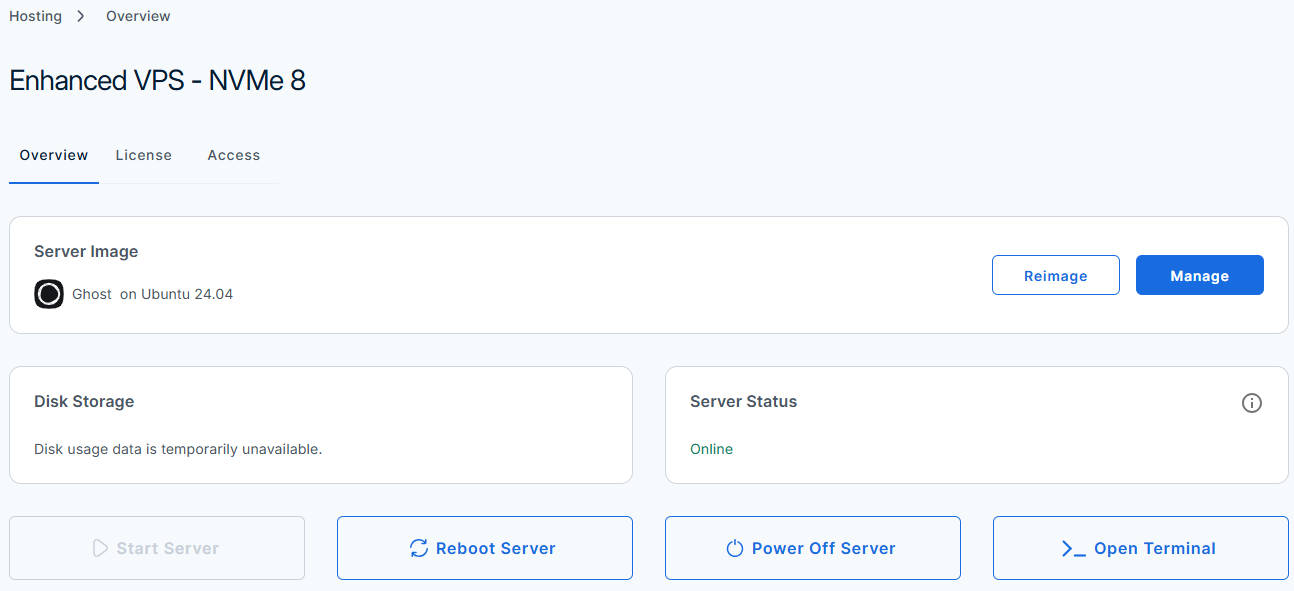
- Once completed, you will see Ghost listed in the Server Image section.
How to Set Up Ghost
After installation completes:
- Log in to your Bluehost Portal.
- In the left-hand menu, click Hosting, then select My Plans.
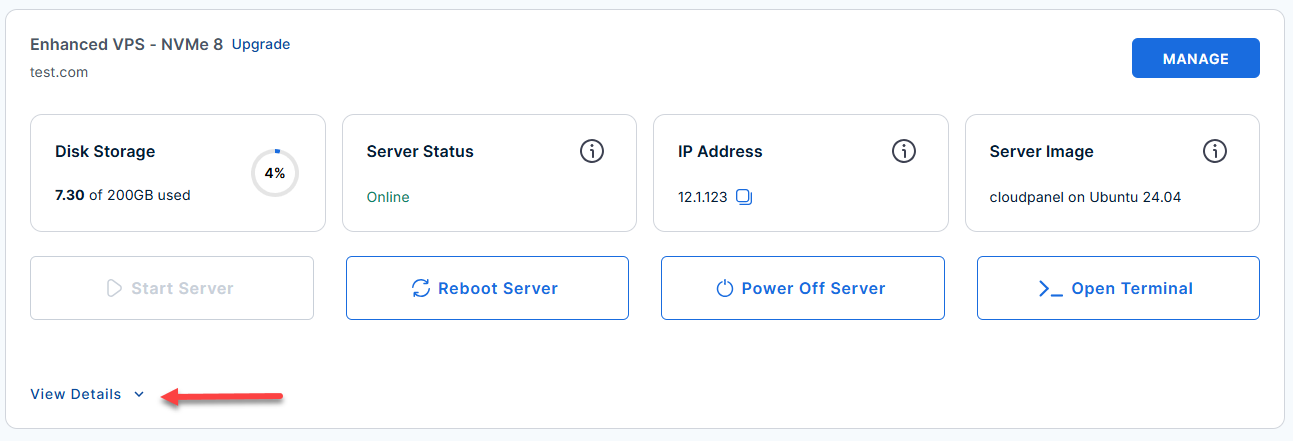
- Locate the server you want to manage, then click View Details in the bottom-left corner to expand the section and access additional server information.
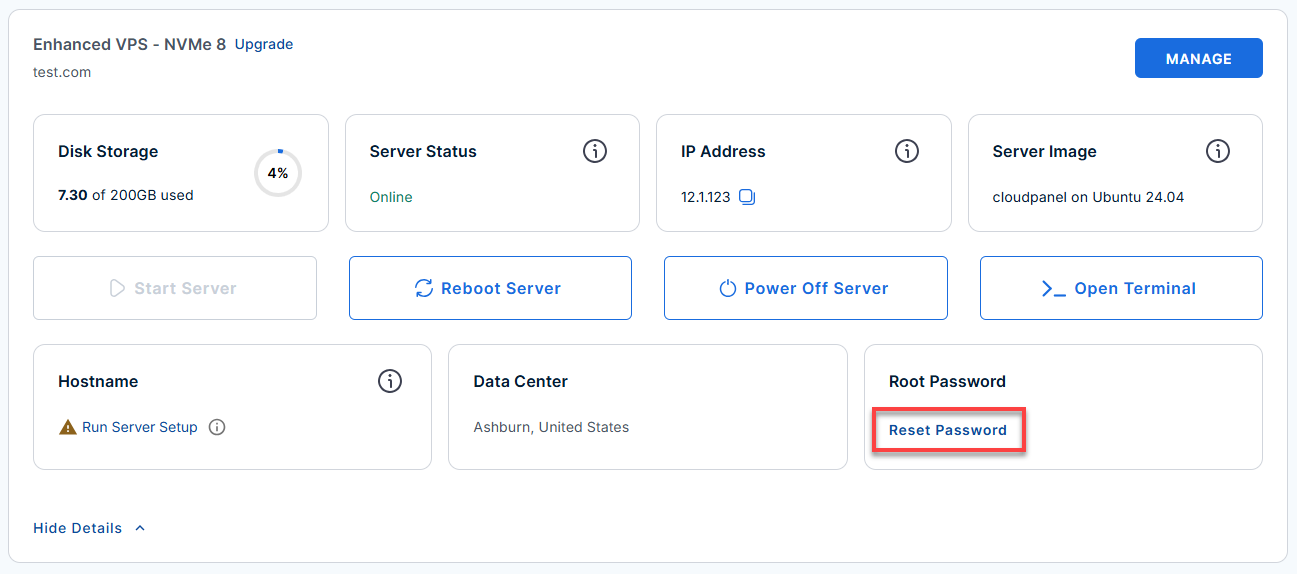
- Click the Reset Password.
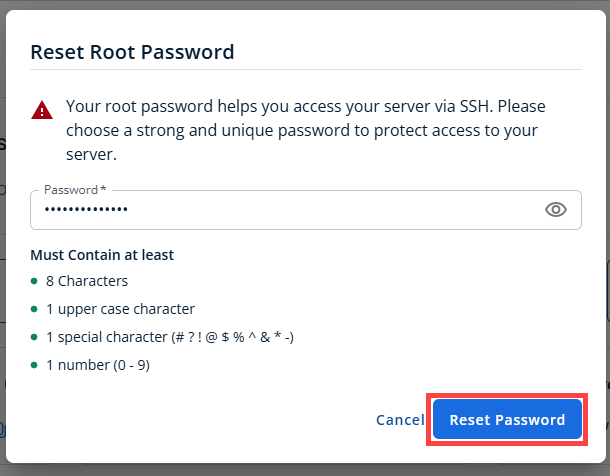
- In the pop-up window, type your new root password, then click Reset Password again to confirm and save the changes.
- Connect to your VPS via SSH.
Use your VPS IP and credentials with an SSH client, follow the prompts, and enter your root password when asked:Replaceyour_server_ipwith your actual server IP address.ssh root@your_server_ipWelcome to Ubuntu 24.04.4 LTS (GNU/Linux 6.8.0-117-generic x86_64) ******************************************************************************** Ghost Publishing Platform Ghost : 6.42.0 Nginx : active MySQL : active Node.js : v22.22.2 Blog : http://12.1.1.110/ Admin : http://12.1.1.110/ghost/ (create your account on first visit) SSH : port 22 | HTTP : port 80 | HTTPS : port 443 (UFW open; add SSL cert to activate) UFW enabled Credentials (generated on first boot): cat /root/.app_passwords Quick start: su - ghostapp # switch to the Ghost service user ghost status # check Ghost process status ghost restart # restart Ghost ghost update # update to latest version Service management: systemctl status nginx # Nginx reverse proxy systemctl status mysql # MySQL database tail -f /var/www/ghost/content/logs/http___*_production.log Enable HTTPS (post-deploy): 1. Point your domain DNS to this server's IP 2. Run the SSL setup script (uses acme.sh bundled with Ghost): bash /opt/ghost/setup-ssl.sh yourdomain.com 3. Update Ghost's URL to match: runuser -l ghostapp -c "ghost config set --dir /var/www/ghost url 'https://yourdomain.com'" 4. ghost restart --dir /var/www/ghost For full details refer: /root/README.md ******************************************************************************** To delete this message of the day: rm -rf /etc/update-motd.d/99-ghost ******************************************************************************** - View your first-boot credentials and URLs:
On first boot,
cloud-initgenerates all credentials (database, URLs) in/root/.app_passwords. Run:cat /root/.app_passwordsExample Output:
ghost_db_user="ghostapp" ghost_db_pass="23682b410ee4c0cf3e0193170930c52abc123" ghost_db_name="ghost_prod" ghost_blog_url="https://12.1.1.110/" ghost_admin_url="https://12.1.1.110/ghost/" # ghost_magic_link: NOT available yet. # Magic links can only be generated AFTER the Setup Wizard is completed # and an admin account exists. To mint one post-setup, run: # # curl -s -X POST http://localhost:2368/ghost/api/admin/authentication/magic-link/ \ # -H "Content-Type: application/json" \ # -d '{"email":"","emailType":"signin"}' # # The link will be emailed to the admin address (if SMTP is configured) # or can be retrieved from the Ghost logs. - Access the Ghost Admin panel in your browser and set up your admin user:
Replace
<server-ip>with your actual server IP address.http://<server-ip>/ghost/- Open this URL in your browser (replace
<server-ip>with your actual server IP from the credentials file). - Follow the on-screen wizard to create your admin account. This is only needed once.
- Open this URL in your browser (replace
- If you want API access, use the Content API endpoint:
curl http://<server-ip>/ghost/api/content/posts/?key=<content-api-key>- Get your Content API key from the Ghost Admin panel.
- Use the Ghost CLI for management (run as the ghostapp user):
- Switch to the Ghost user:
su - ghostapp
- Show Ghost process status:
ghost status
- Restart Ghost:
ghost restart
- Update Ghost to latest version:
ghost update
- Tail the Ghost log:
ghost log
- List all Ghost installations:
ghost ls
- Switch to the Ghost user:
- Service management commands (run as root):
- Ghost systemd unit:
systemctl status 'ghost_*'
- Nginx reverse proxy:
systemctl status nginx
- MySQL database:
systemctl status mysql
- Follow Ghost journal logs:
journalctl -u 'ghost_*' -f
- Follow general Ghost log file:
tail -f /var/www/ghost/content/logs/ghost.log
- Follow production HTTP log file:
tail -f /var/www/ghost/content/logs/http___localhost_production.log
- Ghost systemd unit:
- Run the test suite (advanced):
prove /root/app_test/main.t
Additional Links
Additional Information and Example Documentation Output
You can run cat /root/README.md to see more information and useful commands:
Example Output:
root@server-123456:~# cat /root/README.md
# Ghost

## Description

Ghost is an open-source publishing platform that helps you create and grow a content-driven website, blog, or paid newsletter.

It includes a clean writing editor, built-in SEO tools, membership management, and subscription features, making it a strong choice for independent writers, journalists, and creators who want full ownership of their audience.


## Services

| Service        | Port | Protocol | Notes                                 |
| -------------- | ---- | -------- | ------------------------------------- |
| SSH            | 22   | TCP      | UFW rate-limited                      |
| Ghost / Nginx  | 80   | TCP      | HTTP - Ghost proxied via Nginx        |
| Ghost internal | 2368 | TCP      | Internal only, not exposed externally |


## How-to-use

### First-boot credentials

On first boot `cloud-init` generates all passwords and writes them to
`/root/.app_passwords`. Read them with:

```bash
cat /root/.app_passwords
```

### Accessing Ghost

```bash
# Admin panel (set up your account on first visit)
http:///ghost/

# Ghost Content API
curl http:///ghost/api/content/posts/?key=
```

### Ghost CLI (SSH into server)

```bash
# Run as the ghostapp user
su - ghostapp

ghost status                    # show Ghost process status
ghost restart                   # restart Ghost
ghost update                    # update Ghost to latest version
ghost log                       # tail the Ghost log
ghost ls                        # list all Ghost installations
```

### Service management

```bash
systemctl status 'ghost_*'    # Ghost systemd unit
systemctl status  nginx                       # Nginx reverse proxy
systemctl status  mysql                       # MySQL database
journalctl -u 'ghost_*' -f   # follow Ghost journal
#tail -f /var/www/ghost/content/logs/ghost.log
tail -f /var/www/ghost/content/logs/http___localhost_production.log
 # follow file logs
```

### Running the test suite

```bash
prove /root/app_test/main.t
```


## Links

- Documentation: [https://ghost.org/docs/](https://ghost.org/docs/)
- Ghost CLI reference: [https://docs.ghost.org/ghost-cli](https://docs.ghost.org/ghost-cli)
- Ghost API reference: [https://docs.ghost.org/content-api](https://docs.ghost.org/content-api)
- Ghost GitHub: [https://github.com/TryGhost/Ghost](https://github.com/TryGhost/Ghost)
Summary
Ghost is a powerful publishing platform that you can quickly install on your Bluehost Self-Managed VPS and Virtual Dedicated Server (VDS) by reimaging your server. Follow the steps above to get started with Ghost and manage your content efficiently.