 ChatGPT,
  Claude,
  Gemini,
  Grok — all four for
 How to Set Up Catchall Email
In Bluehost cPanel, the catchall feature is referred to as the Default Address. Enabling the default address allows all misrouted or misaddressed emails to be sent to a specific email address instead of bouncing back to the sender. However, you should be careful when enabling a catchall email in Bluehost, as this feature can significantly increase the risk of receiving spam.
Default Address Restrictions
By default, Bluehost disables the Default Address (Catchall Email) feature for all Shared hosting accounts due to spam and security concerns. Bluehost support cannot re-enable this feature on these plans.
Although not recommended, customers using VPS and Dedicated Servers can enable and manage the catchall email feature manually through WHM.
If you see the following message in cPanel after clicking the Default Address icon, it means your hosting plan does not support catchall email:
“The Default Email/CatchAll feature has been turned off by default due to Spam and Security concerns. Please contact support for assistance with creating mail forwards (aliases) as an alternative.”
Recommended Alternative: Email Forwarding in Bluehost
For Shared hosting users, Bluehost recommends setting up email forwarding instead of using a catchall email address. This allows you to forward emails sent to specific addresses without exposing your inbox to excessive spam.
Set Up a Catchall Email
Once enabled, VPS and Dedicated Server customers can configure a catchall email address by following the steps below.
- Log in to your Bluehost Portal.
- In the left-hand menu, click Hosting, then select My Plans.
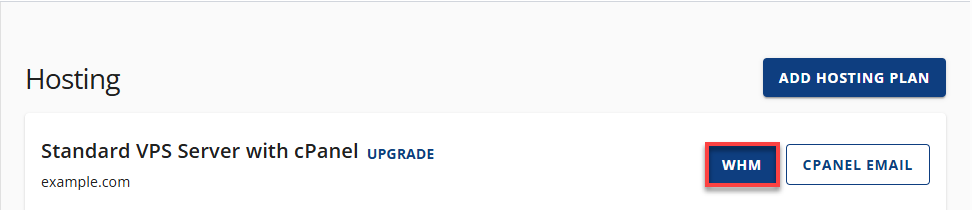
- On the hosting details page, click the WHM button.
- Use the Search box and type List Accounts.
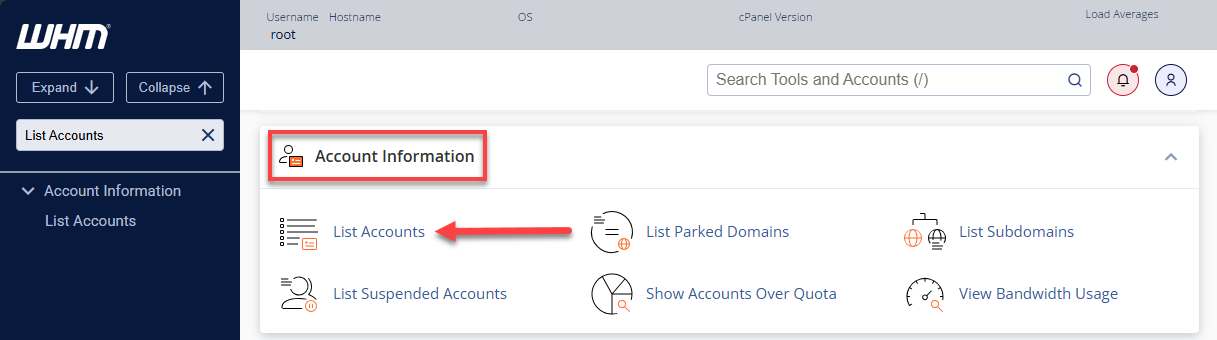
Alternatively, locate Account Information → List Accounts.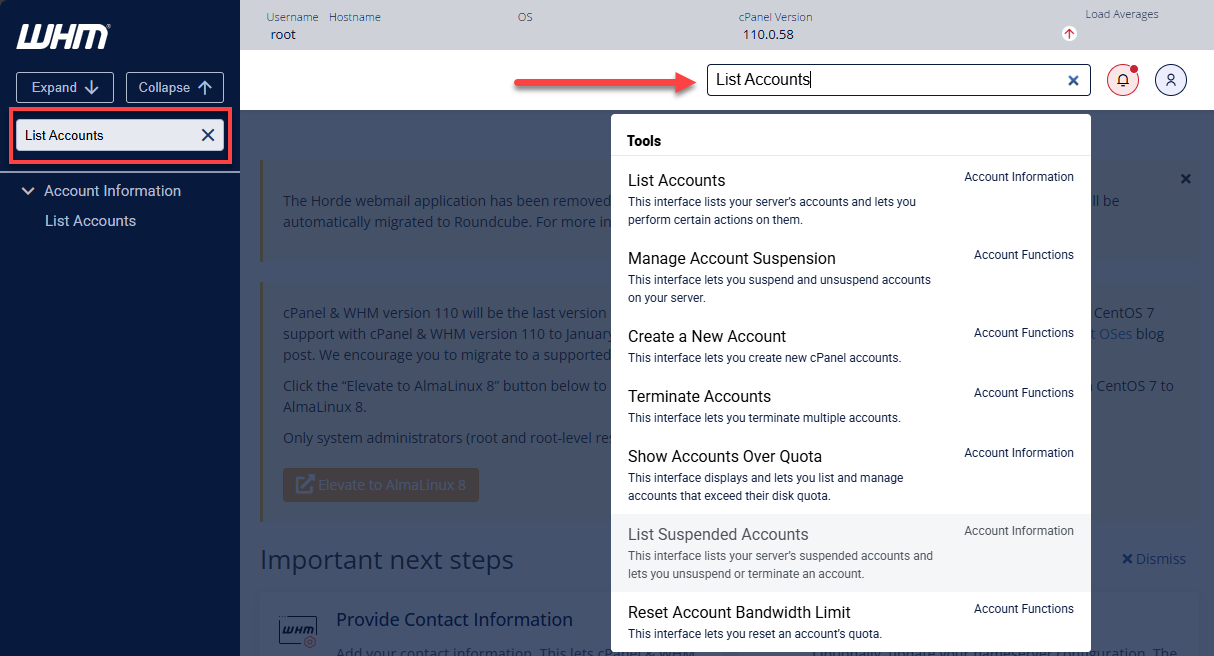
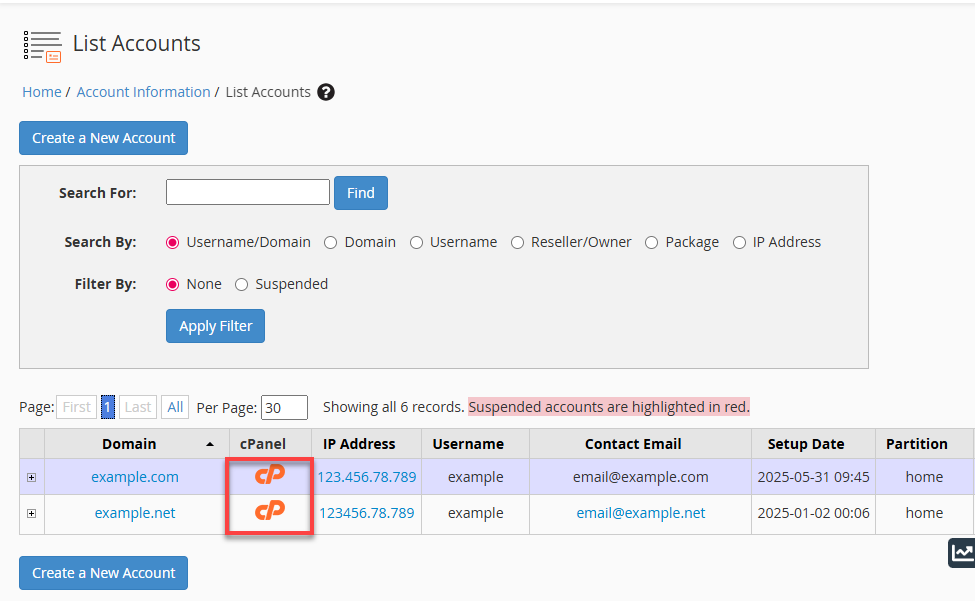
- Choose the cPanel account associated with the domain you want to configure.
- Under the Email section, click the Default Address icon.
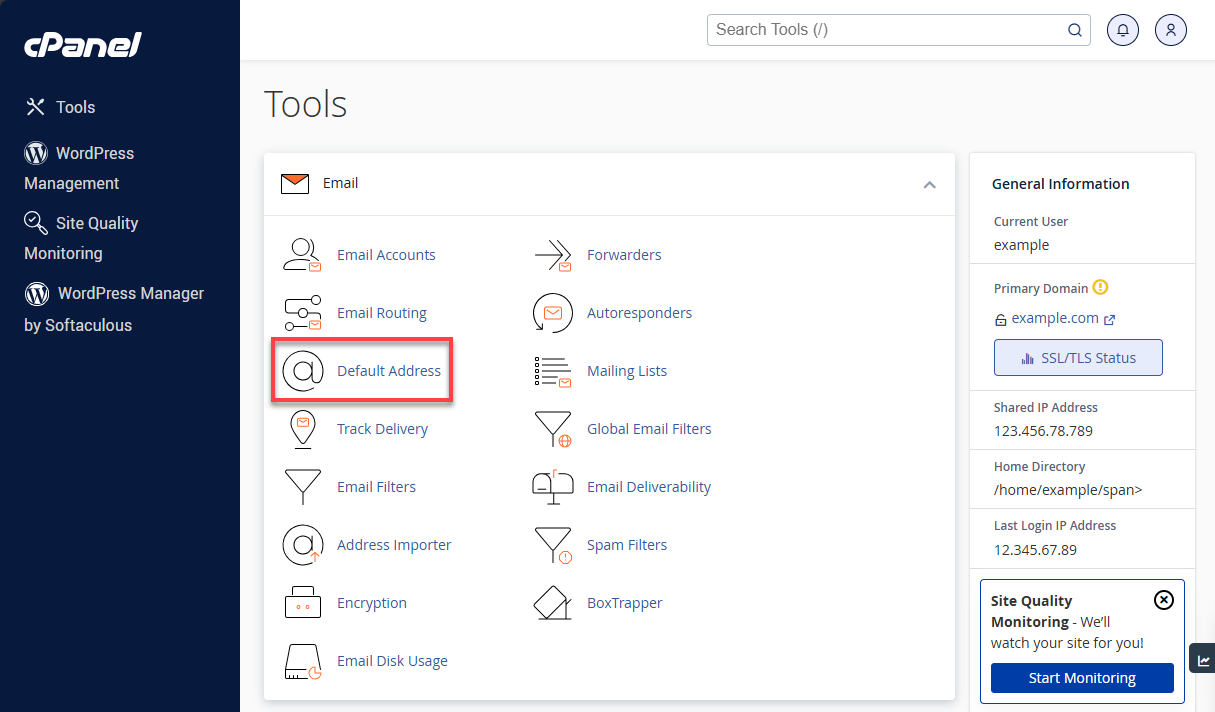
Configure Bluehost Catchall Email Options
In the dropdown labeled “Send all unrouted emails for the following domain”, select the domain name you want to configure. Choose one of the following handling options:
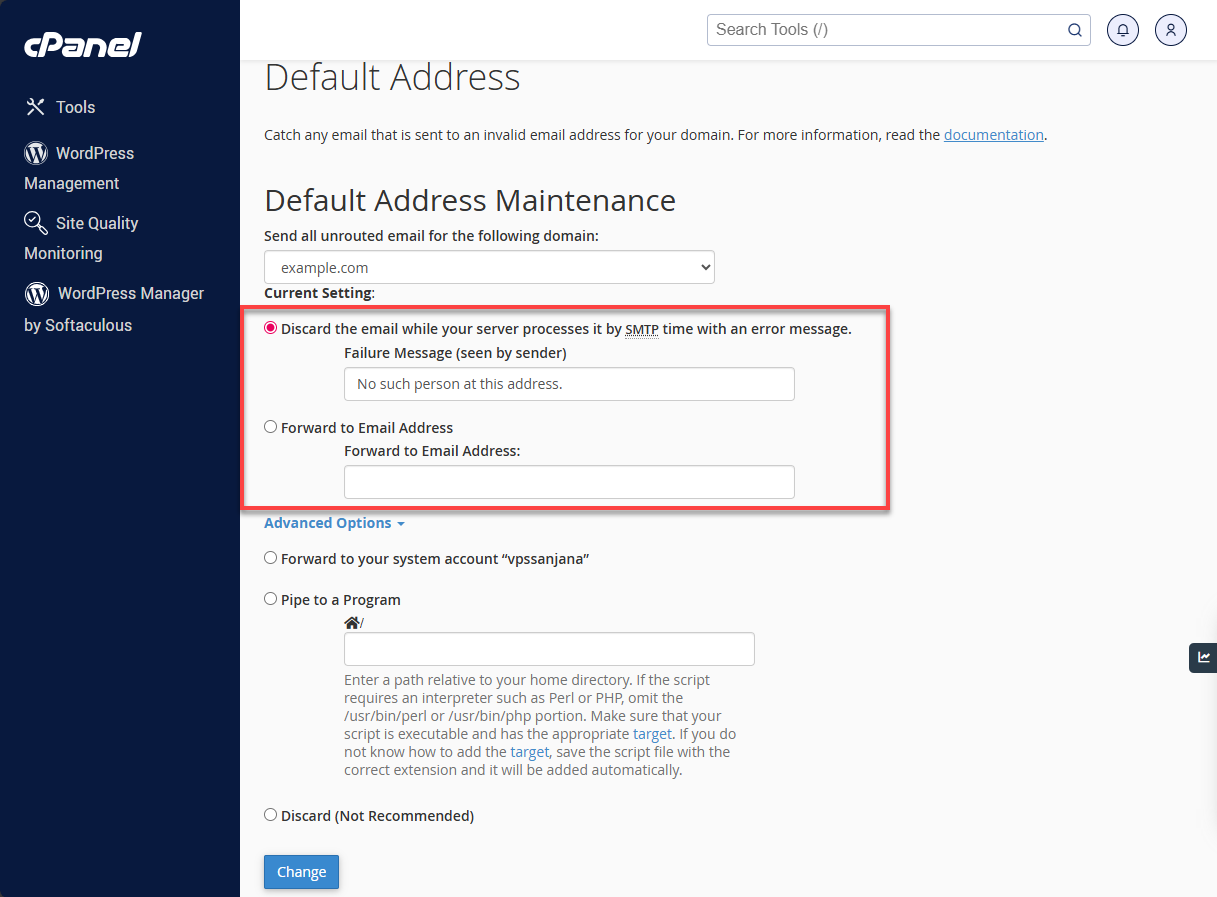
Common Catchall Email Options
- Discard with error to sender (SMTP time)
Emails are rejected with a custom error message that you can define. - Forwarding to email address (Most Used)
All misaddressed emails are forwarded to a designated email address.
Be cautious—this can quickly fill your inbox with spam.
Advanced Catchall Email Options
Click Advanced Options to access additional settings:
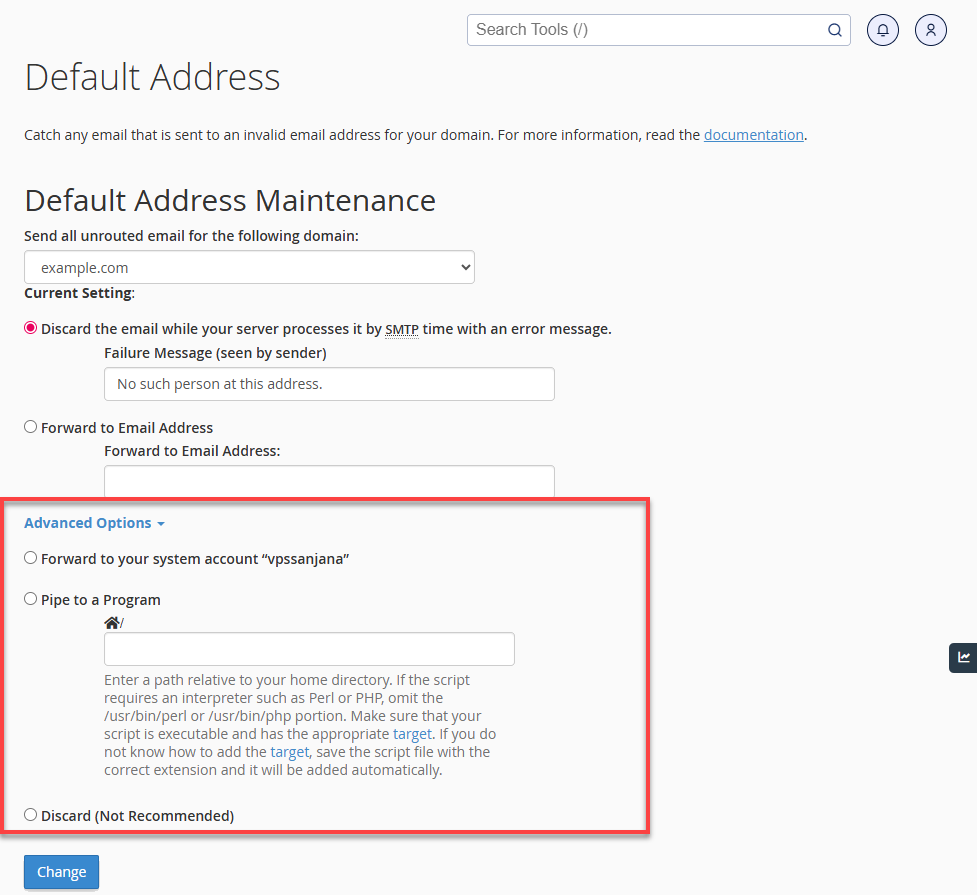
- Forward to system account – Sends mail to the primary system user
- Discard – Silently removes emails without sending a bounceback
- Pipe to a program – Sends emails directly to a script
- Use a path relative to your home directory
- Omit
/usr/bin/perlor/usr/bin/phpwhen required - Ensure the script is executable with the correct hashbang
Once configured, click Change to complete the catchall email setup.
Another top-tier alternative, Professional Email, is ideal for startups to build brand credibility or growing teams and organizations needing to streamline communication. This service includes a "catch-all" feature, acting as a safety net for your domain’s email system to receive messages sent to misspelled or non-existent usernames, to ensure no important client communication is ever lost.
Summary
Setting up a catchall (default) email address in Bluehost cPanel is only available for VPS and Dedicated Server customers due to spam and security risks. While the feature can prevent lost emails, it often results in excessive spam and storage issues. For Shared and Reseller hosting plans, email forwarding remains the safest and recommended solution for handling misdirected emails.
If you need further assistance, Bluehost Chat Support is available 24 hours a day, 7days a week while Bluehost Phone Support is available 7 days a week from 7 am-12 midnight EST.
- Chat Support - While on our website, you should see a CHAT bubble in the bottom right-hand corner of the page. Click anywhere on the bubble to begin a chat session.
- Phone Support -
- US: 888-401-4678
- International: +1 801-765-9400
You may also refer to our Knowledge Base articles to help answer common questions and guide you through various setup, configuration, and troubleshooting steps.