 ChatGPT,
  Claude,
  Gemini,
  Grok — all four for
 How to Remove Multiple Payment Methods in Your Bluehost Account
Managing your payment methods in your Bluehost account is essential to ensure seamless billing and account continuity. This article provides a step-by-step guide to help you remove multiple payment methods from your account. Along with clear instructions, we’ve included images to make the process even easier to follow.
- Bluehost requires at least one active payment method on file at all times.
- If you wish to remove all payment methods, you’ll need to contact Bluehost Support directly for assistance.
- For more information about the payment types accepted, check out the article Payment Types Accepted: Credit Card, PayPal, and Check.
Important Prechecks Before Removing a Payment Method
Before proceeding with removing a payment method, ensure the following steps are completed:
Turn Off Auto-Renewal for All Products
To remove a payment method, the Auto-Renewal MUST be turned off for all products linked to the payment method (credit card or PayPal).
Confirm the Reason for Removing the Payment Method
Before removing a payment method, ensure you have a clear reason for doing so. Common reasons include:
- Cancellation - To learn more about how to cancel your products and services, please see the How to Cancel a Hosting Account article.
- Updating Payment Information - To learn more about how to update your payment method on file, please see the How to Update Your Credit Card article.
Once the above-mentioned Prechecks are complete, follow the steps mentioned in the How to Remove Payment Methods section of this article.
How to Remove Payment Methods
- Log in to your Bluehost Portal.
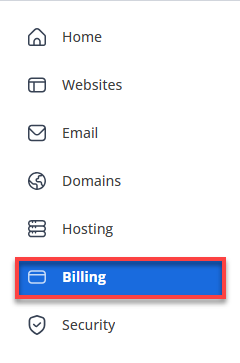
- In the left-hand menu, click Billing.
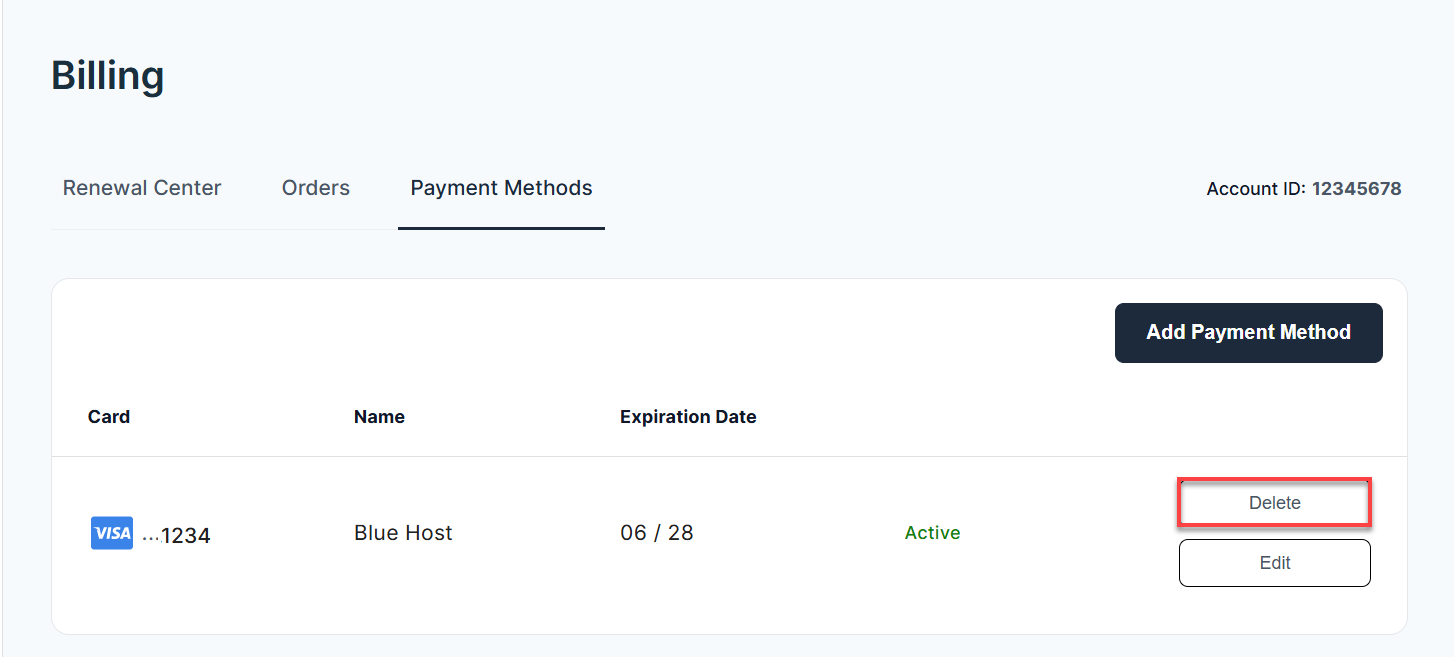
- Select the Payment Methods tab.
- Click the Delete option next to the payment method you want to remove.
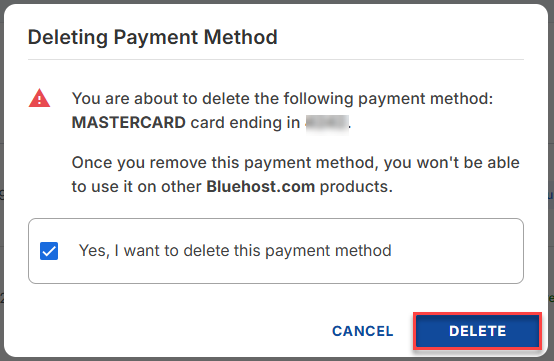
- On the Deleting Payment Method pop-up, tick the “Yes, I want to delete this payment method” box.
- Click the DELETE button.
Summary
Removing multiple payment methods from your Bluehost account is a straightforward process as long as you follow the necessary prechecks. Make sure to disable auto-renewal for all associated products and understand the reason for removing the payment method, whether it's canceling a service or updating billing details.
By following the step-by-step instructions in this article, you can efficiently manage your payment settings and keep your account up to date.
If you need further assistance, Bluehost Chat Support is available 24 hours a day, 7days a week while Bluehost Phone Support is available 7 days a week from 7 am-12 midnight EST.
- Chat Support - While on our website, you should see a CHAT bubble in the bottom right-hand corner of the page. Click anywhere on the bubble to begin a chat session.
- Phone Support -
- US: 888-401-4678
- International: +1 801-765-9400
You may also refer to our Knowledge Base articles to help answer common questions and guide you through various setup, configuration, and troubleshooting steps.