 ChatGPT,
  Claude,
  Gemini,
  Grok — all four for
How to use FTP via Windows Explorer
Microsoft provides a straightforward way to manage website files. Follow this guide to connect to your FTP account using Windows Explorer.
FTP Account Login
You will first need the FTP account login information. After that, you can connect with the primary cPanel username and password or an FTP account you have created in cPanel.
Before you start, make sure you have the following FTP account details ready:
Server: Your primary domain or the IP of your server.
Username: Cpanel username or [email protected]
Password: Use the password created for the FTP user you’re connecting with.
After gathering your FTP account info, launch Windows Explorer. Either click the Start button, then click on Computer, or use the shortcut Windows Key + E.
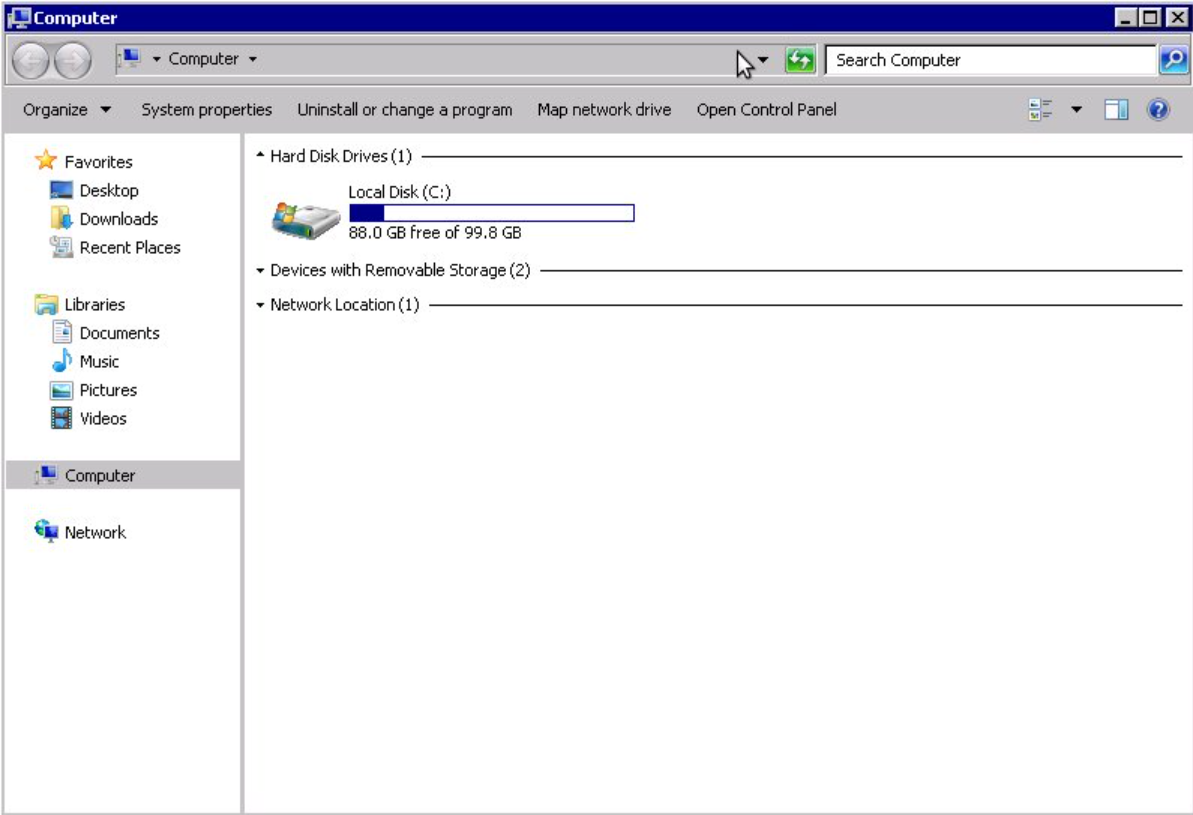
- Once Windows Explorer is up, you should see something similar to the following:
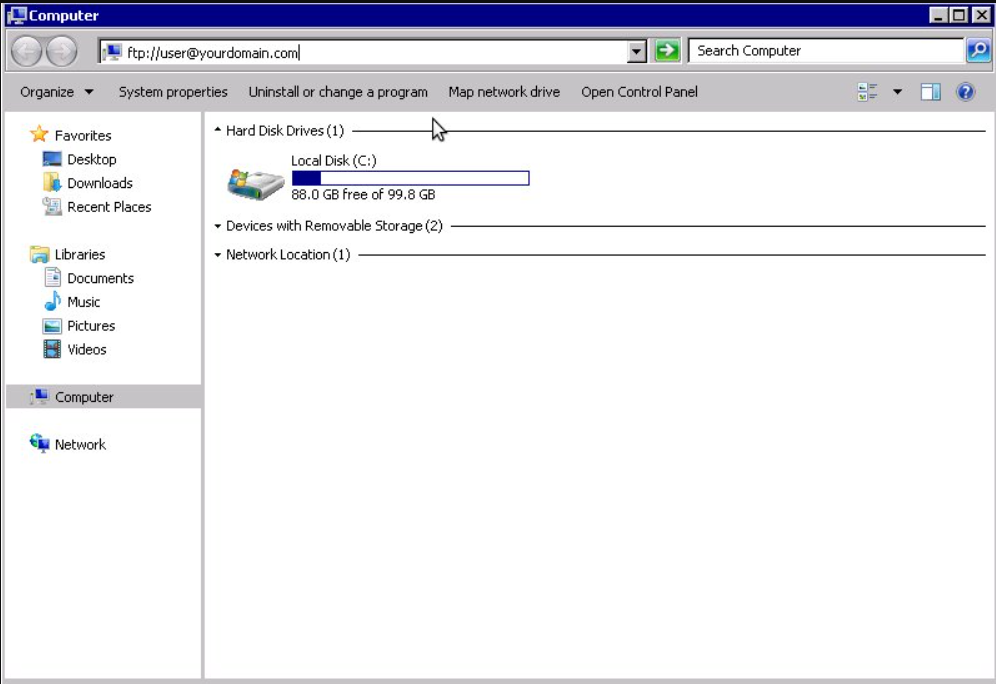
- Type ftp://[email protected] into the top address bar. Replace username with your cPanel username and example.com with your primary domain name. This should establish the connection and prompt you to enter your password.
Note: If you enter ftp://example.com, you will be connected anonymously. But anonymous connections don’t allow you to upload or download files, so be sure to use ftp://[email protected], so you will be prompted to input a password.
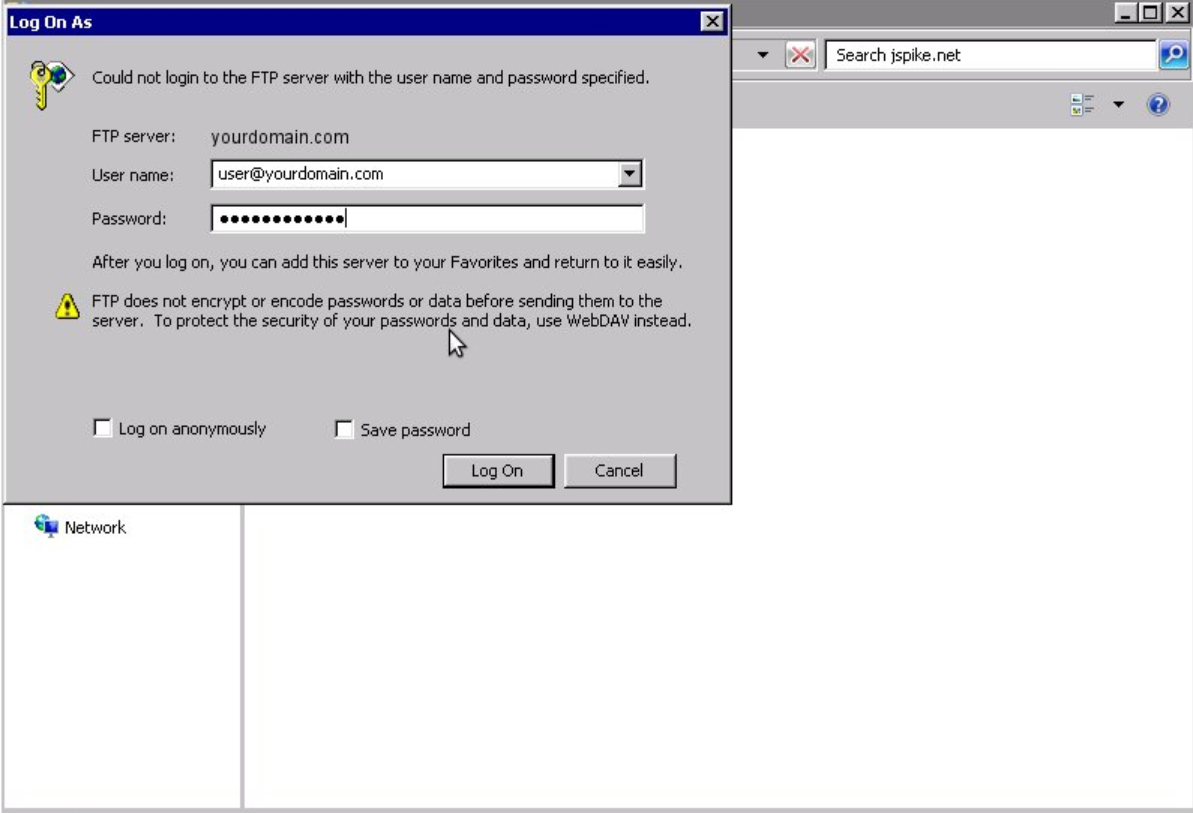
- Enter the full username and password for the FTP account you want to access, then click Log On.
- Your FTP connection is now active. You can drag and drop files between this window and your computer to upload or download.
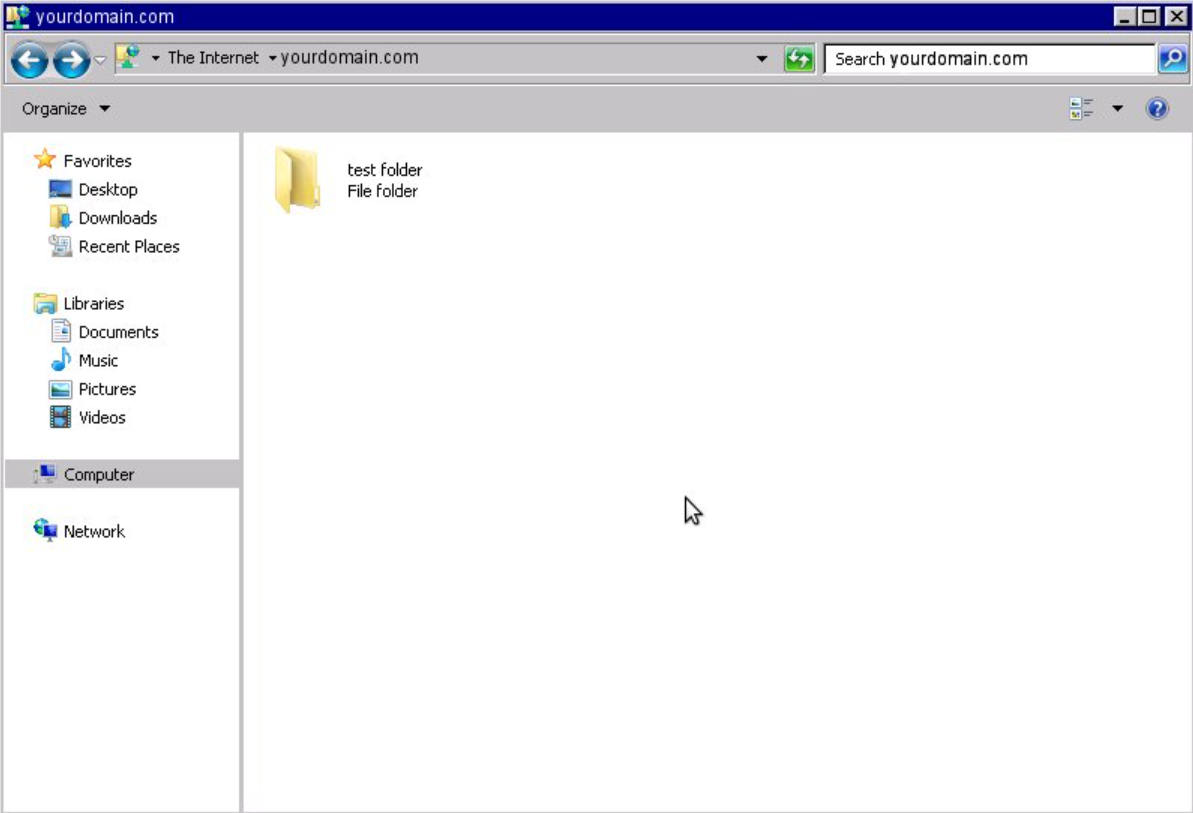
If you notice a “pub” directory, you’ve accidentally connected anonymously by leaving out your credentials. Enter your username and password and try again.
Summary
Microsoft provides a simple way to upload files to your website by connecting to an FTP account through Windows Explorer, the file management tool on Windows PCs, not Internet Explorer. To connect, have your FTP credentials ready: server address, username, and password. Open Windows Explorer, enter ftp://[email protected] in the address bar, and provide your password when asked. After logging in, you can drag and drop files to transfer them. Anonymous FTP connections block uploads and downloads, so always use your login details.
If you need further assistance, Bluehost Chat Support is available 24 hours a day, 7days a week while Bluehost Phone Support is available 7 days a week from 7 am-12 midnight EST.
- Chat Support - While on our website, you should see a CHAT bubble in the bottom right-hand corner of the page. Click anywhere on the bubble to begin a chat session.
- Phone Support -
- US: 888-401-4678
- International: +1 801-765-9400
You may also refer to our Knowledge Base articles to help answer common questions and guide you through various setup, configuration, and troubleshooting steps.