 ChatGPT,
  Claude,
  Gemini,
  Grok — all four for
 Purchase a Self-Managed VPS with Nanoclaw Installation
Nanoclaw is an extremely versatile and potent system that provides companies with more power over their server environment. Nanoclaw enables developers to perform operations like managing files, processing transactions, etc., by providing flexible features that blend into your applications seamlessly. Nanoclaw is user-friendly as well as customizable, which makes server management a breeze even for those who do not have extensive technical knowledge.
Why Use Nanoclaw?
Nanoclaw keeps your private data safe by running your personal assistant inside a secure, digital vault. It completely locks down each task, ensuring the assistant only sees what you explicitly allow. Now you can safely enjoy the full power of a smart assistant without ever compromising your digital security.
Uses of Nanoclaw
There are many applications of Nanoclaw in different fields:
- Secure Automations: Run automated scripts, file transfers, and system commands safely inside isolated digital vaults.
- Smart Approvals: Connect workflows to your messaging apps so you can approve sensitive tasks like email drafts or financial actions with a single tap.
- Custom Integrations: Direct the assistant to build its own tools on the fly, seamlessly connecting your assistant to apps like Slack, Telegram, or custom databases.
- Safe Data Handling: Analyze, summarize, and clean sensitive customer data or internal documents without risking data leaks or system hacks.
- Enterprise Development: Build deeply integrated corporate chatbots and virtual assistants that strictly respect user permissions and access levels.
This versatility makes Nanoclaw a valuable asset for companies looking to deploy secure, automated assistants with total peace of mind.
System Requirements
Before deploying, ensure your server meets the following minimum hardware requirements. For a stable production deployment, we recommend using higher specifications than the minimum requirements.
- Do not purchase a server that only meets the minimum requirements (4 GB RAM). The minimum specifications represent the software's bare survival threshold and do not account for operating system overhead or production workloads. Running with lower specifications can result in severe performance slowdowns, system freezes, or unexpected crashes during traffic spikes.
- Bluehost Self-Managed VPS and VDS lack dedicated GPUs (VRAM). Running local LLMs entirely on their CPUs will cause extremely slow response times. For optimal performance, host your application on Bluehost but connect it to an external AI cloud provider (like OpenAI or Anthropic) via API.
- For a stable deployment, we recommend using the recommended specifications (8 GB RAM). While lower specs might be sufficient for basic installation, consider allocating additional resources if you plan to store recordings, logs, or other application data.
| Resource | Minimum | Recommended |
|---|---|---|
| RAM | 4 GB | 8 GB |
How to Purchase a Self-Managed VPS Hosting with Nanoclaw Installation
To get started with Nanoclaw on Bluehost, you first need to purchase a Self-Managed VPS plan. Follow the steps below:

New to VPS or not sure where to start? No worries! At the top of the Self-Managed VPS purchase page, you’ll see the Pre-configured Setup section. This handy feature is perfect if you’re feeling a bit unsure—just pick the type of project you want, like WordPress Site, AI Agent/Claude Code, Dev/Staging, or eCommerce Store. We’ll take care of the rest by automatically filling in the best plan, operating system, and template for you.
- Super simple for beginners or anyone who just wants a quick setup
- Instantly get the recommended settings for your project
- Skip the guesswork and save time
- You can still customize things later if you want
- In your browser, go to https://www.bluehost.com/vps-hosting.
- Click the Choose Plan button under your preferred VPS hosting plan.
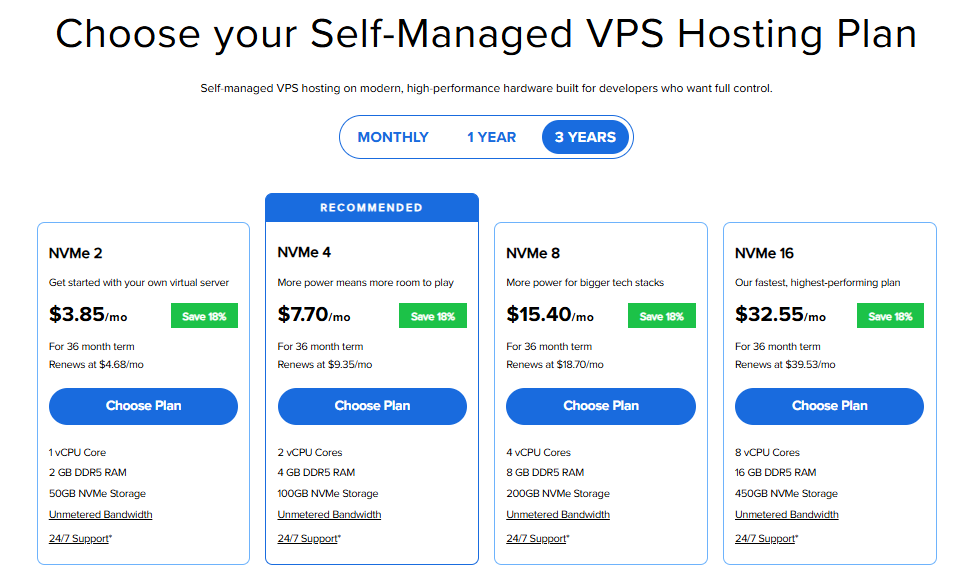
Important: Pricing is subject to change—please visit https://www.bluehost.com/vps-hosting for the current introductory/sign-up offer for Bluehost VPS Hosting. For the most up-to-date renewal pricing, visit your Bluehost Portal Renewal Center.
- Select your preferred Data Center location.

- On the Cart page, you can configure your server to fit your needs in the following section:
- Hardware:
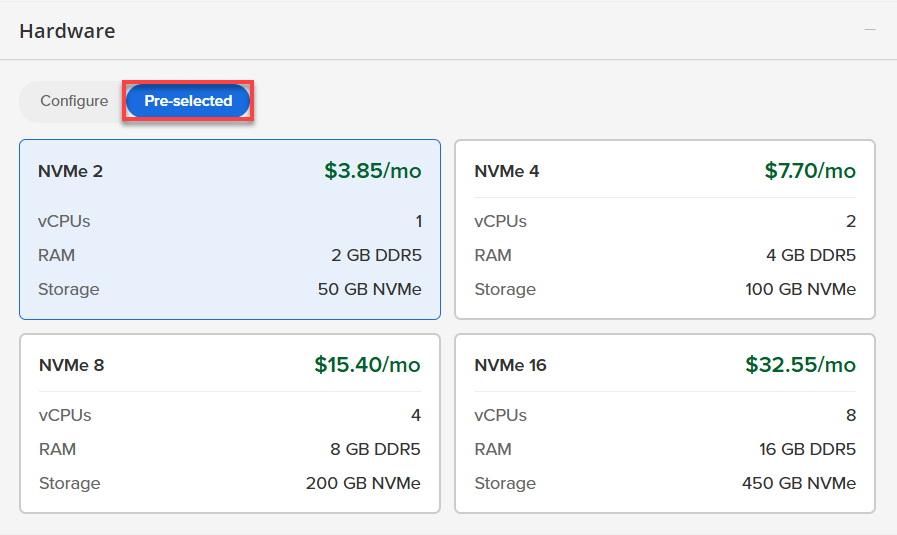
- Pre-selected:
You can select a different Self-Managed VPS plan in this section.
- Configure:
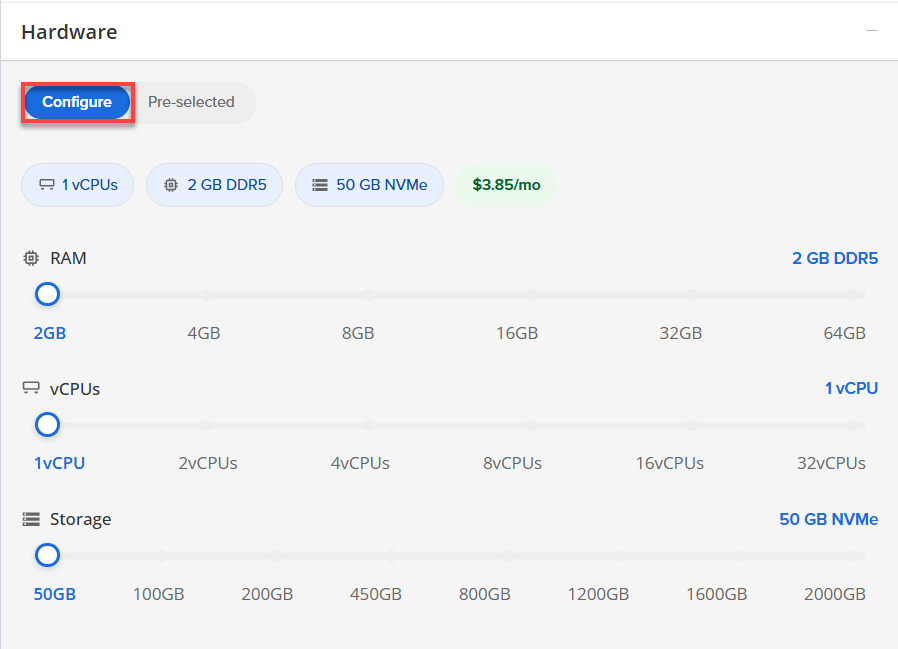
Click Configure to customize your package.
Note that your changes help customize your plan, and the overall cost will adjust accordingly to fit your needs.
- Pre-selected:
- Software:
If the selected plan does not meet the app's minimum requirements, the app will be grayed out.
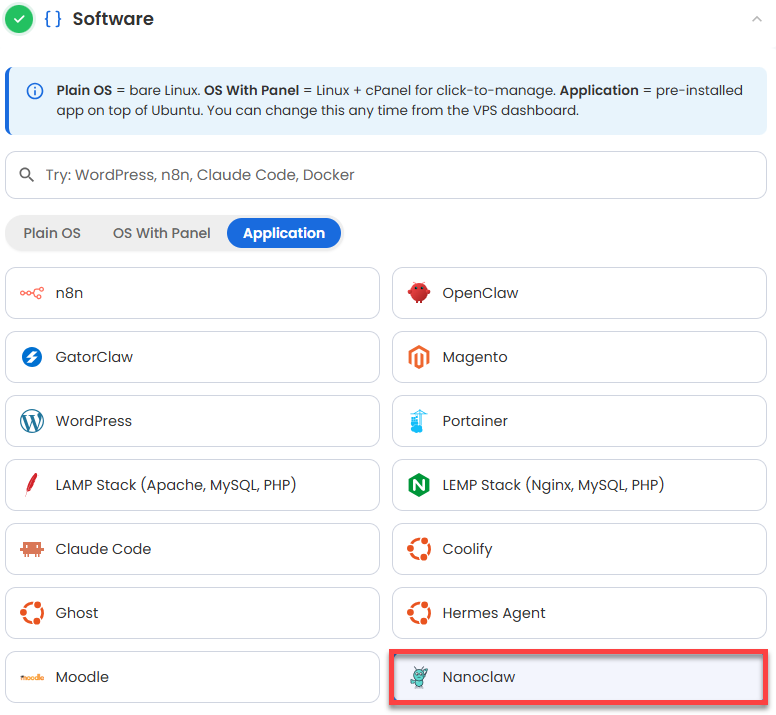
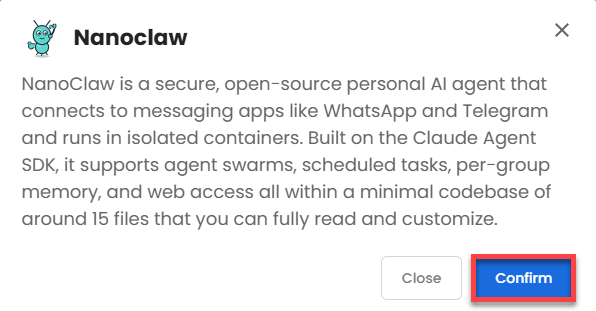
- Click on the Application Tab.
- Choose Nanoclaw.
- Click Confirm to continue.
- Hardware:
- Add-Ons:
- Support & Security:
- Premium Support - Recurring:
This service provides you with priority access to our expert team for faster responses and personalized assistance whenever you need it.

- Premium Support - Recurring:
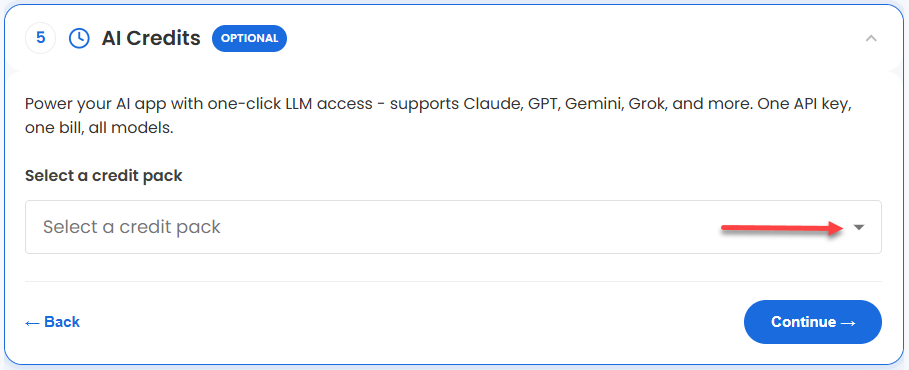
- AI Credits:
Purchase an AI credit package to effortlessly connect your application to leading LLMs through a single API key and bill. This step is optional.
- In the Advanced options:
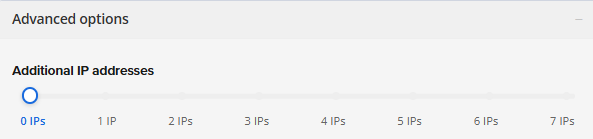
- Extra IP's: You can add extra IP addresses for an additional fee.
Pricing changes based on how many IPs you add. - Hostname: Assign a custom hostname to easily identify your server. This is optional.
- SSH Key: Add an SSH public key for secure, password-less access after provisioning.
- Extra IP's: You can add extra IP addresses for an additional fee.
- Support & Security:
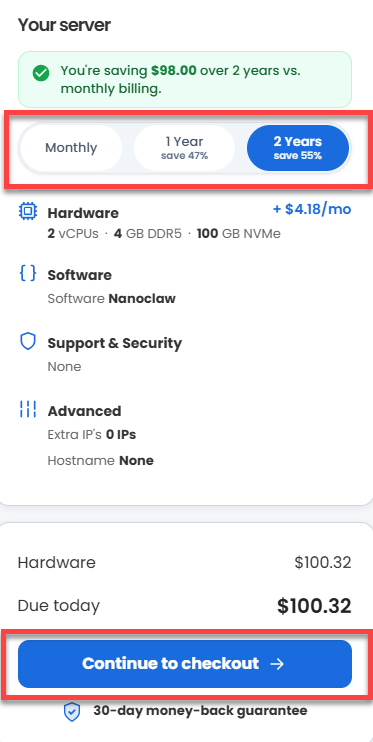
- Select your preferred billing term and view your Order Summary. Click the Continue to Checkout button to proceed.
- Do the following on the Checkout page:
If you're new with Bluehost:
- Create your Bluehost account by using your email address or by connecting with your Google, Apple, or GitHub account — whichever you prefer!
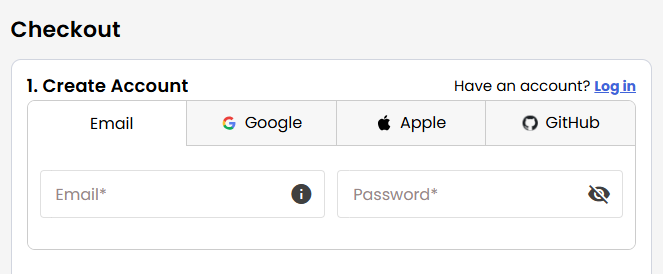
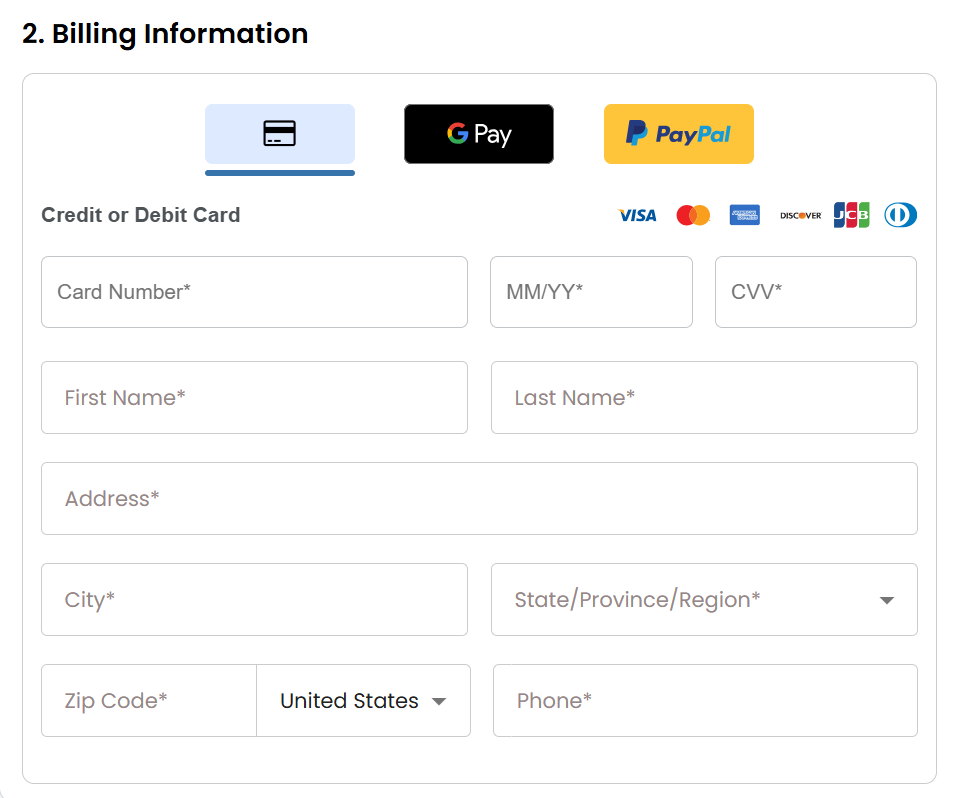
- Select your preferred payment method: credit card, Google Pay, or PayPal. Enter your billing information.
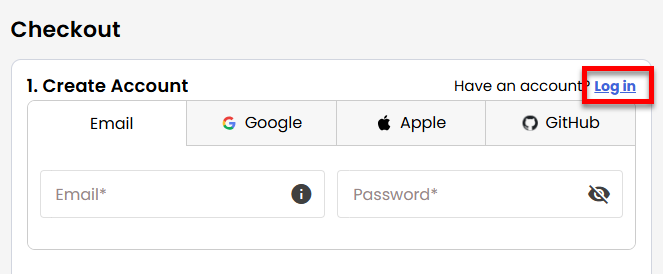
If you have an account with us, you will see your Bluehost login details when you are logged into your Bluehost Portal. If you are not logged in, please click the Log In link.
- Create your Bluehost account by using your email address or by connecting with your Google, Apple, or GitHub account — whichever you prefer!
- In the Shopping Cart section, you can still adjust your billing term if needed.
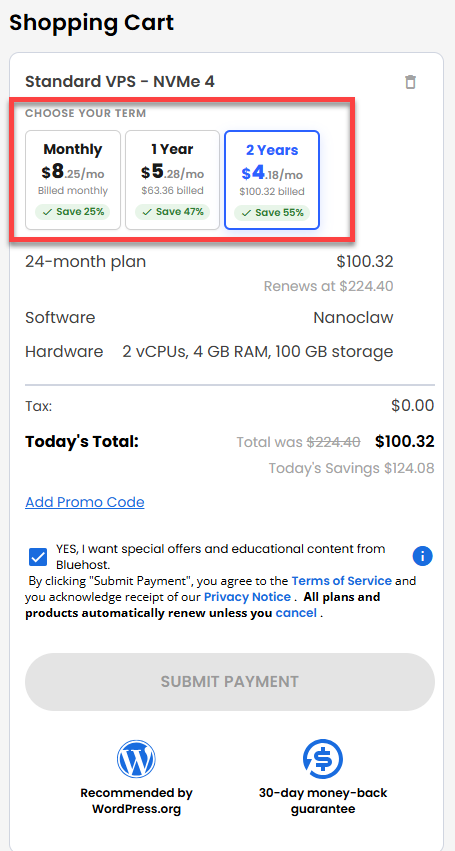
- Review the items in your cart, add a Promo Code if you have one, and then click Submit Payment to complete the purchase.
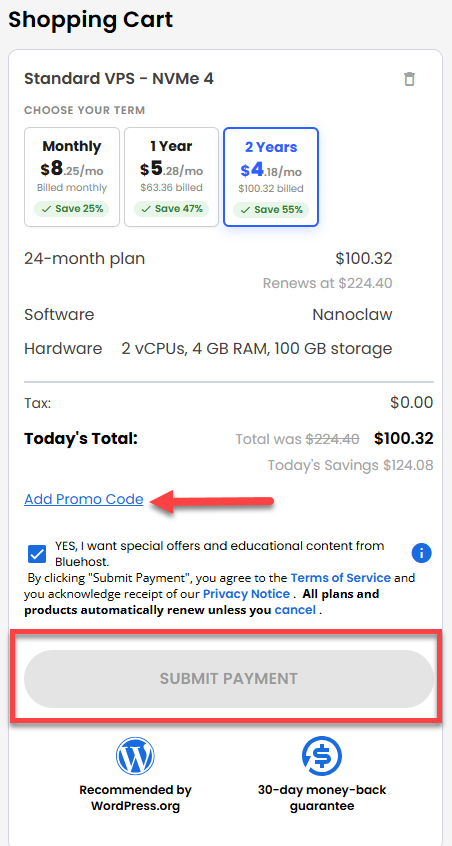
After completing the purchase, your VPS hosting will begin provisioning. You can access and manage your new VPS hosting in the Hosting tab of your Bluehost Portal.
How to Set Up Nanoclaw
After the installation is complete, follow the steps below to configure your application.
- Log in to your Bluehost Portal.
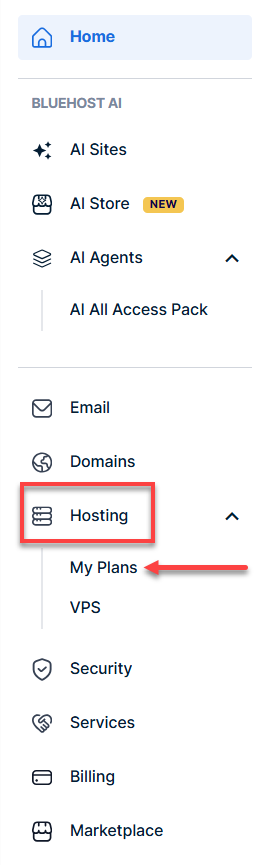
- In the left-hand menu, click Hosting, then select My Plans.
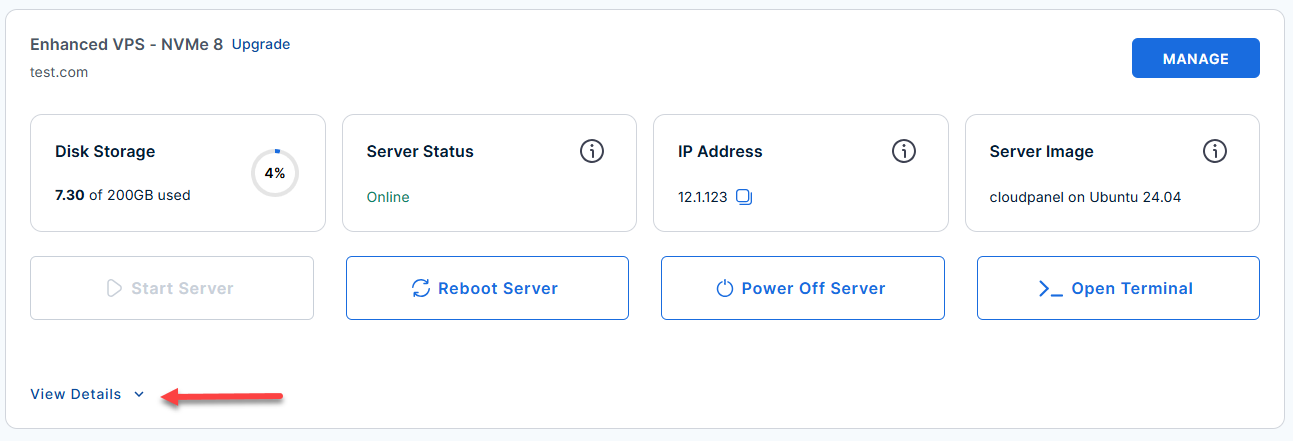
- Locate the server you want to manage, then click View Details in the bottom-left corner to expand the section and access additional server information.
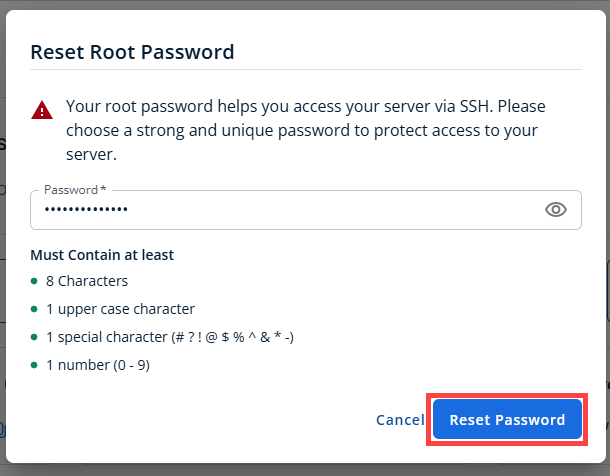
- Click the Reset Password.
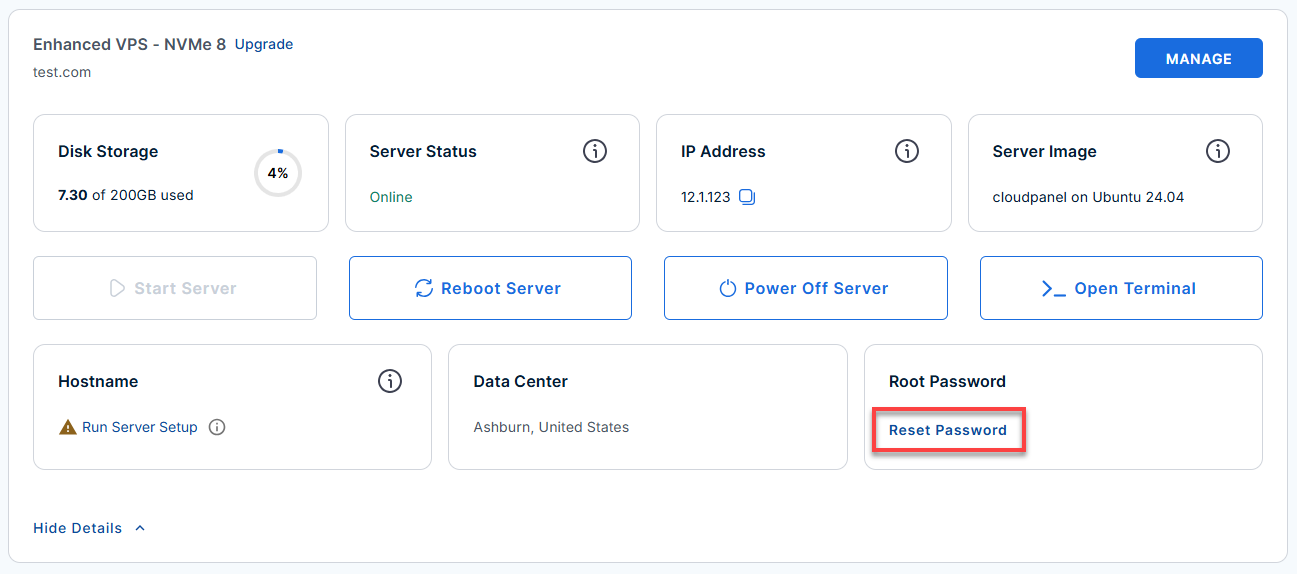
- In the pop-up window, type your new root password, then click Reset Password again to confirm and save the changes.
- SSH into your server: Open your terminal and connect as the root user:
Replace
your_server_ipwith your actual server IP address.ssh root@your_server_ipExample Output:
Welcome to Ubuntu 24.04.4 LTS (GNU/Linux 6.8.0-124-generic x86_64) ******************************************************************************** Nanoclaw AI Agent installed but NOT started -- initial setup required. -------------------------------------------------------------------------------- FIRST-TIME SETUP -------------------------------------------------------------------------------- Step 1 -- on the HOST (as root), enter the nanoclaw user session: machinectl shell nanoclaw@ The remaining steps run INSIDE the machinectl shell: Step 2 -- run the setup script: cd ~/nanoclaw bash nanoclaw.sh During setup, Nanoclaw generates a long-lived OAuth token and prints: export CLAUDE_CODE_OAUTH_TOKEN=<token> Step 3 -- copy and run that export command in the same shell once setup finishes: export CLAUDE_CODE_OAUTH_TOKEN=<token-shown-above> -------------------------------------------------------------------------------- RETURNING USERS (2nd login onwards) -------------------------------------------------------------------------------- Nanoclaw auto-starts on every boot (linger is enabled). To use Claude Code (INSIDE machinectl shell nanoclaw@): machinectl shell nanoclaw@ <-- run on the HOST claude <-- run inside machinectl shell /exit <-- to exit Claude Code -------------------------------------------------------------------------------- TROUBLESHOOTING (all commands run INSIDE machinectl shell nanoclaw@) -------------------------------------------------------------------------------- Enter user session first (on the HOST): machinectl shell nanoclaw@ Check service status: systemctl --user list-unit-files | grep nanoclaw systemctl --user status 'nanoclaw-v2-*' --no-pager -l View live logs: journalctl --user -u 'nanoclaw-v2-*' -f Restart service: systemctl --user restart 'nanoclaw-v2-*' Re-run setup (e.g. "FATAL: No channels connected"): cd ~/nanoclaw && bash nanoclaw.sh -------------------------------------------------------------------------------- Files & Documents -------------------------------------------------------------------------------- App : /home/nanoclaw/nanoclaw Env : /home/nanoclaw/nanoclaw/.env README : /home/nanoclaw/README.md | /root/README.md Nanoclaw AI Agent : https://nanoclaw.dev/ ******************************************************************************** To delete this MOTD: rm -rf /etc/update-motd.d/99-nanoclaw - Enter the
nanoclawuser session:machinectl shell nanoclaw@root@server-123456:~# machinectl shell nanoclaw@ Connected to the local host. Press ^] three times within 1s to exit session. nanoclaw@server-123456:~$ - Run the setup script inside the
nanoclawshell:cd ~/nanoclaw bash nanoclaw.sh◆ How would you like to begin? │ ● Standard setup │ ○ Advanced (override default)- Standard setup: Recommended for fast, guided experience (defaults + prompts).
- Advanced (override default): Manual config for custom ports, environments, expert needs.
- Wait for sandbox and vault creation, and handle OneCLI prompt:
│ Your assistant lives in its own sandbox. It can only see what you explicitly share. ... ◆ Found an existing OneCLI at http://172.17.0.1:10254. What would you like to do? │ ● Use the existing instance (recommended) │ ○ Install a fresh instance for NanoClaw- Use the existing instance: Maintains compatibility for all apps (recommended).
- Install a fresh instance: Creates a new, isolated vault (if required).
- Connect to Claude:
◆ How would you like to connect to Claude? │ ● Sign in with my Claude subscription (recommended if you have Pro or Max) │ ○ Paste an OAuth token I already have (sk-ant-oat…) │ ○ Paste an Anthropic API key (pay-per-use via console.anthropic.com) │ ○ Skip — I'll connect later (not recommended)- Sign in with my Claude subscription: Easiest and provides full access (Pro/Max).
- Paste an OAuth token: Use with a token from another device/account.
- Paste an Anthropic API key: Metered/easy per-use billing (via Anthropic Console).
- Skip — I'll connect later: Not recommended; delays complete setup.
Example outputs for each selection:
- Sign in with my Claude subscription
Open the browser to sign in… Launching: https://claude.ai/oauth?session=abc123 When sign-in completes: ✓ OAuth grant confirmed ✓ Linked to Claude subscription as [email protected] - Paste an OAuth token I already have (sk-ant-oat…)
Paste the OAuth token: sk-ant-oat-xxxxxxxxxxxxxxxxxxxxxxxxxxxxxxx ✓ Token accepted. Linked to Claude account. - Paste an Anthropic API key
Paste your Anthropic API key: sk-ant-xxxxxxxxxxxxxxxxxxxxxxxxxxxxxxxx ✓ API key accepted. Claude Code API rate limits/billing apply. - Skip — I'll connect later
◆ Skip Claude sign-in? The agent won't be able to run until you connect, and we won't be able to help debug setup errors. │ ○ Yes / ● No- If they select Yes (skip):
⚠ Warning: Skipped Claude sign-in.
NanoClaw cannot run until Claude is connected!
Setup will finish, but Claude features unavailable.
- If they select Yes (skip):
- Once Claude is set up, set your assistant’s display name:
◇ Access rules set. (0s) ◇ NanoClaw is running. (4s) ◆ What should your assistant call you? │ nanoclaw - Allow sandbox to warm up. If ping test fails, follow troubleshooting message. You may be prompted to sign into Claude CLI, then set timezone:
Assistant wired up. (1s) ... ◇ Your assistant didn't reply in time. (30s) ◇ Skipping the first chat ───────────── │ No reply from your assistant within 30 seconds. Check `logs/nanoclaw.log` for clues, then try `pnpm run chat hi`. ... ◆ Claude CLI isn't signed in. Sign in now? (a browser will open) │ ● Yes / ○ No ◇ Timezone set. (0s) ◆ Your system reports UTC as the timezone. Is that right, or are you somewhere else? │ ● Keep UTC (remote server / happy with UTC) │ ○ I'm somewhere else - Connect messaging/chat platforms (Telegram, Discord, etc.):
◆  Want to chat with your assistant from your phone?
│  ● Yes, connect Telegram (recommended)
│  ○ Yes, connect Discord
│  ○ Yes, connect WhatsApp
│  ○ Yes, connect Signal (needs signal-cli installed)
│  ○ Yes, connect iMessage (experimental) (remote Photon only)
│  ○ Yes, connect Slack (experimental) (needs public URL)
│  ○ Yes, connect Microsoft Teams (complex setup)
│  ○ Other… (install via /add- after setup)
│  ○ Skip for now (I'll just use the terminal)
Example outputs and official setup/token documentation links for each selection:
- Connect Telegram
To create a Telegram bot and get an HTTP API access token, review the Telegram BotFather Setup Guide.
Opening Telegram linking flow… Send the following code to @nanoclaw_bot in Telegram: /start dcaf-1234 ✓ Telegram account linked. - Connect Discord
To create a Discord bot and obtain your Application Token, follow the steps in the Discord Developer Getting Started Guide.
Open Discord and message @nanoclaw#1234 the code: dcaf-5678 ✓ Discord account linked. - Connect WhatsApp
To set up a WhatsApp Business platform connection and generate a permanent token, reference the Meta WhatsApp Cloud API Setup Guide.
A QR code has been generated. Scan it in WhatsApp to connect. ✓ WhatsApp linked to your nanoclaw agent. - Connect Signal
Signal integration requires signal-cli. See the docs: https://nanoclaw.dev/docs/signal - Connect iMessage
iMessage is only supported on remote Photon deployments. - Connect Slack
To configure bot permissions and generate a Bot User OAuth Token, see the Slack API Authentication Guide.
Paste your Slack public Webhook URL to complete the link: - Connect Microsoft Teams
Teams integration is advanced—see full setup guide: https://nanoclaw.dev/docs/teams - Other…
To add other platforms, use the /add-<name> command after setup. - Skip for now
No messaging integration selected.
You can chat via terminal only for now; add integrations any time later.
- Connect Telegram
- Finish and test your assistant:
You're ready! Chat with `pnpm run chat hi`.- To chat from the terminal:
pnpm run chat hi
- If you enabled chat integration, try messaging your assistant from your linked device as well.
- To chat from the terminal:
Additional Information and Example Documentation Output
You can run cat /root/README.md to see more information and useful commands:
Example Output:
root@server-123456:~# cat /root/README.md
# Nanoclaw

## Description

NanoClaw is a secure, open-source personal AI agent that connects to messaging apps like WhatsApp and Telegram and runs in isolated containers. Built on the Claude Agent SDK, it supports agent swarms, scheduled tasks, per-group memory, and web access all within a minimal codebase of around 15 files that you can fully read and customize.

This image installs:

- Docker (required container runtime)
- Node.js
- Claude Code CLI
- OneCLI credential gateway
- Nanoclaw application source and dependencies

> **Important:** Nanoclaw is **installed but intentionally not auto-started**.
> Initial setup must be completed first. If started before setup, Nanoclaw exits with:
>
> - `FATAL: No channels connected`

---

## Minimum Requirements

| Resource | Minimum | Recommended |
|----------|---------|-------------|
| RAM      | 4 GB    | 4 GB        |

> **Important:** Claude Code requires at least 4 GB of RAM. Running setup with less will OOM-kill Claude before setup can complete.

---

## Services

| Service | Port | Purpose |
|---------|------|---------|
| OpenSSH | 22   | SSH |

All other ports are blocked by UFW except the explicitly allowed ports.

---

## What Gets Installed

| Component | Version | Notes |
|----------|---------|------|
| Node.js | 22.x | Installed via NodeSource |
| Claude Code | latest | Global CLI (`@anthropic-ai/claude-code`) |
| OneCLI | latest | Credential gateway |
| Docker | latest | Required container runtime |
| Nanoclaw | latest | Cloned from `nanocoai/nanoclaw` |

Nanoclaw is installed to:

```text
/home/nanoclaw/nanoclaw
Summary
With Nanoclaw, you will be able to leverage everything that comes with a secure and customizable server environment offered by Bluehost through the Self-Managed VPS Hosting. Here, you can benefit from enhanced data management, workflow integration, and many more benefits associated with Nanoclaw. With this tutorial, you will be all set to create your VPS and make the most of Nanoclaw.