 ChatGPT,
  Claude,
  Gemini,
  Grok — all four for
 Purchase a Self-Managed VPS with OpenLiteSpeed & WordPress Installation
OpenLiteSpeed (OLS) with WordPress can build and manage websites quickly and reliably. It combines a high-performance web server with an easy-to-use content management system. So you get speed and simplicity in one package. With WordPress, you can create and edit your website without needing to know technical stuff. OpenLiteSpeed works in the background to help your site load quickly, handle traffic efficiently, and stay stable under heavy loads.
Why Use OpenLiteSpeed and WordPress?
A fast website will give your visitors a better experience and help improve overall performance.
OpenLiteSpeed is designed to serve content quickly and with fewer server resources. WordPress allows you to have control over your website content, design, and features without having to code. Together, they create a performance and easy-to-use setup that is ideal for beginners and growing businesses.
Uses of OpenLiteSpeed and WordPress
This setup can support a wide range of website needs, including:
- Business websites: Build professional pages for your brand or services.
- Blogs and content sites: Make publishing articles and updates simple.
- Online stores: Use WooCommerce to manage products and orders.
- High-traffic websites: Maintain steady performance even with an increase in traffic.
- Content management: Easily update pages, images, and posts anytime.
Overall, it helps you run a website that is fast, stable, and easy to manage.
How to Purchase a Self-Managed VPS with OpenLiteSpeed and WordPress Installation
To get started with OpenLiteSpeed & WordPress on Bluehost, you first need to purchase a Self-Managed VPS plan. Follow the steps below:

New to VPS or not sure where to start? No worries! At the top of the Self-Managed VPS purchase page, you’ll see the Pre-configured Setup section. This handy feature is perfect if you’re feeling a bit unsure—just pick the type of project you want, like WordPress Site, AI Agent/Claude Code, Dev/Staging, or eCommerce Store. We’ll take care of the rest by automatically filling in the best plan, operating system, and template for you.
- Super simple for beginners or anyone who just wants a quick setup
- Instantly get the recommended settings for your project
- Skip the guesswork and save time
- You can still customize things later if you want
- In your browser, go to https://www.bluehost.com/vps-hosting.
- Click the Choose Plan button under your preferred VPS hosting plan.
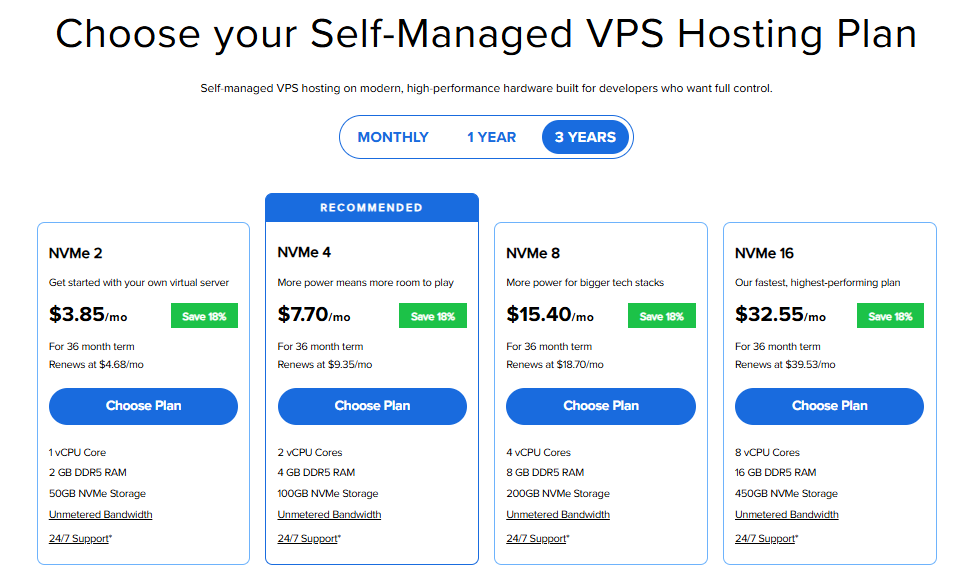
Important: Pricing is subject to change—please visit https://www.bluehost.com/vps-hosting for the current introductory/sign-up offer for Bluehost VPS Hosting. For the most up-to-date renewal pricing, visit your Bluehost Portal Renewal Center.
- Select your preferred Data Center location.

- On the Cart page, you can configure your server to fit your needs in the following section:
- Hardware:
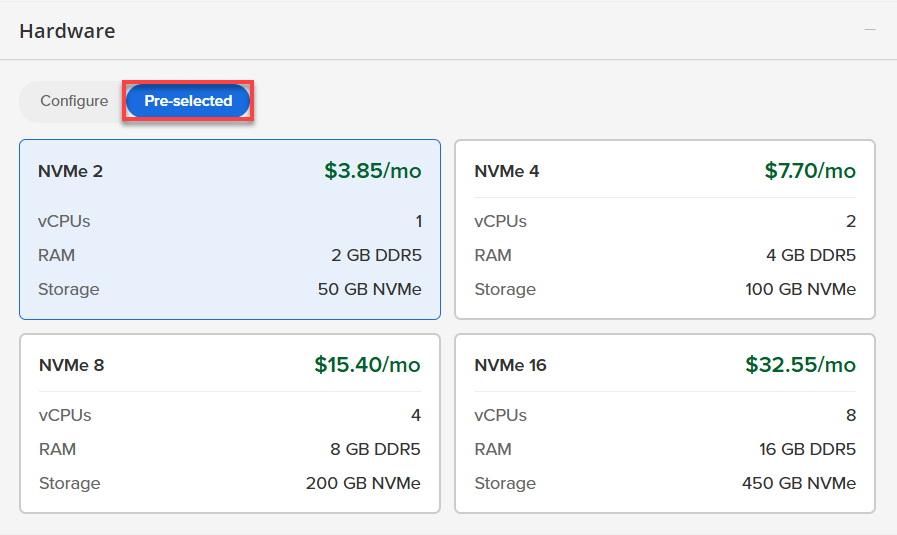
- Pre-selected:
You can select a different Self-Managed VPS plan in this section.
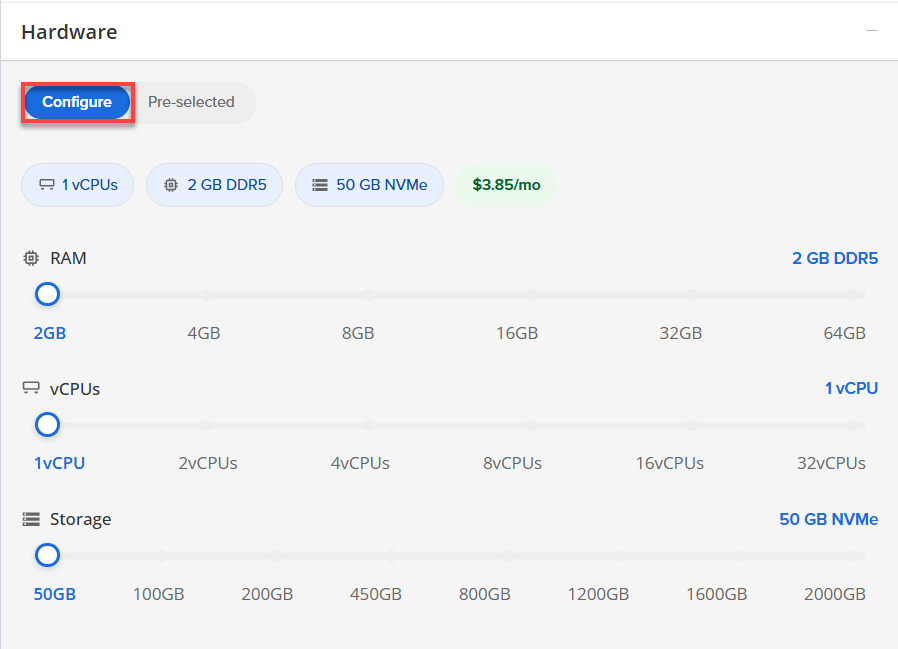
- Configure:
Click Configure to customize your package.
Note that your changes help customize your plan, and the overall cost will adjust accordingly to fit your needs.
- Pre-selected:
- Software:
If the selected plan does not meet the app's minimum requirements, the app will be grayed out.
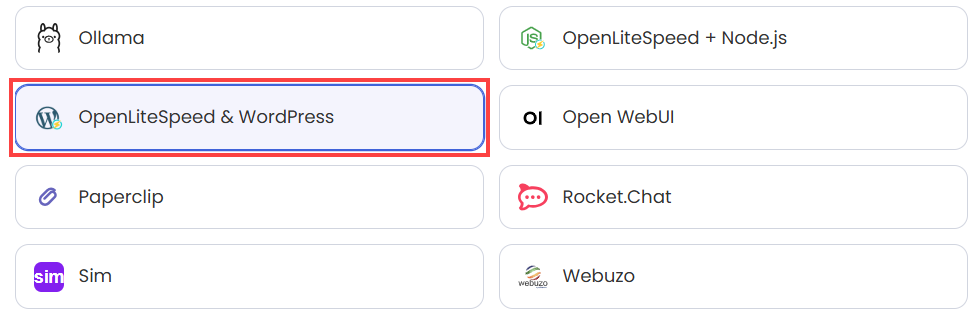
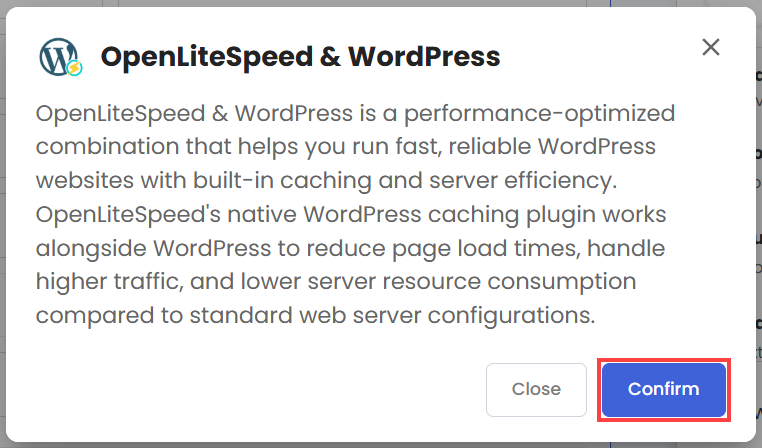
- Click the Application tab.
- Select OpenLiteSpeed & WordPress.
- In the pop-up, click Confirm.
- Hardware:
- Add-Ons:
- Support & Security:
- Premium Support - Recurring:
This service provides you with priority access to our expert team for faster responses and personalized assistance whenever you need it.

- Premium Support - Recurring:
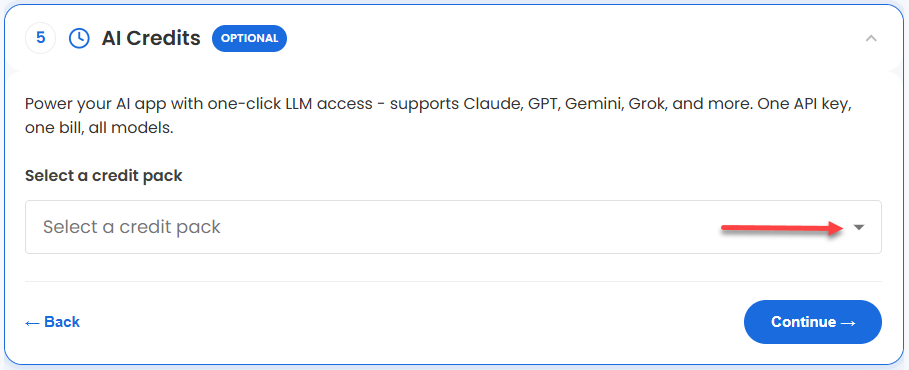
- AI Credits:
Purchase an AI credit package to effortlessly connect your application to leading LLMs through a single API key and bill. This step is optional.
- In the Advanced options:
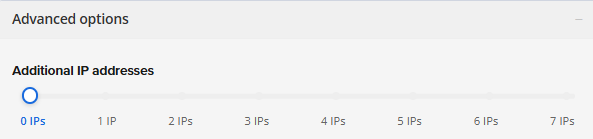
- Extra IP's: You can add extra IP addresses for an additional fee.
Pricing changes based on how many IPs you add. - Hostname: Assign a custom hostname to easily identify your server. This is optional.
- SSH Key: Add an SSH public key for secure, password-less access after provisioning.
- Extra IP's: You can add extra IP addresses for an additional fee.
- Support & Security:
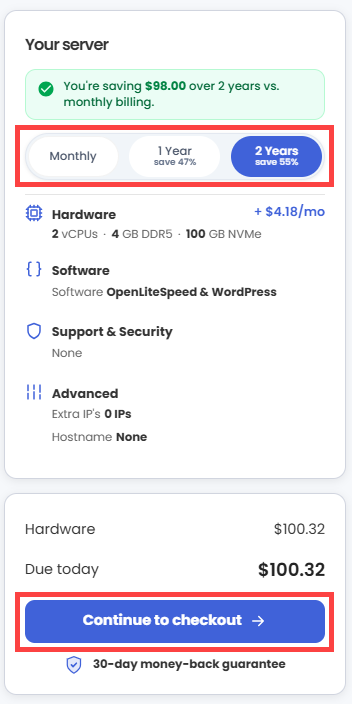
- Next, select your preferred billing term and review your Order Summary, then click Continue to Checkout.
- Do the following on the Checkout page:
If you're new with Bluehost:
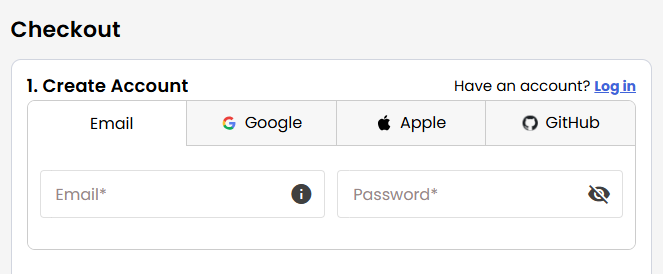
- Create your Bluehost account by using your email address or by connecting with your Google, Apple, or GitHub account — whichever you prefer!
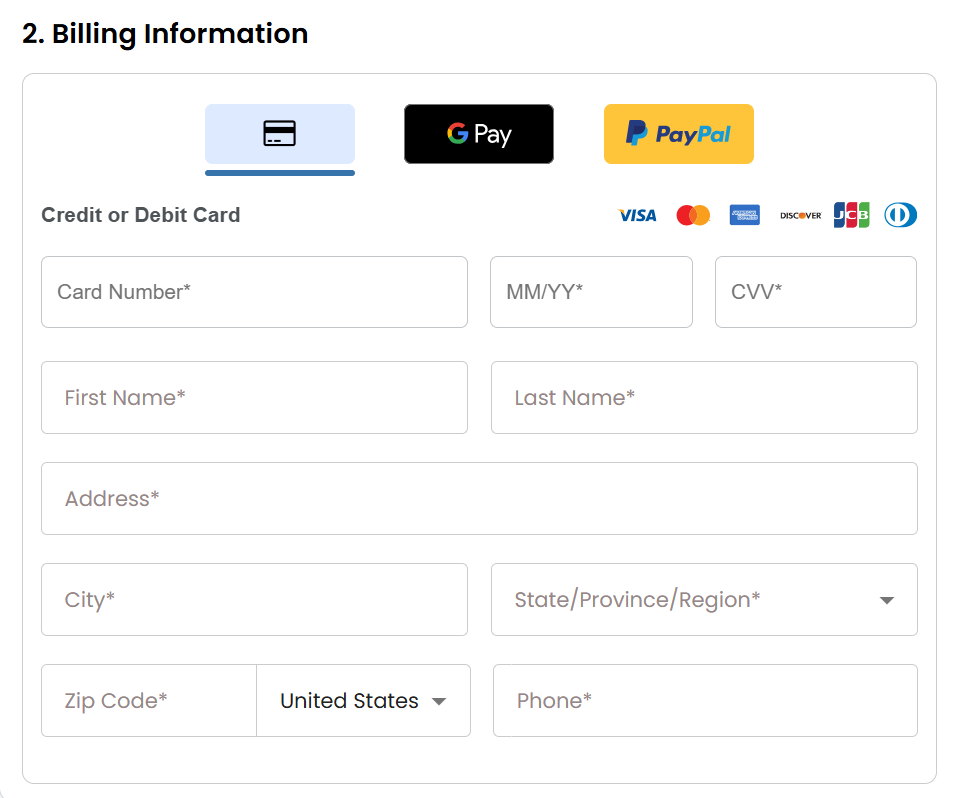
- Select your preferred payment method: credit card, Google Pay, or PayPal. Enter your billing information.
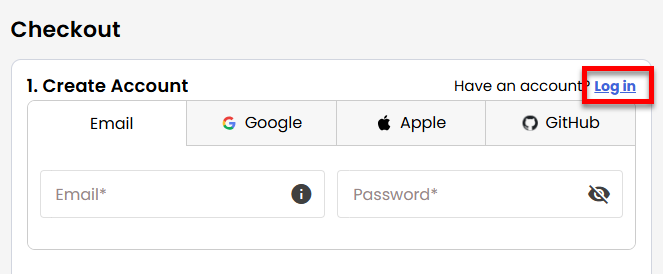
If you have an account with us, you will see your Bluehost login details when you are logged into your Bluehost Portal. If you are not logged in, please click the Log In link.
- Create your Bluehost account by using your email address or by connecting with your Google, Apple, or GitHub account — whichever you prefer!
- In the Shopping Cart section, you can still adjust your billing term if needed.
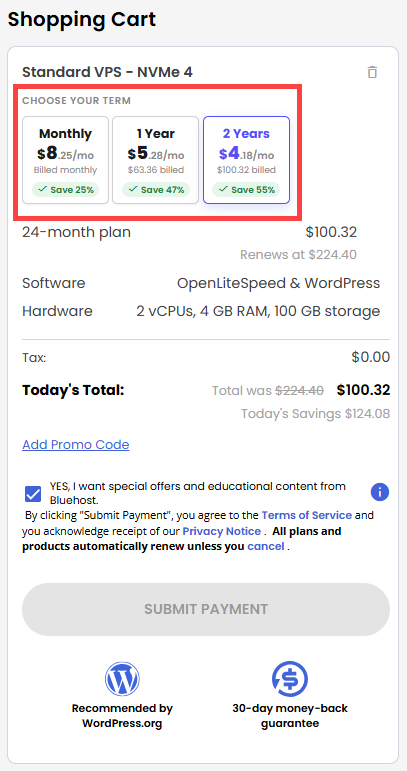
- Review the items in your cart, add a Promo Code if you have one, and then click Submit Payment to complete the purchase.
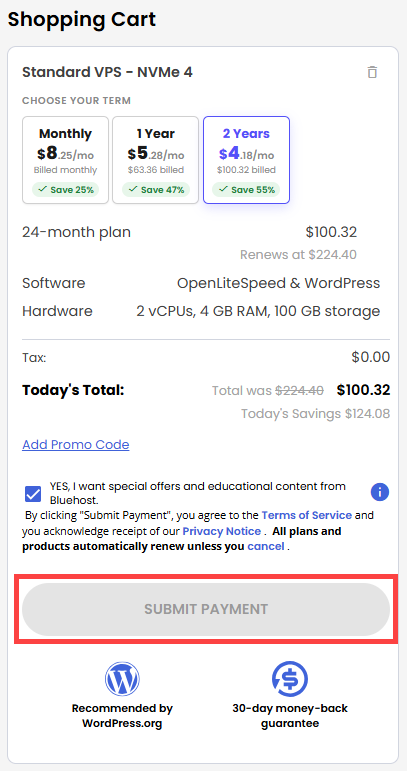
After completing the purchase, your VPS hosting will begin provisioning. You can access and manage your new VPS hosting in the Hosting tab of your Bluehost Portal.
Getting Started with OpenLiteSpeed and WordPress
- OpenLiteSpeed Web Server: Think of this as the welcoming front desk of your website. It instantly greets your visitors, answering standard requests (like images and design files) in milliseconds while seamlessly guiding more complex requests to PHP.
- LSPHP (LiteSpeed PHP): This is the engine room that processes the core code of your WordPress site. Because it uses special LiteSpeed technology, it can process your posts, pages, and plugins significantly faster than traditional web servers.
- MariaDB Database: This is your digital vault. It securely stores all of your website's vital information—including your written posts, user accounts, and layout settings. For maximum security, this vault is completely hidden from the outside internet and will only communicate internally with your own server.
- UFW Firewall: This is your digital security guard. It monitors all incoming network traffic and blocks unauthorized access, ensuring only legitimate web visitors and your secure administrative connections are allowed through.
- Log in to your Bluehost Portal.
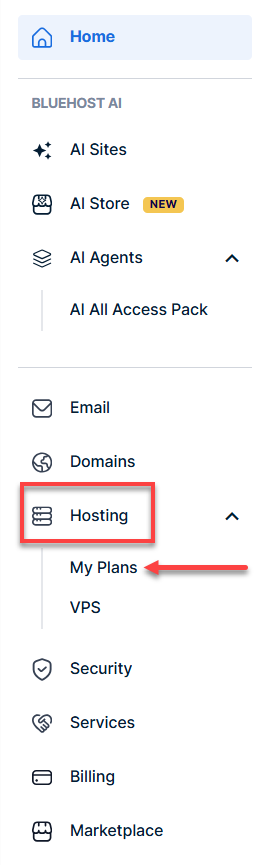
- In the left-hand menu, click Hosting, then select My Plans.
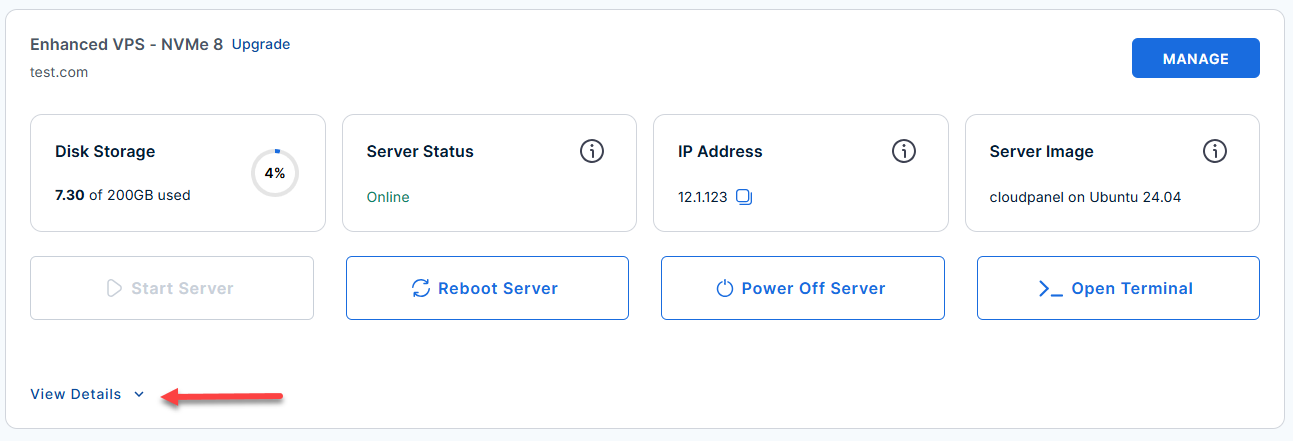
- Locate the server you want to manage, then click View Details in the bottom-left corner to expand the section and access additional server information.
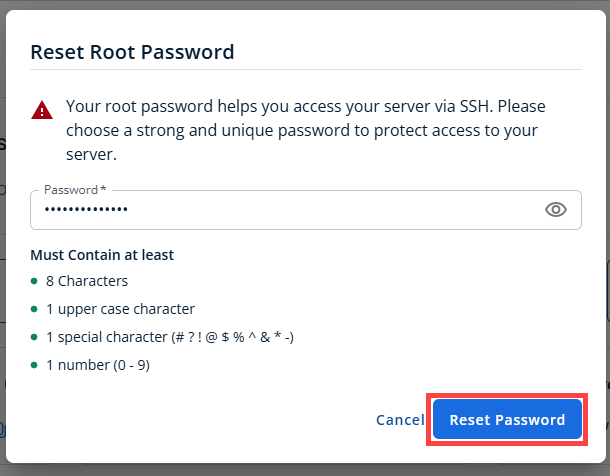
- Click the Reset Password.
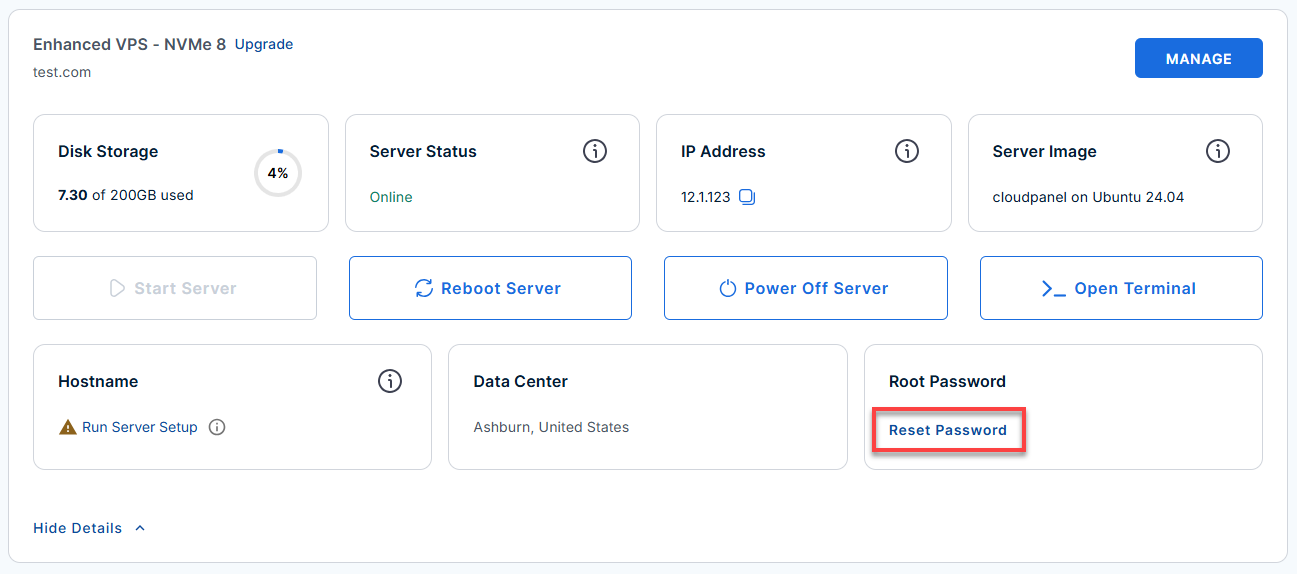
- In the pop-up window, type your new root password, then click Reset Password again to confirm and save the changes.
- Connect to your VPS via SSH.
Open your computer's terminal (or an SSH client like PuTTY) and run the following command to log into your server as the administrator, using your server's public IP address:Replaceyour_server_ipwith your actual server IP address.
Follow the prompts and enter the new root password you created in the step above.ssh root@your_server_ip - Retrieve your unique passwords.
For your security, our system automatically generates random, strong passwords during the first boot. Run this command to view them:cat /root/.app_passwordsExample Output:
root@server-123456:~# cat /root/.app_passwords OLS_ADMIN_PASS=mJkS7mux3hFQQzHgmMAtest WP_DB_PASS=Sm4MmaJN7udGV88P6AcTTEST MYSQL_ROOT_PASS=HUR6165dNavXZ44Mz1fEVjLC>WP_ADMIN_PASS=r9NkvbTESTmWsnVcMeQjrlK - Open your preferred web browser and navigate to the initialization page:
http:///wp-admin/install.phpFollow the on-screen prompts to configure your actual website:
- Enter your Site Title.
- Create a WordPress Admin Username.
- Create a WordPress Password (make sure to save this; it is completely separate from your server passwords).
- Enter your Email address and finish the setup.
Depending on how quickly your server configures itself, you might see a message stating "Already Installed" when you visit the setup URL. Don't worry—this just means our automated setup script has already taken care of the initial configuration for you!Here is how to log in:
- Click the Log In button on that page to go to your WordPress sign-in screen.
- Enter the administrator credentials you retrieved from your password file in Step 6
ssh root@your_server_ip.Replaceyour_server_ipwith your actual server IP address.Example output:
Welcome to Ubuntu 24.04.4 LTS (GNU/Linux 6.8.0-124-generic x86_64)
********************************************************************************
  WordPress + OpenLiteSpeed Stack
  Firewall: Ports 22, 80, 443, 7080 open

  Access URLs:
    WordPress       : https://12.3.4.456
    WordPress Admin : https://12.3.4.456/wp-admin
    OLS Admin Panel : https://12.3.4.456:7080

  Credentials:
    OLS Admin User  : admin
    OLS Admin Pass  : mJkS7mux3hFQQzHgmMAtest
    DB Name         : wordpress
    DB User         : wpuser
    DB Pass         : Sm4MmaJN7udGV88P6AcTTEST

  SSL             : Let's Encrypt (Trusted)
  Auto Renew      : Every 12 hours via cron

  Key Paths:
    WordPress files : /var/www/html/wordpress
    Credentials     : /root/.app_passwords
    Boot log        : /var/log/onboot.log
    Logs            : /var/log/litespeed/

  Quick Commands:
    systemctl {status|restart} lsws
    systemctl {status|restart} mariadb
    tail -100 /var/log/litespeed/error.log

  For full details: /root/README.md
  To remove this MOTD: rm -f /etc/update-motd.d/99_ols_wp
********************************************************************************
- Once the installation is complete, you can manage and view your site using these URLs:
- To view your live website: http://<your-server-ip>
- To log in and manage WordPress: http://<your-server-ip>/wp-admin
- If you need to change server-level configurations, tweak PHP settings, or manage your cache settings, you can access the server's control panel:
- Navigate to: http://<your-server-ip>:7080
- Log in with the username: admin
- Use the password you found in Step 7 (the value for OLS_ADMIN_PASS).
Quick Troubleshooting Commands
If your website isn't loading, paste these commands into your SSH terminal to check if the background services are running properly:
- Check the Web Server:
systemctl status lsws
- Check the Database:
systemctl status mariadb
- View Error Logs:
tail -100 /var/log/litespeed/error.log
Additional Information and Example Documentation Output
You can run cat /root/README.md to see more information and useful commands:
Example Output:
root@server-123456:~# cat /root/README.md
# OpenLiteSpeed & WordPress

## Description

OpenLiteSpeed & WordPress is a performance-optimized combination that helps you run fast, reliable WordPress websites with built-in caching and server efficiency. OpenLiteSpeed's native WordPress caching plugin works alongside WordPress to reduce page load times, handle higher traffic, and lower server resource consumption compared to standard web server configurations.

## Image contents

This template installs and configures:

- OpenLiteSpeed web server
- LSPHP (LiteSpeed PHP)
- WordPress (latest) via WP-CLI
- MariaDB local database service
- UFW firewall rules for SSH, HTTP, HTTPS, and OLS Admin
- WordPress at `/var/www/html/wordpress`
- OpenLiteSpeed config at `/usr/local/lsws/`
- Logrotate configuration at `/etc/logrotate.d/openlitespeed-wordpress`
- App password store at `/root/.app_passwords`

## Services

| Service       | Ports | Purpose                        |
| ------------- | ----- | ------------------------------ |
| OpenLiteSpeed | 80    | Web server serving WordPress   |
| OLS WebAdmin  | 7080  | OpenLiteSpeed admin panel      |
| MariaDB       | 3306  | Database backend for WordPress |
| OpenSSH       | 22    | Remote access                  |

Ports are protected using UFW.


## OpenLiteSpeed configuration

The default OpenLiteSpeed configuration is at `/usr/local/lsws/conf/httpd_config.conf`.

Key settings include:

- Virtual host config: `/usr/local/lsws/conf/vhosts/wordpress/conf/vhconf.conf`
- Document root: `/var/www/html/wordpress`
- PHP handler: LSPHP via LiteSpeed SAPI
- Admin panel port: `7080`
- Admin username: `admin`
- Admin password: `OLS_ADMIN_PASS` -- replaced at first boot by the per-instance cloud-init script

The systemd service unit is `lsws` and starts OpenLiteSpeed as the `lsadm` user.

## WordPress configuration

WordPress is installed at `/var/www/html/wordpress`.

Key settings in `/var/www/html/wordpress/wp-config.php`:

- `DB_NAME = wordpress`
- `DB_USER = wpuser`
- `DB_PASSWORD` -- replaced at first boot by the per-instance cloud-init script
- `DB_HOST = localhost`

## First-time access (How to use)

SSH into your server using your cloud provider credentials and the server public IP:

ssh root@<your-server-ip>

Get the generated passwords:

cat /root/.app_passwords

After the VM boots, complete the WordPress setup at:

http://<your-server-ip>/wp-admin/install.php

Fill in:

- Site title
- Admin username
- Password (save this!)
- Email

Access the OpenLiteSpeed admin panel at:

http://<your-server-ip>:7080

Login credentials:

- Username: `admin`
- Password: value from `grep OLS_ADMIN_PASS /root/.app_passwords`

## Useful commands

Check OpenLiteSpeed service:

systemctl status lsws

Check MariaDB service:

systemctl status mariadb

View OpenLiteSpeed error log:

tail -100 /var/log/litespeed/error.log

View systemd logs:

journalctl -u lsws -n 100 --no-pager

Show generated passwords:

cat /root/.app_passwords

Verify listening ports:

ss -tulnp

## Validation tests

The template includes validation checks that verify:

- `lsws` and `mariadb` are enabled and active
- `/usr/local/lsws/conf/httpd_config.conf` exists
- `/var/www/html/wordpress/wp-config.php` exists
- first-boot script exists and is executable
- OpenLiteSpeed is listening on port 80
- `curl -I http://127.0.0.1/wp-admin/install.php` returns HTTP 200
- LSPHP processes are running (`ps aux | grep lsphp`)
- logrotate config passes dry run (`logrotate -d /etc/logrotate.d/openlitespeed-wordpress`)

## Notes

- `OLS_ADMIN_PASS` is the OpenLiteSpeed WebAdmin password. It is different from the WordPress administrator password you create in the setup wizard.
- MariaDB listens on localhost only and is not exposed externally.
- Logs are centralized under `/var/log/litespeed/`, `/var/log/wordpress/`, and `/var/log/mysql/`.

## Manage

- WordPress: http://{server_ip}
- OLS Admin Panel: http://{server_ip}:7080

## Links

- OpenLiteSpeed documentation: https://openlitespeed.org/docs/
- WordPress documentation: https://wordpress.org/documentation/
- WP-CLI documentation: https://wp-cli.org/
Summary
OpenLiteSpeed + WordPress is a practical solution to build fast, stable, and easy-to-manage websites. It lets you focus on your content and business, while the system takes care of the performance behind the scenes. If you want to start a personal blog, a business site, or an online store, this setup provides you with a solid foundation without a lot of complexity.