 ChatGPT,
  Claude,
  Gemini,
  Grok — all four for
Reimage Your Server for aaPanel Installation
aaPanel is a user-friendly web hosting control panel designed to simplify server management for website owners and administrators. With aaPanel, you can easily install and manage web services, databases, FTP, and security settings from a single dashboard.Bluehost Self-Managed VPS and Virtual Dedicated Server (VDS) customers can quickly deploy aaPanel using the one-click installer, enabling fast setup and streamlined control of their hosting environment.
How to Reimage Your Server for aaPanel Installation
This guide walks you through installing and setting up aaPanel using the Bluehost Portal.
This applies to both VPS and VDS.
- You can install only one application using the one-click installer.
- To change or delete your application, follow the guide: How to Change and Delete an Application. Create a backup of your existing applications or templates.
- To keep your current template, install the new application manually using SSH. Follow the same steps for both Self-Managed VPS and Virtual Dedicated Server (VDS). The system automatically selects the recommended operating system for aaPanel.
- Log in to your Bluehost Portal.
- In the left-hand menu, click the Hosting tab.
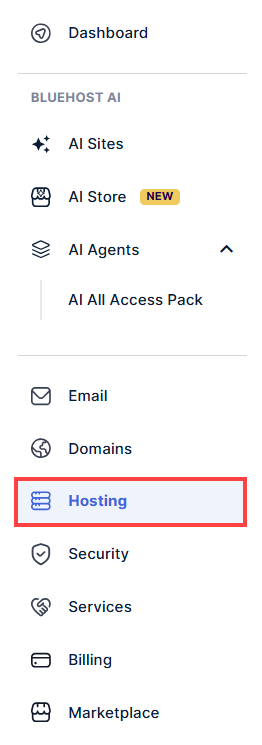
- Click the Manage button on the hosting package you want to reimage.

- Click the Reimage button.
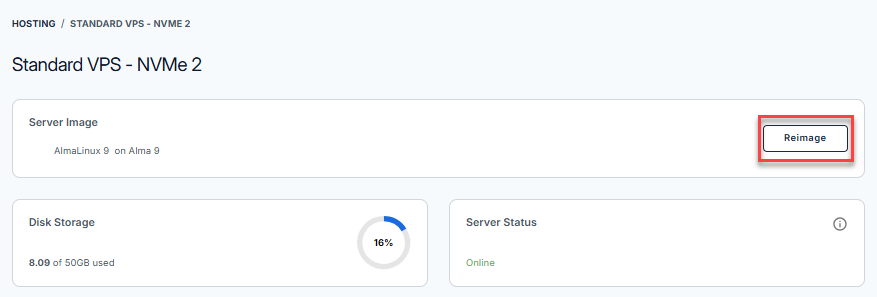
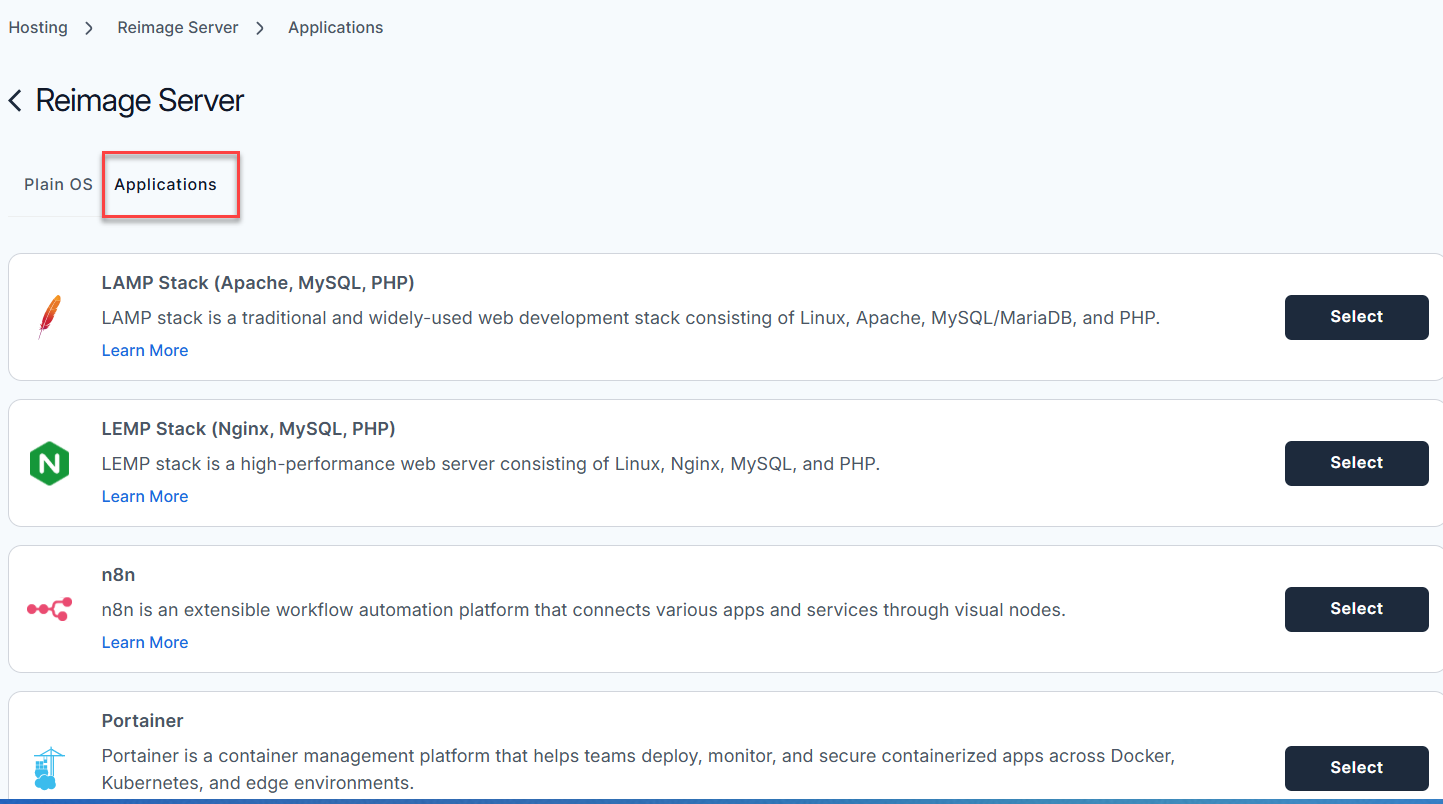
- Select the Applications tab.
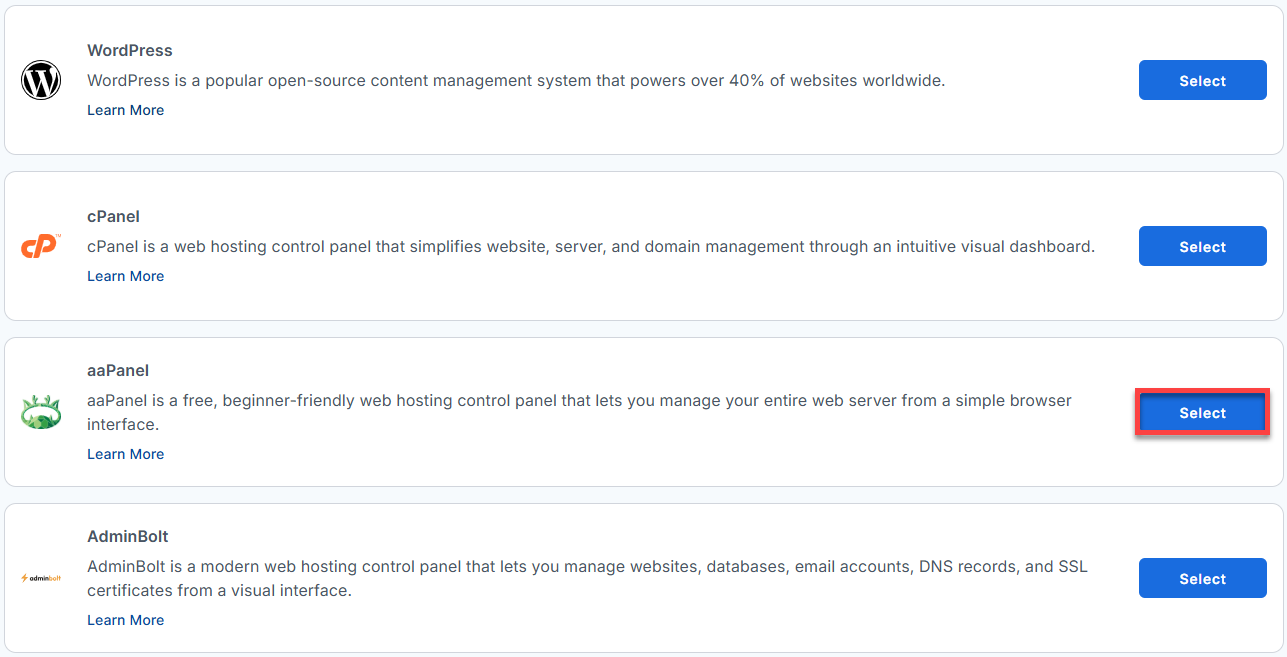
- From the list, locate aaPanel and click Select.
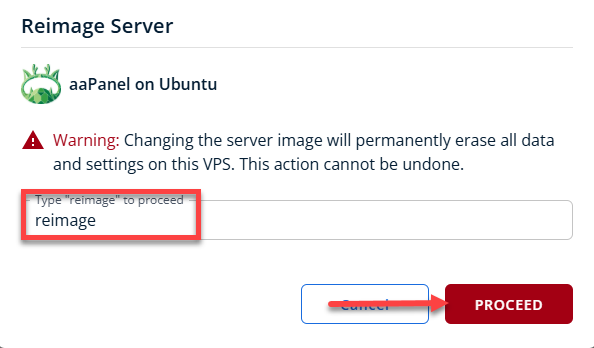
- To confirm, type "reimage" and then click Proceed to start the process.
- Wait a few minutes while the installation completes.

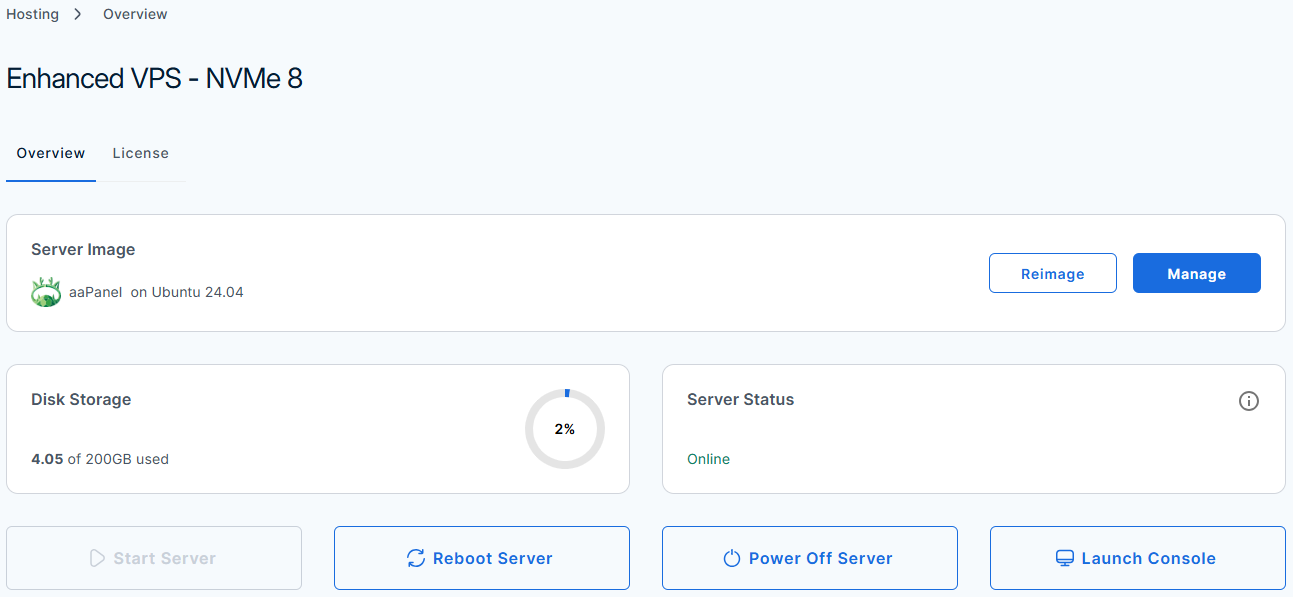
- Once completed, you will see aaPanel listed in the Server Image section.
Access your aaPanel Dashboard
After installation completes:
- Log in to your Bluehost Portal.
- In the left-hand menu, click the Hosting tab.
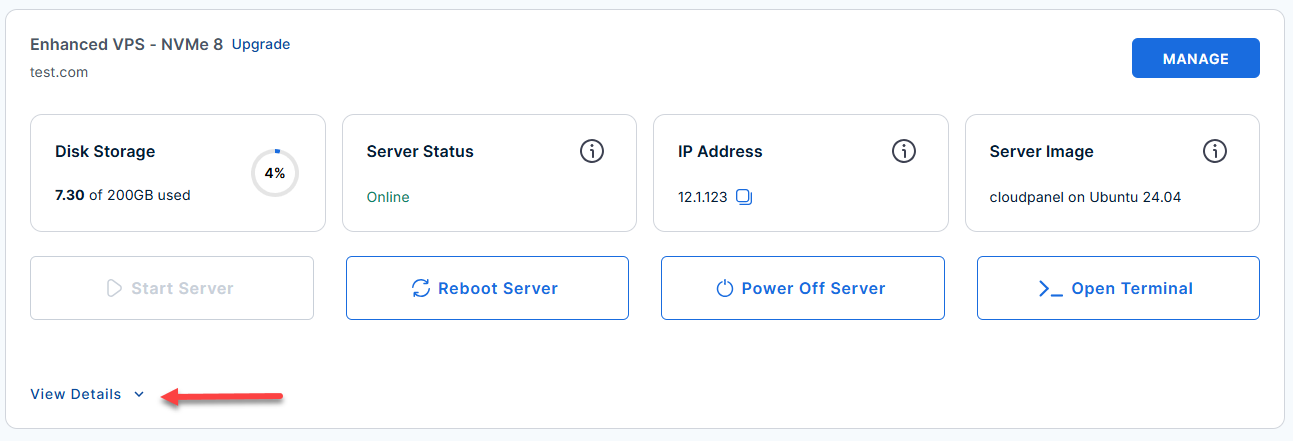
- Locate the server you want to manage, then click View Details in the bottom-left corner to expand the section and access additional server information.
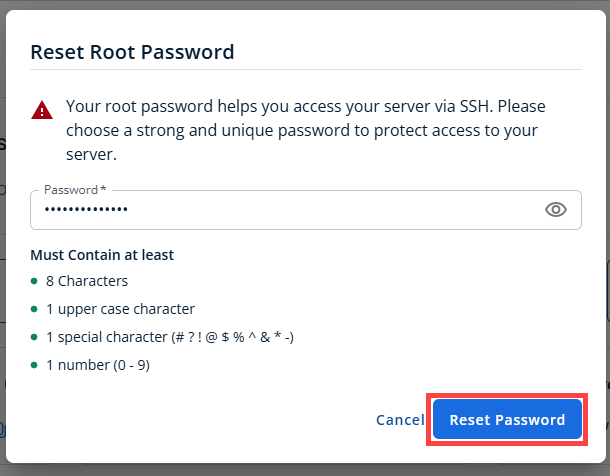
- Click the Reset Password.
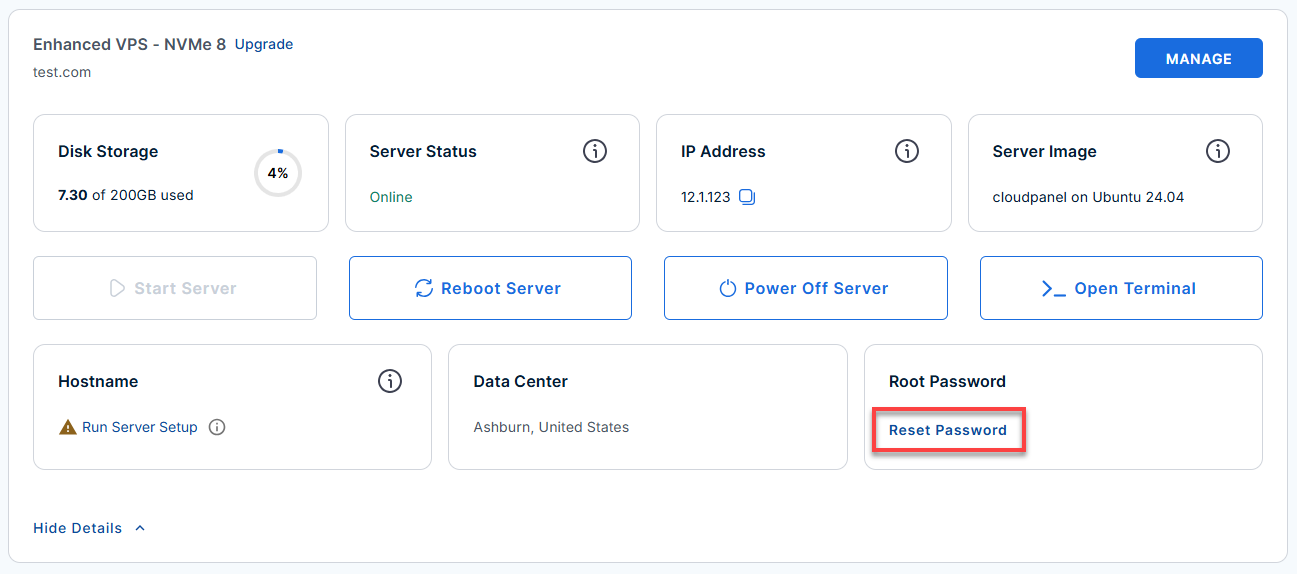
- In the pop-up window, type your new root password, then click Reset Password again to confirm and save the changes.
- Connect to your VPS via SSH.
Use your VPS IP and credentials with an SSH client, follow the prompts, and enter your root password when asked:Replaceyour_server_ipwith your actual server IP address.ssh root@your_server_ipExample Output:
Welcome to Ubuntu 24.04.4 LTS (GNU/Linux 6.8.0-124-generic x86_64) ******************************************************************************** aaPanel : active - Admin Credentials --------------------------- Username : zamuarko Password : sudo cat /opt/aapanel/.env - Access ---------------------------------------- Panel URL : https://21.6.6.123:7800/ecd2bc1d/ - Firewall ---------------------------------------- Ports open : 22 (SSH) 80 (HTTP) 443 (HTTPS) 7800 (Panel) For full details refer: /root/README.md - Retrieve Your Credentials:
cat /opt/aapanel/.env
Example Output
Last login: Mon Jun 15 23:00:22 2026 from 110.110.10.26 root@server-123456:~# cat /opt/aapanel/.env # aaPanel runtime credentials # Read this file on first boot to get your panel password: # cat /opt/aapanel/.env PANEL_PORT=7800 PANEL_PATH=/ecd2bc1d/ PANEL_USER=zamuarko PANEL_PASSWORD=jXWnyyynT8ymMGDu9xt9abc1 - Log In via Your Browser:
Replace
your_server_ipwith your actual server IP address.https://your-server-ip:7800/PANEL_PATH/Important!- Make sure you use https:// and include the trailing slash after your panel path.
- If your website URL will not reload, it is likely because the server rebooted unexpectedly without safely shutting down the NetWorker service. This causes the dashboard to act up and stops running jobs from showing real-time updates. To fix this and get your interface working properly again, please follow these two steps:.
- Refresh Your System Configuration
Run this command:
sudo systemctl daemon-reload - Restart the aaPanel Service
Next, apply the changes safely by restarting the aaPanel service with this command:
sudo systemctl restart bt
- Refresh Your System Configuration
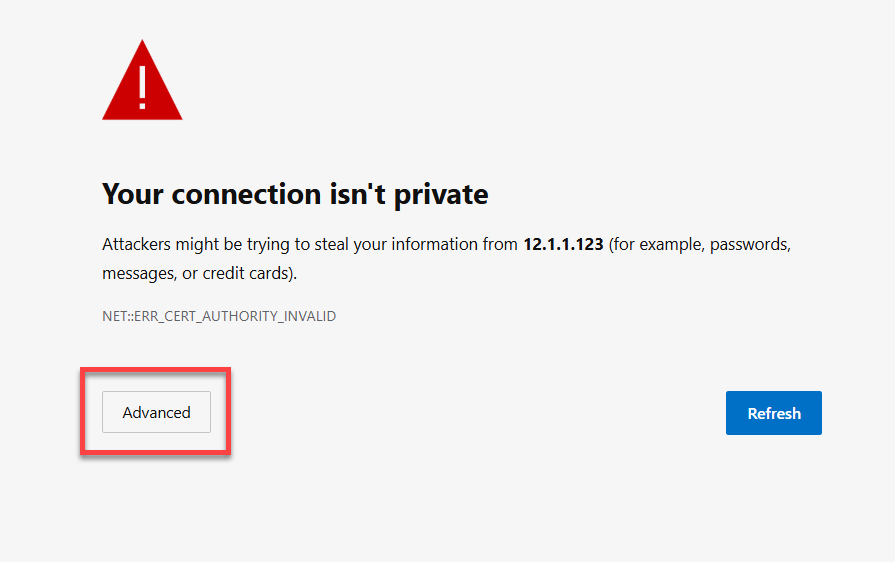
- Bypass the Browser Security Warning.
aaPanel uses a temporary self-signed SSL certificate, your browser will flag it. Click Advanced and then Proceed/Continue to bypass it safely.
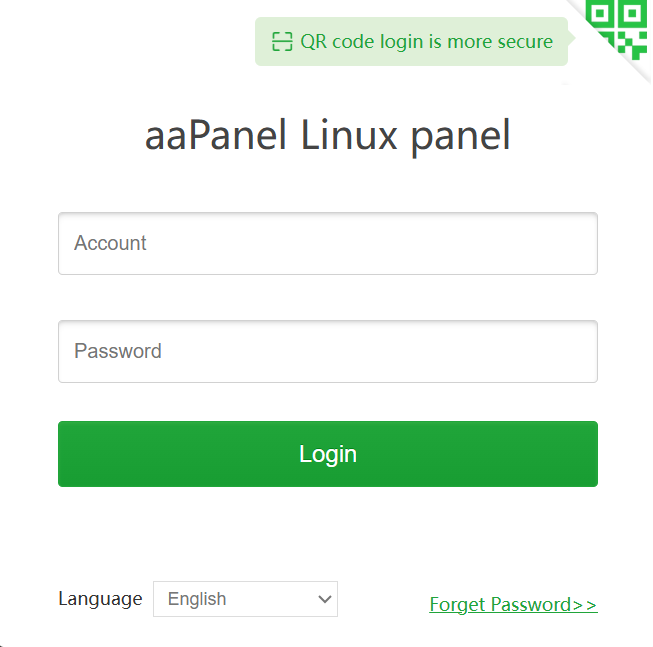
- Log in to your aaPanel dashboard.
Use the log in credentials from step 7.
Initial aaPanel Configuration
Once you are logged into aaPanel, here is what to do next.
| Stack | Includes |
|---|---|
| LNMP | Nginx + MySQL + PHP |
| LAMP | Apache + MySQL + PHP |
| OpenLiteSpeed | LiteSpeed + MySQL + PHP |
- Install a web server stack.
- Add your first website.
aaPanel will automatically create the web directory, database, and Nginx/Apache config for you.

- Install WordPress or another app (optional).
- Set up a real SSL certificate (optional).
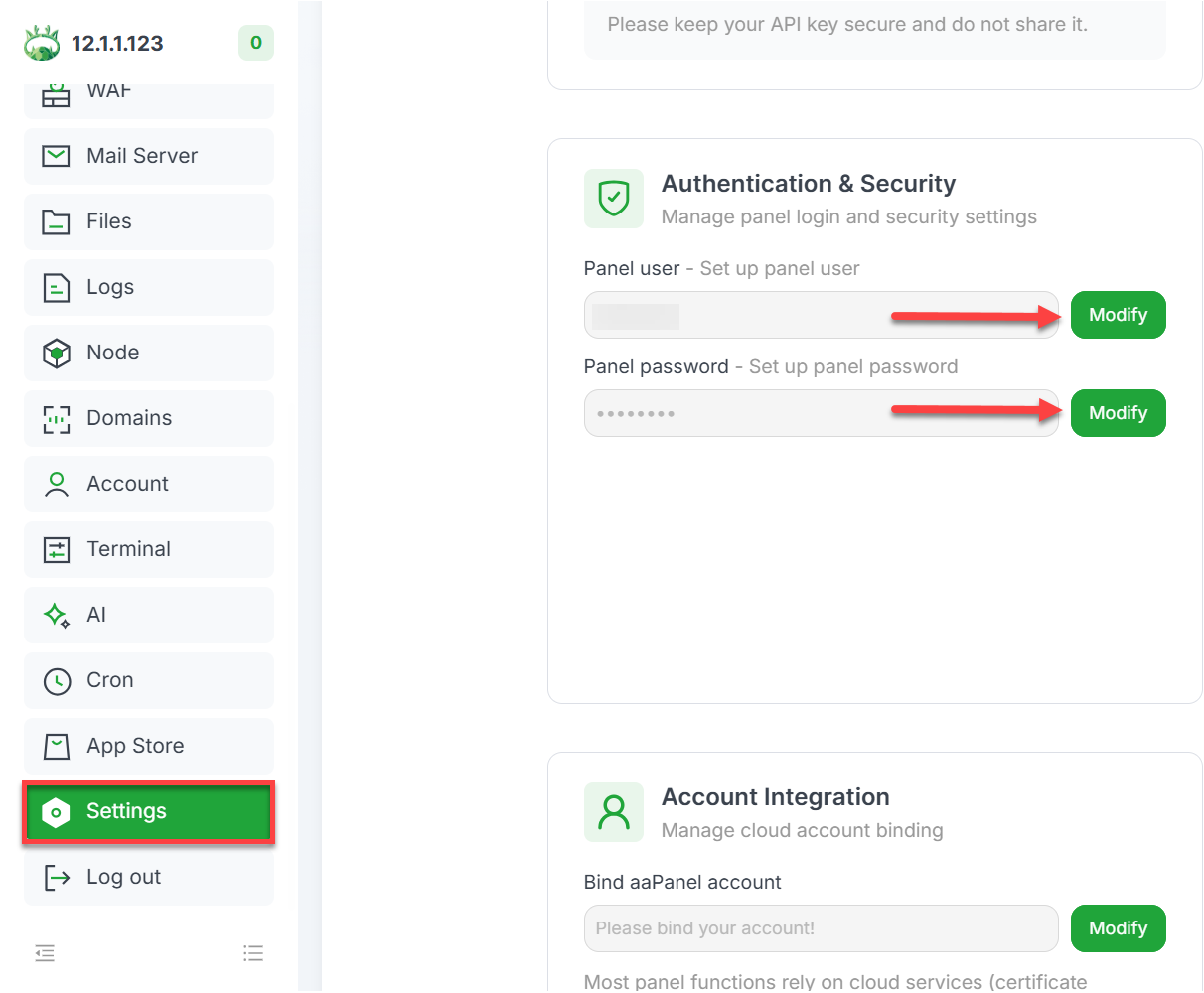
- Change your panel password.
You can easily update your login details at any time! Just head over to your Settings, click on Authentication & Security, and click Modify to enable changes. From there, set up your new username and password, and save your updates.
Additional Information & Example Documentation Output
You can run cat /root/README.md to see more information and useful commands:
root@server-123456:~# cat /root/README.md
# aaPanel

## Description

aaPanel is a free, beginner-friendly web hosting control panel that lets you manage your entire web server from a simple browser interface.

With a few clicks you can install WordPress, PHP, MySQL, Nginx, or Apache - no command-line experience needed.

This image comes with aaPanel pre-installed and ready to use.
On first boot, a secure password is automatically generated for you.

---

## Quick Start

Follow these three steps to get up and running.

### Step 1 - Wait for first boot to complete

After launching your instance, wait 2-3 minutes for the first-boot setup to finish.

The setup runs automatically in the background. It generates your admin password and starts the panel service.

You do not need to do anything during this time.

### Step 2 - Get your login credentials

SSH into your server and run:

```bash
cat /opt/aapanel/.env
```

You will see output like this:

```
PANEL_PORT=7800
PANEL_PATH=/abc12345/
PANEL_USER=youruser
PANEL_PASSWORD=YourGeneratedPassword
```

Save these details - you will need them to log in.

### Step 3 - Open the panel in your browser

Using the values from Step 2, open your browser and go to:

```
https://:7800//
```

For example:

```
https://203.0.113.10:7800/abc12345/
```

> **Browser warning:** aaPanel uses a self-signed SSL certificate by default.
> When your browser shows a security warning, click **Advanced** then **Proceed** to continue.
> This is expected and safe for initial setup.

Log in with the `PANEL_USER` and `PANEL_PASSWORD` from Step 2.

---

## Next Steps

Once you are logged into aaPanel, here is what to do next.

### 1. Install a web server stack

On the aaPanel dashboard, click **One-Click** and choose your stack:

| Stack | Includes |
|-------|---------|
| LNMP | Nginx + MySQL + PHP |
| LAMP | Apache + MySQL + PHP |
| OpenLiteSpeed | LiteSpeed + MySQL + PHP |

Click **Install** and wait for the installation to complete (5-10 minutes).

### 2. Add your first website

Go to **Website** then **Add Site**.

Enter your domain name or server IP and click **Submit**.

aaPanel will automatically create the web directory, database, and Nginx/Apache config for you.

### 3. Install WordPress or another app (optional)

Go to **App Store** in the left menu.

Search for **WordPress** and click **Install**.

Follow the on-screen wizard to complete the installation.

### 4. Set up a real SSL certificate (optional)

Go to **Website**, click your site, then click **SSL**.

Click **Let's Encrypt** and enter your domain to get a free trusted certificate.

This replaces the self-signed certificate and removes the browser warning.

### 5. Change your panel password

For security, change your panel password after first login:

- Go to the top-right user icon then **Change Password**
- Or run from the server: `bt 5`

---

## Access

| URL | Purpose |
|-----|---------|
| `https://:7800//` | aaPanel control panel |

> The panel path (e.g. `/abc12345/`) is unique to your instance and is a security feature.
> Always read it from `/opt/aapanel/.env` - it is different on every deployment.

---

## Credentials

All credentials are stored in:

```bash
cat /opt/aapanel/.env
```

| Field | Description |
|-------|-------------|
| `PANEL_PORT` | Panel port (default: 7800) |
| `PANEL_PATH` | Unique URL path to the panel |
| `PANEL_USER` | Admin username (randomized at install) |
| `PANEL_PASSWORD` | Admin password (generated at first boot) |

To view the first boot setup log:

```bash
grep -A 6 "First Boot Credentials" /var/log/cloud-init-output.log
```

---

## Managing the Server

### aaPanel Service

```bash
# Check if panel is running
systemctl status bt

# Restart the panel
systemctl restart bt

# Stop the panel
systemctl stop bt
```

### bt CLI Quick Reference

```bash
bt        # Show panel URL, port, and path
bt 5      # Change admin password
bt 8      # Change panel port
bt 10     # Show panel error logs
bt 16     # Restart panel
```

### Firewall

```bash
# View open ports
ufw status verbose

# Open a new port (e.g. MySQL for remote access)
ufw allow 3306/tcp
```

### Logs

```bash
# Panel error log
tail -f /www/server/panel/logs/error.log

# First boot setup log
cat /var/log/cloud-init-output.log
```

---

## Troubleshooting

### Panel URL not opening in browser

1. Check the panel is running: `systemctl status bt`
2. Check port 7800 is listening: `ss -tlnp | grep 7800`
3. Check firewall allows port 7800: `ufw status | grep 7800`
4. Make sure you are using `https://` not `http://`

### Password not working

Run this on the server to reset your password:

```bash
bt 5
```
Enter a new password when prompted, then try logging in again.

### First boot did not run

If `/opt/aapanel/.env` still shows `CHANGEME_ON_BOOT`, run the setup manually:

```bash
sed -i 's/\r//' /var/lib/cloud/scripts/per-instance/001_onboot
bash /var/lib/cloud/scripts/per-instance/001_onboot
```

Then read your credentials:

```bash
cat /opt/aapanel/.env
```

---

## Security

| Feature | Detail |
|---------|--------|
| Firewall | UFW enabled - only ports 22, 80, 443, 7800 open by default |
| SSH | Rate limited on port 22 to block brute force attempts |
| Panel password | Never baked into the image - randomly generated at first boot |
| Credentials file | `/opt/aapanel/.env` is readable by root only (mode 0600) |
| Panel URL | Random path (e.g. `/abc12345/`) obscures the admin login page |
| Panel SSL | HTTPS enabled by default with a self-signed certificate |

---

## Services

| Service | Port | Purpose |
|---------|------|---------|
| aaPanel (bt) | 7800 | Web hosting control panel |
| OpenSSH | 22 | Remote server access |

Additional services such as Nginx, Apache, MySQL, and PHP are installed
and managed through the aaPanel interface after first boot.

---
## Links
- Manage: [https://:7800/](https://:7800/)
- aaPanel Official Documentation: [https://www.aapanel.com/reference.html](https://www.aapanel.com/reference.html)
- aaPanel Install Guide: [https://www.aapanel.com/new/install.html](https://www.aapanel.com/new/install.html)
- Ubuntu 24.04 LTS Release Notes: [https://wiki.ubuntu.com/NobleNumbat/ReleaseNotes](https://wiki.ubuntu.com/NobleNumbat/ReleaseNotes)root@server-123456:~#
Summary
aaPanel is a powerful hosting control panel that you can quickly install on your Bluehost Self-Managed VPS and Virtual Dedicated Server (VDS) by reimaging your server. Follow the steps above to get started with aaPanel and manage your server efficiently.