 ChatGPT,
  Claude,
  Gemini,
  Grok — all four for
 Purchase a Self-Managed VPS with Portainer Installation
Portainer is a web‑based management platform used to deploy, monitor, and manage containerized applications. It provides a graphical user interface (GUI) that simplifies working with Docker, Docker Swarm, and Kubernetes, so you don’t have to rely entirely on command‑line tools.
Watch this short video for a quick guide on purchasing Self-Managed VPS with Portainer installation.
Why Use Portainer?
Portainer replaces complicated text commands with a clean browser dashboard, making it much faster to run your software. You can launch and track applications with simple clicks instead of spending time learning complex technical tools. This setup organizes your everyday workflow and gives you total control over your server without the usual technical headaches.
Uses of Portainer
Portainer’s functionality is widely applicable in web development and software management:
- Hosting Self-Managed Applications: Easily run independent instances of popular open-source software, blogs, or business tools directly on your own hardware.
- Managing Docker Containers: Start, stop, restart, and pause running containers with a single click, completely bypassing the command-line interface.
- Deploying Applications: Launch custom websites and digital services quickly using built-in app templates or by pulling images straight from Docker Hub.
- Managing Docker Stacks (Docker Compose): Deploy, update, and organize complex, multi-container applications by writing or pasting standard Docker Compose files right into your browser.
- Managing Images, Volumes, and Networks: Clean up unused disk space, download new software versions, and safely isolate your apps' traffic using visual storage and networking tools.
- Access Control & User Management: Safely share infrastructure by creating custom user roles and permissions, giving team members access to specific apps without risking core server settings.
- Production & Small Business Environments: Provide small teams with a stable, secure, and low-overhead control panel to monitor live client apps and business infrastructure efficiently.
How to Purchase a Self-Managed VPS with Portainer Installation
To deploy and manage Portainer efficiently, start by purchasing a Self-Managed VPS Hosting from Bluehost. Follow these steps:

New to VPS or not sure where to start? No worries! At the top of the Self-Managed VPS purchase page, you’ll see the Pre-configured Setup section. This handy feature is perfect if you’re feeling a bit unsure—just pick the type of project you want, like WordPress Site, AI Agent/Claude Code, Dev/Staging, or eCommerce Store. We’ll take care of the rest by automatically filling in the best plan, operating system, and template for you.
- Super simple for beginners or anyone who just wants a quick setup
- Instantly get the recommended settings for your project
- Skip the guesswork and save time
- You can still customize things later if you want
- In your browser, go to https://www.bluehost.com/vps-hosting.
- Click the Choose Plan button under your preferred VPS hosting plan.
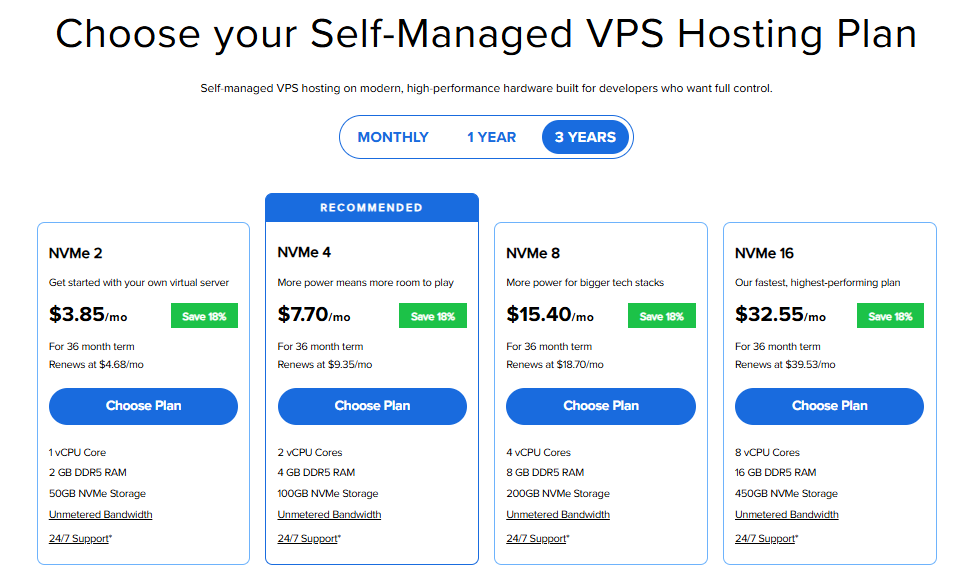
Important: Pricing is subject to change—please visit https://www.bluehost.com/vps-hosting for the current introductory/sign-up offer for Bluehost VPS Hosting. For the most up-to-date renewal pricing, visit your Bluehost Portal Renewal Center.
- Select your preferred Data Center location.

- On the Cart page, you can configure your server to fit your needs in the following section:
- Hardware:
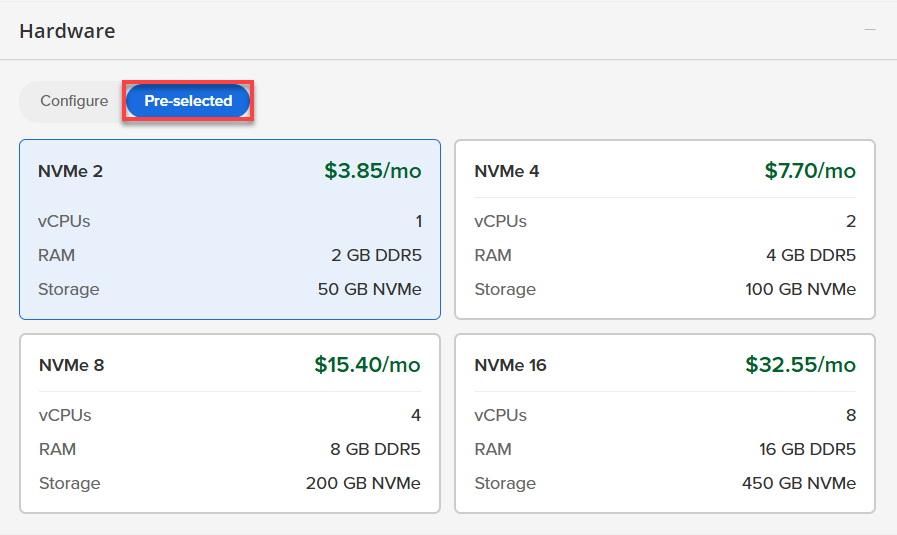
- Pre-selected:
You can select a different Self-Managed VPS plan in this section.
- Configure:
Click Configure to customize your package.
Note that your changes help customize your plan, and the overall cost will adjust accordingly to fit your needs.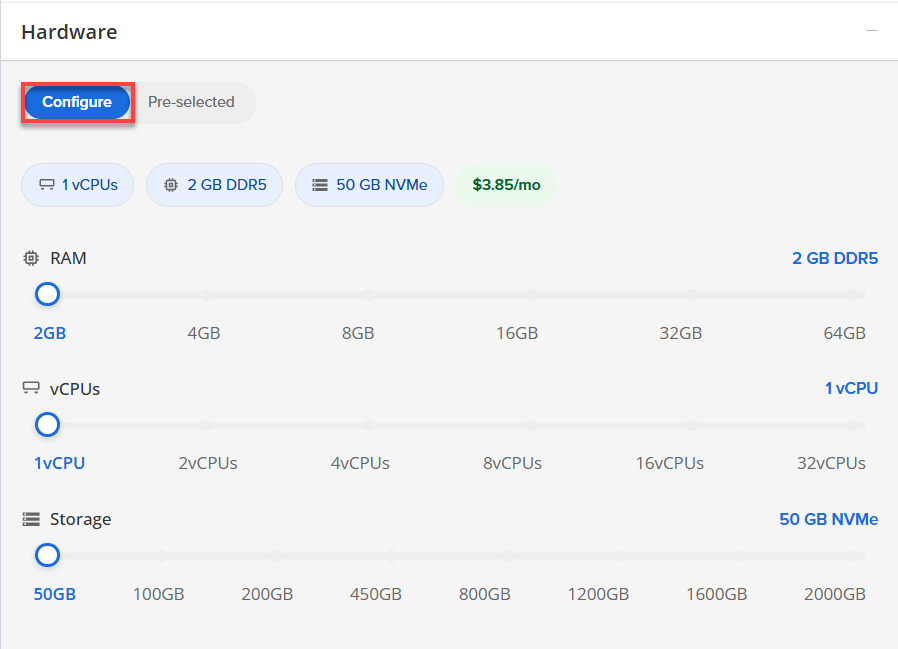
- Pre-selected:
- Software:
If the selected plan does not meet the app's minimum requirements, the app will be grayed out.
- Click on the Application tab.
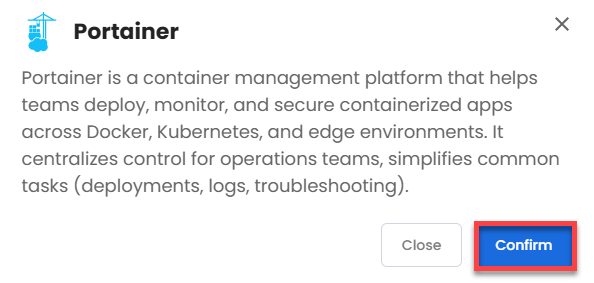
- Choose Portainer.
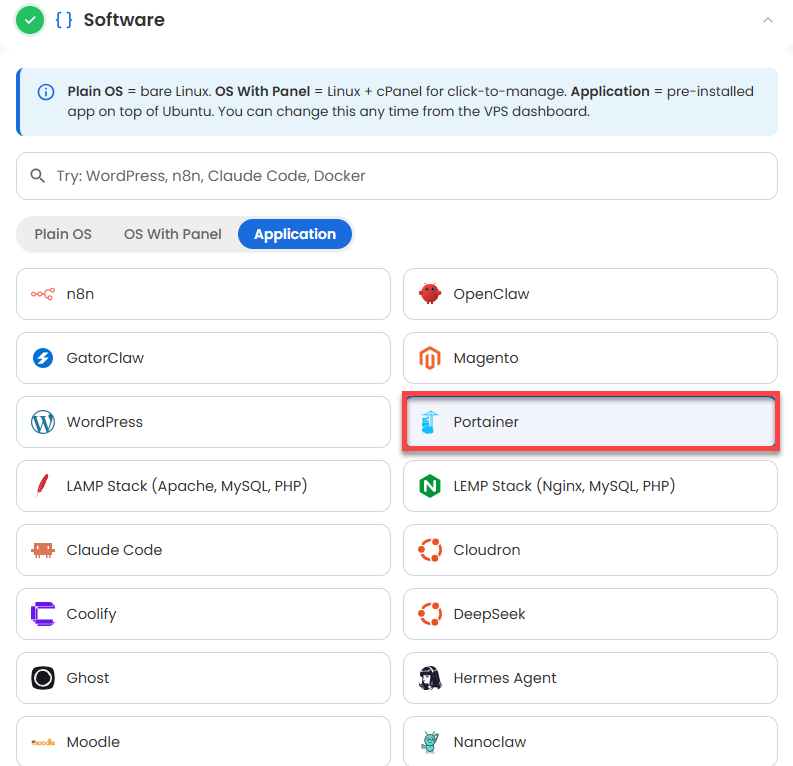 You can install only one application per purchase; the system will automatically select the best operating system for it.
 - Click Confirm to continue.
- Hardware:
- Support & Security:
- Premium Support:
This service provides you with priority access to our expert team for faster responses and personalized assistance whenever you need it.

- Premium Support:
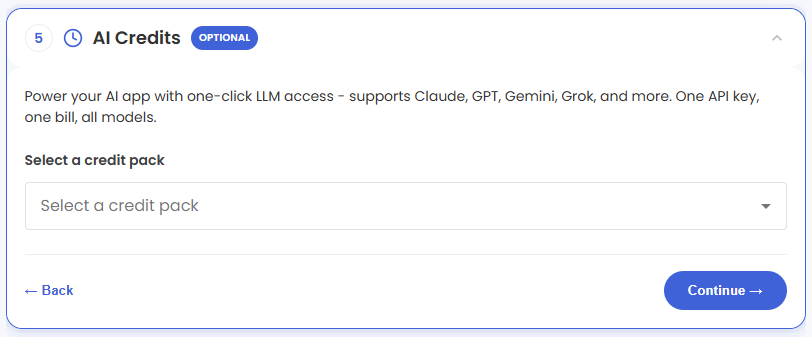
- AI Credits:
Select a credit pack to access multiple AI models with one API key and consolidated billing.
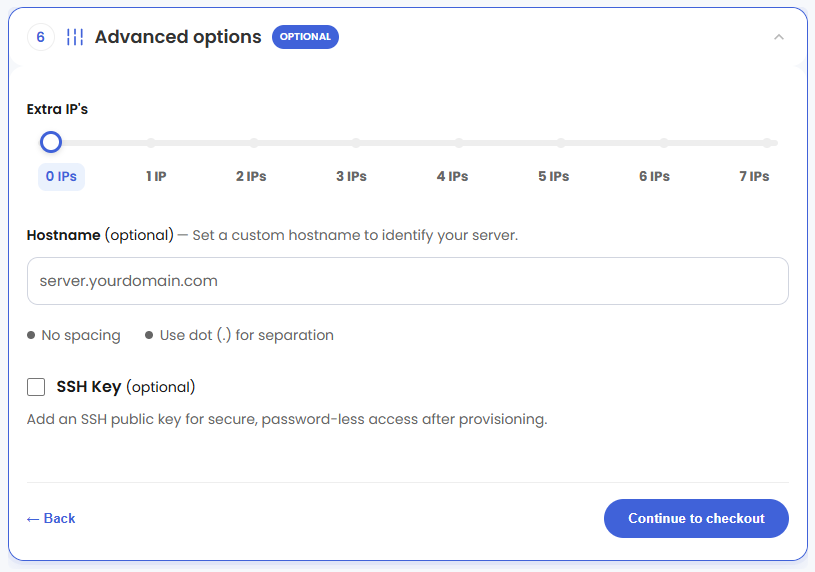
- In the Advanced options:
- Extra IPs: You can add extra IP addresses for an additional fee.
Pricing changes based on how many IPs you add. - Hostname: Assign a custom hostname to easily identify your server. This is optional.
- SSH Key (Optional): Add an SSH public key to enable secure, passwordless access after provisioning.
- Extra IPs: You can add extra IP addresses for an additional fee.
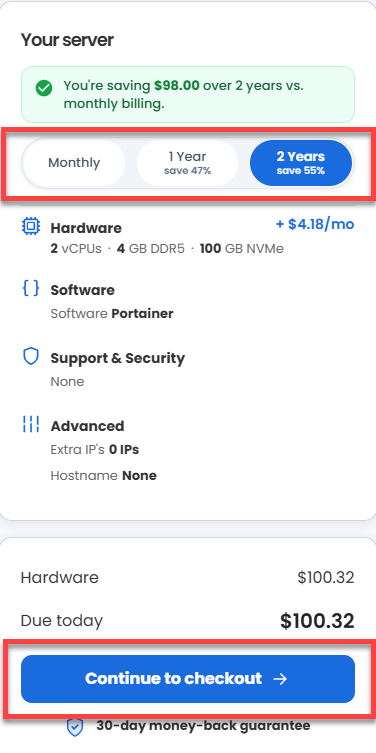
- Select your preferred billing term and view your Order Summary. Click the Continue to Checkout button to proceed.
- Do the following on the Checkout page:
If you're new with Bluehost:
- Create your Bluehost account by using your email address or by connecting with your Google, Apple, or GitHub account — whichever you prefer!
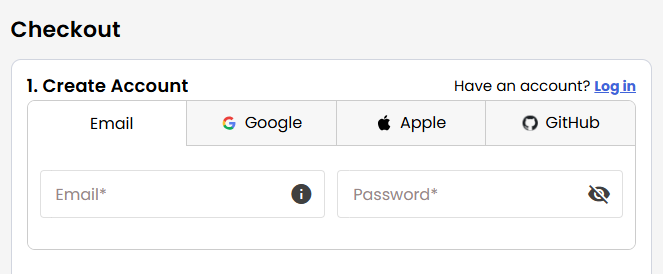
- Select your preferred payment method: credit card, Google Pay, or PayPal. Enter your billing information.
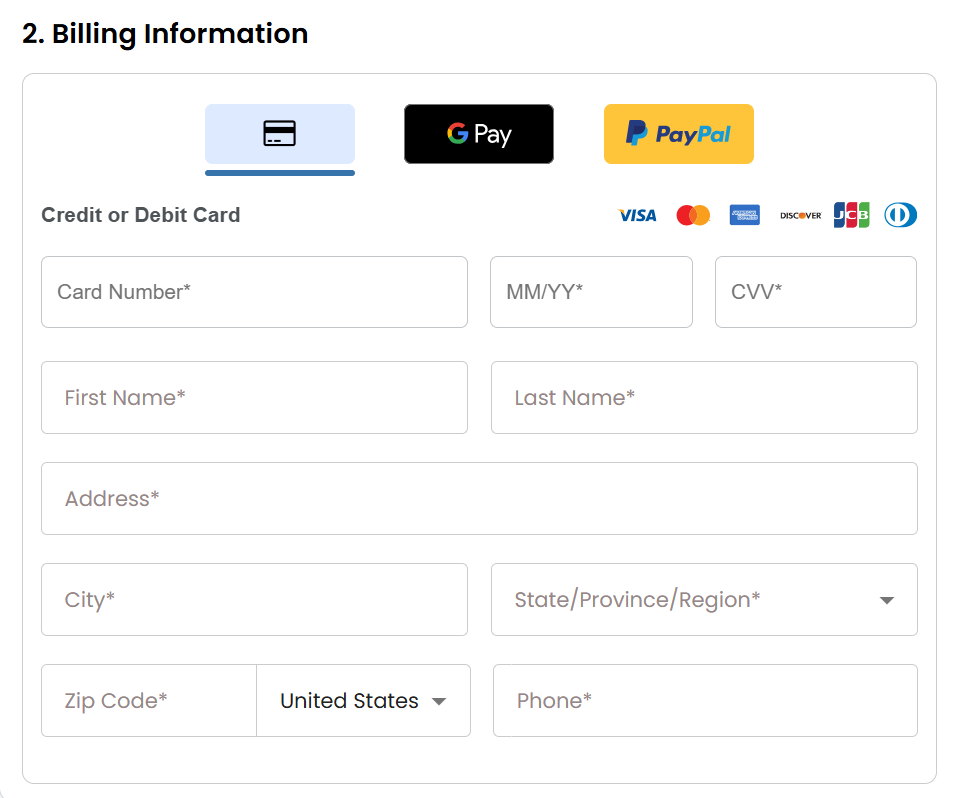
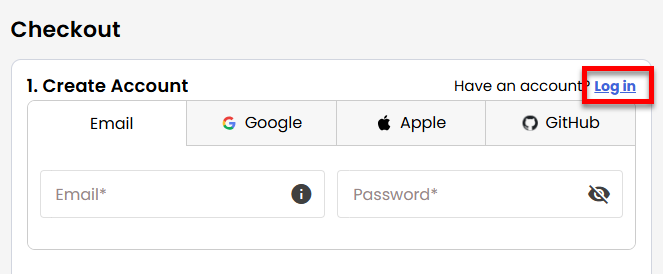
If you have an account with us, you will see your Bluehost login details when you are logged into your Bluehost Portal. If you are not logged in, please click the Log In link.
- Create your Bluehost account by using your email address or by connecting with your Google, Apple, or GitHub account — whichever you prefer!
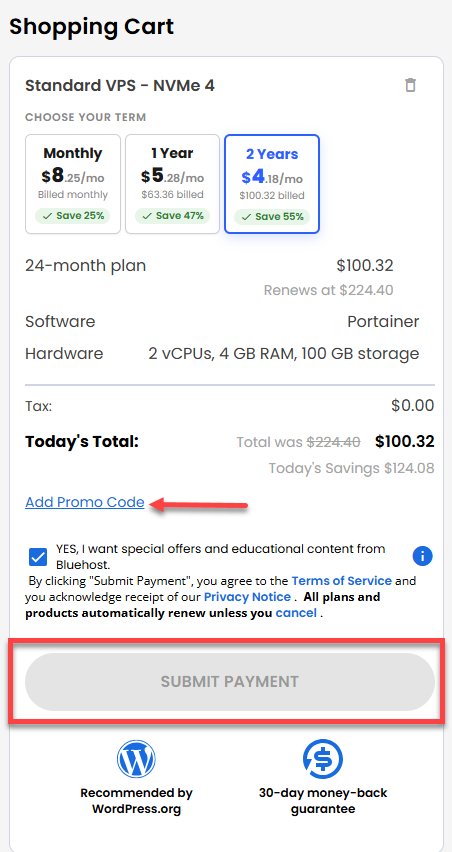
- In the Shopping Cart section, you can still adjust your billing term if needed.
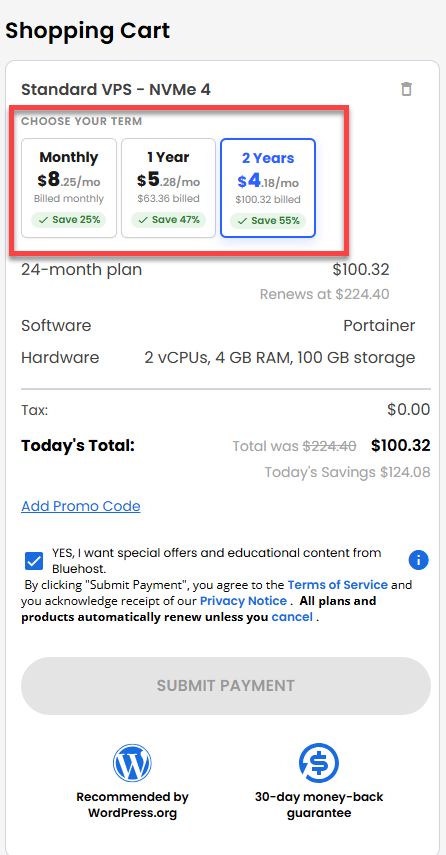
- Review the items in your cart, add a Promo Code if you have one, and then click Submit Payment to complete the purchase.
After completing the purchase, your VPS hosting will begin provisioning. You can access and manage your new VPS hosting in the Hosting tab of your Bluehost Portal.
Summary
Portainer is a browser-based dashboard that lets you easily run, monitor, and manage containerized software with simple clicks instead of complex text commands. You can get this tool automatically pre-installed by purchasing a Self-Managed Virtual Private Server (VPS) through Bluehost and selecting Portainer during checkout.