 ChatGPT,
 Claude,
 Gemini,
 Grok — all four for
Key highlights
- Learn how to create a Facebook Business Page in 9 simple, beginner-friendly steps.
- Understand how a Facebook Business Page helps you build brand visibility, engage customers and promote your products or services effectively.
- Explore how to set up essential elements like contact details, profile images, business info and your unique username.
- Discover how to grow your audience using built-in features like friend invitations, notifications, insights and WhatsApp integration.
- Get actionable tips on managing your Facebook Page long-term with tools like Meta Business Suite, Creator Studio and Facebook Page Insights.
Want your business to reach more people and build credibility online? Learning how to create a Facebook Business Page is one of the fastest ways to get there.
Since the launch of Facebook business pages in 2007, companies have been working hard to use the social media platform to build closer relationships with their fans and customers.
With over 3 billion monthly active users, Facebook business page is an excellent way to market your brand to a broad audience. The good news is you don’t need to worry about how to make a Facebook Business Page. It is easier than you might think.
In this article, we’re going to show you how to make a Business Page on Facebook in 9 steps to help you reap the benefits it offers.
What is a Facebook Business Page?
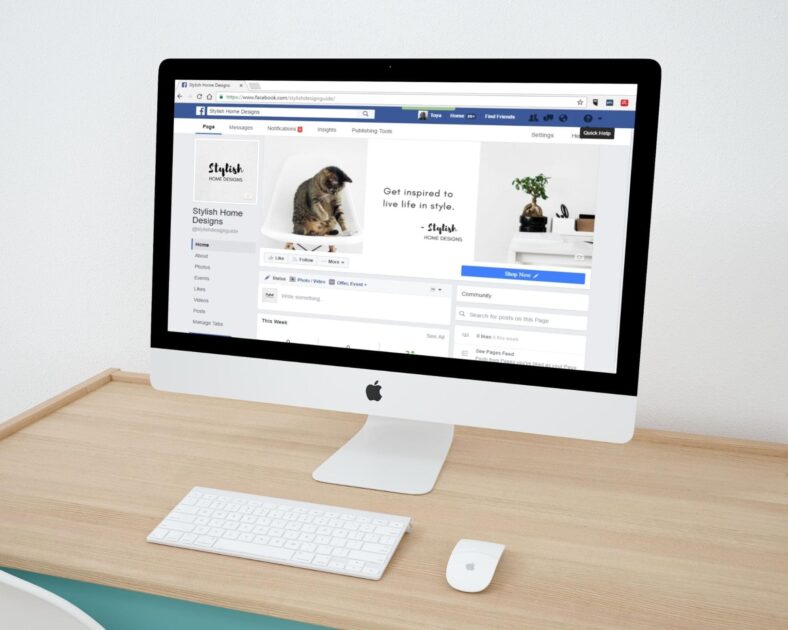
A Facebook Business Page is an online presence designed for businesses, brands and public figures within the Facebook platform.
It serves as a platform to share content, engage with followers and promote products or services. Users can interact with posts through likes, comments and shares, while businesses can access insights through analytics.
The page offers profile information, content sharing, engagement tools, insights and advertising options. It is a hub for communication, advertising and event promotion, facilitating direct online customer interaction.
It’s a crucial tool for modern marketing and engagement strategies in this digitally advanced age.
Also read: Top eCommerce Promotion Strategy: Boost Sales & Grow Brand
How to create a Facebook Business Page in 9 steps?
These are the steps you must follow to make a Business Facebook Page:
- Log into your personal Facebook account and go to Facebook Pages
- Add contact information
- Add your Facebook profile picture and cover photo
- Connect your Facebook business page to WhatsApp
- Invite followers
- Stay informed about your Page
- Create your username
- Add your business information
- Create your first post
Let’s look at the steps for how to make a Facebook Business Page in detail.
1. Log into your personal Facebook account and create a Business Page
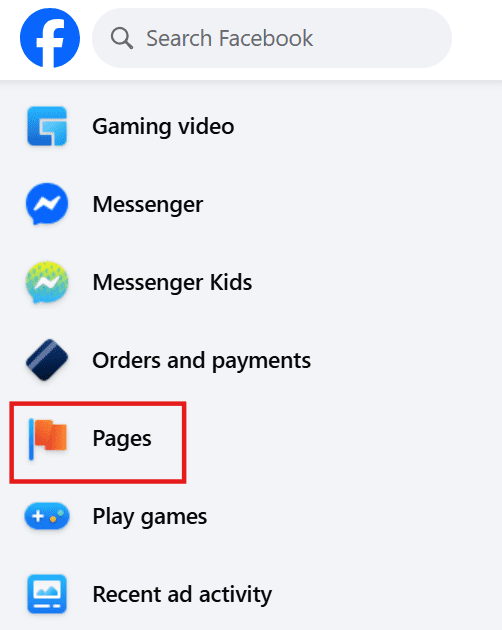
a. Log into your Facebook account, then visit the left sidebar and click on the ‘Pages’ section.
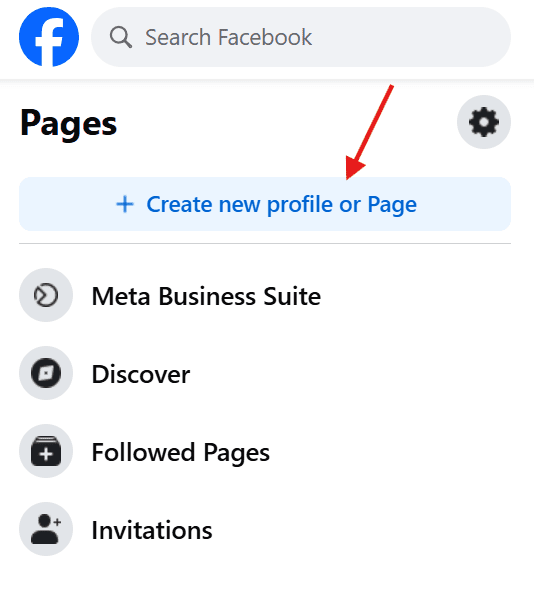
b. Then click the ‘Create new profile or Page’ button.
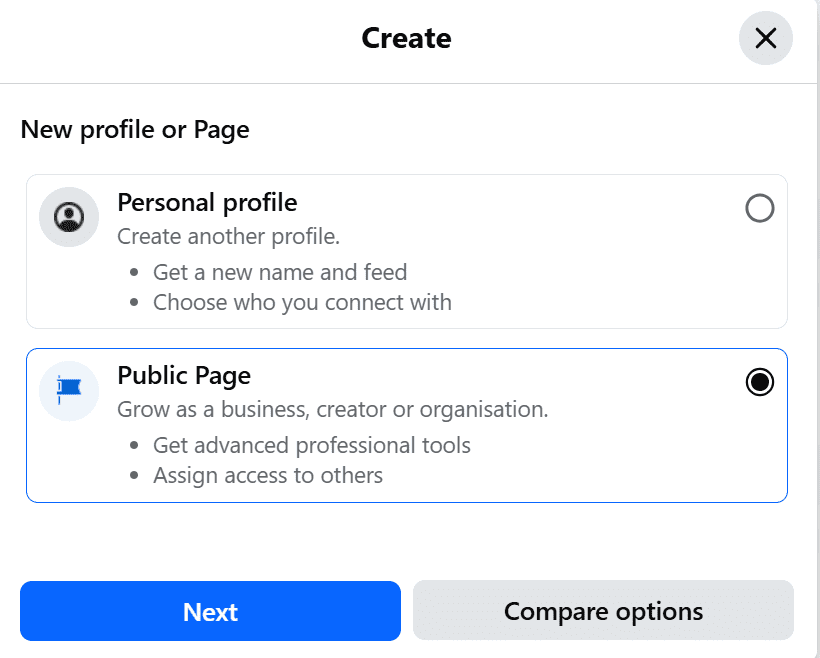
c. On the new pop-up, select ‘Public Page’ and click ‘Next’ > ‘Get Started’.
d. Enter your business details on the left panel. While at it, the page preview will update in real-time. You can use your business or brand name as your page name.
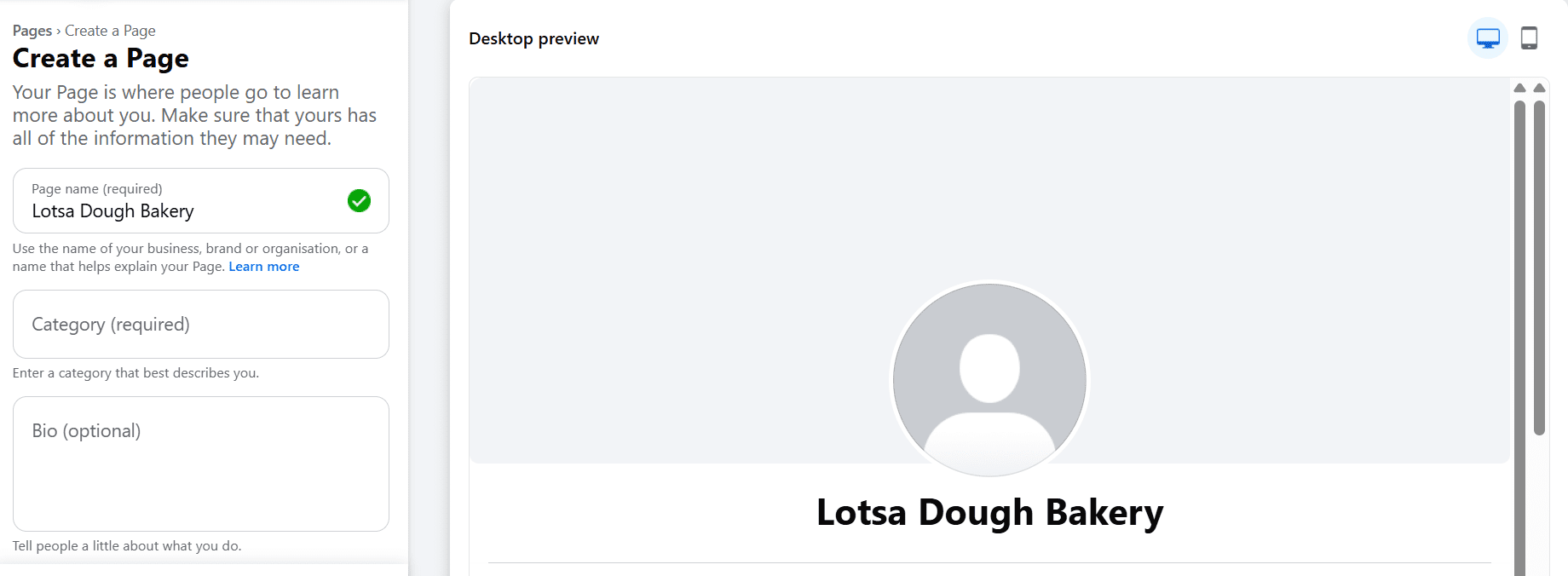
e. Next, enter a word in the search bar that describes your business in the category box. Facebook will recommend some options based on the chosen business categories.

f. Now, write a description for your business. It should be a couple of sentences long (maximum 255 characters) because it’s also the summary that appears in search results.

g. When you’re satisfied with the description, click ‘Create Page’ button.
2. Add contact information
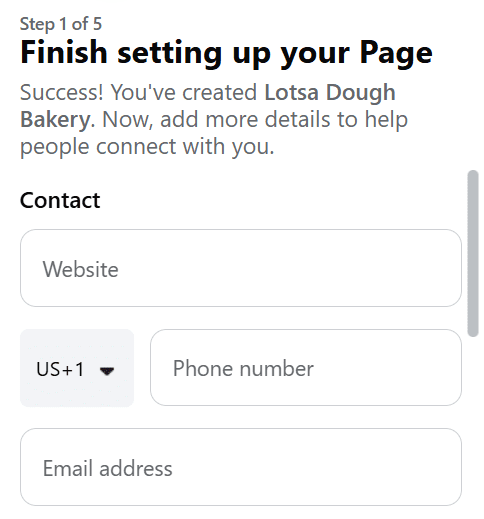
Once your page is created, Facebook will guide you through a few setup screens to help visitors get in touch with your business easily. The first step is adding your contact details.
a. On the top left corner of setup panel, you’ll see fields to add your website URL, phone number and email address. Enter the details that customers commonly used to reach your business.
If you don’t have a website yet, this is the perfect time to create one. A dedicated website helps customers learn more about your business and builds trust. You can get started quickly with Bluehost WooCommerce hosting plans. We offer essential WooCommerce tools, YITH plugins and professional guidance in one plan to help you launch your online presence seamlessly.
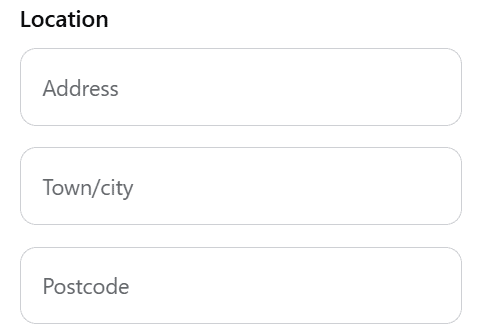
b. Scroll down to the ‘Location’ section. Add your business address, along with the city and postcode. This is especially important if customers visit brick and mortar location or need to know where your services are based.
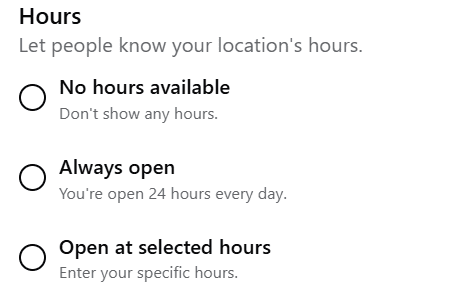
c. Next, Facebook will ask you about your business hours. Choose one of the available options:
- No hours available: If your business doesn’t operate on fixed timings.
- Always open: Useful for online stores or 24/7 services.
- Open at selected hours: If you want to specify your daily working hours.
d. Once you’ve filled in your contact details and hours, review the information for accuracy. Then, click ‘Next’. These details appear on your page’s ‘About’ section and help customers connect with you quickly.
You can always update this information later in the ‘Edit Page Info’ section if anything changes.
3. Add your Facebook profile picture and cover photo
a. After creating a page, you’ll need to upload a profile picture and a cover photo.
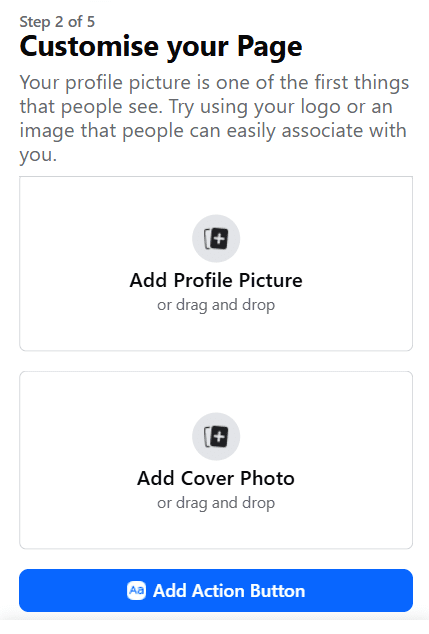
b. Ensure the images align with your brand and represent your business. For example, the photos should include some combination of your company logo, pictures of your product and other branding components.
Also read: The Ultimate Guide to Personal Branding
c. Your profile photo should be 170 x 170 pixels. Since Facebook will crop it to a circle, don’t put any critical details in the corners.
d. Use a cover image that’s 1640 x 856 pixels, as recommended by Facebook.

e. After uploading the images, you can switch between desktop and mobile views by clicking the buttons on the top right corner of the preview. Use these to ensure that your pictures look good on both displays.
f. When you’re satisfied, click ‘Next’.
4. Connect your Facebook Business Page to WhatsApp
a. After clicking ‘Next’, you’ll be asked to connect your Facebook page to WhatsApp. That is optional, but it will help you add a WhatsApp button to your page.
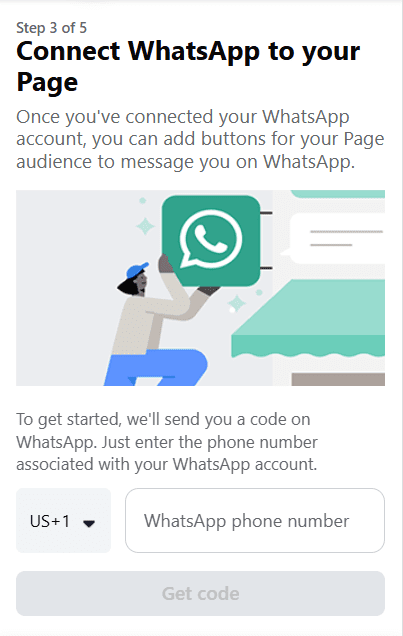
b. Add your phone number, then click ‘Get Code’. Enter the 5-digit code sent to your contact number to connect your business page to WhatsApp.

c. If you choose not to connect WhatsApp, click ‘Skip’.
5. Invite followers from personal account
After WhatsApp setup, Facebook will guide you to the next step: growing your Page audience. This is where you can start bringing in your first followers.
You’ll see a prompt asking you to invite your Facebook friends to connect with your new Page. This is the quickest way to get initial engagement and help your page look active.
a. Click the blue ‘Invite Friends’ button to view a list of your personal Facebook friends.

b. Choose which friends to invite, then click ‘Send Invitations’. You can also send the invitation on Messenger by ticking the box at the bottom.

Also read: How to Organically Grow Your Social Media Following
6. Stay informed about your page
Before finishing the setup, Facebook gives you the option to turn on notifications and helpful updates for your business page. These settings ensure you never miss important activity.
a. Page notifications on your profile: Switch this on if you want to receive alerts about comments, messages and updates while you’re logged into your personal account. This helps you respond quickly and keep engagement high.
b. Marketing and promotional emails: These emails share tips, product updates and suggestions that can help your page grow. This step is optional and can be changed anytime in your Page settings.
Once you’ve reviewed both options, click ‘Done’ to complete the setup.
Your Facebook Business Page is now fully created and ready for customization, posting and audience growth.
7. Create your username
Your username shows people where to find you on Facebook, so you want it to be easy to type and remember. The most straightforward option is to use your business name. Here’s how to set up your username.
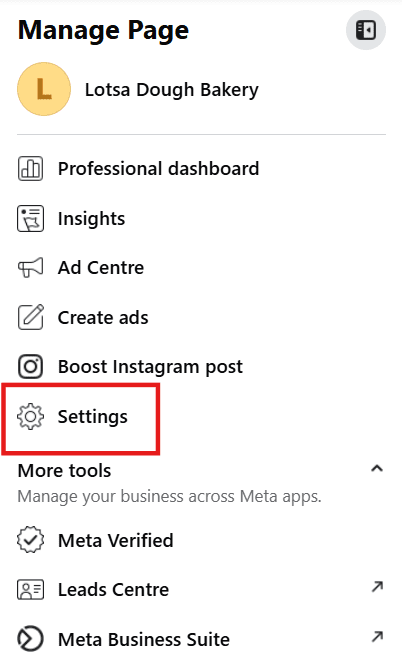
a. To set it up, go to ‘Settings’ from the left-hand navigation bar.
b. On the next page, select ‘Page Setup’ under the ‘Audience and Visibility’ section.

c. Click on ‘Name’ and under ‘Username’, select ‘Edit’.
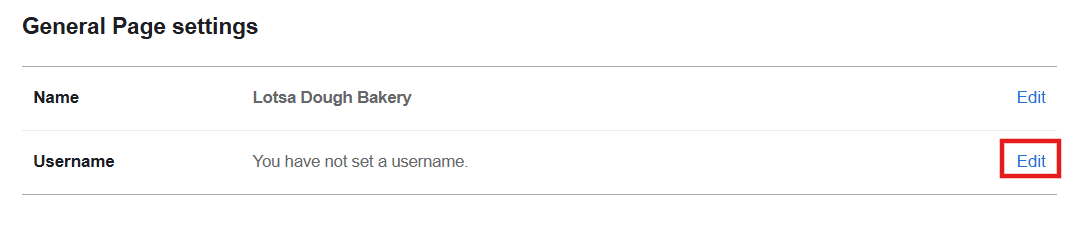
d. Enter the username you want to use (it’s recommended to use same page name as username). Facebook will notify you if it’s available with a green checkmark.
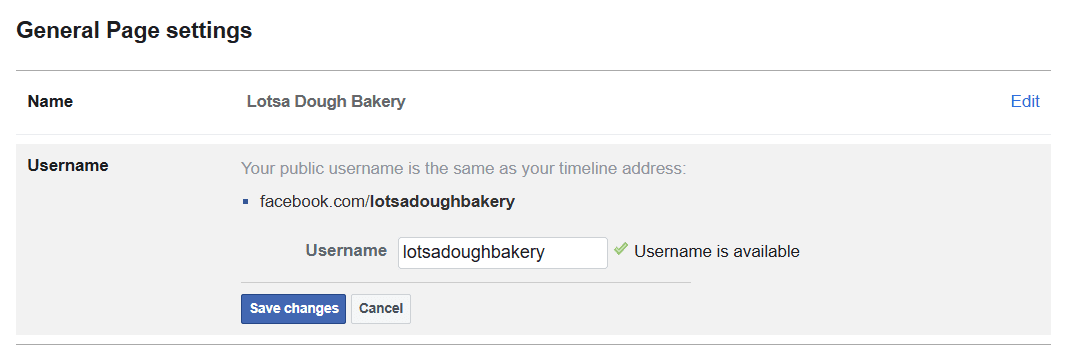
e. Once done, click ‘Save changes’.
8. Add your business information and action button
Since Facebook is usually the first place where customers look for information about you, having essential information on your business page is a must-have.
a. Facebook makes this process very simple. Go to ‘How healthy is your Page?’ section and click ‘See more’ to expand options.

b. On the new page, you can fill in the appropriate information on the drop-down menu, from your website details to a call-to-action button.

c. To add a CTA button on your Facebook homepage, click the blue box labeled ‘Add Button’.
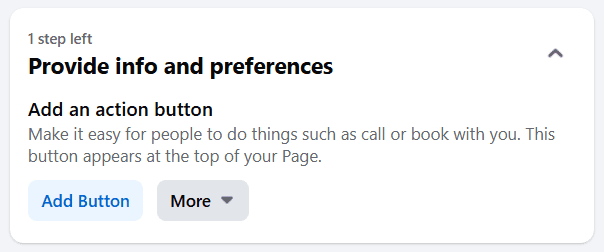
d. Then select the type of action button you want.

f. If you don’t want to do all these steps now, you can always go back and do them later. You’ll find this option on ‘Edit Page Info’ in the ‘Manage Page’ menu on the left.
9. Create your first post
Before inviting people to like your business page, you should at least have one post with valuable content, like Welcome post. That way, visitors will want to stick around.

Alternatively, you can create a specific type of post, such as a live video or reel by selecting one of the options in the Create box.

How to easily manage Facebook Pages?
Effectively managing Facebook Pages is simplified through Meta’s offerings, encompassing Facebook and Instagram. Meta provides two integral solutions: Meta Business Suite and Creator Studio.
1. Meta Business Suite
This comprehensive tool is essential for various tasks. It facilitates the execution of ads, enables engagement with Facebook Commerce and enables seamless synchronization between Facebook and Instagram business accounts.
This suite serves as a command center, streamlining intricate processes and providing a unified platform for holistic Page management.
Also read: How to Use Instagram for My Business – The Ultimate Guide
2. Creator Studio
An indispensable companion for Page administrators, Creator Studio empowers them to curate content easily. Whether through the web or a mobile app, it empowers managers to craft and schedule content. Furthermore, it offers insightful analytics to refine strategies.
This tool extends its versatility by facilitating Live sessions on Pages and facilitating the simultaneous posting of content across multiple Facebook Pages.
Also read: A Beginner’s Guide to Using Facebook Live for Marketing
How to attract an audience to your Facebook Business page?
Learning how to make a company Facebook page is just the first step in your journey.
People need to know about your business. So, your next move is to spread the word and start pulling in an audience that cares about your brand.
- The first thing you should do to attract an audience is share the new page with friends already connected to you on Facebook. You can invite people from your admin panel, either directly or via the email contacts option.
- You should also add a button for your Facebook business page on the homepage of your website. If you’re still building your online presence, choosing a dependable hosting platform can help you launch a professional site that works seamlessly with your social media strategy. Switch to Bluehost WooCommerce hosting to get store-ready tools, Yoast SEO, YITH plugins and expert guidance.
- You should include your Facebook URL in your advertising materials, business cards, flyers and guest blog posts.
Once you’ve done all that, you might want to delve into paid methods for advertising your page. Promoted posts appear higher in your audience’s News Feeds, thus increasing the likelihood of them seeing your posts.
You can also run ads on Facebook to further advertise the page to fans and non-fans alike. Facebook allows you to set a budget for your advertising campaigns and it’s pretty affordable compared to other forms of advertising.
Also read: 6 Social Media Advertising Tips To Master Your Strategy
Best practices to manage Facebook Pages effectively
Unlike knowing how to create a Facebook Business page, knowing how to manage one is a long-term necessary investment that evolves with time.
Whether you’re an individual, a small business or an organization, these tips can help you efficiently manage your Facebook Pages.
1. Content planning and scheduling
- Create a content calendar: Plan your posts in advance to maintain consistency and avoid last-minute rushes. By plotting out your content in advance, you establish a clear roadmap for your posts, ensuring a steady flow of engaging material.
- Use scheduling tools: Platforms like Meta Business Suite allow you to schedule posts for optimal times. Scheduled posting is mainly done when your target audience is most active. For example, you can schedule a product launch in advance and select the time at which it goes live.
Also read: How to Create a Content Calendar in 2025: Step-by-Step Guide
2. Engaging content creation
- Visual appeal: Make a powerful first impression by leveraging high-quality images, captivating videos and visually appealing graphics. These elements help communicate your message swiftly in fast-scrolling social feeds.
- Varied content: Keep your audience intrigued by offering diverse posts. Variety ensures that there’s something for everyone, increasing the chances of consistent interaction.
- Storytelling: Craft compelling narratives to connect with your audience on a personal level. Share anecdotes, triumphs, challenges and milestones your audience can relate to. This personal touch deepens engagement and cultivates a sense of community around your page.
Also read: Bluehost’s Guide To Creating Video Content That Gets Results
3. Audience engagement
- Prompt replies: Respond promptly to comments, messages and mentions to show your engagement and build a strong online community. It creates a positive impression of your responsiveness and willingness to engage in conversations.
- Encourage discussion: Pose questions and ask for opinions to stimulate conversations among your followers. This approach sparks discussions and shows that you value their input, creating a sense of community.
- Run contests and giveaways: Encourage participation and excitement by asking users to tag friends, share content or submit their creations. Such initiatives foster a sense of fun and reward, making followers more likely to engage with your page actively.
Also read: How Many Views Is Viral? Social Media Benchmarks for 2025 Success
4. Data monitoring and analysis
- Facebook insights: Utilize Facebook’s built-in analytics tool to track the performance of your posts and understand your audience’s behavior. Dive into key metrics such as post reach, engagement and follower demographics to gain valuable insights into what’s working and what’s not.
- Identify trends: Look for patterns in posting times to refine your strategy. Adjust your posting schedule to align with these peak times, increasing the chances of your content being seen. Identify which content formats receive the most engagement and adjust your future content mix accordingly.
5. Monitoring competitors
- Follow similar pages: Watch your competitors to gather inspiration and stay updated on industry trends.
- Analyze their strategy: Observe the type of content they post, their engagement tactics and how they handle existing customer interactions.
6. Mobile accessibility
- Facebook app: Manage your page on the go with this mobile app, which offers most desktop features.
- Timely updates: Post time-sensitive content or respond to urgent messages using your mobile device.
Learn about Facebook Page Insights
Facebook Page Insights is a robust analytics tool that provides a wealth of data about your page’s performance.
This free tool empowers page administrators with valuable information to make informed decisions, refine content strategies and enhance audience engagement.
Here are some key metrics that play a pivotal role in assessing and enhancing your page’s performance:
- Engagement rate: This metric measures the level of interaction your content receives from your audience. It includes likes, comments, shares and other forms of engagement. A high engagement rate indicates that your content resonates well with your audience and encourages active participation.
- Reach: Reach signifies the number of unique Facebook users who have seen your posts. It sheds light on your content’s visibility and potential to generate interest. Tracking reach helps you evaluate the effectiveness of your content distribution strategy.
- Impressions: Impressions go beyond reach by indicating the total number of times your content has been displayed. A single user might see a post multiple times, contributing to the impressions count. This metric helps gauge the overall exposure of your content.
- Follower demographics: Understanding your audience’s age, gender, location and language preferences is essential for tailoring your content to their interests. This metric provides insights into your audience, helping you create content that resonates with them.
- Top performing posts: Identifying your top-performing posts enables you to decipher the content that garners the most engagement and resonates with your audience. By analyzing the characteristics of these posts, you can refine your content strategy to replicate success.
- Actions on Page: This metric shows how many people took action after visiting your Page. These actions can include: clicking your website link, tapping your call button, viewing your contact info or interacting with your CTA. It’s especially important for small businesses focused on conversions or inquiries.
Also read: Improve Social Media Presence: Tips to Grow Your Brand
Regularly review and analyze your Facebook Page Insights to refine your content strategy and adapt to changing audience behaviors. Leverage the data to identify trends, capitalize on successful Facebook posts and continuously optimize your approach.
Final thoughts
Creating a Facebook Business Page is one of the simplest ways to strengthen your online presence and connect with customers where they already spend their time. One of the most effective ways to make your business page as solid as possible is to post proven, data-backed content and post when your target audience is most active.
But a strong Facebook presence becomes even more powerful when paired with a professional website. Your Facebook Page helps people discover your business, while your website gives them a trusted place to learn more, explore your products and take action.
If you’re ready to build a complete online presence, consider launching your website with Bluehost WooCommerce hosting. You’ll get essential WooCommerce tools, premium YITH plugins and expert guidance to grow your business with confidence.
Build your online store with Bluehost WooCommerce hosting today.
FAQs
Yes, there’s a notable difference. While a Facebook Page serves as a general platform for individuals or organizations to share content, a Facebook Business Page is tailored specifically for businesses. It offers additional features like analytics, advertising options and a shop section. So, if you’re thinking to create a website or a Facebook page for your business, opting for a Business Page is the way to go.
Yes, setting up a Facebook Business Page is entirely free. You can add all kinds of information, from your business hours to your website link, without spending a dime. However, if you want to advertise your page or promote post content, that’s where costs can come in.
Yes, you can keep your Facebook Business Page separate from your personal profile in terms of visibility. But a personal Facebook account is still required to create and manage it. You must log in to continue using a Business Page. You can also use great tools like Meta Business Suite to manage your Page professionally, limit what others see and keep your personal activity completely private.
The recommended cover photo size for a Facebook Business Page is 820 pixels wide by 312 pixels tall for desktop and 640 pixels wide by 360 pixels tall for mobile. Having the right dimensions ensures that your image looks crisp and professional.
If you’re serious about using Facebook to market your business, engage potential customers and generate leads, you should definitely create a Business Page. A personal Facebook profile won’t give you access to analytics or other tools that can boost your marketing game.
Facebook doesn’t convert personal profiles into business accounts, but you can create a Facebook Business Page to support your business goals. Your personal profile simply acts as the admin so Facebook can verify your identity under Facebook’s terms. From there, you can manage everything through Meta Business Suite, track performance and guide followers toward your products or sales pages. If you ever notice unusual activity, you can review your Page roles and permissions anytime.
No. Facebook requires one personal account to manage Business Pages and creating a second personal account is not allowed under Facebook’s terms. Instead, you use your existing profile to access or grant partial access to others who help manage the Page. This keeps your business presence organized while protecting your personal information and supporting your long-term business goals.
If you’re wondering how to lock Facebook profile, simply open your profile page, tap the three-dots menu and select “Lock Profile.” Confirm the action and Facebook will restrict your photos, posts and personal details so only your friends can see them.
