 ChatGPT,
 Claude,
 Gemini,
 Grok — all four for

Key highlights
- Learn how WordPress code snippets help you add powerful features without relying on heavy plugins or complex theme edits.
- Understand simple, beginner-friendly methods to safely add, test and manage custom code across single sites and multisite networks.
- Explore practical snippet examples that improve design, performance, SEO and backend workflow for smoother overall WordPress website management.
- Know how AI tools streamline generating, customizing and troubleshooting snippets for faster, smarter and error-free WordPress development.
- Uncover common snippet mistakes and learn effective fixes that keep your WordPress site stable, secure, optimized and future-ready.
If you’re tired of downloading endless plugins every time you want a small feature on your WordPress site, you’re not alone. In fact, WordPress powers over 39 million US websites, with 35 million currently live, dominating the American web presence in 2025 and most of these sites rely on smarter, cleaner ways to add functionality without slowing things down. That’s where WordPress code snippets become a game-changing solution.
In this guide, we’ll walk you through how code snippets simplify customization, how to add them safely, the best beginner-friendly snippets, common errors to avoid and how AI tools like ChatGPT can help you create and manage custom functionality with just a few clicks. Let’s unlock a faster, cleaner, plugin-free workflow.
TL;DR
WordPress code snippets let you add custom features without installing many plugins or editing theme files.
To use them:
- Decide your goal (feature, design change or performance tweak).
- Find a snippet from a trusted source or plugin library.
- Add it using a code snippets plugin like WPCode (recommended) or manually in functions.php if advanced.
- Test the snippet to ensure it works and doesn’t conflict with plugins/themes.
- Monitor site speed and engagement to confirm the snippet helps your WordPress site
What are WordPress code snippets?
WordPress code snippets are small pieces of PHP, HTML, CSS or JavaScript that let you add custom features to your WordPress site without installing many plugins or editing bulky theme files. Think of them as mini-plugins, lightweight pieces of code that enhance your WordPress website with added functionality in just a few clicks.
These snippets execute specific actions, adjust design elements, improve performance or introduce custom features that would otherwise require heavy plugins. Instead of downloading endless plugins that slow down your site, WordPress users can simply add custom code to achieve the same results more efficiently.
Most snippets are easy to manage through a snippet library or a code snippets plugin with an intuitive interface, making customization cleaner, safer and future-ready for all your websites.

Also read: WordPress Editor – Tips, Plugins & Best Practices
How to use and add WordPress code snippets
Adding custom functionality to your WordPress site can significantly enhance user experience, but it often involves writing code. Historically, this process could be messy, either by downloading endless plugins for single features or involve dumping code directly into your wordpress theme files, which risks breaking your site or losing changes on update.
The modern, safe solution for WordPress users is leveraging code snippets. A code snippet acts like a mini plugin, allowing you to add custom features and functionality without the bloat of many plugins.
Method 1: The recommended way (Using a code snippets plugin)
The best way to add code snippets to your wordpress website is by utilizing a code snippets plugin. This method code snippets simplifies the process, offering a safe, manageable and highly efficient solution.
Why use a code snippets plugin?
- Safety and management: Plugins provide an intuitive graphical interface for managing snippets. If you paste an error-ridden PHP snippet, the plugin often detects it and prevents the snippet from executing, saving you from the dreaded “White Screen of Death.”
- Theme updates: Unlike directly editing theme files, snippets managed by a plugin remain active even if you switch your wordpress theme or update it.
- Easy activation: You can turn individual snippets on or off in just a few clicks without deactivating plugins or deleting code.
Step-by-step guide with a plugin
- Install a code snippet plugin:
- Go to Plugins > Add New in your WordPress site dashboard.
- Search for a highly-rated option like WPCode or Code Snippets.
- Install and activate the plugin.
- Add your custom code:
- Navigate to the dedicated Snippets menu created by the plugin (e.g., “Code Snippets”).
- Click “Add New” to add custom code.
- Give your snippet a descriptive name (e.g., “Disable Admin Bar”).
- Choose the snippet type:
- Select the correct snippet types (e.g., PHP snippets for functionality, HTML snippets for content or complete CSS).
- Paste your code into the editor. The intuitive interface makes it easy to review.
- Execute and save:
- Toggle the snippet from Inactive to Active.
- Click Save Snippet. The plugin ensures the snippets execute in real time execution safely.
Advanced features for future growth
Many code snippets offers powerful features beyond basic code insertion:
- Cloud synchronization: Features like cloud synchronisation integrations and a private cloud library (often via code snippets cloud or code snippets pro) let you reuse your snippets across multiple sites and all the websites you manage.
- Smart logic: Implement smart conditional logic to ensure snippets only run snippets on specific pages, user roles or conditions.
- Key features: Plugins often include a snippet library with great examples of common wordpress code enhancements ready to deploy.
Method 2: The advanced way (Editing the PHP file)
This method is recommended only for experienced developers and requires using a Child Theme. Editing a Parent Theme’s php file (functions.php) will cause your custom code to be deleted upon theme update.
- Prerequisite: Use a child theme:
- Ensure you are using a child theme of your wordpress theme. If you don’t have one, writing code directly into the parent theme is a significant risk.
- Access the theme files:
- In the WordPress dashboard, go to Appearance > Theme File Editor.
- Crucially: Select your Child Theme from the dropdown menu on the right.
- Edit functions.php:
- Click on Theme Functions (functions.php) in the file list.
- Paste your custom code snippets at the very bottom of the file (before the closing ?> tag, if one exists).
- Update file:
- Click Update File. If there is an error in your code, your site without the plugin’s protection may crash (a White Screen of Death), requiring you to use FTP or your host’s File Manager to manually delete the bad code.
For safety, managing snippets and avoiding the risk inherent in manually editing php files, the code snippets plugin is the superior choice for most WordPress users. It provides easy access to add custom features and powerful advanced features with a few clicks.

Speed check tip:
A snippet should not slow down your website. If your site speed consistently dips, consider removing or optimizing the snippet.
This ensures your WordPress website remains both functional and performance-optimized for future growth.
Also read: Website Speed: 5 Ways To Fix Your Website Speed
Summary table: Steps and best practices
| Step | Description | Best practice |
|---|---|---|
| 1. Identify goal | Define what you want to achieve | Use specific search terms and trusted sources |
| 2. Obtain snippet | Use plugins or Google search | Prefer plugins for safety and ease |
| 3. Add snippet | Paste into functions.php or use plugin | Always back up and use child themes |
| 4. Test snippet | Check on staging or local site | Monitor for errors and performance |
| 5. Monitor metrics | Track speed, engagement, conversions | Remove snippets if they cause issues |
Best WordPress code snippets for beginners (With use cases)
WordPress code snippets make it easy to add custom features to your site without installing too many WordPress plugins. Whether you want to adjust design elements, add functionality or improve performance, these beginner-friendly snippets let you manage code efficiently across a multisite network or a single site, even if you’re not comfortable writing code.
Below are practical, real-world Bluehost website examples that show how you can use PHP, HTML snippets and complete CSS tweaks to enhance your WordPress site. These custom code snippets allow you to add features quickly, avoid dumping code into theme files and even support cloud synchronization integrations through snippet management tools.
1. Custom author bio box
A custom author bio box is one of the most popular WordPress code snippets for blogs. Instead of installing yet another WordPress plugin, you can add a simple snippet that displays author details, social links and custom styles.
Use case: Highlight writers, improve credibility and boost engagement, especially on content-heavy sites.
Why it’s helpful:
- Works across different languages
- Easy to customize with complete CSS
- Avoids deactivating plugins used only for one specific feature
This is a great example of how code snippets WordPress users love can replace bloated plugins efficiently.
2. Custom login page
A custom login page snippet adds branding without relying on heavy plugins.
Use case: Ideal for agencies, freelancers and businesses that want consistent branding across all the websites they manage.
Benefits:
- Clean implementation
- Faster than most plugins
- Supports full integration with themes
- Real-time execution when changes are saved
This snippet is especially useful for multisite network environments.
Also read: How to Customize Your WordPress Dashboard
3. SEO breadcrumbs
Breadcrumbs help users navigate your website and improve SEO. Instead of installing a plugin, you can add code snippets that include structured markup for Google.
Use case: Blogs, eCommerce stores and information-heavy websites benefit the most.
Why beginners love it:
- Lightweight snippet
- No plugin conflicts
- Helps Google understand site structure
This is one of the great examples where a tiny snippet improves rankings.
Also read: WordPress SEO Made Simple: Best Practices to Boost Your Rankings in 2025
4. Disable comments on specific posts
Not every page needs comments. This custom code snippet gives you precise control.
Use case: Disable comments on landing pages, product pages or private content.
Advantages:
- Doesn’t involve dumping code across multiple template files
- Avoids installing bulky comment-control plugins
- Easy to extend or deactivate
A simple snippet can target specific URLs or post types.
5. Customize the WordPress admin dashboard
With a dashboard snippet, you can clean up the interface, remove unnecessary widgets and improve workflow.
Use case: Agencies offering client dashboards, LMS websites or custom editorial panels.
Key features:
- Removes clutter
- Improves usability
- Integrates well with snippet management tools
This is a good plugin-free way to personalize the backend.
6. Add social media icons
You can add social icons using pure HTML snippets or CSS, without relying on plugins.
Use case: Simple blogs, portfolio sites or small businesses that need lightweight social integration.
Benefits:
- Minimal performance impact
- Easy styling with complete CSS snippets
- Quick to activate or deactivate
This is one of the most common custom code snippets beginners experiment with.
These great examples show how custom code snippets offer flexibility, real-time execution, plugin-free enhancements and full integration with your WordPress website. Whether you’re managing a multisite network or a single website, snippets give you precise control without relying on too many plugins.
Common errors and how to fix them
Even though WordPress code snippets make customization easier, small mistakes can create issues on your website. The good news? Most problems are simple to fix, even for beginners. Here’s a quick overview of the most common errors and how to solve them, with practical Bluehost website examples to guide you.

1. Syntax errors
A syntax error happens when a snippet contains missing brackets, semicolons or incorrect PHP structure.
Why it happens:
- Copying snippets from unreliable sources
- Incomplete code snippets WordPress users often paste without testing
- Pasting HTML snippets into a PHP file
How to fix:
- Use a code snippets cloud tool that includes syntax validation
- Preview and run snippets in a staging environment
- If your site breaks, access your hosting file manager and remove the snippet instantly
Tools with cloud synchronisation integrations help prevent errors by letting you store verified snippets safely.
2. Plugin conflicts
Some snippets overlap with existing WordPress plugins, causing errors or duplicated functionality.
Common signs:
- Features stop working
- CSS breaks
- Dashboard warnings appear
How to fix:
- Deactivate plugins that perform the same function
- Run snippets in isolated mode using a great plugin like WPCode
- Test in a staging environment before going live
Cloud-based snippet tools also highlight potential conflicts automatically.
3. Theme breakage after adding a snippet
A poorly formatted snippet can break your theme files, especially when added to functions.php.
How to fix:
- Keep backups of your theme files
- Use a child theme to avoid permanent damage
- Switch to a snippet tool that includes safe mode and auto-rollback features
These advanced features ensure enhancements ready for future updates.
4. Permission or access errors
This usually occurs when WordPress blocks a snippet from modifying specific areas of your site.
How to fix:
- Check file permissions in your hosting dashboard
- Ensure the snippet does not require admin-level access
- Use tested snippets from a community powered platform where developers helped contribute translations and examples
5. Snippet not working
Sometimes the snippet simply doesn’t do anything.
Why it happens:
- Snippet placed in the wrong location
- Code requires a hook that doesn’t exist in your theme
- Missing dependencies from plugins or widgets
How to fix:
- Re-check the snippet placement
- Use a snippet library that shows hook suggestions
- Try an alternative version of the snippet from verified sources
Platforms with powerful features, cloud syncing and version history help you find what went wrong quickly.
6. Security risks
Copying code from unreliable sources can introduce vulnerabilities into your WordPress website.
How to fix:
- Only use trusted WordPress code snippets from verified libraries
- Avoid snippets involving direct database manipulation unless necessary
- Use plugins with security validation and real-time execution monitoring
These tools often include advanced features like error logging and cloud backups.
By understanding these common issues, you can safely run snippets, avoid theme crashes and take full advantage of what code snippets WordPress users love, lightweight flexibility without relying on heavy plugins. With community-powered tools, cloud features and enhancements ready out-of-the-box, managing your website becomes significantly easier.
How ChatGPT can help generate WordPress code snippets
AI tools and LLMs like ChatGPT have completely transformed how WordPress users create, manage and customize their WordPress sites. Instead of downloading endless plugins or manually writing code, AI helps you generate perfect WordPress code snippets in just a few clicks, making customization faster, safe and accessible to everyone.
AI can create PHP snippets, HTML snippets, complete CSS edits, custom post types, admin bar customizations and even advanced integrations without needing to touch complex theme files. This means fewer plugin conflicts, no need to involve dumping code across multiple templates and a smoother workflow for all your websites.
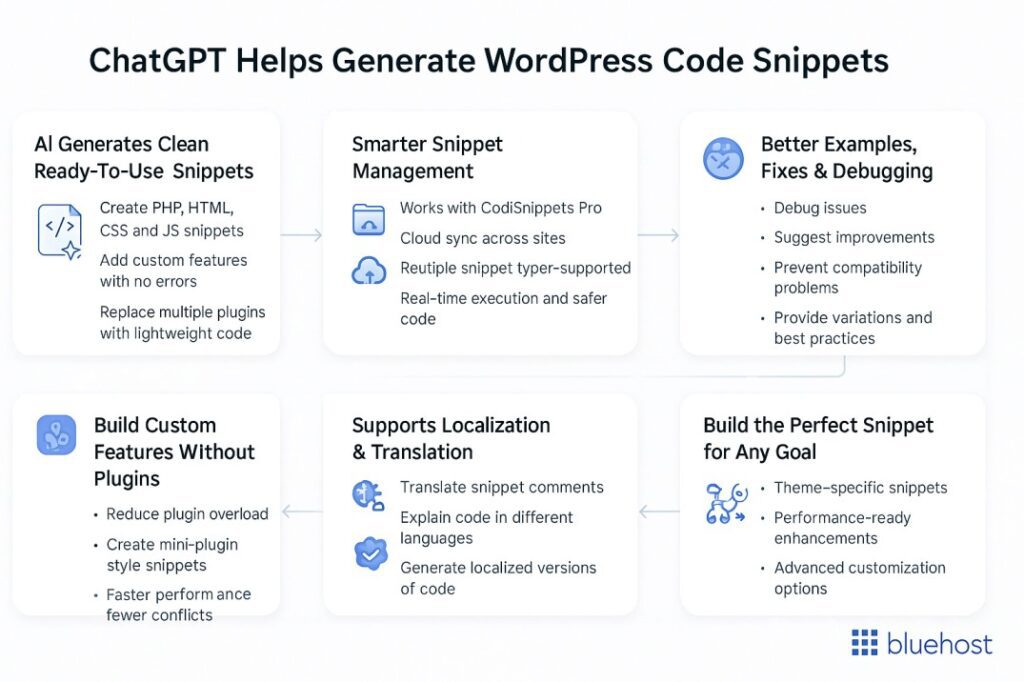
Below is a quick overview of how AI simplifies everything:
1. Generate clean, ready-to-use snippets
AI can instantly generate code snippets tailored to your WordPress website, whether you want to:
- Add custom features
- Modify theme files
- Add custom code without errors
- Replace many plugins with a lightweight snippet
- Create enhancements ready for future growth
Instead of manually writing code or searching through snippet library websites, you simply describe what you want.
Example:
“Create a snippet that disables the WordPress admin bar for non-admin users.”
AI produces the exact PHP file code you need, formatted, explained and optimized for your theme.
This is especially useful for multisite network environments, Bluehost website examples or large websites that rely on fast deployment.
2. Managing snippets easier
When paired with tools like Code Snippets Pro or a code snippets plugin, AI gives you:
- Smart conditional logic
- Cloud synchronisation integrations
- Private cloud library access
- Multiple snippet types (PHP, HTML, CSS, JS)
- Cloud syncing across multiple sites
A tool with an intuitive graphical interface allows you to paste AI-generated snippets with seamless integration and real-time execution. AI + plugin = powerful features without complexity.
Instead of managing snippets manually or dealing with code in different theme files, AI helps generate clean blocks of code that run snippets without breaking your layout.
3. Helps you build custom functionality without plugins
AI reduces dependency on many plugins by letting you:
- Add custom code
- Add custom features
- Create mini plugin–style snippets
- Add code snippets that include only specific features you need
- Build a site without slowing it down
This approach prevents plugin overload and the need for deactivating plugins every time something breaks.
AI-generated snippets execute faster, integrate naturally with any WordPress theme and prevent bloated code.
4. Supports localization & translation
Community powered platforms and great plugins often highlight that contributors helped contribute translations for different languages.
AI enhances this by:
- Translating snippet comments
- Explaining code in different languages
- Generating localized custom code snippets
This makes global WordPress sites more consistent and easier to maintain.
5. Provides great examples, fixes and real-time debugging
Whether you need troubleshooting, performance fixes or recommendations, AI can:
- Debug your snippet
- Suggest improved code
- Prevent compatibility issues
- Provide specific feature variations
- Show great examples for beginners and experts
AI also checks how snippets interact with other plugins, helping you avoid conflicts before you add code to your WordPress site.
6. Ensures snippets work across multiple sites
If you manage multiple WordPress sites, using AI + a code snippets cloud tool gives you:
- Easy access to all your snippets
- Full integration across websites
- One-click deployment
- Faster editing and updating
- Centralized manage-code control
This makes AI-generated code extremely useful for agencies, creators and developers handling large portfolios.
7. Helps you build the perfect snippet for any goal
Whether you’re updating your WordPress website’s design, adding HTML snippets, modifying PHP snippets or enhancing your snippet menu, AI can deliver the perfect snippet every time.
AI offers:
- Advanced features
- Intuitive interface support
- Enhancements ready for performance
- Specific feature customizations
- WordPress code tailored to your theme
Instead of searching for hours, AI simply creates what you need.
AI doesn’t just help with writing code, it helps with future growth, performance and better site management. That’s why thousands of WordPress users now rely on AI-generated code snippets WordPress-wide to build faster, cleaner and more stable websites.
Final thoughts
WordPress code snippets give you complete control over your website without relying on endless plugins or complicated theme edits. Whether you’re customizing design, improving performance or adding new features, snippets offer a clean, efficient and future-ready way to build a powerful WordPress site. And with AI and snippet management tools making the process even easier, you can enhance your site with confidence, no coding expertise required.
But to get the most out of your custom functionality, you need fast, secure and reliable hosting that supports seamless performance. That’s why now is the perfect time to upgrade to our Bluehost WordPress Hosting, optimized for speed, security, scalability and hassle-free growth.
FAQs
You can add WordPress code snippets using a code snippets plugin or by pasting custom code into your theme’s functions.php file. Tools like WPCode simplify the process, while Bluehost website examples often recommend plugins for safe, conflict-free snippet management.
WPCode is considered the best code snippets WordPress plugin because it offers safe snippet execution, cloud syncing and beginner-friendly controls. It prevents theme file errors and is widely recommended on the Bluehost website examples for managing custom functionality without coding.
Snippets in WordPress are small pieces of code, PHP, HTML, CSS or JS, that add custom functionality without requiring full plugins. WordPress code snippets help optimize performance, reduce plugin usage and offer flexible customization seen in many Bluehost website examples.
To insert a shortcode, open your WordPress page editor and paste the shortcode directly into a block or classic editor. Shortcodes work like mini features created through code snippets WordPress users rely on, similar to those shown in Bluehost website examples.

Write A Comment