 ChatGPT,
  Claude,
  Gemini,
  Grok — all four for
 How to Connect an External Domain to Hosting
A domain name is a crucial element for any organization looking to establish a presence on the internet. Unlike internal domains, which are managed within the company's own network, external domains are controlled by third-party providers. These domains serve as the public face of the organization, hosting websites, email services, and marketing campaigns. Understanding how to manage and secure external domains is essential for maintaining a professional and trustworthy online presence.
Here are the topics discussed in this article:
If you want to manage your "external domain" along with your hosting plans here at Bluehost, consider transferring your domain to us! Bluehost offers domain transfer services, so you can manage both your domains and hosting in one convenient location. Visit the How to Transfer A Domain Name to Us article for more information about this process.
What is an External Domain?
An external domain is a domain name registered with a provider other than the one you're using for your hosting or hosting-related services, but which you can still use and manage, often by pointing the domain's DNS records to your hosting provider's servers. For instance, if you have a hosting account with us, external domains are those that are not registered with Bluehost. However, you can still point or connect your external domain to Bluehost so you can utilize our servers for your hosting needs.
How to Connect an External Domain to Hosting at Bluehost
To connect an external domain to your hosting plan here at Bluehost, you need to do these steps:
Step 1: Add the External Domain to Your Bluehost Bluehost Portal
- Log in to your Bluehost Bluehost Portal.
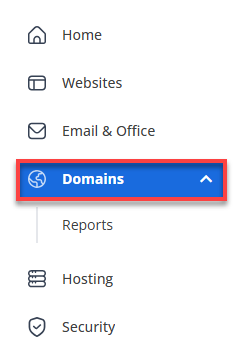
- In the left-hand menu, click Domains.
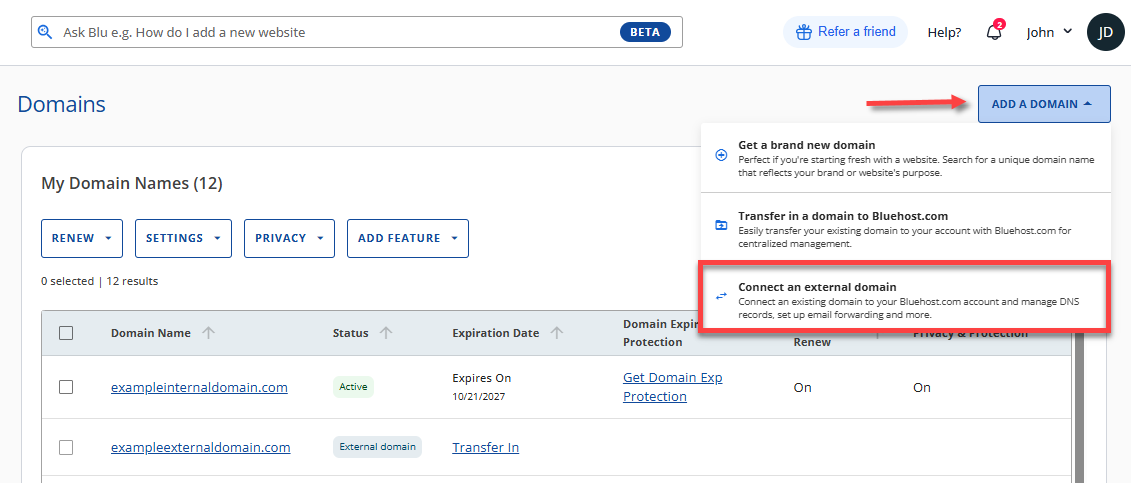
- Click the ADD A DOMAIN button in the top-right corner, then select Connect an external domain.
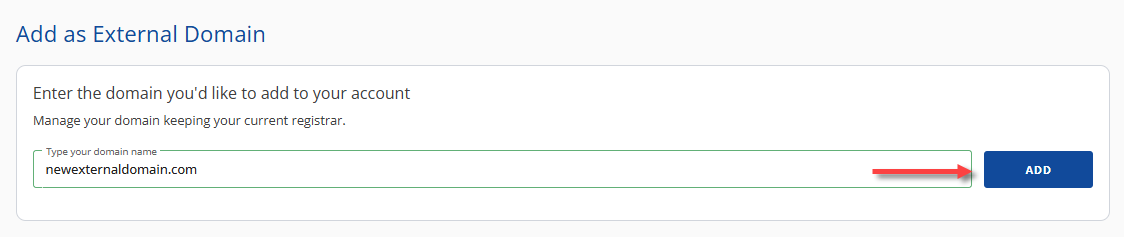
- On the Add as External Domain page, enter your external domain and click ADD.
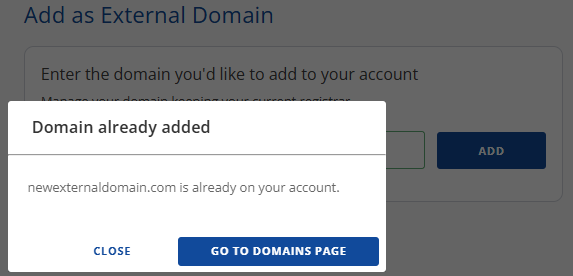
- A confirmation banner will appear at the top, notifying you that the domain was already added to your domains list.
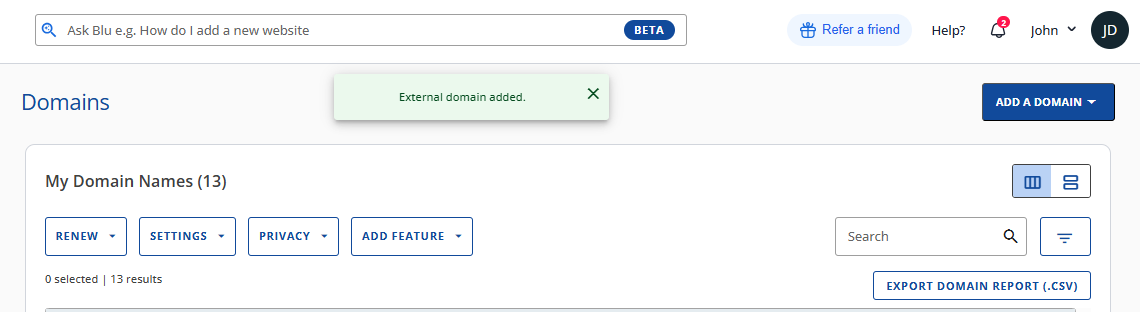
- Your domain should be added to your domain list with an "External domain" status.
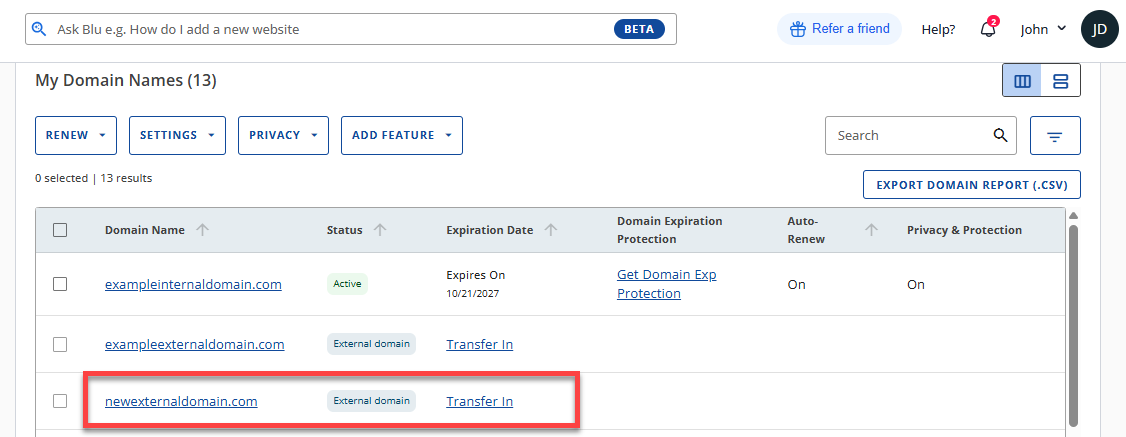
Click the domain to go right away to the domain management panel.
You can also click the Transfer In link if you have decided to transfer your domain to your Bluehost hosting account.
Additional Prompts You May See
If you add your external domain to your Bluehost Bluehost Portal without any problems, it will show up right away in your domain list. However, if there are issues with the domain, the system will alert you via prompts.
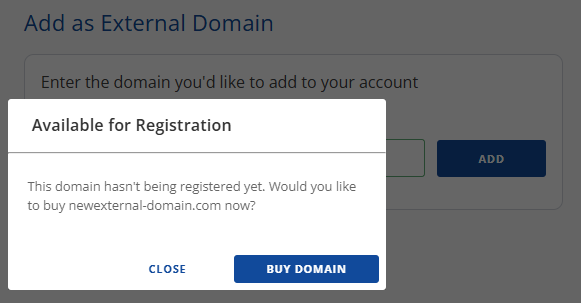
- If the external domain name you are trying to add is not yet registered, a prompt will appear with a BUY NOW button so you can register it first.
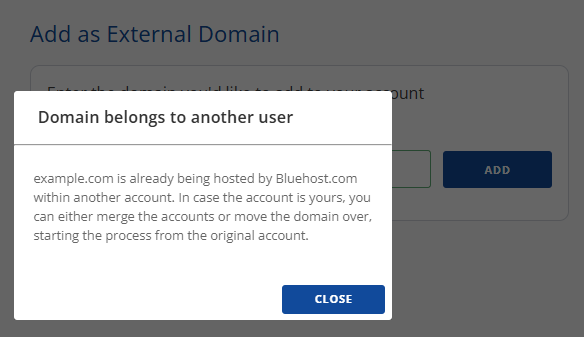
- If the domain you are trying to add is already registered under Bluehost, a prompt will appear informing you to either merge the accounts or move the domain over from the original account.
- If the domain is already in your account, a prompt will appear notifying you that the domain is already added.
Step 2: Connect the External Domain to a Hosting Plan
The external domain name needs to be connected to a hosting plan first before it can start creating a website. Follow the steps below to set up the connection of the external domain to a hosting plan:
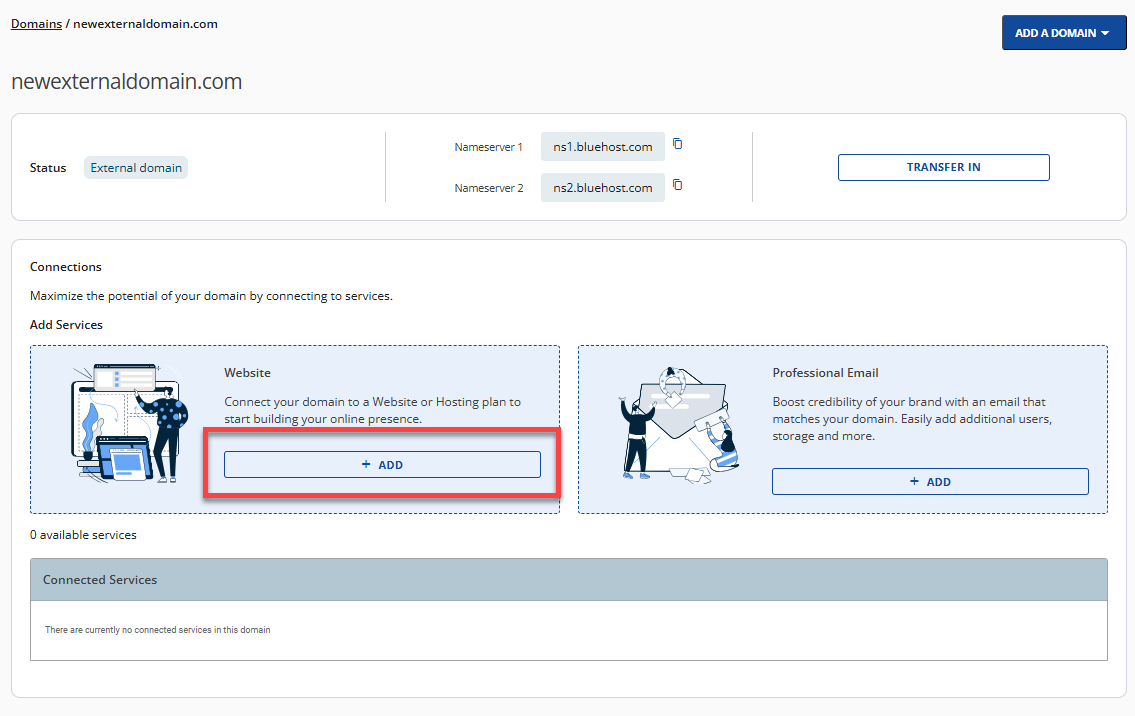
- In the Domains tab, select the external domain to access its management panel.
- Under the Connections section, click + ADD in the Website card.
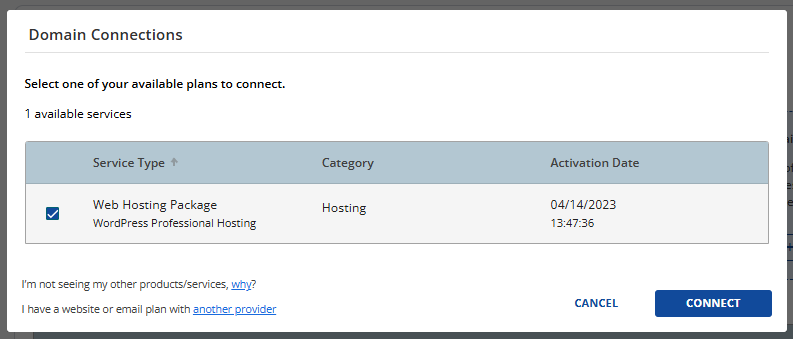
- Select the hosting plan you wish to connect to and click CONNECT.
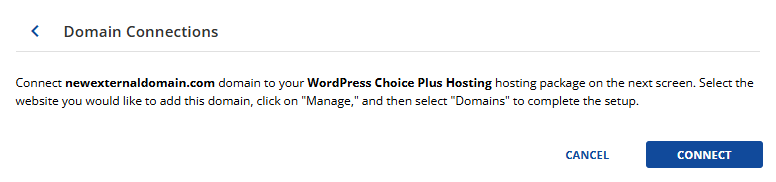
- In the Domains Connections pop-up, click CONNECT.
-
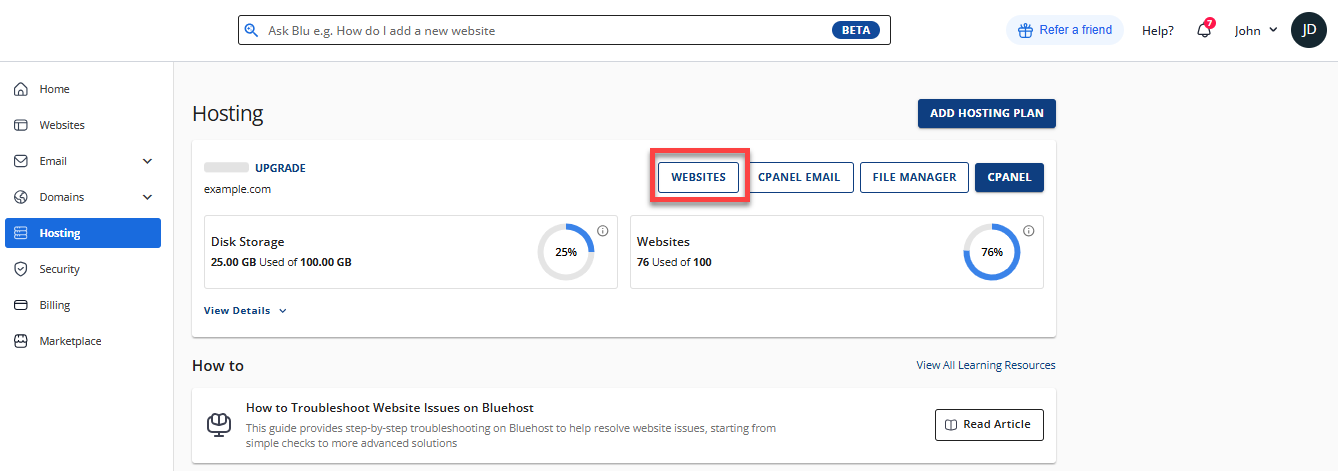
You will be redirected to your Bluehost Portal's Hosting tab, where you'll be presented with two options:

Option 1: Connect Your External Domain to an Existing Website
- Click the WEBSITES button.
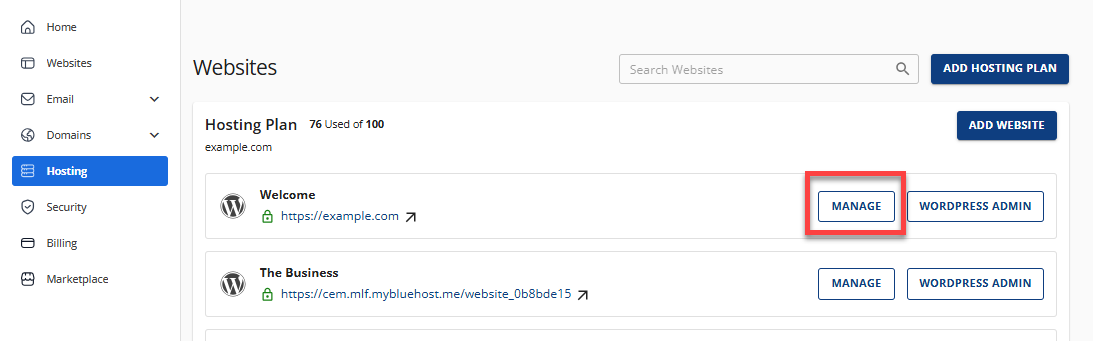
- On the Websites page, select the website you want to connect your external domain to and then click its MANAGE button.
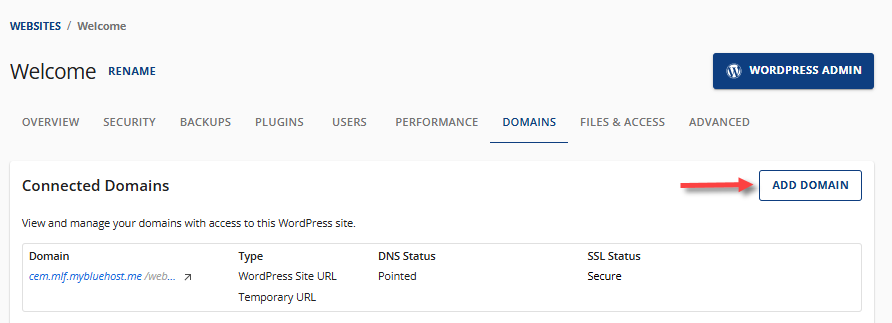
- Click the DOMAINS tab.
- Under the DOMAINS tab, click ADD DOMAIN.
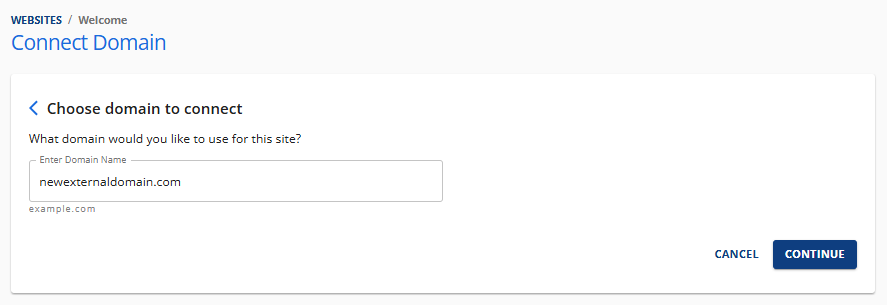
- Enter your external domain, then click CONTINUE.
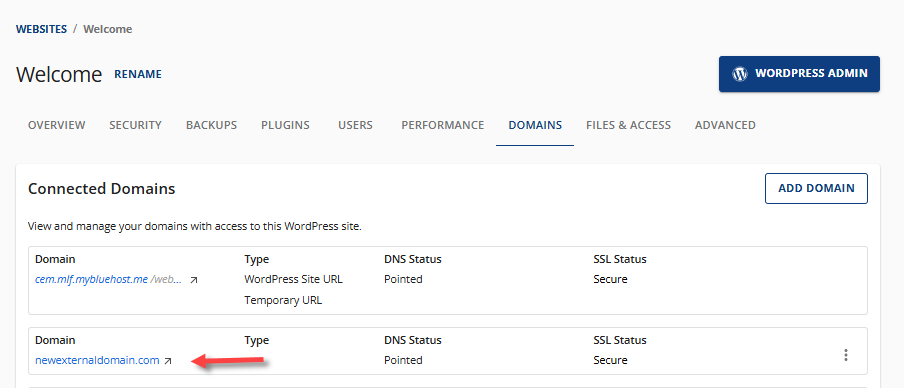
- A confirmation banner will appear at the top, notifying you that the domain was successfully added to the site. You should see your external domain listed under the Connected Domains section.
- Locate the newly added external domain and click on FINISH SETUP.
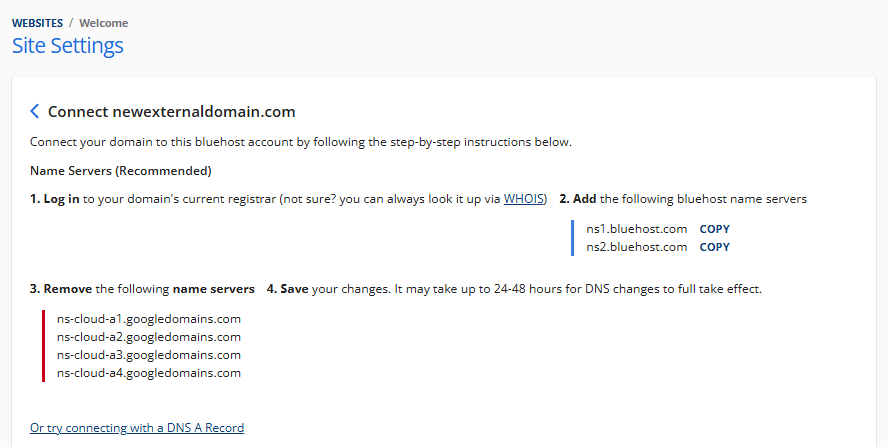
- On the Site Settings page, you will see instructions for changing your current nameservers through your domain registrar's control panel.
Option 2: Connect Your External Domain to a New WordPress Installation
If you want to connect your external domain to a new WordPress installation, you can definitely do so! For instructions on how to install WordPress through the Bluehost Portal, check out the How to Install WordPress Using the Bluehost Portal article.
Ensure that your external domain is pointed to your Bluehost servers for your WordPress site to function correctly.
Additional Features for Managing External Domains
The Bluehost Bluehost Portal allows you to manage your domains, both registered and not registered with us. However, please note that, unlike domains registered with Bluehost, some functionalities are not possible with domains not registered with us. One of them is changing the domain's nameservers and managing the DNS records here at Bluehost.
Changing Nameservers of External Domains
You can find the Bluehost nameservers in your Bluehost Portal. While you can add an external domain to your Bluehost Portal, you won’t be able to take full advantage of Bluehost services unless you point your external domain to us. To change your external domain's nameservers, you will need to access your domain's registrar's control panel and update your nameservers from there.
Bluehost default nameservers:
- ns1.bluehost.com
- ns2.bluehost.com
For more information, you can visit this guide. Change Nameservers with Other Registrars.
Transferring "In" External Domains to Bluehost
You may wonder what the difference is between adding an external domain and transferring a domain to Bluehost. Please note that adding an external domain name is different from domain transfers.
To add an external domain to your Bluehost account, you need to point a domain that you have registered elsewhere to Bluehost. On the other hand, a domain transfer means moving the registration of that domain to a new registrar, which in this case would be Bluehost. Both processes involve changing DNS records, but they have different implications for domain ownership and management.
If you need assistance with transferring a domain, visit How to Transfer A Domain Name to Us.
Managing the External Domain's DNS Records
Once the external domain name is added and is resolving to the Bluehost nameservers, you will have the ability to modify your DNS records in your Bluehost Portal.
Visit our How to Manage DNS Records for Your Domain article to learn more about managing DNS in the Bluehost Portal.
Removing an External Domain from the Bluehost Portal
- In the Domains tab, select the external domain to access its management panel.
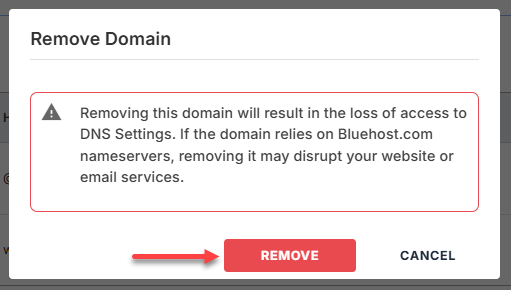
- Scroll down the page and click the REMOVE DOMAIN button.

- A pop-up window will appear, notifying you that the removal of the domain may disrupt any website or email services. Click the REMOVE button to proceed.
Summary
Learn how to connect an external domain to your Bluehost hosting account and effectively manage it. This article discusses what an external domain is, why it matters, and provides instructions for adding to your Bluehost Bluehost Portal and connecting it to your hosting plan. You'll also explore additional functionalities available for your external domain, such as changing nameservers and DNS records, which should be managed through the domain registrar's control panel. Additionally, this article offers Bluehost's domain transfer services.
If you're experiencing issues connecting your domain to your Bluehost hosting, please visit our guide, Troubleshooting Domains: Connect Your Domain to Bluehost Hosting.
If you need further assistance, Bluehost Chat Support is available 24 hours a day, 7days a week while Bluehost Phone Support is available 7 days a week from 7 am-12 midnight EST.
- Chat Support - While on our website, you should see a CHAT bubble in the bottom right-hand corner of the page. Click anywhere on the bubble to begin a chat session.
- Phone Support -
- US: 888-401-4678
- International: +1 801-765-9400
You may also refer to our Knowledge Base articles to help answer common questions and guide you through various setup, configuration, and troubleshooting steps.