


Key highlights
- Understand how to hide page title in WordPress and why hiding page titles can improve design focus, highlight custom headers and create a cleaner, minimalist layout.
- Learn about the potential downsides of removing titles, including navigation issues, accessibility challenges and content referencing problems.
- Explore multiple step-by-step methods to hide page titles, from plugins to CSS tweaks and manual deletion.
- Know how to selectively hide titles on specific pages without affecting others, ensuring design flexibility.
- Uncover practical tips to balance aesthetics with SEO and accessibility so your site looks polished without losing functionality.
First impressions matter. You might be quicker to remember the Indian restaurant that serves food in a thali than a restaurant that sticks to the norms.
On your website, that first impression comes from its design, from the color palette you use to the elements you include on a webpage.
However, it’s not always about what you include. Sometimes you can improve the web design by removing distractions. One everyday use case is hiding page titles from landing pages, Contact Us pages and About Us pages.
Let’s explore how to hide page title and why hiding page titles can be beneficial.
Find your perfect plan
📋 View PlansWhat is a WordPress page or post title?
A WordPress page title is a text displayed at the top of a webpage to capture visitors’ attention and help them understand what that page or post is about. You typically also use
Common reasons for hiding page or post titles in WordPress
You might want to hide a page title on your WordPress website for several reasons.
Shifting the focus to content
You might want to create a unique and creative layout that emphasizes the content rather than the title. For example, you might hide the page title on particular pages, such as a landing page or a thank you page, to create a more focused and streamlined user experience.
You can see it in effect on the Inflatable 3D Alphabet landing page. It uses a hidden page title to create a more engaging header emphasizing the advertised product.

Creating a dynamic custom header
Hiding a post title can be helpful when creating a custom header or banner for a post or page in which the post title box is replaced with a custom image or design.
Stephen Bell’s website is a perfect example of this. The homepage consists of a static image with Stephen’s name in bold, animated letters over it. To achieve this effect, you must hide the page title to avoid duplication.

Opting for a minimalist design
Similarly, you might hide page titles when creating a cleaner and more minimalistic design.
For example, if you have an image-heavy or portfolio website, you might want the readers to focus on images instead of the page title.
Also read: Categories and Tags in WordPress
Downsides to hiding a page title in WordPress
In some cases, hiding the post or page title might be unnecessary or counterproductive, as a well-crafted title can help grab users’ attention and encourage them to read or engage with the content.
A couple of drawbacks of hiding the page title include:
- Difficulty in navigation: Hiding the post title can make it more difficult for users to navigate the website, especially if they are trying to find a specific post or page using the search function or the website menu. Without a proper HTML title tag, search engines may not correctly interpret the page.
- Low accessibility: It can make it more difficult for screen readers and other accessibility tools to correctly identify and navigate the content, potentially excluding users with disabilities from accessing the website.
- Ambiguous referencing: If the post or page contains important information or data, hiding the title may make it more difficult for users to cite or reference the content in their own work or research.
4 popular methods for hiding a page or post title
There are many ways to hide a page or blog post title on WordPress websites. We’ll look at five of them, explaining how to perform each method step by step.
Method 1: How to hide a page title in WordPress using a WP plugin
Alternatively, you can use a plugin to hide page titles.
One of the most popular options is the Title Remover plugin, boasting over 100,000 active installations. It’s simple to use, too.
All you have to do is install and activate it and a checkbox labeled Hide the title for this item will appear in the page settings panel of the page editor.
Toggle the checkbox and that’s it; the page title will be hidden.

Method 2: How to hide all page titles in WordPress using custom CSS code
Another option is using custom CSS code to hide all page titles across your website. Here’s how to do it step by step:
1) Log in to your WordPress dashboard by visiting [yourdomain.com]/wp-admin. Replace yourdomain.com with your website’s domain.
2) Go to Appearance > Customize.
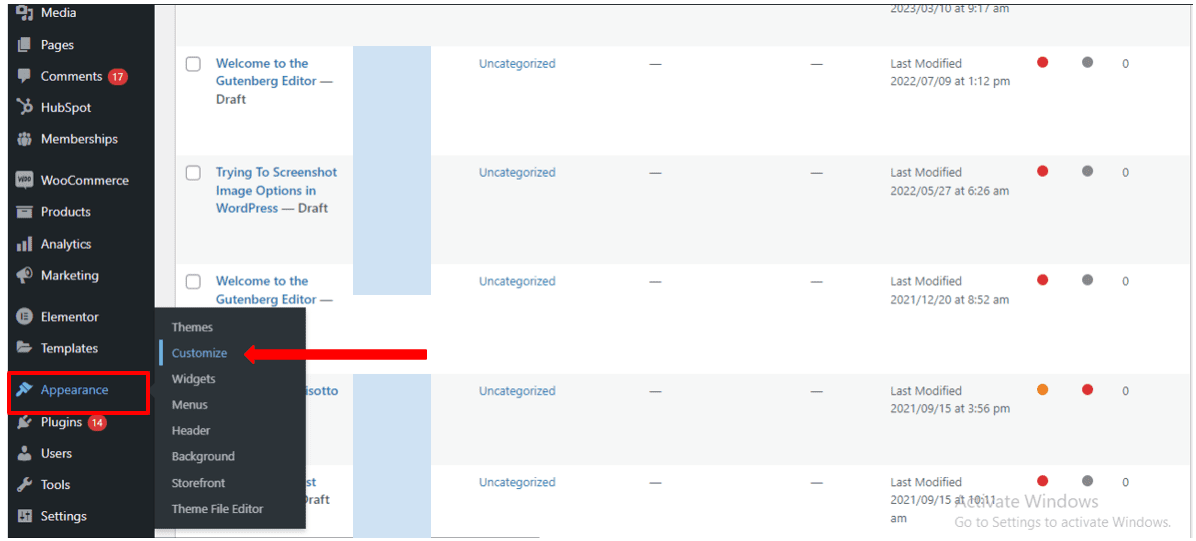
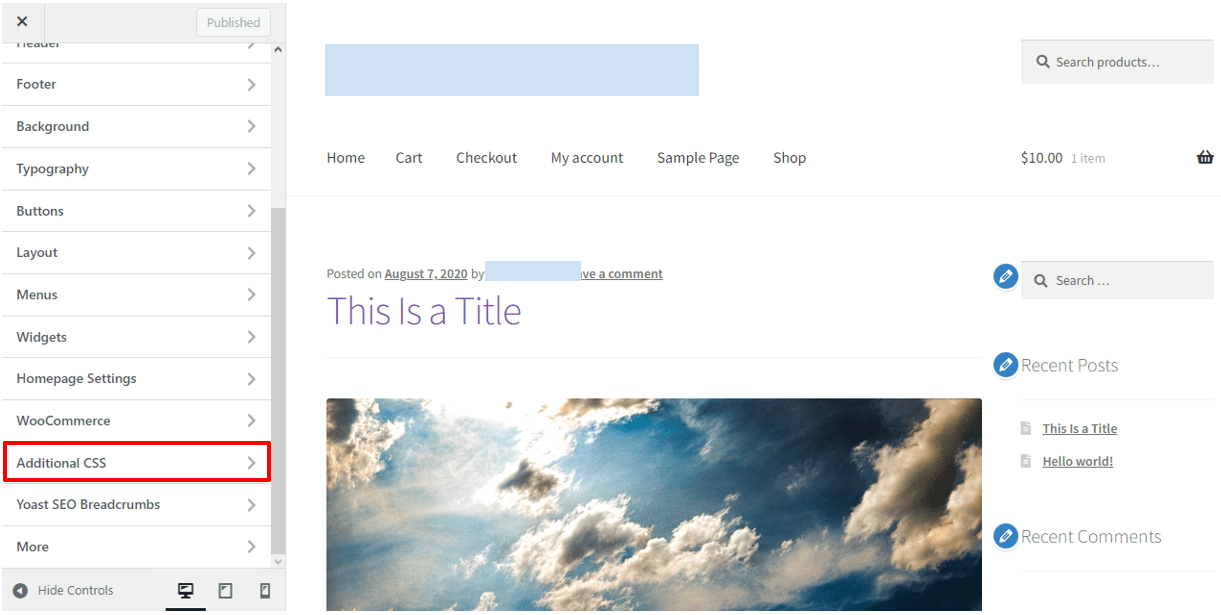
3) Open the Additional CSS menu.
4) In the code box that appears, paste the following code:
.entry-title {

display: none;

}
5) Click on the Publish button to save the changes you’ve made to the CSS.
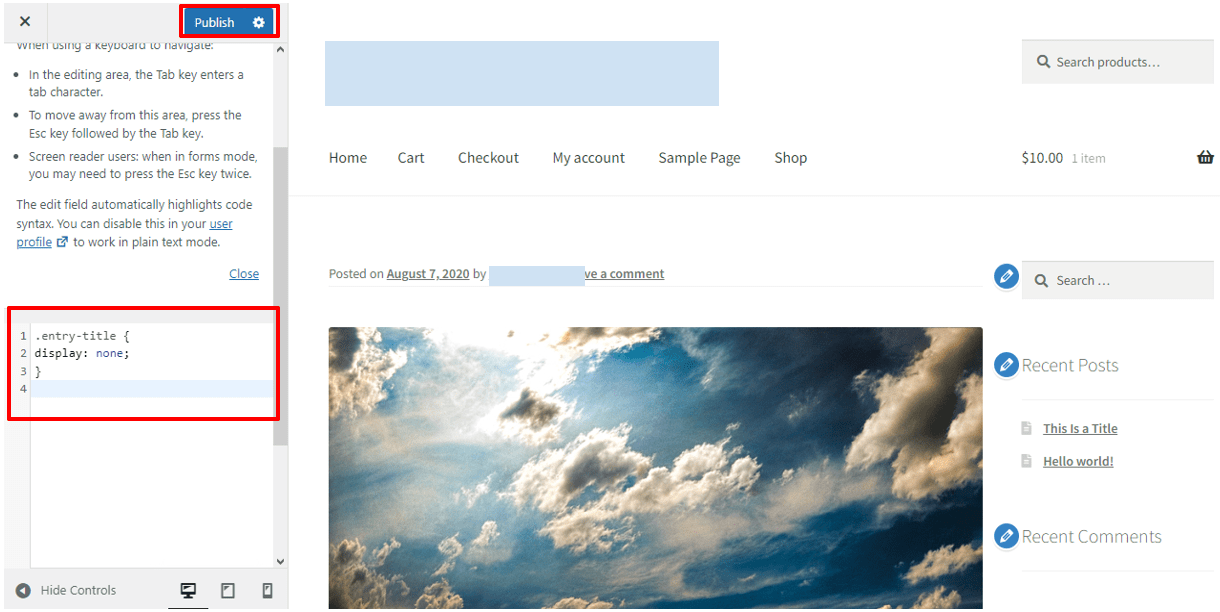
Once you’ve completed these steps, all page titles on your WordPress website should be hidden. If you want to show page titles again in the future, you can simply remove the custom CSS code you added.
Note: Replace “entry-title” in step. 4 by your H1’s class name if you use a different CSS class for H1.
Method 3: How to hide a specific page title in WordPress using custom CSS code
Sometimes, you might not want to hide all page titles across your website. You might only want to target specific pages. In such cases, you can use custom CSS code to achieve the desired result.
1) Navigate to Appearance > Customize > Additional CSS.
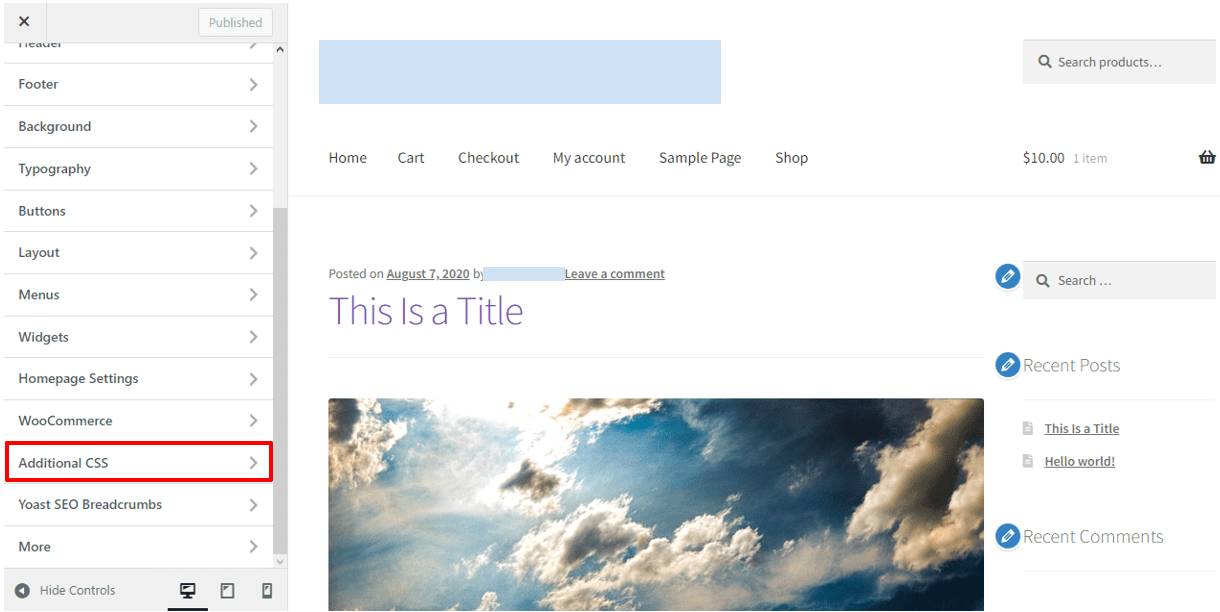
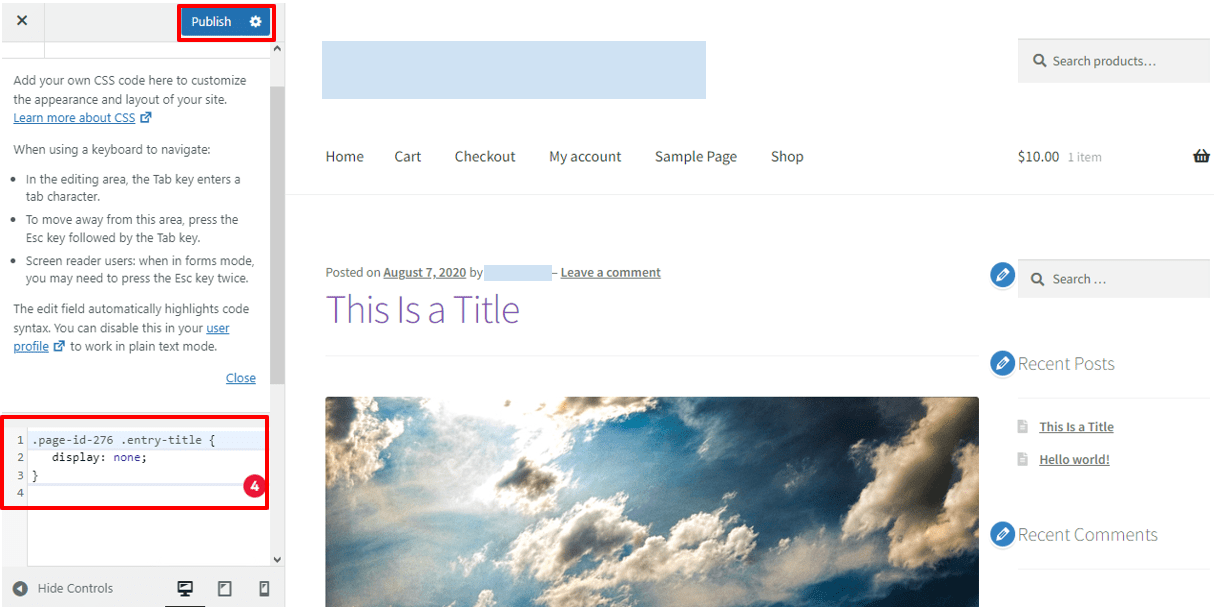
2) In the code box that appears, paste the following code:
.page-id-123 .entry-title {

   display: none;

}- Replace “123” with the ID number of the page you want to hide the title of. You can find the page ID number by going to Pages in the WordPress dashboard, hovering over the page you want to edit and looking at the URL that appears in the bottom left of your browser window. The ID number will be near the end of the URL.
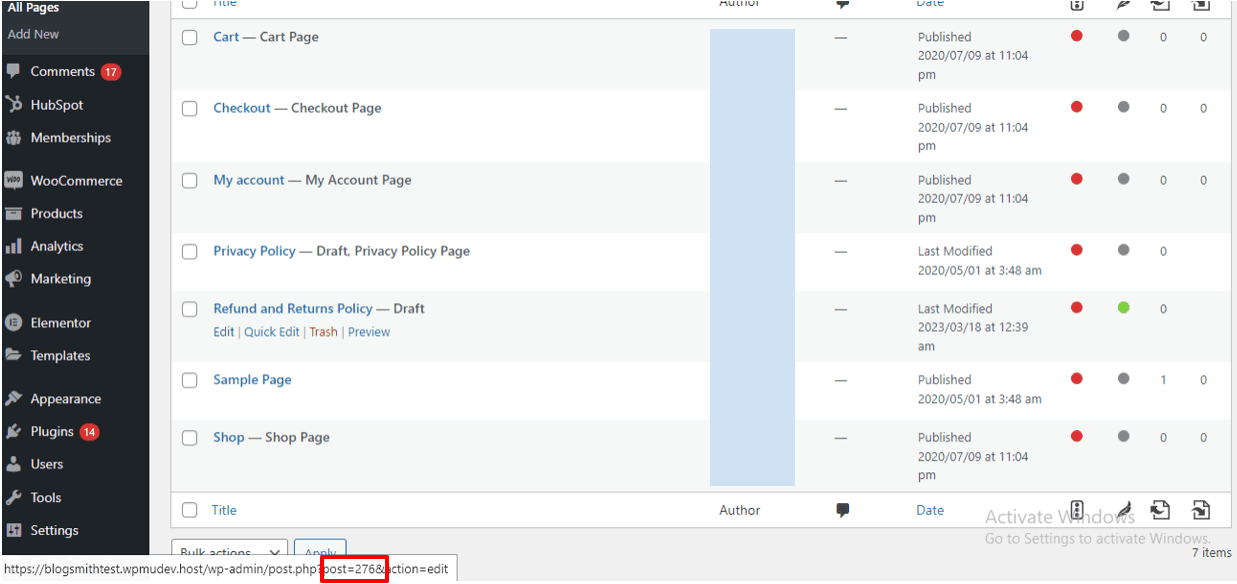
3) Click on the Publish button to save the changes you’ve made to the CSS.
Method 4: How to manually delete a page title in WordPress
The final method we’ll cover is manually deleting the page title. Here’s how:
1) From your WordPress dashboard, navigate to Pages on the left-hand side menu and select the page you want to hide the title for.
2) Delete the title text in the Page Title field.
3) Click the Publish button to save your changes.

How to remove the title from WordPress pages
Removing titles from WordPress pages involves two distinct approaches: visually hiding the title while preserving it in the editor, or completely deleting the title text from the page editor. The first method maintains your page’s SEO structure by keeping the HTML title tag and page slug intact, while the second removes the title entirely from your WordPress dashboard. For most users, visually hiding the title is the recommended approach since it preserves important SEO elements that help search engines understand your page content.
In the block editor (Gutenberg), you can remove page titles using theme customizer settings, page-specific CSS targeting, or plugins like Title Remover that add a simple checkbox to each page’s settings panel. Classic editor users have similar options, though the interface may appear slightly different depending on your theme. The key distinction lies in where page titles are controlled: some themes offer built-in title visibility toggles in their customization options, while others require CSS modifications or plugin assistance.
When deciding between methods, choose per-page solutions (like plugins or page-specific CSS) when you only want to hide titles on select pages, such as landing pages or custom layouts. Opt for global CSS methods covered earlier when you want to hide titles across your entire site. Remember that regardless of your chosen method, always ensure your page slug and HTML title tag remain optimized for search engines, as these elements are crucial for maintaining your site’s SEO performance even when the visible title is hidden.
How to hide post or page titles manually in the theme customizer
Many WordPress themes include built-in options to hide page titles through the theme customizer, offering a plugin-free solution for title management. To access these settings, navigate to your WordPress dashboard and go to Appearance > Customize. Once in the customizer, look for sections labeled “Page Settings,” “Layout Options,” “Typography,” or “Header Options” – the exact location varies significantly between themes. Some themes place title visibility toggles under “General Settings” or within individual page type sections like “Single Post” or “Page Layout.”
When you find title-related options, look for checkboxes or toggles labeled “Hide page titles,” “Show page titles,” or “Display post titles.” Enable the hide option and use the customizer’s live preview to see changes in real-time across different page types. Test both posts and pages to ensure the setting works as expected. If the layout appears broken or creates accessibility issues, you can instantly revert changes by unchecking the option or clicking “Don’t Publish” to discard modifications.
Remember that not all themes support this functionality, and some only allow hiding titles on specific content types. Always maintain at least one clear heading (H1) on each page for screen readers and SEO purposes. If your theme lacks these options, consider switching to a more flexible theme or explore the CSS and plugin methods covered elsewhere in this guide.
Hide page titles using a page builder
Most popular WordPress page builders like Elementor, Beaver Builder, and Divi include built-in options to hide page titles directly from their editing interfaces. These title visibility settings typically appear in page settings panels, layout options, or advanced settings tabs, usually labeled as “Hide Page Title” or “Display Page Title.” You can find these toggles either in global page settings or within individual section configurations.
Disabling the theme’s default title display enables you to create custom hero sections, unique headers, and completely tailored page layouts without interference from standard WordPress page title formatting. This approach provides full creative control over title presentation – whether integrated into custom banners, hero images, or styled beyond your theme’s limitations. Remember that hiding the visual title doesn’t affect the title tag in WordPress, preserving SEO value.
Watch for potential conflicts when both your theme and page builder control title visibility, which can cause duplicate titles, layout shifts, or spacing issues. Always preview changes and test across desktop and mobile views to ensure proper display. If styling problems occur, you may need to adjust theme settings or add custom CSS for optimal results.
Troubleshooting: when hiding the page title on WordPress doesn’t work
When your WordPress page title stubbornly refuses to disappear despite using plugins, CSS, or theme settings, a few common culprits are usually to blame. The most frequent issue is caching – your browser or hosting server may be displaying an older version of your page. Start by clearing your website cache through your hosting control panel or caching plugin, then refresh your browser with Ctrl+F5 (or Cmd+Shift+R on Mac). If you’re using a caching plugin, don’t forget to purge that cache as well.
CSS conflicts often occur when themes or page builders use different class names than expected. Right-click on the stubborn title and select “Inspect Element” to identify the actual CSS class or ID being used. You might discover it’s not “.entry-title” but something like “.page-header-title” or “.elementor-heading-title.” Update your custom CSS accordingly, or check if your page builder has its own title visibility settings that override your theme options.
Plugin conflicts can also interfere with title hiding. Temporarily deactivate other plugins one by one to identify any conflicts, particularly SEO plugins or page builders that might be forcing titles to display. If the issue persists across multiple troubleshooting attempts, your theme may have hardcoded title elements that require developer intervention. In such cases, contact your theme developer or reach out to your hosting provider’s 24/7 support team for assistance while ensuring your HTML title tags remain intact for SEO purposes.
Final thoughts
So there you have it: five ways to hide a post title in WordPress.
Hiding your post and page titles can offer a more streamlined user experience and provide more consistent and better-organized navigation. But it also comes with its drawbacks.
Whatever your reasons are for opting to hide your page titles, remember to keep the drawbacks in mind and find ways to mitigate them.
You can further improve your website’s front and back end by signing up for a Bluehost WordPress hosting plan.
FAQs
A title tag defines the title of a webpage in the HTML code and helps both users and search engines understand the topic. While you may hide titles on the front end, the title tag remains essential for context, structure and ranking.
The html title tag controls what appears in search results and on the browser tab, while the visible H1 is shown on the page itself. Even if you use CSS or plugins to hide titles, the html title tag still exists in your code.
Yes. You can hide titles on certain pages by using targeted CSS or plugins that include a hide title toggle. This option gives you flexibility to keep article titles visible where needed.
Hiding article titles won’t damage SEO if the title element and html title are intact. However, removing visible headings may affect accessibility and disrupt the natural page hierarchy. Always balance design with search engine optimization best practices.
Most plugins add a hide title toggle within the page settings of the WordPress editor. When enabled, the title appears hidden visually, but the html title and title tag remain for crawlers and users referencing your page’s content.
Yes. You can hide blog post titles using the same methods, plugins, CSS or manual edits, depending on your WordPress site and theme.
No. The browser tab is generated by the html title tag, not by the visible H1 or article titles on the page.
By adding custom CSS like .entry-title { display:none; }, you can hide titles globally. This CSS code ensures every title appears hidden, though you can refine it for individual IDs.
Yes. Some WordPress themes or a page builder may include built-in options to hide titles. This can save you from adding CSS manually.
If the title element or html title is absent, your WordPress site may not display correctly in search results. Always make sure metadata is intact, even if you choose to hide titles visually.



Write A Comment