


Key highlights
- Discover how to add categories to pages in WordPress and organize your site content with categories and tags for improved navigation and user experience.
- Learn how to add categories to WordPress pages through a complete guide to category management in your dashboard.
- Follow these step-by-step instructions to add categories in WordPress and organize your content effectively for better site structure and improved search engine visibility.
- Apply WordPress category best practices when adding categories to improve site organization and help users discover content more effectively
- Master practical techniques to assign and optimize categories for enhanced content discoverability and search engine visibility.
Are you struggling to keep your WordPress content organized? Do visitors have trouble finding related posts on your website? If you’re wondering what is a category in WordPress or how to add categories in WordPress, you’re not alone. Many website owners find WordPress’s content organization system confusing at first.
In this comprehensive guide, you’ll discover how to add categories in WordPress to organize your content effectively. We’ll walk you through step-by-step instructions on creating and managing both categories and tags, share organizational best practices and explore technical aspects including WordPress taxonomy functions. By the end of this article, you’ll master WordPress categorization to build a well-structured website that enhances user experience and search engine visibility.
What is a category in WordPress?
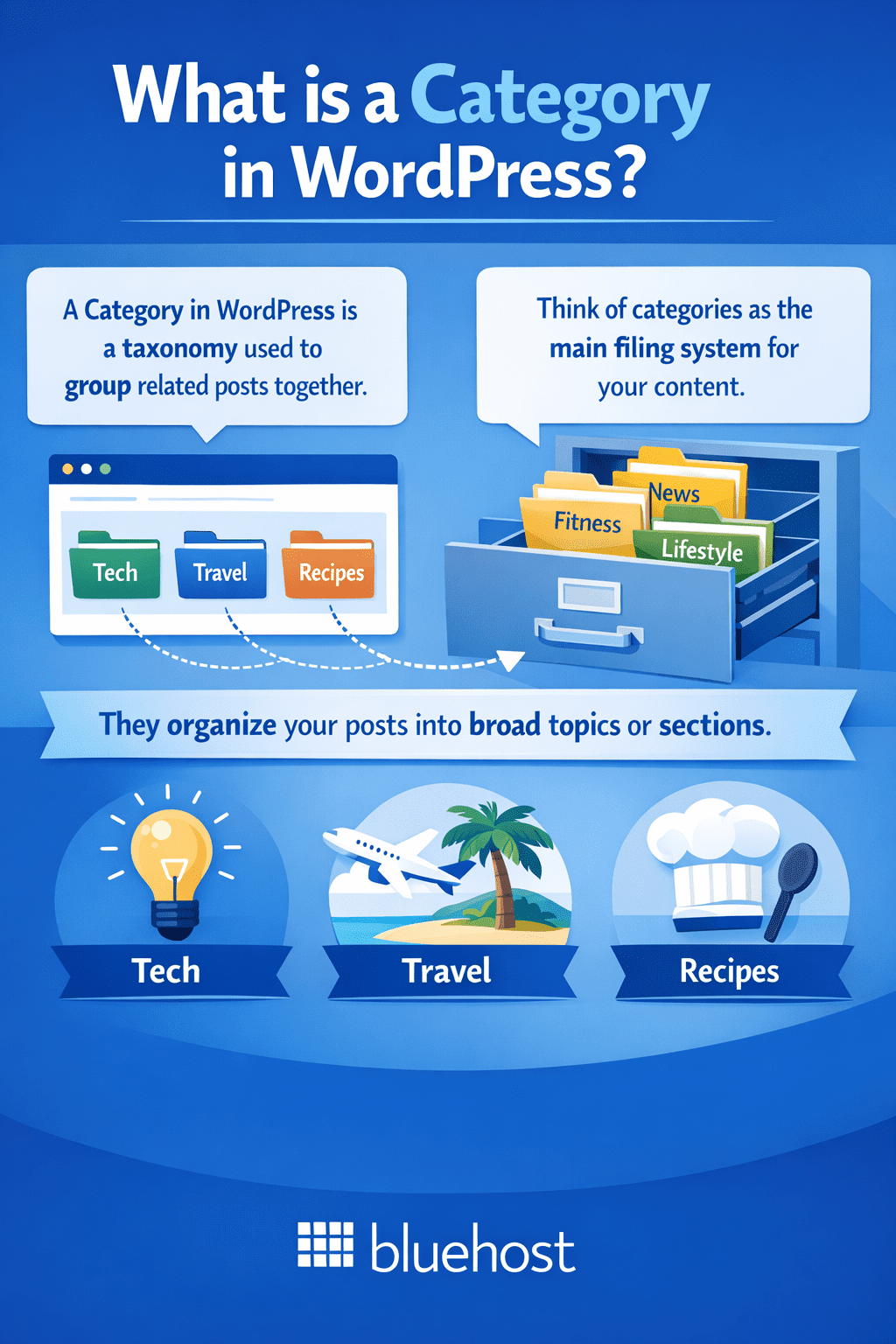
A category in WordPress is a taxonomy used to group related posts together. Think of categories as the main filing system for your content – they’re broad topics that help organize your posts into logical sections.
Categories serve several important purposes:
- Content organization: They help you group similar posts together
- Navigation: Visitors can browse posts by category
- SEO benefits: Search engines use categories to understand your content structure
- URL structure: Categories can be part of your permalink structure
For example, if you run a cooking blog, your main categories might be “Appetizers,” “Main Courses,” “Desserts” and “Beverages.” Each post you create would belong to one or more of these categories.
Key characteristics of WordPress categories
Understanding these fundamental aspects will help you use categories more effectively:
- Hierarchical: Categories can have parent-child relationships
- Required: Every post must belong to at least one category
- Broad topics: Categories should represent general subject areas
- SEO impact: Category pages can rank in search results
What is a subcategory in WordPress?
A subcategory in WordPress is a child category nested under a parent category, allowing you to create hierarchical organization for your content. This parent-child structure helps you drill down from broad topics to more specific ones, making it easier for visitors to find exactly what they’re looking for.
For example, if you run a food blog, your main category might be “Recipes,” with subcategories like “Breakfast,” “Lunch” and “Dinner.” You could even create a third level, such as “Recipes > Breakfast > Smoothies.” This logical structure helps both your readers and search engines understand how your content relates to each other.
When should you use subcategories versus tags? Subcategories work best for permanent, structural organization of your content topics. Tags, on the other hand, describe specific details within posts. In our food blog example, “Recipes > Breakfast” would be categories, while “gluten-free,” “under 30 minutes,” or “kid-friendly” would be tags.
However, keep your category hierarchy shallow—ideally no more than two or three levels deep. Deep hierarchies create confusing URLs, make navigation difficult for visitors and can negatively impact your SEO. If you find yourself creating fourth or fifth-level subcategories, consider using tags instead or restructuring your main categories.
What are tags in WordPress?
While categories are like your filing cabinet’s main folders, tags are like sticky notes that describe specific details about your content. Tags are descriptive keywords that help identify specific topics within your posts.
Tags are:
- Non-hierarchical: They don’t have parent-child relationships
- Optional: Posts don’t require tags, but they’re helpful
- Specific: They describe particular aspects of your content
- Flexible: You can use as many or as few as needed
Using our cooking blog example, tags might include specific ingredients like “garlic,” “olive oil,” cooking methods like “grilling,” “baking” or occasions like “Christmas,” “quick meals.”
Organize posts with categories
Organizing your blog with categories starts with planning a clear structure that grows with your content. Begin by identifying 5-7 broad topics that represent the main themes of your website. For example, if you run a photography blog, your categories might include “Portraits,” “Landscapes,” “Editing Tips” and “Gear Reviews.” Keep names clear and user-friendly—avoid jargon or overly creative labels that confuse visitors. Choose categories broad enough to house multiple posts but specific enough to be meaningful.
Consistency matters for both usability and SEO. Use parallel naming structures (all nouns like “Web Design” and “SEO Strategy” rather than mixing formats). Avoid overlap by ensuring each post fits clearly into one primary category. If you’re tempted to create similar categories like “WordPress Tips” and “WordPress Tutorials,” consolidate them into a single “WordPress” category and use tags to add specificity.
Before publishing each new post, apply this quick checklist:
- Does this post fit into an existing category or am I creating a new one unnecessarily?
- Is the category name clear and consistent with my naming convention?
- Have I assigned only one primary category (saving tags for additional details)?
- Will readers intuitively understand where to find similar content?
A well-organized category system helps visitors navigate your site efficiently and improves SEO by creating clear content hubs search engines can index and understand.
How to add categories in WordPress?
Learning how to add categories in WordPress is straightforward. There are two main methods: creating categories beforehand or adding them while writing posts.
Method 1: Creating categories from the dashboard
This is the most organized approach, especially if you’re planning your content structure:
1. Log into your WordPress admin dashboard
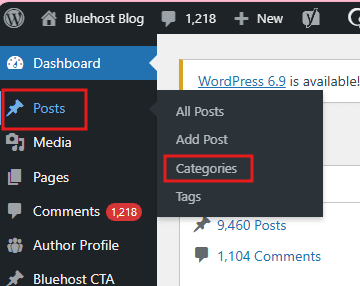
2. Navigate to Posts > Categories
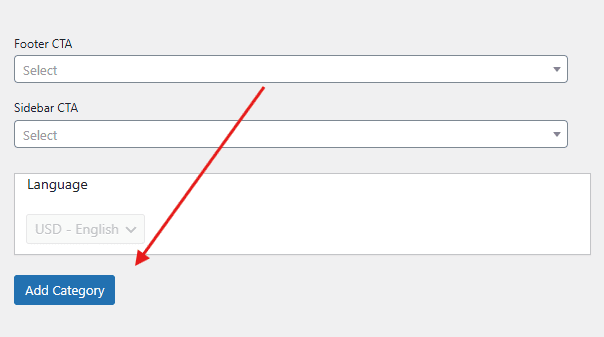
3. Fill the “Add Category” section
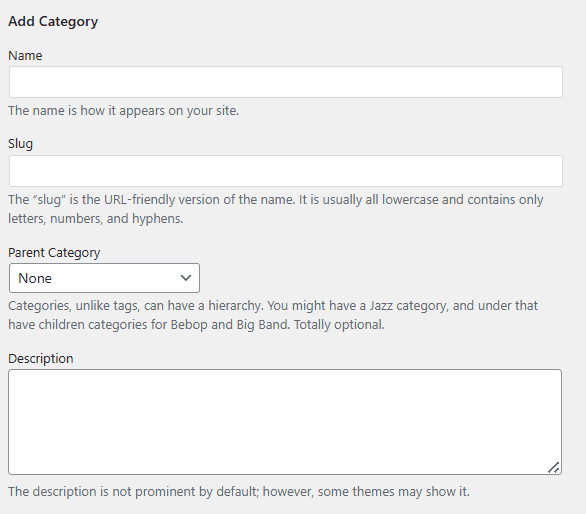
4. Click “Add Category”.
Method 2: Adding categories while writing posts
You can also create categories on-the-fly while creating content:
1. Open the post editor (Classic or Block Editor)
2. Look for the “Categories” section in the sidebar
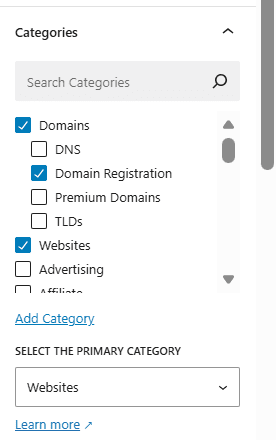
3. Click “Add Category”

4. Type your category name and click on “Add Category“
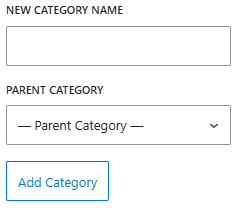
5. The new category will be created and assigned to your post
Best practices for category creation
When you’re deciding how to structure your categories, consider these guidelines:
- Start broad: Create 5-10 main categories maximum
- Use clear names: Make category names descriptive and user-friendly
- Plan hierarchy: Think about parent-child relationships before creating subcategories
- Consider SEO: Use keywords in category names when appropriate
Assign categories to my WordPress post
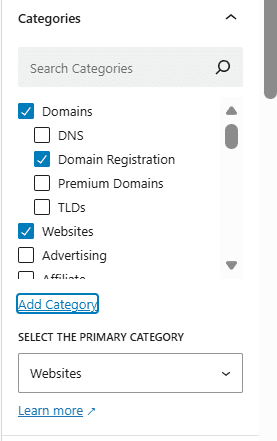
When you add categories to pages in WordPress, locate the Categories panel in the right sidebar of the editor and select the boxes for relevant categories. While WordPress allows you to assign multiple categories to organize your content effectively, designating one as your primary category helps maintain a consistent site structure and directly influences your post’s URL structure.
If you forget to assign a category, WordPress automatically places your post in the default category (usually “Uncategorized”). Avoid these common mistakes: using too many categories per post (stick to 1-3 relevant ones) and confusing categories with tags. Categories are for broad topics, while tags describe specific details.
Steps to assign categories:
- Open your post in the WordPress editor
- Locate the Categories panel in the right sidebar
- Check the boxes for relevant categories
- Update or publish your post
How to edit categories in WordPress
To edit an existing category in WordPress, navigate to Posts > Categories in your dashboard. You’ll see a list of all your categories on the right side of the Categories screen.
1. Locate the category you want to modify and hover over its name
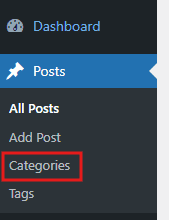
2. Click “Edit” to open the category editor

3. Update any of the fields.
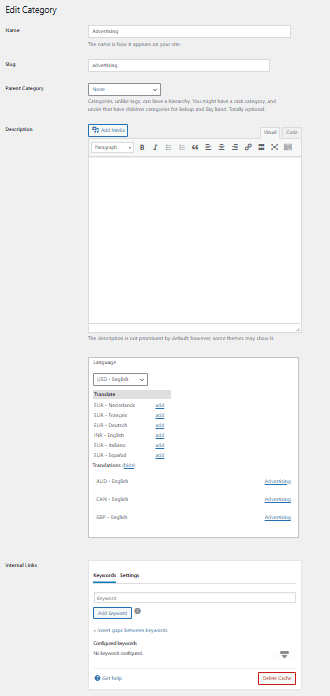
4. Click “Update” to save your changes

Important: While changing a category name is safe, modifying the slug changes your category’s URL. If that page ranks in search engines or receives external links, changing the slug can create broken links and hurt your SEO. If you must change a slug, set up a 301 redirect from the old URL to prevent traffic loss. All category edits apply immediately across your site.
Set a default category in WordPress
The default category in WordPress is automatically assigned to any post published without a category selection. By default, this is “Uncategorized,” which can create content hygiene issues and poor user experience. Setting a meaningful default category ensures your content stays organized even when you forget to categorize a post.
To set your default category:
- Navigate to Settings > Writing in your WordPress dashboard
- Find the “Default Post Category” dropdown
- Select your preferred category from the list
- Click Save Changes
You can rename “Uncategorized” by editing it under Posts > Categories, though it’s better to choose a relevant default instead. Avoid relying on defaults for important content—always manually assign the most appropriate category to maintain clear site organization.
How to delete categories in WordPress?
When managing categories in WordPress, it’s essential to understand how deleting a category affects your content organization and SEO. While you can add categories to pages in WordPress with plugins or custom code, the process of removing categories requires strategic planning. Before deleting any category, reassign affected posts to a more relevant category to avoid having content automatically moved to the default “Uncategorized” category, which can disrupt your site structure and negatively impact your search engine rankings.
- Before deletion, navigate to Posts > Categories and identify all posts using the category you want to remove
- Reassign these posts to appropriate alternative categories while editing them
- Once posts are reassigned, return to Posts > Categories, hover over the category name and click Delete
Important: Deleting categories used in navigation menus or permalinks will break those links and create 404 errors. If the category appears in your URL structure, set up 301 redirects from old category URLs to new ones to preserve SEO value and prevent broken links that frustrate visitors and harm search rankings.
How to add tags in WordPress?
Adding tags is even simpler than categories. Here’s how to do it effectively:
Adding tags to individual posts
- Open your post in the editor
- Find the “Tags” section in the sidebar
- Type your tags separated by commas
- WordPress will suggest existing tags as you type
- Press Enter or click “Add” to save tags to your post
Managing tags from the dashboard
You can also manage tags centrally:
- Go to Posts > Tags
- View all existing tags
- Edit tag names, slugs or descriptions
- Delete unused or duplicate tags
Tag best practices
To make your tags most effective:
- Be specific: Use descriptive, specific terms
- Limit quantity: Use 5-10 tags per post maximum
- Stay consistent: Use the same tag format across posts
- Avoid duplication: Don’t use tags that are too similar to categories
Add categories to a menu
When you add categories to your WordPress navigation menu, you help visitors discover content organized by topic. By incorporating WordPress categories into your site’s navigation, you create an intuitive browsing experience that guides users to specific content areas on WordPress pages, making it simple for them to locate relevant posts and information without extensive searching or scrolling through unrelated material.
- Navigate to Appearance > Menus in your WordPress dashboard.
- Select the menu you want to edit from the dropdown or create a new menu by entering a name and clicking “Create Menu.”
- Locate the Categories panel on the left side. If you don’t see it, click “Screen Options” at the top and check the “Categories” box.
- Select the categories you want to add by checking their boxes, then click “Add to Menu.”
- Drag and drop menu items to arrange them in your preferred order. Indent items slightly to create dropdown submenus if needed.
- Click “Save Menu” to publish your changes.
For best results, use clear, descriptive labels that match your category names and limit your main navigation to 5-7 top-level items to avoid overwhelming visitors. If categories don’t appear in the Categories panel, verify they contain published posts and aren’t empty. You may also need to refresh the page or check that your theme supports WordPress menus.
WordPress add categories to pages: understanding the difference
A common question is about wordpress add categories to pages. By default, WordPress pages don’t use categories – this is an important distinction that confuses many users.
Posts vs. pages: key differences
Understanding when to use posts versus pages helps clarify this:
- Posts: Time-sensitive content, blog articles, news updates (use categories and tags)
- Pages: Static content, about pages, contact forms (don’t typically use categories)
Adding categories to pages (when needed)
If you absolutely need categories for pages, you can enable this functionality:
- Add this code to your theme’s functions.php file:
function add_categories_to_pages() {

    register_taxonomy_for_object_type('category', 'page');

}

add_action('init', 'add_categories_to_pages');
Important: Only do this if you have a specific need, as it goes against WordPress best practices.
How do page categories affect my SEO?
Adding categories to WordPress pages creates additional archive URLs that search engines can crawl and index. While this can improve internal linking structure and help distribute page authority, it also introduces SEO risks you need to manage carefully. The main concerns include thin or duplicate content on archive pages, competing page titles and low-value URLs that dilute your site’s crawl budget.
When you add categories to pages in WordPress, reserve this feature for content-rich sections like resource libraries, documentation centers or large page-based structures where meaningful category archives will benefit users. Skip categorizing standard pages such as About, Contact or Services since these create thin archive pages that add little value. Regularly check Google Search Console for indexation issues and duplicate title tags across your category archives, then use robots.txt or noindex tags to prevent search engines from indexing low-quality archive pages.
Using the WordPress the_tags function
For developers and advanced users, the wordpress the_tags function is essential for displaying tags in theme templates.
Basic the_tags function usage
The basic syntax is:
the_tags($before, $sep, $after);
Parameters:
- $before: Text to display before the tag list
- $sep: Separator between tags
- $after: Text to display after the tag list
Practical examples
Here are some common ways to use the_tags:
Simple tag display:
the_tags('Tags: ', ', ', '');
Styled with HTML:
the_tags('
Tagged: ', ', ', '
');
With custom styling:
the_tags('
Alternative: get_the_tags function
For more control, use get_the_tags():
$tags = get_the_tags();
if ($tags) {
    foreach($tags as $tag) {
        echo '<a href="' . get_tag_link($tag->term_id) . '">' . $tag->name . '</a> ';
    }
}
Best practices for categories and tags
Implementing these best practices will improve your site’s organization and SEO performance:
1. Category best practices
- Limit main categories: Keep to 5-10 primary categories
- Use descriptive names: Make them clear and user-friendly
- Create hierarchy logically: Use subcategories sparingly and purposefully
- Optimize descriptions: Write SEO-friendly category descriptions
- Regular maintenance: Review and consolidate categories periodically
2. Tag best practices
- Be specific: Use precise, descriptive terms
- Maintain consistency: Use the same terms across similar posts
- Avoid over-tagging: 5-10 tags per post is usually sufficient
- Clean up regularly: Remove unused or duplicate tags
- Consider search volume: Use tags people might actually search for
3. SEO considerations
Both categories and tags create archive pages that can rank in search results:
- Optimize archive pages: Write compelling category and tag descriptions
- Avoid keyword stuffing: Use natural, relevant terms
- Monitor performance: Track which category traffic
- Internal linking: Link to relevant category and tag pages from posts
Troubleshooting common issues related to tags and categories
Here are solutions to frequent category and tag problems:
1. Categories not showing up
If categories aren’t appearing:
- Check if your theme supports category display
- Ensure posts are actually assigned to categories
- Verify category pages aren’t set to “noindex”
2. Too many unused tags
To clean up your tag system:
- Go to Posts > Tags
- Sort by “Count” to see unused tags
- Delete tags with zero posts
- Consolidate similar tags
3. Category URL issues
If category URLs aren’t working:
- Go to Settings > Permalinks
- Click “Save Changes” to flush rewrite rules
- Check for conflicting plugins
Advanced tips for power users for tags and categories
Take your category and tag strategy to the next level:
1. Custom taxonomies
For complex sites, consider creating custom taxonomies beyond categories and tags. This is useful for:
- eCommerce product attributes
- Portfolio project types
- Event locations or dates
2. Category and tag templates
Create custom templates for category and tag archive pages:
- category.php – General category template
- category-slug.php – Specific category template
- tag.php – General tag template
- tag-slug.php – Specific tag template
3. Bulk management
For sites with many posts, use bulk editing:
- Go to Posts > All Posts
- Select multiple posts
- Choose “Edit” from Bulk Actions
- Modify categories and tags for all selected posts
Final thoughts
Understanding how to add categories in WordPress and effectively use tags is crucial for creating a well-organized website. Categories provide the main structure for your content, while tags add specific details that help users and search engines understand your posts better.
Remember that good organization isn’t just about adding categories and tags – it’s about creating a logical system that serves your users. Whether you’re using the wordpress the tags function to display tags in your theme or simply learning what is a category in WordPress, the key is consistency and user-focused thinking.
Start with a simple category structure, use tags strategically and regularly review your organization system. With these practices in place, you’ll have a WordPress site that’s easy to navigate, search-engine friendly and scalable as your content grows.
Ready to put your newly organized WordPress site online? Get started with Bluehost’s optimized WordPress hosting to ensure your site performs at its best with dedicated WordPress features, expert support and reliable infrastructure designed specifically for WordPress success.
FAQs
Categories are hierarchical and represent broad topics, while tags are non-hierarchical and describe specific details. Categories are required for posts, tags are optional.
Most sites work best with 5-10 main categories. Having too many categories can confuse users and dilute your content organization.
Yes, but be careful with the URL slug. If you change the slug, set up redirects from the old URL to the new one to preserve SEO value.
Both can help SEO when used properly. Categories are generally more important for site structure, while tags help with long-tail keyword targeting.
Most themes automatically display categories and tags. For custom display, use functions like the_category() and the_tags() in your template files.

Write A Comment