 ChatGPT,
 Claude,
 Gemini,
 Grok — all four for
Key highlights
- Bluehost’s free Site Migration Tool moves your WordPress site from Elementor hosting to Bluehost automatically.
- Before you begin, back up your Elementor site using both the WordPress export tool and Elementor kit export and confirm where your domain is registered.
- Two migration paths are available: the Bluehost Site Migration Tool is the easiest option for most users, while manual migration gives developers complete control – including transferring Elementor templates and global styles.
- After migration, update your nameservers to point your domain to Bluehost – whether it’s registered via Elementor Cloud or elsewhere. DNS propagation can take up to 48 hours.
- Your Elementor hosting site stays live throughout the entire process and only switches over to Bluehost once your nameservers are updated.
You built your site on Elementor hosting because it promised a seamless, all-in-one experience. The builder and the hosting under one roof – simple. But somewhere along the way, the cracks started showing. Limited scalability, a pricing model that doesn’t flex as your site grows and a hosting environment built around a page builder rather than WordPress itself.
So you’ve started asking: can you move Elementor hosting to another provider? The answer is yes, and it’s more straightforward than you might think.
This guide walks you through how to migrate Elementor hosting to Bluehost – from backing up your Elementor kit and exporting your database, to pointing your domain and verifying your designs are intact on the other side. You can use Bluehost’s free Site Migration Tool to automate the transfer, or follow the manual path if you want full control over every file and template.
Either way, by the time you’re done, your site will be running on Bluehost – with your Elementor templates, global styles and content fully intact.
Why migrate from Elementor hosting to Bluehost?
Elementor hosting works if you’re fully committed to the Elementor ecosystem. But if you need more flexibility, better support and a hosting platform built around WordPress, not just one builder, Bluehost is the stronger choice. Here’s how the two compare:
| Feature | Elementor hosting | Bluehost hosting |
| Starting price | From $5/mo* | From $3.99/mo* |
| Uptime guarantee | 99.9% | 99.99% |
| 24/7 support | Ticket-based | Live chat + phone |
| WordPress.org recommended | No | Yes |
| Free migration tool | No | Yes |
| Theme and builder flexibility | Elementor only | Any theme or builder |
| Scalability | Limited | Shared to dedicated |
*Note: Please note that pricing is subject to change. Refer to the website for the most up-to-date details.
Here’s why WordPress site owners choose to migrate Elementor hosting to Bluehost:
- No ecosystem lock-in: Elementor Hosting is optimized for Elementor-first sites, while Bluehost gives you more flexibility to use Elementor alongside other WordPress themes, plugins and workflows.
- Better value: Elementor hosting starts at $5/mo for a single site. Bluehost gives you more features, more flexibility and official WordPress.org backing at a lower starting price.
- Deeper support: Elementor lists 24/7 expert support. Bluehost offers real human support by chat or phone, so help is always available when something goes wrong.
- Room to scale: Bluehost’s hosting plans range from shared hosting to dedicated servers. You won’t need to switch providers again as your traffic and business grow.
Ready to migrate Elementor hosting to Bluehost? Here’s exactly how to do it.
How to prepare before migrating from Elementor hosting to Bluehost?
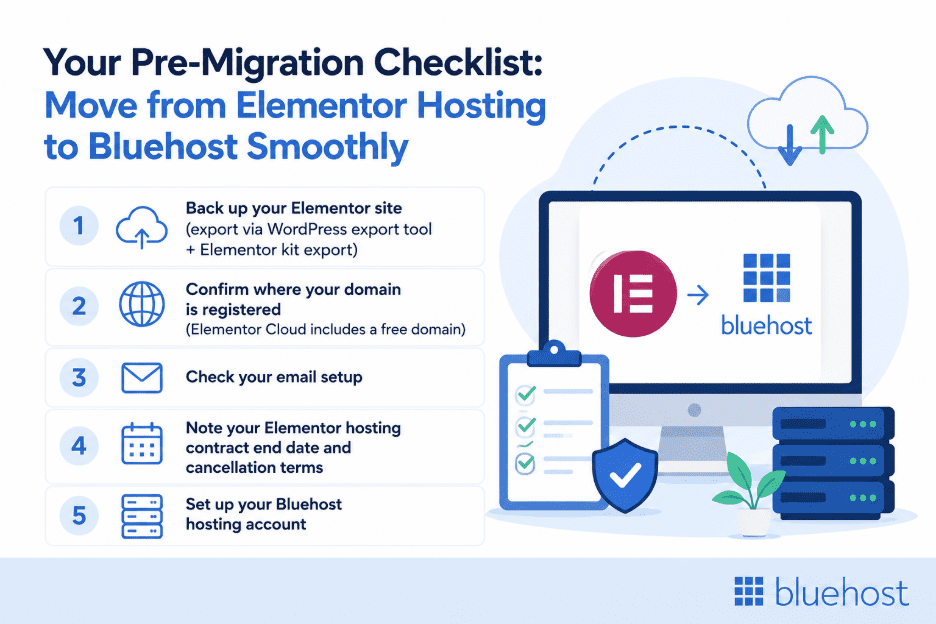
A little preparation before you migrate Elementor hosting to Bluehost saves you from headaches mid-migration. Work through this checklist before you touch anything.
Back up your Elementor site
Elementor hosting requires two separate exports before you begin. First, run a full WordPress export via Tools > Export in your WordPress dashboard – this covers your posts, pages and media. Then export your Elementor kit via Elementor > Tools > Export Kit – this captures your templates, global styles, color palettes and font settings. Download both to your local machine before proceeding.
Confirm where your domain is registered
Elementor Cloud includes a free domain with its hosting plans, which means your domain may be registered directly through Elementor. Log in to your Elementor hosting dashboard, go to Domains and confirm who holds the registration. This determines whether you’ll need to transfer your domain or simply update your nameservers after migration.
Check your email setup
If you’re using a third-party email service connected to your Elementor hosting account, note down all active email configurations before you begin. Email accounts do not transfer automatically – you’ll set these up fresh on Bluehost after migration is complete.
Note your Elementor hosting contract end date and cancellation terms
Check your Elementor hosting billing dashboard for your renewal date and cancellation terms before you start. Timing your cancellation correctly avoids being charged for an additional billing cycle after you’ve moved to Bluehost.
Set up your Bluehost hosting account
If you haven’t already, sign up for a Bluehost plan before starting the migration. You’ll need an active Bluehost account to use the Site Migration Tool or set up your server environment for a manual transfer.
Elementor hosting to Bluehost migration steps
There are two ways to migrate Elementor hosting to Bluehost. The Bluehost Site Migration Tool is the recommended option for most users – it’s automated, free and requires no technical knowledge. If you want full control over every file and template, the manual migration path is covered in Method 2.
Method 1: Migration using Bluehost Site Migration Tool (Recommended)
The Site Migration Tool handles your file and database transfer automatically. Here’s how to run it:
- Log in to your Bluehost portal.
- Click Add Website.
- Click Transfer WordPress Website.
- Wait while Bluehost prepares your account, then click Start Transfer.
- Enter the URL of your current Elementor hosting site and click Connect.
- Click Yes, Continue to Login – you’ll be redirected to your Elementor hosting WordPress site.
- Log in with your WordPress username and password.
- Click Yes, I approve this connection.
- Wait while Bluehost connects to your site – the status changes from Connecting to Connected.
- Your files and database transfer automatically.
- You’ll receive an email when migration is complete. Click Go to site to verify.
Method 2: Manually migrating from Elementor hosting to Bluehost
Manual migration is best suited for sites with custom configurations that need direct handling of files and databases, or when Bluehost support advises this path. While it requires working with FTP, phpMyAdmin and your WordPress database directly, it gives you complete control over every step of the process – including transferring your Elementor templates and global styles intact.
If you want to know how to clone Elementor website to new host without using the migration tool, follow these steps carefully.
Step 1: Export your WordPress files from Elementor hosting
Log in to your Elementor hosting control panel and open the File Manager. Navigate to your public_html folder, select all files and compress them into a .zip file. Download the zip to your local machine. Alternatively, connect via FTP using your Elementor hosting credentials and download the files directly.
Step 2: Export your WordPress database
In your Elementor hosting control panel, go to Databases and open phpMyAdmin. Select your WordPress database, click Export, choose the Quick method and download the .sql file to your local machine.
Step 3: Export your Elementor kit and templates
In your WordPress dashboard, go to Elementor > Tools > Export Kit. Select all kit contents – templates, global styles, color palettes, font settings and site settings – and download the kit file. This ensures your designs transfer intact to Bluehost.
Step 4: Create a new database on Bluehost
Log in to your Bluehost control panel. Go to Databases and create a new MySQL database. Note down the database name, username and password – you’ll need these in Step 7.
Step 5: Import your database
Open phpMyAdmin in your Bluehost control panel. Select the new database you just created, click Import and upload the .sql file you exported from Elementor hosting.
Step 6: Upload your files to Bluehost
Open the File Manager in your Bluehost control panel and navigate to the public_html folder. Upload the .zip file you downloaded from Elementor hosting and extract it. Make sure all files sit directly inside public_html – not inside a subfolder.
Step 7: Update your wp-config.php file
Open wp-config.php in the File Manager. Update the following lines with your new Bluehost database credentials:
define('DB_NAME', 'your_new_database_name');
define('DB_USER', 'your_new_database_username');
define('DB_PASSWORD', 'your_new_database_password');
define('DB_HOST', 'localhost');
Save the file.
Step 8: Install and activate Elementor on Bluehost
Log in to your WordPress dashboard on Bluehost. Go to Plugins > Add New and search for Elementor. Install and activate the plugin. If you’re using Elementor Pro, upload your Pro license file and activate it under Elementor > License.
Step 9: Import your Elementor kit
Go to Elementor > Tools > Import Kit. Upload the kit file you exported in Step 3 and follow the import prompts. This restores your templates, global styles, color palettes and font settings on Bluehost.
Step 10: Fix your permalinks
Log in to your WordPress dashboard on Bluehost. Go to Settings, click Permalinks and click Save Changes without making any edits. This refreshes your .htaccess file and fixes any broken URL structures.
Step 11: View your site using a temporary URL
Before updating your nameservers, preview your migrated site using Bluehost’s temporary URL to confirm everything transferred correctly. Check your pages, images, menus, Elementor templates and any forms or plugins.
Disclaimer: Exact manual steps depend on the access Elementor provides for your hosting account. If file or database access is limited, use Bluehost’s migration tool or a trusted WordPress migration plugin.
Bluehost Site Migration Tool vs manual migration
| Factor | Site Migration Tool | Manual migration |
| Technical skill required | None | Intermediate |
| Time to complete | Under 2 hours | 3-5 hours |
| Risk level | Low | Medium |
| Elementor kit transfer | Automatic | Manual export and import |
| Best for | Most WordPress users | Developers, complex setups |
| Cost | Free | Free |
Final steps after the migration
Your site is now on Bluehost. Before you cancel your Elementor hosting plan, work through these final steps to make sure everything is running correctly.
Point your domain to Bluehost
Knowing how to transfer domain from Elementor to Bluehost is the last step that switches your live site from Elementor hosting to Bluehost. How you do this depends on where your domain is registered.
If your domain is registered via Elementor Cloud:
Log in to your Elementor hosting dashboard, go to Domains, select your domain and replace the existing nameservers with Bluehost’s:
- ns1.bluehost.com
- ns2.bluehost.com
If your domain is registered elsewhere:
Log in to your domain registrar’s control panel and update the nameservers to the same values above.
Once updated, DNS propagation can take anywhere from a few hours to 48 hours to complete. During this window, some visitors may still see your Elementor hosting site. This is normal. Keep both sites live until propagation is fully complete to avoid any downtime during the switch.
Test the migrated site
Once your domain is pointing to Bluehost, run through this website migration SEO checklist before considering the migration done:
- Pages and posts: Click through your key pages and confirm content loaded correctly.
- Elementor templates: Verify all templates are rendering correctly and global styles are intact.
- Images and media: Check that no images are broken or missing.
- Navigation and internal links: Verify menus and internal links go to the right places.
- Forms: Test any contact or lead capture forms to confirm submissions are working.
- Elementor widgets: Check that all Elementor widgets are functioning as expected.
- SSL certificate: Confirm the padlock is showing in the browser. If not, activate your free SSL certificate in the Bluehost control panel.
- Site speed: Run a quick speed test on Google PageSpeed Insights and compare against your Elementor hosting baseline.
- Google Search Console: Confirm there are no crawl errors or indexing issues after the switch.
Cancel your Elementor hosting plan
Once you’ve confirmed your site is fully live and working on Bluehost, you can cancel your Elementor hosting plan.
To cancel, log in to your Elementor hosting dashboard, go to Billing and follow the cancellation steps. Check your plan’s cancellation terms before proceeding – timing your cancellation correctly avoids being charged for an additional billing cycle.
Do not cancel your Elementor hosting plan until your DNS has fully propagated and your site is confirmed live on Bluehost.
Final thoughts
The hardest part of deciding to migrate Elementor hosting to Bluehost is getting started. Once you’ve backed up your Elementor kit, exported your database and run the migration, the rest follows a clear path.
Bluehost’s Site Migration Tool takes care of the heavy lifting. Your files transfer, your database moves across and your Elementor templates go live on infrastructure built specifically for WordPress. All that’s left is a nameserver update and a quick round of testing.
If you’ve been putting off the switch, now is a good time. Your Elementor hosting site stays live throughout the process – there’s nothing to lose by starting today.
Switch to Bluehost WordPress Hosting and migrate your site now.
FAQs
Yes. Elementor works seamlessly on Bluehost. After migration, simply install and activate the Elementor plugin from the WordPress plugin directory. If you’re on Elementor Pro, upload your license and activate it under Elementor > License. All your existing templates and designs will be available once you import your Elementor kit.
Using the Bluehost Site Migration Tool, your templates transfer automatically as part of the migration. If you’re migrating manually, you’ll need to export your Elementor kit before you start and import it into Bluehost after the migration is complete.
Yes. Bluehost supports Elementor Pro fully. Since Elementor Pro is a plugin rather than a hosting-dependent feature, it works on any WordPress hosting environment – including Bluehost. You’ll just need your Elementor Pro license key to reactivate it after migration.
Your domain stays registered under Elementor Cloud until you choose to transfer it or update the nameservers. Updating the nameservers to point to Bluehost is enough to route your traffic to your new hosting account – a full domain transfer is optional.
If you use the Bluehost Site Migration Tool, Elementor transfers as part of your existing WordPress installation and does not need to be reinstalled. If you migrate manually, you’ll need to install Elementor fresh on Bluehost and import your Elementor kit to restore your templates and global styles.
In your WordPress dashboard, go to Elementor > Tools > Export Kit. Select all kit contents – templates, global styles, color palettes and font settings – and download the kit file to your local machine. Keep this file safe until your migration is complete and your kit is successfully imported on Bluehost.
For most WordPress site owners, yes. Bluehost offers greater flexibility – you’re not locked into one page builder – along with lower starting prices, 24/7 live chat and phone support and official WordPress.org recommendation. Elementor hosting is purpose-built for Elementor users, but if your needs extend beyond that ecosystem, Bluehost is the stronger long-term platform.
No, but you may need to disconnect the old site and reactivate the license on the Bluehost-hosted WordPress install.

Write A Comment