 ChatGPT,
 Claude,
 Gemini,
 Grok — all four for
Key highlights
- Learn how Gmail mail merge sends one personalized email to each person on your contact list.
- Know which Google Workspace plans appear on Google’s eligibility list before you prepare your contacts.
- Explore higher-tier workflows such as branded layouts, booking reminders and Gemini in Sheets around each send.
- Compare the built-in feature with two add-ons on cost, daily caps, scheduling and subject-line personalization.
- Discover how Google Workspace Business Standard and Business Plus from Bluehost add workflows around your merges.
Typing the same update to dozens of customers one at a time is slow, and a group email shows each recipient the whole list. A mail merge in Gmail answers both problems.
Gmail mail merge sends a separate, personalized copy of one email to each person on your list. You click Use mail merge in the compose window, add recipients from Google Contacts or a Google Sheets spreadsheet and insert tags like @firstname. Google lists the feature on Business Standard, Business Plus and other eligible Google Workspace plans.
This guide covers how to check your plan, prepare your list and send in six steps. You’ll also learn the limits, add-on options and spam safeguards, plus the workflows higher-tier plans add around a merge.
What is Gmail mail merge and how does it work?
Gmail mail merge is a built-in feature that replaces merge tags with each recipient’s details and sends each person a unique copy. Recipients can’t see each other’s addresses because each copy goes out as its own email.
Say you run a restaurant and write “Hi @firstname, your table for Friday is confirmed.” Maria’s copy reads “Hi Maria,” and James gets his own version. The feature replaced Gmail’s older multi-send mode.
Add-ons such as Yet Another Mail Merge (YAMM) and Mailmeteor run from Google Sheets or a Gmail extension. Their vendors say they add options like scheduling.
Which Google Workspace plans include Gmail mail merge?
Google lists Workspace Individual, Business Standard, Business Plus, Enterprise Standard, Enterprise Plus, Education Standard and Education Plus as eligible on Google’s mail merge help page. Business Starter and free @gmail.com accounts aren’t on Google’s list.
Bluehost sells three Google Workspace plans, and two of them appear on Google’s list.
Mail merge across Google Workspace plans from Bluehost
| Plan (through Bluehost) | On Google’s mail merge list? | Storage per user | Price (12-month term) |
|---|---|---|---|
| Business Starter | Not listed | 30 GB | $3.50/mo, renews at $7.00/mo |
| Business Standard (Recommended) | Listed | 2 TB | $7.00/mo, renews at $14.00/mo |
| Business Plus | Listed | 5 TB | $11.00/mo, renews at $22.00/mo |
Note: Bluehost pricing was verified in October 2026 and may change. See current Bluehost plans and pricing.
Of the three plans, Business Standard is the lower-priced option on Google’s eligibility list. The promotional price applies to the first term on annual plans, for up to five seats.
Get Business Standard or Business Plus from Bluehost
Business Standard covers mail merge and most of the related workflows below, while Business Plus adds Google Vault, attendance tracking, more pooled storage and larger meetings.
When you get either plan through us, your domain, email and Google Workspace account sit together. These parts of the setup shape the address customers see and the work you handle.
- Domain-matching sender address: Your merge comes from you@[yourbusiness].com, and you can follow our guide to Gmail with your custom domain.
- Automatic DNS setup: Domains registered with Bluehost get automatic domain name system (DNS) setup for Google Workspace.
- One dashboard: You manage your domain, email and Google Workspace account from your Bluehost account.
Also read: Once you’ve chosen a plan, learn how to set up Google Workspace.
How to prepare your contact list in Google Sheets
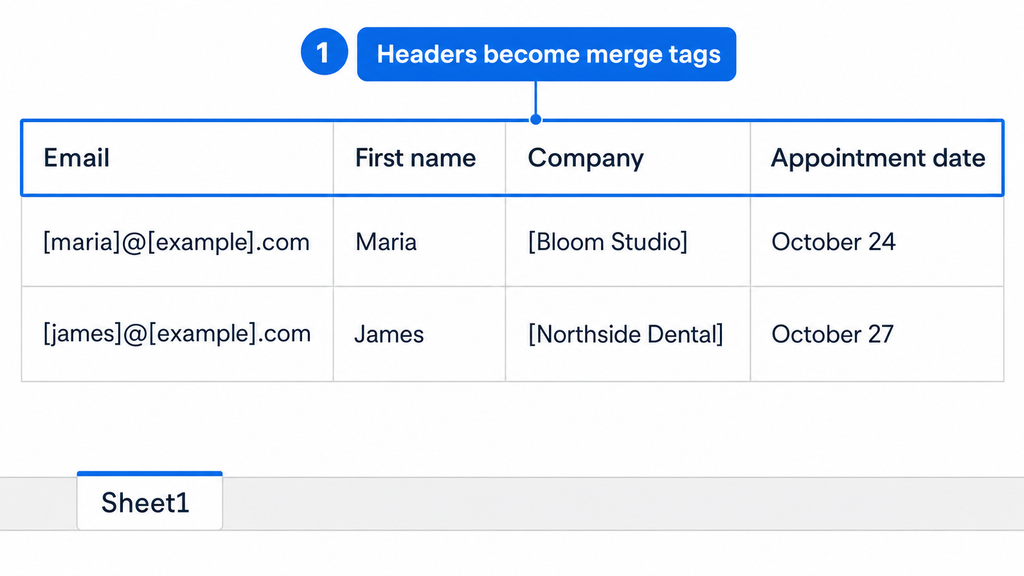
Put one person per row in the first tab of a Google Sheets spreadsheet, with clear column headers such as Email and First name. Each header becomes a merge tag you can insert in your message. These formatting rules from Google help you avoid broken tags and invalid addresses.
- First tab only: Gmail reads contact data from the first tab of your spreadsheet.
- Text only: Contact information in the sheet can only contain text.
- Simple headers: Headers with special characters show up by column position, such as @A, instead of by name.
- Valid addresses: Gmail treats email addresses with special characters as invalid.
- Filled cells: A blank cell in a tagged column triggers an error, so fill the gap or plan a default value.
This sample sheet works for appointment reminders, and you can rename the columns.
Sample contact sheet for appointment reminders
| First name | Company | Appointment date | |
|---|---|---|---|
| [maria]@[example].com | Maria | [Bloom Studio] | October 24 |
| [james]@[example].com | James | [Northside Dental] | October 27 |
For smaller groups, you can use a Google Contacts label instead, as Step 2 shows.
Pro tip: Keep only people who opted in to hear from you. A permission-based list helps keep spam complaints down.
How to do a mail merge in Gmail
These steps follow Google’s step-by-step instructions for Gmail on a computer, so have your sheet or contact label ready first.
1. Open a new message and turn on mail merge
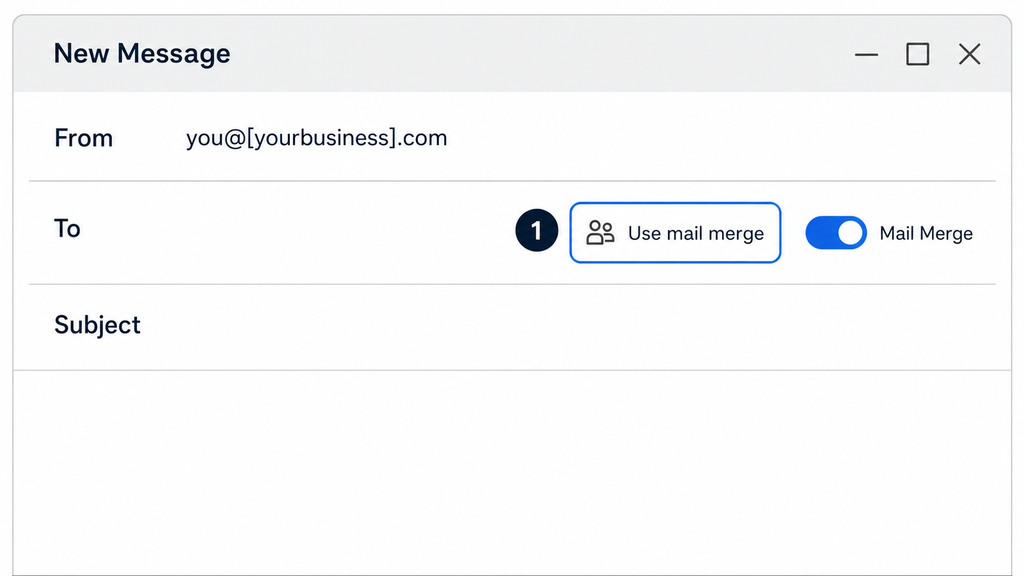
In Gmail on your computer, click Compose or open an existing draft. To the right of the To line, click Use mail merge, then turn on Mail Merge.
2. Add your recipients
You can pull recipients from a spreadsheet or type them in directly. Pick the option that matches how you store your list.
- From a spreadsheet: Click Add from a spreadsheet, select your sheet and click Insert. Choose the Email and First name columns, then click Finish.
- From contacts: Type names or a Google Contacts label in the To line.
3. Write your message and insert merge tags
Type @ in the message body to see available tags, including @firstname, @lastname, @fullname and @email. Your sheet’s column headers appear in the same list, and pressing Enter inserts the tag you pick.
Hi @firstname, this is a reminder that your appointment with us is on @Appointment date. Reply to this email if you need to change the time.
Merge tags don’t work in subject lines or link text, so write a subject that fits everyone.
4. Set default values for missing details
Gmail shows an error when a tag has no matching data for a recipient. You can enter a default value, such as “Hi friend,” or fix the row in your sheet or Contacts.
5. Send a test, then send the merge
Send a merge to yourself first to check formatting, spacing and tag placement. When the test looks right, send to your full list. Google adds a unique unsubscribe link to the bottom of each email automatically.
6. Track replies and sent messages
Replies arrive in separate threads, so you can answer each person individually. Your Sent folder shows a “Sent with mail merge” banner on merged messages, and Gmail emails you when someone unsubscribes or resubscribes.
Business workflows that build on mail merge in Business Standard and Business Plus
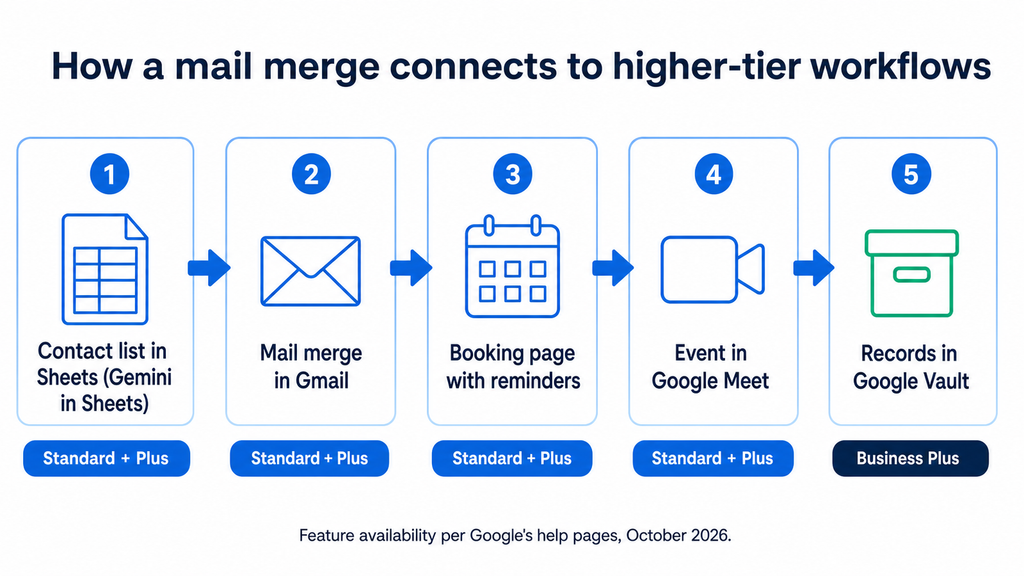
Business Standard and Business Plus add tools that fit around a merge, such as branded layouts, booking pages and Gemini in Sheets. Business Plus also adds record-keeping and attendance tools.
This table draws on several Google help pages plus Google’s Workspace plan comparison to show how each workflow differs by plan as of October 2026.
Mail merge workflows by Google Workspace plan
| Workflow | Business Starter | Business Standard | Business Plus |
|---|---|---|---|
| Mail merge in Gmail | Not on Google’s list | Listed | Listed |
| Branded email layouts | Not on Google’s list | Listed | Listed |
| Booking pages with automatic email reminders | Single booking page | Yes | Yes |
| Gemini in Sheets | Not supported | Yes | Yes |
| Meet participants | 100 | 150 with recording | 500 with recording and attendance tracking |
| Pooled storage per user | 30 GB | 2 TB | 5 TB |
| Google Vault | Not included | Not included | Included |
Sources: Google’s mail merge, Gmail layouts, Calendar booking pages, Meet attendance tracking and Google Vault help pages, plus Google’s Workspace plan comparison, as of October 2026.
Business Standard covers the core campaign workflows here. Business Plus suits teams that also want Vault, attendance tracking or 500-person meetings.
Send branded announcements with Gmail layouts
Gmail’s branded layouts let you save a design with your logo, colors, fonts and footer details. Google lists Business Standard and Business Plus among the editions that can create them.
A layout suits a branded announcement or newsletter. Google’s mail merge help page links to layouts as a related resource, so test how the two fit together before you plan around both.
Pair appointment reminders with Calendar booking pages
A merge can invite each client to book a time, and a booking page handles the scheduling that follows. Put your booking page link in the message body.
On Business Standard and Business Plus, Google Calendar booking pages can send automatic email reminders, accept payments and run more than one schedule. Google says Business Starter can create a single booking page. Google’s plan comparison and its Calendar help page describe Starter’s booking pages differently, so check your account if you’re on Starter.
Host the events your invitations announce in Google Meet
If your merge invites customers to a workshop or info session, you can host it in Google Meet. Google lists meetings of up to 150 participants with recording on Business Standard and up to 500 on Business Plus.
Among Business editions, Google lists Meet attendance tracking on Business Plus only. Knowing who joined can help you plan your follow-up merge.
Review your contact data with Gemini in Sheets
Google’s comparison lists Gemini in Sheets on Business Standard and Business Plus but not Business Starter. Google says it helps you visualize data and surface insights faster, for example when you check your list before a send. Check the results yourself before you send, since your sheet controls what each recipient sees.
Keep room for attachments and records
Because Gmail copies attachments per recipient, storage matters for attachment-heavy merges. Storage is pooled per user across your organization: 30 GB on Business Starter, 2 TB on Business Standard and 5 TB on Business Plus.
Business Plus also includes Google Vault, which can retain, hold, search and export Gmail messages. Vault retains data only after you set retention rules, and Google’s Vault help page says Vault isn’t a data archive. This overview isn’t legal or compliance advice, so check your record-keeping duties with a qualified advisor.
Gmail mail merge limits to check before you send
Gmail mail merge has a daily cap and several compatibility rules that shape how you plan a send. Google’s Admin Help page on Gmail sending limits in Google Workspace was updated October 9, 2026. It says limits use a rolling 24 hours and can change without notice.
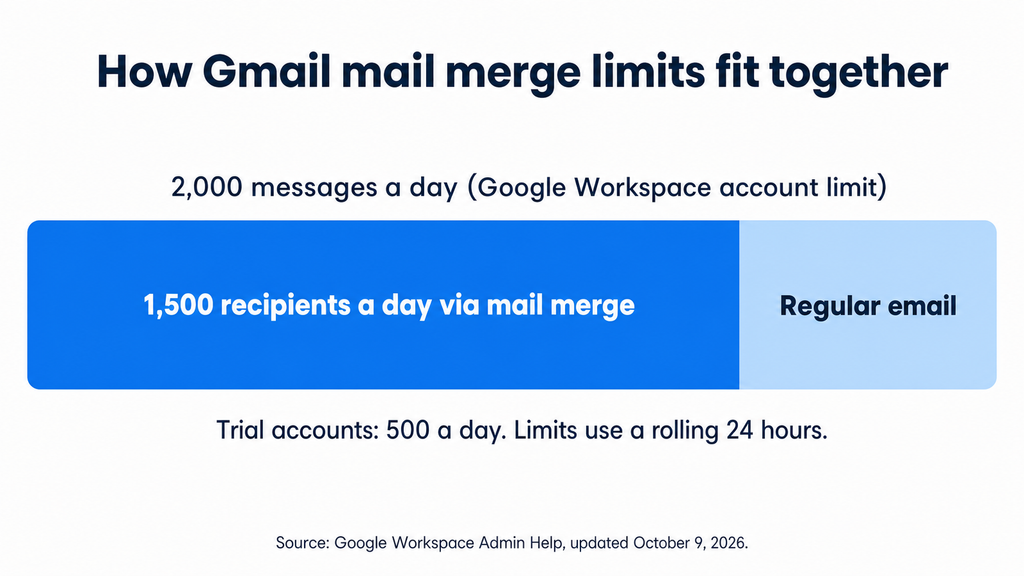
- Daily cap: You can send to 1,500 recipients a day through mail merge, within a Google Workspace account limit of 2,000 messages a day.
- Trial accounts: Google Workspace trial accounts have a lower limit of 500 messages a day.
- Carbon copy (Cc) and blind carbon copy (Bcc): A merge allows one such recipient, or none with a spreadsheet. They count toward your limit.
- Incompatible modes: Schedule send, confidential mode and plain-text mode don’t work with mail merge, and neither do replies or forwards.
- Body-only tags: Merge tags don’t work in subject lines or link text.
- Attachments: Gmail copies an attachment for each recipient, which uses storage. A 10MB file sent to 500 recipients adds up to about 5GB.
- Sending address: You can’t send a merge from a secondary domain or an alias.
- Unsubscribes: People who unsubscribe are excluded from your future merges. Google doesn’t provide a full list of unsubscribed recipients.
If you need scheduling, subject-line personalization or more than 1,500 recipients a day, look at an add-on or a dedicated email platform, both covered below.
Gmail mail merge vs add-ons: which should you use?
The built-in tool covers simple announcements, invitations and reminders on an eligible plan. An add-on makes sense when you need scheduling, subject-line tags, tracking or support for a personal Gmail account.
The table applies the same four criteria to each option, based on each vendor’s pricing page.
Built-in Gmail mail merge vs YAMM vs Mailmeteor
| Option | Cost to start | Daily sending cap | Subject-line personalization | Scheduling |
|---|---|---|---|---|
| Gmail mail merge (built-in) | Included with plans Google lists as eligible | 1,500 recipients | Not supported | Not compatible |
| YAMM | Free plan; Pro for a Google Workspace account is $12/month, $144 billed annually | 20 recipients free; 1,500 on Pro for Workspace | Yes (vendor-stated) | Yes (vendor-stated) |
| Mailmeteor | Free plan; Starter is $5.99 per user per month with monthly billing | 50 emails free (500 a month); 250 on Starter; up to 2,000 on Professional | Yes (vendor-stated) | Yes (vendor-stated) |
Pricing is as of October 2026. For the latest pricing and offerings for each tool, visit the provider’s website directly.
The built-in tool adds no cost on an eligible plan and matches the daily cap of YAMM Pro for Workspace. Add-ons trade a small free tier or a subscription for scheduling and subject-line tags.
According to YAMM’s pricing page, its plans include scheduling, open and click tracking, personalized subject lines and personalized attachments. Mailmeteor’s plans list schedule send, attachments and tracking on the free plan, and the company says you can personalize subject lines.
Choose built-in Gmail mail merge if:
- Eligible plan: You’re on Business Standard, Business Plus or another plan Google lists for mail merge.
- Moderate volume: You send announcements, invitations or reminders to fewer than 1,500 recipients a day.
- Fewer permissions: You’d rather not grant extra app permissions to your Gmail account.
- Body personalization: Personalized greetings and details in the message body cover what you need.
Choose an add-on if:
- Scheduled sends: You want a merge to go out at a set date and time.
- Personalized subject lines: You want merge tags in the subject line.
- Tracking: You want open and click tracking on your sends.
- Different account type: You use a personal Gmail account or a plan that isn’t on Google’s list.
If you’re comfortable running a script, Google’s Apps Script mail merge sample fills a Gmail draft template with data from Google Sheets for free. It requires authorizing a script, may need admin approval on Workspace accounts and is subject to Google’s quotas.
How to keep your mail merge out of spam
A merge goes through the same checks as other mail sent to Gmail inboxes. Google’s email sender guidelines set baseline rules for anyone sending to personal Gmail accounts.
- Authenticate your domain: Google asks all senders to Gmail accounts to set up Sender Policy Framework (SPF) or DomainKeys Identified Mail (DKIM).
- Plan for higher volume: Senders of 5,000 or more messages a day also need Domain-based Message Authentication, Reporting and Conformance (DMARC) and one-click unsubscribe.
- Watch your spam rate: Google asks for reported spam below 0.3%, aiming under 0.10%. One complaint on a 500-recipient send equals 0.2%.
- Email people who opted in: Send only to contacts who agreed to hear from you, and skip bought lists.
- Write like a person: Use a clear subject, a specific reason for writing and a plain tone without all-caps urgency.
- Start small: If your account or domain is new, send smaller batches first and watch for replies and bounces.
If those authentication records are new to you, read how SPF, DKIM and DMARC work before a large send.
Google’s unsubscribe link helps, but US law adds duties that stay with you. The Federal Trade Commission (FTC) says the CAN-SPAM Act applies to all commercial email, including business-to-business messages.
The FTC’s CAN-SPAM compliance guide says your messages need a valid physical postal address. You also need to honor opt-out requests within 10 business days. This summary isn’t legal advice, so check with an attorney about your situation.
Also read: For more on volume rules, see our guide to Gmail bulk sender guidelines.
Why your Gmail mail merge isn’t working
Mail merge problems often trace back to your plan, your sheet or the daily limit. Match what you see to the fixes below.
- Missing Use mail merge button: Check that your plan is on Google’s list and that you’re using Gmail on a computer.
- Button missing on an eligible plan: Ask your admin to check the mail merge setting in the Admin console, which is on by default.
- External recipients blocked: “Allow for external recipients” is off by default for Enterprise and Education editions and on for other editions.
- Wrong or missing tag data: Confirm your data sits in the first tab, headers use plain letters or numbers and cells contain only text.
- Missing-information error: Add a default value in the message or fill the blank cell in your sheet.
- Send stops partway: You may have reached the daily cap, which resets over a rolling 24 hours.
- Messages land in spam: Review your authentication and list quality, then read why emails land in spam for more fixes.
When to move beyond Gmail mail merge
Gmail mail merge fits one-off announcements, invitations and follow-ups. A dedicated email platform makes more sense once your sending turns into a regular program.
- Regular newsletters: You send to a growing subscriber list on a set schedule.
- Automated sequences: You want welcome or follow-up emails to go out based on what subscribers do.
- Segmentation and reporting: You need to split your list by interest and review results over time.
- Higher volume: Your sends regularly go past the 1,500-recipient daily cap.
If two or more of these apply, create an email newsletter with a tool built for it. Mail merge still works for personal outreach.
Final thoughts
Before your first Gmail mail merge, confirm your plan is on Google’s list, then build a clean sheet and run a small test. That order catches plan and formatting problems before your customers see them.
If your merges lead into bookings, events or records you need to keep, pick the tier that matches those workflows. Choose Google Workspace Business Standard or Business Plus from Bluehost and run your next campaign from your own domain.
FAQs
No, Google’s eligibility list covers Google Workspace plans such as Workspace Individual and Business Standard, and free @gmail.com accounts aren’t on it. YAMM says its free plan works with @gmail.com addresses for up to 20 recipients a day. Compare <a href=”https://www.bluehost.com/blog/googleworkspace-vs-gmail/”>free Gmail versus Workspace</a> to see what else changes.
Create a label in Google Contacts, add the people you want to reach, then type the label name in the To line. With mail merge on, Gmail sends each contact a separate copy. For larger lists or extra merge fields, use a Google Sheets spreadsheet.
Yes, you can attach a file to a merge, and Gmail copies it for each recipient, which counts against your storage. For large files, a Google Drive link keeps the message lighter. The built-in tool sends the same attachment to each recipient, while YAMM says its plans support personalized attachments.
No, Google lists schedule send as incompatible with the built-in mail merge, so the message goes out when you click Send. YAMM and Mailmeteor both say their tools support scheduled sends, including on their free plans. You can also prepare the draft early and send it when you’re ready.
No, Bcc sends one identical message and hides recipients’ addresses from each other. A mail merge sends each person a separate copy with their own details, such as a first name or appointment date. Each reply also comes back as its own thread, which keeps conversations easy to track.

Write A Comment