 ChatGPT,
 Claude,
 Gemini,
 Grok — all four for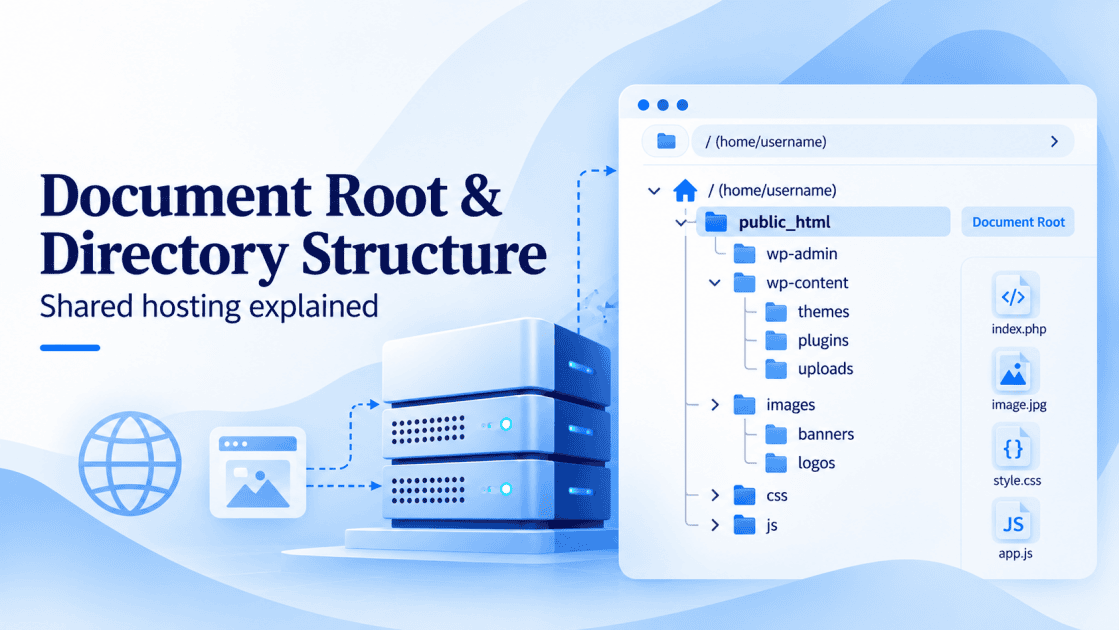
Key highlights
- Learn what the document root is and why its contents can be requested in a browser.
- Discover how your home directory, public_html and each domain’s folder fit together on shared hosting.
- Find your document root in Account Manager or cPanel so uploads land in the right folder.
- Know where addon domains and subdomains keep their files and how nested folders affect other sites.
- Explore a security checklist that keeps backups, exports and other private files out of public folders.
On shared hosting, the document root is the folder your web server serves to visitors at your domain. For your main domain, that folder is usually public_html inside your account’s home directory (/home/username/) and addon domains and subdomains each get their own folder.
Many file problems trace back to this one folder. Files uploaded to the wrong place won’t show up on your site. Private files saved inside it can end up open to anyone with the link.
This guide to document root and directory structure in shared hosting maps the folders in a typical account and shows where to find yours. You’ll also see how paths become web addresses and how to change a document root safely. Then you’ll get a security checklist and fixes for common errors.
What is the document root in shared hosting?
The document root is the folder whose contents visitors can reach at your domain. It’s the directory that holds a domain’s publicly available files, and you’ll also hear it called the web root or docroot.
Three different “roots” tend to get mixed up, so it helps to separate them:
- The server’s filesystem root (/): This is the top of the whole server, and shared hosting customers don’t work there.
- Your home directory (/home/username/): This is your account’s private top-level folder, which holds your sites plus system files.
- The document root: This is the public folder for a domain, which is public_html for your main domain.
The difference matters because anything inside the document root can be requested in a browser unless access is restricted. Files outside it, in the rest of your home directory, aren’t served as web pages.
How a shared hosting account is organized
A cPanel shared hosting account puts everything inside your home directory, with each website’s public files in folders under public_html. System folders sit beside public_html, outside any document root, so they aren’t served as website folders.
The tree below shows a typical layout on current cPanel versions. Your folder names will match your own domains, and older accounts may use a different arrangement.
/home/username/                      ← home directory (private)
├── public_html/                     ← document root for [yourbusiness].com (public)
│   ├── index.php
│   ├── images/
│   ├── [yourotherbusiness].com/     ← addon domain's document root (public)
│   └── blog.[yourbusiness].com/     ← subdomain's document root (public)
├── logs/                            ← system folder (private)
├── mail/                            ← system folder (private)
├── etc/                             ← system folder (private)
├── ssl/                             ← system folder (private)
├── tmp/                             ← system folder (private)
└── .htpasswds/                      ← system folder (private)
The table explains what each part of that tree does. Use it to decide whether a file belongs in a public folder or should stay private.
| Folder | What it’s for | Reachable in a browser? |
|---|---|---|
| /home/username/ | Your account’s home directory, which contains every other folder | No |
| public_html/ | The document root for your main domain | Yes, unless access is restricted |
| public_html/[yourotherbusiness].com/ | The document root for an addon domain | Yes, unless access is restricted |
| public_html/blog.[yourbusiness].com/ | The document root for a subdomain | Yes, unless access is restricted |
| logs/, mail/, etc/, ssl/, tmp/, .htpasswds/ | System folders cPanel uses to run your account | No, they sit outside the document root |
Only the folders under public_html are public, so the system folders are best left alone. On current cPanel versions, you can’t create a document root outside public_html, and cPanel’s domain creation docs list folders that can’t hold a domain’s files. That list includes the home directory itself plus etc, mail, ssl, tmp, logs, cgi-bin and .ssh.
Your main domain lives in public_html
Your primary domain’s document root is public_html, and it stays there. In cPanel, the Main Domain’s document root can’t be edited.
If you want a different domain as your primary, you can change your primary domain by contacting Bluehost Support. The new primary domain also points to public_html, so you may need to move files to match the new site.
Addon domains and subdomains get their own folders
Each addon domain stores its files in a separate folder, which current cPanel versions place inside public_html. Our guide to addon, parked and subdomains explains how each domain type differs.
A subdomain such as blog.[yourbusiness].com can have its own folder or share the main domain’s document root. cPanel’s domain creation docs note that the “Share document root” choice is permanent, so pick it only when both addresses should show the same files.
This nesting has a practical side effect. Because public_html contains your other sites’ folders, a careless delete or overwrite there can break a second website.
How to find your document root on Bluehost
You can see every domain’s document root in a single column in either Account Manager or cPanel. Check it before you upload files or install an app so you work in the right folder.
Both screens show the same information, so use whichever one you already have open. Our steps to identify your document root walk through each screen in more detail.
- Bluehost Account Manager: Go to Websites, select Manage for your site, then open Files & Access. The Document Root section displays the folder assigned to your site.
- cPanel: Open Domains and check the Document Root column to find the folder assigned to each domain.
You can also connect with Secure File Transfer Protocol (SFTP), an encrypted way to move files between your computer and the server. After you connect, open public_html or the domain’s folder before you upload.
Pro tip: Before you install WordPress or another app, confirm the Document Root column for that domain. That way, the app’s files land in the folder the domain actually serves.
How folders inside the document root become URLs
The server adds the part of the Uniform Resource Locator (URL) after your domain name to the end of the document root path. So [yourbusiness].com/about/ loads the about folder inside public_html.
Apache’s documentation on how Apache maps URLs describes this general model. Your host’s server software may handle details differently, but the table shows how the pattern usually plays out.
| File path on the server | URL a visitor types |
|---|---|
| public_html/index.html | [yourbusiness].com |
| public_html/about/index.html | [yourbusiness].com/about/ |
| public_html/images/logo.png | [yourbusiness].com/images/logo.png |
| public_html/[yourotherbusiness].com/index.php | [yourotherbusiness].com (addon domain) |
| public_html/[yourotherbusiness].com/index.php | [yourbusiness].com/[yourotherbusiness].com/ (same file) |
The last row follows from this mapping. Because the server maps URL paths to folders within public_html, an addon domain’s folder may also be accessible through a subfolder URL on the main domain. This depends on the server configuration.
When a URL points to a folder, the server looks for an index file. An index file is the default page a server loads for a folder, such as index.html or index.php, checked in a configured order.
If no index file exists, the server shows a list of the folder’s files only if it’s configured to allow one. Otherwise, the visitor gets an error.
How to upload files to the right folder
Upload your site files directly into the domain’s document root, which you found in the Document Root column. For your main domain, that means public_html itself.
You can use cPanel File Manager to upload, extract and edit files in your browser. Follow these steps:
- Open File Manager from cPanel.
- Go to the domain’s document root.
- Upload your files or a .zip archive of the site.
- Extract the archive in place so the files sit directly in that folder.
- Delete the archive once the files are extracted.
For large batches of files, SFTP is usually faster than uploading through the browser. Either way, the target folder is the same.
A few upload mistakes cause many “my site didn’t change” moments. Each one connects to the folder tree above, so they’re quick to spot once you know where to look.
- Uploading to the home directory: Files placed above public_html aren’t served, so the site doesn’t change.
- Nesting a folder: A path like public_html/site/index.html means the homepage loads only at /site/.
- Missing index file: Without index.html or index.php, the folder shows an error or a file list.
- Leaving the .zip behind: Any file inside public_html has a web address, so an archive left there could be downloaded by someone who requests it.
A WordPress install places the wp-admin, wp-content and wp-includes folders in the document root. It also adds wp-config.php, a configuration file that needs extra care, as the security checklist below explains.
How to change a document root (and what doesn’t change)
You can change an addon domain’s or subdomain’s document root in cPanel’s Domains interface. The main domain’s document root can’t be changed.
Changing the path doesn’t move your files, so move or copy them first. See cPanel’s guide to changing a domain’s document root for the full rules. Domains that share the main domain’s folder can’t be modified.
Removing a domain leaves its folder and files on the server. Follow this order to change a document root safely:
- Back up the site’s files and database.
- Create the new folder inside public_html.
- Move or copy the site files into the new folder.
- Update the document root path for that domain in Domains.
- Test the site in a private browser window.
- Remove the old copy once the site loads correctly.
How to keep your document root secure
Keep only the files visitors need inside the document root, and protect everything else. The Open Worldwide Application Security Project (OWASP) tracks this kind of risk. OWASP’s 2025 misconfiguration guidance ranks Security Misconfiguration A02:2025, up from fifth place.
One of OWASP’s example scenarios is a server with directory listing left on. Use this checklist to close gaps like that on a shared hosting account:
- Keep private files out of public_html: Store backups, database exports, .env or config copies and installer archives outside it.
- Use standard permissions: Our cPanel file permissions guide recommends 644 for files and 755 for folders as the common default.
- Lock down wp-config.php: Use 600 or 640 for this file, and avoid 777 on anything.
- Add index files to public folders: If your server allows directory listings, an index file in each public folder can keep it from showing a file list. For folders without one, you can ask your host’s support team about turning off listings.
- Protect admin-only folders: You can password protect a folder with cPanel’s Directory Privacy tool, if available or an .htaccess file.
- Leave system folders alone: Don’t edit or upload into mail, etc, ssl or tmp.
- Back up before structural changes: Take a fresh backup before you move folders or change a document root.
Common document root problems and how to fix them
Document root problems usually come from files in the wrong folder, a missing index file or incorrect permissions. Match what you see to a row below, then apply the fix.
| Symptom | Likely cause | Fix |
|---|---|---|
| A default or “coming soon” page still shows | Files went to the wrong folder, or an old index file was left behind | Move files into the document root and delete the old index file |
| 403 Forbidden | A missing index file or incorrect folder permissions | Add an index file and reset folders to the common default of 755 |
| 404 on the homepage or files | Files are nested one level too deep, or the document root points to the wrong folder | Move files up one level or correct the document root path |
| A list of files shows instead of a page | No index file, and listings are allowed | Add an index file or turn off listings |
| An addon domain shows the main site | The domain shares the main document root, or Domain Name System (DNS) records haven’t updated yet | Check the Document Root column, then allow time for DNS changes |
| Changes don’t appear | You edited a copy in a different folder, or the page is cached | Edit the file in the listed document root, then clear your cache |
Start by checking the Document Root column, since it rules out the most common cause first. For permission-related errors, you can fix a 403 Forbidden error with our step-by-step guide.
How much document root control you get on shared hosting vs. VPS
On shared hosting, your host typically manages the server and its configuration, while you work inside your account through the control panel. That setup usually covers what business sites, blogs and stores need.
A virtual private server (VPS) is a hosting plan with its own isolated slice of a server. On a VPS, you typically get root access and configure the web server yourself, including where each document root lives. A VPS may be worth considering when you need to change server-level settings that a shared plan’s control panel doesn’t expose.
Final thoughts
Know which folder each domain uses before you upload, move or delete anything and keep private files out of it. Your next step is to open the Document Root column and compare each path with where your files sit today.
Bluehost Web Hosting plans host 10, 50 or 100 websites in one account, depending on whether you choose Starter, Business or eCommerce Essentials. Each plan includes a unified dashboard and 24/7 chat support. Compare plans and pick the one that fits your site count on Bluehost Web Hosting.
FAQs
Web hosting is the server space that stores your site’s files, and a domain name is the address people type to reach them. They can come from the same company or from different ones. If they’re with different companies, you point the domain’s DNS records at your host so the address loads the files in your document root.
No, public_html is your main domain’s document root, while “root directory” can mean the server’s top level or your home directory. When a guide says to upload to the root directory, it usually means the web root for that domain. To confirm the right folder, check the Document Root column for that domain in cPanel or Account Manager.
Yes, you can install WordPress in a folder such as public_html/blog so it loads at [yourbusiness].com/blog. That install acts as its own site with its own wp-config.php file and database. Your main domain can keep running a separate site or a static page from the top level of public_html.
Yes, choosing “Share document root” in cPanel when you add a domain makes it serve the same files as your main domain. This suits a second spelling or an older brand name that should show identical content. Any edit you make then appears at both addresses, since both read from one folder.
Your files stay on the server, because removing an addon domain keeps its folder and contents. Download a copy if you want an archive, then delete the folder in File Manager to free up space. Afterward, you can confirm in File Manager that the folder is gone.

Write A Comment