 ChatGPT,
 Claude,
 Gemini,
 Grok — all four for
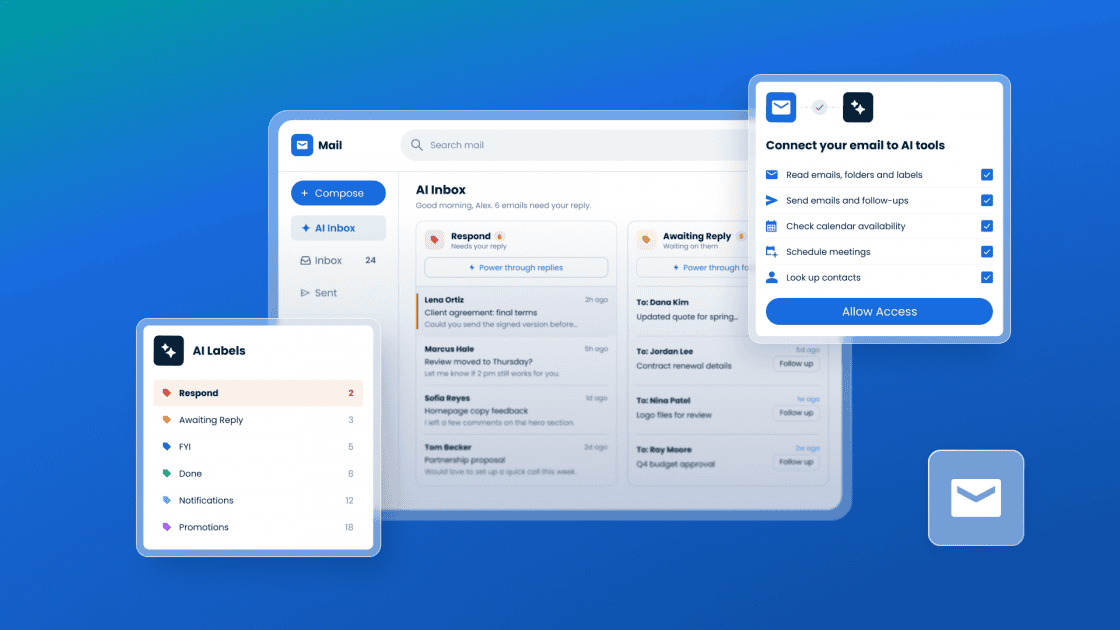
Key highlights
- Stay organized with AI Labels, which automatically categorizes emails so you can quickly see what needs your attention.
- Simplify follow-ups with AI Inbox, which brings messages awaiting your response and conversations you’re waiting to hear back on into one view.
- Cut down on manual tasks with Titan MCP by using natural-language prompts in ChatGPT or Claude to manage email, calendars and contacts.
- Add an extra layer of protection to sensitive emails with Password-Protected Email, which requires recipients to enter a password before viewing your message.
- Consider which new features best fit your needs and how you work.
Managing email can take time away from the work that matters. Bluehost Professional Email has added AI Labels, AI Inbox, Titan MCP and Password-Protected Email to help you organize your inbox, keep track of important conversations, simplify everyday email and scheduling tasks and add an extra layer of protection to sensitive messages. These new AI and security features are available on select Professional Email plans.
Explore what’s new, see how each feature fits the way you work and find the right place to start based on your needs. If you’re new to professional email, check out our guide to business email to learn more about getting started.
What’s new in Bluehost Professional Email?
Bluehost Professional Email now includes new AI and security features on select plans. Each feature is designed to make everyday email management easier, whether you’re organizing messages, keeping track of follow-ups, managing tasks with an AI assistant or protecting sensitive information. Here’s a closer look at what’s new and how each feature can help.
| Feature | What it does | Where you use it | How it helps you |
| AI Labels | Automatically categorizes incoming emails with one of six labels | In your inbox | Quickly see what needs attention without opening each email |
| AI Inbox | Shows messages needing your reply and responses you’re waiting on in one view | A separate inbox view (requires AI Labels) | Stay on top of important follow-ups without searching through your full inbox |
| Titan MCP | Connects your email, calendar and contacts to an AI assistant using natural-language prompts | In ChatGPT or Claude | Read and send emails, check calendars, find contacts and manage labels without manually navigating through tasks |
| Password-Protected Email | Requires recipients to enter a password before viewing sensitive emails | When composing an email | Share sensitive information with an extra layer of protection |
AI Labels: Automatically organize incoming emails
AI Labels automatically categorizes incoming emails with one of six labels, helping you organize your inbox and quickly see what needs your attention without opening each message. This makes it a practical AI email organizer for a busy inbox.
AI Labels makes it easier to prioritize your inbox by grouping messages based on the type of attention they may need.
- Respond: Messages that need a response from you.
- Awaiting Reply: Messages you’ve sent that are awaiting a response.
- Done: Messages or conversations that don’t require further action.
- FYI: Messages that are primarily informational.
- Notifications: Updates and automated notifications.
- Promotions: Promotional emails and offers.
Pro tip: Not every email needs your attention right away. Start with Respond, then circle back to FYI messages when you have a quieter moment.
AI Inbox: Stay on top of important follow-ups
AI Inbox brings messages that need your reply and responses you’re waiting on into a separate view, helping you stay on top of important follow-ups without searching through your full inbox. AI Inbox works with AI Labels, so AI Labels must be available for you to use this feature.
Picture a quote that’s still awaiting a response and a client question you haven’t replied to yet. AI Inbox brings both into one view, making it easier to keep important conversations from slipping through the cracks.
Pro tip: Think of AI Inbox as your follow-up safety net. Check it regularly to see which conversations may still need your attention.
Titan MCP: Manage email and more with your AI assistant
Titan MCP connects your Professional Email to AI assistants like Claude and ChatGPT, giving you a new way to work across your email, calendar and contacts. Using natural-language prompts, you can read and send emails, check your calendar, find contacts, and manage labels.
That gives the AI assistant you already use a bigger role in your day-to-day work, helping you manage email, calendar and contacts. Still choosing an assistant? Start by comparing ChatGPT and Claude.
Here are a few ways you can put Titan MCP to work with simple, natural-language prompts:
- Prioritize your Inbox: Summarize unread emails and identify messages that may need a response.
- Prepare for Meetings: Find recent emails and summarize key context before a meeting.
- Simplify scheduling: Find available meeting times and create calendar events.
- Manage follow-ups: Find conversations awaiting a response and draft follow-up messages.
- Organize your inbox: Find related emails and apply labels.
Pro tip: Be clear about the outcome you want from your AI assistant and review its responses before taking action.
Password-Protected Email: Add an extra layer of protection to sensitive messages
Some emails carry details you wouldn’t want shared or saved, like contract terms, account details or client records. The Federal Trade Commission (FTC) advises businesses that regular email isn’t a secure method for sending sensitive data.
Password-Protected Email adds an extra layer of protection when you share that kind of information by requiring recipients to enter a password before they can view the message. You can also set an expiration date to limit how long the message is accessible.
Password-Protected Email can be useful when you want more control over who can access a message and how long it remains available. Consider using it for:
- Contracts & Agreements: Confidential terms or signatures.
- Payment Details: Invoices, payment instructions or account details.
- Employee Information: Payroll details, offer letters or other sensitive employee documents.
- Client Records: Personal or account data.
Pro Tip: Share the password separately from the email, such as by phone, so the message and its password aren’t sent together.
Tips for using connected AI assistants safely
When connecting your email to an AI assistant, a few simple precautions can help you use the connection safely and confidently. Keep these best practices in mind:
- Use a personal AI account: Only connect your Professional Email to an AI account you use yourself, not a shared account.
- Review and limit permissions: Check what your AI assistant can access and disable any tools or permissions you don’t need.
- Review before sending: Read AI-generated drafts before sending them.
- Remove connections you no longer use: Disconnect AI assistants that don’t need ongoing access to your account.
- Use two-factor authentication: Add an extra layer of sign-in protection when available.
Which new feature should you start with?
Start with the feature that solves your biggest email challenge today. If you’re new to Bluehost Professional Email, explore our plans and create your account to get started.
Start with AI Labels if:
- Your inbox mixes messages that need action with notifications, promotions and FYIs.
- You spend time sorting through emails to identify what needs your attention.
- You want an easier way to organize incoming emails.
Start with AI Inbox if:
- You have trouble keeping track of messages that need your reply.
- You want an easier way to see conversations you’re waiting to hear back on.
- You find important conversations getting buried in your full inbox.
Start with Titan MCP if:
- You already use Claude or ChatGPT as part of your workflow.
- You spend time moving between your inbox, calendar and contacts to complete everyday tasks.
- You want help with email briefings, meeting prep, scheduling and follow-ups.
Start with Password-Protected Email if:
- You regularly send contracts, payment details, employee documents or client records.
- You want more control over who can access sensitive messages and how long they remain available.
- You want added protection that fits into your existing email workflow.
Final thoughts
The right email tools can help you spend less time managing your inbox and more time focusing on your business. With AI Labels, AI Inbox, Titan MCP and Password-Protected Email, Bluehost Professional Email gives you new ways to stay organized, keep track of important conversations, simplify everyday work and add extra protection to sensitive messages.
Whether you start with one feature or explore several, choose what best fits the way you work. Explore Bluehost Professional Email to find the plan and features that fit your needs.
FAQs
Professional Email Plus includes Password-Protected Email, Titan MCP and 100 AI Labels. Professional Email Ultra includes Password-Protected Email, Titan MCP, unlimited AI Labels and AI Inbox. Compare Professional Email plans to find the option that best fits your needs.
Yes. With Titan MCP, you can use connected AI assistants like ChatGPT or Claude to help draft emails and follow-ups from your Professional Email account. Review any AI-generated drafts before sending to make sure they’re accurate and appropriate for your audience.
Yes. Once you connect Titan MCP, ChatGPT or Claude can help read, draft and send emails from your Professional Email account based on the access you provide.
No. Email AI works inside your mailbox to help you write and refine messages. Titan MCP connects your mailbox to Claude or ChatGPT, allowing you to work across your email, calendar and contacts.
The recipient enters the password you set to open and read the email. They can’t copy, print or download the message. For added protection, share the password separately, such as by phone, rather than sending it with the email.

Write A Comment