 ChatGPT,
  Claude,
  Gemini,
  Grok — all four for
 Fixing Error After MultiPHP Update
This article explains how to resolve a WordPress issue that may look similar to the example below:

The error message typically starts with:
"Warning: Use of undefined constant WP_CONTENT_DIR - assumed 'WP_CONTENT_DIR' (this will throw an Error in a future version of PHP) in"
It will reference a path inside your cPanel directory, followed by:
"Your PHP installation appears to be missing the MySQL extension, which WordPress requires."
Fixing this issue requires accessing the File Manager and editing certain files. If you are not comfortable doing this, our Support team will assist you via phone or chat.
How to fix the "Missing MySQL Extension" error
- Log in to your Bluehost Portal.
- In the left-hand menu, click Websites.
- Click the Manage Site button located next to the website you want to manage.

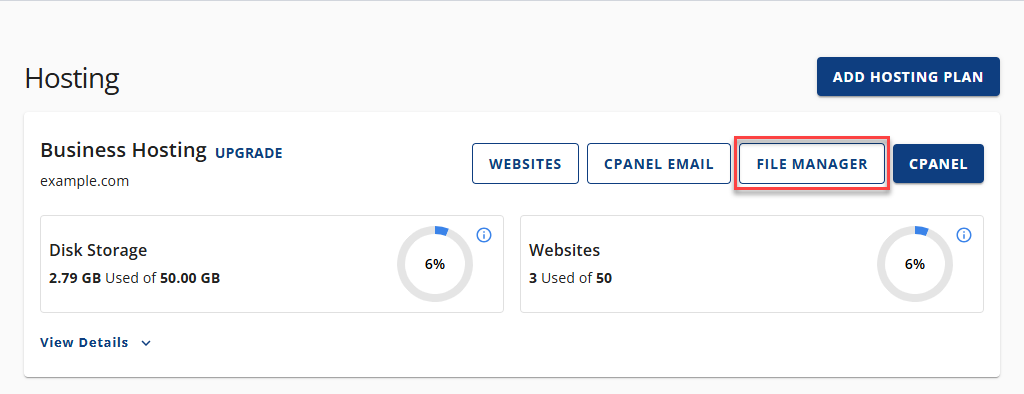
- Click File Manager.
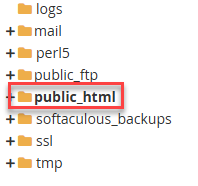
- Find and open your website's document root. (In this example, we’re using the public_html folder.)
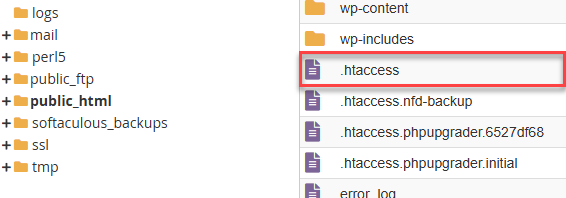
- Locate the .htaccess file, right-click it, and select View.
To locate the .htaccess file:
- Click File Manager.
- Click Settings in the upper‑right corner.

- Enable Show Hidden Files (dotfiles).
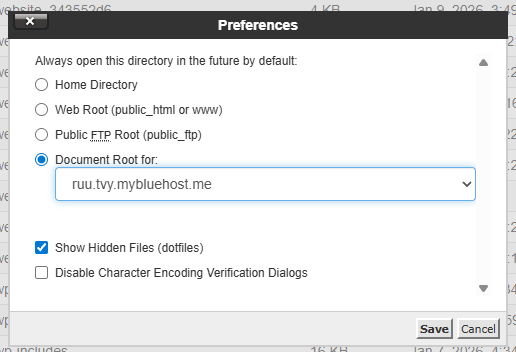
- Click Save. The page will reload and display all hidden files.
- Select your domain’s document root (example: public_html).
- Look for the .htaccess file inside the folder.
- Click File Manager.
- Inside your .htaccess file, you’ll find PHP handler entries. You’ll need to determine and remove the old PHP handler.
The outdated handler will look similar to one of these examples:
        # Use PHP81 as default
        AddHandler application/x-httpd-php81 .php
        <IfModule mod_suphp.c>
            suPHP_ConfigPath /opt/php71/lib
        </IfModule>
or
        #Use PHPedge as default
        AddHandler application/x-httpd-php-edge .php
        <IfModule mod_suphp.c>
            suPHP_ConfigPath /opt/phpedge/lib
        </IfModule>
If you cannot find these entries inside public_html, check other .htaccess files by clicking the Up One Level button.

Below is the PHP handler you should keep. It includes the note "cPanel-generated handler, do not edit" and was created by MultiPHP Manager:
        # php -- BEGIN cPanel-generated handler, do not edit
        # Set the “ea-php81” package as the default “PHP” programming language.
        <IfModule mime_module>
          AddHandler application/x-httpd-ea-php81 .php .php81 .phtml
        </IfModule>
        # php -- END cPanel-generated handler, do not edit
These conflicting PHP handlers cause the error. Removing the outdated handler allows the MultiPHP configuration to take effect.
- Create a backup of your .htaccess file before editing it.
To back up your .htaccess file:
- Find the .htaccess file.
- Right-click and choose Copy.
- In the prompt, rename the copied file to /public_html/.htaccess.bak and click Copy File(s).
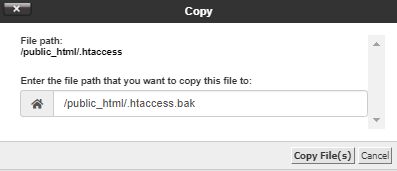
- You’ll now see the backup file .htaccess.bak in the folder.
- Find the .htaccess file.
- Right‑click the .htaccess file and select Edit.
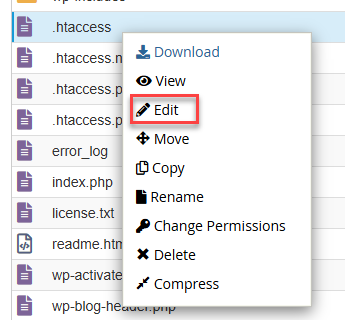
You may also click the file once and use the Edit button at the top toolbar.
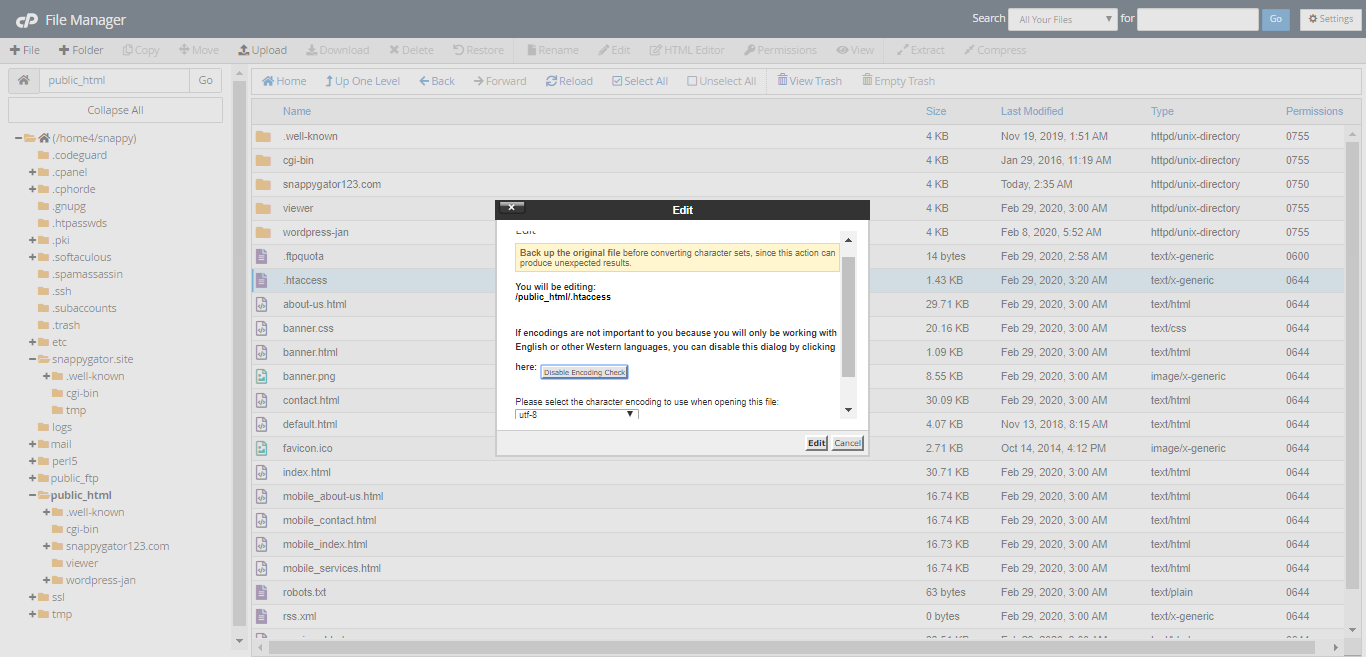
- A confirmation window will appear. Click Edit to proceed.
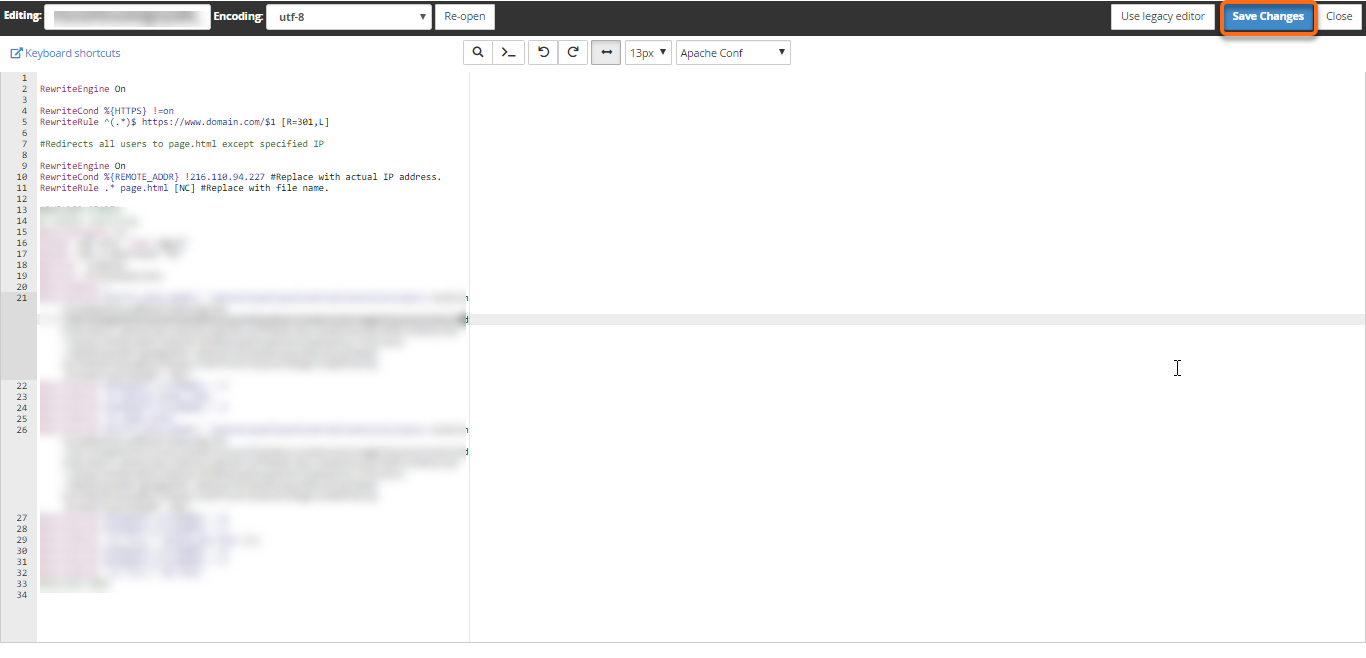
- Make the required changes. To disable the unwanted PHP handler, place a # at the beginning of each line:
        #Use PHPedge as default
        #AddHandler application/x-httpd-php-edge .php
        #IfModule mod_suphp.c>
        #   suPHP_ConfigPath /opt/phpedge/lib
        #/IfModule>
You may find multiple outdated PHP handlers. Comment out all of them. You should only keep one PHP handler block that begins and ends with:# php -- BEGIN cPanel-generated handler, do not edit # php -- END cPanel-generated handler, do not edit - When finished, click Save Changes.
- Click Close to exit the editor.
- Reload your website to see if the error has been resolved.
Still, getting the "Missing MySQL Extension" error?
Your account may contain several .htaccess files. If the public_html .htaccess has already been updated and the error persists, you may need to review the .htaccess located in your root directory.
Follow these additional steps:
- Open the root directory by selecting the top-level folder on the left panel (/home#/user), where user is your cPanel username.
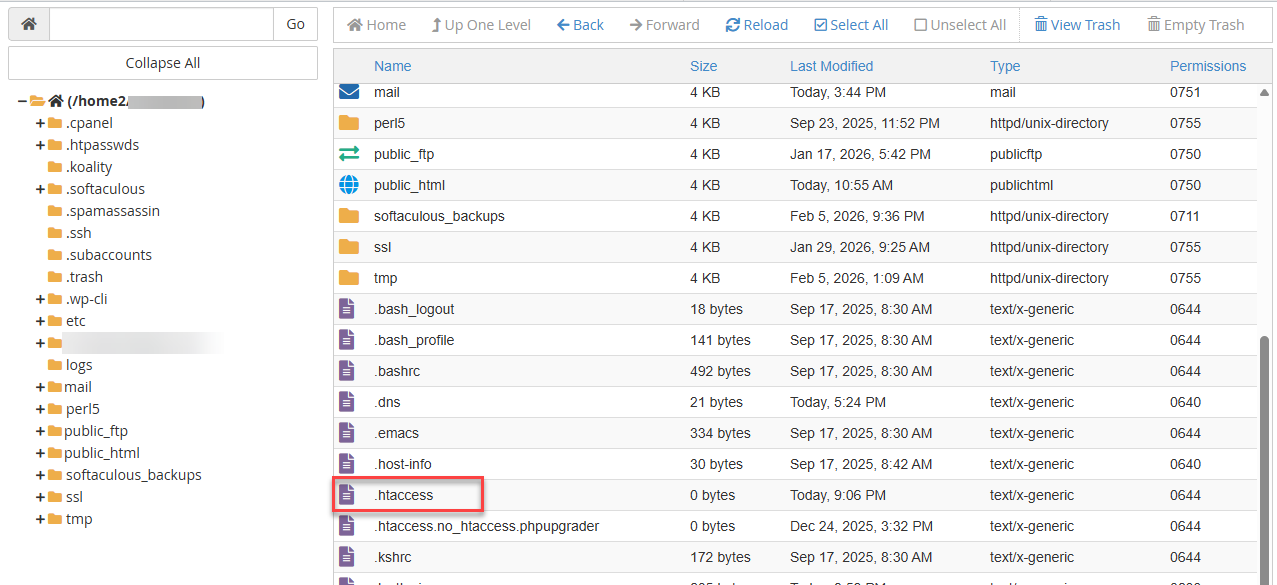
- Look for another .htaccess file. Any .htaccess file containing random numbers or characters is disabled and can be ignored.
- Open the file and check for outdated PHP handlers. Follow the same instructions described above.
- Refresh your site after making the changes.
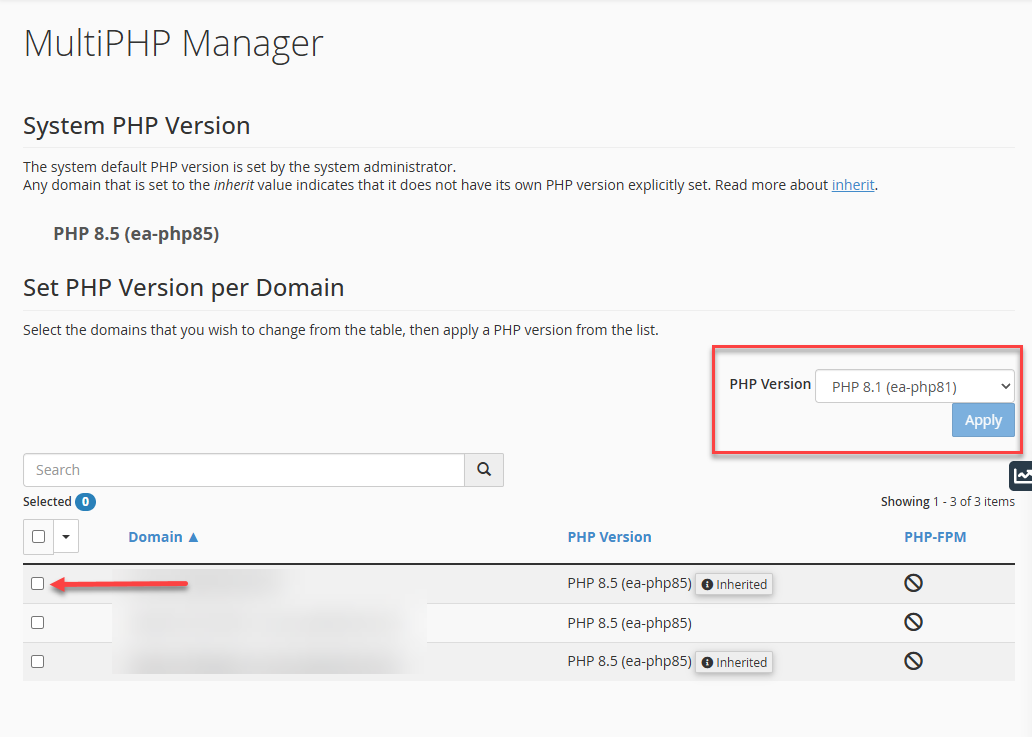
If the message still appears, access your cPanel MultiPHP Manager and select your website name. Then, set your PHP version to inherit from the dropdown menu.
Frequently Asked Questions (FAQs)
What is the easiest way to check or update my website's PHP version?
You can manage PHP versions via cPanel’s MultiPHP Manager. For more details, read the What is the Latest Supported PHP Version? article.
Where can I find my File Manager?
All your website files are managed within the File Manager. Learn how to access your File Manager here: How to Access File Manager.
How can I edit my files inside the File Manager?
Your website files can be created, modified, or removed from your File Manager. Please visit the article, How to Create, Remove, and Edit Files in File Manager, for detailed instructions on managing your website files.
I am done with the steps above, but my site now shows a different error page (403, 404, or 405 Error). How to resolve it?
There are several possible causes why your website is showing an error. Troubleshooting depends on the error code (403, 404, 500, etc.) you are seeing. You can visit these helpful articles for more information on error page codes and how to resolve them.
Summary
This article explains how to fix the “Missing MySQL Extension” error in WordPress by identifying and removing outdated PHP handlers in your .htaccess file and ensuring your site uses the correct PHP version through MultiPHP Manager. It also covers what to do if multiple .htaccess files exist and provides troubleshooting steps if the issue persists or leads to new error pages.
If you need further assistance, Bluehost Chat Support is available 24 hours a day, 7days a week while Bluehost Phone Support is available 7 days a week from 7 am-12 midnight EST.
- Chat Support - While on our website, you should see a CHAT bubble in the bottom right-hand corner of the page. Click anywhere on the bubble to begin a chat session.
- Phone Support -
- US: 888-401-4678
- International: +1 801-765-9400
You may also refer to our Knowledge Base articles to help answer common questions and guide you through various setup, configuration, and troubleshooting steps.