 ChatGPT,
  Claude,
  Gemini,
  Grok — all four for
 OX Mail Autoresponder
This guide explains how to use Bluehost OX Mail’s autoresponder feature to send automated replies to incoming emails. Autoresponders are useful for situations like vacations or periods of limited email access.
Here's what you can do with autoresponders:
- Craft custom messages: Inform senders about your absence and when you expect to return emails.
- Set timeframes: Schedule autoresponders to run during specific dates.
- Manage specific addresses: Activate autoresponder using your primary email address in your domain, or activate a vacation notice if messages are reaching your other email addresses.
Accessing Vacation Notice
The steps below will help you learn how to access your OX Mail's Vacation notice.
- Log in to OX Mail.
- Enter your email address.
- Input your password associated with the email address you want to log in to.
- Click the Sign in button.
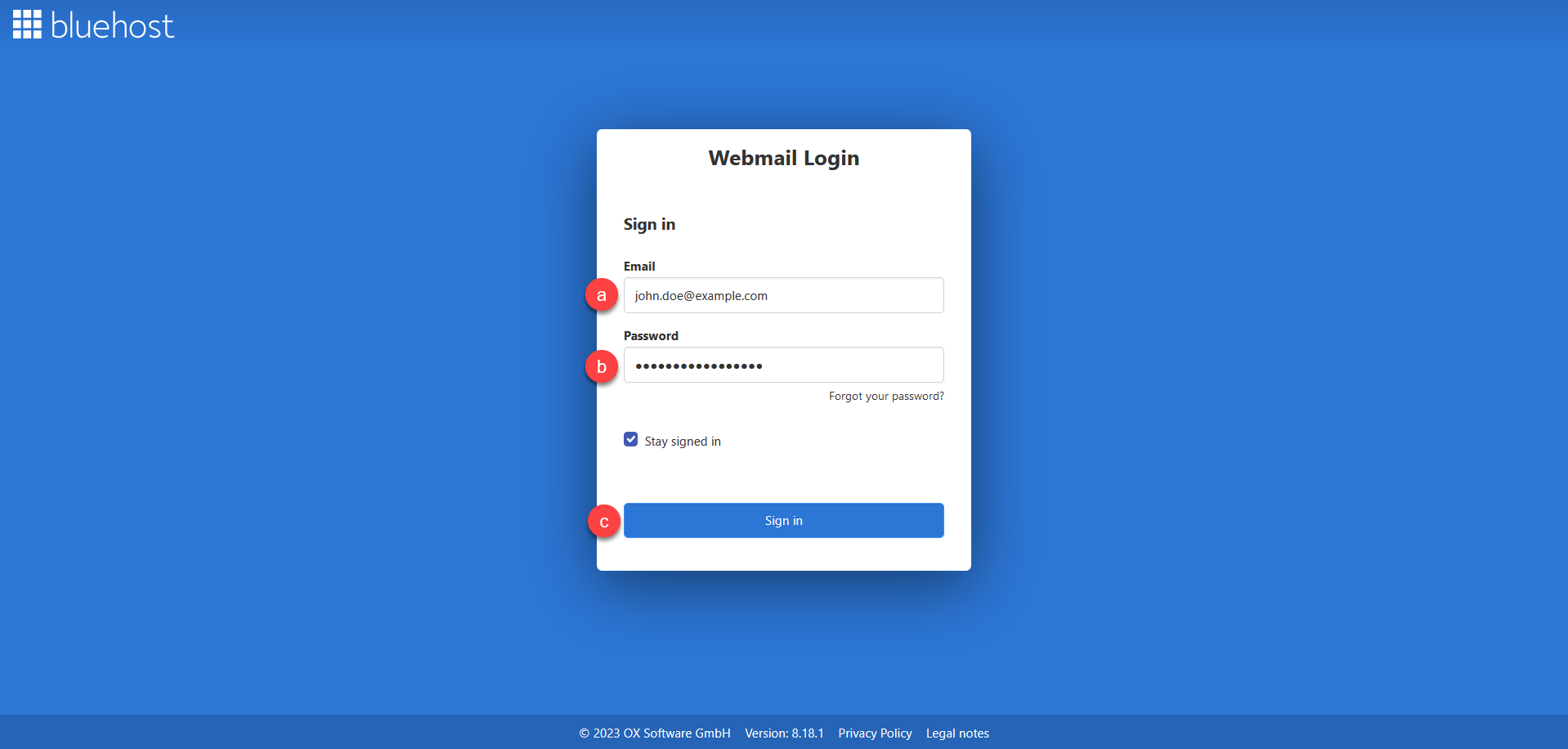
Enable the Stay signed in option by ticking the box to ensure your session remains active, preventing automatic logouts and the need to log in repeatedly.
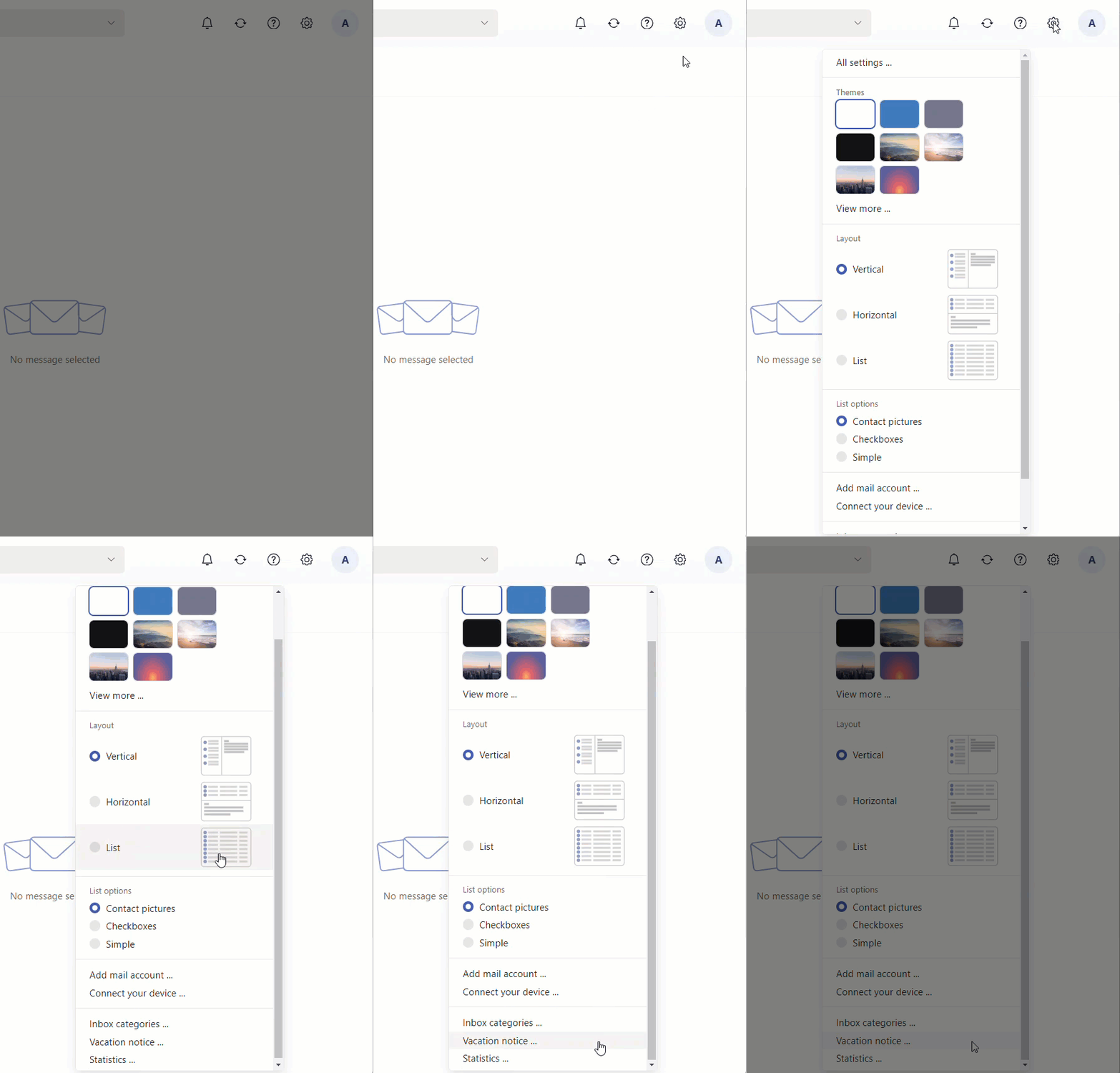
- Once logged in, click the Settings (gear) icon in the menu bar.
- Click the Vacation notice... dropdown option.
Enabling Vacation Notice
The steps below will help you learn how to enable your OX Mail's Vacation notice.
- Log in to OX Mail.
- Enter your email address.
- Input your password associated with the email address you want to log in to.
- Click the Sign in button.
Enable the Stay signed in option by ticking the box to ensure your session remains active, preventing automatic logouts and the need to log in repeatedly.
- Once logged in, click the Settings (gear) icon in the menu bar.
- Click the Vacation notice... dropdown option.
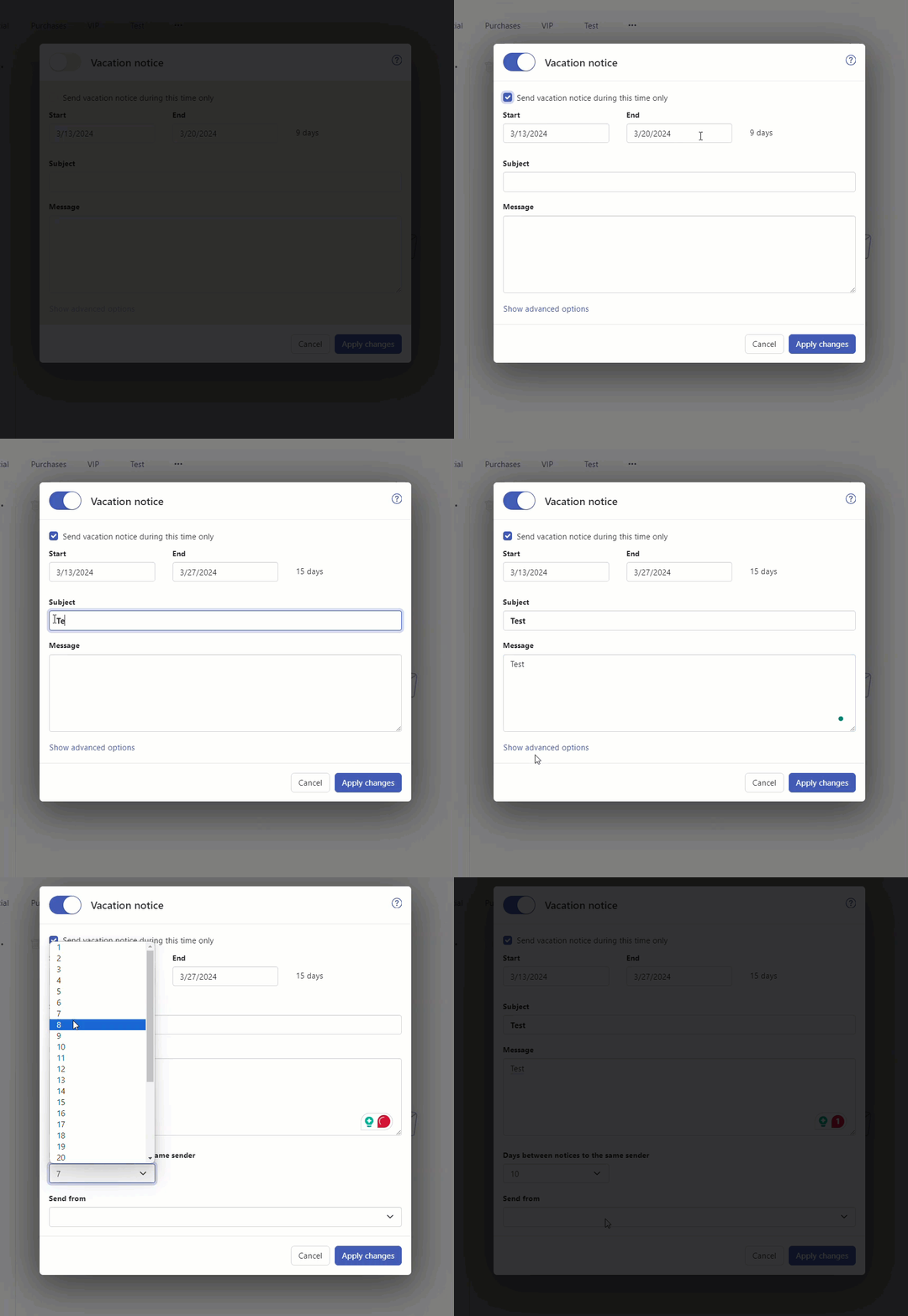
- Click the Enable Vacation notice
 toggle button.
 - To define the time range for sending the vacation notice, enable Send vacation notice during this time only. Set the start and end date.
Depending on the configuration, this setting might not be available.
- Enter a subject and a text for the vacation notice.
- In order to display all options, click on Show advanced options.
- You can specify an interval for sending a vacation notice if there are several emails from the same sender.
- You can specify the sender’s address when sending the vacation notice.
- The vacation notice will be sent if messages are reaching your primary email address. You can also activate a vacation notice if messages are reaching your other email addresses.
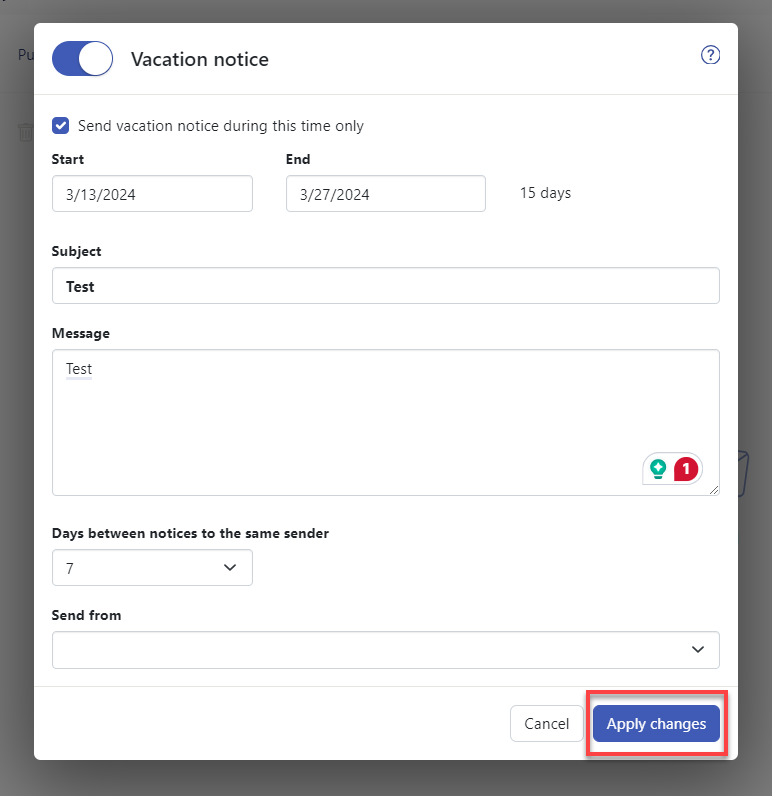
- Click the Apply changes button.
If a vacation notice is active, the following is displayed:
- On the email settings page, the Vacation notice button is marked with an additional icon.
- In the Email app, a notification will be displayed above the list view. If you click on the notification, the Vacation notice window will open.
Disabling Vacation Notice
The steps below will help you learn how to disable your OX Mail's Vacation notice.
- Log in to OX Mail.
- Enter your email address.
- Input your password associated with the email address you want to log in to.
- Click the Sign in button.
Enable the Stay signed in option by ticking the box to ensure your session remains active, preventing automatic logouts and the need to log in repeatedly.
- Once logged in, click the Settings (gear) icon in the menu bar.
- Click the Vacation notice... dropdown option.
- Click the Disable Vacation notice
 toggle button.
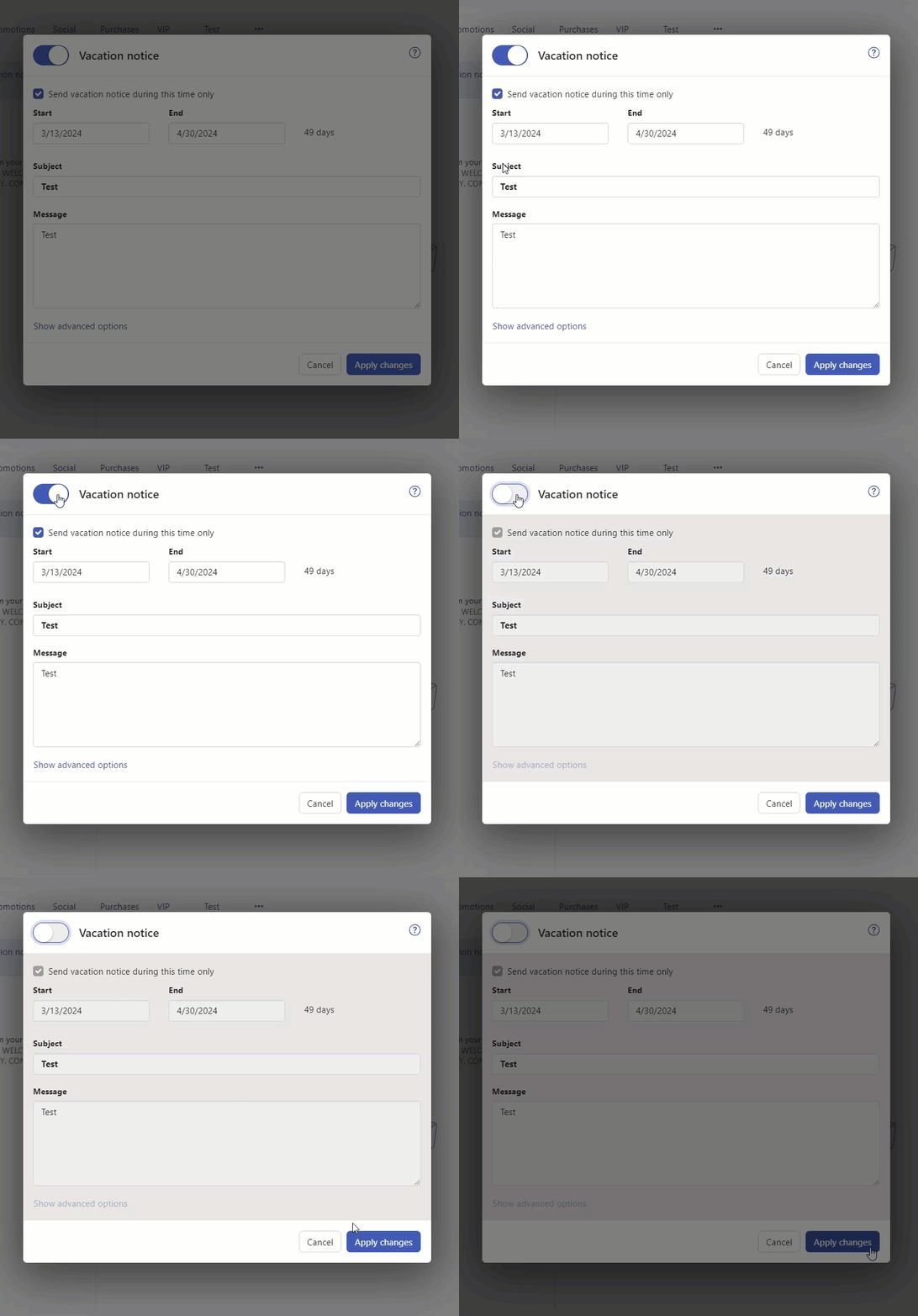
- Click the Apply changes button.
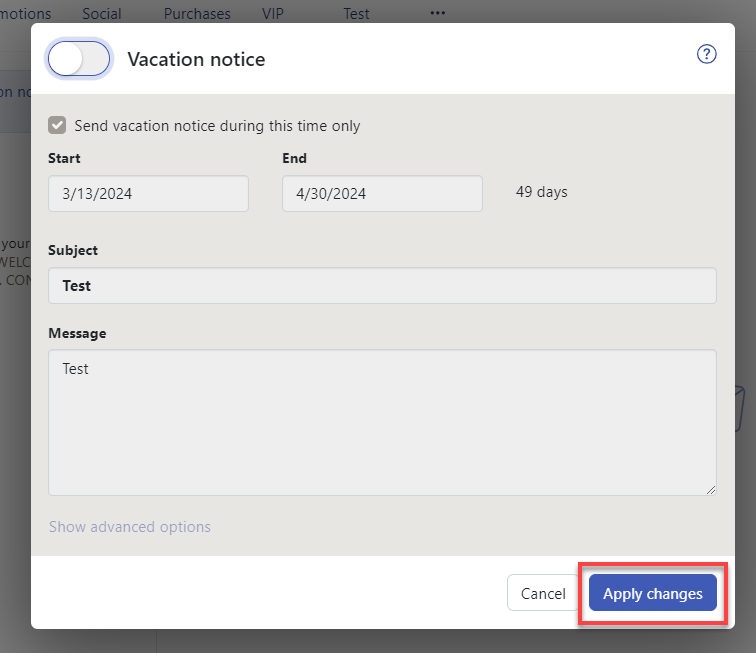
If a vacation notice is active, the following is displayed:- On the email settings page, the Vacation notice button is marked with an additional icon.
- In the Email app, a notification will be displayed above the list view. If you click on the notification, the Vacation notice window will open.
Summary
In conclusion, OX Mail autoresponders offer a convenient way to stay connected while you're away. With autoresponders, you can:
- Craft custom messages to inform senders of your absence and when you expect to return emails.
- Schedule autoresponders to run during specific dates, ensuring your contacts receive a timely notification.
- Activate autoresponders for specific email addresses, giving you control over which messages receive a response.
Enabling and disabling autoresponders is a simple process. Next time you'll be out of the office, try OX Mail autoresponders to maintain a professional presence and keep your inbox manageable upon your return.
If you need further assistance, Bluehost Chat Support is available 24 hours a day, 7days a week while Bluehost Phone Support is available 7 days a week from 7 am-12 midnight EST.
- Chat Support - While on our website, you should see a CHAT bubble in the bottom right-hand corner of the page. Click anywhere on the bubble to begin a chat session.
- Phone Support -
- US: 888-401-4678
- International: +1 801-765-9400
You may also refer to our Knowledge Base articles to help answer common questions and guide you through various setup, configuration, and troubleshooting steps.