 ChatGPT,
  Claude,
  Gemini,
  Grok — all four for
How to Reset Your FTP Password
Learn how to reset your FTP account password in your Bluehost Portal to quickly restore access to your files and maintain a secure hosting experience.
Resetting Your FTP Account Password
- Log in to your Bluehost Portal.
- In the left-hand menu, click Websites.
- Click the Manage Site button located next to the website you want to manage.

- On the FTP Management page, click the vertical ellipsis icon next to the FTP account whose password you want to change.
- Select Change Password.
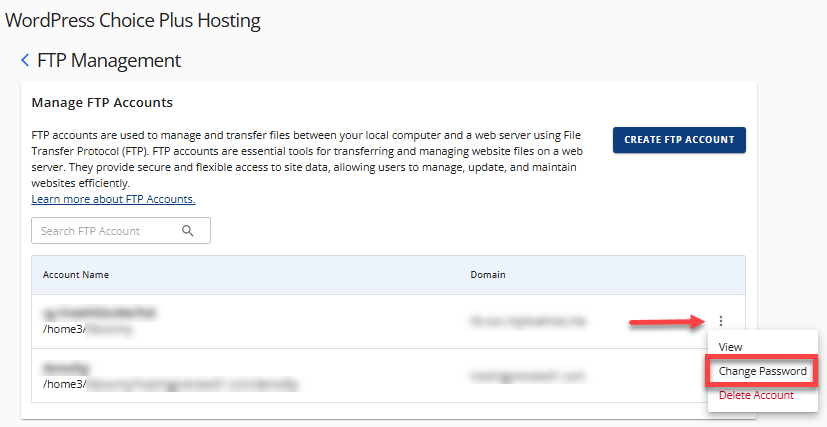
- A pop-up window will appear. Enter your new FTP password.
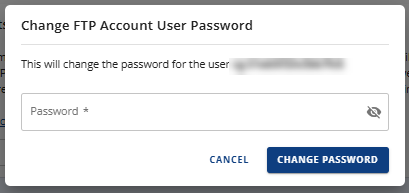
- Click the Change Password button.
- You can now access your FTP account using the new password.
Summary
You can safely manage your file via FTP by following these simple steps to reset your FTP password. Effectively managing your FTP credentials can help you stay safe and maintain a seamless hosting experience!
If you need further assistance, Bluehost Chat Support is available 24 hours a day, 7days a week while Bluehost Phone Support is available 7 days a week from 7 am-12 midnight EST.
- Chat Support - While on our website, you should see a CHAT bubble in the bottom right-hand corner of the page. Click anywhere on the bubble to begin a chat session.
- Phone Support -
- US: 888-401-4678
- International: +1 801-765-9400
You may also refer to our Knowledge Base articles to help answer common questions and guide you through various setup, configuration, and troubleshooting steps.
Did you find this article helpful?