 ChatGPT,
 Claude,
 Gemini,
 Grok — all four for
Key highlights
- Implement a comprehensive backup strategy before attempting any database cleanup to protect your website data.
- Identify and remove orphaned post metadata entries that no longer serve any functional purpose.
- Execute safe SQL queries to clean expired transients and unused plugin data from your database.
- Establish automated cleanup routines using reliable plugins to maintain optimal database performance.
- Monitor your site’s functionality after cleanup to ensure all features continue working properly.
- Schedule regular maintenance intervals to prevent future metadata accumulation and database bloat.
Is your WordPress site feeling sluggish? Every time your website loads, it’s fighting through layers of digital clutter. Your WordPress database quietly collects unnecessary post metadata from plugins, revisions and outdated entries. Research shows that 53% of mobile users abandon sites that take longer than 3 seconds to load. Learning how to clean post metadata is essential for maintaining optimal site speed and database efficiency.
This comprehensive guide will walk you through proven methods to safely remove orphaned metadata, eliminate plugin-generated clutter and optimize your WordPress database without compromising your site’s functionality. You’ll discover step-by-step techniques to streamline your database and dramatically improve your website’s overall performance.
Why cleaning post metadata matters in WordPress?
Post metadata serves as the backbone of WordPress functionality, storing custom fields, plugin settings and additional post information in the wp_postmeta table. However, this system often becomes cluttered with unnecessary entries that accumulate over time. When plugins are deactivated or removed without proper cleanup, their metadata entries remain in your database, creating digital debris that impacts performance.
A bloated database directly affects your website’s loading speed, especially on shared hosting environments where resources are limited. Each database query takes longer to execute when scanning through thousands of unnecessary metadata entries. Additionally, larger database sizes mean longer backup times and increased storage costs. Clean post metadata practices ensure your website maintains peak performance while reducing server load and improving user experience.
Find your perfect plan
📋 View PlansUnderstanding the importance of database maintenance helps you recognize when cleanup becomes necessary and sets the foundation for implementing effective maintenance strategies.
Your WordPress database silently collects information behind every post you publish. While this metadata serves important functions, from tracking revisions to storing custom fields, it can quickly accumulate into a performance burden. Understanding what gets stored and why it matters is the first step toward maintaining a lean, efficient database.
Let’s explore the specific types of metadata that build up in your database over time.
What gets stored as post metadata?
Understanding what accumulates in your WordPress database and its performance implications is the first step toward effective metadata management. This section explores the different types of post metadata that build up over time and examines how excessive metadata can slow down your site’s performance.
Common types of post metadata
WordPress stores various types of information as post metadata and understanding these categories helps you identify what might be slowing down your database. Let’s explore the main types you’ll encounter:
- Custom fields from themes and plugins: These represent the largest category, including SEO settings from tools like Yoast, page builder configurations and eCommerce product details.
- Revision metadata: Accumulates whenever posts are updated, storing historical information that may no longer be relevant to your current content.
- Orphaned plugin data: Often persists even after plugins are removed, leaving behind entries for features like social sharing buttons, analytics tracking codes and form submissions.
- Stuck transient data: While designed to expire automatically, transients sometimes become stuck in the database due to server issues or plugin conflicts.
- Auto-draft entries: Created from incomplete post creations, these contribute to unnecessary database bloat over time.
Now that you understand what’s accumulating in your database, the next step is examining how this stored data actually impacts your site’s performance and why cleaning it matters.
How does excess metadata impact your database?
Excessive post metadata creates multiple performance bottlenecks that compound over time. Database queries become slower as the system must scan through larger datasets to retrieve relevant information. This particularly affects admin areas where multiple metadata calls occur simultaneously, leading to dashboard slowdowns and editing delays.
Backup processes take significantly longer when databases are bloated, potentially causing timeouts on shared hosting plans. The increased storage requirements also impact hosting costs and migration times when moving to new servers. These cumulative effects make regular metadata cleanup essential for maintaining optimal WordPress performance.
Before you start the database cleanup process, proper preparation is essential for success. Let’s ensure you have everything in place to safely clean post metadata and optimize your WordPress site’s performance.
Pre-cleanup checklist before you clean post metadata
Before diving into methods for cleaning post metadata, it’s crucial to understand the preparatory steps that can help protect your WordPress site from potential issues. Taking the right precautions beforehand will save you from costly mistakes and ensure a smooth cleanup process.
Let’s explore the essential steps you need to take before cleaning your database.
1. Create a full database backup
Before attempting any database cleanup operations, creating a complete backup is absolutely critical. This safety measure ensures you can restore your website if something goes wrong during the cleanup process. Most hosting providers offer built-in backup tools accessible through cPanel or their custom control panels. These automated solutions typically offer one-click backup creation and restoration options.
For more control, you can export your database directly through phpMyAdmin by selecting your WordPress database and choosing the “Export” option. Save the resulting SQL file in a secure location and verify its integrity by checking the file size and creation date. Additionally, consider creating a full website backup that includes both files and the database to ensure complete protection.
While backups provide a recovery option if things go wrong, they’re just one part of a comprehensive safety strategy.
2. Test changes on a staging environment
Staging environments provide a safe testing ground for database modifications without affecting your live website. We at Bluehost provide a staging environment feature that creates an exact copy of your site for testing purposes. This approach allows you to experiment with different methods to clean post metadata and verify results before applying changes to your production environment.
If you are working with a host that doesn’t provide staging, you can create a local development environment using tools like Local by Flywheel or XAMPP. Import your database backup into the staging environment and perform all cleanup operations there first. Only after confirming that everything works correctly should you proceed with cleaning your live database.
This cautious approach significantly reduces the risk of accidentally damaging your website while ensuring your cleanup efforts achieve the desired results. Now that you’ve secured your database with backups and tested your approach in a staging environment, it’s time to explore the first method for efficiently cleaning post metadata.
Method 1: Clean post metadata using plugins
When WordPress metadata accumulates over time, it can significantly slow down your database and impact site performance. Choosing the right cleanup method depends on your technical comfort level and specific needs. For most site owners, plugin-based solutions offer the perfect balance of power and simplicity.
Let’s explore how you can leverage plugins to safely clean your WordPress database without touching a single line of code.
1.1 When a plugin-based cleanup makes sense
Plugin-based database cleanup solutions offer the safest approach for users without extensive technical experience. These tools provide user-friendly interfaces that make complex database operations accessible through simple point-and-click actions. They’re particularly valuable for routine maintenance tasks and situations where you prefer automated safety checks over manual SQL queries.
Popular plugins like WP-Optimize, Advanced Database Cleaner and WP-Sweep offer comprehensive cleanup options with built-in safety features. These tools automatically identify problematic metadata entries and provide detailed previews of what will be removed, enabling you to make informed decisions about each cleanup operation.
Once you’ve selected the right plugin for your needs, the next step is understanding which cleanup actions will deliver the best results.
1.2 Recommended cleanup actions in plugins
Most database cleanup plugins organize their features into categories that target specific types of metadata bloat. Start with removing orphaned post metadata, which consists of entries linked to non-existent posts or pages. These orphaned entries serve no purpose and safely can be deleted without affecting site functionality.
Next, focus on cleaning post revisions and auto-drafts, which often accumulate in large quantities over time. Many plugins let you specify how many revisions to keep per post, providing a balance between cleanup and preserving content history. Expired transients represent another safe cleanup target, as these temporary data entries should have been removed automatically, but sometimes persist due to various issues.
Consider scheduling automated cleanups for routine maintenance, but always configure these carefully to avoid aggressive deletion of important metadata entries. That said, knowing what to clean is only half the battle; understanding what to leave alone is equally crucial.
1.3 What you should avoid deleting automatically
Exercise extreme caution when dealing with unknown metadata keys, especially those created by active plugins or themes. Deleting essential plugin data can break functionality or cause data loss that may be difficult to recover. Always research unfamiliar metadata keys before removal or use staging environments to test the impact of cleanup operations.
Understanding these plugin-based approaches provides a foundation for more advanced manual cleanup techniques that offer greater control over the process.
While plugins excel at handling routine maintenance and common cleanup tasks, there are situations where you need more precision and control. This is where manual SQL cleanup becomes invaluable.
Method 2: Manually cleaning post metadata via SQL
Manual database cleanup via SQL queries provides precise control over metadata removal. This method requires direct access to your WordPress database via phpMyAdmin or similar database management tools. While more technical than plugin-based approaches, SQL queries allow you to target specific orphaned entries and reclaim database space efficiently. Before proceeding with manual cleanup, ensure you have a complete database backup to prevent data loss in case of errors.
Understanding the database structure is the first step toward successful metadata cleanup.
2.1 Accessing the WordPress database using phpMyAdmin
To manually clean post metadata, you need access to your WordPress database through phpMyAdmin. This database management interface lets you run SQL queries directly on your database tables. Most hosting providers include phpMyAdmin as part of their control panel, making it accessible without additional software installation.
Where phpMyAdmin is typically available?
You can typically find phpMyAdmin in several locations, depending on your hosting environment:
- Hosting control panels such as cPanel, Plesk or DirectAdmin usually feature phpMyAdmin under the Database section.
- Managed WordPress dashboards often provide direct database access through their custom interfaces.
- Server administration tools on VPS or dedicated hosting environments include phpMyAdmin as a standard database management option.
After locating phpMyAdmin in your control panel, you’ll need to confirm which database contains your WordPress installation.
Identifying the correct WordPress database
Before executing any SQL queries, you must identify the correct database and understand your table prefix structure. Take note of the prefix attached to your database tables. While the default is often wp_, your specific installation may use a custom prefix for security purposes, such as wp_123_ or another unique identifier.
To verify your database prefix, check your wp-config.php file or examine the table list in the sidebar of phpMyAdmin. Ensuring you have the correct prefix is critical for running accurate commands. Once identified, navigate to the SQL tab in phpMyAdmin to begin executing cleanup queries.
With database access configured and your table prefix identified, you are ready to begin removing unnecessary metadata entries.
2.2 Removing orphaned metadata rows with no ID
Orphaned metadata entries represent a significant source of database bloat in WordPress installations. These entries occur when posts or comments are deleted without properly removing their associated metadata records. Over time, these orphaned rows accumulate, unnecessarily increasing the database size and providing no functional value to your website.
Cleaning orphaned comment metadata
Comment metadata cleanup follows a similar pattern to post metadata removal. Orphaned comment metadata occurs when comments are deleted, but their associated metadata entries in the wp_commentmeta table remain. This comment_id mismatch explanation is straightforward: the metadata references a comment_id that no longer exists in the wp_comments table.
Copy and paste the following SQL queries into the textbox.
Find orphaned comment metadata:
SELECT *
FROM your_prefix_commentmeta
WHERE comment_id NOT IN (
    SELECT comment_id
    FROM your_prefix_comments
);
Delete orphaned comment metadata:
DELETE
FROM your_prefix_commentmeta
WHERE comment_id NOT IN (
    SELECT comment_id
    FROM your_prefix_comments
);
The impact on database size and performance can be substantial, especially on sites with high comment activity. Additionally, you can remove Akismet-related comment metadata using:
SELECT *
FROM your_prefix_commentmeta
WHERE meta_key LIKE '%akismet%';
DELETE
FROM your_prefix_commentmeta
WHERE meta_key LIKE '%akismet%';
Replace your_prefix_ with your actual database prefix, then click the Go button.
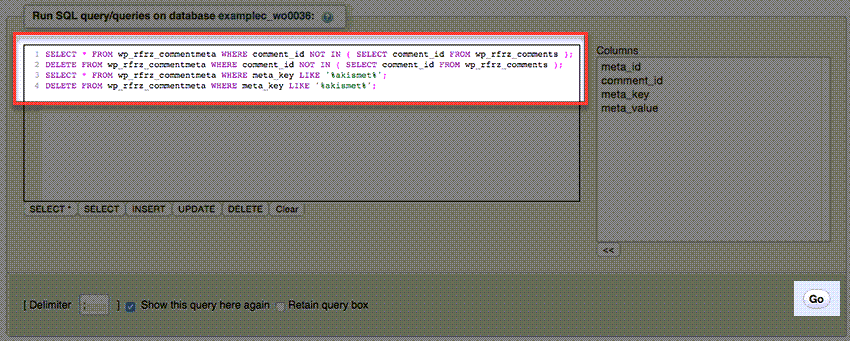
- Click the Go button.
Once you’ve cleared out comment metadata, the same principles apply to cleaning your post metadata tables.
Cleaning orphaned post metadata
Orphaned post metadata consists of entries in the wp_postmeta table where the post_id no longer links to an existing post in the wp_posts table. These orphaned entries are safe to remove because they reference posts that have been permanently deleted from your database.
To clean orphaned post metadata, copy and paste the following SQL queries into the SQL textbox.
Find orphaned post metadata:
SELECT *
FROM your_prefix_postmeta pm
LEFT JOIN your_prefix_posts wp
ON wp.ID = pm.post_id
WHERE wp.ID IS NULL;
Delete orphaned post metadata:
DELETE pm
FROM your_prefix_postmeta pm
LEFT JOIN your_prefix_posts wp
ON wp.ID = pm.post_id
WHERE wp.ID IS NULL;
Replace your_prefix_ with your actual database prefix and click the Go button.
The LEFT JOIN query logic identifies metadata entries with no matching post, ensuring only truly orphaned data is targeted for deletion without affecting active content. Beyond these core cleanup operations, several additional maintenance tasks deserve attention.
2.3 Other metadata cleanup operations
Beyond orphaned post and comment metadata, consider removing expired transients that WordPress failed to clean automatically, deleting revisions and auto-drafts to reduce database bloat and identifying unattached media records that consume storage space without serving active content. These additional cleanup operations further optimize your database performance and reduce overall database size.
While these SQL methods work universally across WordPress installations, Bluehost users can leverage platform-specific tools to further streamline the cleanup process.
Bluehost-specific steps for cleaning post metadata
This section provides detailed instructions specifically for Bluehost users who want to clean post metadata using phpMyAdmin. If you’re hosted with Bluehost, these step-by-step instructions will help you safely access your database and execute metadata cleanup queries through your hosting dashboard.
Accessing phpMyAdmin from the Bluehost Dashboard
To access your WordPress database through phpMyAdmin on Bluehost, follow these navigation steps:
- Sign in to your Bluehost Account Manager.
- Select the Hosting tab from the left-side navigation menu.
- Navigate down and select the CPANEL button located under Quick Links.
- Within the Databases section, select phpMyAdmin.
- Enter your cPanel username and password when prompted.
- In the left sidebar, select the database linked to your WordPress site.
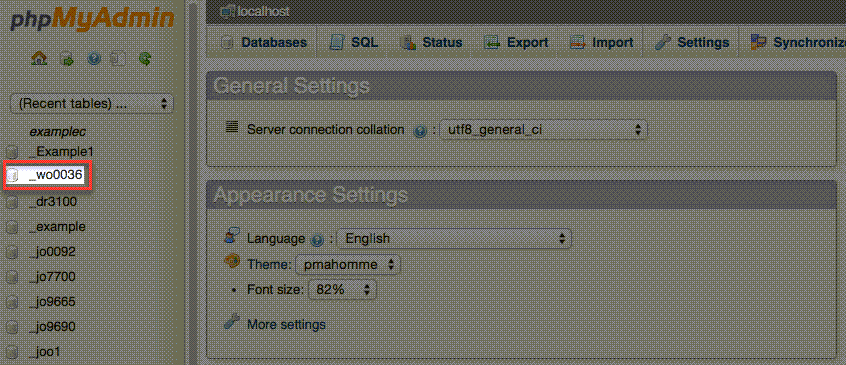
With phpMyAdmin now accessible through your Bluehost dashboard, you’re ready to perform the actual cleanup operations.
Running metadata cleanup queries safely on Bluehost
Before executing any metadata cleanup queries on your Bluehost database, take these essential precautions to protect your data and ensure accuracy.
Verify your database prefix:
- WordPress installations on Bluehost may use custom table prefixes instead of the default “wp_”
- Check your table names in the left sidebar of phpMyAdmin to identify your specific prefix
- Replace “wp_” in any cleanup query with your actual prefix (such as “wp_abc123_”)
Beyond confirming your prefix, it’s equally important to preview and validate your cleanup operations before making any permanent changes.
Test before executing deletes:
- Always run SELECT queries first to preview which metadata entries will be affected before executing DELETE queries
- Verify you’re targeting the correct orphaned metadata without accidentally removing active data
- Create a complete database backup through your Bluehost cPanel before performing any cleanup operations
Following these safety protocols ensures your database cleanup proceeds without risking active post data or site functionality.
When you host your WordPress site with us, you gain access to powerful database management tools backed by enterprise-grade infrastructure and 24/7 expert support. Whether you’re optimizing your database or troubleshooting complex issues, our hosting platform provides the reliability and performance your site needs to thrive. Get started with Bluehost and experience worry-free hosting with expert support every step of the way.
Once your metadata cleanup is complete, it’s essential to confirm that your site continues to operate correctly and that all functionality remains intact.
Verifying site stability after metadata cleanup
Once you’ve completed your database cleanup, the work isn’t quite finished yet. Ensuring your site remains stable and functional after removing metadata is just as critical as the cleanup itself. This verification phase protects your website from potential issues and gives you peace of mind that everything is working as expected.
Front-end and admin checks
After completing any database cleanup, thorough testing ensures your website continues to function properly. You should systematically verify both the visible front-end and the administrative back-end of your site using these essential steps:
- Review key pages: Check your homepage and high-traffic pages to ensure they load correctly and display all expected content.
- Test navigation and media: Click through main menu items, verify links are working and confirm that images or videos display properly.
- Verify interactive elements: Submit test entries on contact forms and use the search bar to ensure database queries are functioning.
- Check the post editor: Log in to the WordPress admin to confirm that posts and pages load correctly within the editor.
- Inspect custom fields: Ensure that specific metadata functionality, such as custom fields or dynamic content, is still intact.
- Test eCommerce features: If you run an online store, verify that product pages, cart functionality and checkout processes are working smoothly.
- Validate plugins: Pay special attention to plugins that rely heavily on metadata, including SEO tools, page builders and custom post types.
While these verification steps help identify issues, knowing how to respond when something goes wrong is equally important.
How to roll back if something breaks?
If you discover functionality issues after cleanup, immediately restore your database backup to prevent further problems. Most hosting providers offer quick restore options via their backup interfaces, while phpMyAdmin lets you import a database directly from a backup file.
After restoration, identify which specific cleanup operation caused the issue and adjust your approach accordingly. This might involve using more conservative cleanup settings, excluding certain metadata types or performing cleanup in smaller batches to isolate problematic entries.
Document any issues you encounter to improve your cleanup procedures for future maintenance sessions and ensure long-term database health. If you prefer a more hands-on approach or need greater control over specific metadata entries, you might want to explore database-level cleaning techniques.
Optimizing and maintaining a clean WordPress database
Once you have removed unnecessary data, the final phase involves reorganizing the remaining information to reclaim storage space. To truly benefit from your efforts to clean post metadata, follow these direct steps to optimize your tables and establish a routine schedule.
Steps to optimize database tables
Deleting metadata does not automatically shrink the database file size; it leaves behind “overhead” or empty space. Use the following process to defragment your tables and improve query performance.
- Back up your website: Before running any SQL commands, ensure you have a fresh backup of your database in case restoration is needed.
- Schedule during low traffic: The optimization process temporarily locks database tables, which may pause site activity. Plan to perform this task during off-peak hours.
- Run the optimization command: Execute the MySQL
OPTIMIZE TABLEcommand for your primary WordPress tables. You can run this via phpMyAdmin or your SQL command line:OPTIMIZE TABLE wp_posts, wp_postmeta, wp_options; - Verify the results: Check your database size to confirm that the unused space has been reclaimed.
How often should you clean post metadata?
Maintenance frequency depends on how active your website is and the number of plugins installed. Adopting a consistent schedule prevents database bloat from returning.
- High-traffic sites: For eCommerce stores or news sites with frequent updates, perform a cleanup monthly to manage transient data and logs.
- Standard blogs: For sites with weekly content updates, a quarterly maintenance routine is typically sufficient.
- Complex environments: If you frequently install and delete plugins or use page builders, consider checking your metadata every two months to remove orphaned entries.
Regular maintenance ensures your database remains lean, making individual cleanup sessions faster and less risky while supporting long-term website performance.
Final thoughts
Maintaining a clean WordPress database by regularly cleaning post metadata is essential for optimal performance and long-term stability. By implementing the safety-first approaches outlined in this guide, you can confidently remove unnecessary metadata while protecting your website’s functionality. Prevention through wise plugin choices and regular database audits often proves more effective than reactive cleanup.
Establishing routine maintenance schedules prevents metadata accumulation from becoming overwhelming while ensuring your cleanup efforts remain manageable and safe. Whether you prefer automated plugin solutions or manual SQL approaches, consistency in your maintenance routine delivers the best results for database optimization.
Ready to maximize your WordPress performance? Our optimized WordPress hosting combines powerful infrastructure with expert 24/7 support, providing the reliable foundation your clean database deserves. Get started with Bluehost today and experience hosting built specifically for WordPress excellence.
FAQs
When done correctly, metadata cleanup won’t harm your SEO. Focus on removing orphaned entries, expired transients and unused plugin data. Avoid deleting SEO metadata, active custom fields or schema markup.
Use database optimization plugins like WP-Optimize or execute SQL queries on the wp_postmeta table. Always backup your database before cleanup and test changes in a staging environment first.
Identify unnecessary entries in your wp_postmeta table and remove them using cleanup plugins or SQL DELETE queries. Target orphaned metadata, expired transients and unused plugin remnants while preserving essential data.
Cleaning metadata involves removing outdated, orphaned or unnecessary entries from your WordPress wp_postmeta table. This process optimizes database performance by reducing table size and eliminating redundant data from your site.
Start by backing up your database, then use automated plugins or manual SQL queries to remove unnecessary entries. Test on staging environments first and verify functionality after the cleanup completion.

Write A Comment