 ChatGPT,
 Claude,
 Gemini,
 Grok — all four for

Key highlights
- Learn how to verify if your business listing is legitimately claimed or requires immediate reclamation.
- Discover proven methods to reclaim your Google Business listing from unauthorized users.
- Understand the verification process to establish the rightful ownership of your business location.
- Explore effective strategies for contacting Google Support to resolve claimed listing issues.
- Know how to prevent duplicate listings and protect your business profile from future unauthorized claims.
Ran into the frustrating situation where your Google My Business location is already claimed? It’s more common than you think and totally fixable. Whether a former employee set it up, an old agency still has access or you’re not sure who verified it, learning how to claim a Google business listing that is already claimed is easier than it feels right now.
With the right Google My Business claim steps and a quick request ownership process, you can take back control, protect your reputation and show up exactly where your customers are searching. This guide walks you through exactly how to do it, without stress.
TL;DR: Claim a Google Business listing
- Identify the current owner and submit a “Request Access” claim.
- If denied or ignored, appeal with documents verification.
- Update and optimize your profile once access is restored.
- Protect your listing from unauthorized changes in the future.
- For selling products, pair your Google visibility with a smooth, fast store using Bluehost WooCommerce hosting.
Why should you claim your Google Business profile?
Claiming your Google Business profile gives you control over your online presence and builds customer trust. When you claim and verify your listing, you ensure customers find accurate, current information about your business hours, location, contact details and services.
Here are the key benefits of claiming a Google Business listing:
- Boost local visibility: Your profile makes you more discoverable when customers search for businesses like yours in your area, helping you appear in local search results and Google Maps.
- Build credibility and trust: A claimed and verified Google Business listing signals legitimacy to potential customers, giving you an advantage over unclaimed competitors.
- Increase engagement: You can showcase your business through images, posts and customer reviews, making your profile more engaging and informative for visitors.
- Drive customer actions: Your profile encourages visitors to take action by visiting your website, calling your business, requesting directions or making purchases.
- Manage your reputation: Respond to customer reviews (both positive and negative) to demonstrate that you value their feedback and are committed to service excellence.
- Access valuable insights: Unlock analytics showing how customers find your business, what actions they take and which search terms lead them to you.
If you discover someone else has claimed your listing, don’t let that stop you. Securing ownership protects your brand from unauthorized changes and misinformation. Whether you need to initiate an ownership transfer or verify a new listing, taking control ensures you’re the only one managing your digital presence and customer experience.
How to claim a Google Business listing that is already claimed?
Start by verifying who currently owns your listing. Check the partial email address shown during the claim process to determine if it’s someone you know or an unauthorized party.
Here’s a quick overview of the steps to reclaim a Google Business listing that’s already claimed:
1. Identify the owner of already-claimed Google Business listing
Before you claim a Google Business listing that’s already taken, carefully review the masked email address Google displays for the current owner. This partial email can help you identify whether the listing is controlled by a former employee, an external marketing agency you previously worked with or a business partner. Understanding who currently owns the listing helps you determine the most effective strategy when you claim a Google Business listing and regain control of your business profile.
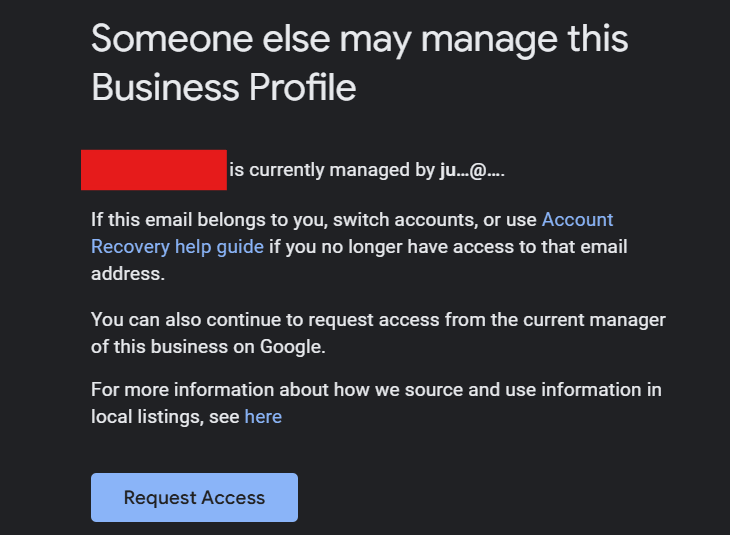
2. Submit a Google Business ownership request for a claimed listing
Navigate to your Google Business Profile manager and locate the “Request Access” or “Own this business?” option. Complete Google’s official ownership request form with accurate business information and contact details. The current owner will receive notification of your claim and typically has 3-7 days to respond. If they don’t respond within this timeframe, Google may automatically approve your ownership request.
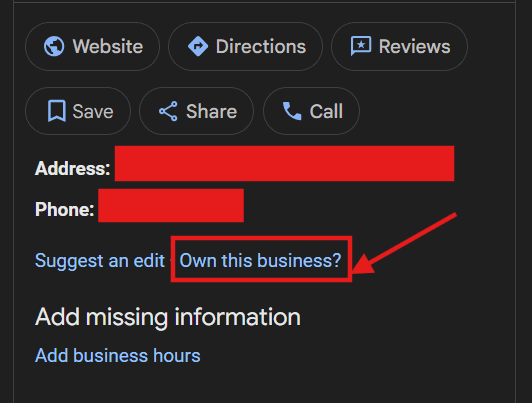
3. File an appeal if your Google Business ownership request is denied
When your ownership request gets denied or ignored, don’t give up. Submit a formal appeal through Google’s support channels, including comprehensive documentation that proves your legitimate business ownership. Gather business licenses, tax documents, utility bills, lease agreements or incorporation papers. Clear, official documentation strengthens your case and demonstrates to Google that you’re the rightful owner of the business listing.
4. Follow up persistently throughout your claimed Google Business listing transfer process
Claiming an already-claimed Google business listing requires patience and persistence. Regularly check your request status through your Google account dashboard and respond immediately to any verification requests or additional documentation requirements from Google. Set calendar reminders to follow up weekly, maintain organized records of all communications and be prepared to provide supplementary evidence to expedite the ownership transfer process.
Understanding how to claim a Google business listing that is already claimed protects your online presence and ensures you maintain control over how your business appears in search results.
How to request ownership of a Google Business profile managed by someone else?
Recovering a listing someone else manages requires a formal request through Google’s dashboard. Start by finding your business on Google Search or Maps. If the profile is verified by another account, you will see a “Request Access” or “Claim this business” button. Click this to initiate the Google My Business ownership transfer process. You must select the appropriate access level, such as “Owner,” and provide your contact information to proceed.
- Submit verification documents: Google may require proof of legitimacy, such as a business license, tax document or utility bill. Ensure these documents match the business address exactly.
- Wait for the owner’s response: After submission, the current owner has three to seven days to respond. If they approve, you gain access immediately. If they deny the request, you will receive a notification allowing you to appeal.
- Claim if unresponsive: If the current owner does not reply within the specific timeframe, you may see an option to verify the profile yourself, solving the issue of by an inactive user.
Once you submit the request, monitor your email and the Google Business Profile dashboard for updates. If the current owner is uncooperative, having strong documentation ready for the appeal process is your best strategy for success.
Why might you need to transfer Google Business Profile ownership?
Business transitions are inevitable, and your digital assets must evolve alongside your physical operations. Whether you are selling your company, acquiring a new location or shifting from agency management to in-house control, executing a proper Google My Business ownership transfer is critical.
Common scenarios necessitating this move include employee departures where a staff member held primary access, business mergers or transitioning from temporary to permanent management. Often, owners realize the need for a transfer only after discovering they are unable to update vital information.
Failure to secure ownership can lead to significant disruptions, including outdated hours, unauthorized changes and the inability to manage customer reviews. If you are currently locked out, you may need to initiate a Google My Business request ownership process to regain control. Understanding these scenarios helps you avoid the complex steps involved in figuring out by an uncooperative party.
By staying proactive with your profile, you protect your brand’s reputation, ensure business continuity and maintain the security of your most visible online asset.
Preparing for a Google Business Profile ownership transfer
Before initiating a Google My Business ownership transfer, comprehensive preparation is essential to ensure a smooth transition and prevent data loss. Taking these steps protects your online reputation and minimizes disruption to your visibility in search results. Start by conducting a full audit of your current profile content, ensuring that hours, contact details and services are up to date. It is also critical to back up valuable assets such as high-quality photos, recent posts and a record of customer reviews in case any information is accidentally altered during the handover.
- Identify the new owner’s email: Confirm the specific Google account email the new owner will use to accept the invitation.
- Document current settings: Note existing user roles and permissions to ensure they are correctly re-established.
- Gather verification docs: Have business licenses or utility bills ready in case Google requests proof of ownership.
- Review timing constraints: Ensure both parties are aware of the mandatory 7-day waiting period for primary ownership transfer.
Effective communication between the current and new owner is vital to avoid triggering security alerts that often arise when ‘Google Business someone claimed my business’ disputes occur. Discuss the timing of the transfer to align with business operations and review password security best practices. By organizing these details beforehand, you ensure business continuity and avoid the stressful process of figuring out how to claim a Google Business listing that is already claimed due to a failed transfer attempt.
How to transfer ownership of a Google Business profile?
Legitimate ownership transfers are necessary when selling a business, restructuring management or transitioning from agency to in-house control. Proactively managing a Google My Business ownership transfer prevents future access issues if an employee leaves or you need to recover a listing without filing a new one from scratch. The current owner must initiate this process to ensure a secure handoff of data and reviews.
- Go to your Google Business Profile.
- Click the three-dot menu and select Business Profile settings.
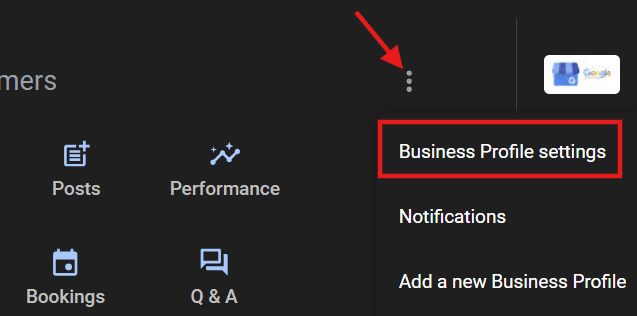
3. Click People and access.
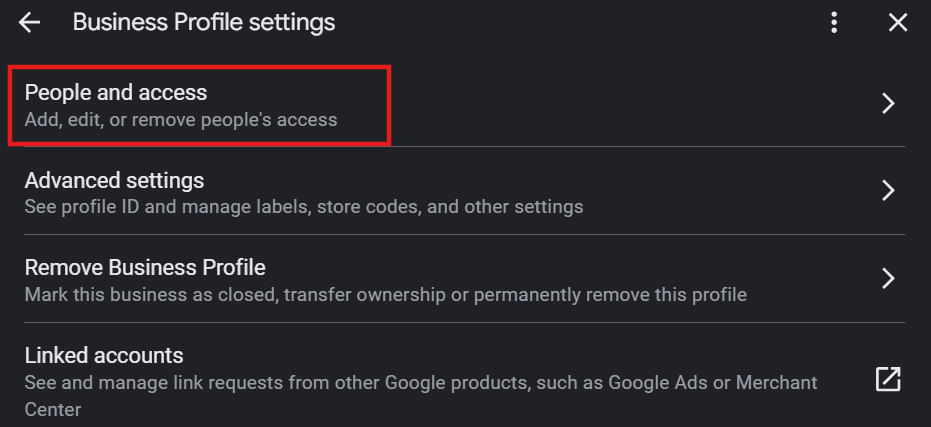
4. Click Add and enter the email address of the new owner.

5. Set the role to owner and click Invite.
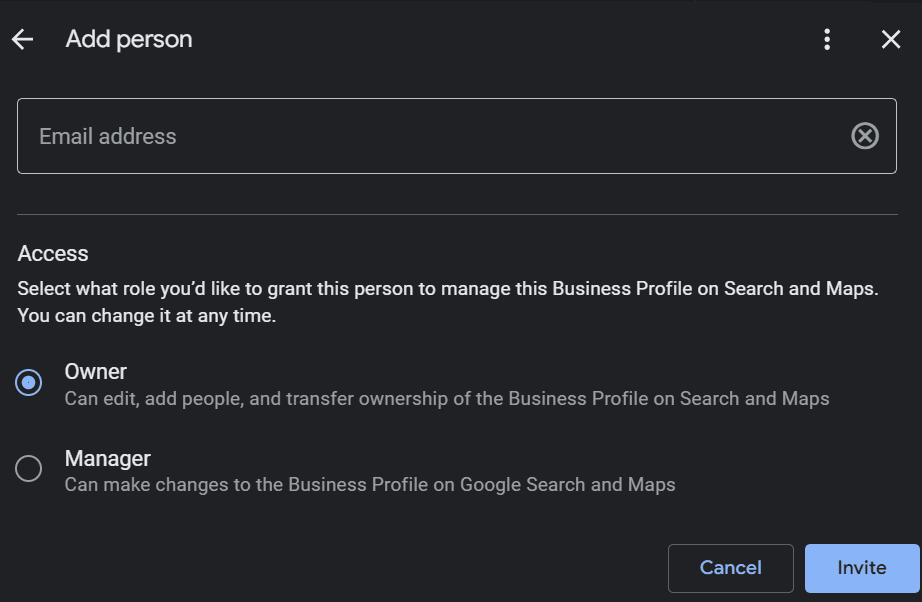
Once the new user accepts the email invitation, the primary owner can transfer primary ownership to them, often after a mandatory 7-day waiting period. The previous owner can then be removed or downgraded to a ‘Manager’ role if they no longer require full administrative rights.
Understanding roles is crucial for account security. Owners have full control, while Managers can edit profile details but cannot add or remove users. It is best practice to limit Owner access to trusted partners to avoid scenarios where ‘Google business someone claimed my business’ becomes a panic search. Always document credentials and communicate changes with all parties to ensure a smooth transition that preserves your hard-earned SEO rankings and customer reviews.
Steps to verify your Google Business profile
To verify your Google Business profile, you must complete a one-time security process that proves you are the legitimate owner. This mandatory step prevents fraud and ensures only authorized individuals manage the business profile.
Verification methods available:
- Postcard verification: The most standard method where Google mails a postcard containing a unique five-digit code to your business address. You must enter this code in your dashboard to complete verification.
- Phone or email verification: Some businesses qualify for faster verification options that provide immediate access through a code sent to your phone or email.
- Instant verification via Google Search Console: If you already use Google Search Console, you may be eligible for instant verification without waiting for a postcard.
- Video verification: Newer businesses often use this method to demonstrate proof of location and ownership through a recorded walkthrough.
What can you do after verification?
- Edit your business hours and contact information
- Upload and manage photos of your business
- Respond to customer reviews
- Update your business description and services
Troubleshooting verification issues:
- If standard methods fail or a code doesn’t work, contact Google support for manual assistance to resolve the issue.
- If your postcard goes missing or the address is incorrect, request a new code through your profile settings.
- For those navigating how to claim a Google Business listing that is already claimed, verification is the final step after ownership transfer.
What to do after claiming your Google Business profile?
After successfully resolving your Google My Business claim, start reviewing and completing all core business information fields, such as your website URL, phone number and operating hours. Accurate hours are crucial to help customers know when you are open and reduce the risk of wasted visits. Additionally, if you initiated this process because someone claimed my business incorrectly, carefully review the listing to remove any outdated information they may have added.
To truly maximize your visibility and engage potential clients, you need to enrich the profile with high-quality content. Consider these essential next steps to make your listing stand out:
- Upload visual assets: Compelling photos of your exterior, interior and team help customers visualize your business before they visit.
- Add products and services: Detailed descriptions and pricing allow users to browse your offerings directly in search results, increasing transparency.
- Manage reputation: Respond to existing Google Business listing reviews, especially negative ones, to demonstrate that you value feedback and are actively managing the business.
Finally, keep your profile dynamic by creating your first Google Post to share updates or offers. If your business model supports it, set up messaging to answer customer inquiries in real-time. Remember, maintaining a Google Business Profile is an ongoing effort. Utilizing available management tools can help you keep your information current, ensuring you never miss an opportunity to connect with a potential client.
If you sell products online, this is the perfect time to ensure your website delivers a seamless experience when customers click through from your listing. With our Bluehost WooCommerce hosting, you can run a fast, secure storefront that matches the professionalism of your Google profile and helps convert local searches into real sales.
Final thoughts
Reclaiming your Google My Business listing may feel overwhelming at first, but with the right steps, you can quickly regain control and protect how your business appears online. From identifying who claimed your listing to submitting an ownership request and verifying your profile, each step helps you restore accuracy, credibility and visibility. Once you have full access, optimizing your profile with updated details, visuals and active management ensures customers always find the right information when they search for you.
If you also sell products or run an online store, make sure the website customers click from Google gives them a smooth experience. With our Bluehost WooCommerce hosting, you can build a fast, secure, professional online store that turns Google searchers into actual buyers. Our plans are designed to help small businesses showcase products beautifully and deliver smooth, reliable checkout experiences.
Ready to strengthen your online presence end-to-end? Claim your Google Business Profile today and build a high-performing store with Bluehost WooCommerce hosting to grow your business with confidence.
FAQs
Yes, creating and managing your profile is completely free. Be cautious of third-party services that charge fees specifically for the act of claiming, though legitimate agencies often charge for ongoing optimization and management.
You must request ownership through Google Maps or Search. If the current owner is unresponsive or you don’t know who they are, Google provides a verification process to reclaim the profile after a 3-7 day waiting period.
If you find that ‘Google business someone claimed my business’ and they deny your request, you can appeal the decision through the Google Business Profile Help Center. You may need to provide proof of ownership, such as a utility bill or business license, to proceed.
The current owner has 7 days to respond to your request. If you are required to verify via postcard, allow up to 14 days for the mail to arrive before you can complete the claim.
Reviews and photos typically remain attached to the location. This preserves your business’s history and reputation even when the profile’s ownership changes.
Generally, only the business owner or an authorized representative should claim a profile. Agencies should request “Manager” access rather than claiming primary ownership.

Write A Comment