 ChatGPT,
 Claude,
 Gemini,
 Grok — all four for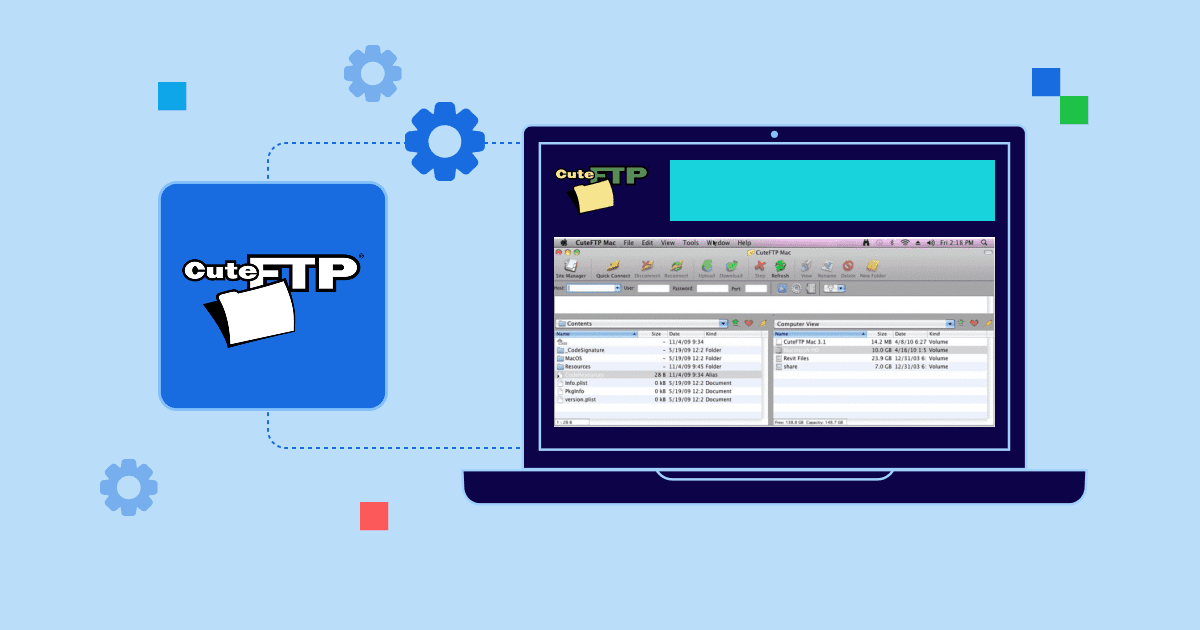
Key highlights
- Understand what CuteFTP is to quickly decide if it’s the right FTP tool for your workflow.
- Download and install CuteFTP easily to get your file transfer setup running in minutes.
- Configure FTP/SFTP connections to ensure fast, secure and error-free server access.
- Transfer and manage files smoothly to simplify website updates, backups and large uploads.
- Leverage pro tips and best practices to boost reliability, security and long-term efficiency.
Setting Up CuteFTP doesn’t have to feel technical or overwhelming. Whether you’re managing website files, pushing updates or moving data between your computer and your server, CuteFTP keeps everything simple. It’s a reliable tool that makes file transfers smooth, secure and beginner-friendly
In this guide, we’ll explain what CuteFTP does, how to install it the right way and the quickest way to configure your first secure connection. With a few easy steps, you’ll be ready to transfer files confidently in minutes.
Let’s get started with the basics.
What is CuteFTP?
CuteFTP is a Windows-based File Transfer Protocol (FTP) application or an FTP Client. Like most FTP software, CuteFTP uses a user-friendly graphical interface to perform tasks that would normally require a cumbersome command-line utility. It gives users the ability to upload, download and edit files on remote FTP servers without knowing all the details of the protocol itself.
You can use it for:
- Uploading website files
- Editing content directly on the server
- Managing backups
- Moving large files securely
Think of it as a bridge between your local computer and your hosting account. Although CuteFTP is not free, it does have a free 30-day trial. There are several free FTP clients available, such as Filezilla.
Who should use CuteFTP?
CuteFTP is ideal if you:
- Manage websites manually
- Prefer desktop FTP tools
- Handle frequent file updates
- Work in hosting, web development or system admin tasks
If you want something stable and straightforward with zero learning curve, CuteFTP hits the sweet spot.
Now that you’ve got the overview, let’s jump into the exact steps to install and configure CuteFTP effortlessly.
Where and how to download CuteFTP?
- CuteFTP can be installed from GlobalScape.
- Click on Download Trial to get the trial version of the software or click ADD TO CART to purchase and download the complete software.
- Make sure you download/buy the appropriate software for your Windows machine (CuteFTP for Windows users).
- Once the download is complete, follow the installation instructions.
Congratulations! The CuteFTP trial has now been installed on your computer. You are now ready to open the application and connect to your web hosting server using CuteFTP.
How to configure a connection using CuteFTP?
The quickest way to connect your local machine to a remote server in CuteFTP is by using the connect bar located just below the toolbar. It lets you enter your details and connect instantly. If you want to save the connection for future use, simply switch to the Site Manager tab.
- Enter the correct Host/Domain/IP address into the ‘Host:’ field. This could be the server name, the server IP, the domain name and, in some cases, ftp.[domain].com. For a Bluehost account, your domain will be fine so long as it is properly pointed towards the server.
- Enter the correct FTP username into the ‘Username:’ field. This can be the cPanel username, which is also an FTP account or an FTP account that you have set up.
- If connecting via an additional FTP account, make sure to use the full FTP username (example: ftpuser@[example].com).
- Enter the correct password for the user previously entered.
- Enter port 21 for FTP and port 22 for Secure FTP (SFTP).
- To finalize the FTP connection, click the first icon to the right of the port field, the connection icon.
- For an SFTP connection, click the second icon to the right of the port field, the settings icon. Under the ‘Type‘ tab, change the protocol to ‘SFTP using SSH2 (Secure Shell)’. Then click OK on the settings window and finalize the connection using the same connection icon as with FTP.
You should now be successfully connecting to your remote server using CuteFTP. You will now want to learn how to manage and transfer files using CuteFTP.
Why CuteFTP is still worth using?
Even with newer cloud-based solutions floating around, CuteFTP still stands strong because:
- It’s stable
- It handles large file transfers like a champ
- It supports encrypted connections
- It’s beginner-friendly
- It’s reliable for both personal and professional use
If you need a classic FTP tool that simply works, CuteFTP checks all the boxes.
Pro tips for smooth CuteFTP usage
Once you’ve got the basics in place, a few smart tweaks can make CuteFTP feel even faster, safer and more efficient. These quick optimizations help you avoid interruptions, keep your workflow steady and make file management a lot more effortless.
- Use SFTP for secure transfers to protect your data and avoid the risks that come with plain FTP.
- Create site profiles so you never have to re-enter your credentials just click, connect and get moving.
- Set up auto-reconnect to keep long uploads running smoothly without random drop-offs.
- Enable transfer logs if you want clear visibility into your activity, especially helpful for audits or team handovers.
These small tweaks take just a minute to set up, but they make a huge difference in how smoothly CuteFTP runs. You get a faster, safer and more reliable file-transfer experience every time.
Final thoughts
Setting up CuteFTP is one of the simplest ways to manage your website files without dealing with complicated tools or clunky dashboards. From installation to configuration to that first drag-and-drop upload, the entire experience is clean, quick and easy to learn. And when you’re hosting with us at Bluehost, CuteFTP works seamlessly with our servers giving you secure, stable and reliable file transfers every single time.
If you want a no-stress way to stay in full control of your site files, CuteFTP is a solid addition to your workflow and our hosting environment makes the whole setup even smoother.
FAQs
You can transfer files easily by connecting CuteFTP to your remote FTP server using your FTP credentials. Once connected, simply drag files from your local folders to the server directory. The left panel shows your computer files and the right panel shows server folders making file transfers quick even for a novice FTP user.
Yes. CuteFTP supports SFTP connections, FTPS and strong encryption which keeps mission critical files protected during upload or download. Unlike a cumbersome command-line utility, CuteFTP offers a user-friendly graphical interface for both beginners and advanced users handling secure shell protocols.
CuteFTP isn’t fully free, but it does offer a CuteFTP trial version for Windows. This temporary access lets users test features. You can try editing files, managing multiple remote sites and using the built-in transfer engine. It also helps you learn how to update HTML documents on a web hosting server before deciding to buy.
Yes. CuteFTP allows you to open and edit HTML documents or other files directly from your remote server. Most FTP software requires switching between apps, but CuteFTP’s integrated editor makes it easy to easily update pages without re-uploading everything manually. It saves time and helps keep important files organized across multiple locations.
CuteFTP is built for Windows computers and there is no fully supported CuteFTP Mac Pro or Mac machine version. Mac users typically rely on other free FTP clients for similar functionality. CuteFTP focuses on Windows, offering COM-enabled scripting to create scripts, automate tasks and handle script transfers with minimal overhead.

Write A Comment