 ChatGPT,
 Claude,
 Gemini,
 Grok — all four for
Key highlights
- Discover how to add video in WordPress using the Block Editor with methods like video blocks, embed options and custom HTML code.
- Choose between embedding WordPress videos via URL or upload directly to your media library.
- Discover how the right video embedding method helps maintain site speed and performance.
- Get practical tips for optimizing video playback while improving accessibility with captions and subtitles.
Videos have the ability to capture attention and convey information more effectively than text or images Embedding video content into your WordPress site is highly impactful for visitor engagement. Videos help you communicate your message dynamically. Learning how to add video in WordPress unlocks powerful content capabilities. You can showcase products, share tutorials and tell compelling stories.
Videos engage visitors in ways that static content cannot match and WordPress makes integrating them remarkably straightforward. From simple URL embedded to full media library uploads, the platform offers multiple methods to suit different needs and skill levels.
In WordPress, adding a video is straightforward and doesn’t require advanced technical skills. You can embed content from platforms like YouTube or Vimeo or upload your own video files directly, depending on how much control and customization you need.
In this guide, we’ll walk through three easy ways to learn how to add video to WordPress website using the WordPress Block Editor (Gutenberg):
- Using the text toolbar
- Using media (video) blocks
- Using custom HTML embed code
We’ll also highlight best practices to ensure smooth playback, strong performance and a better viewing experience for your visitors.
Why you should add a video to WordPress?
Adding video to your WordPress site transforms how visitors experience your content. Video naturally captures attention better than text or images alone, keeping people on your pages longer and encouraging them to explore more. When you explain complex topics through video, your message becomes clearer, especially valuable for small business owners who need to communicate their value quickly.
Video works especially well for specific goals, such as product demonstrations that show customers exactly what they are buying. Tutorial videos establish your expertise while helping visitors solve problems and get value quickly.
Customer testimonial videos build trust by providing authentic social proof from real users. A homepage explainer video can immediately communicate who you are and what you do.
The result? Higher engagement rates, increased time spent on your site and ultimately more conversions as visitors better understand and connect with your brand.
Comparison of common ways to add videos to WordPress
WordPress offers four primary methods for adding videos, each suited to different needs and technical comfort levels. Here’s a quick comparison to help you choose the right approach:
| Method | Best for | Difficulty | Performance impact | When to avoid |
| Paste URL (oEmbed) | Quick embedding from popular platforms | Easiest | Minimal – videos hosted externally | Unsupported platforms or custom styling needs |
| Video Block | Block Editor users wanting full control | Easy | Minimal with external URLs, high with uploads | Classic Editor users |
| Custom HTML (iframe) | Advanced embeds or specific platform requirements | Moderate | Minimal – depends on embed code | Beginners uncomfortable with HTML |
| Media Library Upload | Private videos or complete control over playback | Easy | High – uses server resources and bandwidth | Large files, high traffic sites or limited storage |
For most users, embedding externally hosted videos provides the best balance of simplicity and performance. Self-hosting should be reserved for specific use cases where external platforms aren’t suitable.
How to embed video in posts or pages?
Video embedding works seamlessly in both WordPress posts and pages, giving you flexibility to add multimedia content wherever it enhances your message. The method you choose depends primarily on which editor you’re using and your specific needs. WordPress’s Block Editor (Gutenberg) offers multiple approaches, while the process remains consistent whether you’re creating a blog post or a static page.
To help you select the best approach, here’s a quick decision path based on your situation:
- Quick YouTube/Vimeo embedding: Use the text toolbar method for fastest results
- Full Block Editor control: Choose video blocks for complete layout flexibility
- Custom styling needs: Opt for custom HTML when you need specific embed parameters
- Unsupported platforms: Custom HTML works when oEmbed doesn’t support your video source
- Beginner-friendly approach: Video blocks provide the most intuitive experience
Each method has its place depending on your technical comfort level and specific requirements. While embedding external videos is typically the smoothest path forward, understanding your hosting and performance needs will help you make the right choice for your site.
Considerations for uploading videos directly to WordPress
Uploading videos directly to WordPress works well for small files (under 100MB), short promotional clips or sites with controlled traffic. However, large video files can significantly impact your site’s performance, consume valuable storage space and slow down your backup processes. Direct uploads also use your hosting bandwidth, which can affect loading speeds for other visitors.
For most situations, WordPress embedding video from external platforms is the better choice. This approach keeps your WordPress installation lean, ensures faster page loads and prevents storage limitations from becoming an issue as your site grows. Reserve direct uploads for essential videos that must be hosted on your domain and always optimize file sizes before uploading to minimize performance impact.
Also read: Scalable WordPress hosting & cloud solutions that scale
Streamline WordPress video uploads using Jetpack VideoPress
For content creators and frequent video publishers, Jetpack VideoPress offers a streamlined approach to video hosting that sidesteps the common challenges of direct WordPress uploads. Direct video uploads may impact performance, while VideoPress offloads hosting to dedicated servers and works smoothly with WordPress. This approach delivers better performance for your visitors and reduces the technical overhead of managing large video files on your hosting account.
VideoPress integrates naturally into the WordPress Block Editor, allowing you to upload and insert videos using the familiar video block interface you already know. The service benefits bloggers, content creators and businesses that publish videos often by removing platform complexity and storage concerns. Your videos are optimized for web delivery automatically and you maintain complete control over your content within your WordPress dashboard.
If you’re building a content-rich WordPress site with regular video publishing needs, exploring comprehensive WordPress hosting solutions can help ensure your entire website infrastructure supports your creative workflow effectively.
How to add video to WordPress website using text toolbar?
This method is ideal if you want to quickly embed a video using a URL without manually selecting a block.
- Log in to your WordPress dashboard and open the post or page where you want to add the video.
- Click inside the content area where the video should appear. From the top toolbar, click Add Media.

3. Copy the URL of the video you want to share (for example, from YouTube or Vimeo).
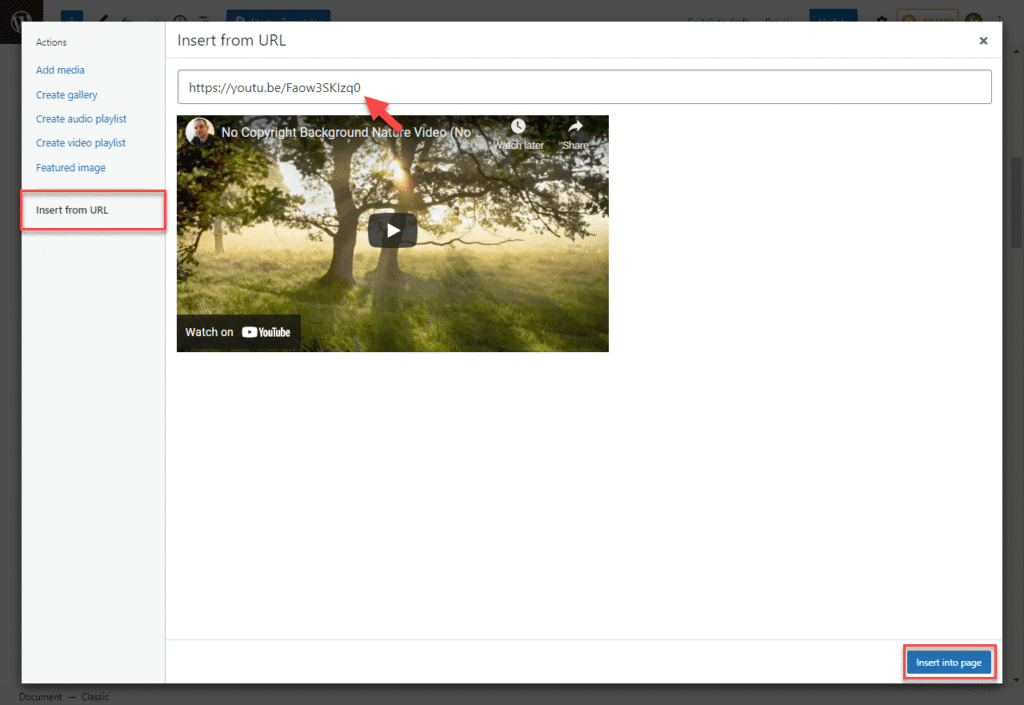
4. Under Actions, select Insert from URL, paste the video URL and click Insert into Page.
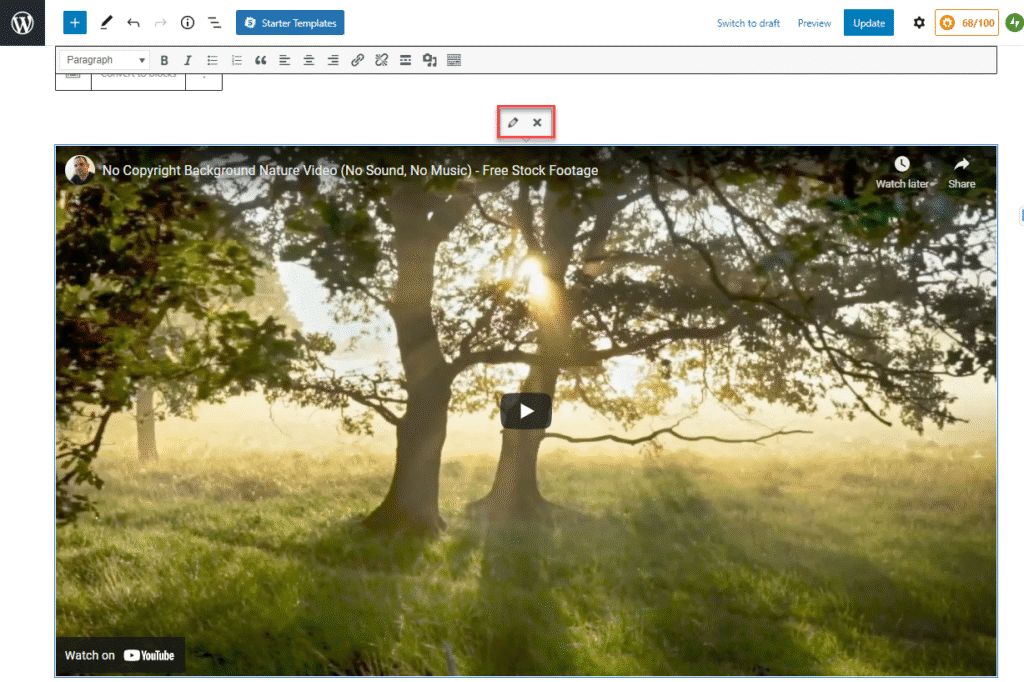
5. Update or publish the page and preview it to confirm the video is embedded correctly.
Note: You can edit the link to replace the video or remove it by clicking on the pencil icon (edit) or the x icon to delete.
Best for: Quickly embedding externally hosted videos with minimal setup.
How to add video to WordPress website using media blocks?
This method provides more flexibility and is recommended for most users working with the Block Editor.
- Click the + icon (block inserter) at the top of the page or within the content area.
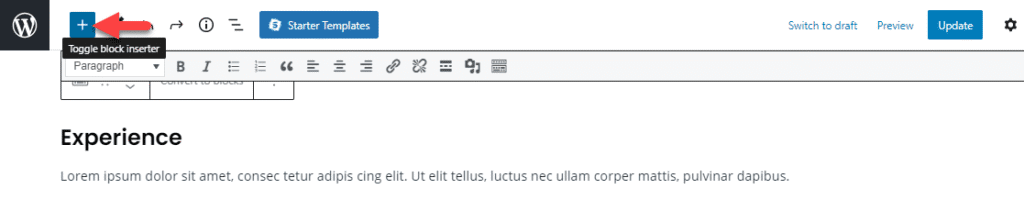
2. Under Media, select the Video block.
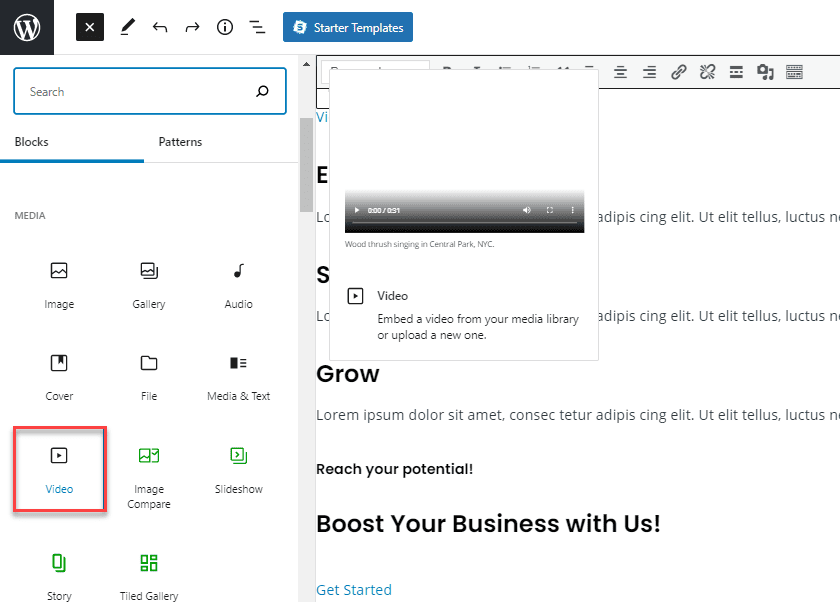
Once selected, you’ll see several options to add your video:
- Upload a video file from your computer
- Choose a video from the Media Library
- Insert from URL (recommended for YouTube or Vimeo)
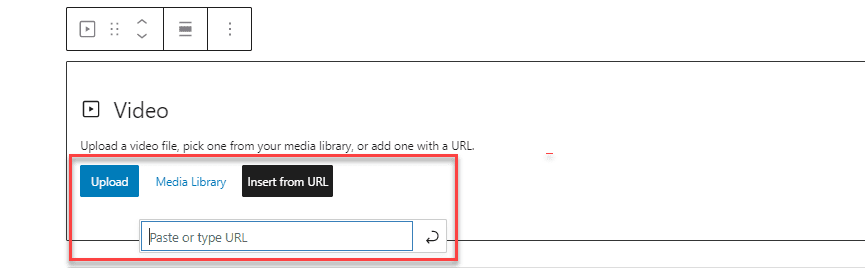
When you paste a supported video URL, WordPress automatically converts it into the appropriate video or platform-specific block.
Tip: Uploading large video files directly to WordPress can slow down your site and consume server resources. For better performance, embed videos using a URL whenever possible.
Best for: Users who want control over layout and settings while working fully within the Block Editor.
How to add video to WordPress website using custom HTML code?
This option is useful when a video platform provides an embed code (iframe) instead of a simple URL.
- Click the + icon and search for Custom HTML under Widgets or Blocks.
- Paste the embed code (usually an iframe) provided by the video platform.
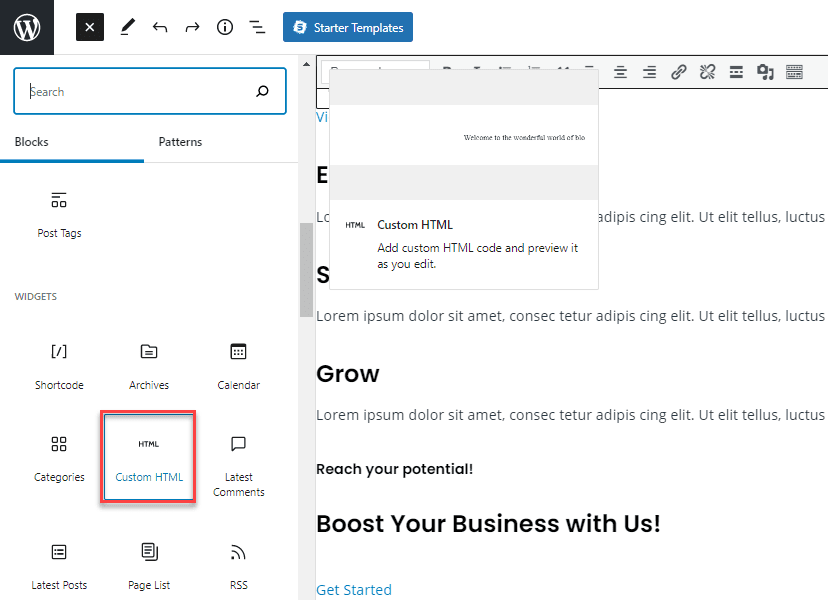
3. Click the Preview tab to make sure the video displays correctly.

4. Publish or update the page once confirmed.

Tip: If the video doesn’t display correctly, double-check the embed code and try pasting it again.
Best for: Advanced embeds or platforms that require iframe code.
Embed videos in your sidebar
Adding videos to your WordPress sidebar can enhance visitor engagement, but it requires a thoughtful approach to avoid overwhelming your site layout. You can embed videos in sidebar areas using WordPress widgets through either the Appearance customizer or the Site Editor, depending on your theme.
- Navigate to Appearance > Widgets in your WordPress dashboard (or use the Site Editor for block themes).
- Select the sidebar area where you want to add your video.
- Add a Video block or Embed block to the widget area.
- Paste your video URL from YouTube, Vimeo or other supported platforms or select an existing video from your Media Library.
- Configure any display settings and click Save or Update.
- Visit your site’s front end to confirm the video displays properly and doesn’t disrupt your sidebar layout.
Keep sidebar videos lightweight by choosing shorter clips and avoiding autoplay to prevent distracting visitors from your main content. Consider the video placement carefully, position it strategically where it complements rather than competes with your primary content. Sidebar videos work best when they provide supplemental value without overwhelming the user experience.
Solving common video embedding problems in WordPress
Video embedding issues in WordPress are common but usually easy to fix. Most problems stem from a few specific causes that you can troubleshoot quickly.
Check these common issues when your video won’t embed:
- Unsupported platform: Ensure your video URL comes from a supported provider like YouTube, Vimeo or other platforms that WordPress recognizes automatically.
- URL placement: Paste the video URL on its own line with no surrounding text or formatting. Extra characters can prevent auto-embedding.
- Editor switching: If you switched between the visual and text editor, try pasting the URL again in a fresh paragraph.
- HTTP vs HTTPS mismatch: Update older HTTP video URLs to HTTPS versions, as mixed content can block embedding on secure sites.
- Caching issues: Clear your browser cache and refresh the page. Sometimes the embed appears live but not in the editor preview.
- Security settings: Check if your hosting provider or security plugins are stripping of iframe elements needed for video embeds.
- Video privacy settings: Verify that the video isn’t set to private or restricted, which prevents public embedding.
If these steps don’t resolve the issue, try using the Custom HTML block with the video platform’s embed code instead.
Final thoughts
Adding video to your WordPress site is an effective way to boost engagement and enrich your content. When learning how to add video to a WordPress website, using external embeds, built-in Video blocks, or custom HTML ensures flexibility without sacrificing performance.
With proper optimization and accessibility features like captions, you can deliver a smooth viewing experience. Bluehost WordPress Hosting further supports media-rich sites with optimized performance and tools that help you manage video content efficiently.
FAQs
Yes, embedding videos from popular platforms like YouTube and Vimeo is completely free. The simplest approach is pasting a supported video URL directly into your content, which WordPress automatically converts into an embedded video player.
Costs only arise if you choose to self-host videos on your own server, which consumes bandwidth and storage space from your hosting plan. For the fastest free setup, copy your video URL from YouTube, Vimeo or other supported platforms and paste it where you want the video to appear.
WordPress handles the embedding automatically through its built-in embed feature. Check the text toolbar method or media blocks section above for detailed step-by-step instructions to get your free video embedded in minutes.
Embedding a video using a URL is usually the best option. It helps maintain site speed while still allowing you to display high-quality video content.
Videos can impact performance if they’re self-hosted. Using externally hosted videos and a reliable WordPress hosting provider helps keep your site fast and stable.
Yes, WordPress allows you to add captions to self-hosted videos. For embedded videos, captions are typically managed on the video hosting platform.
No, most videos can be added using the Block Editor without any coding. Custom HTML is only needed when using iframe embed codes from certain platforms.

Write A Comment