 ChatGPT,
 Claude,
 Gemini,
 Grok — all four for
Key highlights
- Learn how to harden SSH access to prevent unauthorized server logins.
- Discover the exact UFW firewall rules needed to restrict port 11434.
- Understand how to bind the Ollama API securely to localhost.
- Explore setting up an Nginx reverse proxy with SSL for encrypted traffic.
- Compare Bluehost VPS plans for deploying your private AI models securely.
Running an Ollama server on a VPS gives you full control over your private AI models, but that control comes with serious responsibility. Without proper hardening, your server becomes an easy target. If you want to secure an Ollama server on a VPS, the process starts before your first model ever loads.
A default Ollama installation exposed to the public internet is an open door for unauthorized access, API abuse, and data breaches. Proper Ollama server security requires locking down network ports, restricting API bindings, and enforcing encrypted connections at every layer.
This guide walks you through five essential, proven steps to harden your VPS environment from the ground up and keep your AI infrastructure strictly under your control.
What are the prerequisites for securing Ollama?
Before hardening your AI environment, make sure these essentials are in place.
- Root or sudo access to your VPS to modify firewall rules, system services, and network configurations.
- Ollama installed and running with the service active and reachable on port 11434.
- Basic Linux command-line familiarity with SSH and shell navigation.
- Adequate server resources including sufficient CPU, memory, and storage to run models smoothly.
- A recent VPS backup to safeguard your configurations before making system-level changes.
Once these are in place, you’re ready to begin the five-step hardening process.
How do you secure your Ollama server step-by-step?
Securing your private AI server requires a structured approach across multiple system layers. This process locks down network traffic and restricts application access.
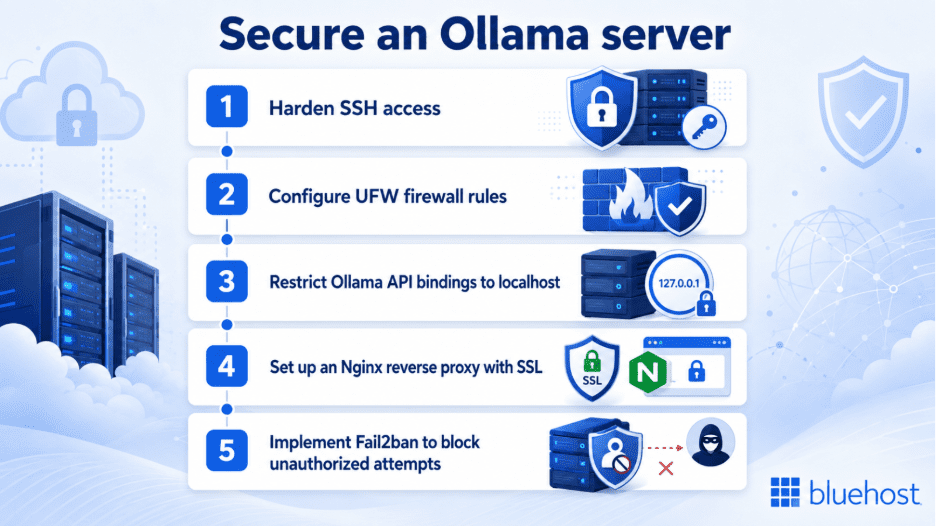
Follow these five steps to secure your deployment.
Step 1: Harden SSH access
Leaving default SSH configurations active invites brute-force attacks from automated bots. You must disable root login via SSH to remove an obvious attack vector. Instead, enforce SSH key-based authentication and disable password logins entirely. This ensures only users with the correct cryptographic keys can access your server. Edit your SSH daemon configuration file to apply these changes immediately. Next, you need to filter the traffic reaching your machine.
Step 2: Configure UFW firewall rules
A firewall acts as the primary shield for your virtual private server. Set your default Uncomplicated Firewall rules to deny incoming and allow outgoing traffic. You must explicitly allow SSH and HTTP/HTTPS traffic for legitimate connections. Most importantly, block direct external access to Ollama’s default port 11434. Once your firewall is active, you must configure the application itself.
Step 3: Restrict Ollama API bindings to localhost
By default, some installations might listen on all available network interfaces. You must modify the Ollama systemd service to bind exclusively to 127.0.0.1. This change forces the application to only accept internal requests. It effectively prevents the API from listening on public IP interfaces. Restart the service after making this change to apply the new host binding. Now you need a secure way to route external requests to this internal service.
Step 4: Set up an Nginx reverse proxy with SSL
A reverse proxy creates a secure gateway for your local Ollama service. Install Nginx to handle all incoming web traffic safely. You can also incorporate additional website security measures to harden your public endpoints further. This ensures only authorized clients can send prompts to your AI models. Use Let’s Encrypt to generate an SSL certificate for encrypted communication. This protects your data from interception over public networks. After securing the connection, you should monitor for malicious activity.
Step 5: Implement Fail2ban to block unauthorized attempts
Active monitoring helps stop repeated attacks against your infrastructure. Install Fail2ban to watch your system authentication logs automatically. You can configure a jail to block IP addresses showing malicious behavior. This includes blocking sources with repeated failed logins to your SSH or Nginx services. Fail2ban updates your firewall rules dynamically to keep persistent attackers away.
Let’s look at the best hosting environment for this setup.
Why choose Bluehost for secure VPS hosting?
Managing a private AI server requires robust infrastructure and deep administrative control. A Bluehost VPS plan provides full root access, enabling you to implement custom firewall rules, reverse proxy configurations, and system-level security controls without restriction.
- Full root access ensures complete control over your security configurations. Custom firewall rules and proxy setups can be implemented without any platform restrictions.
- Rapid model loading and prompt responses are guaranteed through NVMe SSD storage. Your AI workloads benefit from significantly faster read and write speeds compared to traditional storage.
- Unmetered Bandwidth keeps your AI endpoints accessible under any traffic conditions. No caps or overage charges, regardless of usage volume.
- Built-in DDoS protection safeguards your endpoints from disruptive volumetric attacks. Your server remains protected automatically without requiring manual intervention.
- A free SSL certificate secures all communications to and from your server. Every API interaction remains encrypted and protected by default.
- Multiple data centers allow you to deploy closer to your audience. This reduces latency and improves overall response reliability for your users.
However, self-managed VPS plans do not include 24/7 expert human support. This means you are fully responsible for maintaining your own server security. Our team offers managed VPS hosting if you prefer technical assistance. Let’s review the most important takeaways for protecting your models.
What are our final thoughts on Ollama server security?
Running a private large language model demands proactive security at every layer. You mitigate external threats by implementing SSH hardening, firewalls and reverse proxies. Leaving a default installation exposed risks serious data breaches and server abuse.
Taking these steps ensures your AI infrastructure remains under your strict control. We recommend deploying the Standard NVMe 2 or Enhanced NVMe 8 plan for an isolated AI environment.
Ready to scale your deployment? Deploy your Ollama with Bluehost VPS hosting and get full root access, NVMe storage and DDoS protection.
FAQs
Yes, but only if you secure it properly. An exposed default installation is highly vulnerable to unauthorized access. You must use firewalls and reverse proxies to ensure safety.
The service runs on port 11434 by default. You should never leave this port open to the public internet. Always route external traffic through a secure proxy like Nginx.
A firewall is essential but not entirely sufficient. You also need an SSL certificate and an authentication layer to protect the data in transit. Relying solely on a firewall leaves gaps in your defense.
You can monitor system logs using native Linux tools like journalctl. Installing Fail2ban automates this process by scanning logs for suspicious activity. It then blocks malicious IP addresses automatically.
Yes, a VPS is required for running private AI models. Shared hosting lacks the root access and dedicated resources needed for these applications. A VPS provides the isolation necessary for strict security.
Ollama does not include built-in authentication. Since it runs on your self-managed VPS, securing access is your responsibility, implement firewall rules, SSH key access, and IP restrictions to protect your installation.
Port 11434 should never be publicly accessible. Keep it closed to the internet and only allow access through secure channels like VPNs or SSH tunnels to prevent unauthorized access to your AI environment.

Write A Comment