 ChatGPT,
 Claude,
 Gemini,
 Grok — all four for
Key highlights
- Compare Google Drive vs Dropbox by storage, syncing, collaboration, pricing, privacy and AI features.
- Choose Google Drive for free storage, document editing, Google Workspace integration and real-time collaboration.
- Choose Dropbox for faster sync, large file delivery, media review and stronger paid file recovery.
- Learn what is Google Drive and how does Google Drive work for cloud storage and productivity.
- Understand what is Dropbox and how does Dropbox work for file syncing, sharing and organization.
- Review Google Drive pros and cons and Dropbox pros and cons before choosing a cloud storage platform.
- Explore Bluehost AI Receptionist for 24/7 lead capture, appointment booking and customer support.
- Use this Google Drive vs Dropbox feature comparison to match each tool with your workflow.
Choosing between Google Drive and Dropbox seems simple until you look closer. While both store files online, sync devices and share data, they serve different purposes. Google Drive centers on document creation, real-time collaboration and Google Workspace integration. Dropbox prioritizes fast file syncing, clean organization and reliable sharing for large files.
Your Google Drive vs Dropbox choice depends entirely on your daily workflow. If you want free storage, integrated productivity tools and easy collaboration, Google Drive is the ideal fit. If you manage large creative assets, need rapid syncing and require advanced file recovery, Dropbox justifies its higher cost.
We compare Google Drive and Dropbox across key areas like storage, pricing, syncing, security and AI features. This breakdown helps you choose the best cloud storage platform for your specific business, personal or creative workflow.
Google Drive vs Dropbox: quick feature comparison
The table below gives you a snapshot of how both services compare across the factors that matter most.
| Feature | Google Drive | Dropbox |
|---|---|---|
| Free storage | 15 GB | 2 GB |
| Entry paid plan | $1.99/month (100 GB) | $9.99/month (2 TB) |
| File sync method | Full-file sync | Block-level sync (faster) |
| Built-in productivity suite | Yes (Docs, Sheets, Slides) | Limited (Dropbox Paper only) |
| Version history | 30 days (standard) | Up to 180 days (paid) |
| Video review tools | No dedicated tool | Dropbox Replay |
| AI features | Gemini AI integrated | AI summaries via Dash |
| Best for | Everyday users and Google ecosystem | Power users and large media files |
What is Google Drive?

Google Drive is Google’s cloud storage and file management platform, launched in 2012. It stores your files online and makes them accessible from any device. With over 1 billion active users (Google, 2023), it ranks among the most popular cloud storage services globally.
How does Google Drive work?
Google Drive uploads your files to Google’s servers and syncs them across linked devices. You access everything through a browser or the Drive for Desktop app.
- Files sync automatically across devices when saved
- Google Docs, Sheets and Slides files do not count toward your storage quota
- Shared drives give teams a collective storage space under group ownership
- Offline access is available after enabling it in your settings
Because access works entirely in a browser, you can open files on any computer without installing software first.
Who is Google Drive best for?
Google Drive fits a wide range of users. It is especially practical for anyone already tied into Google’s other services.
- Students who need free, accessible storage with easy sharing
- Small businesses running on Gmail or Google Workspace
- Individuals who collaborate on documents frequently
- Remote teams that prefer browser-based productivity tools
Google Drive key features
Google Drive bundles substantial value into its free tier. Here are the features that define its core offering:
- 15 GB free, shared across Gmail, Drive and Google Photos
- Built-in editors: Google Docs, Sheets, Slides and Forms
- Real-time document collaboration with commenting and suggestions
- Shared drives for team file ownership
- Gemini AI for file summaries and document drafting
- Deep content search powered by Google’s indexing technology
Google Drive pros and cons
Google Drive balances generous free storage and excellent collaboration tools with a few limitations related to storage management, privacy and file syncing.
Google Drive pros
Google Drive stands out in areas where free access and document collaboration matter most:
- 15 GB free is the most generous free tier among major competitors
- Full productivity suite included at no additional cost
- Real-time multi-user editing in Docs, Sheets and Slides
- Affordable paid storage through Google One
- Works in any browser without software installation
- Powerful content search across all stored files
Google Drive cons
Despite its strengths, Google Drive has a few notable limitations:
- Free 15 GB fills quickly when Gmail usage is heavy
- Desktop sync is slower than Dropbox for large files
- Google may scan file content in some contexts for service improvement
- “Shared with me” folder becomes disorganized without regular cleanup
- Version history is capped at 30 days on standard plans
What is Dropbox?
Dropbox is a dedicated cloud storage service founded in 2007. It focuses on fast file syncing, clean folder management and collaborative file delivery. Dropbox had over 700 million registered users as of 2023 and is widely used by creative teams and businesses handling large files.
How does Dropbox work?
Dropbox uses block-level sync technology to transfer only the changed portions of a file. Block-level sync significantly reduces upload time compared to sending the full file with every change.
- Files sync via the desktop app or direct browser upload
- Smart Sync lets you access cloud files without storing them locally
- Dropbox Paper provides a lightweight space for collaborative notes
- Dropbox Replay enables time-stamped video feedback from collaborators
For teams working with large files or making frequent edits, Dropbox’s sync approach is noticeably more efficient than most alternatives.
Who is Dropbox best for?
Dropbox fits users who prioritize sync reliability and file delivery over built-in document editing. Creative professionals tend to find it a natural fit.
- Freelancers sharing large video, design or photo files with clients
- Teams collaborating with external partners across different platforms
- Businesses requiring reliable desktop sync and long-term version recovery
- Video editors and creative directors using media review tools
Dropbox key features
Dropbox concentrates on reliable file management rather than productivity creation. Its standout capabilities include:
- Block-level sync for faster transfers on large or frequently changed files
- Smart Sync for cloud-only file access without using local disk space
- Dropbox Replay for video review and time-stamped client feedback
- Up to 180-day version history on Plus plans
- Password-protected and expiring shared links
- Integrations with Slack, Zoom and Adobe Creative Cloud
Dropbox pros and cons
Dropbox is best suited for users who prioritize fast syncing, simple file organization and strong sharing controls, but its limited free storage and higher paid pricing may make it less appealing for budget-focused users.
Dropbox pros
Dropbox shines for users who need speed, control and longer file recovery windows:
- Fastest file sync performance among major cloud storage platforms
- Clean, intuitive folder interface similar to your desktop
- Up to 180-day version history on paid plans
- Dropbox Replay simplifies video review for creative teams
- Advanced link controls including passwords and expiry dates
- Strong integrations with Microsoft 365, Adobe and Slack
Dropbox cons
Dropbox has real drawbacks, especially for users evaluating it against the free tier elsewhere:
- Only 2 GB free, the lowest among major competitors
- Paid plans cost more than comparable Google One tiers
- No built-in spreadsheet, presentation or form tool
- Dropbox Paper does not match Google Docs in feature depth
- Team collaboration features require a Business plan
Google Drive vs Dropbox feature comparison
With both platforms covered individually, the next step is to compare Google Drive and Dropbox across the features users care about most. Both tools help you store, organize, share and access files from anywhere, but they are built around different priorities.
Google Drive is more closely tied to productivity, document creation and the Google ecosystem. Dropbox focuses more heavily on fast syncing, clean file management, large file delivery and creative collaboration.
Here is a detailed feature-by-feature comparison to help you decide which platform fits your needs best.
1. Google Drive vs Dropbox: free and paid storage limits
Google Drive gives users 15 GB of free storage, shared across Google Drive, Gmail and Google Photos. This makes it one of the more generous free cloud storage options among major providers. For casual users, students and small teams, 15 GB can be enough to store documents, spreadsheets, PDFs, presentations and a moderate number of images without upgrading right away.
Dropbox offers 2 GB of free storage on its Basic plan. Users can increase this slightly through referrals and promotional offers, but the starting limit is still much smaller than Google Drive’s free tier. This means Dropbox users are more likely to hit their storage limit quickly, especially when uploading photos, videos, design files or work documents.
Key pointers:
- Google Drive offers significantly more free storage from the start.
- Dropbox’s free plan is better suited for light file sharing than long-term storage.
- Google Drive is more practical for users who want to avoid paying immediately.
- Dropbox becomes more useful once you upgrade to a paid plan.
For budget-conscious users, Google Drive’s free storage is far more practical from day one.
2. Google Drive vs Dropbox: paid pricing plans
Google Drive’s paid storage is available through Google One for individuals and Google Workspace for businesses. Google One plans start with lower-cost options, including 100 GB and 2 TB tiers. This gives users more flexibility if they only need a small storage upgrade.
Dropbox’s paid plans start at a higher entry point. Dropbox Plus includes 2 TB of storage, while Dropbox Professional offers more storage and advanced sharing features for individual power users. At the 2 TB level, Google Drive and Dropbox are similar in price, but Google Drive has a cheaper entry-level upgrade.
Key pointers:
- Google Drive is better if you only need a small storage upgrade.
- Dropbox’s paid plans are more expensive at the entry level.
- At the 2 TB tier, pricing is broadly comparable.
- Dropbox justifies its higher cost when sync speed, file recovery and advanced sharing controls matter.
Google Drive is usually more affordable for everyday users, while Dropbox becomes more valuable for users who need professional file management features.
3. Google Drive vs Dropbox: file uploads
Google Drive supports very large individual file uploads, making it useful for storing videos, design files, backups and large business documents. Users can upload files through the browser, desktop app or mobile app. The platform works well for general file storage, especially when users already rely on Gmail or Google Workspace.
Dropbox also supports large file uploads, but upload limits can vary depending on the user’s plan and upload method. Paid Dropbox users get more flexibility for handling larger files, especially when using the desktop app or advanced transfer features.
Key pointers:
- Google Drive supports very large file uploads for storage-heavy users.
- Dropbox handles large files well, especially on paid plans.
- Both platforms support drag-and-drop uploads through browser and desktop apps.
- Dropbox is often better for sending large finished files to clients or collaborators.
Google Drive is strong for storing large files, while Dropbox is better for delivering and managing them in professional workflows.
4. Google Drive vs Dropbox: file syncing
File syncing is one of the biggest differences between Google Drive and Dropbox. Dropbox uses block-level sync, which means it transfers only the changed parts of a file instead of re-uploading the entire file. This is especially useful for large files that are edited often, such as videos, design files, databases or large presentations.
Google Drive syncs files across devices through Drive for Desktop. It works well for everyday documents and general storage, but Dropbox usually feels faster and more reliable when syncing large or frequently updated files.
Key pointers:
- Dropbox is faster for syncing large files and frequent edits.
- Block-level sync gives Dropbox a performance advantage.
- Google Drive sync is reliable for everyday documents and smaller files.
- Teams working with large media files may notice Dropbox’s speed advantage more clearly.
Dropbox wins on sync performance, especially for users who edit and move large files regularly.
5. Google Drive vs Dropbox: file sharing
Both Google Drive and Dropbox make it easy to share files using links or direct invitations. Google Drive is especially convenient for users who already work with Gmail contacts or Google Workspace teams. Permissions can be set for viewing, commenting or editing and collaboration happens naturally inside Google Docs, Sheets and Slides.
Dropbox also offers strong file-sharing tools, especially on paid plans. Users can create shared links, set passwords, add expiration dates and control access more tightly. This makes Dropbox useful for freelancers, agencies and businesses that send files to external clients.
Key pointers:
- Google Drive is simpler for sharing files with Gmail and Google Workspace users.
- Dropbox offers stronger link controls on paid plans.
- Google Drive is better for collaborative editing inside documents.
- Dropbox is better for controlled file delivery to external partners.
Google Drive is stronger for internal collaboration, while Dropbox is stronger for professional file sharing and client delivery.
6. Google Drive vs Dropbox: file organization
Google Drive organizes files using folders, starred items, recent files, shared files and search. It also allows color-coded folders, which helps users visually separate projects or departments. However, the “Shared with me” section can become cluttered when many people share files without a clear folder structure.
Dropbox uses a more traditional folder-based system that closely resembles a desktop file manager. This makes it easy for new users to understand. Files and folders are arranged in a clean structure, which can feel more familiar for people used to Windows or Mac folders.
Key pointers:
- Google Drive offers flexible organization with folders, stars and shared sections.
- Dropbox has a cleaner, more traditional folder structure.
- Google Drive can become cluttered if shared files are not organized regularly.
- Dropbox may feel easier for users who prefer desktop-style file management.
Google Drive works well for users who rely on search and shared access, while Dropbox is better for users who prefer a simple folder-first system.
7. Google Drive vs Dropbox: file search
Google Drive has one of the strongest search experiences in cloud storage. It can search file names, document content and even text inside certain uploaded files. This makes it easier to find older documents, PDFs, spreadsheets and shared files, even when users do not remember the exact file name.
Dropbox search is useful, but it is more focused on file names, folders and metadata. Some advanced search capabilities are available on higher-tier plans, but Google Drive generally offers deeper content-level search for everyday users.
Key pointers:
- Google Drive is better at searching inside documents.
- Dropbox search works well for file names and folder locations.
- Google Drive is more useful when you manage a large number of text-based files.
- Dropbox search is effective when files are organized clearly by folders.
Google Drive wins for search depth, especially for users who need to find documents by content rather than file name.
8. Google Drive vs Dropbox: collaboration tools
Google Drive is built around real-time collaboration. Multiple users can work in the same Google Doc, Sheet or Slide at the same time. Comments, suggestions and revision history make it easy to edit, review and approve work without sending files back and forth.
Dropbox supports collaboration through shared folders, Dropbox Paper and Dropbox Replay. Its collaboration features are more file-centered than document-centered. This makes Dropbox useful for teams reviewing creative assets, videos, images and final deliverables.
Key pointers:
- Google Drive is better for real-time document collaboration.
- Dropbox is better for file-based collaboration and review.
- Google Docs, Sheets and Slides make Google Drive stronger for writing and planning.
- Dropbox Replay gives Dropbox an edge for video and creative feedback.
Google Drive leads for document-focused teams, while Dropbox leads for creative teams managing files and media assets.
9. Google Drive vs Dropbox: productivity apps and document editing
Google Drive includes Google Docs, Sheets, Slides and Forms at no extra cost. These tools allow users to create and edit documents, spreadsheets, presentations and forms directly in the browser. For many users, this removes the need for separate office software.
Dropbox includes Dropbox Paper, which is useful for simple notes, project plans and collaborative writing. However, it does not fully replace a complete productivity suite. Dropbox can integrate with Microsoft 365 and Google Workspace, but its native editing tools are more limited.
Key pointers:
- Google Drive includes a complete productivity suite.
- Dropbox Paper is useful but more limited.
- Google Drive is better for creating documents from scratch.
- Dropbox works better when paired with Microsoft 365 or other external tools.
Google Drive is the stronger choice for users who want cloud storage and document editing in one platform.
10. Google Drive vs Dropbox: version history and file recovery
Version history is important when users need to restore older versions of a file or recover deleted work. Google Drive offers version history for files, with standard recovery limits depending on the file type and account settings. For Google Docs, Sheets and Slides, users can review changes and restore earlier versions easily.
Dropbox offers stronger version history on paid plans. Dropbox Plus includes longer file recovery windows, and Dropbox Business plans can extend recovery even further. This makes Dropbox valuable for businesses and professionals who need more protection against accidental edits, deletions or overwrites.
Key pointers:
- Google Drive version history is useful for documents and everyday recovery.
- Dropbox offers longer recovery windows on paid plans.
- Dropbox is better for users who need extended rollback options.
- Google Drive is sufficient for most basic document recovery needs.
Dropbox holds a clear advantage for paid users who need longer version history and stronger file recovery.
11. Google Drive vs Dropbox: security
Both Google Drive and Dropbox use strong security protections, including encryption in transit and at rest. Both platforms also support two-factor authentication, which adds an extra layer of protection to user accounts.
Google benefits from the broader security infrastructure of the Google ecosystem, including account alerts, suspicious login detection and admin controls for Workspace users. Dropbox also provides business-focused security features, including remote device wipe, team management controls and advanced sharing permissions.
Key pointers:
- Both platforms offer strong baseline security.
- Both support two-factor authentication.
- Google Drive benefits from Google’s wider account security system.
- Dropbox Business provides strong admin and device management controls.
For most users, both platforms are secure enough for everyday cloud storage. Businesses should compare admin controls, compliance needs and data policies before choosing.
12. Google Drive vs Dropbox: privacy
Privacy is another important factor when comparing Google Drive and Dropbox. Google may process or scan certain file content to provide features, detect abuse, improve services or support search and AI functionality. This can concern users who want clearer separation between their stored files and broader platform data use.
Dropbox positions itself more directly as a file storage and syncing platform. It does not scan user files for advertising purposes, which may appeal to users and businesses that prioritize privacy.
Key pointers:
- Google Drive offers powerful features, but some rely on content processing.
- Dropbox has a clearer storage-first privacy position.
- Privacy-focused users may prefer Dropbox’s separation from advertising systems.
- Businesses should review each provider’s current privacy and data handling policies.
Dropbox may have an advantage for users who prioritize privacy clarity, while Google Drive offers more intelligent features in exchange for deeper platform integration.
13. Google Drive vs Dropbox: integrations and app ecosystem
Google Drive integrates deeply with Gmail, Google Calendar, Google Meet, Google Docs, Google Sheets and Google Slides. It also connects with many third-party apps through the Google Workspace Marketplace. This makes it a natural fit for users and businesses already working inside Google’s ecosystem.
Dropbox integrates with tools such as Slack, Zoom, Adobe Creative Cloud and Microsoft 365. These integrations make Dropbox especially useful for teams that use a mix of creative, communication and office tools.
Key pointers:
- Google Drive is best for users already using Google Workspace.
- Dropbox is better for teams using multiple external tools.
- Google Drive works smoothly with Gmail, Docs, Sheets and Meet.
- Dropbox connects well with Adobe, Slack, Zoom and Microsoft 365.
Google Drive is stronger inside the Google ecosystem, while Dropbox is more flexible for mixed-tool workflows.
14. Google Drive vs Dropbox: automation and workflow tools
Google Drive supports workflow automation through Google Apps Script, Google Workspace add-ons and third-party platforms like Zapier. This gives technical users and teams many ways to automate file management, reporting and document workflows.
Dropbox also offers automation features that allow users to set up rules for organizing files, naming files and managing folders. These tools are easier for non-technical users because they do not require scripting knowledge.
Key pointers:
- Google Drive offers more advanced automation through Apps Script.
- Dropbox provides simpler no-code automation options.
- Google Drive is better for technical or custom workflows.
- Dropbox is better for simple file organization automation.
Google Drive offers more flexibility for advanced users, while Dropbox is easier for basic workflow automation.
15. Google Drive vs Dropbox: AI features
Google Drive uses Gemini AI across Google Workspace to help with file summaries, document drafting, Q&A and productivity tasks. Because Gemini connects with Google Docs, Sheets, Slides and Gmail, its AI features feel more integrated across the workspace.
Dropbox offers AI-powered search and summaries through tools like Dropbox Dash and Dropbox AI features. These are useful for finding information across files and summarizing content, especially in business environments.
Key pointers:
- Google Drive’s AI is more connected to document creation and editing.
- Dropbox AI is useful for search, summaries and file discovery.
- Google Drive is stronger for users who want AI inside productivity apps.
- Dropbox is useful for teams that need AI support across stored files.
Google Drive has the advantage for AI-assisted writing and productivity, while Dropbox is stronger for AI-powered file search and retrieval.
16. Google Drive vs Dropbox: media collaboration and large files
Dropbox is especially strong for creative workflows. Dropbox Replay allows collaborators to leave time-stamped comments directly on videos, making it easier to review edits, collect feedback and manage approvals. This is valuable for video editors, agencies, photographers and creative directors.
Google Drive supports video previews, file comments and sharing, but it does not offer the same dedicated media review experience as Dropbox Replay. It can store and share large media files, but the review workflow is less specialized.
Key pointers:
- Dropbox is better for video review and media collaboration.
- Dropbox Replay helps teams leave time-stamped feedback.
- Google Drive works well for storing and previewing media files.
- Creative teams may find Dropbox more efficient for large file workflows.
Dropbox provides a meaningful advantage for teams that regularly work with video, design or other large media files.
17. Google Drive vs Dropbox: ease of use
Google Drive is easy to access through a browser and works naturally for users who already have a Google account. However, because it includes storage, sharing, document editing, recent files and shared files in one interface, it can feel busy for new users.
Dropbox has a cleaner and simpler interface focused mainly on files and folders. Its layout is closer to a traditional desktop file system, which makes it easier for many users to understand quickly.
Key pointers:
- Google Drive is easy for users already familiar with Google apps.
- Dropbox has a cleaner and more focused file management interface.
- Google Drive can feel more crowded because it includes many productivity tools.
- Dropbox may be easier for first-time cloud storage users.
Dropbox is usually easier to navigate at first, while Google Drive becomes more powerful once users are comfortable with its ecosystem.
18. Google Drive vs Dropbox: desktop and mobile experience
Both Google Drive and Dropbox offer desktop apps for Windows and Mac, along with mobile apps for iOS and Android. Google Drive’s mobile experience is especially strong on Android because it integrates closely with Gmail, Google Photos and other Google apps.
Dropbox’s desktop app is often preferred by users who want fast syncing and a file experience that feels close to local storage. It is particularly useful for users who frequently move, update or share large files from their desktop.
Key pointers:
- Both platforms work across desktop and mobile devices.
- Google Drive is especially convenient for Android and Google users.
- Dropbox has a strong desktop syncing experience.
- Dropbox may feel smoother for users managing large files from a computer.
Google Drive is better for mobile users inside the Google ecosystem, while Dropbox is stronger for desktop-heavy workflows.
With the full feature picture covered, the next step is matching each platform to your specific situation.
Google Drive vs Dropbox: which is better for your needs?
The best choice depends on what you use cloud storage for most often. Some users need simple file access, while others need faster syncing, stronger recovery or creative review tools.
1. Best for personal use
Google Drive is the stronger choice for personal use. The 15 GB free tier, Gmail integration and free Docs suite cover most individual needs without spending anything.
2. Best for students
Students benefit most from Google Drive. Free access, any-device availability and straightforward document sharing with classmates make it the practical default for academic work.
3. Best for freelancers
Dropbox suits freelancers who exchange large design, photo or video files with clients. Granular link controls and longer version history add real, day-to-day value for client-facing work.
4. Best for small businesses
Google Drive paired with Google Workspace is cost-effective for small businesses. One subscription covers email, storage, video calls and productivity tools together.
5. Best for teams and collaboration
Google Drive is the stronger option for document-focused teams. Real-time editing with comments and tracked suggestions in Docs and Sheets is hard to replicate at the same price.
6. Best for creators and large media files
Dropbox is better for creative professionals. Dropbox Replay, fast block-level sync and high-capacity plans make handling large video and design files more manageable in practice.
7. Best for Google Workspace users
Google Drive is the natural fit if your team already runs on Google Workspace. Every tool shares one interface and one sign-in with no additional configuration.
8. Best for Microsoft 365 users
Dropbox integrates more smoothly with Microsoft 365. You can open and edit Word, Excel and PowerPoint files directly within the Dropbox interface without switching platforms.
Google Drive vs Dropbox: which should you choose?
Once you know how each platform performs, the final decision becomes easier. Use your storage needs, collaboration style and file-sharing workflow to decide which option fits best.
Choose Google Drive if
- You want maximum free storage without paying
- Your team works primarily in Docs or Sheets
- Powerful content search across files is a priority
- You need an affordable, all-in-one productivity platform
Choose Dropbox if
- Fast, reliable file sync is non-negotiable for your workflow
- You work with large media files on a regular basis
- Extended version history is important for file recovery
- You collaborate with external partners using varied tools
Use both Google Drive and Dropbox if
- Your team creates documents internally but delivers final files via Dropbox
- You need Google’s productivity tools alongside Dropbox’s video review capabilities
- Different team members already have active accounts on each platform
Using both services together is more common than it might sound. Many agencies create internal drafts in Google Drive and deliver polished files to clients through Dropbox.
Google Drive and Dropbox alternatives to consider
If neither service fully matches your requirements, these four alternatives are worth evaluating alongside them.
1. OneDrive

Microsoft OneDrive integrates directly with Windows and Microsoft 365 apps. It offers 5 GB free and is the top choice for users already working within the Microsoft ecosystem.
2. iCloud Drive
Apple’s iCloud Drive is built into iPhones, iPads and Macs. It provides 5 GB free and syncs seamlessly across Apple devices without any additional setup.
3. Box
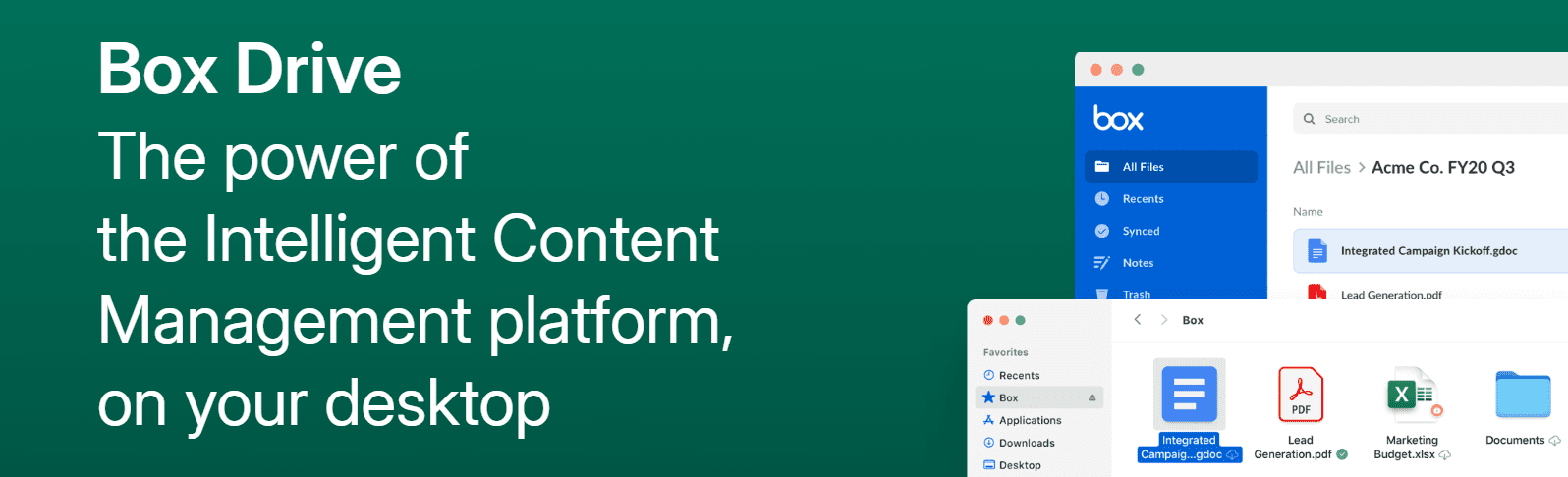
Box targets enterprise teams with strict compliance requirements. It supports HIPAA and FedRAMP standards, making it a common choice in healthcare, legal and government sectors.
4. Sync

Sync offers end-to-end encrypted cloud storage for users who prioritize verifiable data privacy beyond what either Google Drive or Dropbox provides in their standard plans.
Keep your front desk covered with Bluehost AI Receptionist
Choosing the right cloud storage tool helps your business organize files, but customer communication still needs to happen quickly. For service-based businesses that rely on appointments, lead capture and frequent customer questions, AI Receptionist helps automate front-desk and sales desk operations without requiring 24/7 staffing.
Bluehost Receptionist provides 24/7 sales support and appointment booking through your website. It helps businesses respond to customers around the clock, answer routine questions, capture leads and reduce scheduling friction when the human team is busy or offline. Unlike a generic chatbot, AI Receptionist is trained on your company’s knowledge base, documents and resources. It can also be configured with your custom voice and tone, helping every response feel more consistent with your brand.
With AI Receptionist, businesses can:
- Respond 24/7: Provide instant, context-aware answers to customer questions day or night.
- Capture more leads: Engage prospective customers when they are ready to act, including after business hours.
- Automate appointment management: Let customers book, reschedule or cancel 30-minute slots through Google Calendar integration.
- Answer business-specific questions: Train the agent on your documents and resources so responses are based on company-specific information.
- Maintain brand consistency: Define a custom voice and tone so the agent feels like a natural extension of your team.
- Reduce routine workload: Automate repetitive FAQs and calendar management so staff can focus on higher-value tasks.
- No-code setup: Get your AI Receptionist live without coding or complex technical setup.
- Qualify leads: Identify visitor intent and move prospects toward a booking before they reach your team.
- Track performance insights: Use the admin dashboard to review chat history, bookings, session trends and common topics.
- Get implementation support: Work with Bluehost Pro Services to configure and launch your AI Receptionist.
AI Receptionist is a practical fit for businesses that receive high inquiry volumes, depend on appointment booking and need faster customer responses during and after business hours. Google Drive or Dropbox can help organize business files, while AI Receptionist helps turn customer interest into timely conversations, booked appointments and fewer missed opportunities.
Final thoughts
Neither platform wins outright. The better choice depends on how you store, share and collaborate on files every day.
- Google Drive is better for free storage, document editing and budget-focused teams.
- Dropbox is better for sync performance, deeper version history and media-heavy workflows.
- Both platforms are reliable, widely used and built for different types of users.
For most individuals and small teams starting fresh, Google Drive’s free storage and built-in productivity tools offer the stronger starting point. If your workflow depends on fast syncing, large file transfers or dedicated media review, Dropbox may justify the higher cost.
The best approach is to test both platforms with your real files, team habits and daily workflow. Once your file management is in place, look at the next part of your business operations: customer communication.
With Bluehost AI Receptionist, service-based businesses can respond to inquiries 24/7, capture leads, automate appointment booking and reduce routine front-desk work. It helps your team stay responsive even after hours, so fewer customer opportunities slip away.
FAQs
Google Drive is better for document editing, free storage and Google ecosystem integration. Dropbox is better for sync speed, version history and media collaboration. The right choice depends on your specific workflow.
Both platforms use 256-bit AES encryption. Dropbox does not scan your files for advertising, giving it a slight privacy edge. For strict enterprise compliance requirements, Box may be a stronger option than either service.
Yes. Google Drive provides 15 GB free, while Dropbox offers only 2 GB. Google’s free tier is significantly more practical for everyday personal storage needs.
Google Drive is cheaper at most storage tiers. Google One’s 100 GB plan starts at $1.99/month. Dropbox’s entry paid plan begins at $9.99/month for 2 TB.
Google Drive is simpler for sharing with Gmail contacts. Dropbox offers more advanced options, including password-protected links and link expiry dates, on paid plans.
Google Workspace suits businesses wanting a combined email, storage and productivity platform. Dropbox Business is better for teams requiring advanced file management and external collaboration tools.
Google Drive leads for real-time document collaboration. Dropbox leads for creative file review, particularly through Dropbox Replay for video feedback workflows.
Yes. Many teams use both simultaneously. A common setup is using Google Drive for document creation and Dropbox for final file delivery to clients or external stakeholders.
Google Drive is a productivity-first platform with built-in document editing tools. Dropbox is a storage-first platform focused on fast, reliable file syncing and management.
Dropbox handles large files more efficiently due to block-level sync technology. Google Drive supports individual files up to 5 TB, but syncing large files is generally slower by comparison.

Write A Comment